


The year before last, we introduced the editing software Jianying. If you remember, at that time, after having Jianying recognize the subtitles, you still had to use other software to capture the SRT subtitles from it. If you forget, you can watch it.This article. Later, as the cut version was updated, the tools introduced before could no longer be used, and were not even updated.
If you only rely on editing to identify subtitles, you can actually export SRT subtitles using the old method as long as you don’t update the editing. However, if your main editing software is editing, it may be slightly inconvenient to be unable to export SRT subtitles. However, with the update of the editing version, the function of exporting SRT subtitles has finally been added to the editing version (cheers. Now I am looking forward to every update of the editing version, because its functions are becoming more and more complete. The focus is still on a set of “free” software. Leaving aside some paid materials, the built-in free materials allow you to use most of the functions. It can be said to be one of the must-learn software for today’s editing novices:
Tutorial on clipping and self-exporting SRT subtitles
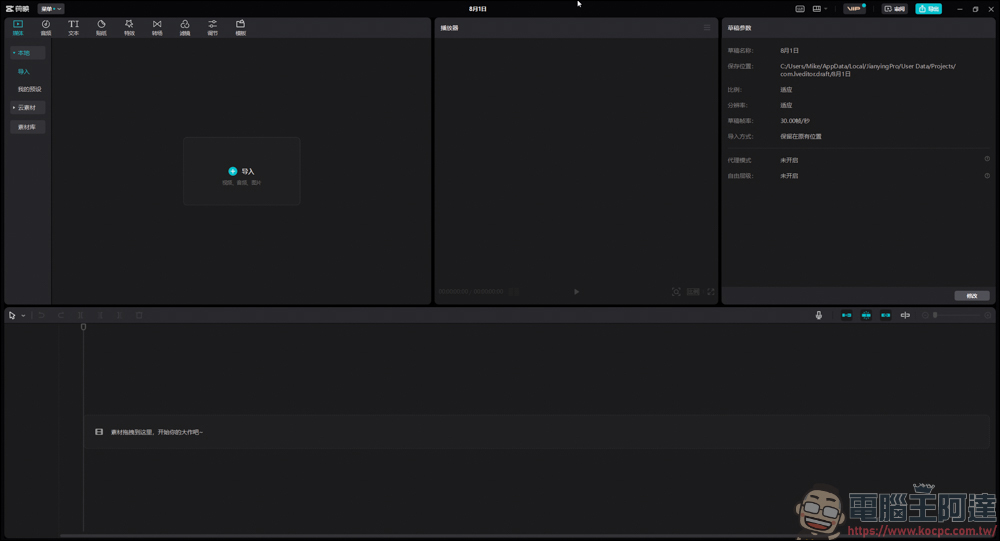
Needless to say, first open your editing software:
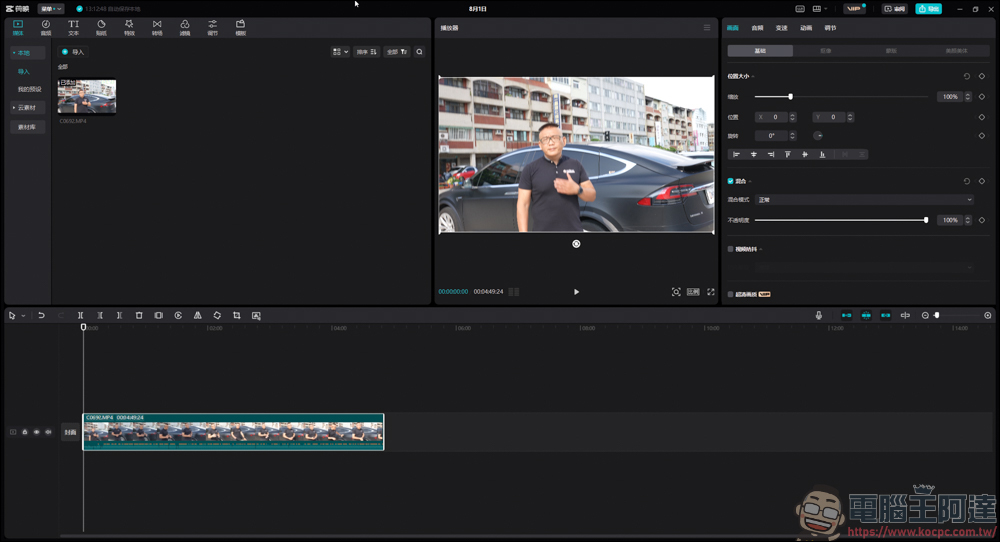
Read the video whose subtitles are to be recognized:
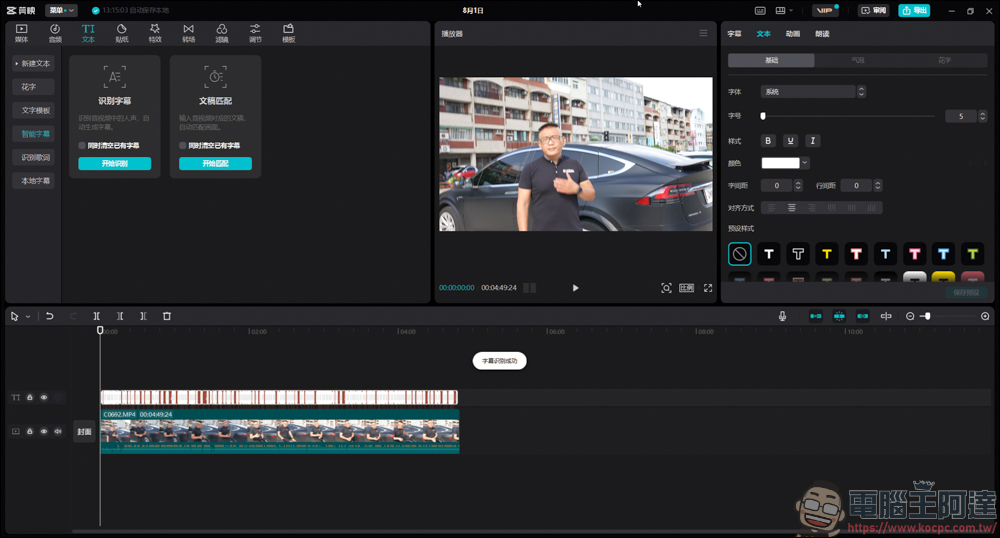
Execute the subtitle recognition function until the recognition is successful:
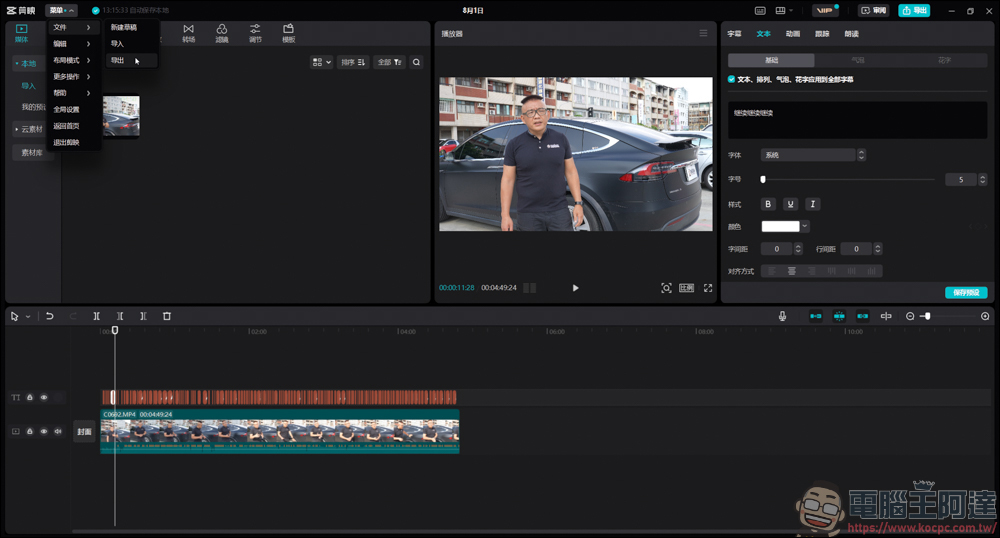
Then click [Menu] → [File] → [Export] in the upper left corner:
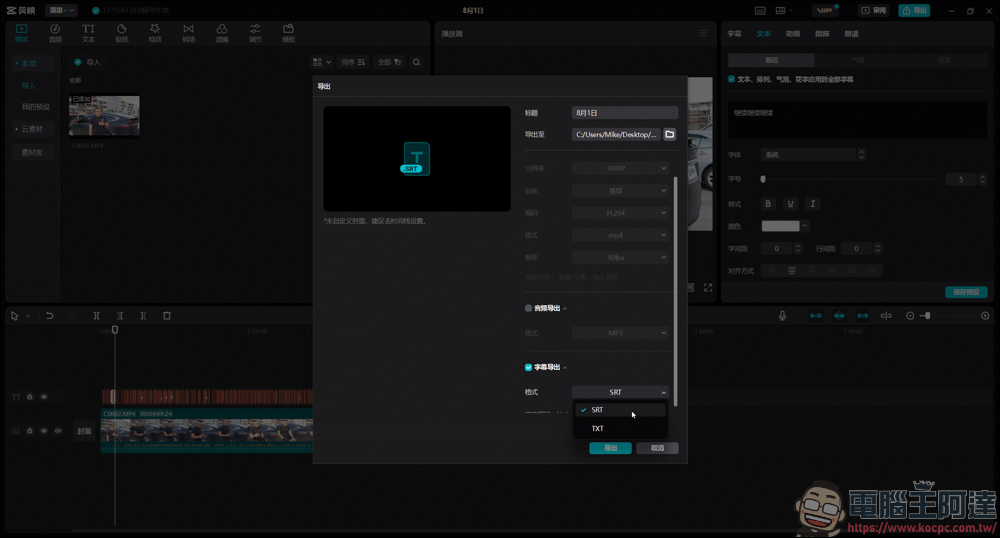
Since we only need to export SRT subtitles, there is no need to export the video or audio. Just check the [Subtitle Export] option. If you need timecode, export [SRT]. If you only need plain text, export [TXT]:
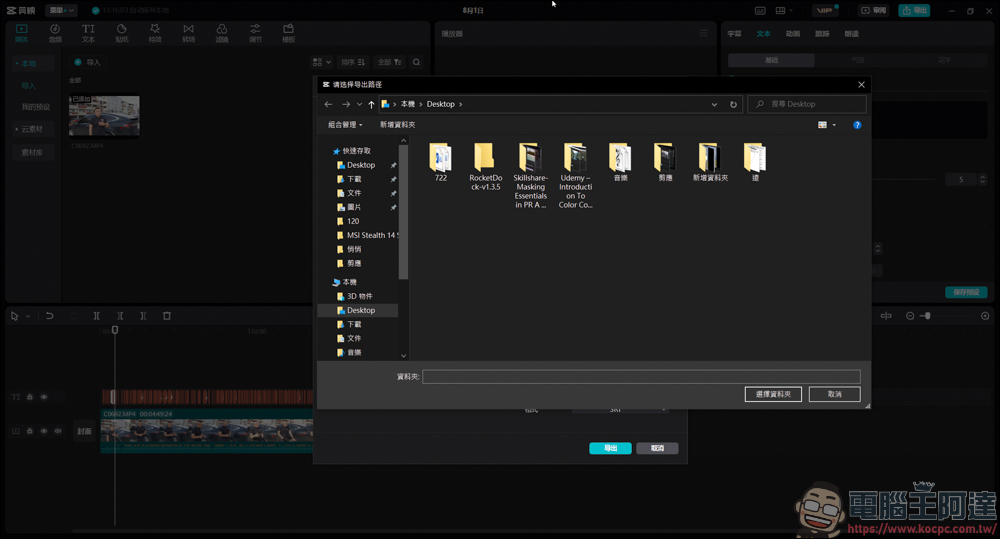
Select folders to export:
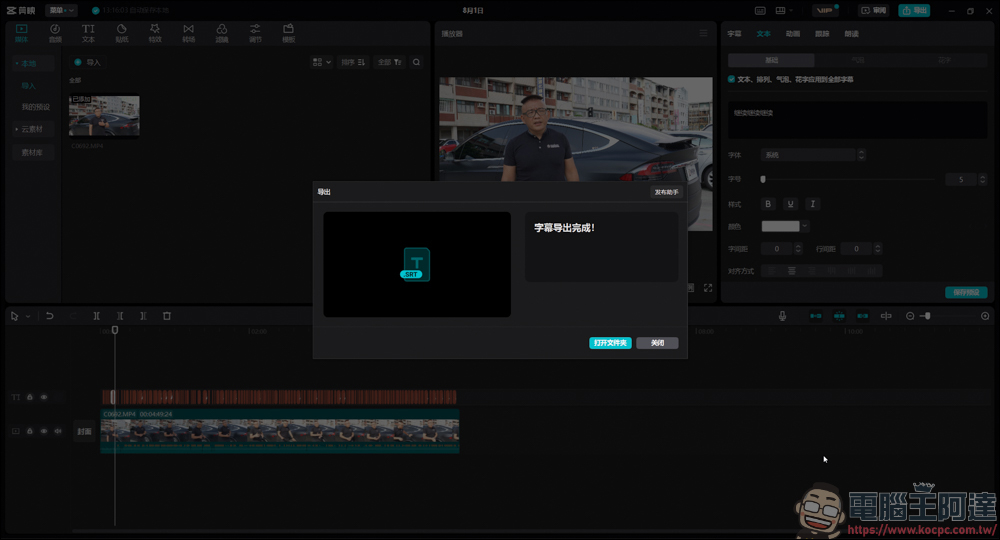
This completes the export of SRT subtitles:
Since the language used for editing is Simplified Chinese, the exported subtitles will naturally be in Simplified Chinese. If you want the exported subtitles to be defaulted to Traditional Chinese, you can also look at our previousteaching, so you don’t need to rely on Word.. and other tools to convert Simplified to Traditional Chinese, and you can save a lot of steps:
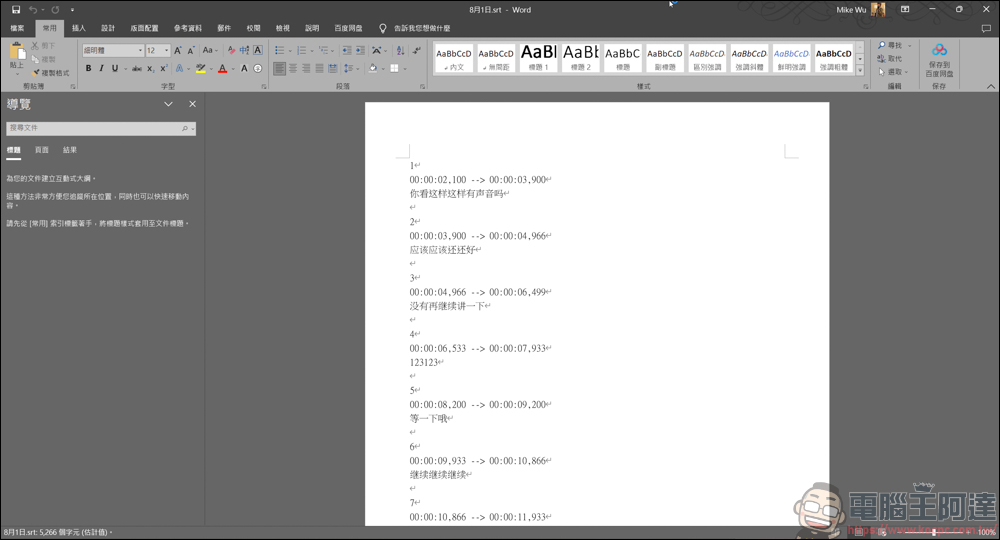
If you are like me and only use it to recognize subtitles, export the SRT and go to [WORD] → [Proofreading] → [Simplified to Traditional]:
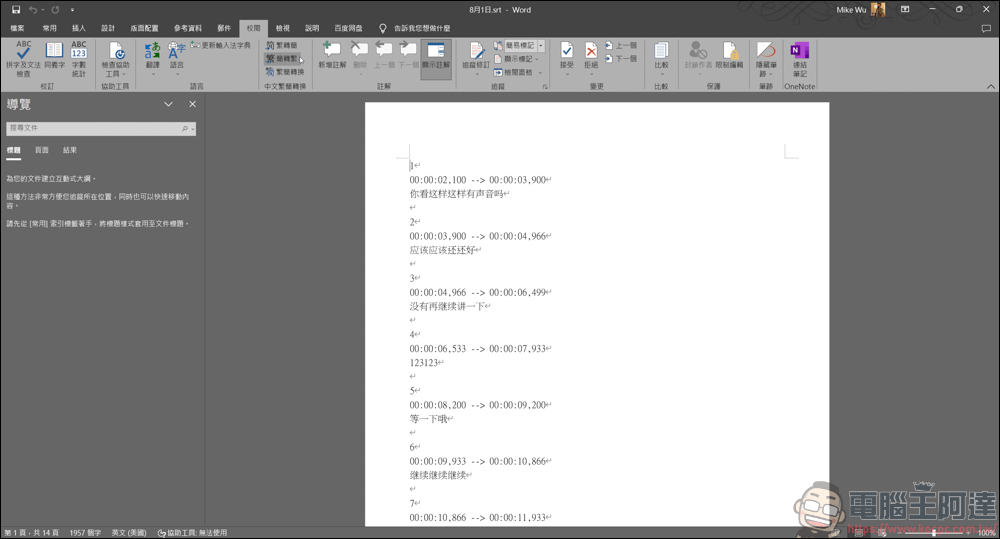
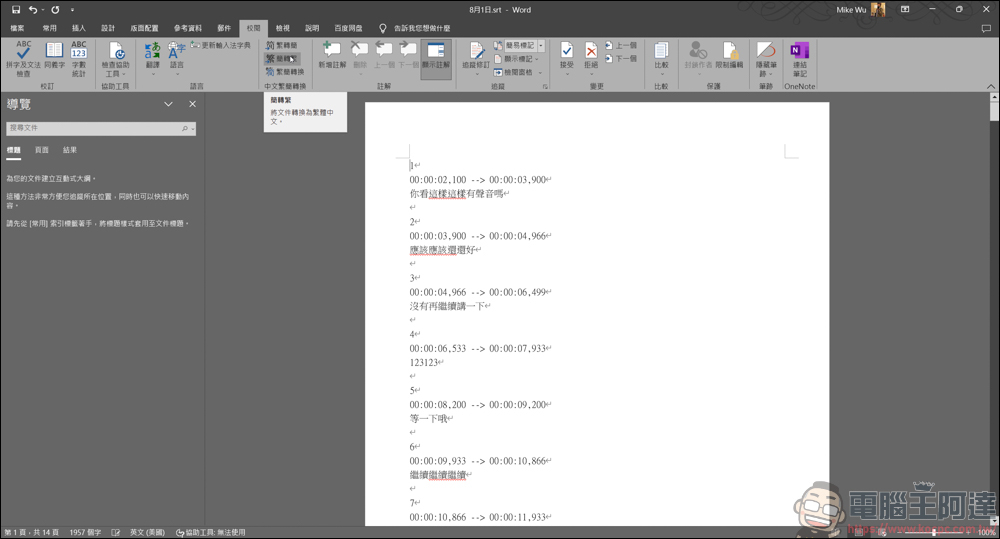
In this way, all subtitles will be in Traditional Chinese, and then just click Save:
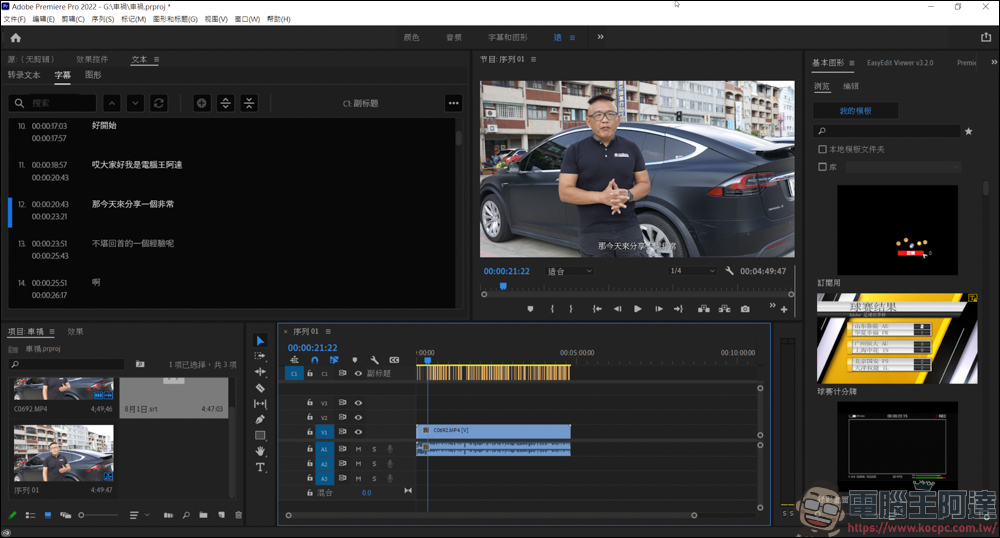
After throwing it into Premiere like this, the timeline of the subtitles will be consistent with the video. Or if you want to take the subtitles to YouTube as CC subtitles, the export method will be much more convenient than before. The above is the tutorial for editing and exporting subtitles this time.
Source: KOCPC Chinese