


In the past week, Twitter’s changes have exceeded many people’s imagination. In addition to the unexpected announcement of replacing the classic Bluebird Logo with a new X, it didn’t take long for the replacement to be completed very efficiently. Just earlier today (29th), the Twitter iOS App was officially replaced with “X”. In addition to officially bidding farewell to the bluebird icon, even the name displayed on the main screen of the App was changed from Twitter to X. If you also miss the original Bluebird Logo and hope you can easily find it when you open Twitter, this article will teach you how to use this trick to get back the classic Bluebird!

The Twitter iOS app has been officially replaced with the “X” icon and name. Here’s how to bring back the classic Bluebird (tutorial)
A few days ago, Elon Musk officially changed the new logo of Twitter to his favorite X, which also caused many loyal Twitter users to collapse and create various Twitter memes on the community for fun. But after all, it has become a fact that Twitter’s bluebird logo will never go back, except that the new X.com domain and the new version of the X Logo have been online on the computer version of Twitter for a few days. Just earlier, the iOS version of Twitter App was also officially announced to be replaced by X!

A few hours ago, Twitter released version 9.68 update. In addition to the routine mentions of improvements and bug fixes to make Twitter more user-friendly, the most important thing is that “Bluebird” has officially entered history.
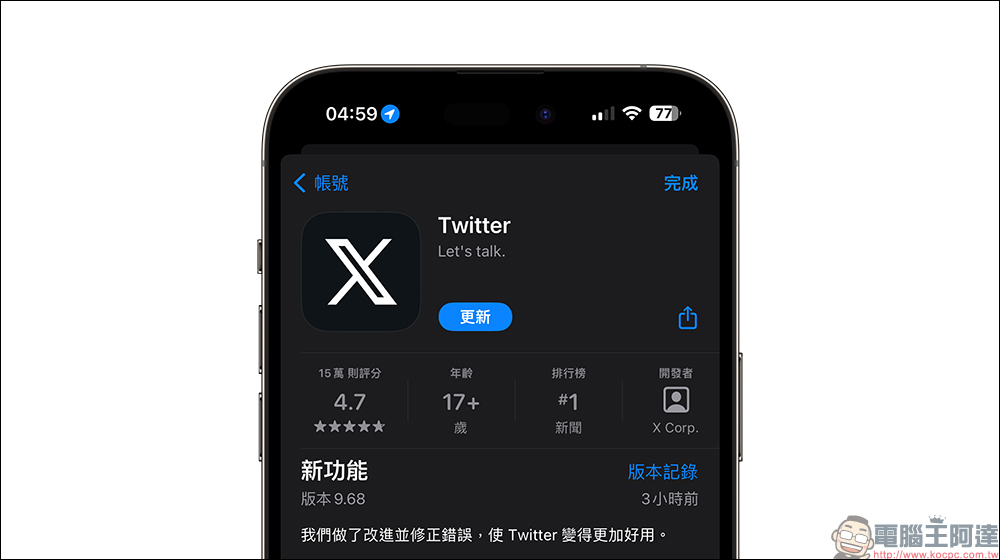
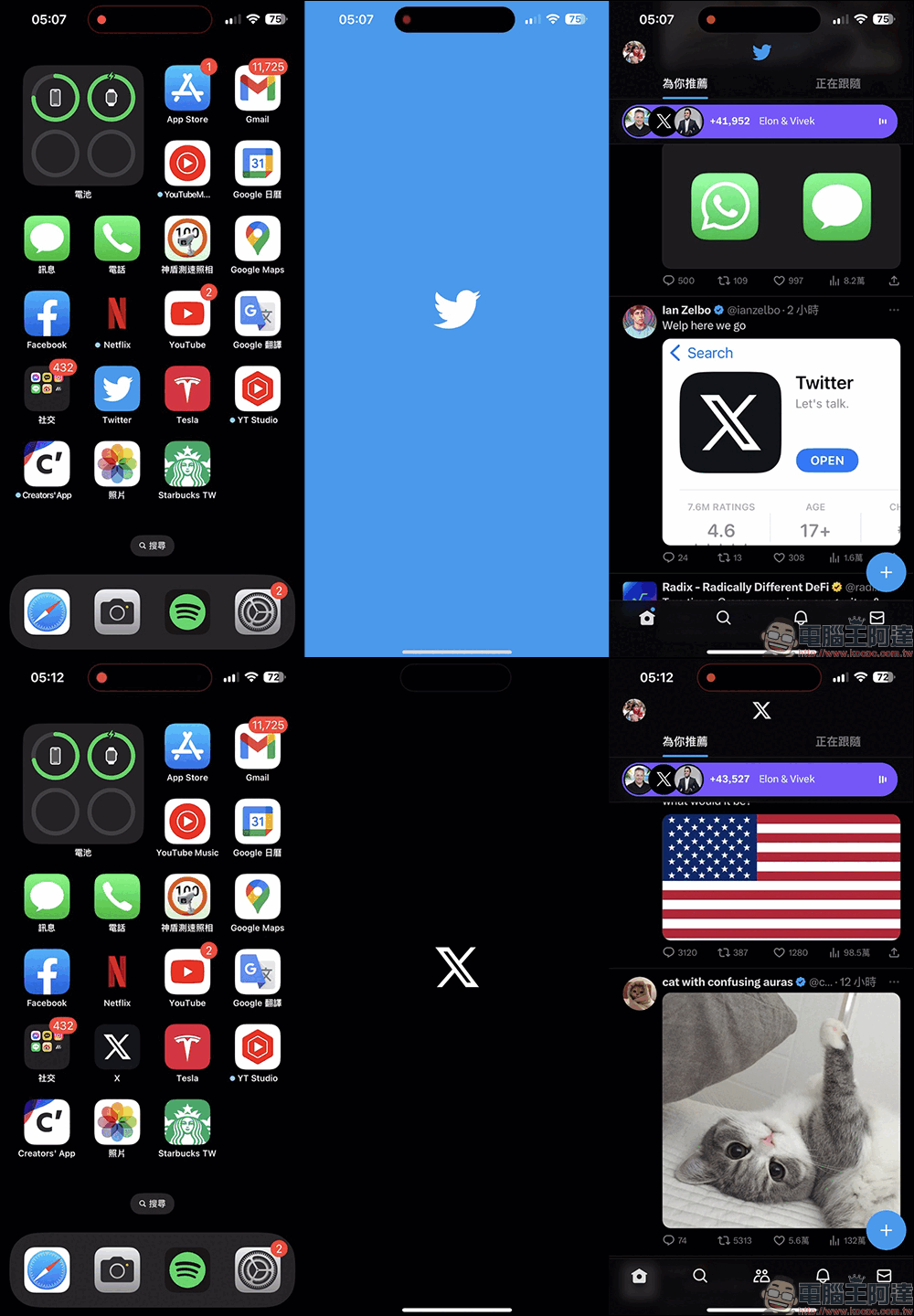
Before the update, Twitter’s iOS home screen still had the classic icon and Twitter name, and a blue-and-white screen was also displayed when the app was opened. But as soon as it is updated, not only the icon on the Twitter home screen changes to X, but even the app name also changes to X.
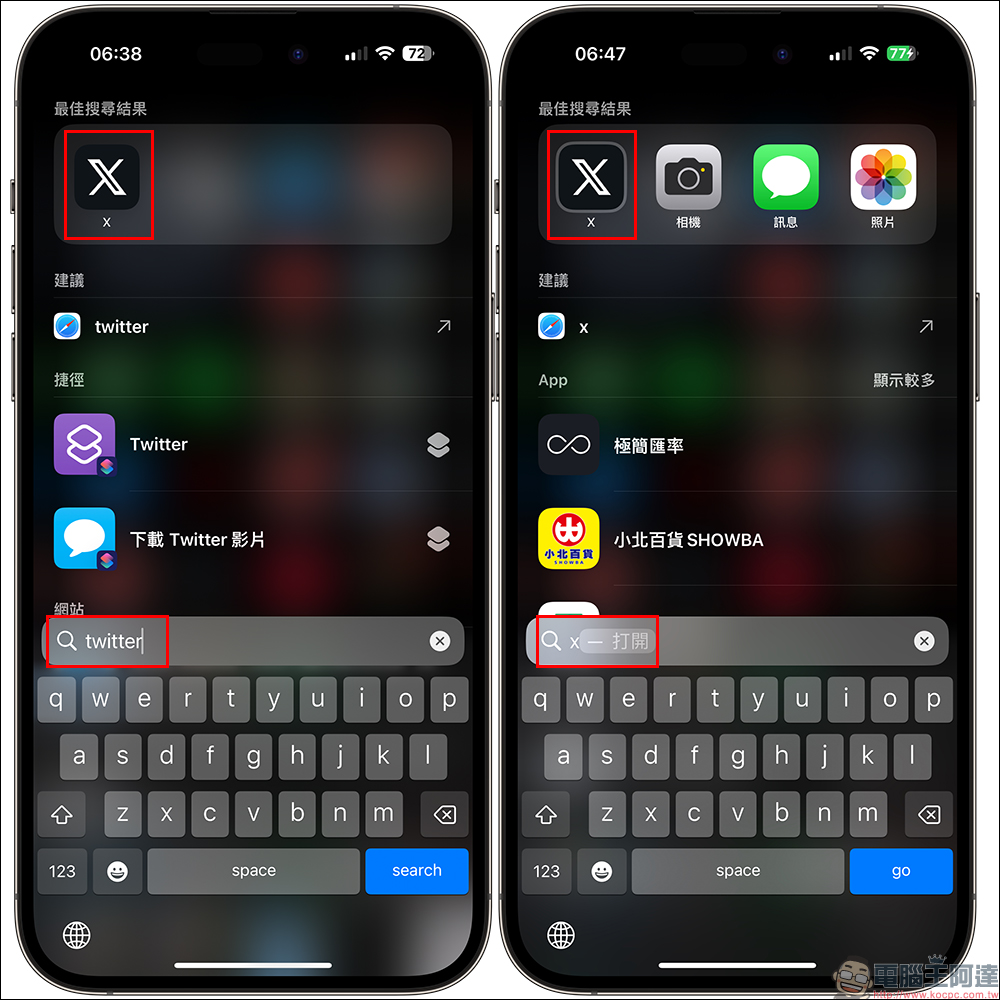
Although after the update, you can find the Twitter App by searching for the keywords “Twitter” or “X” using Spotlight, but this new “X” will still take some time for long-term Twitter users to adapt.
So, how do you get your classic Bluebird back?
If you still miss the original Twitter Logo and hope that when you want to open Twitter, you can recognize the original icon to open the app, then I will share with you how to set it up.
First, open the “Shortcuts” App, then click the “+” in the upper right corner of the screen to create a new shortcut. Then click the arrow symbol to the right of the new shortcut to expand the menu, and then click “Rename” to proceed to the next step:
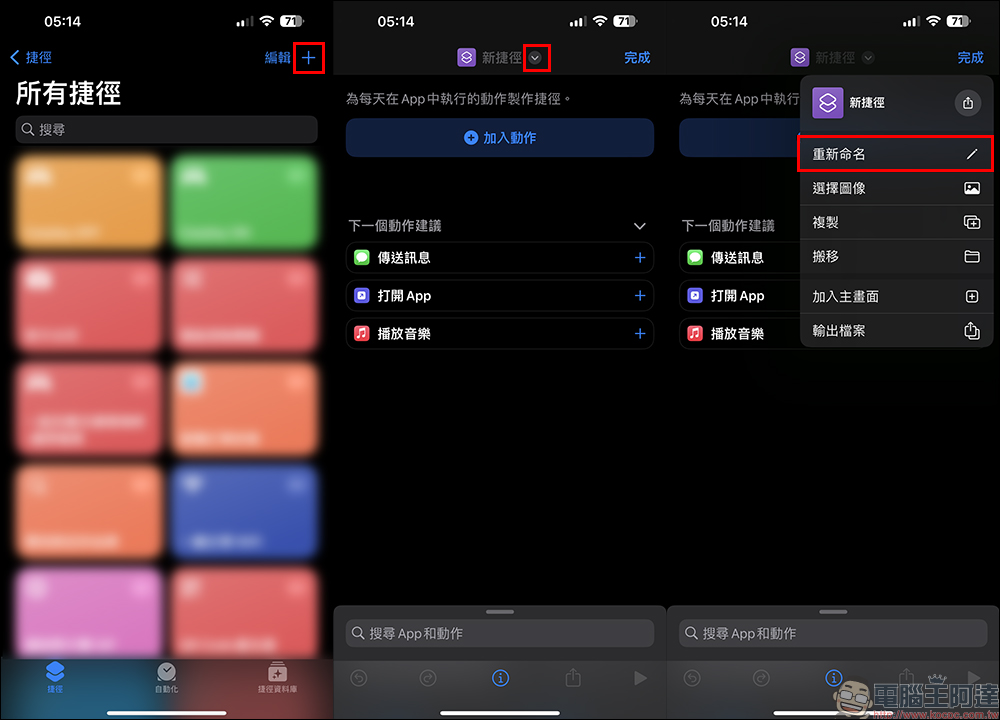
At this time, you can change the shortcut name to Twitter, and then select “Open App” in the action performed below. Next, click to open “App” and select the App you want this shortcut to execute:
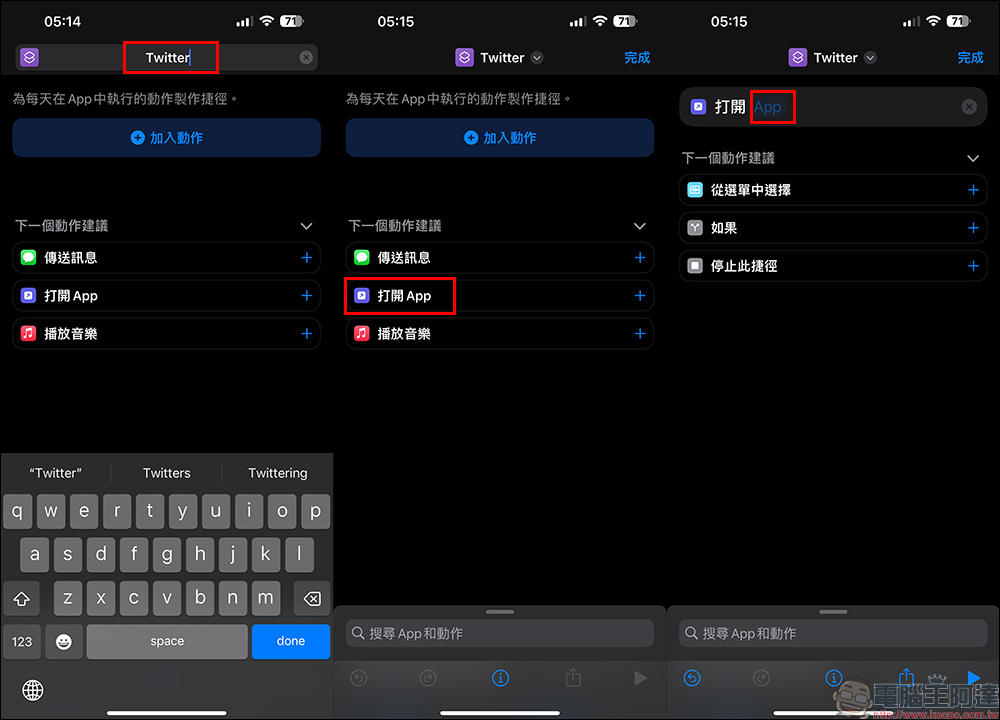
Since the name of Twitter has changed to “X”, you need to find the X when selecting the app. After the shortcut action is set to “Open X”, click the arrow above again to open the function menu, and select “Add to main screen” to proceed to the next step:
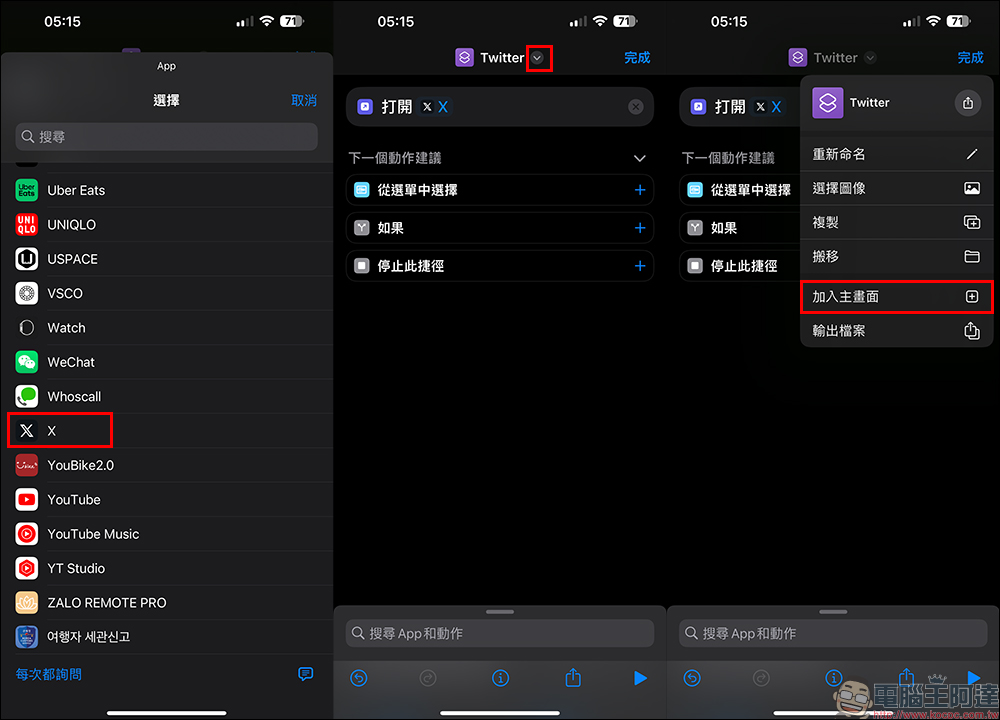
Next, we are going to replace this set of shortcuts with new icons. Click on the image and click “Select Photo”, then select the Twitter picture of the album, swap the images, and finally click “Add”.
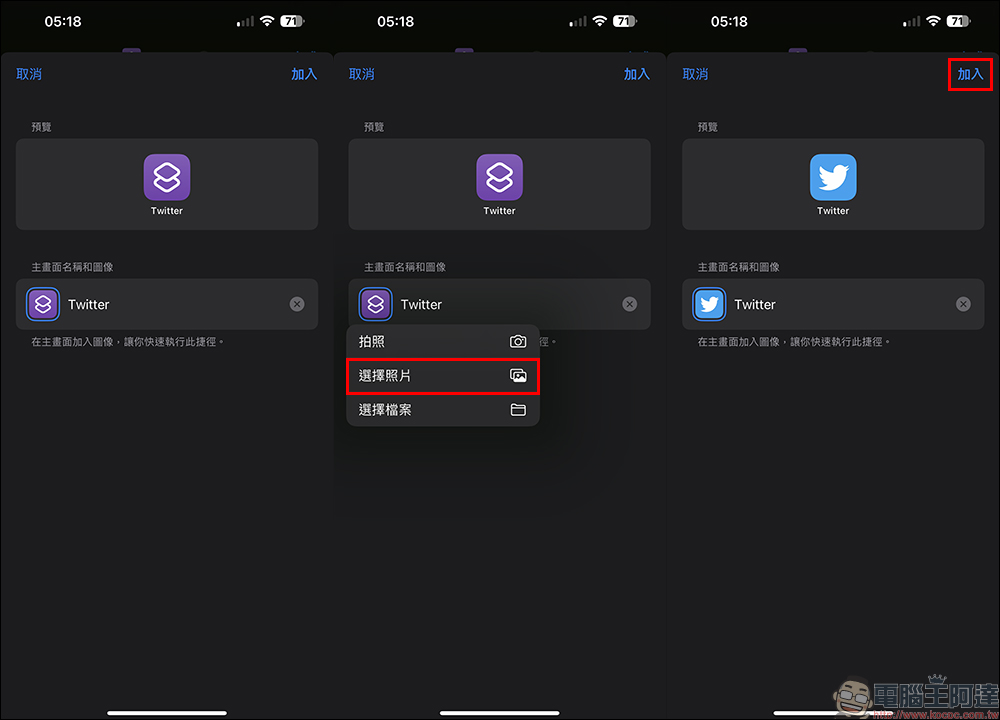
An icon of the old version of Twitter is also attached here for your convenience.

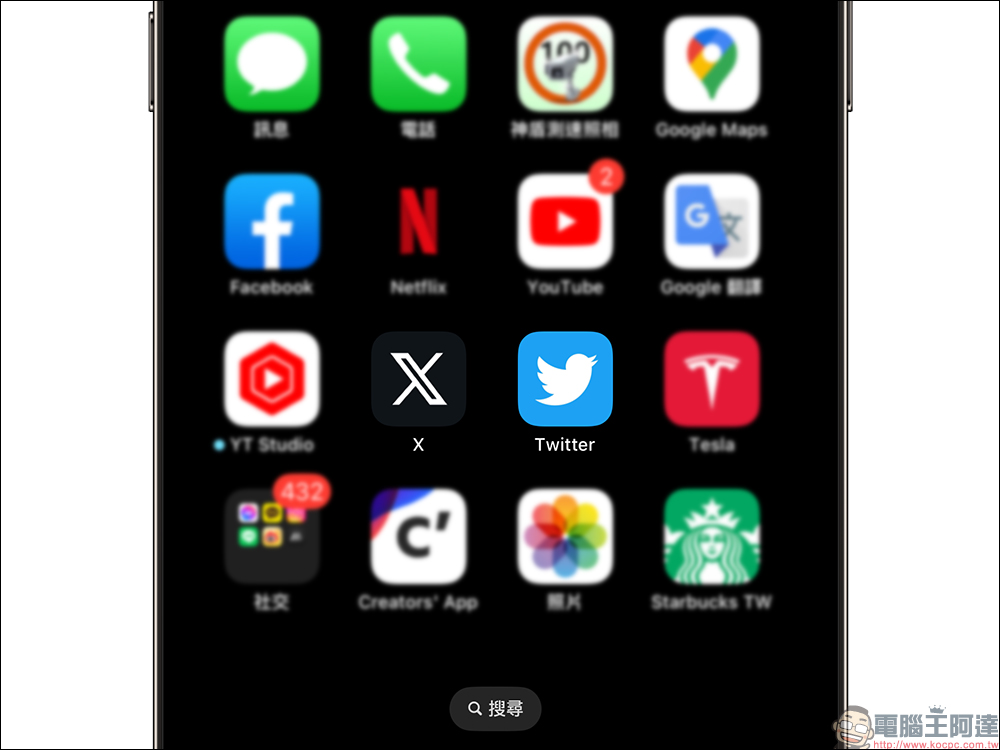
After adding this set of Twitter shortcuts to the home screen, you can find this classic icon and open it just like you used to when you use Twitter!
Source: KOCPC Chinese