


When using a computer, some tasks are suitable for a mouse, but this is not always the case in Apple’s operating system. With the development of macOS, many more flexible and faster gesture control functions have been incorporated. It is more suitable to use the Magic Trackpad or the trackpad on MacBook to improve your work efficiency, make the interaction with macOS more pleasant, and get a more comfortable feeling without sacrificing functionality. If you are a Mac user, it is definitely recommended to get one. Why are you being pushed to buy a Magic Trackpad? Let me tell you why.
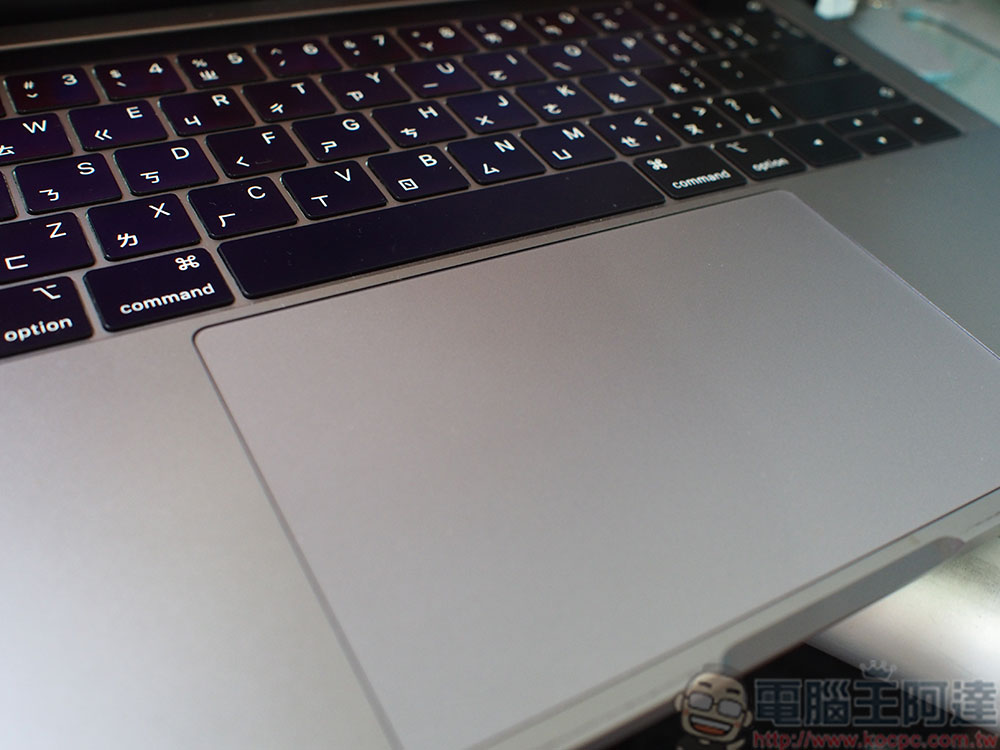
Is Magic TrackPad the best partner for macOS? Why you need a trackpad
macOS works best with a trackpad
The popularity of the MacBook series forced Apple to make macOS a system that could be operated comfortably and efficiently using touch input. Instead of simply adopting a touch screen, the company went through many iterations to improve its legendary Mkpad and leveraged its ability to unify its software. This means that macOS works better with the Magic Trackpad than the Magic Mouse or other mice. The basis of this statement is that Apple’s large number of gesture controls, if you can fully accept and adapt to it, can make your efficiency go straight up.
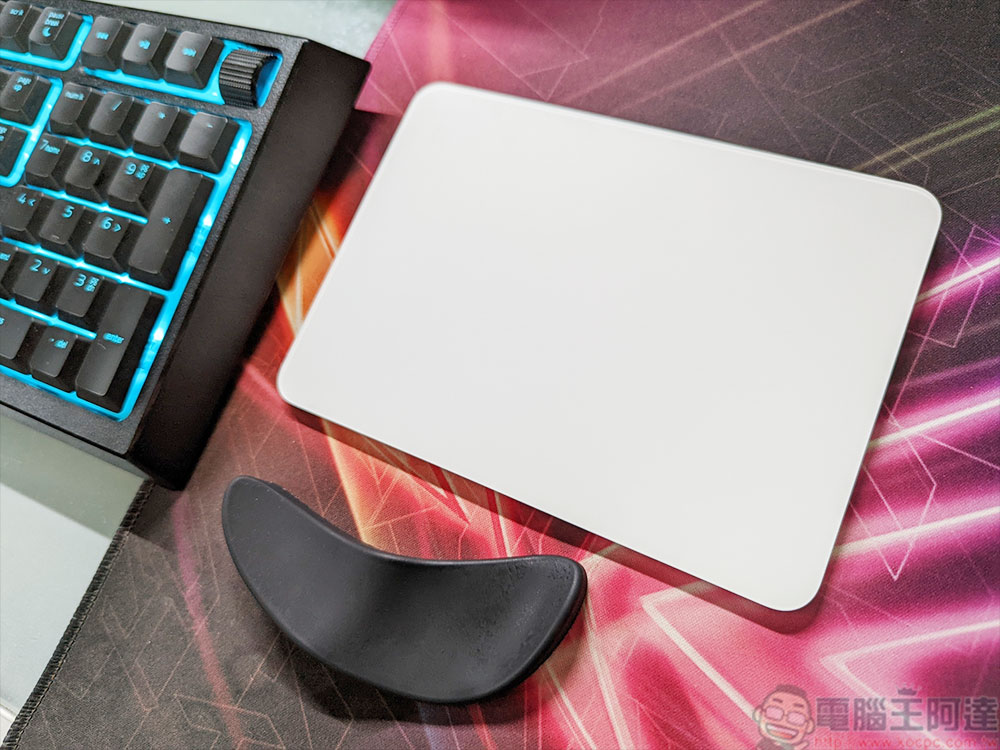
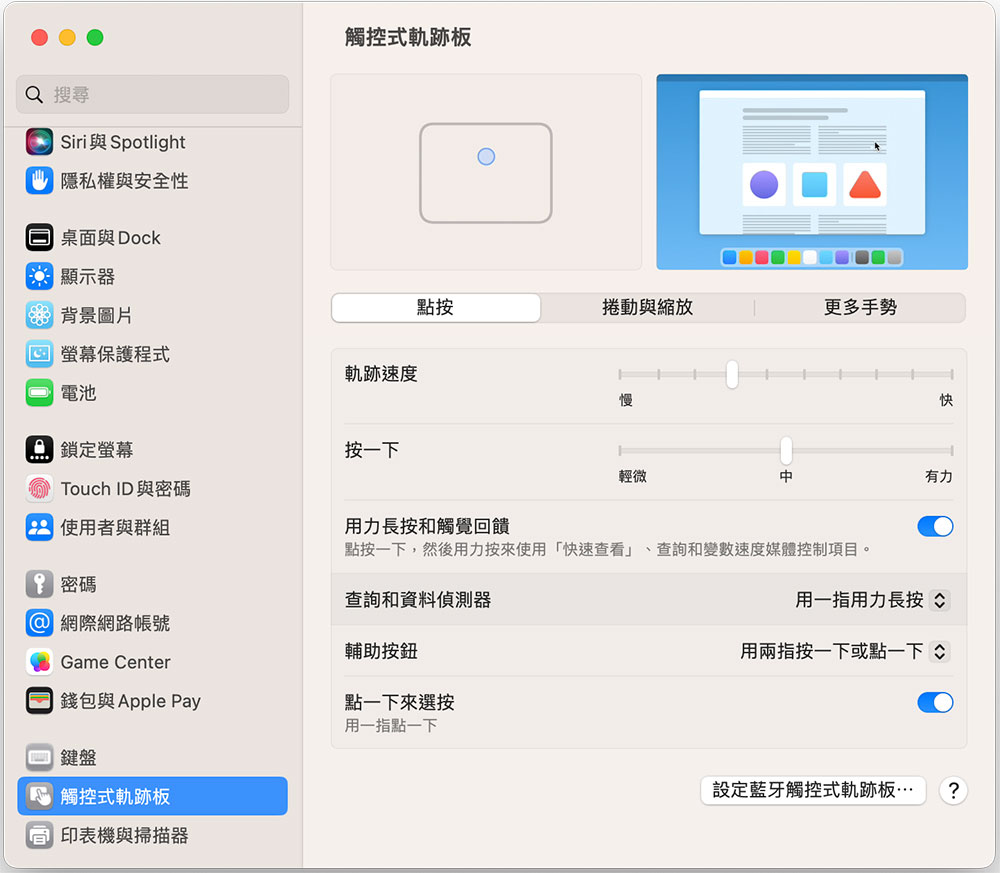
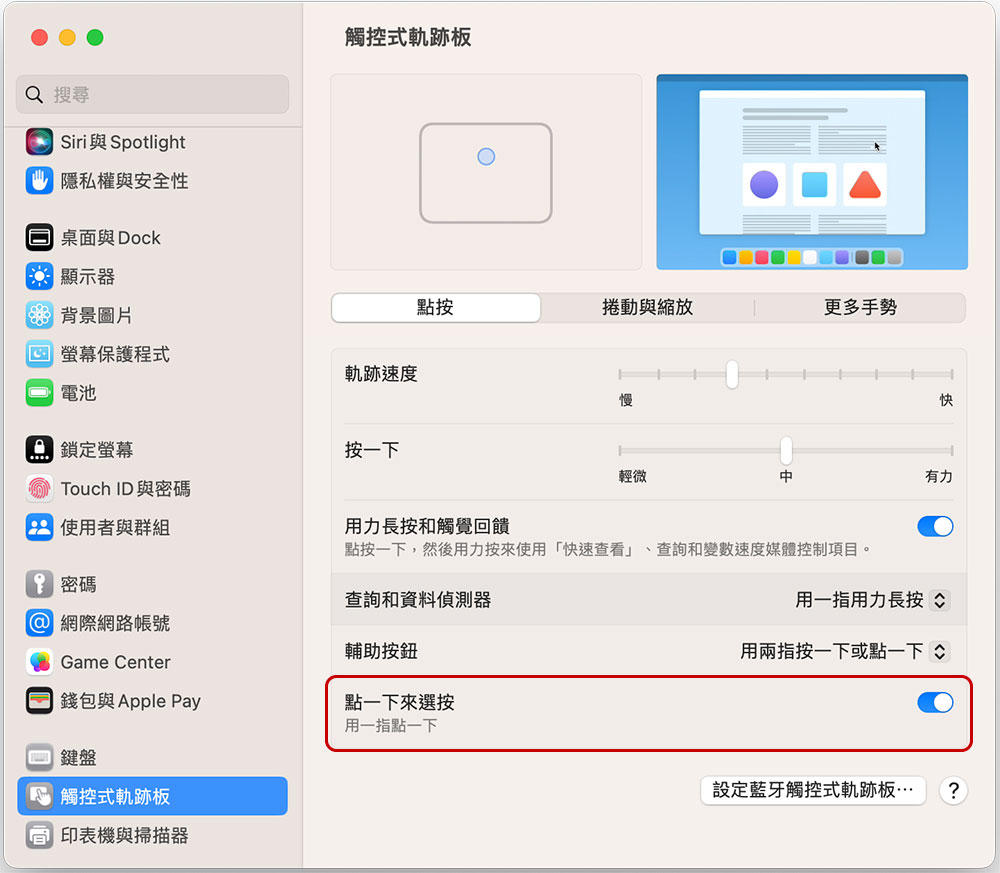
When you buy a new Mac computer or install macOS, Apple provides a quick preview of features, but you can also go to “System Settings >> Touch Trackpad” to review and learn more gestures. You can also use this settings field to customize these gestures to a limited extent to your liking. To do this, you need to use the MacBook’s trackpad or connect the Magic Trackpad to function properly. Some of the great gesture controls you’re missing out on if you don’t use a trackpad include intuitive two-finger scrolling, pinch-to-zoom, and the ability to rotate items like maps with two fingers, customizable tracking speed, haptic feedback, and whether to use secondary “force” clicks.
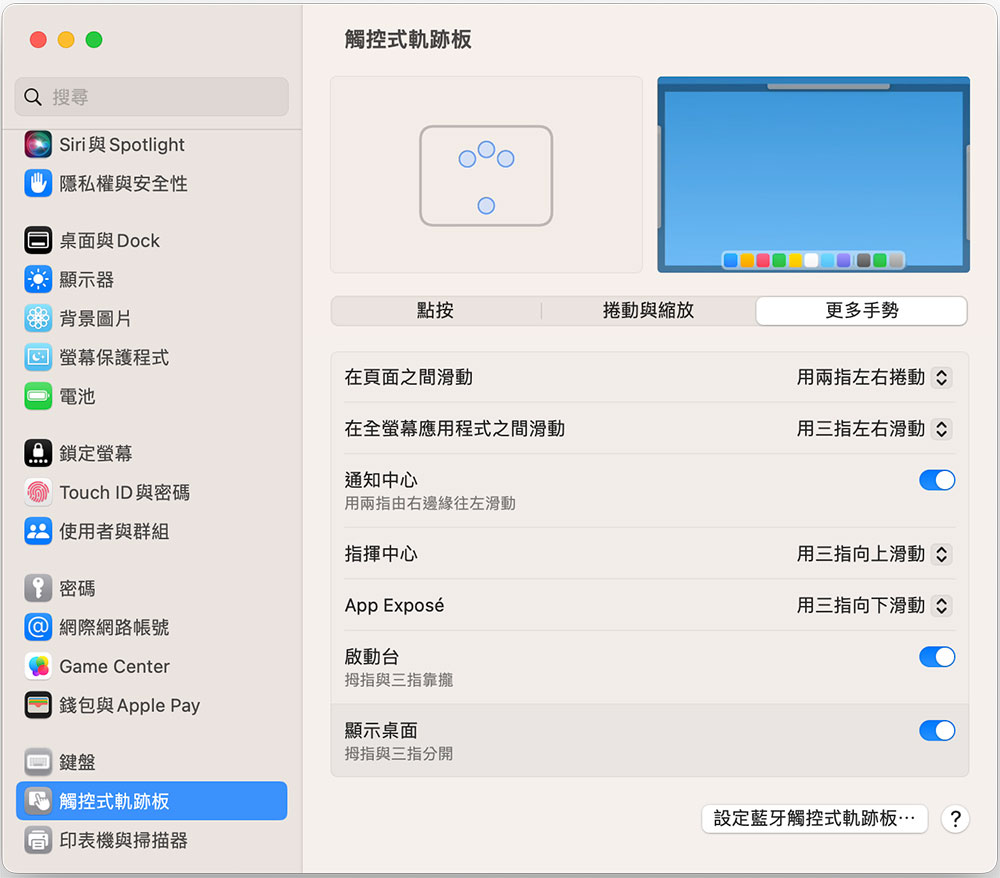
In the “More Gestures” tab, you will find ways to really save time. Use a two-finger swipe to jump to the next page in a web browser, use a three- or four-finger swipe to jump between different desktop spaces, and access Command Center or App Exposé by swiping up or down with three or four fingers. You can even quickly reveal the desktop by spreading your thumb and three fingers.
Many of these gestures have corresponding keyboard shortcuts, which can help fill in the missing gaps if you’re a committed mouse user, and you can program alternate mouse buttons to perform the same action.
Magic Trackpad can do everything a mouse can do, but not the other way around
Of course, I will not pretend that a mouse is not useful in order to praise the trackpad. For tasks such as photo editing and image processing, a mouse is better, and the same is true for first-person shooter games. But Apple’s trackpad is user-friendly for most use cases. Apple has built in a few options for trackpad users, the most noteworthy of which is “three-finger drag.” Using the trackpad to drag items from one side of the screen to the other can drive you crazy with practice, only to lose all your efforts when you let go. Through “Touch Trackpad Options” in “System Settings >> Accessibility >> Pointer Control”, change the dragging style to “Three-finger dragging”, which will make everything easier. Three-finger dragging works well because it gives the user the opportunity to “pause” without letting go of whatever is being dragged, and you can reposition the three fingers and continue dragging. It’s suitable for moving files between folders (or spaces), repositioning tabs in the browser, dragging to select an icon or area to screenshot, and more.

It’s actually not difficult to right-click to call the menu. You can use two fingers to click on the trackpad. If you find it a bit troublesome or the operation is not smooth, of course you can also hold down the Control key and click on the trackpad. To make clicking and double-clicking easier, enable “Click to select” under macOS Trackpad settings. With this feature enabled, you only need the lightest tap on the trackpad surface (rather than the full force of the tap or a click) to make a selection.
The trackpad could be more comfortable
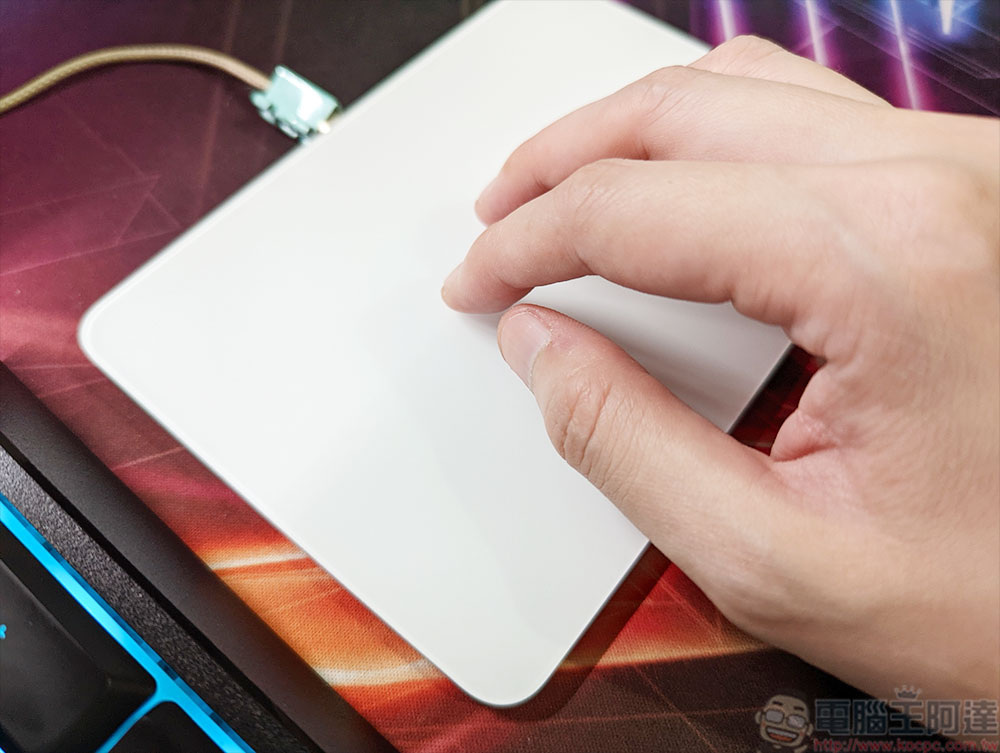
“Comfort” is a very subjective thing and depends a lot on how often you use the device, how susceptible you are to injuries, the habits you develop, etc. With this in mind, the Magic TrackPad (especially the stand-alone version) can provide a more comfortable computer experience than many models of computer mice. This is especially true for Apple’s Magic Mouse, which leaves a lot to be desired in terms of ergonomics, so many people find it difficult to use. A trackpad is a more tactile experience than using a mouse, which forces your wrist to use it in a specific position and posture. In contrast, swiping and clicking on the trackpad are more casual and free.
Of course, you can also avoid many of the problems caused by mice by choosing an ergonomic design. Products like the Logitech MX Vertical offer a wrist-friendly solution that, while it may take some getting used to, may be well worth the investment if you prefer using a mouse.
Even if you use a mouse, consider adding a trackpad
While the Magic Trackpad isn’t cheap, you’ll find that the increased productivity you’ll find makes the price justifiable. The Magic Trackpad is wireless and rechargeable, so you can place it wherever you’re comfortable. If you use your MacBook with a laptop stand, you can also purchase a Magic Trackpad if you want to retain the gesture control experience. And there is another big advantage thanks to the charging design of the Magic Mouse. Since the Magic Mouse has the charging hole at the bottom of the mouse, it cannot be used while it is charging. The charging hole of the Magic Trackpad is located on the front side, so it does not want to affect the use even when charging, so that your work is not interrupted.
Source: KOCPC Chinese