


For people who want to improve the efficiency of computer use, shortcut keys are definitely a must-learn thing. There are many shortcut keys in Windows. You will definitely be curious about which shortcut keys are really important and useful to learn? Recently, foreign media have shared a list of shortcut keys that you must not know. Many of them are ones that I usually use. Here are 10 of them for you.
What are the “shortcut keys” that Windows users must learn? These 10 things you must know
Recently, foreign media Neowin compiled a list of 11 shortcut keys that you absolutely cannot live without when using Windows. Each one is quite practical.
First of all, the first one is “Win + Shift + left/right click”, which can not only automatically arrange the arrangement of software windows (such as placing them on the left or right side of the monitor), but also quickly move the window to another monitor without dragging with the mouse, which is much more convenient.
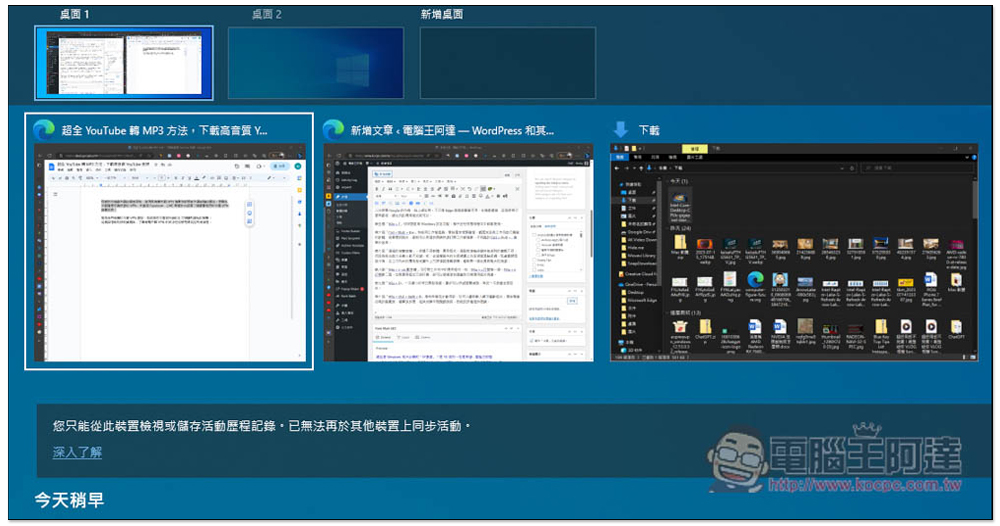
The second “Win + Ctrl + left/right click”, in order to manage the applications used in various situations, many people should create multiple desktops, such as one for work and one for relaxation. At this time, just press this shortcut key to quickly switch between different desktops.
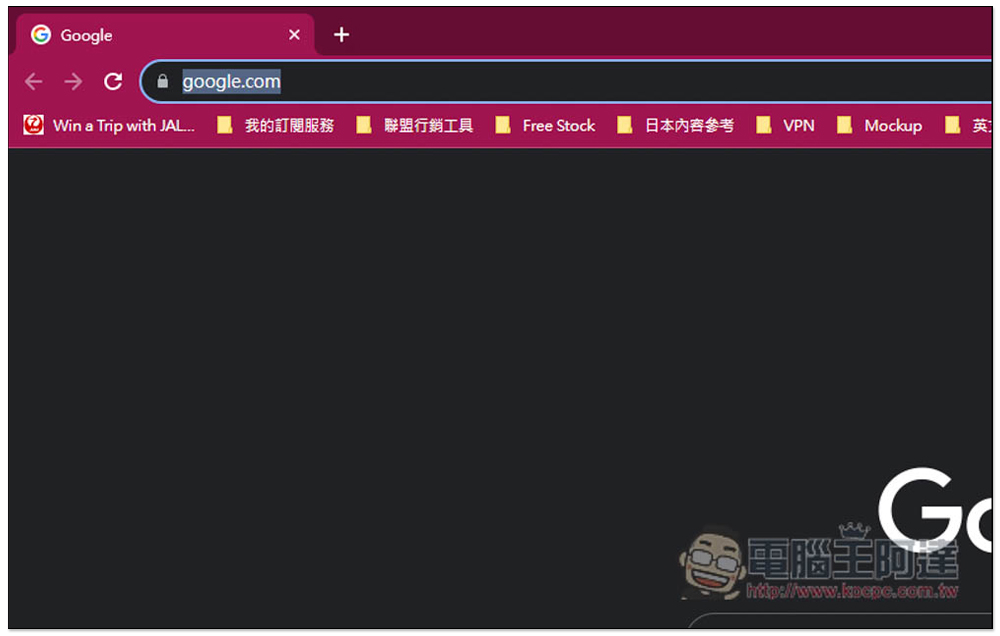
The third “Ctrl + W, Ctrl + T, and Ctrl + Shift + T”, from left to right, are to close paging, open paging, and reopen paging. Many software now provide paging functions, such as the most common browsers, such as Chrome, Edge, etc. Windows 11 even has the file manager. Therefore, after writing down this shortcut key, you can manage paging directly with the keyboard without using a mouse in the future.
The fourth “Alt + D” is very useful. After pressing this shortcut key, the focus will be on the address bar, which means you can directly enter the content you want to Google in the address bar, paste the URL, etc. It is not only available in browsers such as Edge, but also in file browsers, registry and other applications that have paths and URLs.
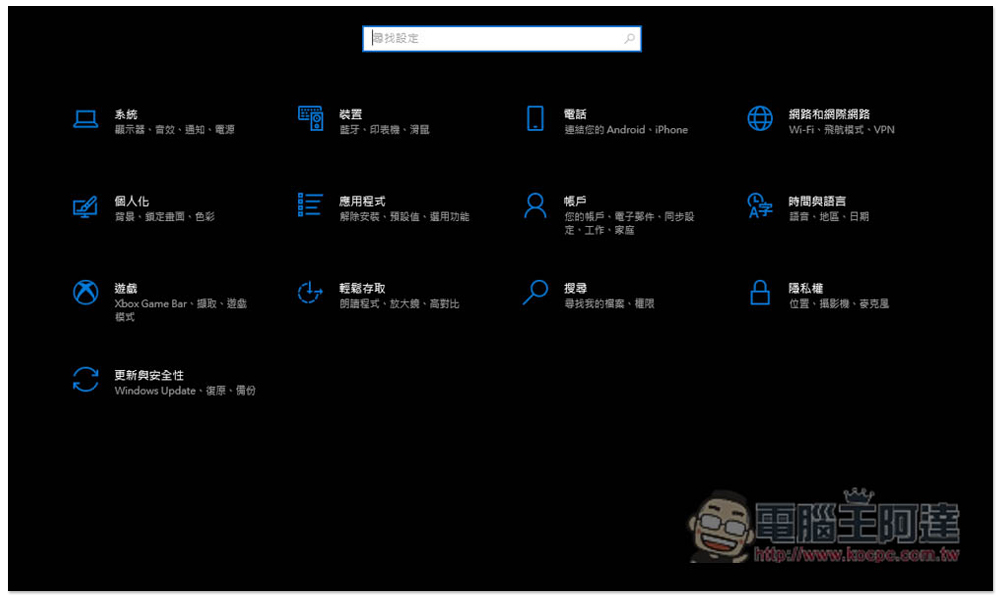
The fifth “Win + I” can quickly enable Windows settings functions, which can be used in almost any application.
The sixth “Ctrl + Shift + Esc” is to activate the work manager, which means that if you want to manage, observe or end the software and background applications that are currently open for work, you can use this shortcut key to quickly open the work manager without going into the Ctrl + Shift + . menu.

The seventh “mouse wheel button”, depending on different software and applications, the mouse wheel button can do different things, and most people don’t know many functions. For example, pressing the mouse wheel button above the tab title in the browser will close the page. Click the mouse wheel button above the application icon in the taskbar to open a new window for the application.
The eighth “Win + 1~10 numeric key” can open the application in the taskbar, such as: Win + 1 to open the first one, Win + 2 to open the second one. If the application is already open, you can use this shortcut key to switch the application window.
The ninth “Win + D” shrinks all open windows at once, allowing you to quickly browse the desktop, and pressing it again will bring them all back.
The tenth “Win + Ctrl + Shift + B” is used in special circumstances. It can reload the display driver, which means that when you encounter a black screen, unresponsive screen, or other display problems, you can try this shortcut key.
Summarize
These shortcut keys are highly recommended for everyone to learn, and they will definitely greatly improve the speed of using your computer.
Source: KOCPC Chinese