


Although today’s hardware performance is getting stronger and stronger, and the optimization of the Windows operating system itself is getting better and better, after using it for a long time, you will still want to adjust some system settings, easily delete files, etc. This article will recommend a very old, but continuously updated and very easy to use free open source Windows powerful system optimization tool “Optimizer”. It has a Chinese interface, all Windows settings and cleanup can be completed with just one click, and also provides the function of customizing the right-click menu, and it is installation-free and the file is very small.
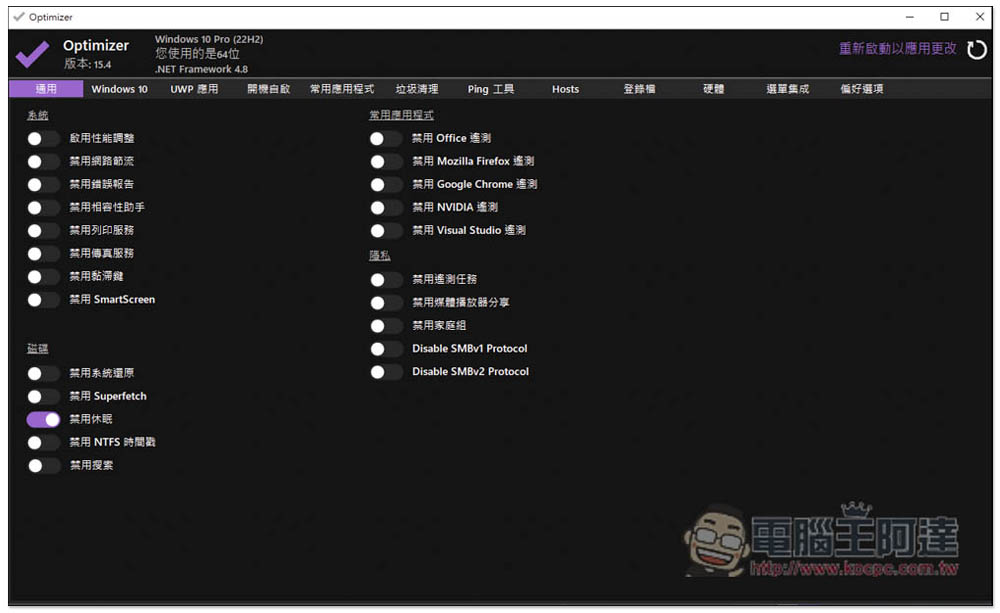
Optimizer is a free and open source Windows powerful system optimization tool that can easily perform system adjustments, startup management, garbage cleaning, etc.
It has been several years since the first version of Optimizer was launched, but developers continue to update it. For example, the latest version [15.4] was launched in the middle of last month. You can start using it directly without installation after downloading.
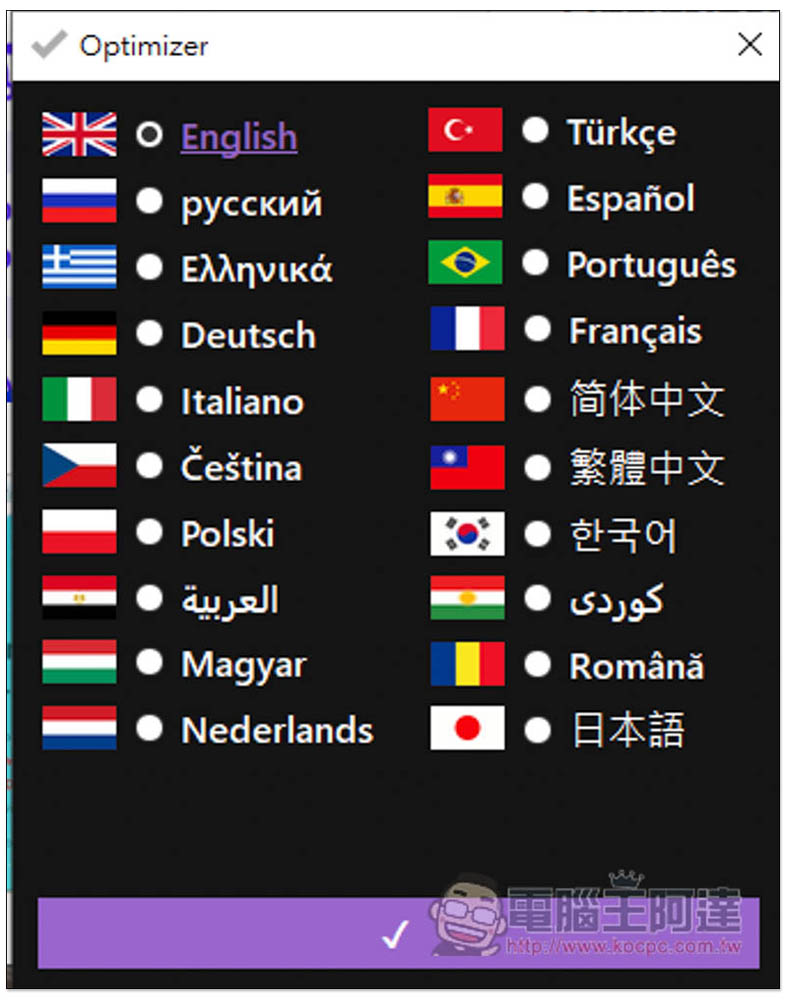
You will be asked to select the language at the beginning, supporting Traditional Chinese:
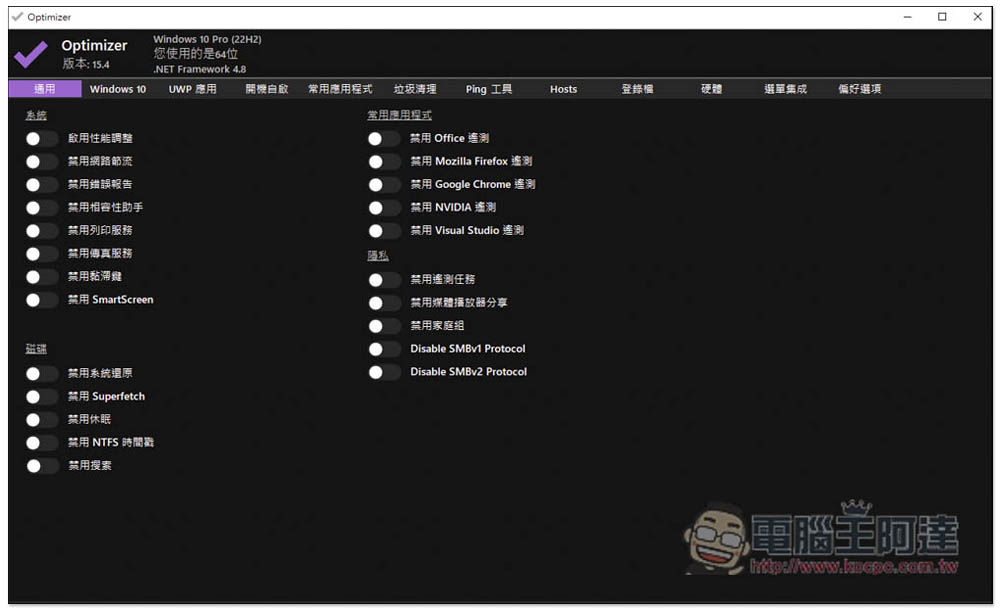
Then you will enter the tool interface, which has 12 menus. In the first general one, you can quickly adjust the system, disk, commonly used applications, and privacy settings. For example, if you want to optimize system performance, open the first “Enable Performance Adjustment” in the system. If you don’t want the network speed to be limited, open “Disable Network Throttling”. There are also “Disable Fax Service”, “Disable Hibernation”, “Disable Search”, etc., and disable xxx Telemetry is about not letting these apps collect your data and open it to unwanted people:
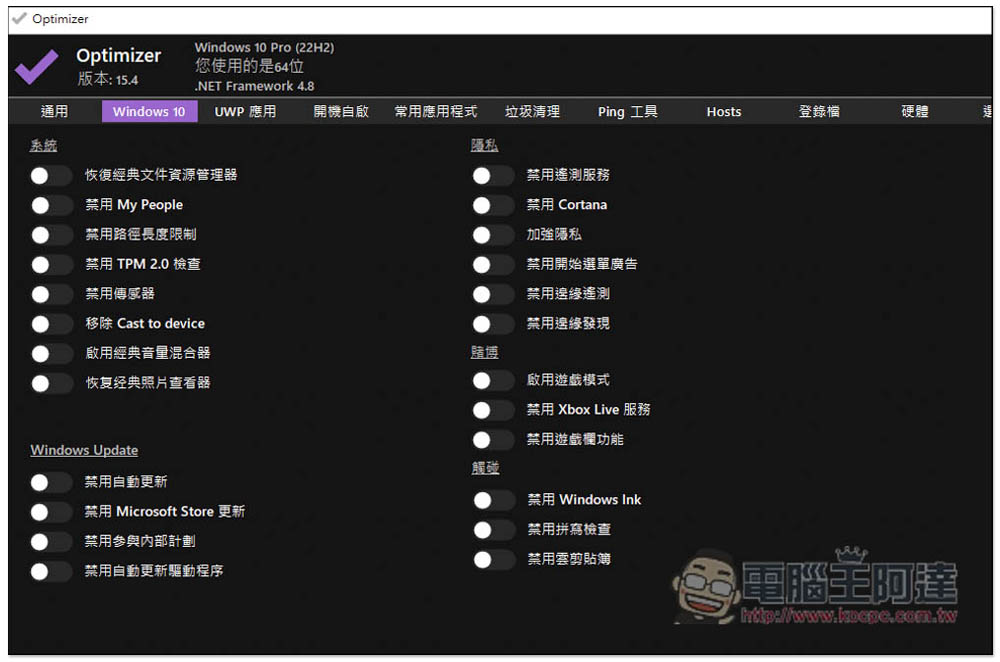
My operating system is Windows 10. Many operating system settings can be disabled in the Windows 10 menu, such as: automatic updates, automatic driver city updates, Cortana, start menu ads, Xbox Live, TPM 2.0, etc.:
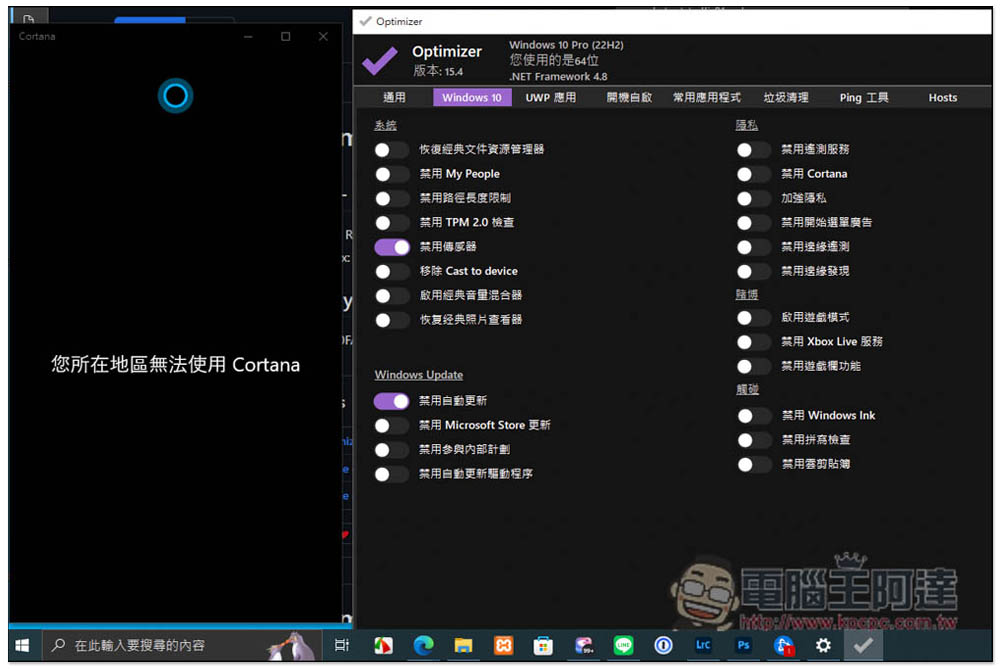
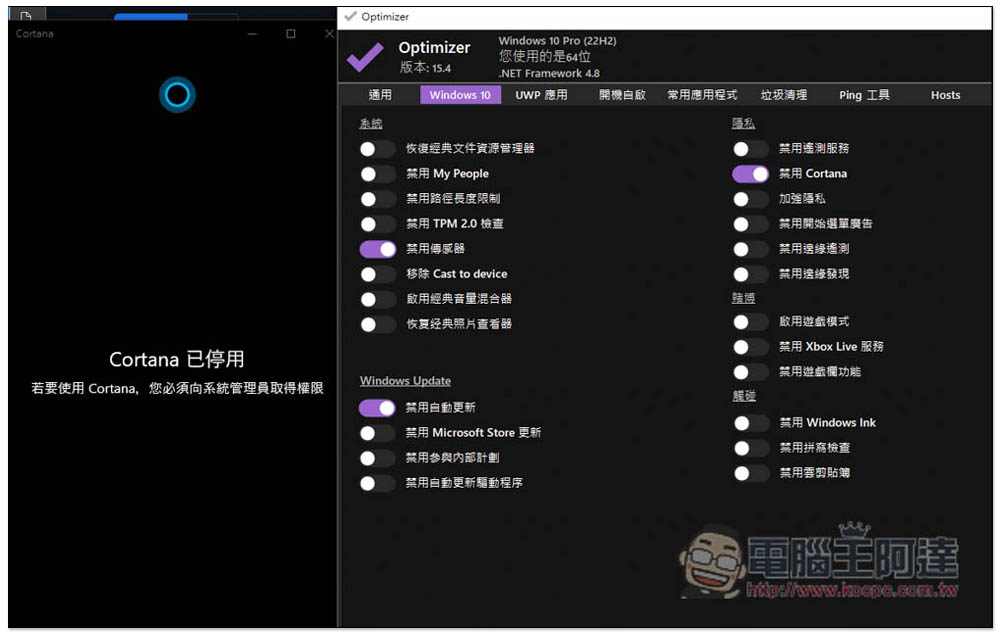
After these options are turned on, you won’t feel anything. Some of them need to be restarted before they are applied, and some are not used. Therefore, you may wonder, “Are the settings really done?” Here I will demonstrate and test disabling Cortana.
When Cortana is not turned on and disabled, when I open the Cortana function, it will display “Cortana is not available in your region”:
After it is turned on, it will change to “Cortana is disabled”, which means it is really successfully disabled:
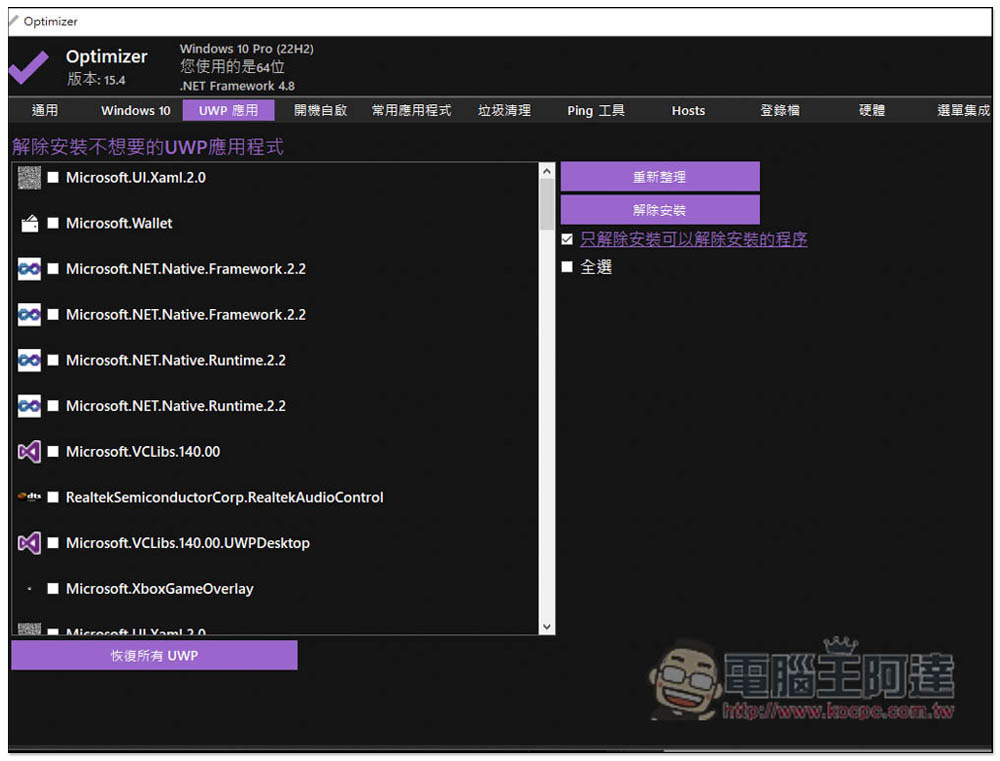
UWP applications are more advanced, so those who don’t understand them are advised to skip:
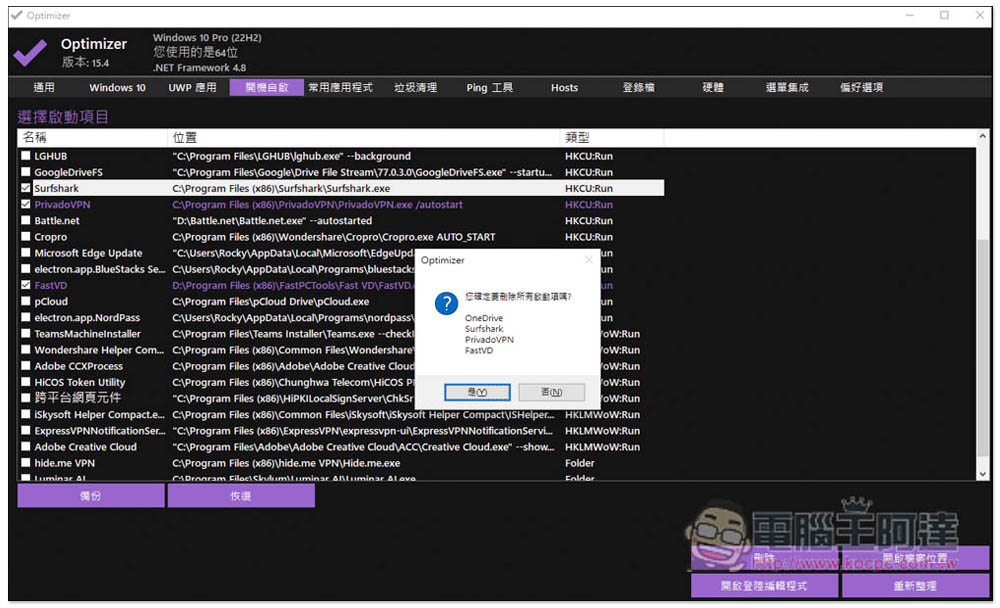
“Auto-start at boot” can adjust the applications that you don’t want to start automatically after booting. After checking, click the lower right corner to delete them, and they will not start automatically again:
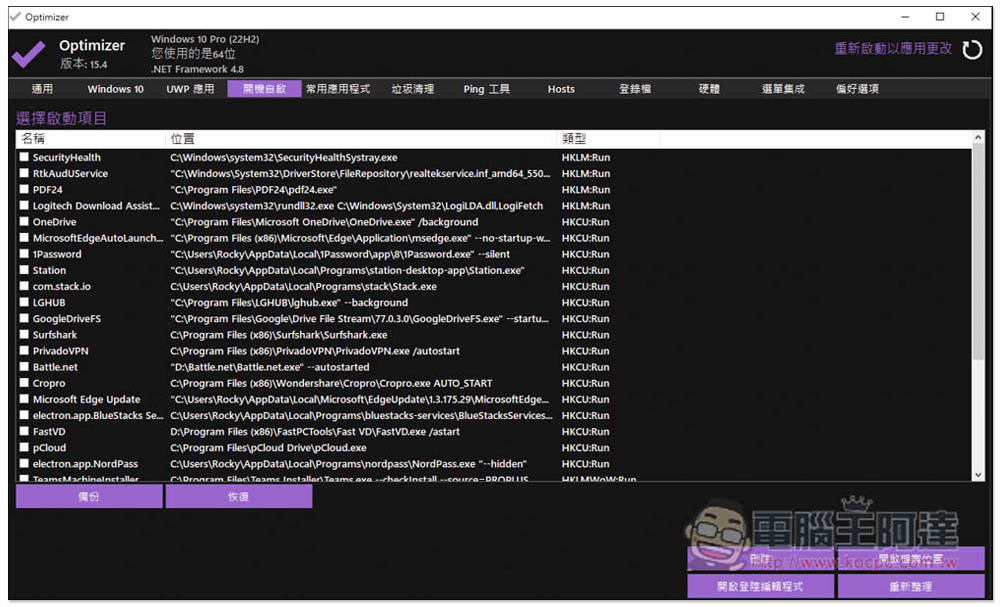
A message window will pop up when deleting. Just click Yes. This action will not delete the application, but only remove it from automatic activation:
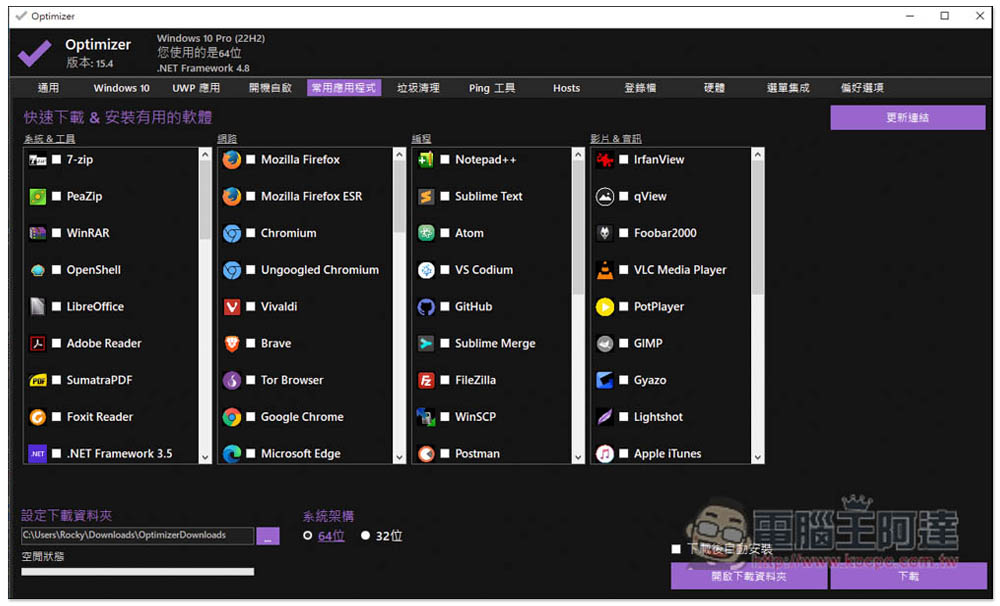
Commonly used applications are free tools they recommend, which can be downloaded and installed with one click, depending on whether you need them:
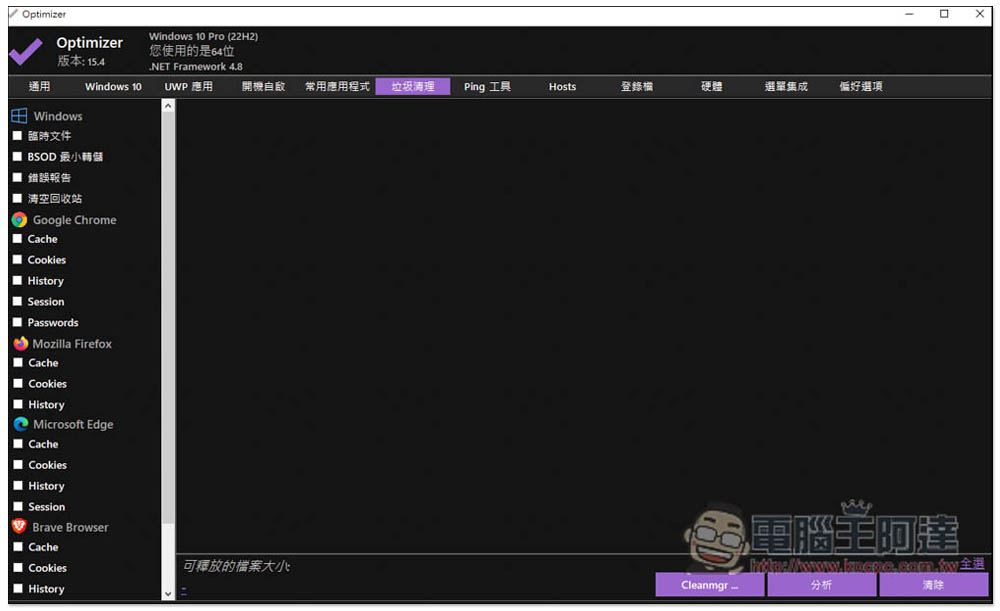
In addition to clearing temporary files in Windows, junk cleaning can also clear caches, history and other data of common browsers:
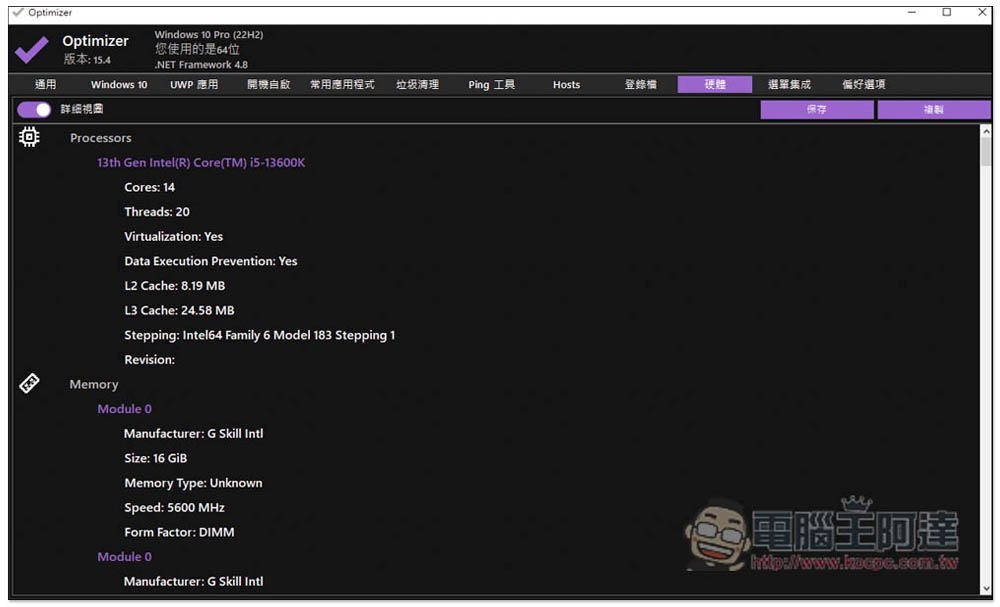
You can also use it to browse your computer hardware information:
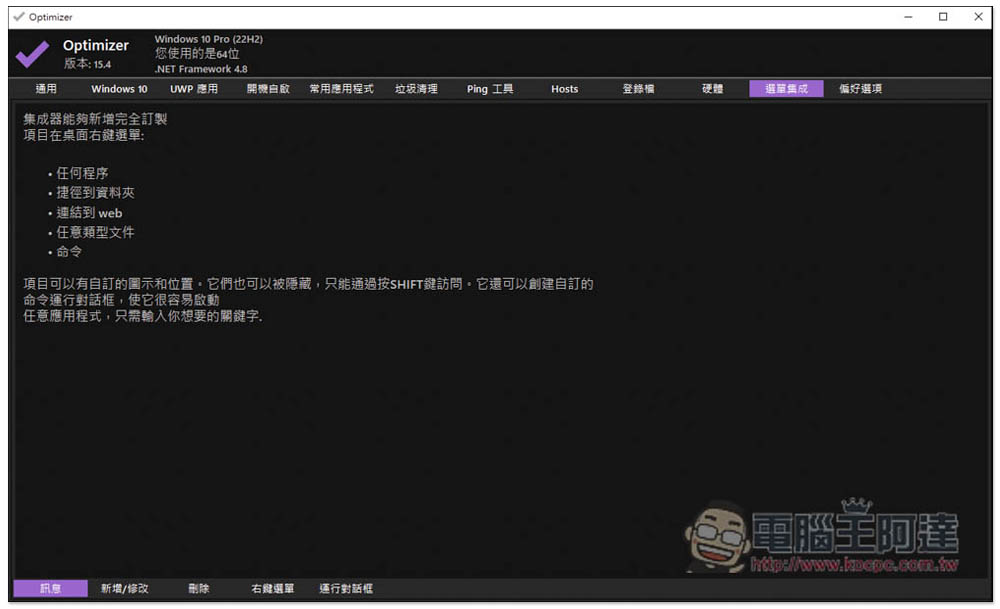
Menu integration is the function of customizing the right-click menu:
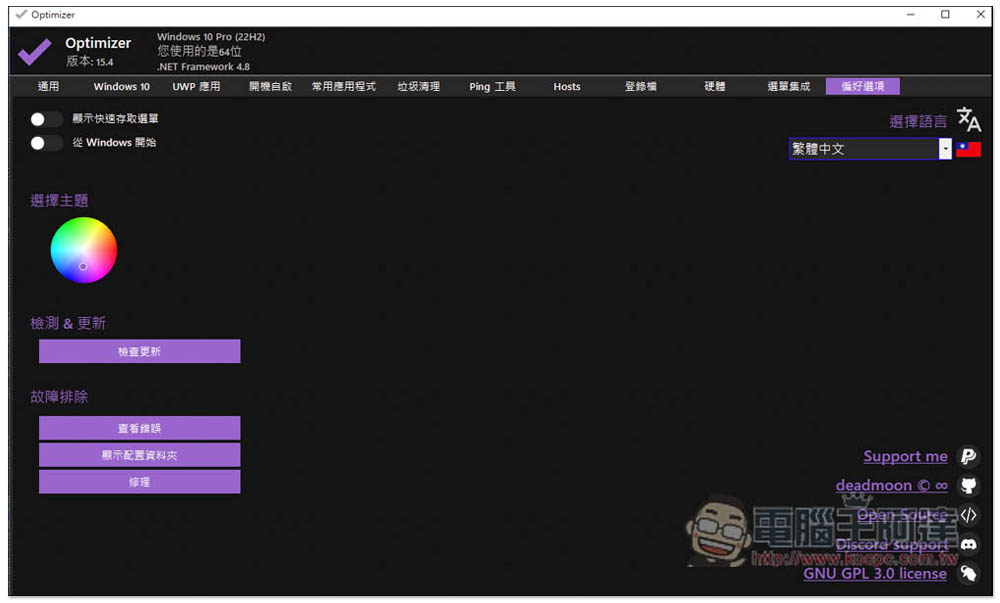
Preferences allow you to adjust the tool interface scenery:
There are many more functions in this tool, and the rest is left to the readers to play with and see on their own.
Source: KOCPC Chinese