


Previously Veo 3 At the press conference,Google Originally announced that only very expensive ones Google AI Ultra Only by subscribing to the plan can you use the latest Veo 3 video generation model. The cheaper Google AI Pro (formerly Gemini Pro) could only use Veo 2, but surprisingly, it was quietly rolled out recently—now people subscribed to the Gemini Pro plan can use Veo 3 too! And even Flow works. Here’s how to enable it.
For ease of understanding, in the following I’ll still refer to it as Gemini Pro, but Google has actually already renamed it to Google AI Pro.

How does Gemini Pro use Veo 3 for video generation?
To use Veo 3 video generation, you must meet the following two conditions:
- Subscribe to the paid Gemini Pro plan; the free version won’t work.
There are VPNs with US servers (for free VPNs, you can try TunnelVPN or Proton VPN)(Editor’s note: Taiwan region opens today)
Not sure if everyone has this, but when we tested, Taiwan’s Gemini Pro still uses the Veo 2 model, but after connecting via VPN to the US, it becomes the Veo 3 model. So if yours is the same, you’ll need a VPN.
Google AI Pro’s plan documentation still states that Veo 2 can be used to generate videos, but in reality, the US has already rolled out Veo 3.

whenAfter you VPN to the US, call again.open Gemini In the interface, you’ll see that the video generation option below switches to the Veo 3 model. Once enabled, you can use Veo 3 to generate the video you want. One thing to note: by default, generated videos won’t have background music or voiceover. If you want that, remember to add it in the prompt, such as: “add music for me” and so on.
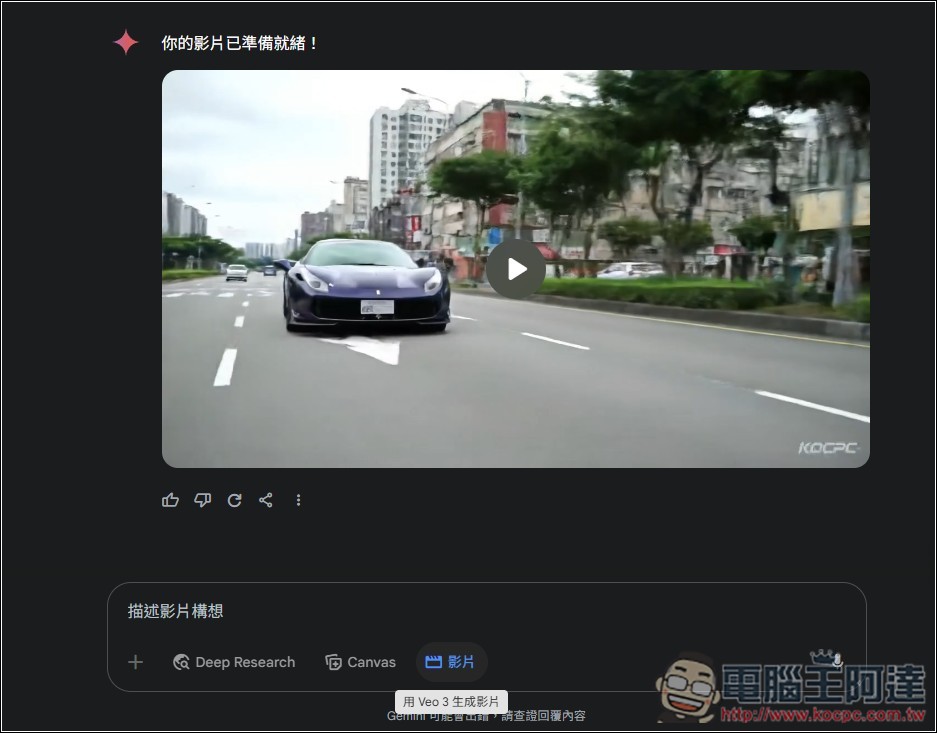
The generation speed is quite fast — it takes about 2 minutes to complete. Even when too many people are using it, it takes at most 5 minutes. While generating, you can go do other things and come back later to check if it’s done. You can enter prompts in Chinese; I’ve tested it and there’s no problem. You can even add specified “characters” to the video:

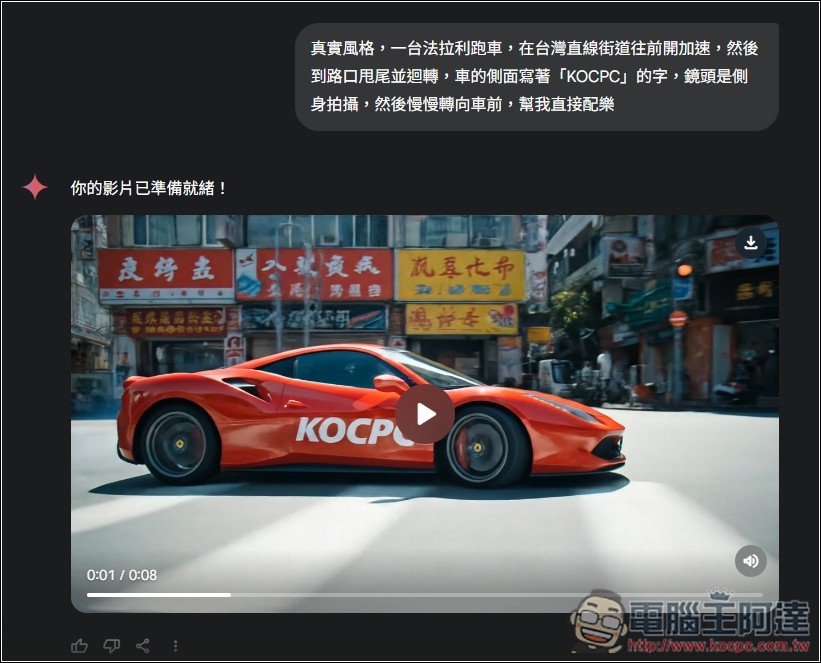
I tested generating a Ferrari sports car driving on a street in Taiwan. The street really does look similar to Taiwan, but the Chinese part is clearly still not good enough, while English is no problem. I specified that “KOPCP” be written on the side of the car body, and it really did appear, and there’s also background music:
As for whether there is a limit on the number of generations? I once generated 5 videos in a row, and then a message appeared saying that I had exceeded the quota and could only generate tomorrow. But after waiting about an hour, it suddenly became possible to generate again. Overseas netizens have also reported generating more than 10 videos, so this part is still uncertain, but at least it’s more than 5.
Below is the video I tested. It came with background music built in during generation, and it’s even in 720p quality. Google is really generous:
With the same prompt, I also tested it in Sora. The quality was much worse—it spun so much that I got dizzy, and there was a watermark. Veo 3 is really strong.
Also we have test requirements for speech. The prompt is in Chinese, but the generated video speaks English, which shows that Chinese voice is not yet supported. However, Gemini automatically translates it into English content for us.
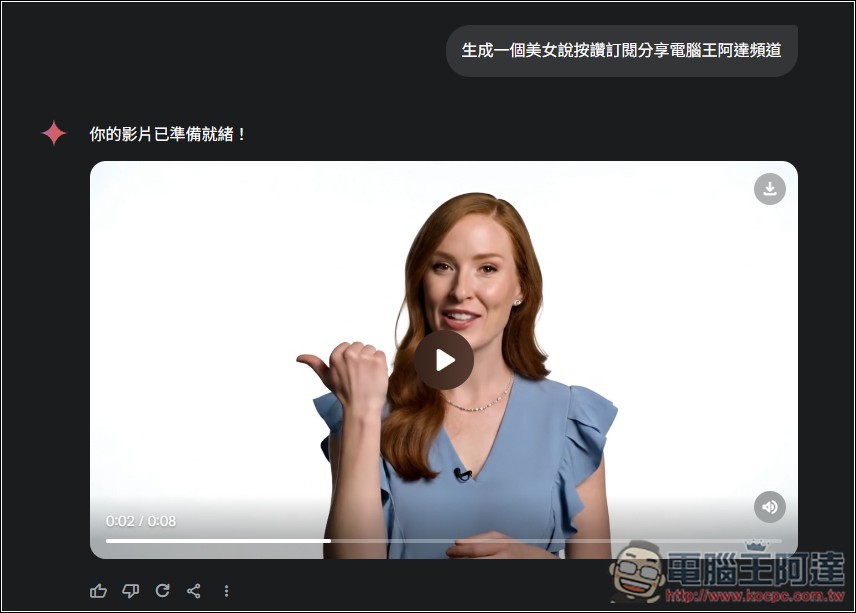
Generated video result:
A sexy young Taiwanese woman with a large bust, wearing a bikini, walks toward the camera and says in a sweet, coquettish voice in Chinese: “Remember to subscribe to the Computer King Ada channel and turn on the notification bell~” The background is a Taipei city street, with Taipei 101 visible.
FLOW User Guide
In addition to the Gemini web version, the Flow for Gemini Pro members can now also use Veo 3, not just Veo 2.However, the Flow feature is not yet available in Taiwan; to use it, you still need a VPN, but making general veo3 videos doesn’t require that.。
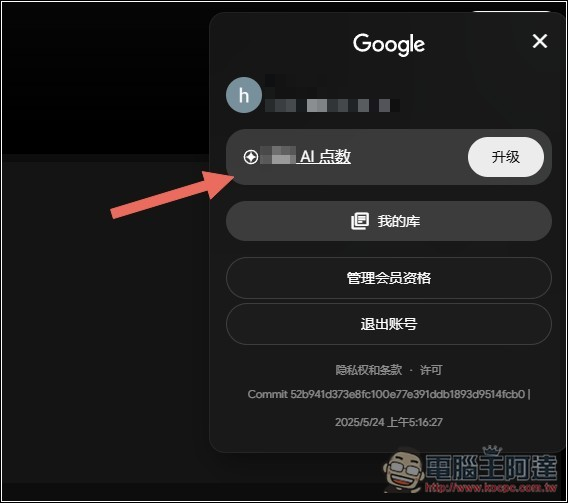
However, note that Gemini Pro members (Google AI Pro) only get 1,000 credits per month. Veo 3 deducts 100 credits for each video generated, meaning at most 10 videos, so use it carefully. Veo 2, on the other hand, deducts 10 credits. The very expensive Google AI Ultra has 12,500 credits per month, much more.
Also, in my testing, I’m not sure whether it’s because they’re in the same project or because Veo 3 isn’t generating correctly—only the first Veo 3 video had successful voiceover. All subsequent videos, whether newly generated or extended, failed. Even when I explicitly requested voiceover and background music in the prompt, it only produced pure visuals.
Later, because I didn’t have enough points, I wasn’t able to determine the exact cause. Just sharing this for everyone’s reference.
Enter Flow Official WebsiteThen, log in to your Gemini Pro account and click “New Project” below to create your project:
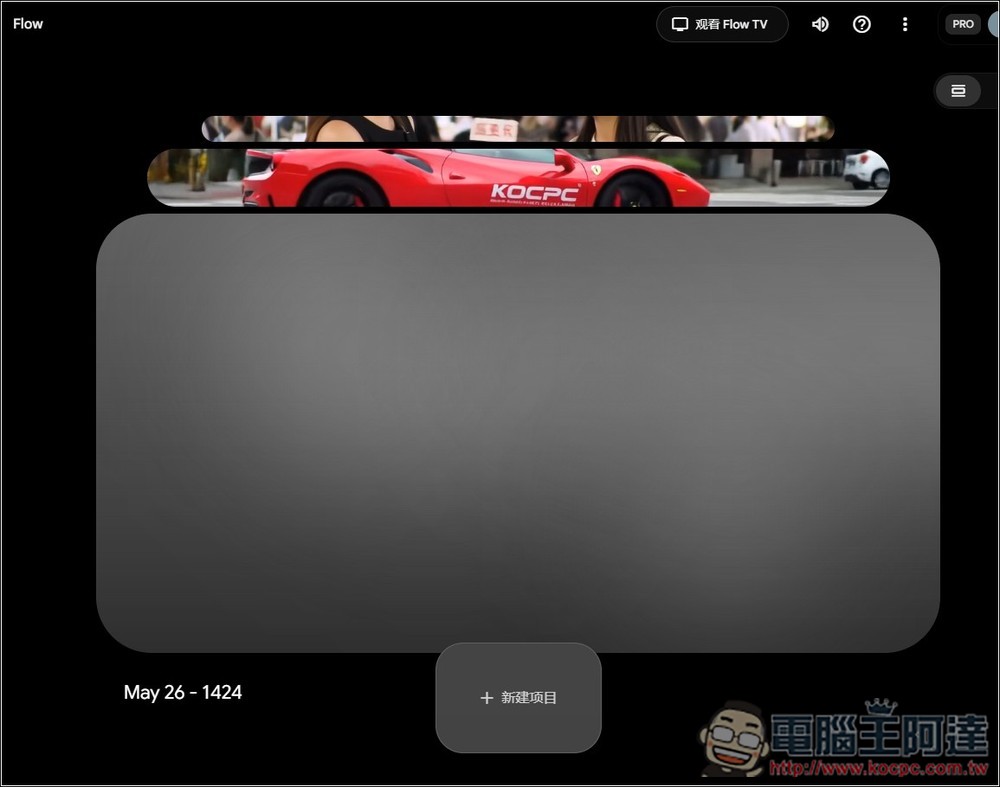
Then you can start generating by entering your prompt in the box below. Remember to set the model first — the default is Veo 2, not Veo 3:
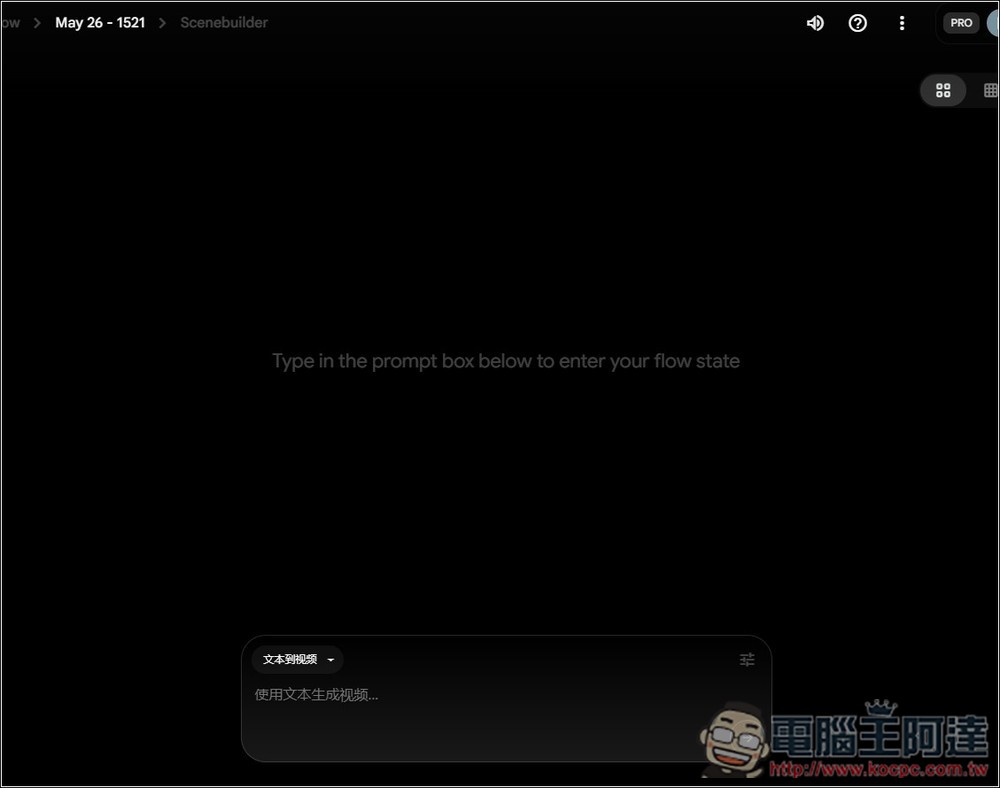
Open the menu in the top-right corner. It’s recommended to change the prompt output count to 1, so only 1 video will be generated; 2 will generate 2 videos, and it burns through credits very quickly. For quality, you can modify the model.
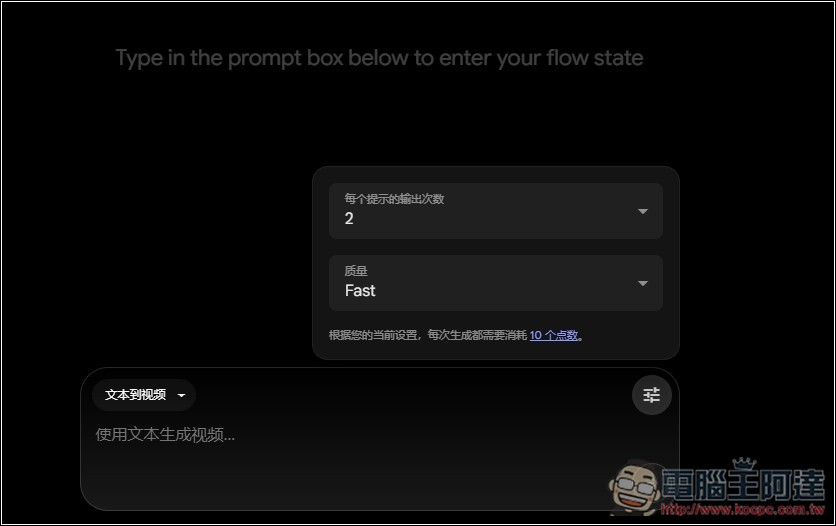
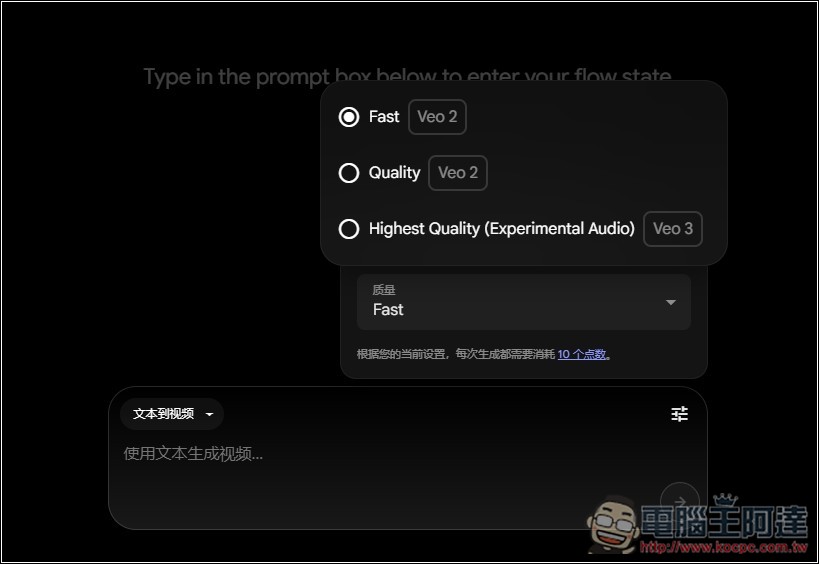
The Highest Quality (Experimental Audio) at the very bottom is Veo 3:
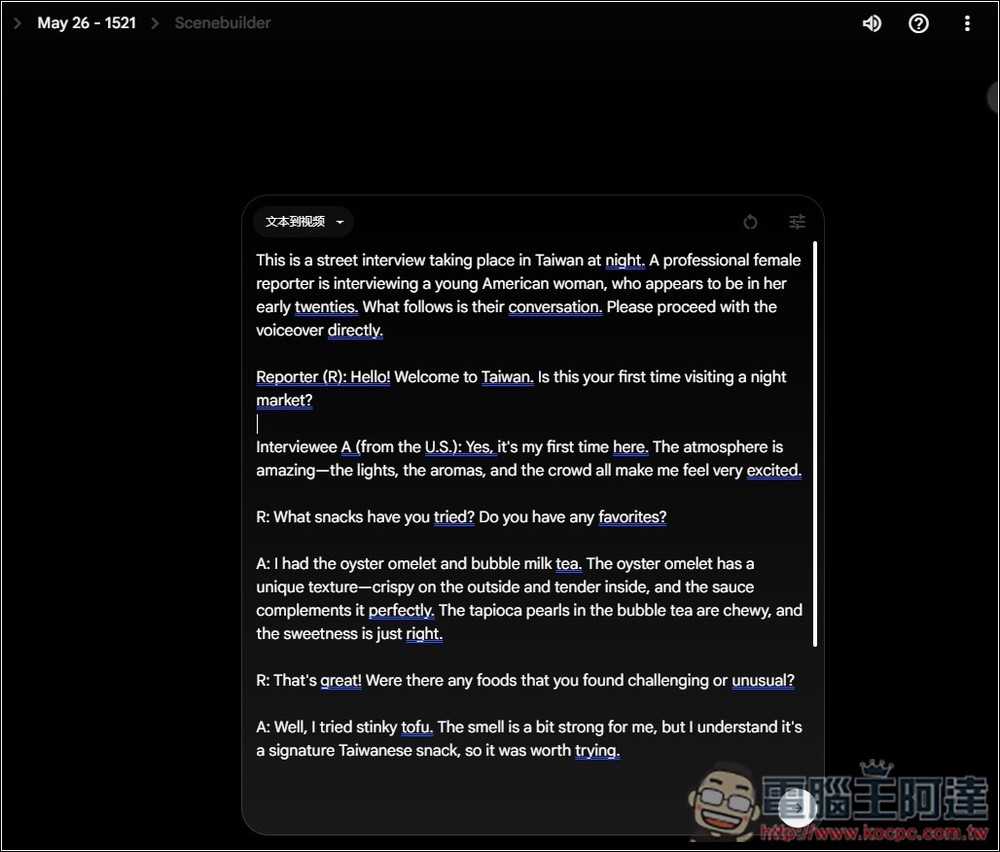
The prompt currently only supports English, so there’s no need to type as much as I did. I originally thought I could generate all the dialogue videos I wanted at once, but after testing, it doesn’t work—each video is only 8 seconds long, so just input a prompt with content that can fit in 8 seconds.
Just wait a few minutes and the video will appear. If you only need this segment, you can download it directly. If you want to generate the next part of the video, click “Add to Scene” in the top left corner.
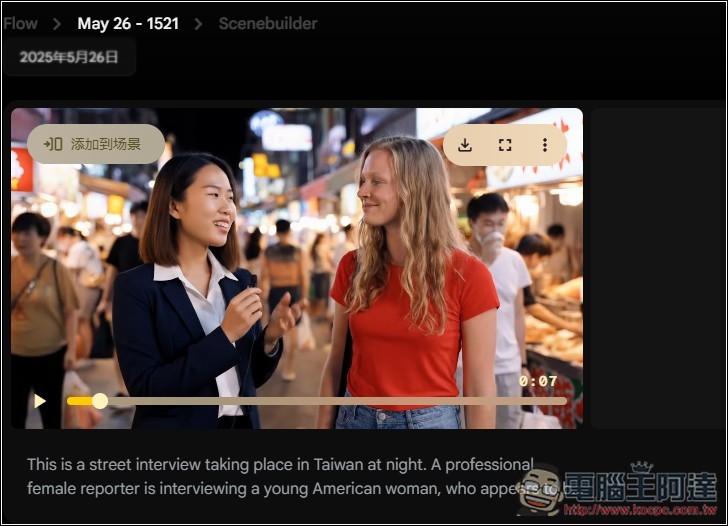
You will enter the editing screen, and for the second half of the video you can choose whether to “jump to” a new scene or “extend” the same scene:
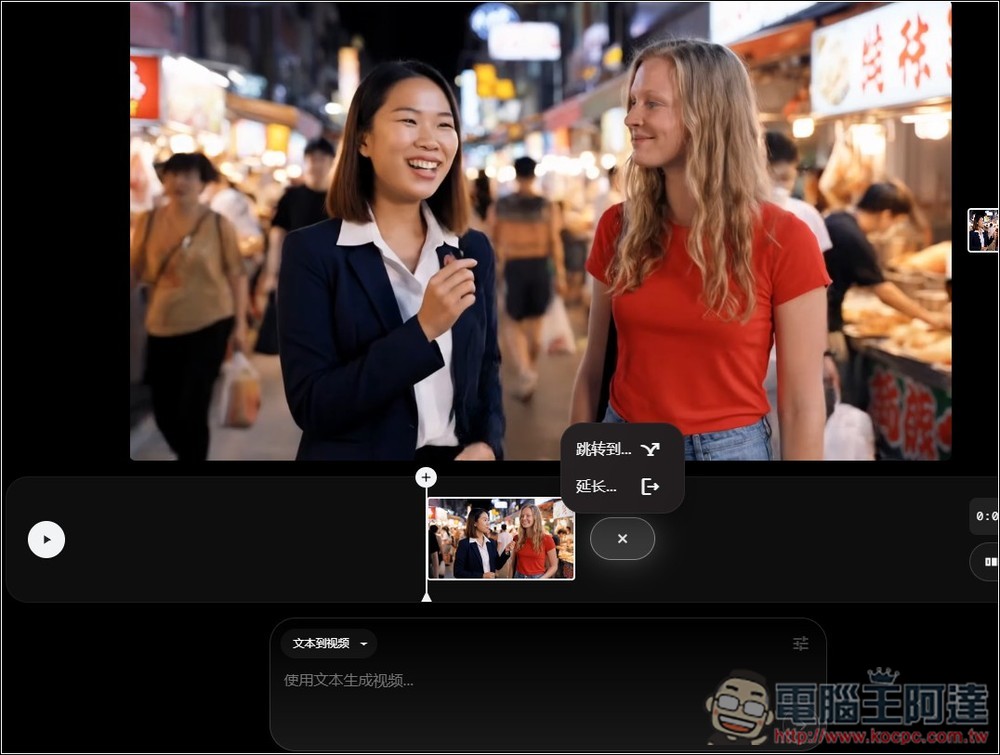
After selecting, you input the prompt in the same way, and it will start generating the next video. It also supports generating from an image or a specific frame:
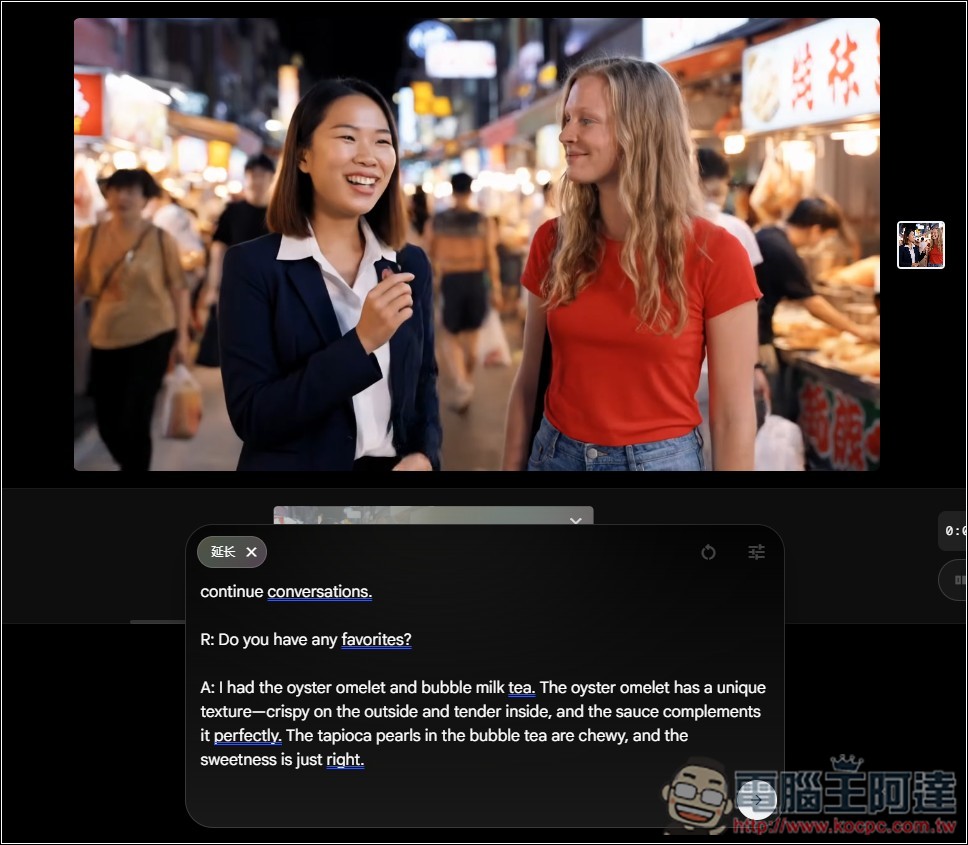
Before sending, remember to confirm this is the model you want to use.

You can check your remaining AI credits in the account menu in the upper right corner:
Below is the interview clip I successfully generated with audio. The dialogue is exactly what I specified in my prompt. After that, I tried generating several extension and transition clips with Veo 3, but none of them had audio. I even tried starting a new project using the last frame of this video as the starting point, but still no audio, so I didn’t include those.
And how powerful is Veo 3? You can read the compilation below of works by top foreign creators we’ve put together.
Source: KOCPC Chinese