


By default, iOS 16 and iPadOS 16 do not support locking specific apps. Therefore, whether you are using a new iPhone or iPad, unless the app developer independently implements this feature, you will not be able to use biometric authentication such as Face ID and Touch ID to protect data in the app. Although there is no direct way, we have other ways to go about it in a roundabout way.
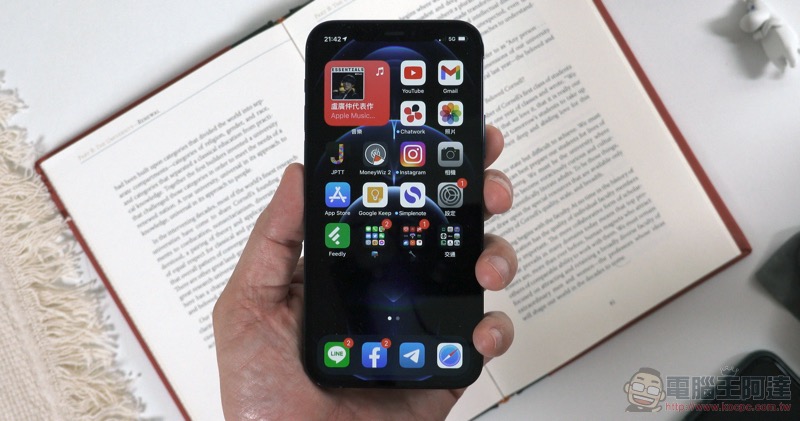
How to use “shortcuts” to lock specific apps with Face ID / Touch ID on iPhone or iPad?
Although Apple has open APIs for apps to use Face ID/Touch ID locking, this feature is basically only available in financial services-related apps. If the application data on your phone is important or you don’t want others to see it (such as diaries), you will definitely want to lock it. There is an application called “Shortcut” on iPhone and iPad, which can be implemented by customizing automated shortcut scripts. Please follow the steps below to get started:
- Click to launch the Shortcuts app on your iPhone or iPad.
- Switch to the “Automation” tab.
- Click the “+” sign in the upper right corner.
- Select “Create Personal Automation”.
- Scroll down to find “App” and click on it.
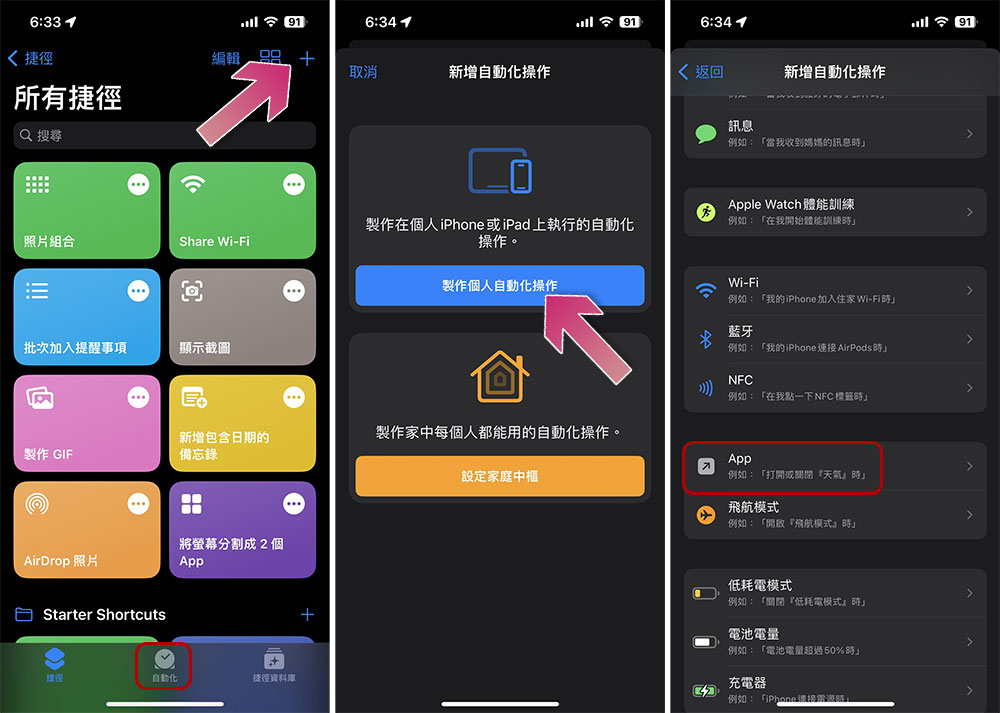
- Click “Select” behind “App”.
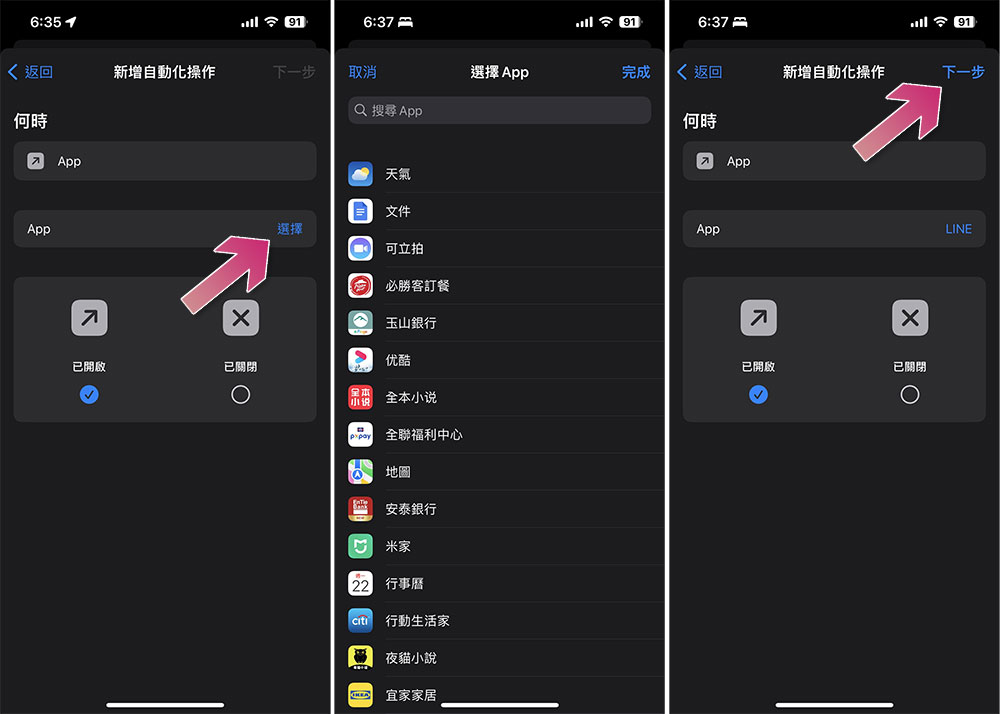
- Click on the apps you want to lock independently using Face ID and Touch ID (you can check multiples, the selected ones will be checked), and then click “Done” in the upper right corner.
- Then click “Next”.
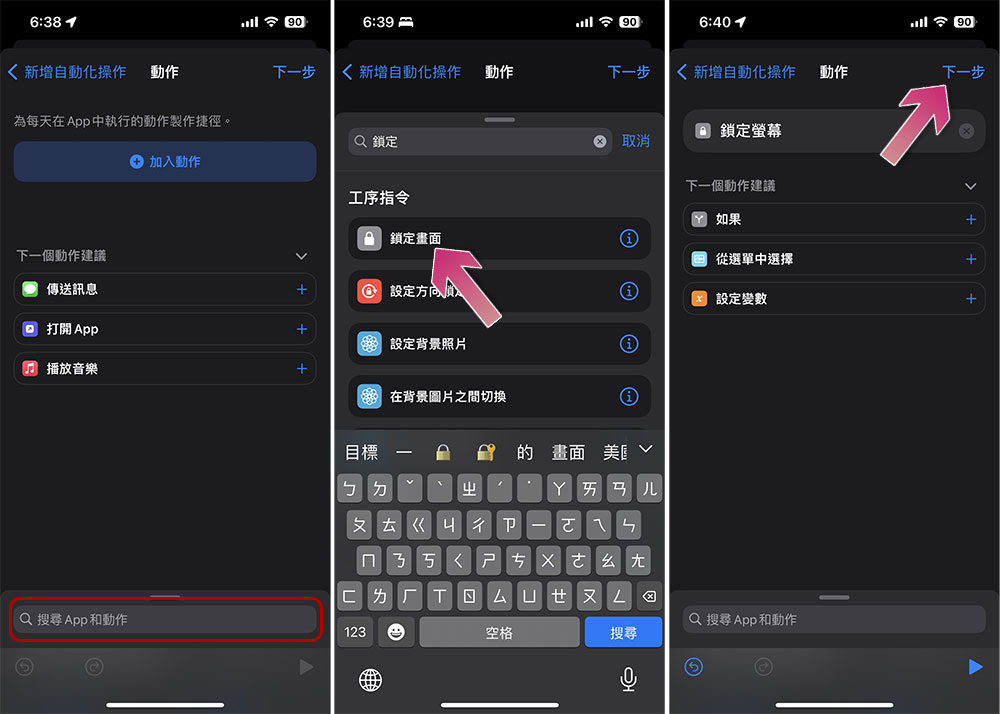
- Click “Search Apps and Actions” at the bottom of the screen and enter the keyword “Lock Screen”.
- Click “Lock Screen”, the first item in the search results.
- Click “Next” in the upper right corner.
- Finally, turn off the switch behind “Ask before executing” and click “Finish” in the upper right corner.
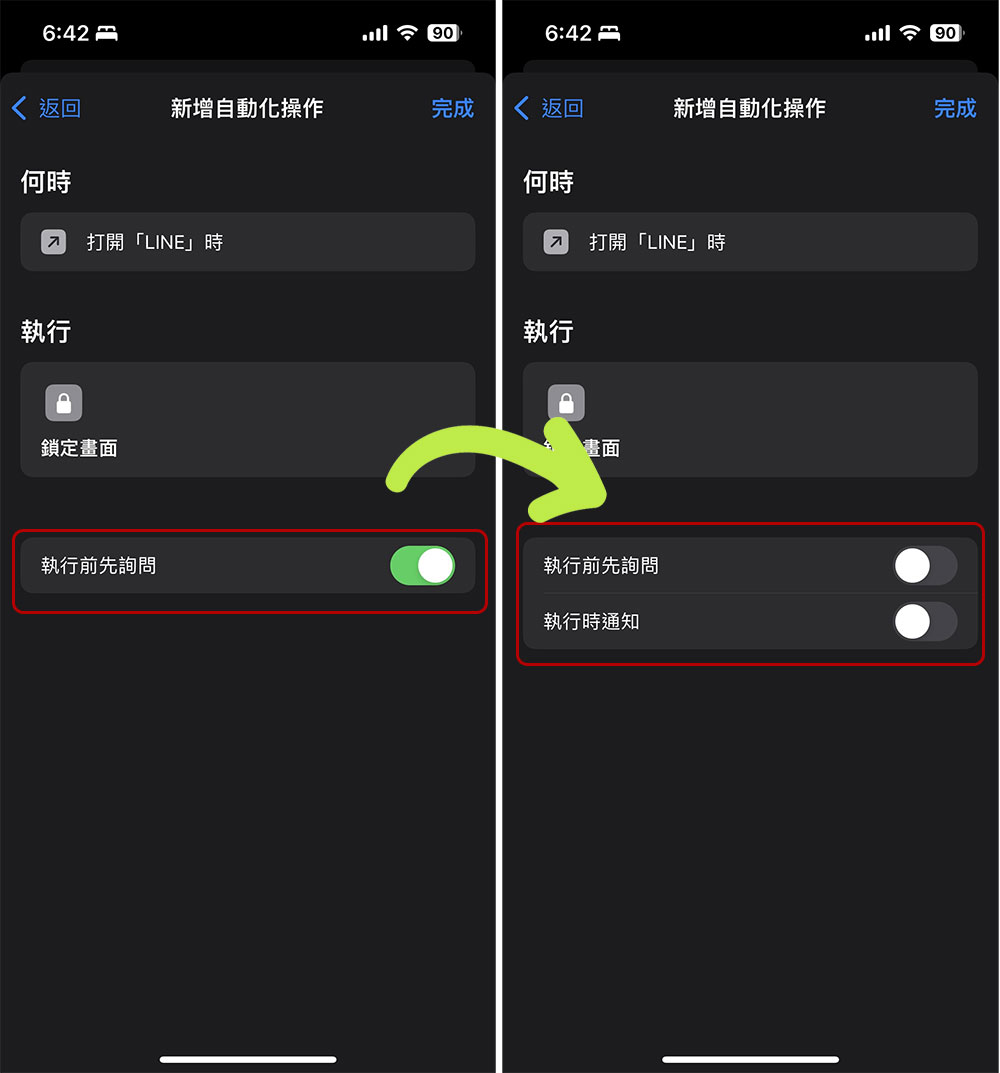
Now, your iPhone or iPad screen will lock itself every time you launch the app you selected in the automation process. You then have to rely on Face ID, Touch ID, or a passcode to unlock the device. That way, someone trying to snoop on your phone or tablet won’t be able to secretly view any personal data stored in an app.
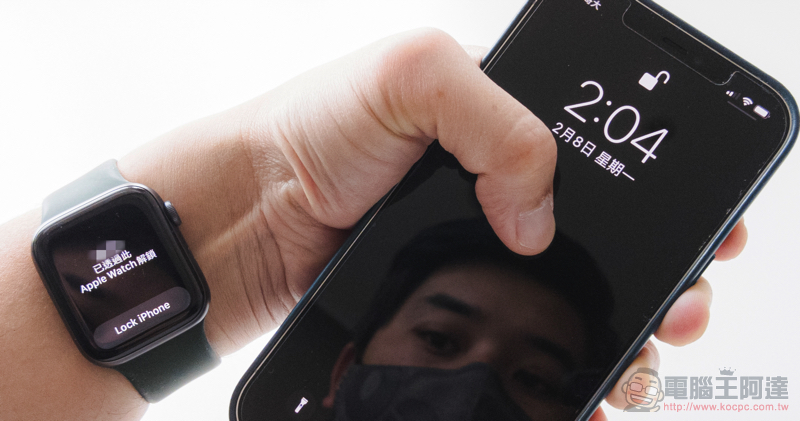
After you initially set it up, the automation will continue to run until you delete it or turn it off. Although it is not as convenient to use as writing functions directly into the application, it is still a very effective alternative for people who care about the data and data of a certain application without having to install other applications.
Source: KOCPC Chinese