


Recently, the Computer King Ada team also discovered the Bing Chat + Edge browser sidebar function, which is actually quite useful for collecting PDF file information. It is recommended that you try it. This article will also briefly demonstrate how to use it. Continue reading Generative AI tips: Let Bing read PDF files for you, and use Edge to write (teach) report content.
Generative AI secrets: Let Bing help you read PDF files, you can do it with Edge (tutorial)
Seeing the launch of OpenAI GPT-4, which can attach files for AI interpretation, everyone does not have to wait for the free version to be released. Because Bing Chat has already used GPT-4 with the Microsoft search engine Prometheus model for a long time, as long as you use it with the Edge browser sidebar function, you can unlock more advanced usage!
Recently, the Computer King Ada team also discovered the Bing Chat + Edge browser sidebar function, which is actually quite useful for collecting PDF file information. It is recommended that you try it. Below we will also briefly demonstrate how to use it.
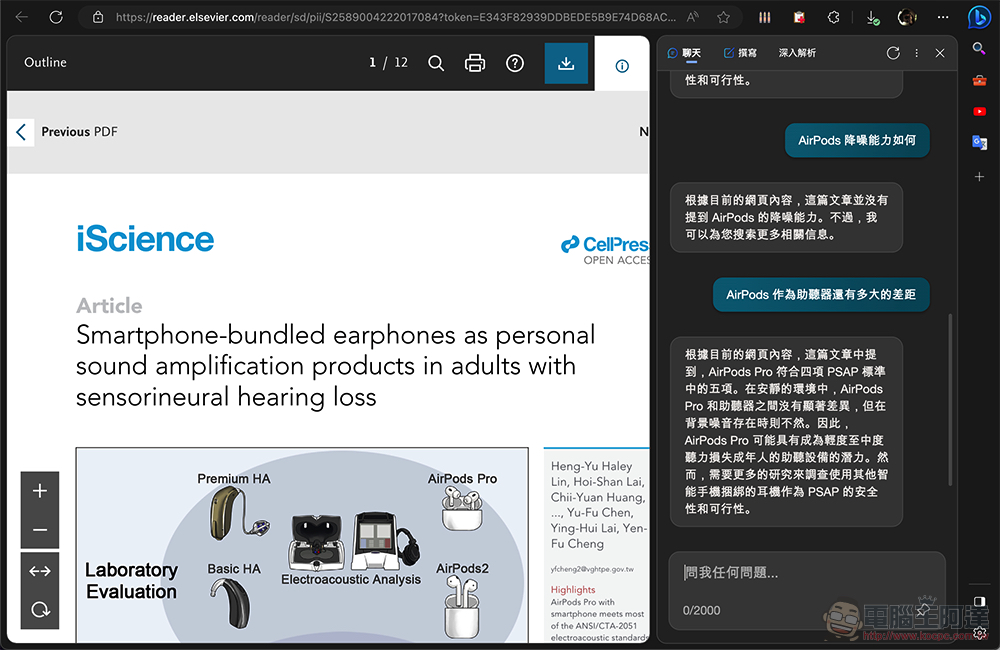
I believe that including students and working people, once they encounter long PDF files, such as patents or papers, it will make people feel overwhelmed. I always feel that even if I read it carefully, I still may not be able to accurately summarize the key points. At this time, you will feel that it would be great if AI could help. But currently, the free version of ChatGPT does not allow you to directly upload files for interpretation; although there is no way to use Plug-in / Add-on, on the one hand, it is troublesome to install it separately, and on the other hand, you are a little worried about whether there will be malware and other issues.
If you have similar troubles, it is recommended that you try to use Bing Chat artificial intelligence through the sidebar of the Edge browser to turn it into your best assistant to help interpret PDF files.
Although Bing Chat can only be used for simple chat-style searches in the pure web version. But you just need to go to the upper right corner of the Edge browser,Press the big blue “b”If so, you can summon Bing AI to help you process information related to the currently opened web page.
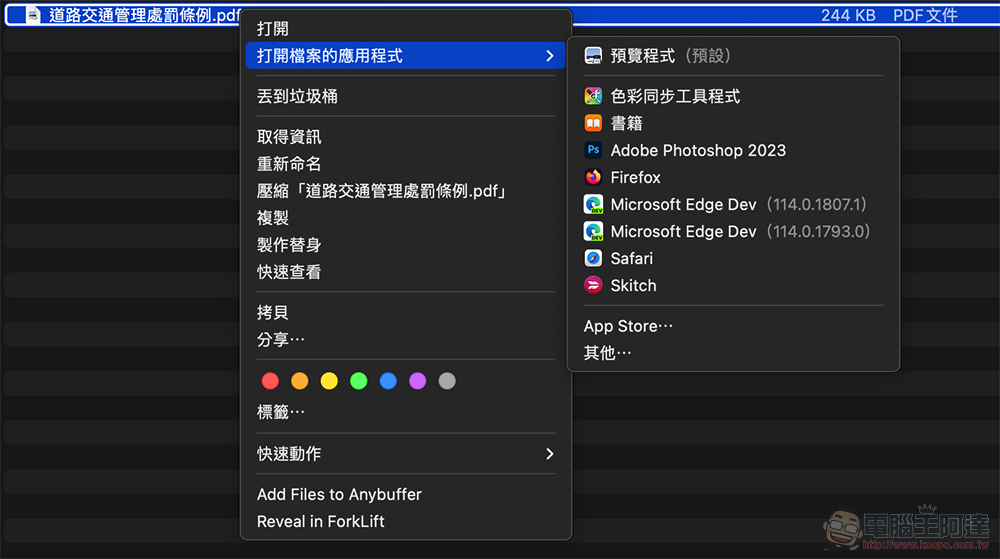
In our use case here, you only need to open the PDF in the Edge browser – whether it is a PDF on the Internet or directly opened in Edge on the local computer. Then you can use colloquial commands such as “Collect the contents of the page” and “What is this page saying” to confirm that Bing Chat can indeed read the contents of the file. Then you can ask for information.
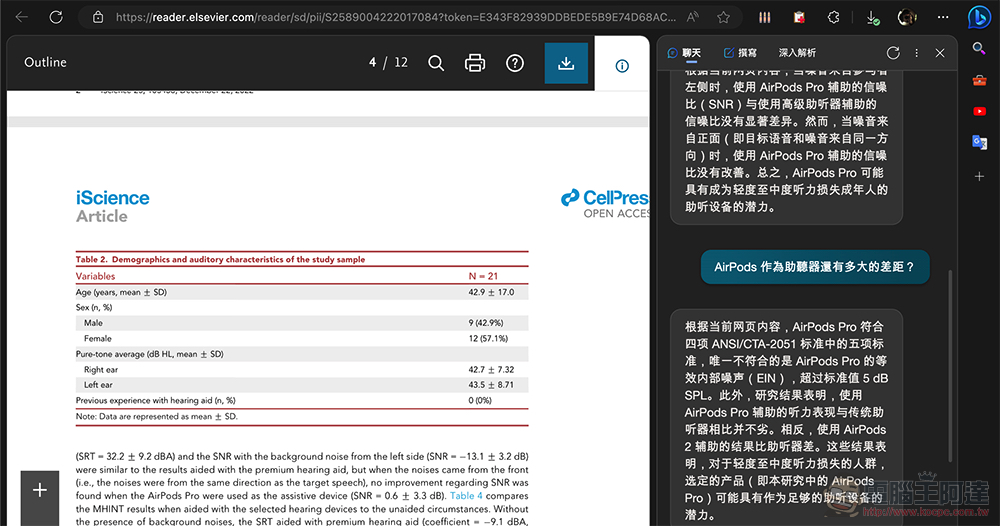
The reason why this tip recommends that you first confirm that Bing can read the document content is mainly because currently, with Edge equipped with the Bing Chat sidebar function, there is still a high chance that the content of the PDF document on the screen cannot be read; if you do not confirm it in this way first, Bing may also directly reply to you with the information searched on the web first.
However, as long as you confirm that the file can be read, basically it is like basic summary or key points, or in-depth inquiry about the details, etc., you can almost easily let Bing help you! Isn’t it great? Give it a try.
Further reading:

Source: KOCPC Chinese