


In addition to chatting with friends and connecting emotionally, LINE also has many built-in convenient functions that few people know about. Today I will share with you a few LINE secrets. In addition to the media search function that can be built in the chat room, there is also the ability to click on a link in the chat room to open it directly from the browser, and the clipping wizard that is only available to Android users. These functions are all within the LINE Labs experimental function, and you can use it as long as you enable it!

LINE secrets: built-in media search function in chat, using the default browser to open links, and clipping wizard, 3 tips to make LINE more usable!
Although LINE has many small functions that have not been officially launched, they will actually be open to users in the LINE Labs laboratory for early trial use. This time I will share with you three small functions hidden in LINE Labs. As for how these functions are actually used and how to use them, keep reading!
To turn on the LINE Labs function, first go to the settings page of the LINE App, find “LINE Labs” and enter, then you can select the trial function you want to turn on.
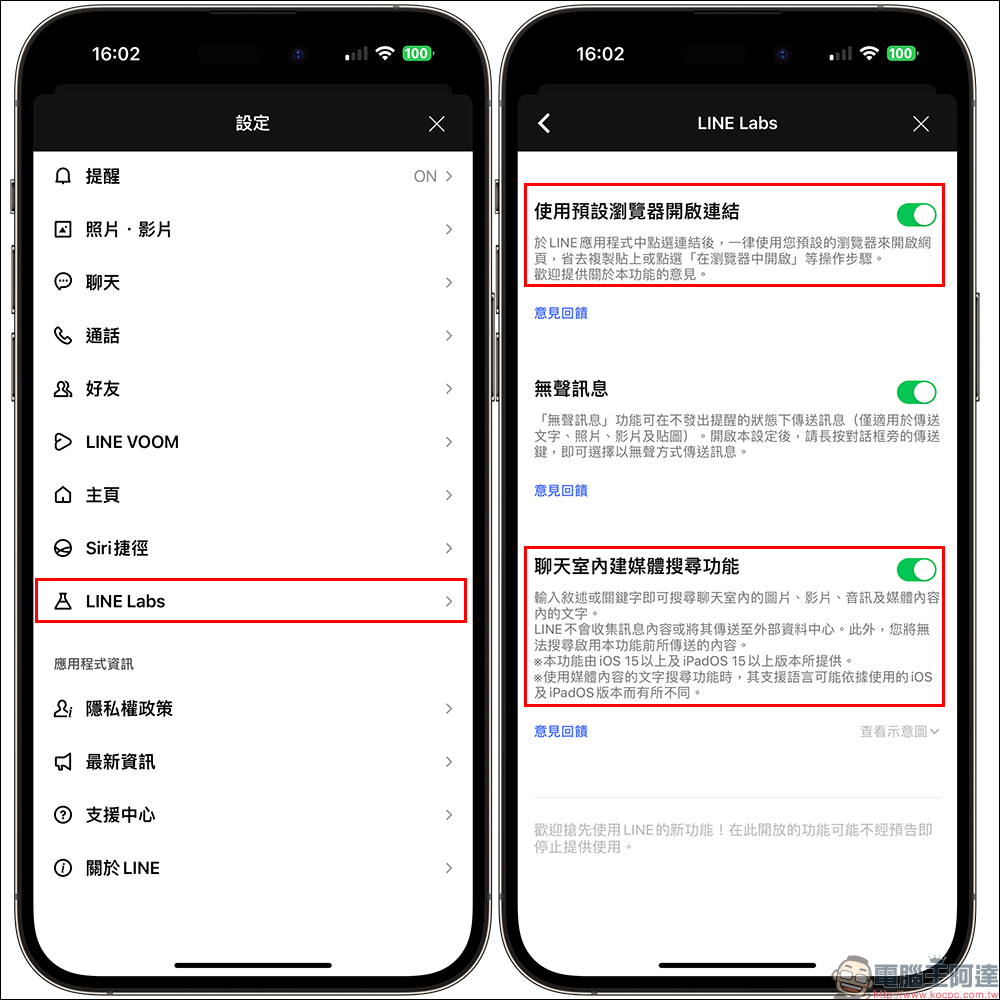
Built-in media search function in chat room (only for iOS users)
If you want to find media content such as pictures, videos, and audio in chat rooms, just turn on the “Built-in Media Search in Chat Room” function and you can quickly find media content that matches the keywords in each LINE chat room! Especially in LINE communities, which often have thousands of members, it used to take a long time to scroll down to find a specific picture, but if this function is turned on, it becomes super convenient. For example, as shown below, if you search for the keyword “Rakuten” in the LINE community, you will be able to find all the image messages matching this keyword in the chat room. After clicking on the message, you can jump directly to the screen of the chat room page. You can see that the word Rakuten is indeed correctly analyzed in the picture.
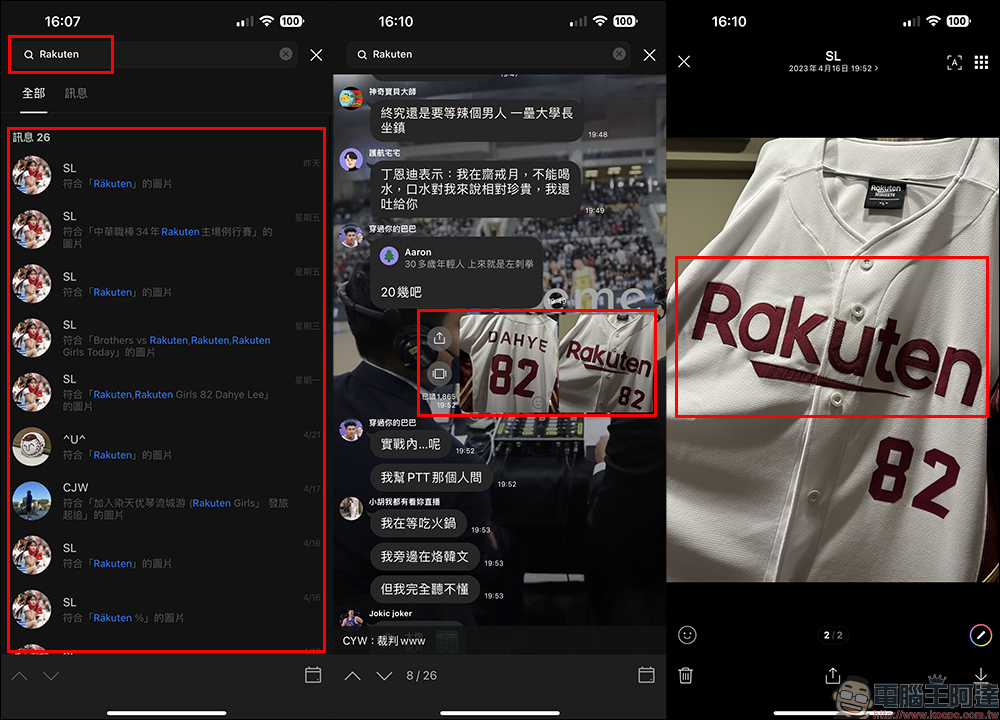
Some people may be curious, if the text is smaller and less conspicuous in the picture, can it be successfully searched? The following test found that even if the image is relatively small, there is still a chance to successfully find media content that matches the search keywords.
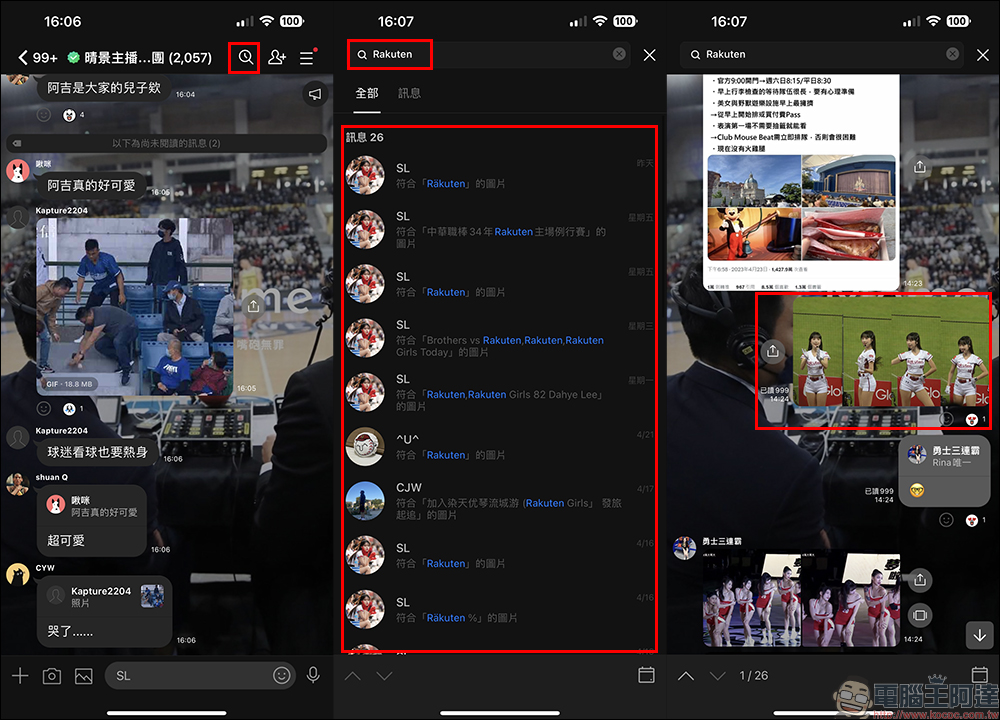
Something like this:

Open link using default browser (iOS users only)
Many users will send page links to their friends in chat rooms on LINE, or directly leave the link in a personal group to use as a note. At this time, if they want to open a web page, they will usually open the web page directly in the LINE App. However, for users who often switch between web pages and chat rooms, it will be much more convenient if the “Open the link using the default browser” function can be turned on. Once enabled, clicking a link will directly open the web page using the iPhone’s default browser.

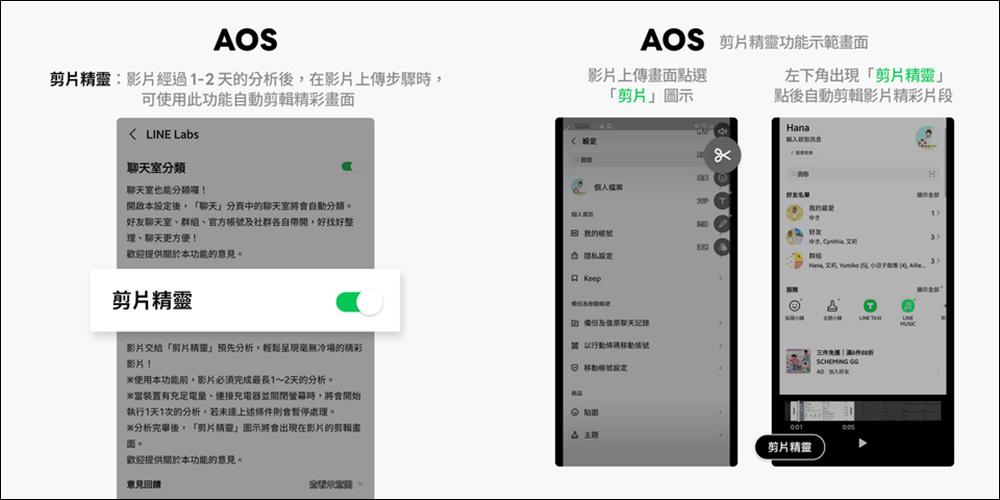
Cutting Wizard (Android only)
In addition to the first two secret tricks exclusive to iOS users, there is also a “Clip Wizard” function limited to Android users. After turning on the “Clip Wizard” function, after the video has been analyzed for 1 to 2 days, you can use this function to automatically edit the highlights of the video during the video upload step. This function is quite useful for those who want to simply edit a video and throw it into the LINE chat room.
Further reading:
Spotify iOS 16 lock screen/home screen widget setting tutorial

Source: KOCPC Chinese