


For some people, taking medication is a daily routine. This may be a long-term prescription medication, a natural nutritional supplement, a vitamin, or anything you need to take internally or externally on an ongoing basis. It can also be challenging to make sure you take the right medicine at the right time, especially for people who must take a variety of different medicines at the same time every day or week. The “Health” app on iPhone can do more than just record and measure physiological values for you. It also has a medication record for you to use.

How to set up medication reminders and records in the Health app on iPhone?
To record medications on your iPhone, you first have to add them to your schedule.
- Open the “Health” app on your iPhone and find the “Medications” item from the “Browse” tab.
- When you use this function for the first time, you will see the initial short introduction page. Click “Add Medication” above to start using it.
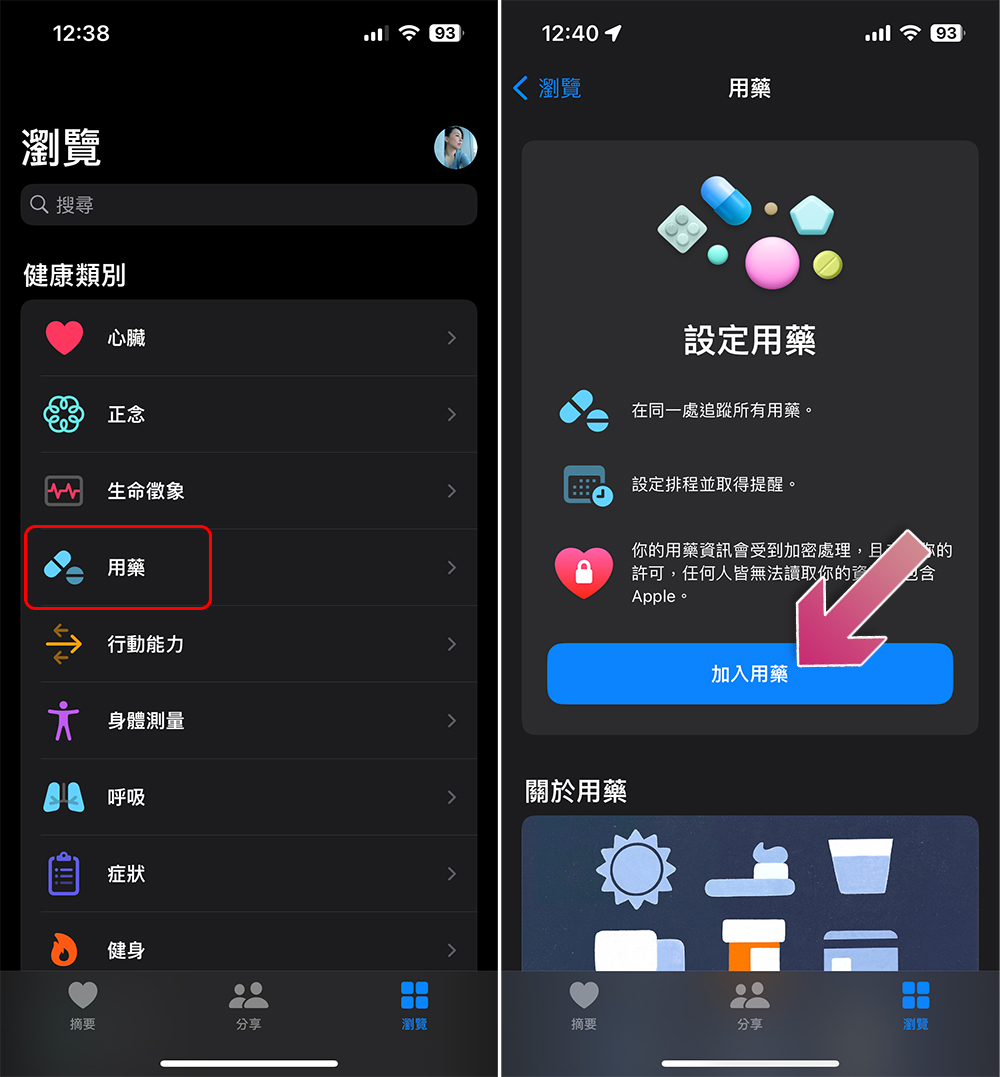
- After entering the medication name, click Next.
- Next select the type of medication. The four most common types, capsules, tablets, potions and topicals, are at the top, or you can scroll down to browse the full list of more forms to find the right type. After selecting, click “Next”.
- Next, enter the content. If you are unclear, you can click to skip it. The unit options are below and you can select them according to the drug specifications.

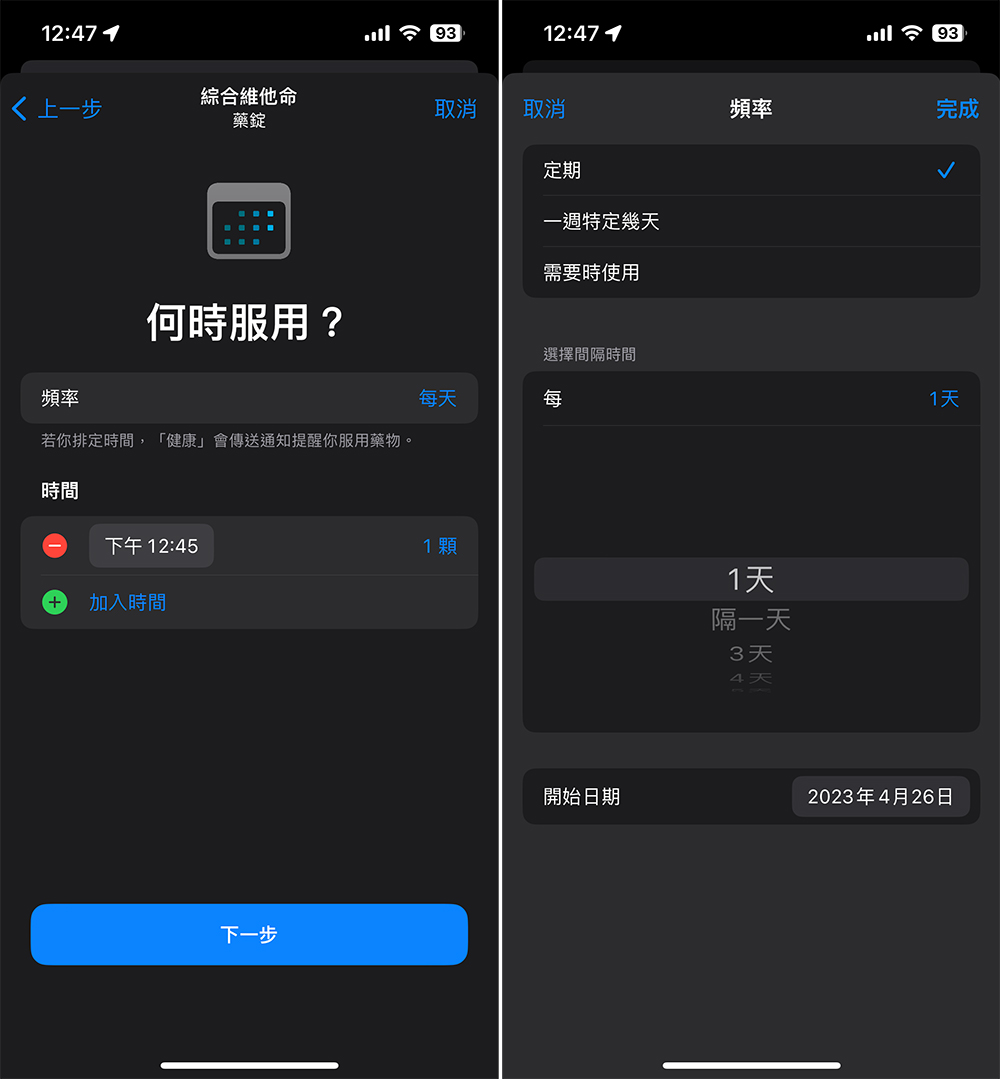
- Next, set when to take the medicine, and add how often you need or want to take the medicine on this page. The default is every day, but you can adjust it to every other day, every few days, etc. according to your needs, and set the day to start taking the medicine. In the future, you can also edit at any time to increase or decrease the number and frequency of taking according to the situation and doctor’s advice.
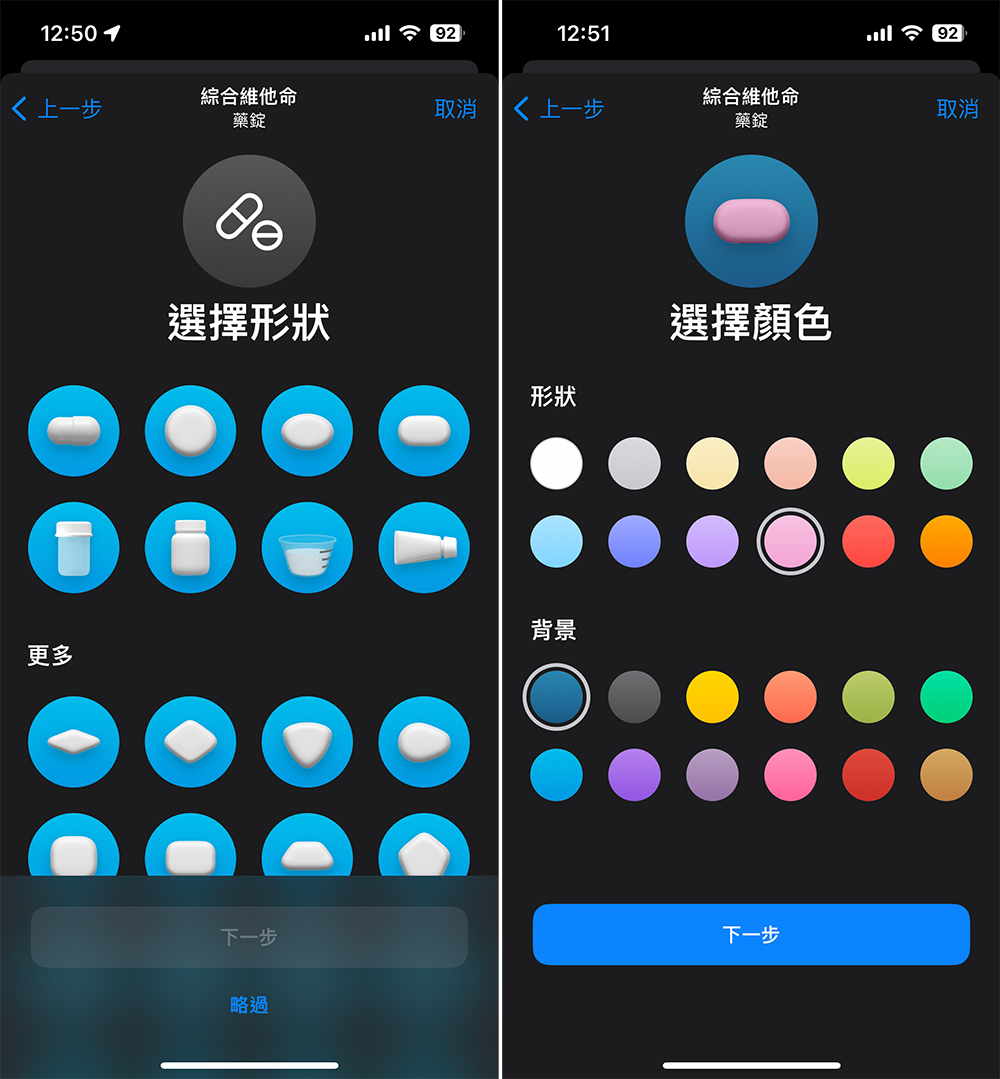
- Next you can select the drug shape for identification and click Next; you can skip it if not needed. If you are an elderly person using this function, it is recommended to set it up for you.
- Further set the color of the tablets and click Next after selecting. This item also helps users identify medications.
- Finally, you can set other precautions and detailed information in the notes for review, such as taking it on an empty stomach, a full glass of water, etc., and finally click Finish. Next, set up all the medicines that need to be taken periodically step by step.
- After the setting is completed, you can see on the next page that the added drugs will be listed here.
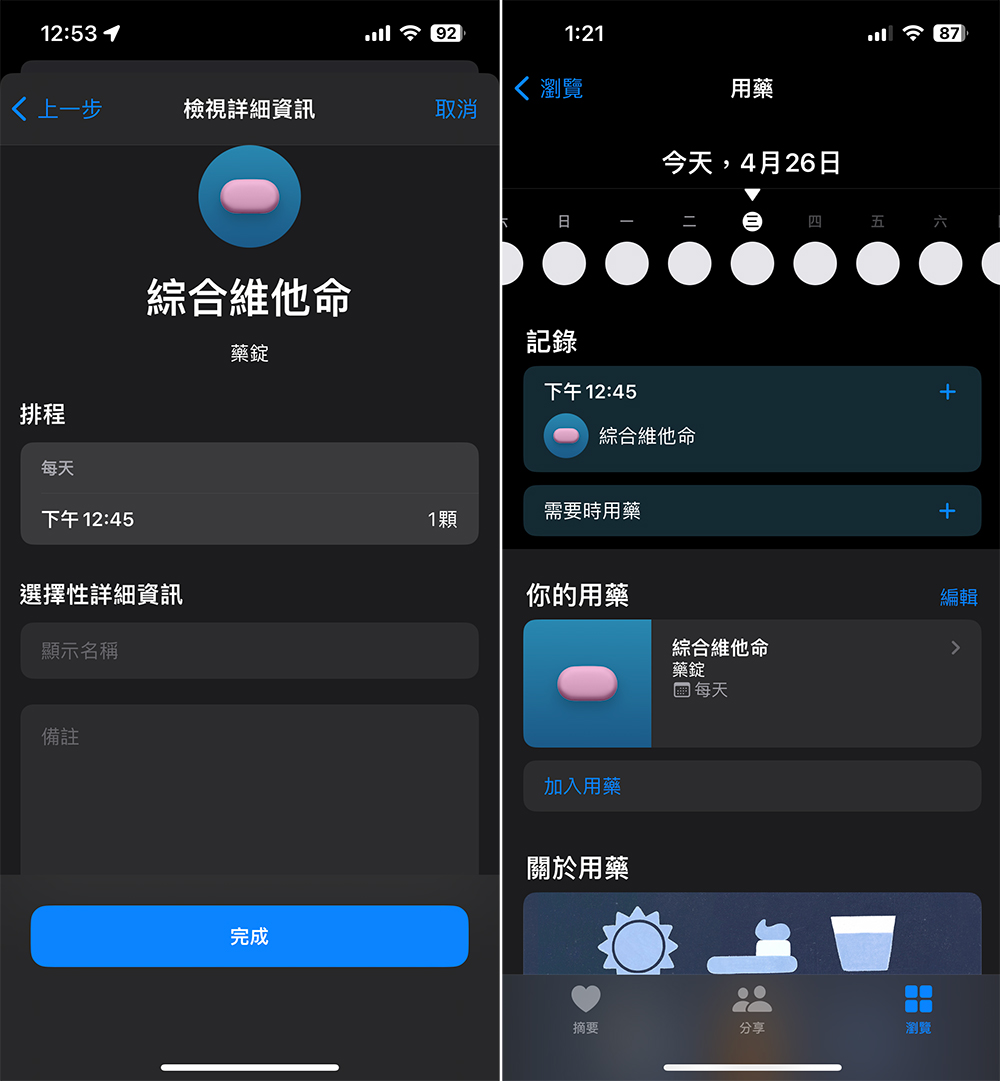
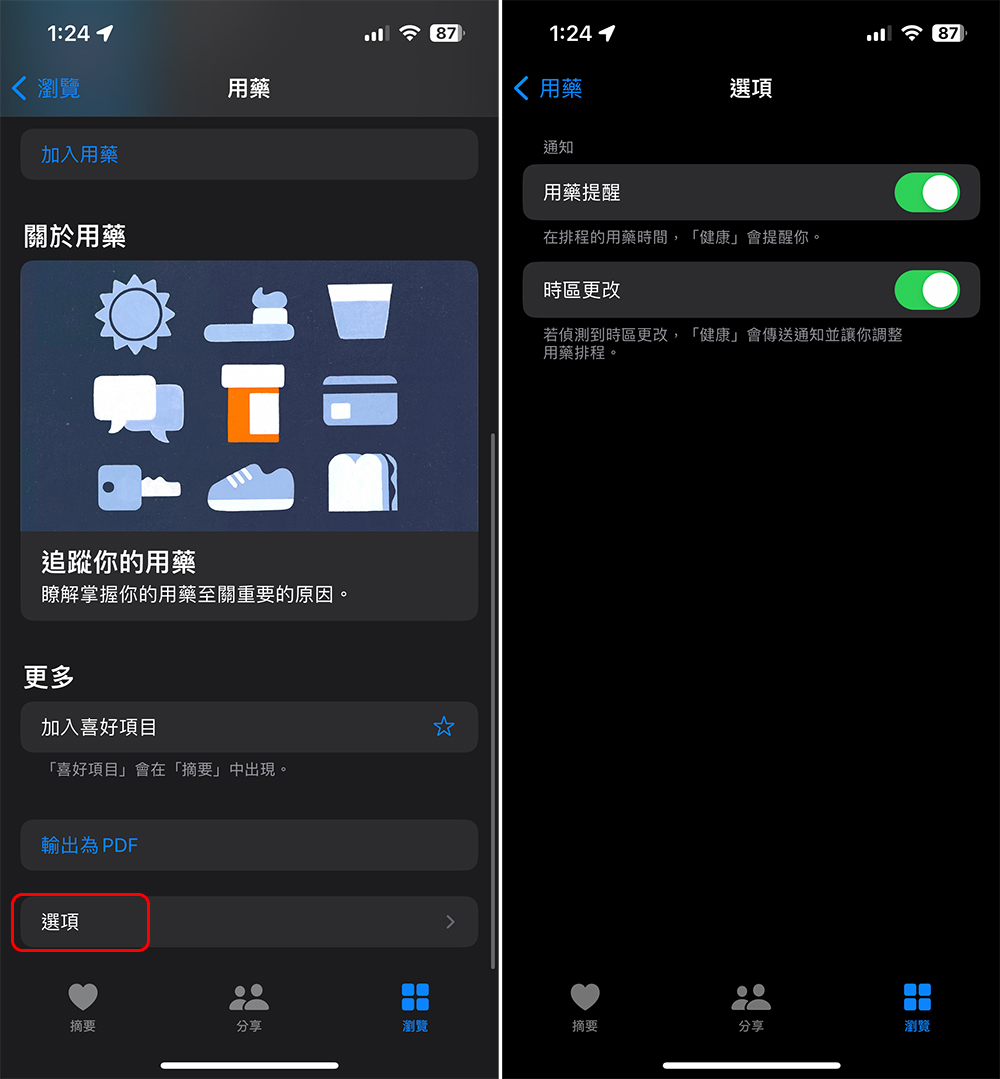
- Scroll down on the main homepage of “Medicine” and you can find “Options”. Click to enter to open two very useful functions.
Medication Reminder: Remind you to take your medication at the time you set.
Time zone change: If you frequently travel abroad, with this feature turned on, as long as your time zone change is detected, the Health app will send a notification and allow you to adjust your medication schedule.
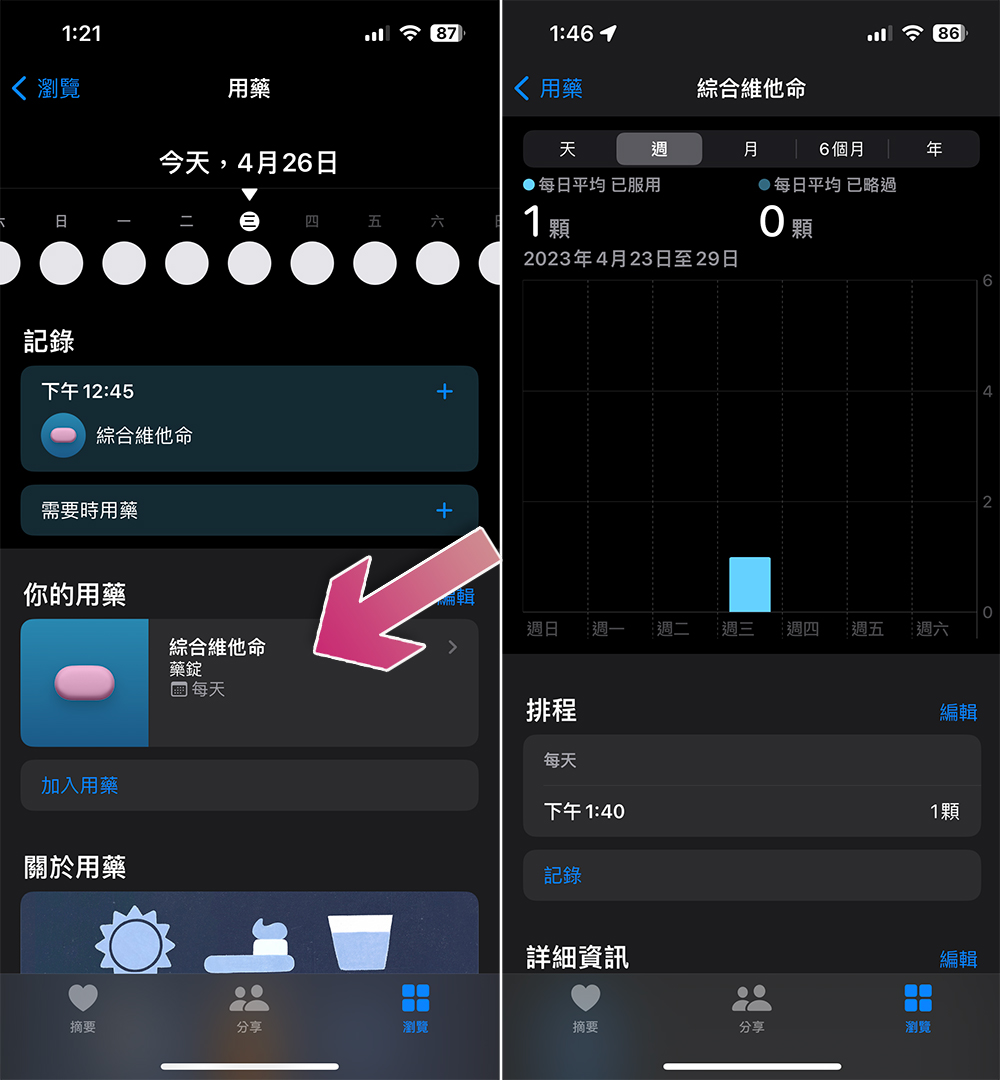
- Once set up, you can log your medications as you take them and track missed doses if you accidentally miss a dose. When you open “Medications” in the “Health” app, click on a specific drug to see the medication record.
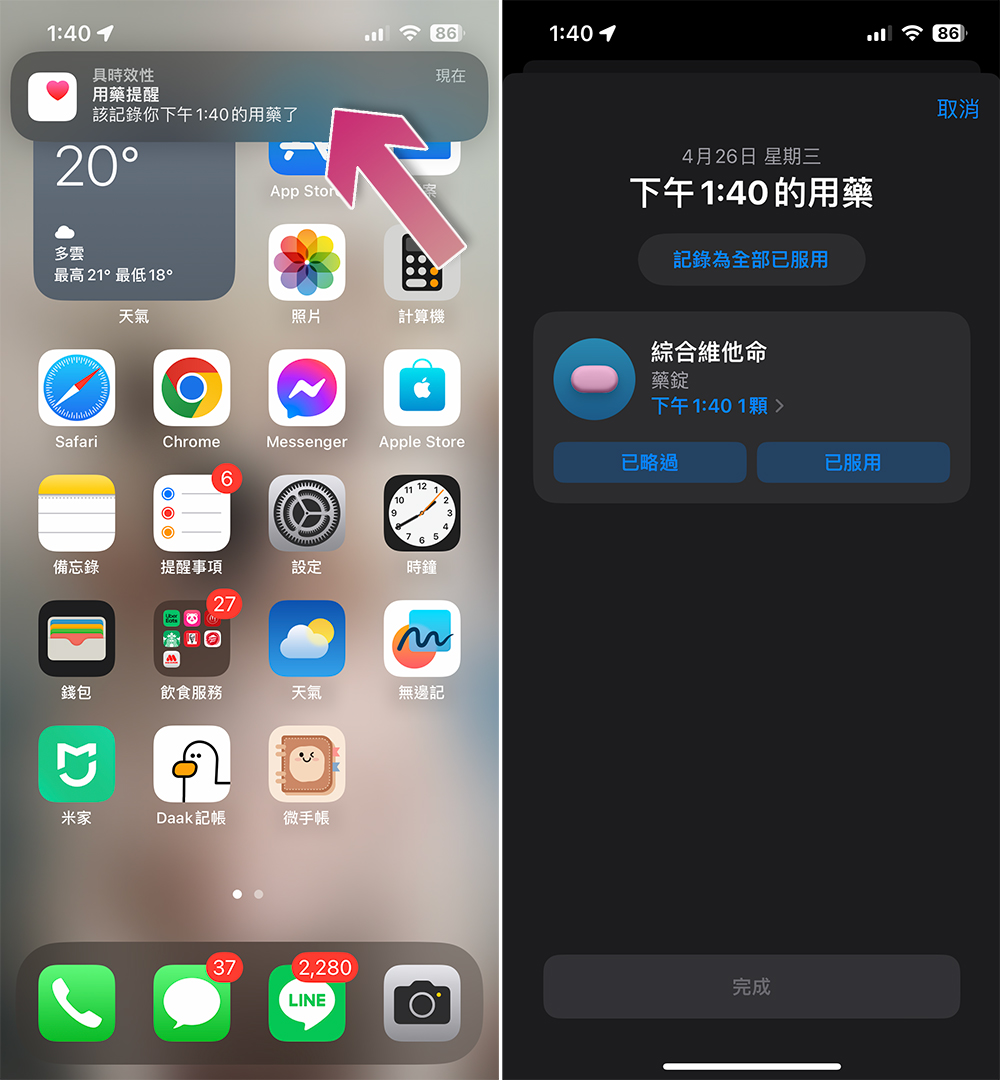
- After you receive the reminder at the specified time, click on the reminder to enter the health app. If you are taking the medicine now, click “Taken”; if you are unable to take the medicine now, click “Skip”.
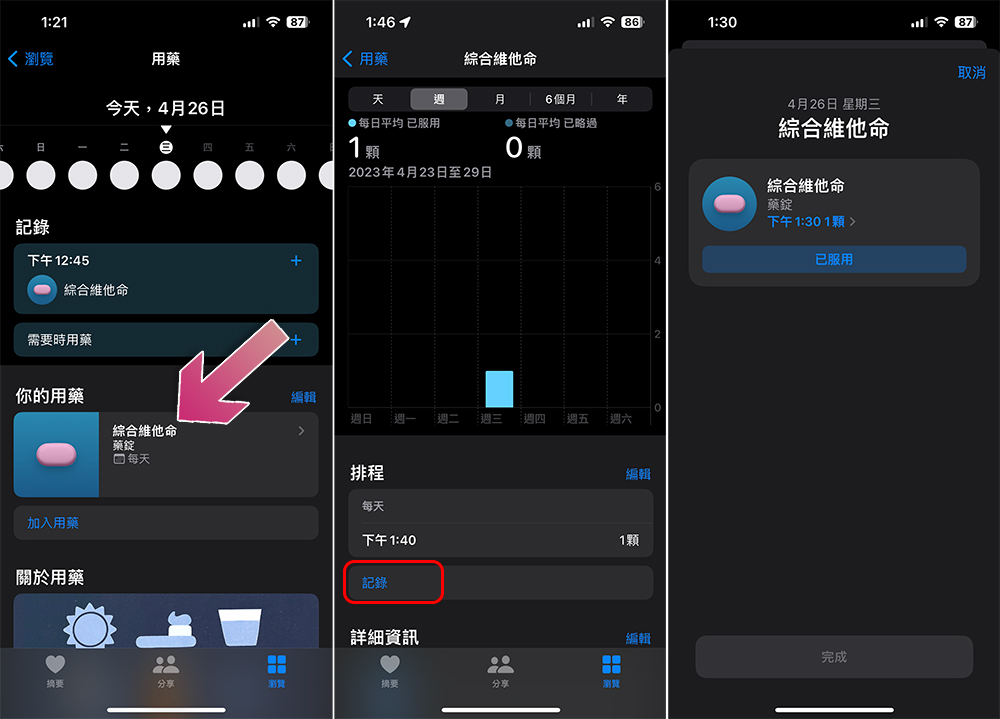
- If you have taken the missed medicine later, you can go to the internal page of the specific medicine, click “Record” and click “Taken” to make up for the record.
I find this function very helpful, especially if I need to take medicine at different times, or if my elders have long-term, chronic prescription medicines but often forget to take them. This function can help users take medicines regularly and in a measured amount and track them for a long time, which is more convenient than an alarm clock. (Because I often turn off the alarm clock, but forget to take medicine)
Bonus: Record medication from Apple Watch
You might leave your phone alone, but once you put your Apple Watch on, you’re unlikely to take it off. To make things even easier, you can also log your medications directly from your Apple Watch.
- Click to open the Medication app on Apple Watch. You can see your medication schedule and the medications you have recorded from here.
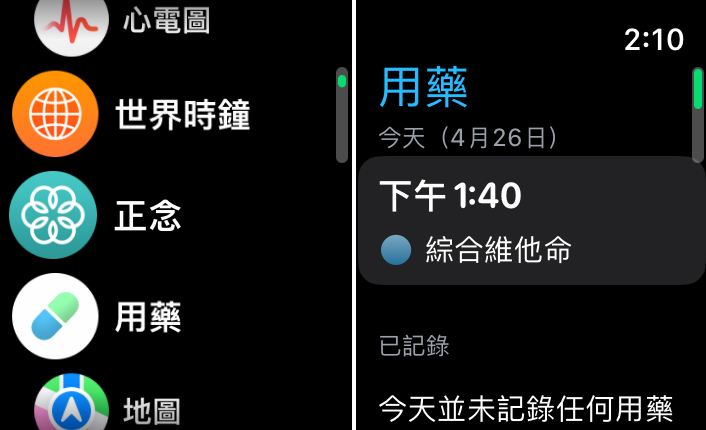
- Scroll down and click on the medication you want to record.
- If necessary, you can directly click on the field to adjust the amount and time you need to take, then scroll down and click “Record”.
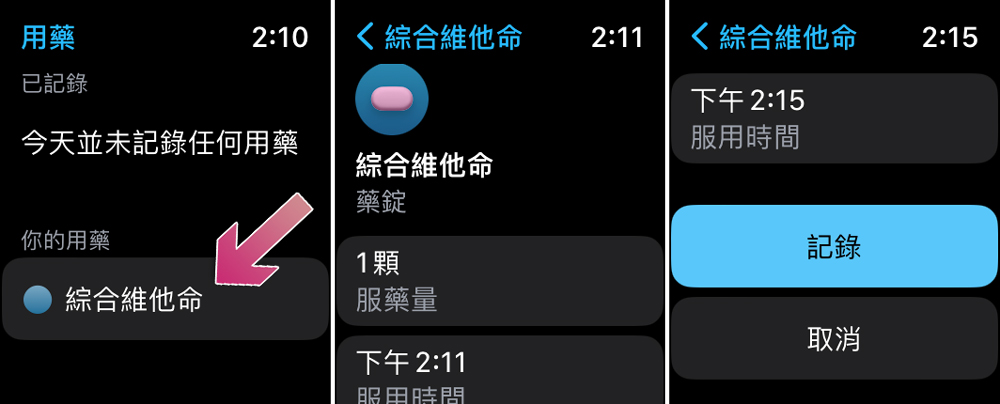
- The drug will now show up in the Health app on Apple Watch and iPhone.
If you live in the United States, any iPhone XR or above can scan the label on the drug to search for the drug in the database, making it easier to add it. Those living outside the United States will need to manually enter the name of each drug.
Source: KOCPC Chinese