


When health and life are endangered, the iPhone “SOS Emergency Service” function can come in handy. iPhone will automatically dial the local emergency number to the emergency contact or contact the local emergency service unit. However, although this function can be used in emergencies, it inevitably causes many users to accidentally touch it. Today, I will introduce to you how to turn off several functions of this service, and you can still use the SOS emergency service function! It’s just that this setting can reduce the number of accidental phone calls.
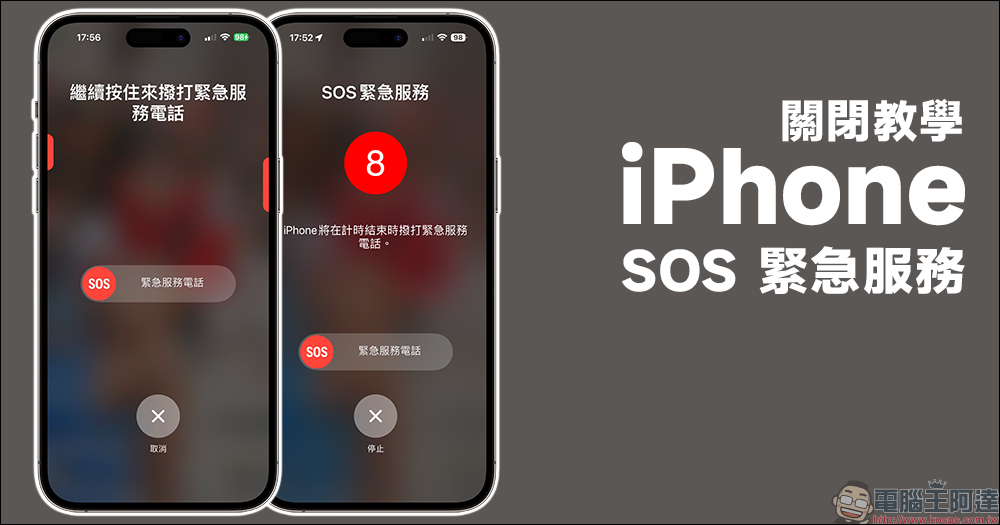
How to turn off iPhone SOS emergency service? Learn these 1 tips to avoid accidentally calling emergency services
On iPhone, users can use “SOS emergency service” function helps you quickly and easily call for help and notify the set emergency contact person. When you make a call using “SOS Emergency Service”, iPhone will automatically dial the local emergency phone number and share your location information with emergency services. In some countries and regions, you may need to select the services you want.
When “SOS” appears in the iPhone status bar, it indicates that emergency services calls can be made over the mobile network. You can also add emergency contacts. After an emergency call ends, iPhone will send a message to notify your emergency contacts unless you choose to cancel this feature. iPhone transmits your current location, and your emergency contacts will receive updates whenever your location changes while you’re in SOS mode.
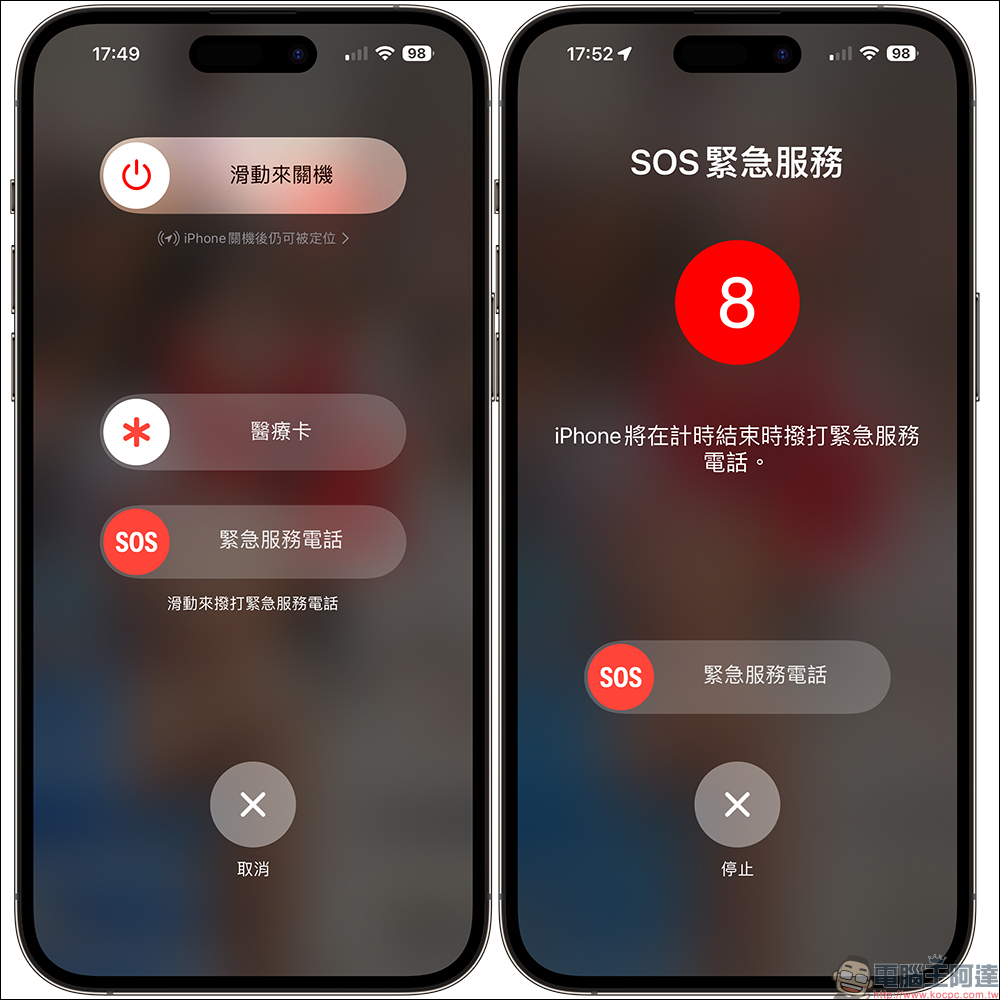
However, for many people, this thoughtful feature causes some embarrassment and inconvenience in their daily lives. Because when the SOS emergency service function is activated and the emergency call is made, the iPhone will produce a loud beep. If you just put the iPhone in your backpack or pocket and press it, it may attract the attention of passers-by in public places.
This time I will share with you how to turn off the SOS emergency service function. But in fact, it is not really about turning off this function completely, but adjusting some settings to turn off the shortcut keys to reduce the chance of users accidentally touching it.
How to turn off “SOS Emergency Service”?
First, open the “Settings” App and find the “SOS Emergency Service” function. Then you can see that there are two shortcut key functions in the settings: “Press and release to make a call” and “Press the button five times to make a call.” If you want to avoid accidental touches caused by the above situation, it is recommended to turn it off depending on the situation.
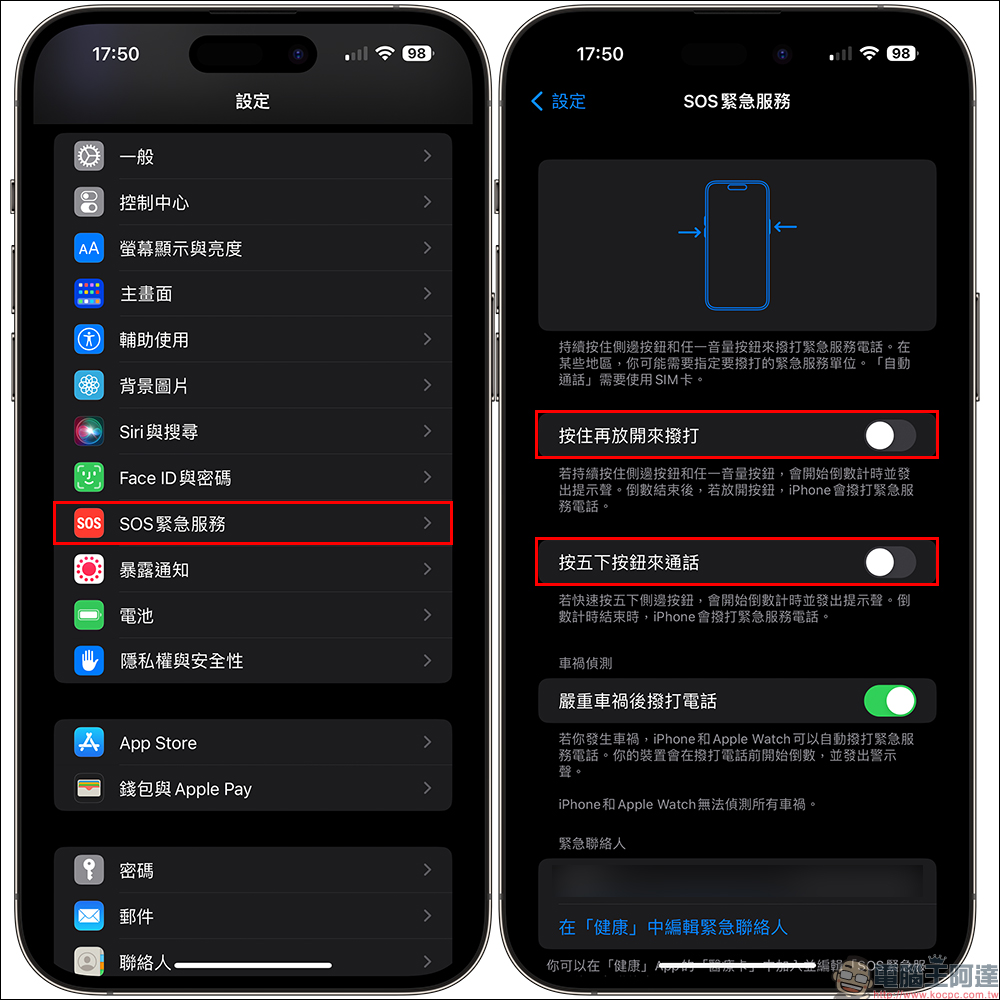
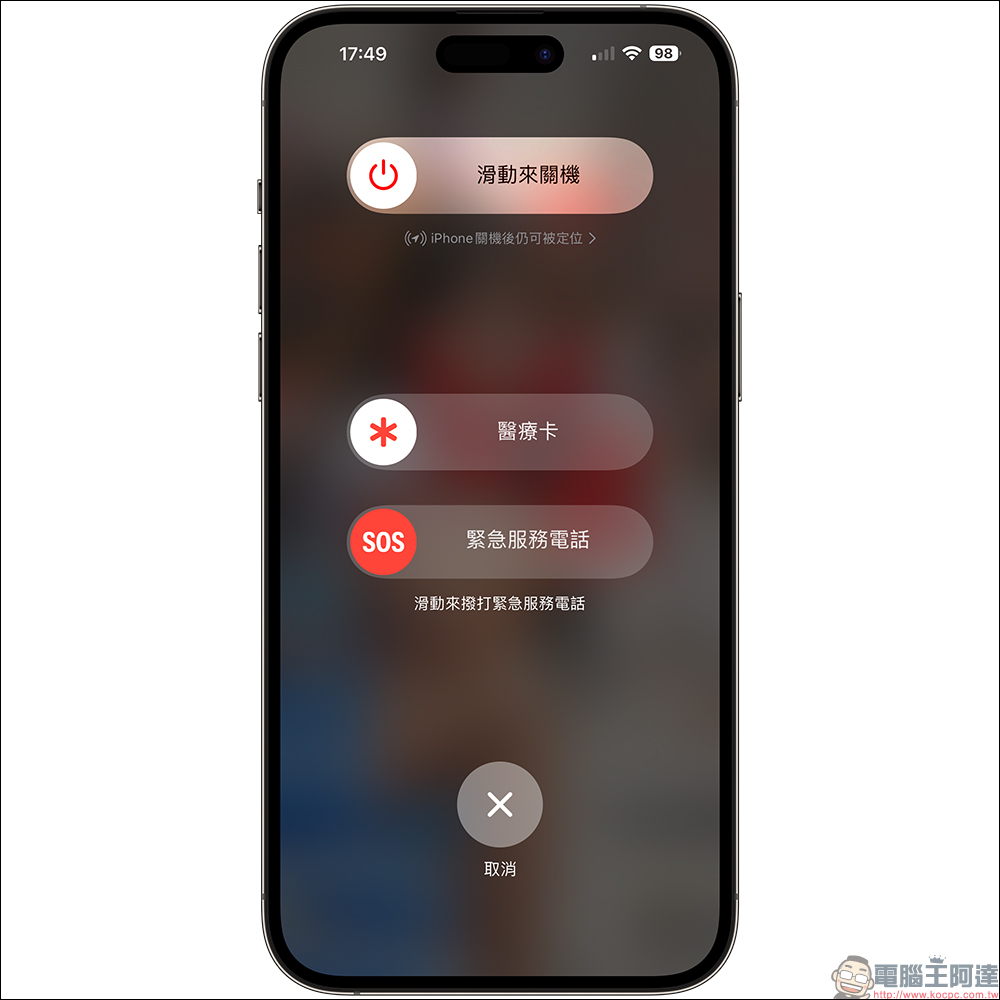
When the user turns off the two settings of “Press and release to talk” and “Press the button five times to talk”, and if the side button is pressed five times in succession to open the shutdown, medical card and SOS emergency service phone page, emergency calls will not be made due to accidental touches. However, if you want to call the SOS emergency service number, you can still slide the “SOS emergency service number” on this page to make the call.
What are the differences between the two “SOS Emergency Service” settings?
The previous paragraph mentioned that you can turn off the two settings of “Press and release to dial” and “Press and hold the button five times to dial”, but I believe many people don’t have the opportunity to actually use this function, right? So a lot of people probably don’t know how it works all this time.
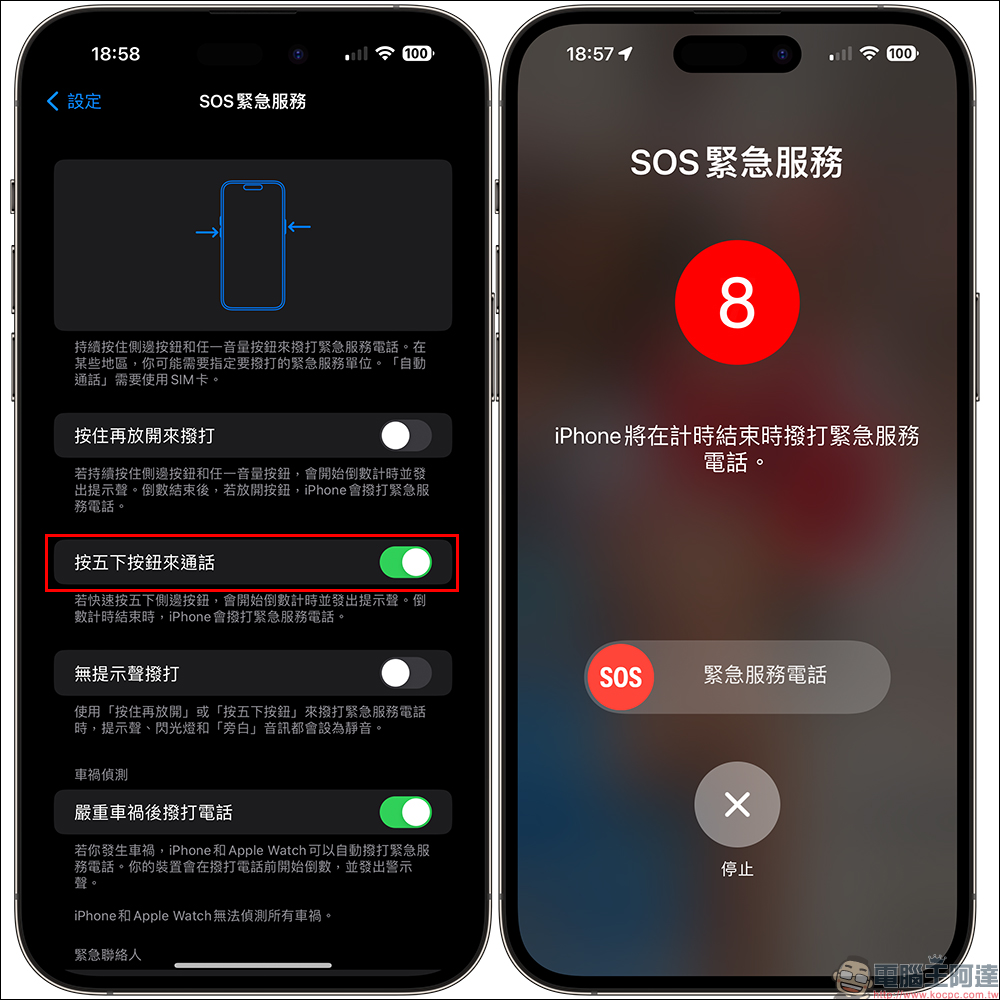
Five button presses to talk
First of all, if it is “press the button five times to talk”, after pressing the side button five times quickly, the countdown will automatically start and a prompt sound will sound. When the countdown ends, your iPhone will automatically broadcast a call for emergency services.
If this function is turned on, it will definitely be the most convenient function for those who need emergency help, because when there is a need for help in a critical moment, there is no need to swipe the screen, just keep pressing the side button to automatically dial the emergency service number. This feature is quite useful for emergency service needs. But once it starts due to accidental touch, it will be embarrassing. So you can evaluate your daily usage habits and choose whether to turn it off!
Press and release to make a call
The setting of “press and release to make a call” sounds a bit complicated. In fact, when the screen is on the emergency services page, if you continue to press and hold the side button and any volume button, a countdown will start and a beep will sound. When the countdown is over, if you release the button, the iPhone will dial the emergency service number. Compared with the previous one, which automatically dials after the countdown, the “press and release to dial” function setting is more suitable for users who are prone to accidentally touching the phone but also need to dial emergency service numbers. Because if you release the button as soon as the countdown is halfway through, the system will not place a call to emergency services.
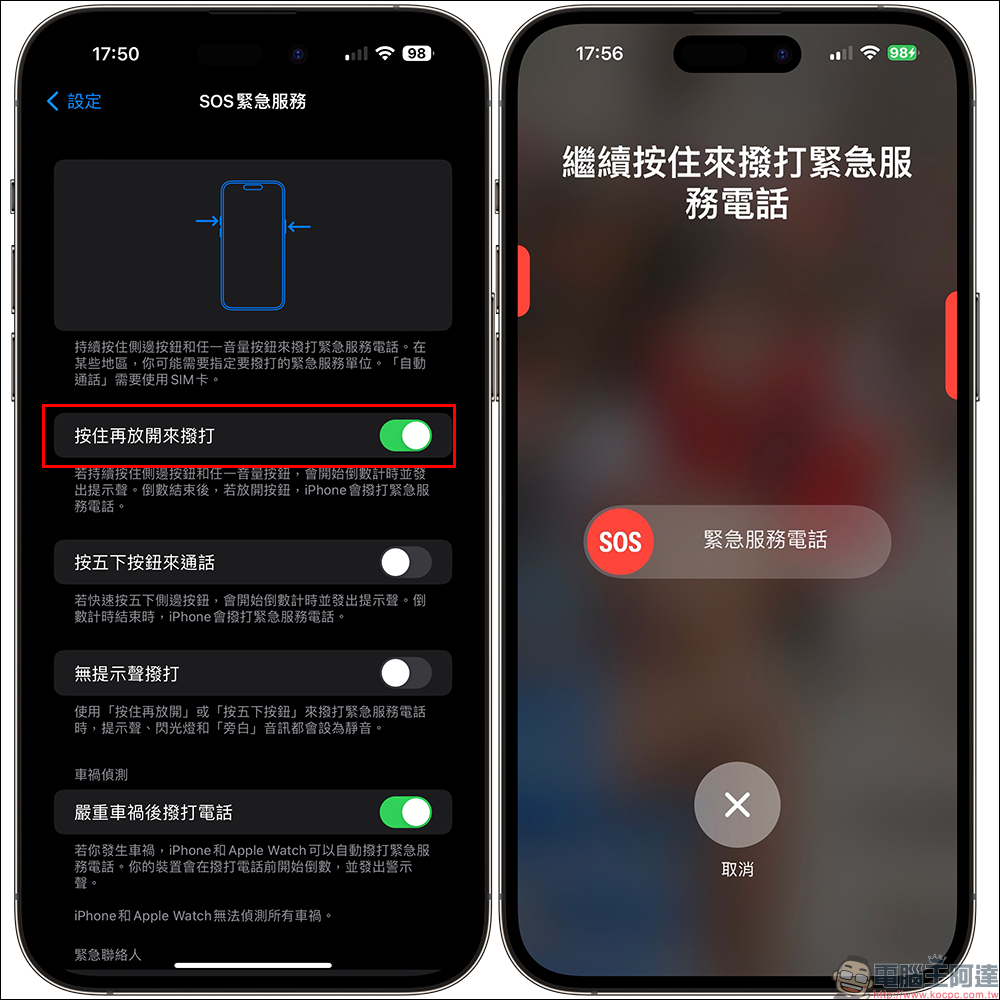
The following is the actual operation process of this function. You can see that you need to wait for the countdown to end and release the button according to the instructions before dialing the emergency service number.
How to edit iPhone emergency contact settings?
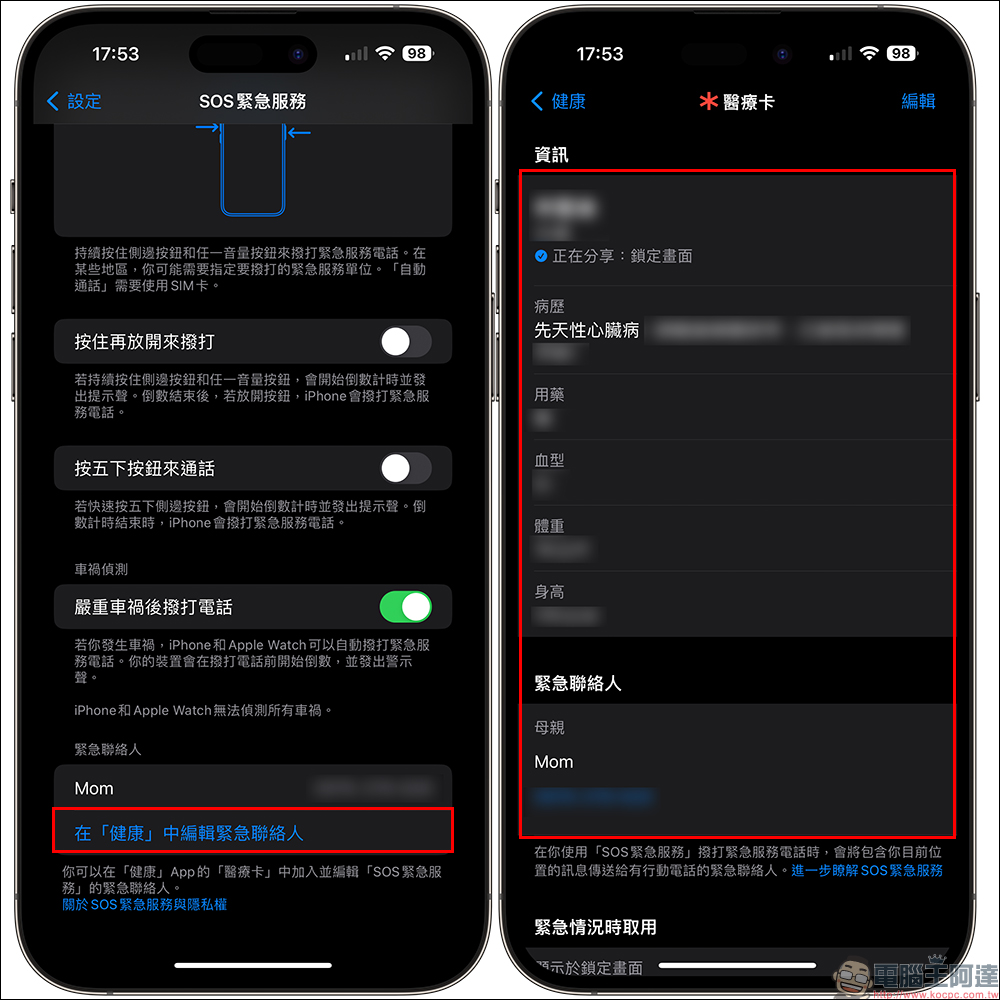
SOS 紧急服务除了能拨打紧急服务电话,其实更推荐大家一定要先设定好的就是「医疗卡」,若不幸发生意外而失去意识时,可以让前来帮助的热心民众和医疗人员,可以更容易掌握自己的健康状况和病史。 “Medical Card” can be viewed without unlocking the screen. Just press and hold the side button and any volume button, and slide to view the medical card information.
Users can click “Edit emergency contacts in health” in the emergency contact field at the bottom of the SOS emergency service settings page to set up. It is recommended that you at least set the name and phone number of the emergency contact person. Secondly, you can also write the blood type and medical history on the medical card.
Further reading:
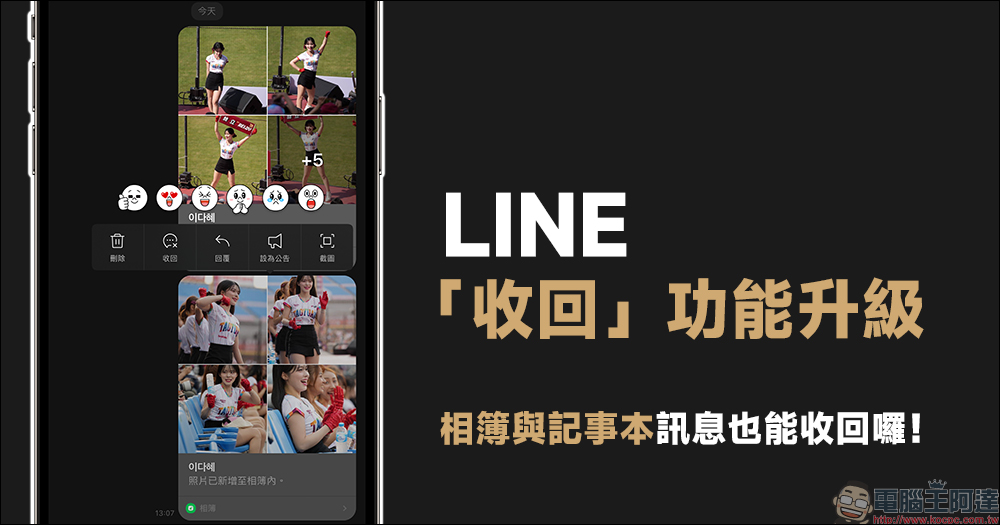
LINE recall function upgrade: 1 click to recall error messages in photo albums and notepads
Source: KOCPC Chinese