


In addition to computers, it also runs locally on mobile phones. AI Models also began to develop rapidly,Google Specifically targeting Android Introducing a brand-new free tool, Google AI Edge Gallery, which lets users run Google’s open-source Gemma series models locally (iOS version coming soon). It’s not just text chat—it also supports multimodal models. You can upload images or take photos for the AI to recognize and get the answers you need. I gave it a quick test, and the speed is acceptable. You can choose to run it on CPU or GPU. Below, I’ll show you how to install and use it.
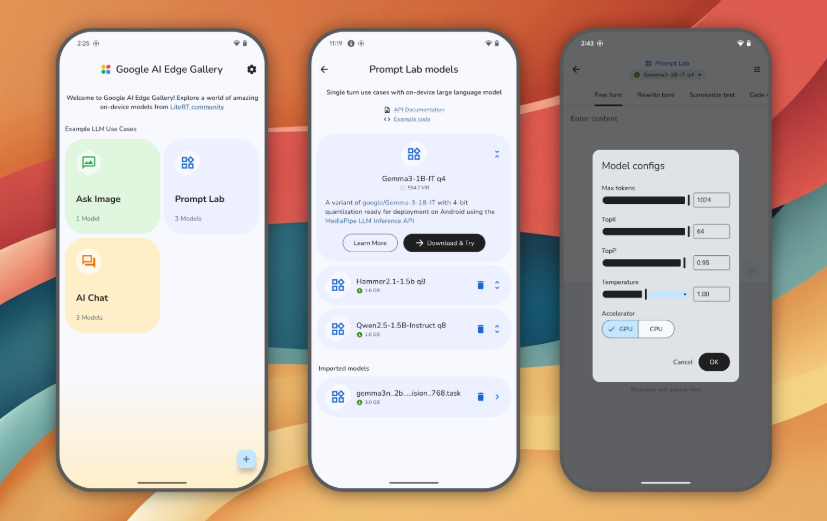
Image source:GitHub
Google AI Edge Gallery Installation Guide: Running Gemma Series Models Locally on Android
Google AI Edge Gallery is still an experimental app, so it’s not available on the Google Play Store. You’ll need to manually download and install the APK from the open-source project on GitHub. Also, you’ll need a Hugging Face account to use it (you must be logged in to download models), so if you don’t have one, just sign up for free.
Compared to the online version, using AI locally has many benefits, such as not having to worry about your data being used for training or by the service provider, and being able to keep using AI even without an internet connection. This is very helpful when traveling abroad—for example, if you come across a menu you don’t understand, you can take a photo of it and send it to the AI to recognize and translate.
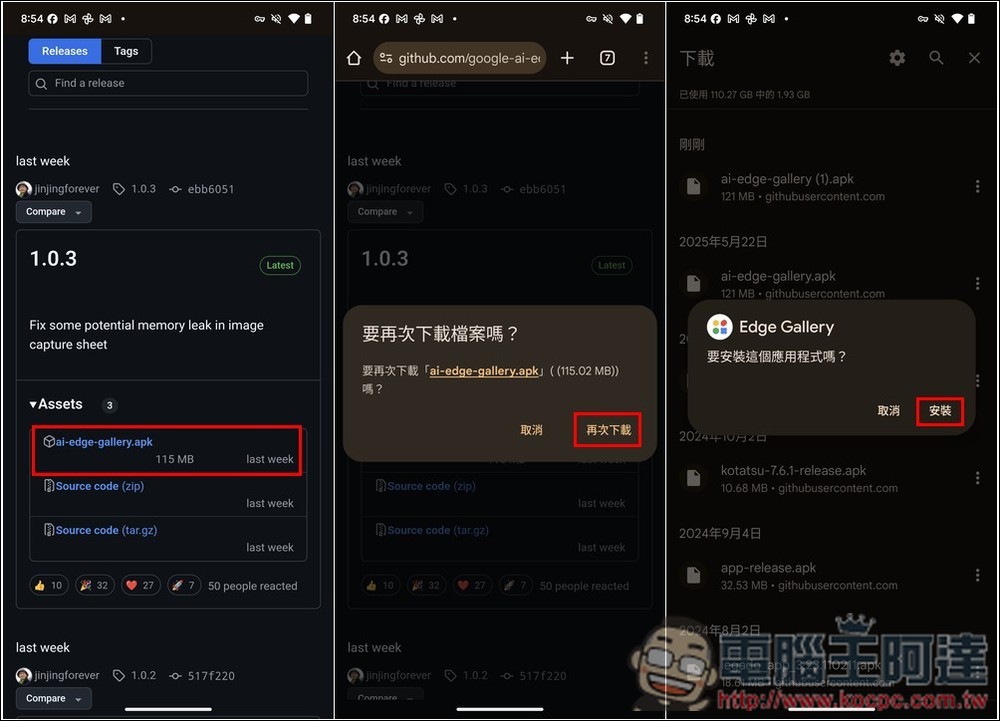
After clicking the link above to enter the GitHub project, the latest version is currently 1.0.3. Download the .apk file, and after it’s downloaded, open and install it (I’ve downloaded it before, which is why a prompt asking to download again appears):
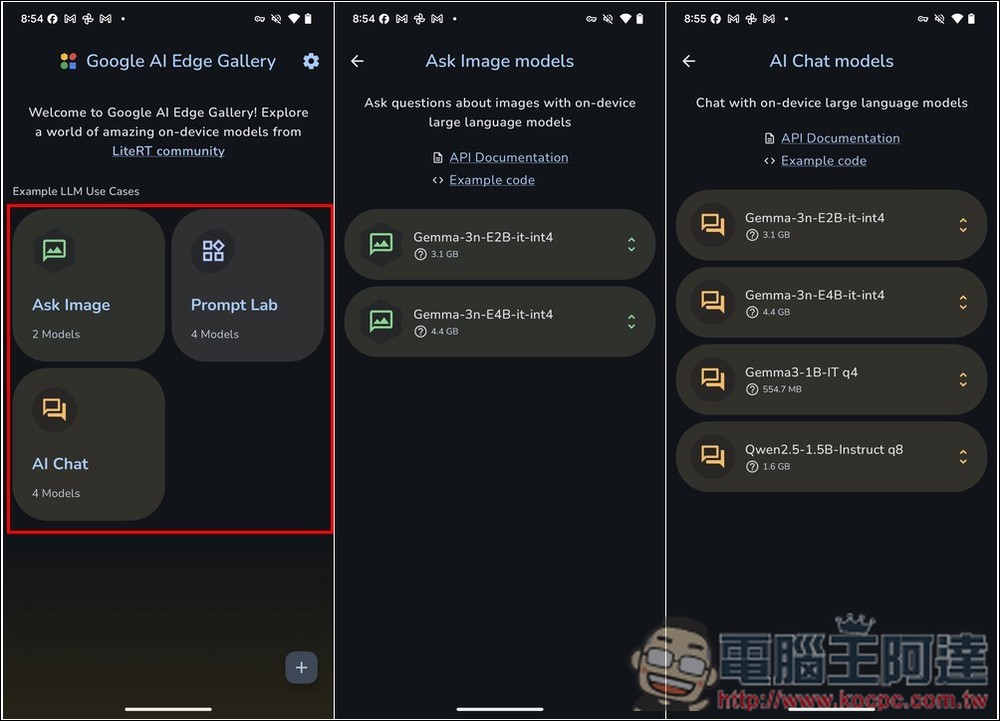
After opening Google AI Edge Gallery, there are three modes: Ask Image, AI Chat, and Prompt Lab. If you want image recognition, go to Ask Image, where matching models will be displayed. Currently, the multimodal ones supported are Gemma-3n-E2B and Gemma-3n-E4B. For text chat, there are four models; besides the two mentioned earlier, there are also Gemma3-1B and Qwen 2.5-1.5B:
After finding the model you want to use, the first download will require you to log in to your Hugging Face account:
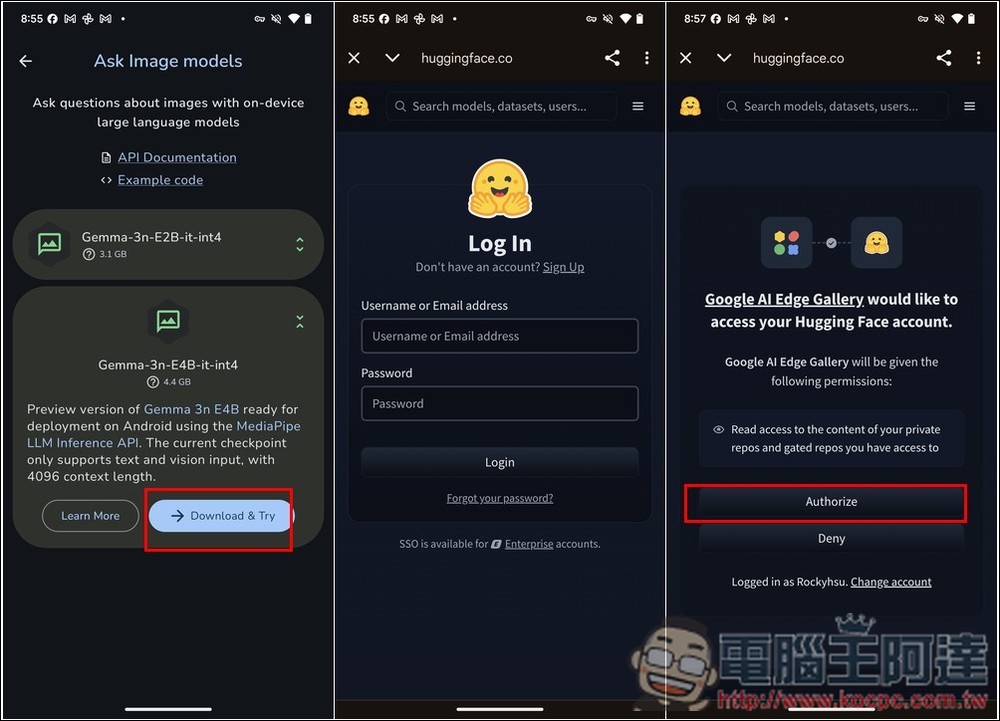
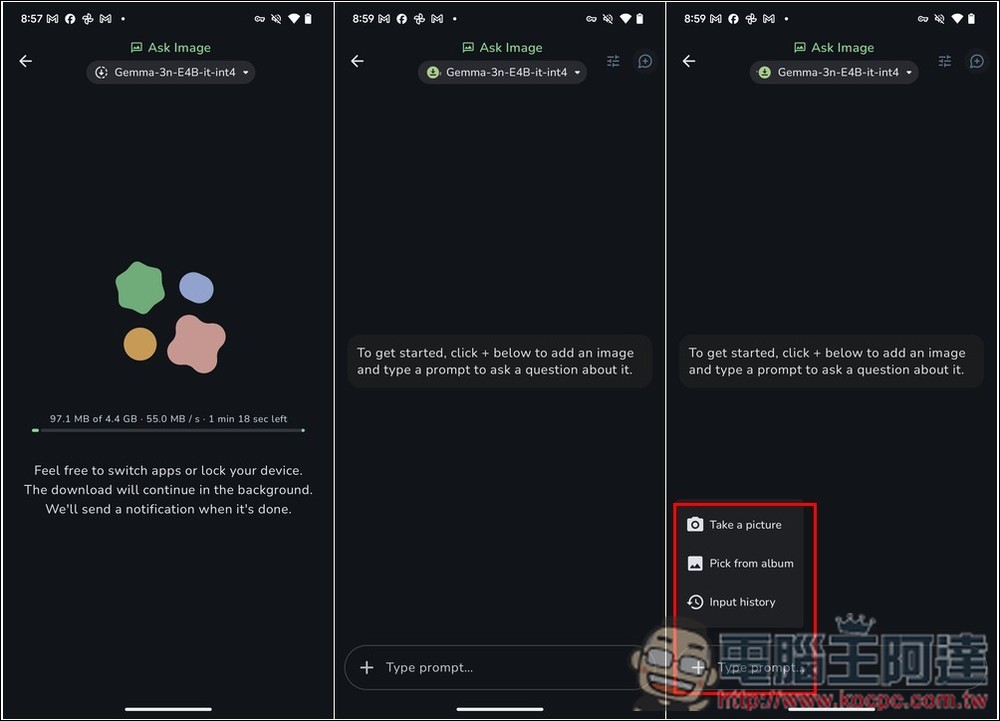
Then the download will start, and once it’s done, you can begin chatting with the AI. Tap the + on the left side to add images or take photos.
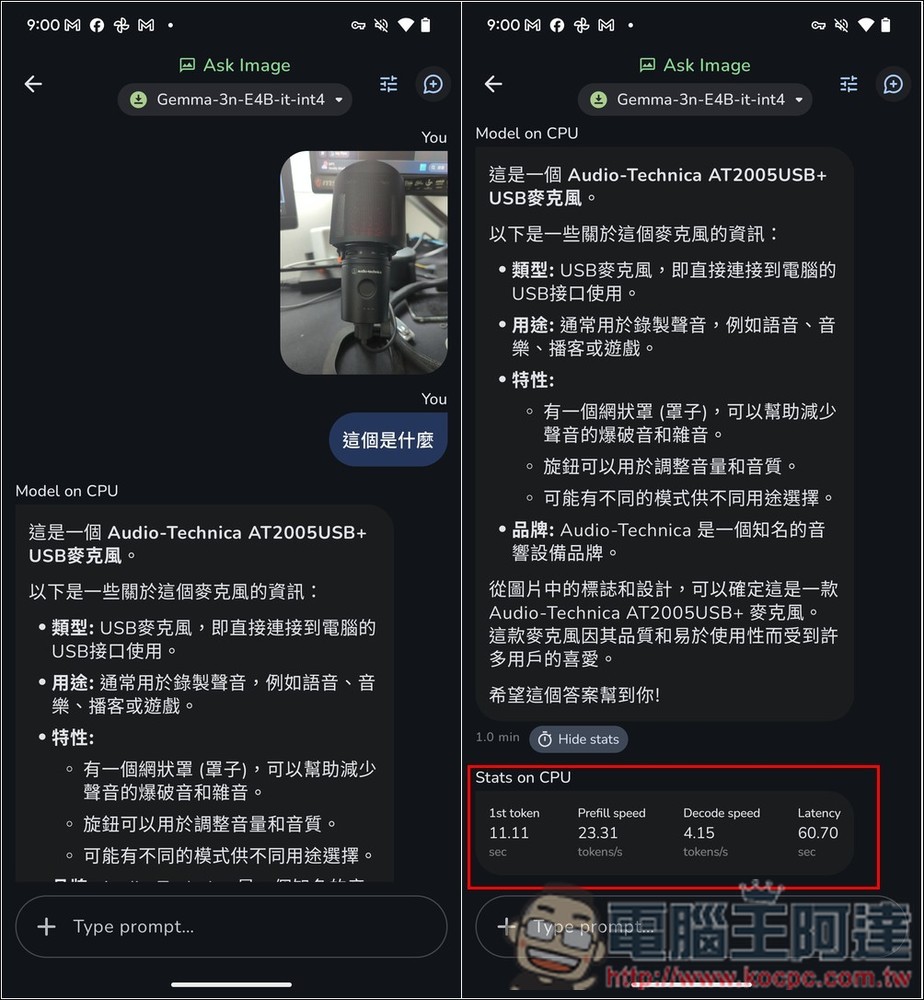
I first tested the photo feature by taking a picture of the microphone in front of me with my phone and asking it “what is this.” Although it identified the brand correctly, the microphone model was wrong. After all, it’s only a 3n model, and the training data isn’t that extensive—identifying product models is still difficult for it. But at least it got the product type right. After it responds, the bottom shows information like speed and tokens, and it defaults to using the CPU for computation.
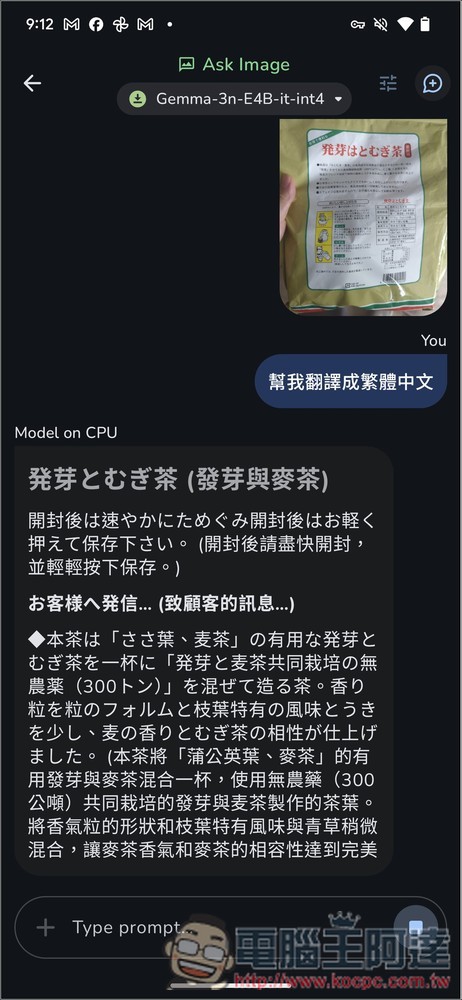
Next, I tested the translation, and that part was fine—though some of the content still came out a bit awkward, at least it was understandable.
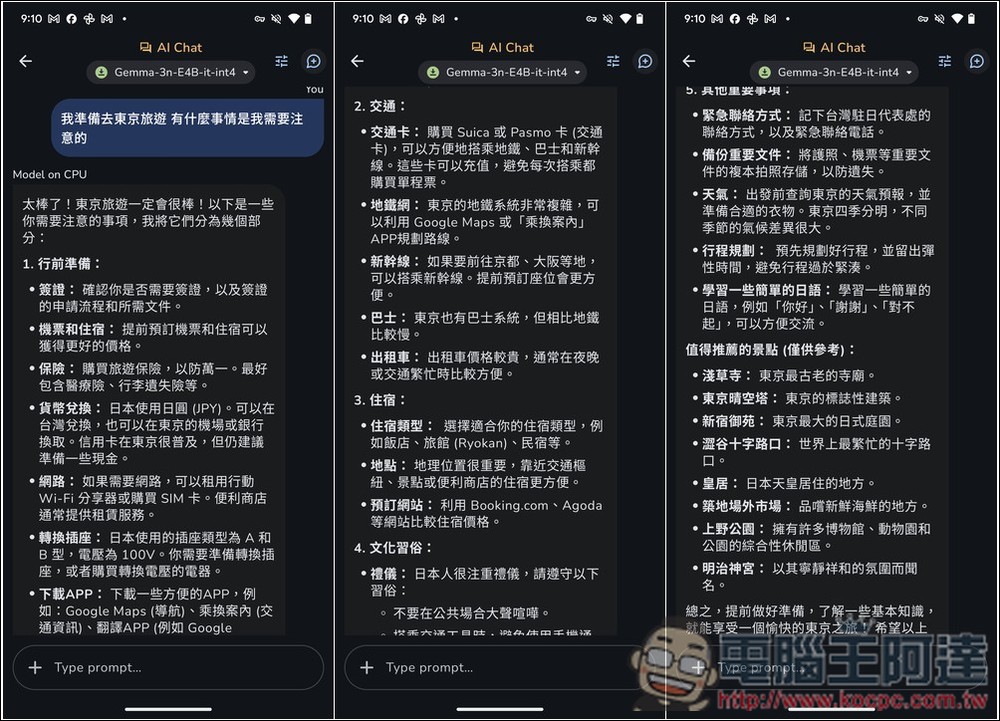
The length of the text response startled me. I simply asked “I’m preparing to travel to Tokyo, what things should I be aware of?” and Gemma-3n-E4B responded with a huge list covering all aspects, from pre-trip preparation, transportation, other important matters, to recommended attractions worth visiting. From this it’s clear that even a small model has a pretty good richness of response.
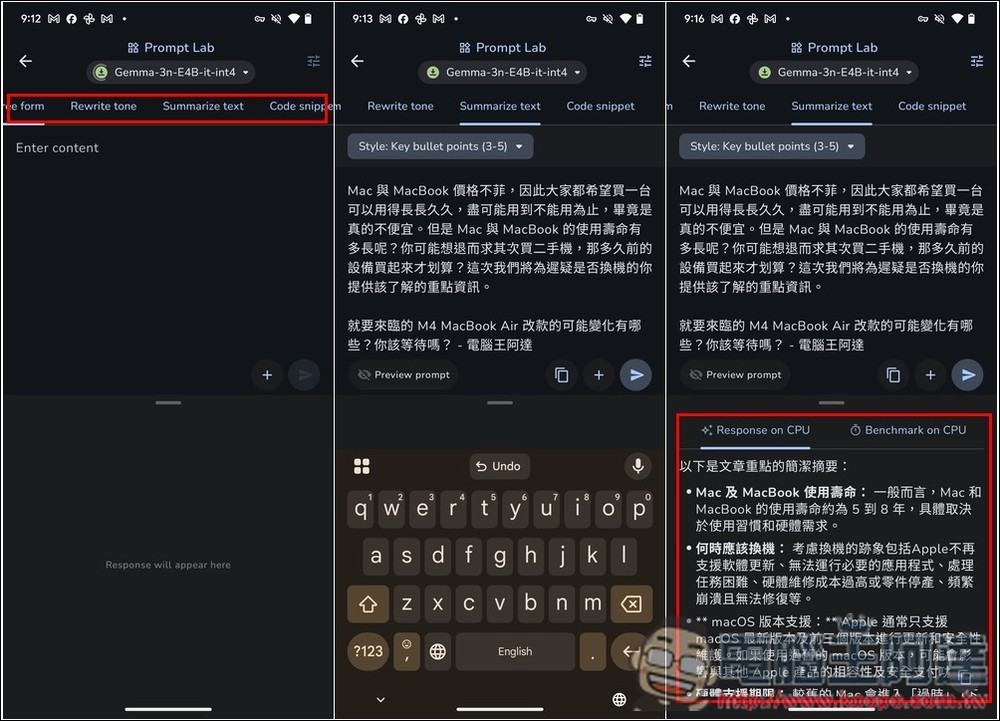
Prompt Lab has several built-in common modes, such as rewriting tone, summarization, and so on. After filling in the content and pressing submit, it starts executing. I tested summarization successfully, but the speed is a bit slower; the AI needs to read everything first before it outputs:
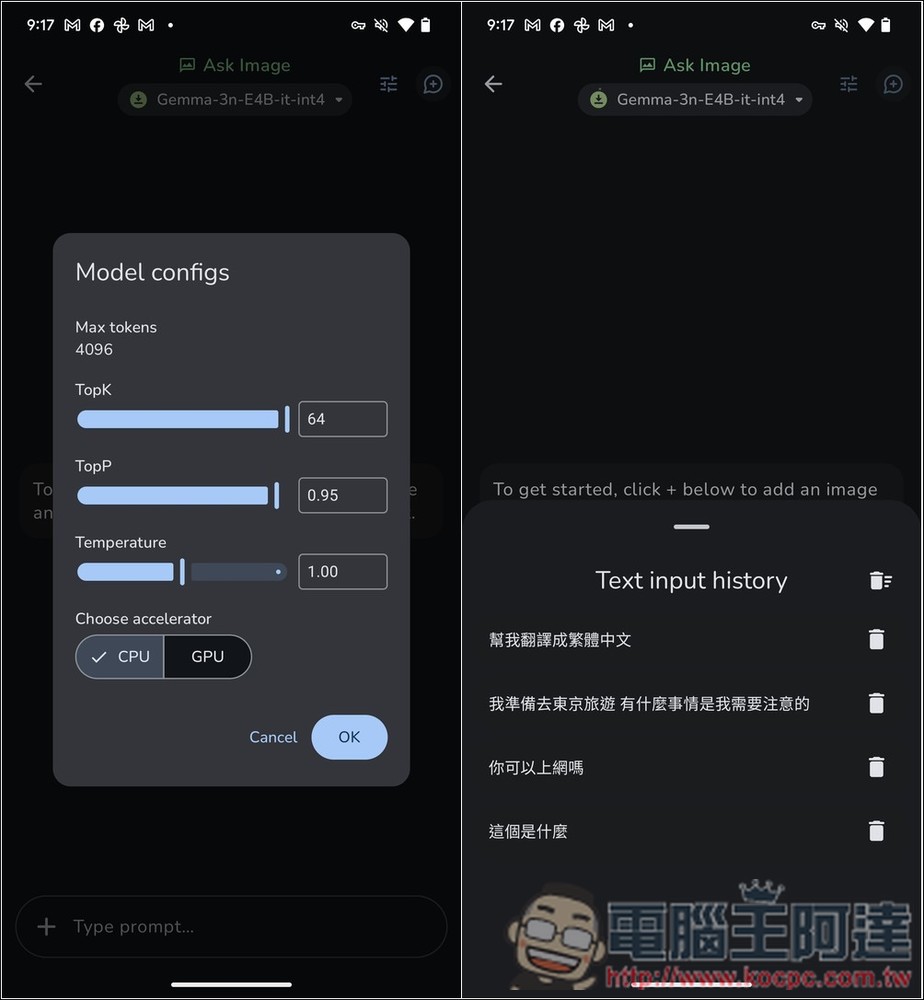
Click the three-line icon in the top right corner to adjust the maximum Tokens and CPU or GPU computation. The input history with the + sign will show prompts you have used in the past, making it easy to reuse them:
Source: KOCPC Chinese