


Isn’t there a more intuitive way to quickly summarize the key points of a web page report? The results are indeed there, and it is Microsoft’s Bing Chat AI that is basically now fully open for public testing. It is a very intuitive solution that can be easily accomplished through the Edge sidebar. Below, we also provide simple teaching steps. Continue reading AI tips: Edge sidebar + Bing Chat to quickly sort out the main content of web articles.
AI tips: Edge sidebar + Bing Chat to quickly sort out the key points of web articles
Currently, as for the application of generative AI, in fact, the most commonly used application by the author is to sort out the key points of web articles. However, since the current most mainstream ChatGPT has restrictions on data before 2021, even services like Bing Chat, if you feed it the URL directly, it will occasionally reject it, or even try to sort out information related to the URL instead of completely locking in the article.
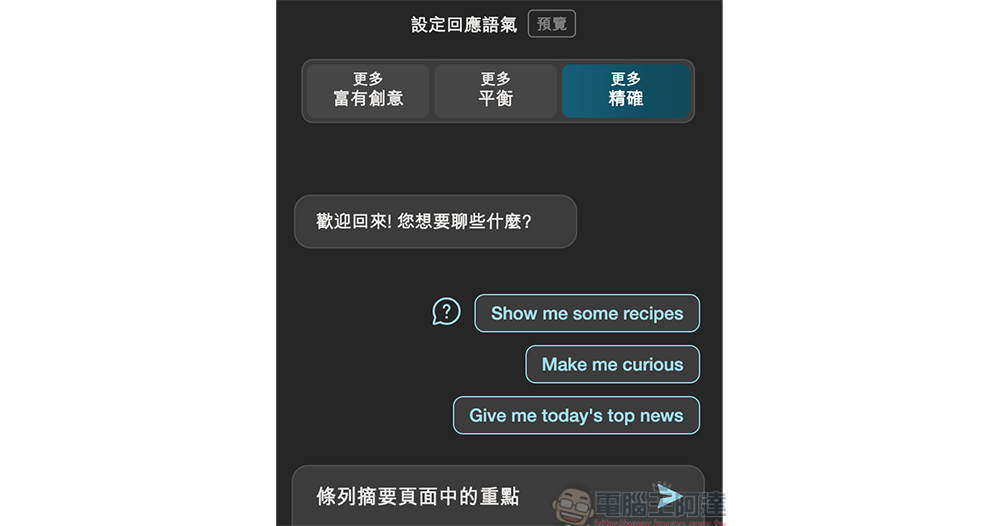
Just, there’s a bit of a creative feel to it… which isn’t really good for applications that require precision.

In order to avoid such errors and instability, in fact, the Computer King Ada team has previously introduced that you can use methods such as Chrome / Edge extensions like ReaderGPT, by customizing the Prompt command to achieve a quick summary function that generates a summary directly in the upper right corner of the web page. However, it was later discovered that not only was there still an occasional glitch in switching to Simplified Chinese, but the service was also occasionally logged out (of course, using the OpenAI API Key would improve this).
This also makes people think, isn’t there a more intuitive way to achieve this function of quickly summarizing the key points of web page reports? The results are indeed there, and it is Microsoft’s Bing Chat AI that is basically now fully open for public testing. It is a very intuitive solution that can be easily accomplished through the Edge sidebar. Below, we also provide simple teaching steps.
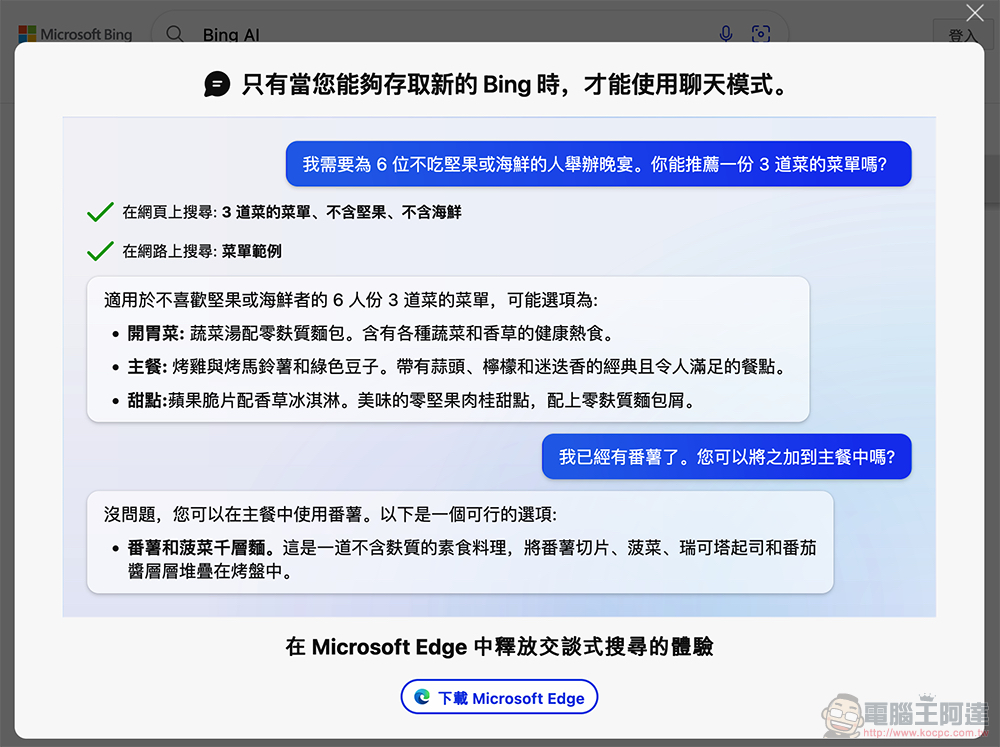
First of all, if you haven’t officially activated the Bing Chat chat search experience, you can go to Bing.com or directly throughThis portalGo to the “Chat” page. Here, the system will prompt you to download the Edge browser to use the Bing Chat function – although the impression was not limited to the Edge browser before, since this function will require the use of the quick function of the sidebar, using this browser is also a must.
So just download, install and enable Bing Chat to try it out!
▲Image source: Microsoft
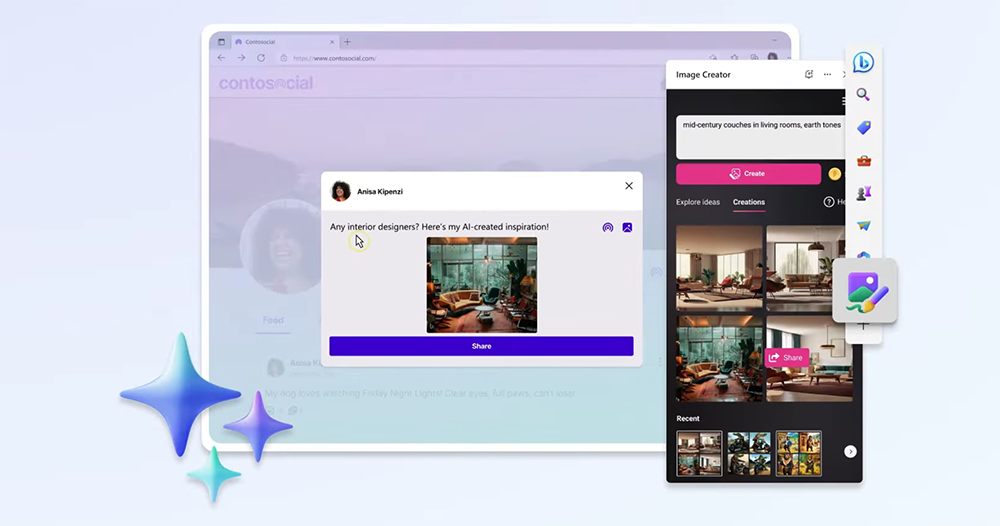
After getting the Edge browser and being able to use Bing Chat. You will find that there will be a big blue “B” button in the upper right corner of the browser. Just click on it to bring up the sidebar quick function on the right side of the browser – this shortcut bar is actually very useful, and will also be introduced using DALL-E AI image generation technology in the future. Image Creator image creator quick shortcut。
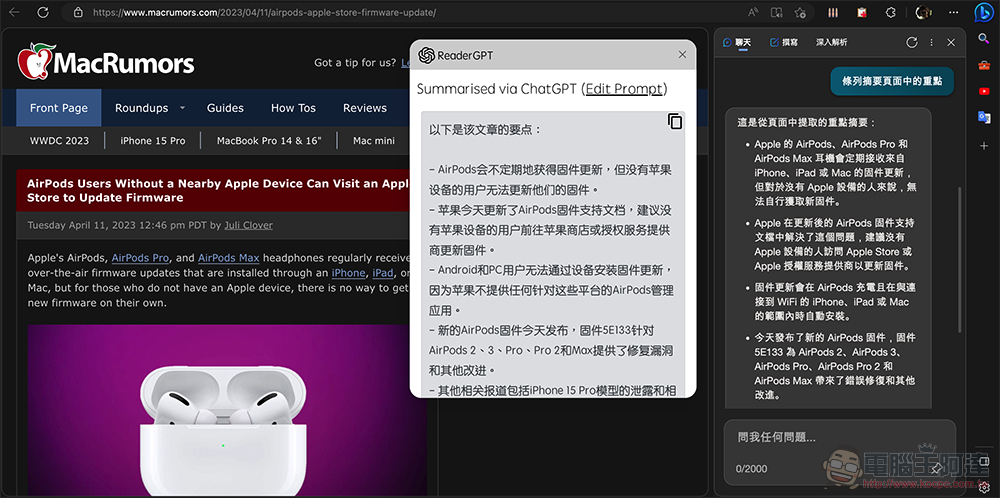
Basically, when you bring up the “Chat” sidebar of Bing Chat, you can“Key Points from the Article Summary Page”Such a command can easily summarize the articles currently opened on the web page. You can also choose the tone of your response at the beginning of each Bing AI chat.
In addition, in fact, when the Bing sidebar is opened, it will already actively help you organize the “key points on the page”. But for now, it will still be handled directly in English. I personally believe that Microsoft will gradually improve such functions to make the Edge + Bing Chat experience more relevant to the usage scenarios of Taiwanese people.
Computer King Ada’s team actually tested the same report and found that the content listed in the Bing Chat item with a “more creative” tone seemed to be just an extra emoticon, and was not much different from the “more precise” answer. We also tested the content generated by ReaderGPT with GPT-3.5 as the core. existThe same foreign language report pagedifference in . You can refer to the results below (ReaderGPT has another simplified translation):
Bing Chat AI:
“根據頁面內容,以下是重點摘要:
– Apple 的 AirPods、AirPods Pro 和 AirPods Max 耳機會定期接收來自 iPhone、iPad 或 Mac 的固件更新。
– 如果沒有 Apple 設備,則無法自行更新固件。
– Apple 建議那些沒有 Apple 設備的人前往 Apple Store 或 Apple 授權服務提供商更新固件。
– Android 和 PC 用戶無法從設備安裝固件更新,因為 Apple 沒有為這些平台製作任何類型的 AirPods 管理應用程序。
– 新的 AirPods 固件今天發布,固件 5E133 為 AirPods 2、AirPods 3、AirPods Pro、AirPods Pro 2 和 AirPods Max 帶來了錯誤修復和其他改進。希望這些信息對您有所幫助!”
ReaderGPT:
“以下是該文章的要點:
– AirPods會不定期地獲得固件更新,但沒有蘋果設備的用戶無法更新他們的固件。
– 蘋果今天更新了AirPods固件支持文檔,建議沒有蘋果設備的用戶前往蘋果商店或授權服務提供商更新固件。
– Android和PC用戶無法通過設備安裝固件更新,因為蘋果不提供任何針對這些平台的AirPods管理應用。
– 新的AirPods固件今天發佈,固件5E133針對AirPods 2、3、Pro、Pro 2和Max提供了修復漏洞和其他改進。
– 其他相關報道包括iPhone 15 Pro模型的洩露和相關傳言,以及15英吋MacBook Air零部件的生產已開始。FBI發出警告,提醒用戶避免使用公共USB端口,因為存在惡意軟件風險。蘋果正在改變Siri的使用方式,使其更像亞馬遜的Alexa。YouTube Premium即將在iPhone上提供SharePlay和增強的1080p視頻質量選項。”
“The page content is empty” What should I do if I cannot read the content?
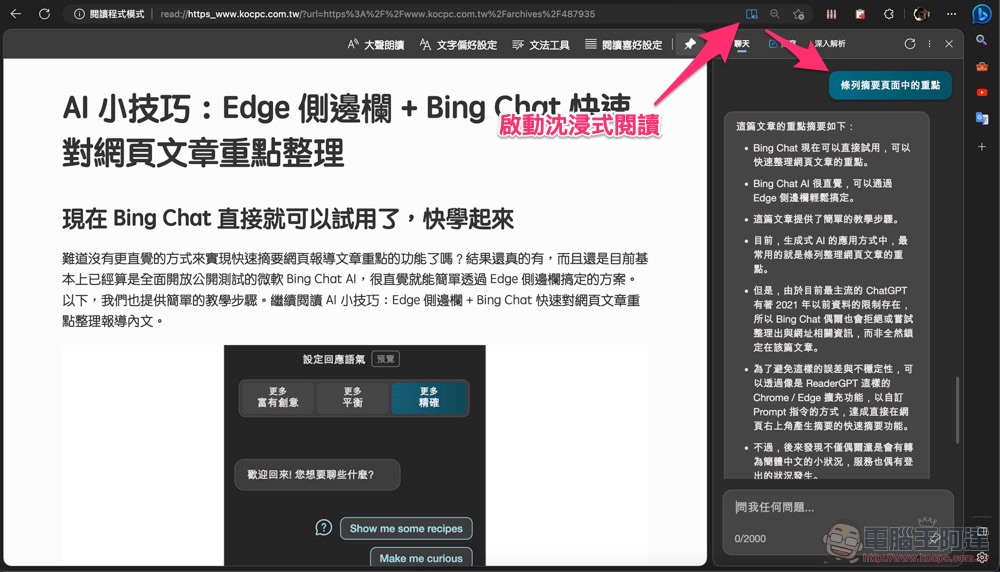
What should we do if some pages will display “Page content is empty” and cannot provide a summary? Here we also have a solution. You only need to simply activate the reader function of the Edge browser and let it completely separate the text, and then you can organize it again with the “Key points in the article summary page” command:
Further reading:
Source: KOCPC Chinese