


Although there are many free speech-to-text tools that can quickly convert recordings of meetings, speeches, etc. into verbatim transcripts, most of them are mobile app versions, such as:Yating verbatim manuscriptThere are also online tools, but they basically charge a fee. This article will recommend a Mac version of MacWhisper, a free tool developed based on OpenAI Whisper. It supports a variety of file formats, including video formats, and even YouTube videos (but only MacWhisper Pro is available).
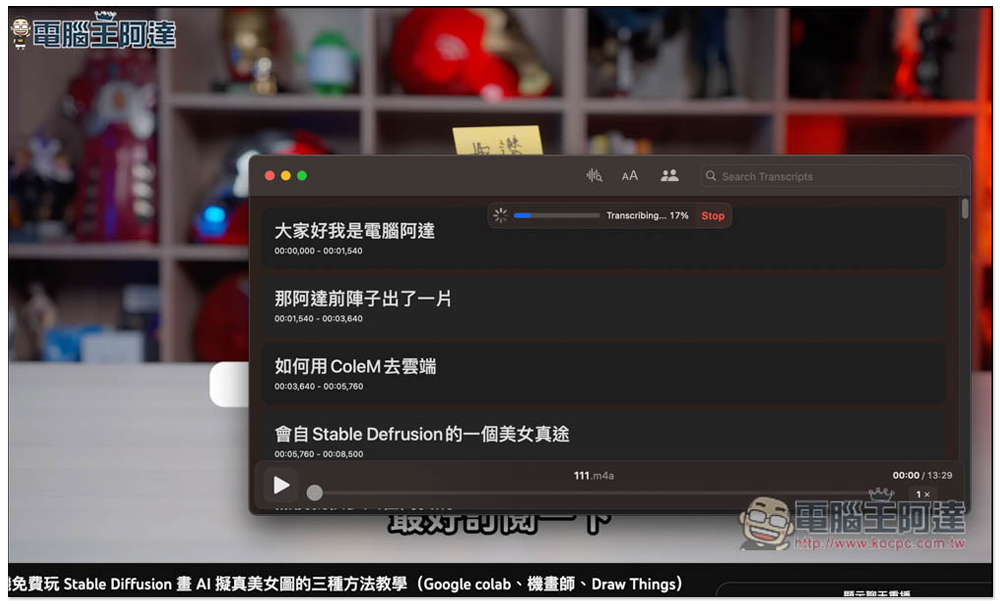
MacWhisper is a free tool that uses AI to help you convert speech to text, based on OpenAI Whisper
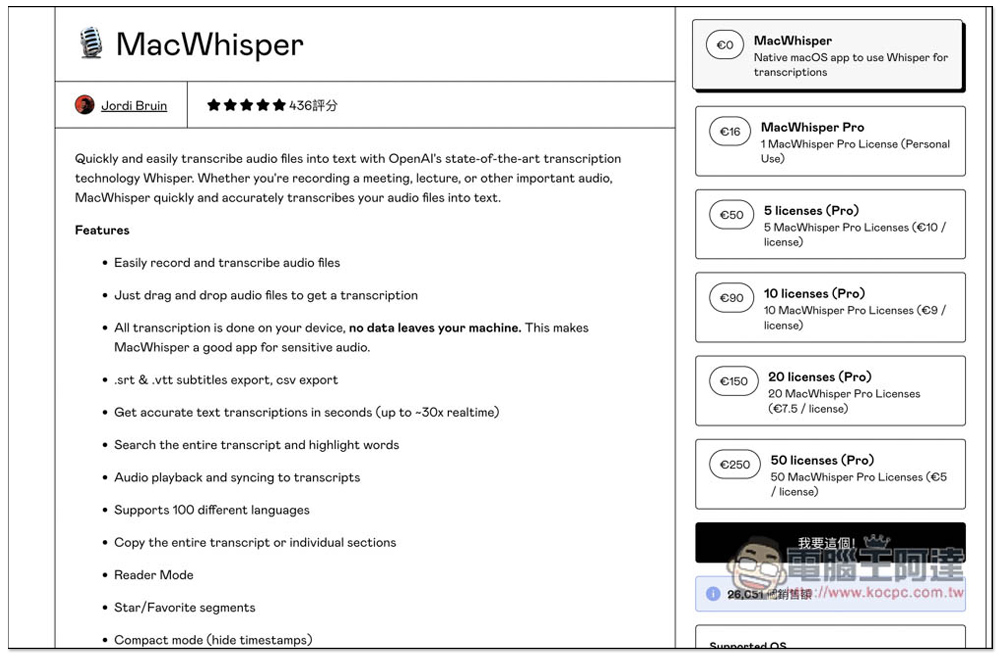
MacWhisper is a free tool developed by Jordi Bruin. It is not available on the App Store and needs to be obtained from the developer page. After entering the software introduction page, click MacWhisper on the right, which is the 0 yuan one. The Pro paid version can use full functions, including faster models and YouTube:
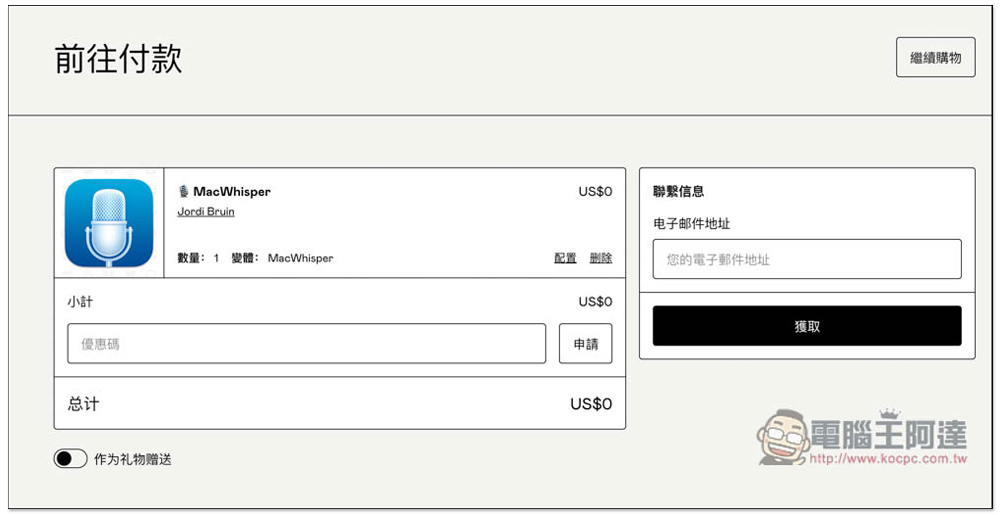
You need to fill in your email address. After filling in, press Get:
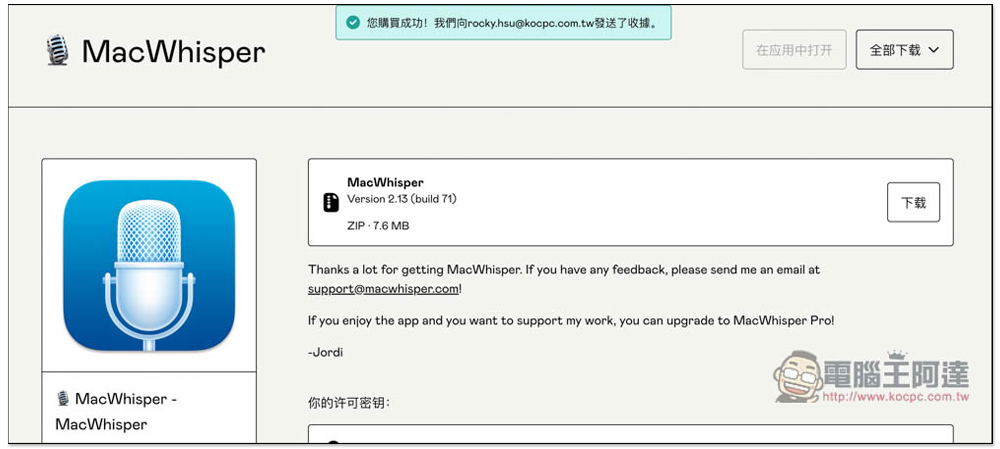
Then you will get the software download point and serial number, but it seems that the serial number does not need to be entered. The software can be used directly after downloading (this is how I do it):
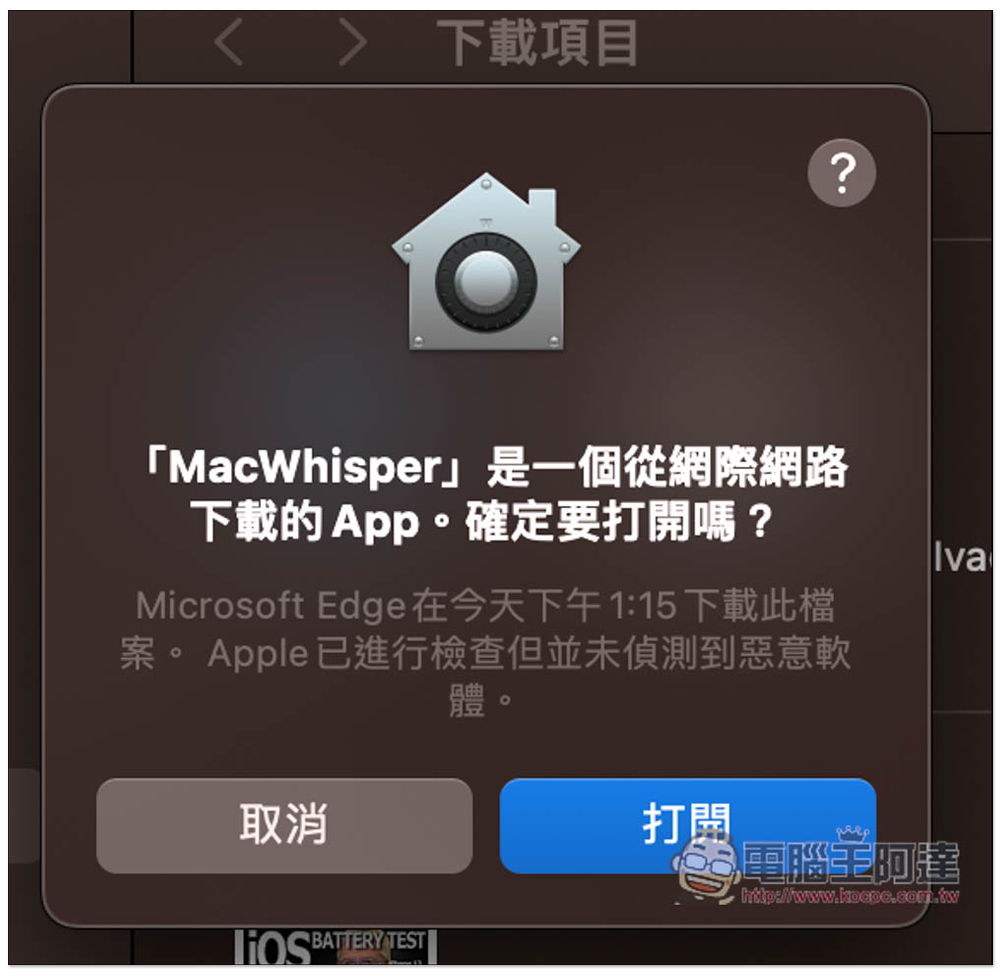
After downloading, open it. Because it is a tool downloaded from the Internet, this message will pop up when you open it for the first time. Click to open:
Then select the model you want to download and use. The top one supports Multiple Languages, including Traditional Chinese, and the bottom one supports English Only. Free users can only use Tiny, Base and Small for multiple languages. Small has the highest accuracy but moderate speed, not the fastest, which I think is okay. I tested a video of about 15 minutes and it was completed in about 1 minute and 10 seconds, which is acceptable:
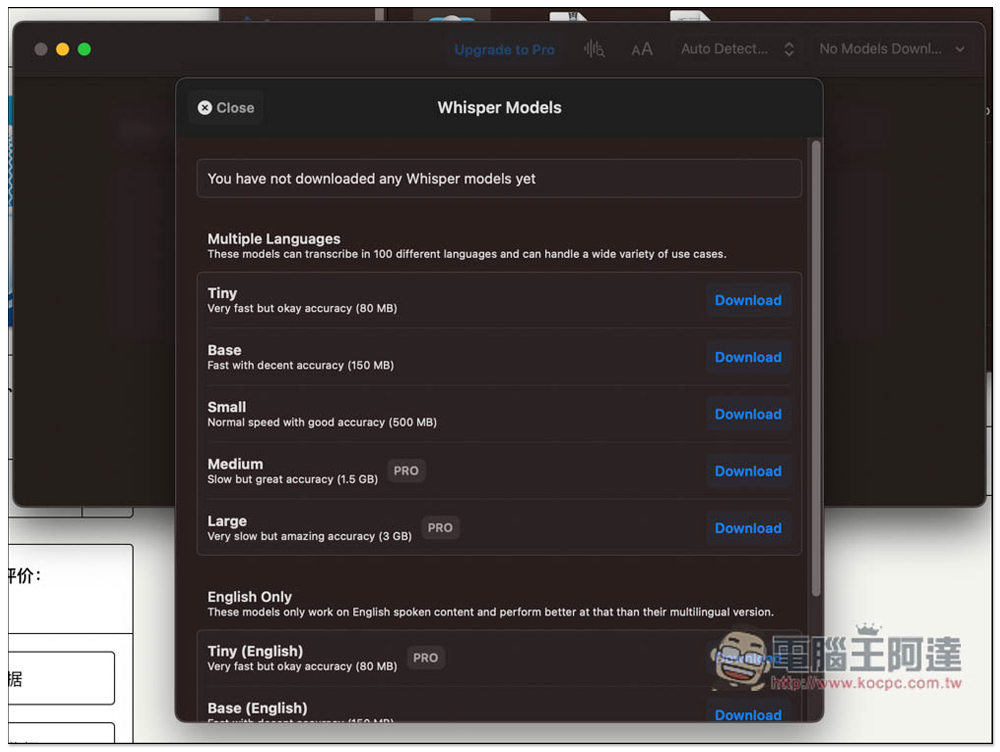
Since the model needs to be downloaded, it also means that the AI speech-to-text action is completed locally and does not need to be uploaded to the server. It is quite good in terms of security.
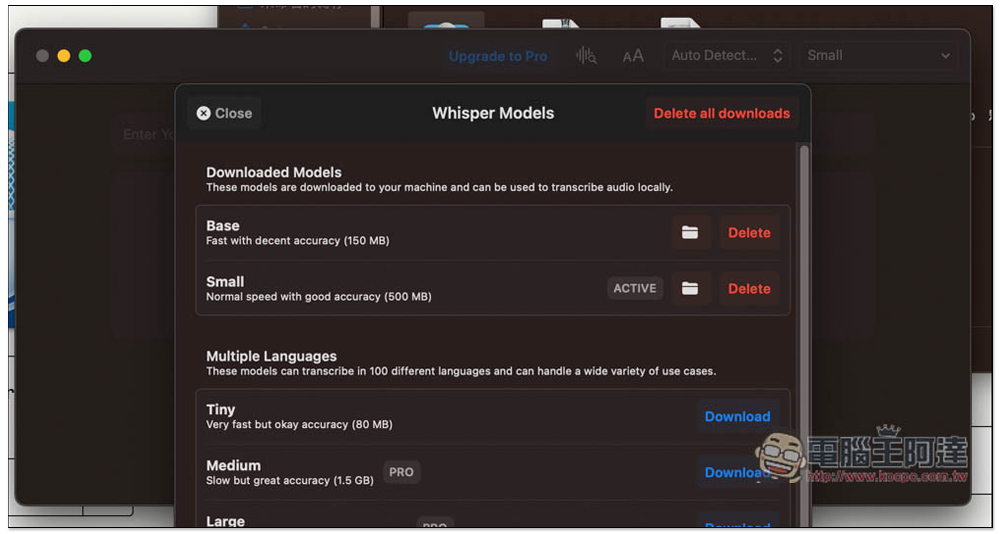
After downloading, it will move to the top. If you are not satisfied, you can press Delete to delete it manually:
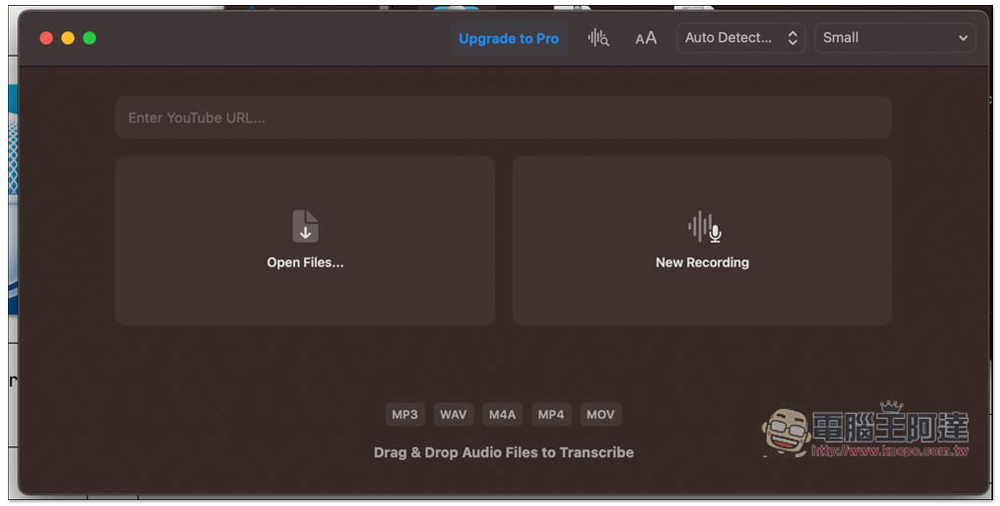
The picture below is the software interface, which supports YouTube URLs, opening files (you can drag them directly into the window), and new recording activities. The file section supports MP3, WAV, M4A, MP4 and MOV formats:
The YouTube URL currently only supports Pro paid members. This message will pop up when converting to free members:
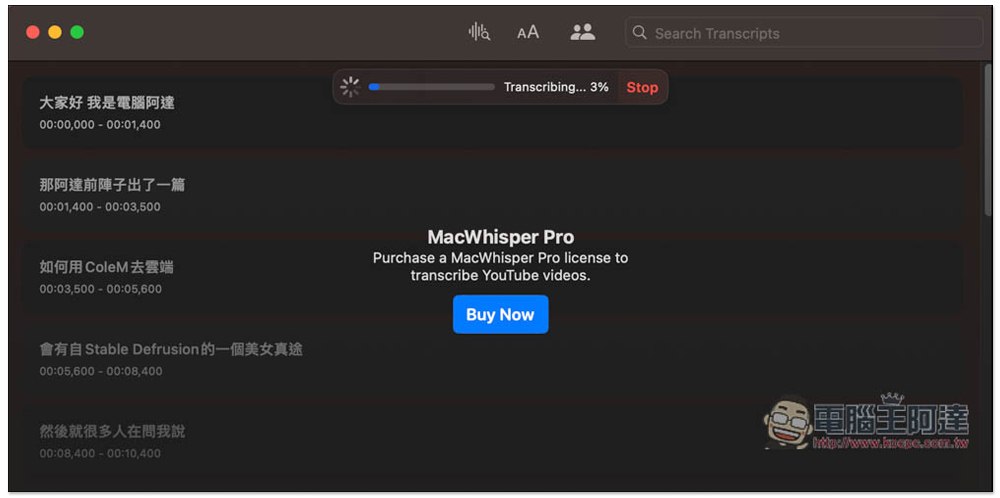
In addition, if you switch to using local files, but this message still pops up, please restart the software, and restarting will solve the problem.
I tested the 15-minute profile and it was done in just over a minute. One thing to note is that Chinese file names are not currently supported. If the file name you want to convert to text has Chinese characters, it will show that the format is not supported. This can be solved by changing it to numbers or English:
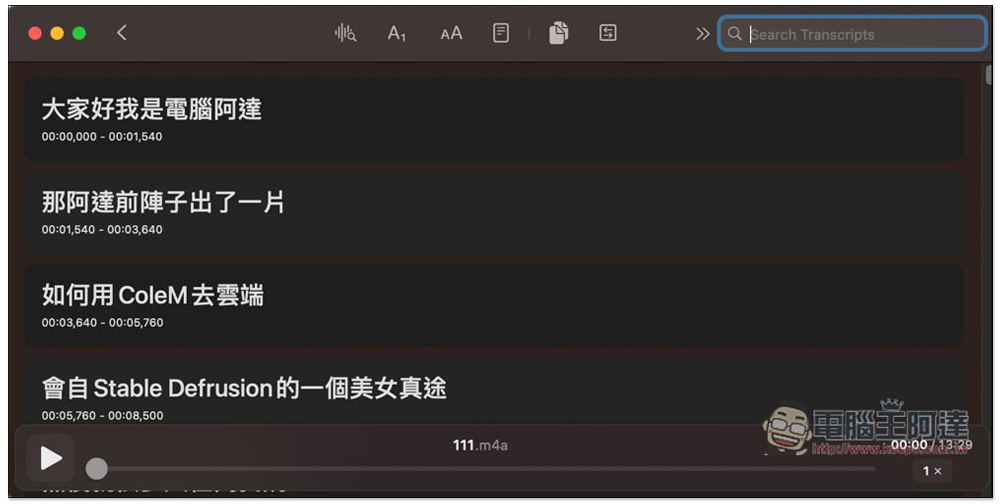
I think the accuracy of Small is very good. Although it is not 100%, it is still at least 95%. This also means that after the improvement, remember to check it. Move the mouse over the text and a menu will appear on the right. Press play to listen to see if what is said is true. If you are wrong, press A:
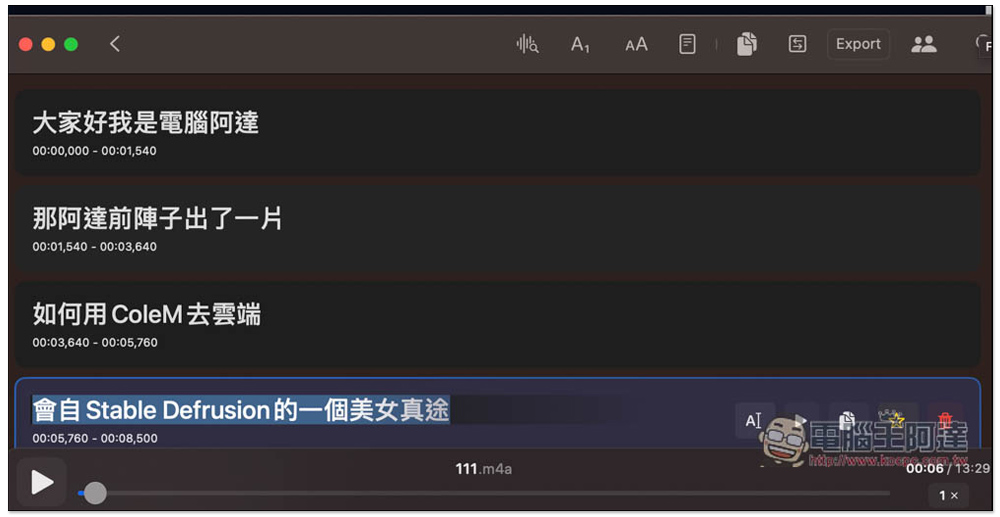
You can manually modify pairs of text:
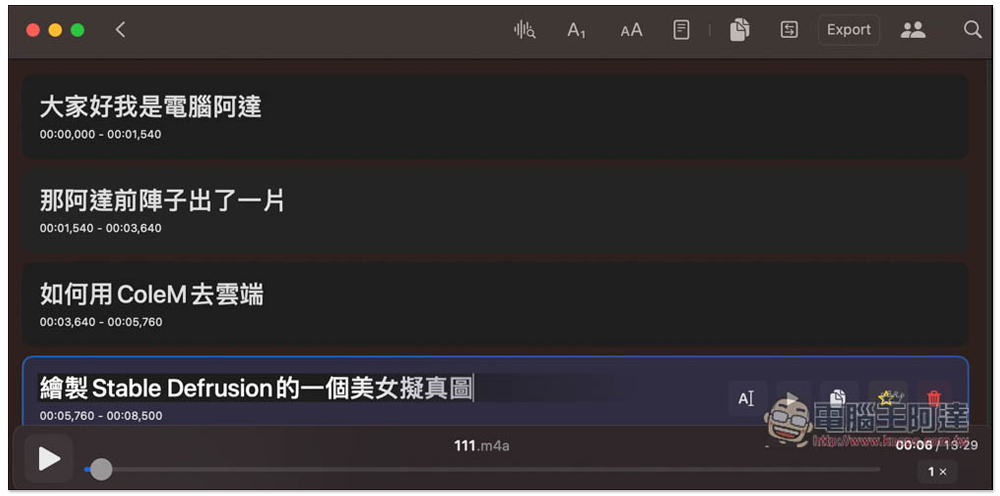
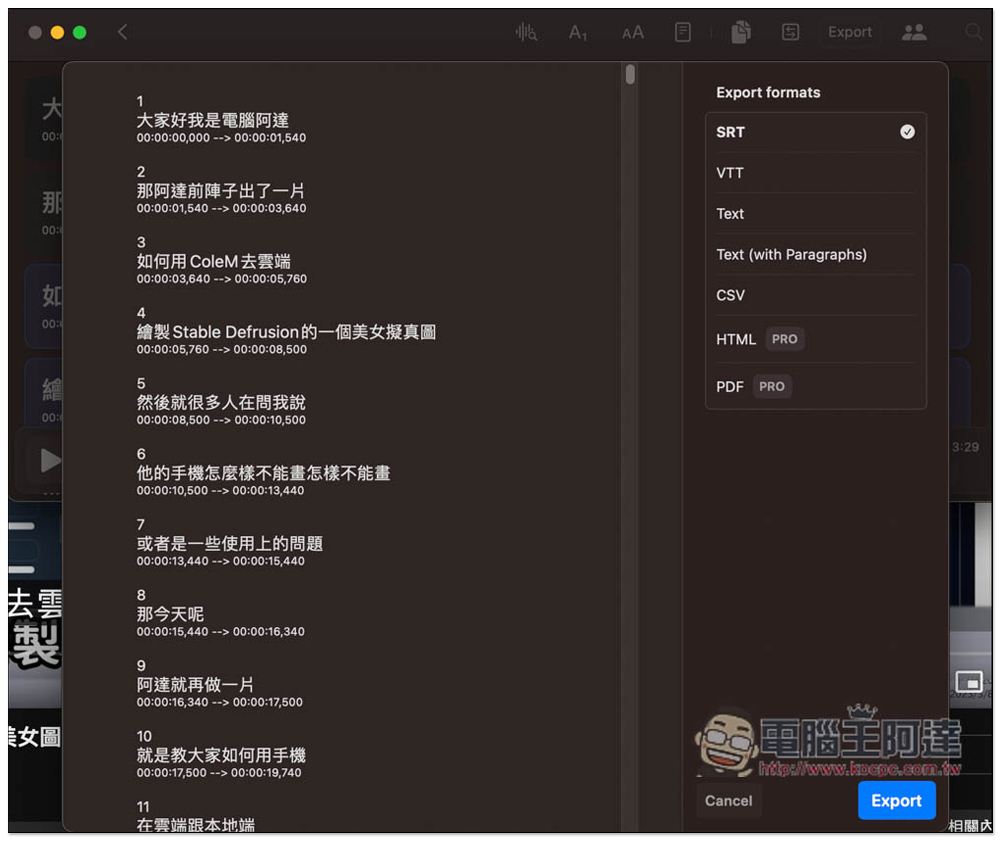
No problem. Press the output (Expert) button in the upper right corner to output to common text files, including SRT, VTT, Text, CSV, etc. HTML and PDF are only available to Pro paid version users:
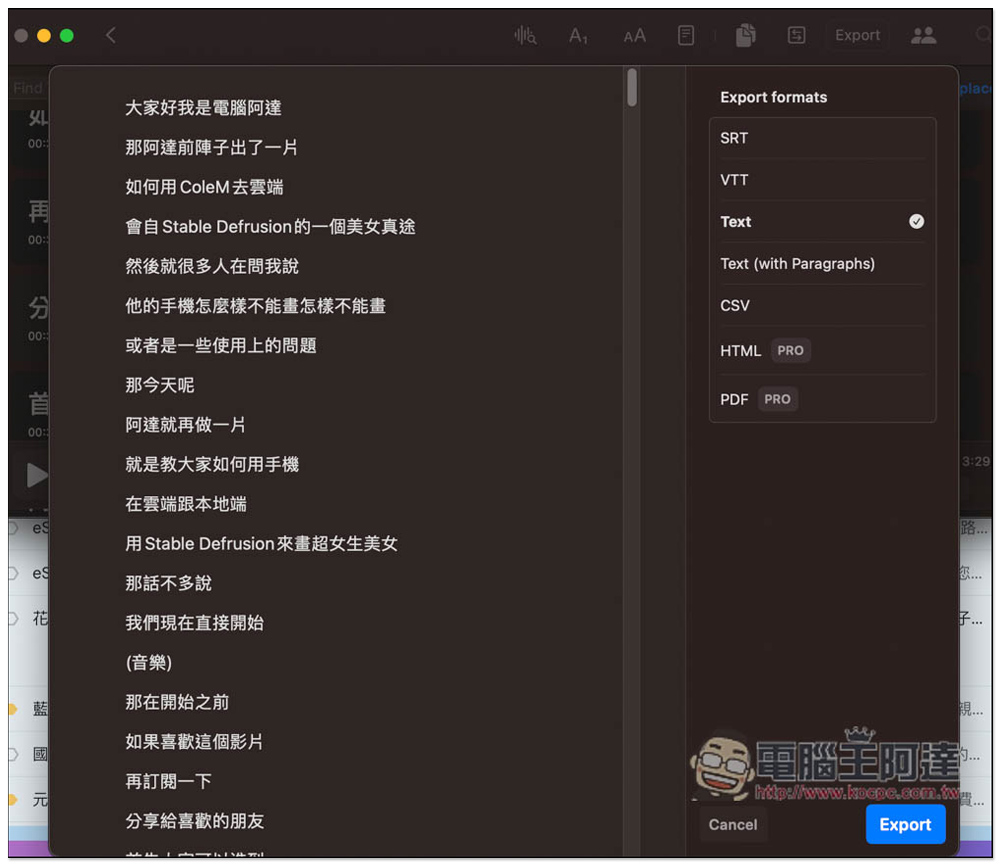
Text will automatically delete the timestamp:
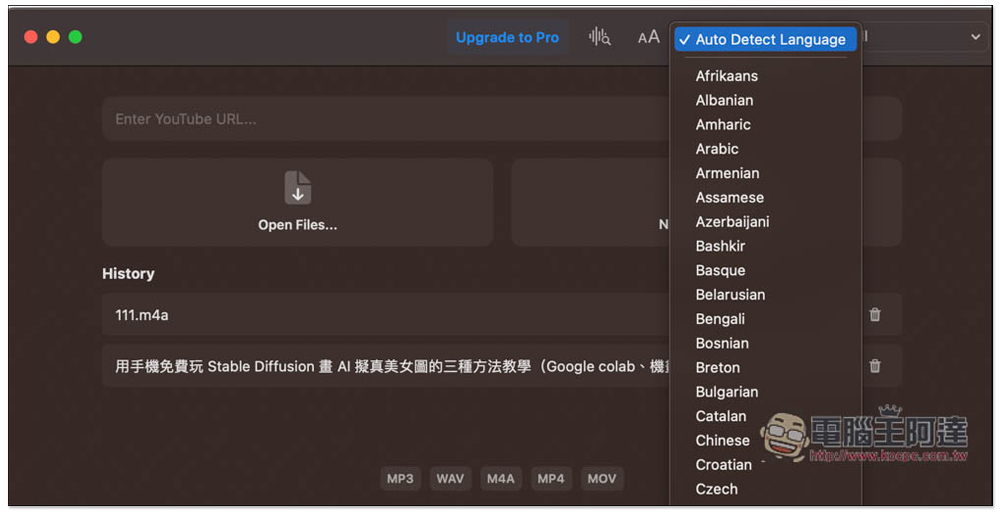
The default language conversion is automatic, which basically does not require adjustment. Unless the accuracy is not high enough, you can manually change it to the specified language:
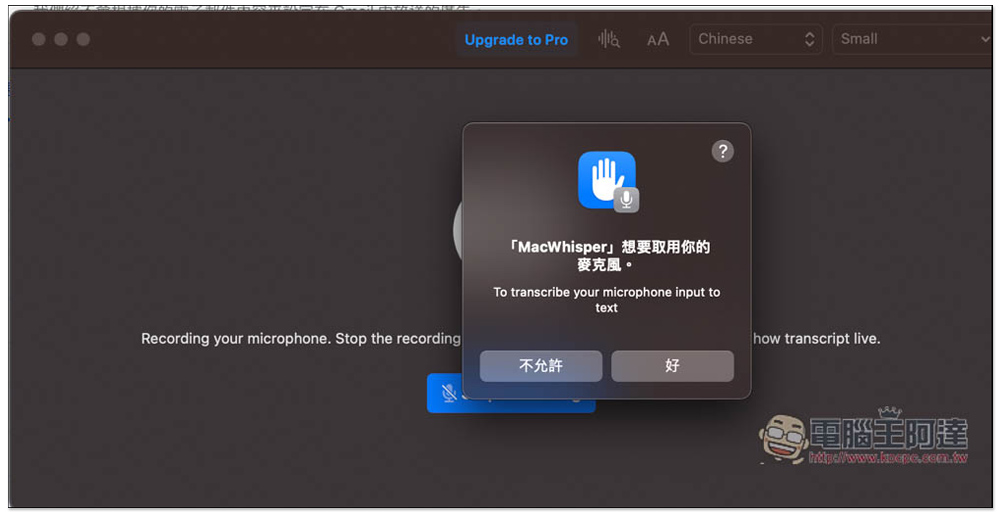
New Recording requires access to a microphone:
Source: KOCPC Chinese