


In human history, written communication accounts for a very large proportion. From the earliest manual writing to the emergence of typewriters in the mid-19th century, we officially entered the era of machine-assisted communication. Even the computer keyboards that appeared later were based on typewriters. Until now, the advancement of technology has put typewriter keyboards on smartphones. Although you can type and communicate at any time, your typing speed will be slowed down a lot because all the keys are stuffed into your pocket. The iPhone’s virtual keyboard actually has many small functions that can speed up typing, but you may not have noticed it. Let’s take a look at some tips that can make you type faster.

Make good use of the quick input keys, these tips can help you improve your typing speed on your iPhone
The shortcut keys on the iPhone (not shortcut function keys) are some tips, tricks, and semi-hidden functions on the phone. Proper use can improve your text communication skills. Some are built-in, and others need to be set by yourself, but in any case, they can save you time typing on the phone.
Set your own quick input button
In some cases, a specific shortcut may be helpful to you, but the scope is not broad enough to include phrases and sentences that you commonly use. For example, you may often use a special phrase with friends you know well, but it is not a universal popular phrase. In this case, you can set the keyboard input shortcuts yourself.
- Open the “Settings” app and click to enter “General”.
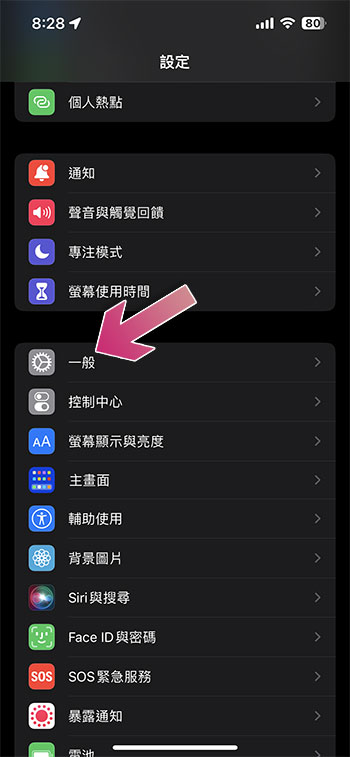
- Scroll down to find “Keyboard”, click to enter the inner page, and click “Alternate Text”.
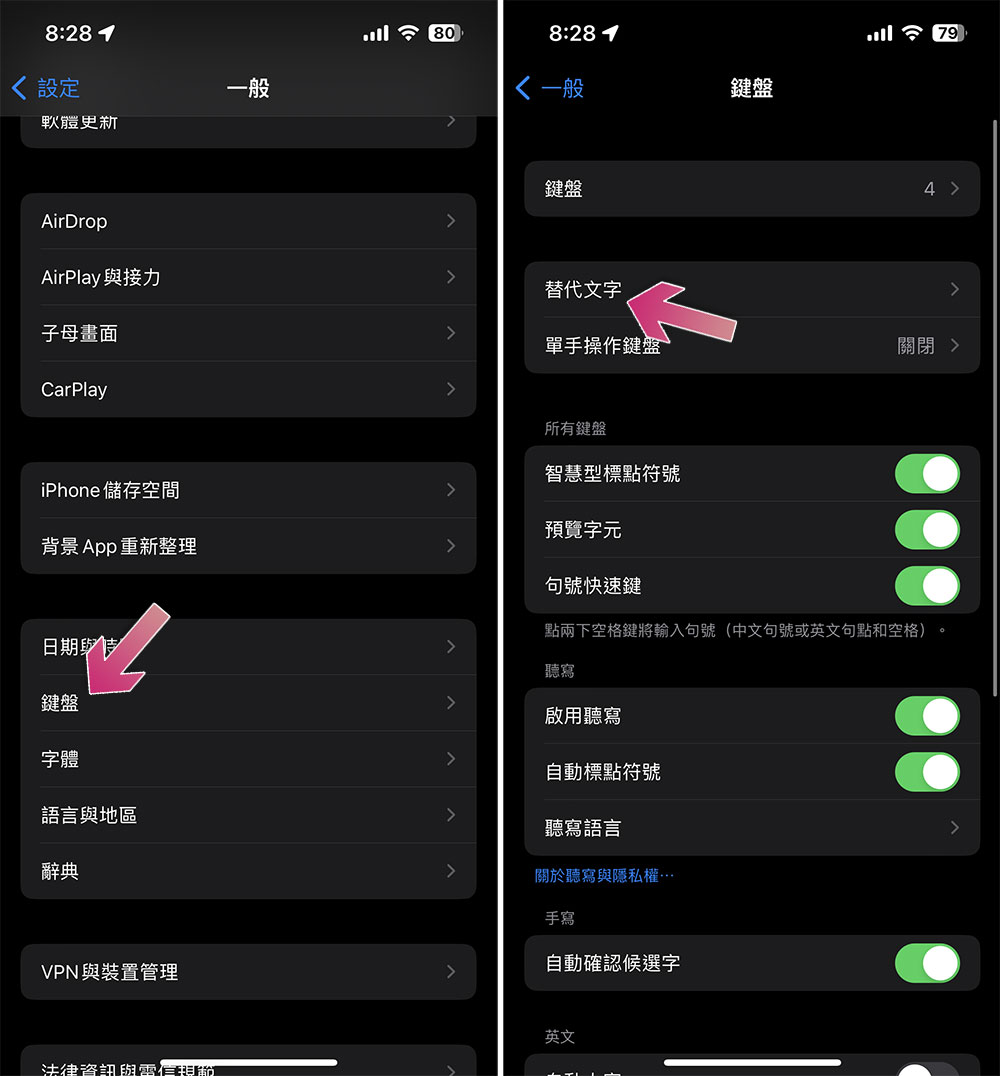
- Next, click the “+” in the upper right corner, enter 2-3 quick buttons in the input code field, and enter the replacement word corresponding to this quick button in the word field above.
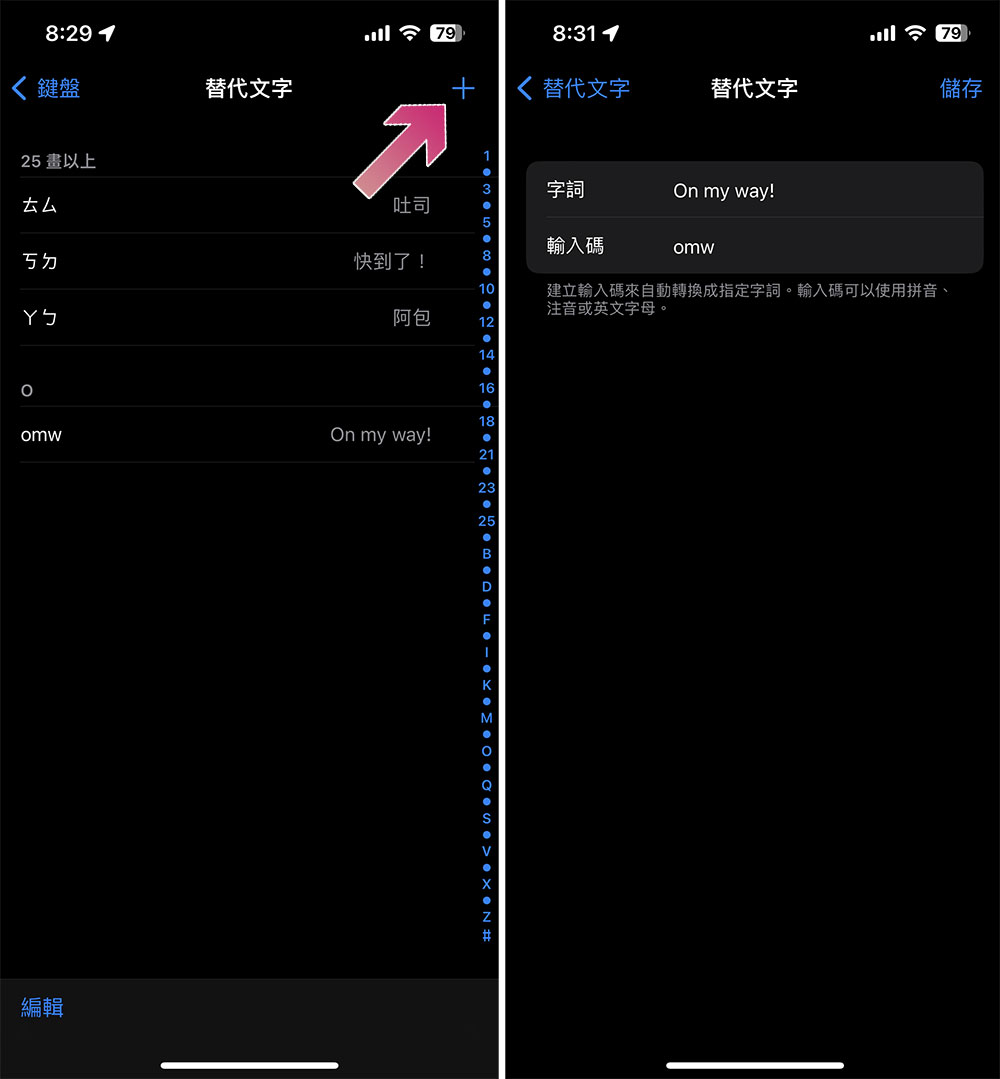
Double click the space bar
This one should be the simplest and most well-known shortcut key, and you may use it often without even realizing it. If you are like me and need to use correct punctuation marks even when typing messages on your mobile phone, you may spend a lot of time jumping between the phonetic keyboard and the punctuation keyboard. Double-clicking the space bar will cause iPhone to automatically determine that the sentence is complete and quickly help you draw a full stop without switching to the punctuation keyboard.
Function variable name suffix
Typing an email address outside of any full-size keyboard is a common annoyance in life, especially if the email in question is long or uses characters other than letters. Although no one knows what combination of characters will be required in the first half of the email, it is almost certain that it will end with one of the common domain name suffixes. When you need to add a .com, .org, or .edu suffix to the end of your email address, just press and hold “.” on the alphabetical keyboard to call up the suffix option, and slide your finger up to quickly select and complete the operation. This feature is limited to some apps that require you to enter your email, so you won’t see it when you open the virtual keyboard in other apps.
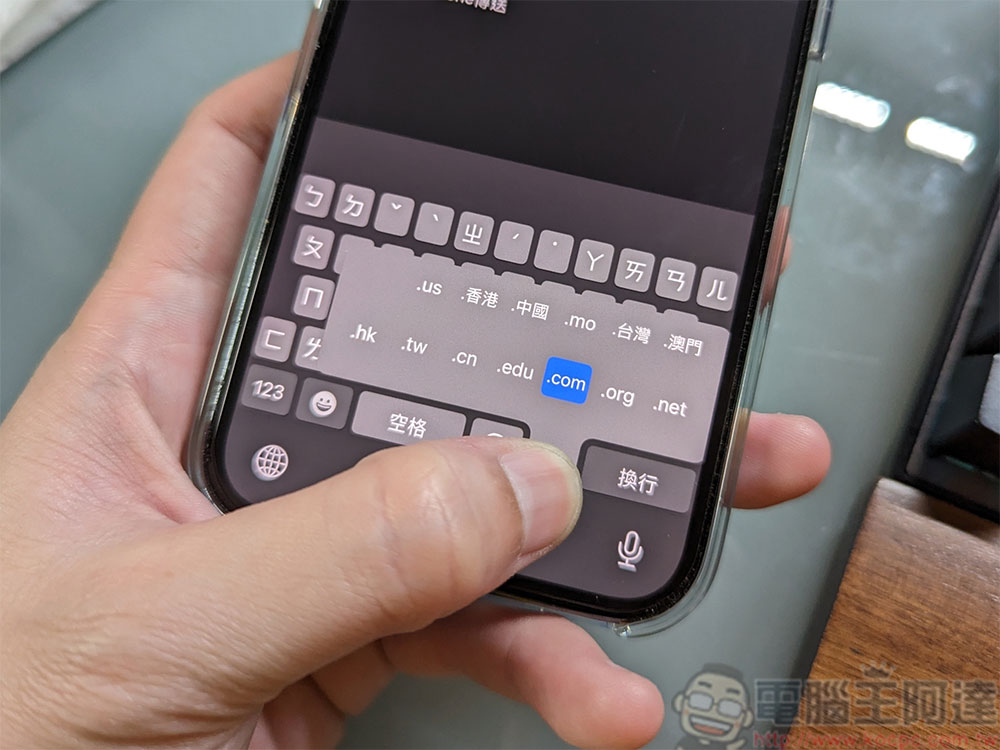
Alternative characters
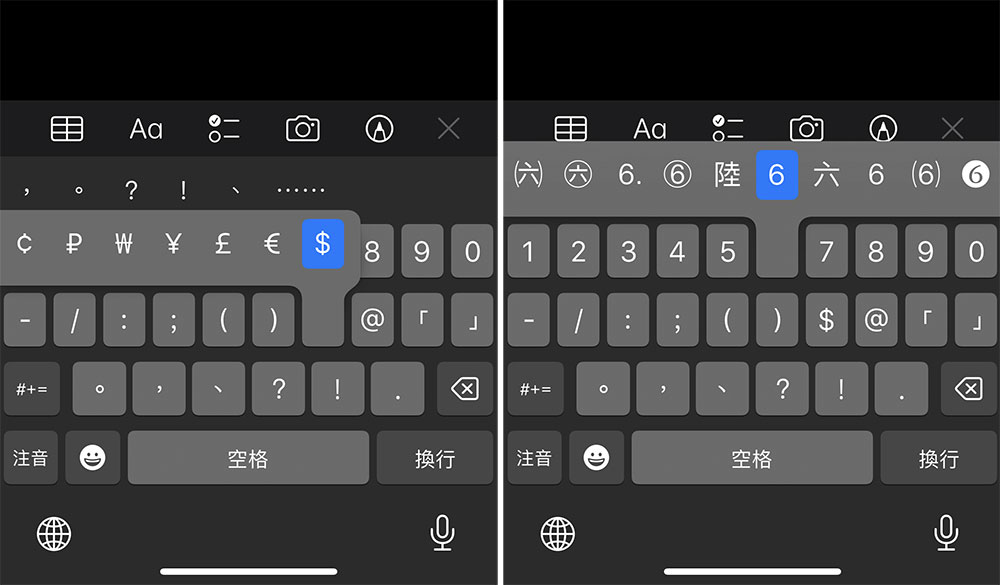
One of the biggest limitations of the iPhone (and almost all smartphones) keyboards is that the screen is too small to fit all the letters on the same screen while leaving a little space for other keys. Therefore, the numeric keys and punctuation marks are listed on a separate keyboard hidden in the background of the default keyboard. Some special characters and number formats cannot find a place to insert them. So there is another method on the iPhone that allows you to quickly select unusual symbols and number formats without going online to copy and paste them into the text.
When you switch to the numeric keyboard, you only need to hold down the key. In addition to the first tactile feedback, you will obviously feel the second vibration to see more available options. For example, by pressing and holding “$”, you can select other currency symbols; by pressing and holding any number, you can see more number display format options.
caps Lock
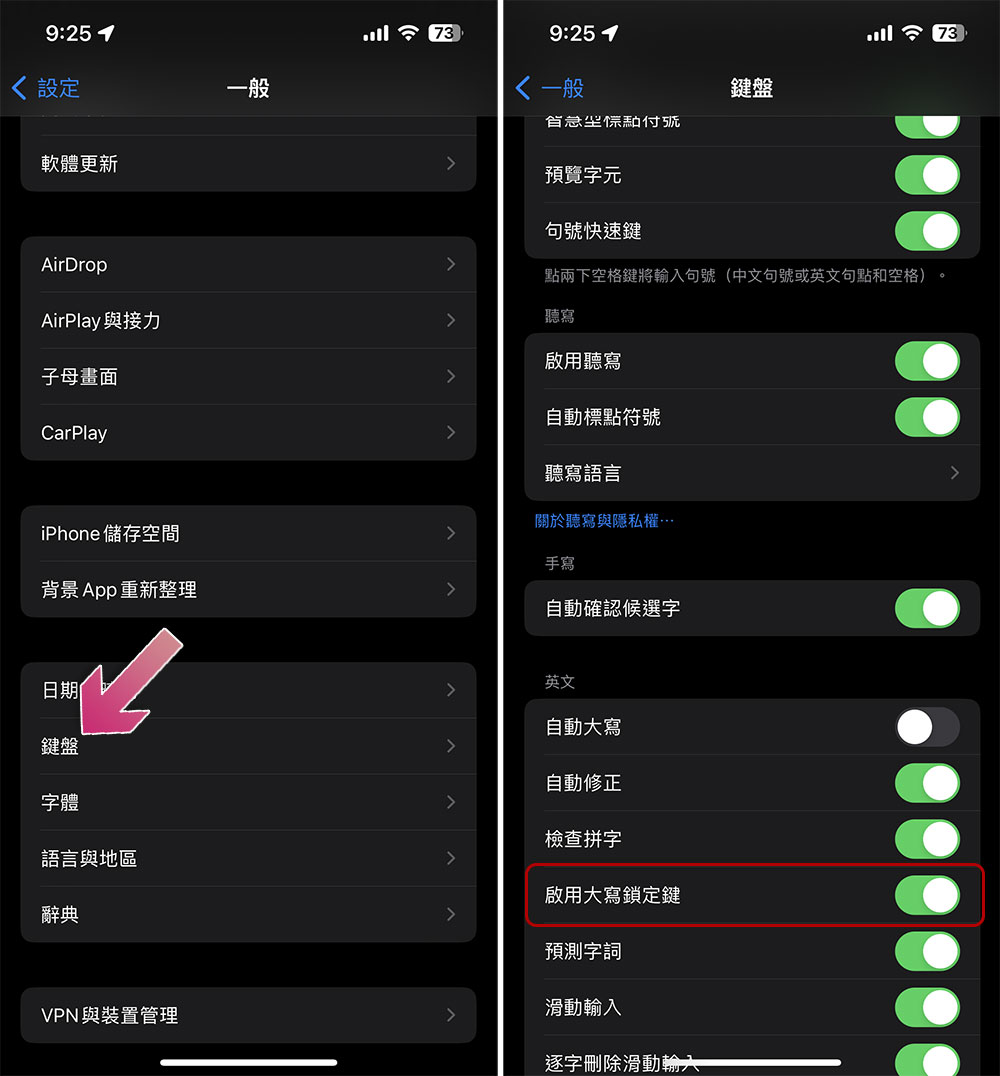
Usually, every time you type in English, press the Shift key (the upward symbol on the keyboard) and then click on the letters to enter them in uppercase. After that, Shift will automatically turn off and return to lowercase. This also means that if you want to continuously input uppercase letters, you have to keep pressing Shift. In fact, the iPhone is not that dull after all! You can have a faster way to solve this problem, saving you half the typing time. First, please go to the path “Settings >> General >> Keyboard”, scroll to the bottom and turn on the “Enable Caps Lock Key” function.
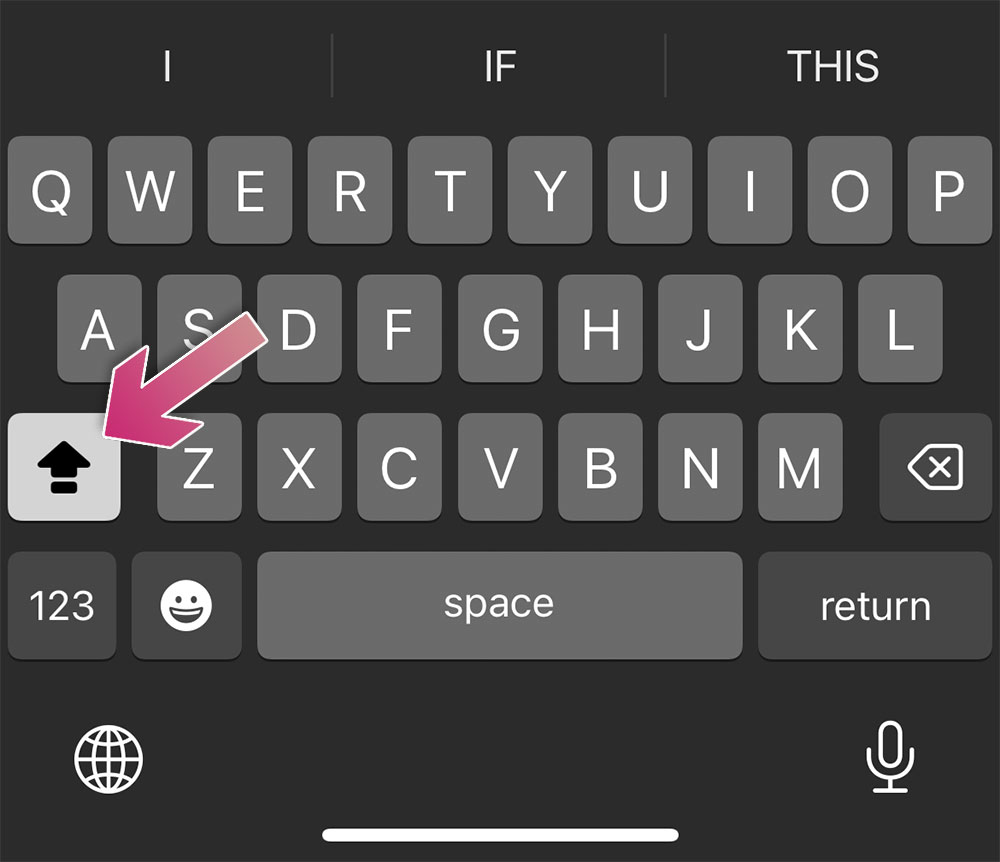
When you are typing English letters, just press Shift twice quickly, and you will see an extra horizontal bar under the arrow (as shown below). This means that Caps Lock is currently activated, which is equivalent to pressing the Caps key on your computer keyboard. All English letters entered in this state will be in uppercase. If you want to return to lowercase input, just click Shift to unlock it.
Set text format
Moderately using different text formats can make the content more stylized and focused without being as overbearing as all-caps English content. Changing text to bold or underline is easy on a computer thanks to the keyboard and mouse, but adjusting it from the iPhone’s touch interface seems less intuitive. To make matters worse, these style options are not available on all text input applications.

But you can use it in Notes on iPhone. First, double-click or triple-click the word you want to change to highlight the entire text, and then click “Format” from the pop-up function options. Then you can choose bold, italic, underline, strikethrough, or indentation, but italics do not seem to support Chinese.
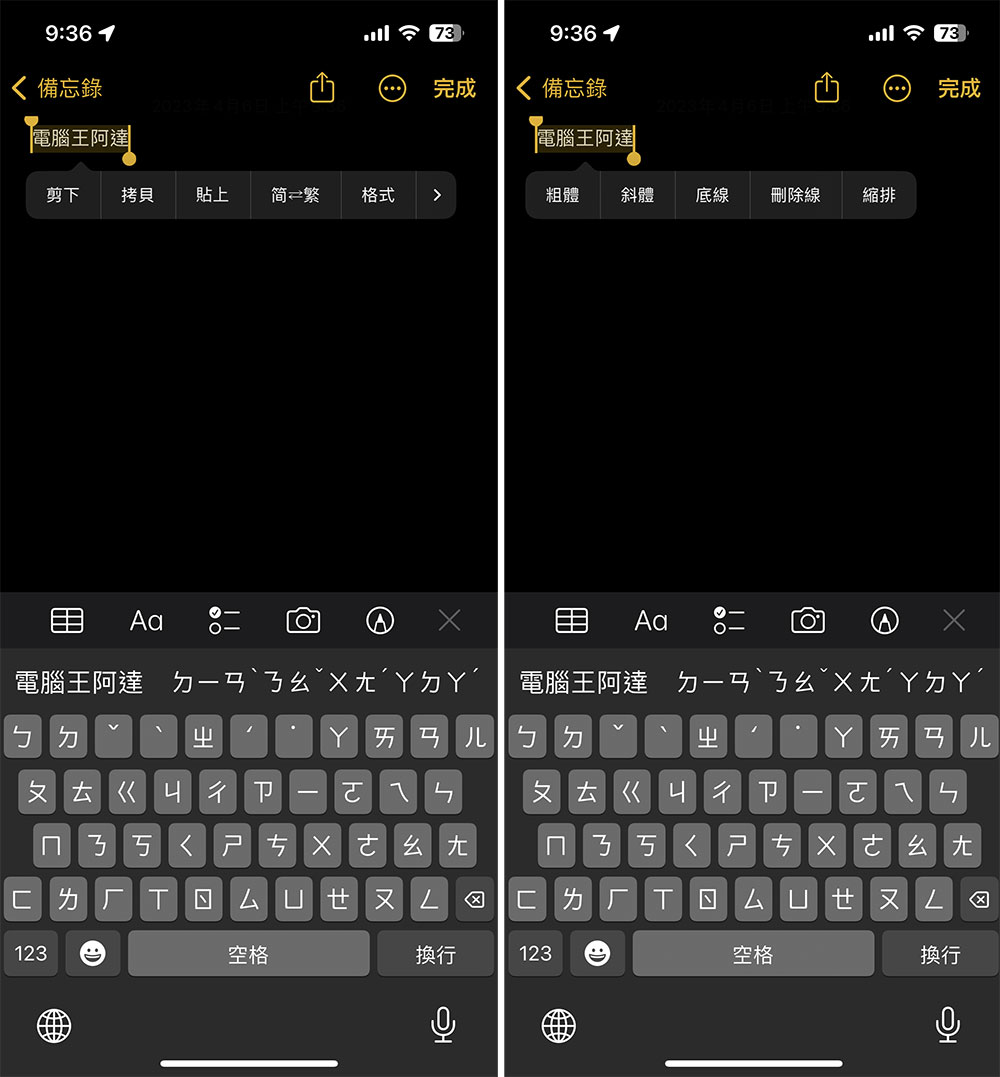
Shake to revert input or redo
When you calm down after typing a whole string of venting text and decide not to send the string of text, in addition to holding down the delete key and watching the text disappear one by one, you can also use the shortcut operation on the iPhone that I find the most interesting. If you want to delete the content you just entered, you only need to shake your phone. A dialogue window will appear on the screen asking you whether to restore the input. Just click “Restore” to delete the text you just entered.

Similarly, if you regret after deleting it, please pick up the phone and shake it again, and a small window will appear on the screen asking you if you want to redo it.
More precise cursor control
If you use a computer regularly, it’s easy to take the precise control a mouse provides for granted, but grabbing a cursor and placing it in a precise location on a touch screen can seem more difficult. Suppose you find typos or typos in a few sentences or paragraphs and want to correct them without deleting all the content behind them. You can try clicking on the exact location you want to fix, but it’s not easy to move between many words. A quick change that should take no more than a second can turn into a long and frustrating experience, but luckily there’s an easier way introduced in iOS 15.
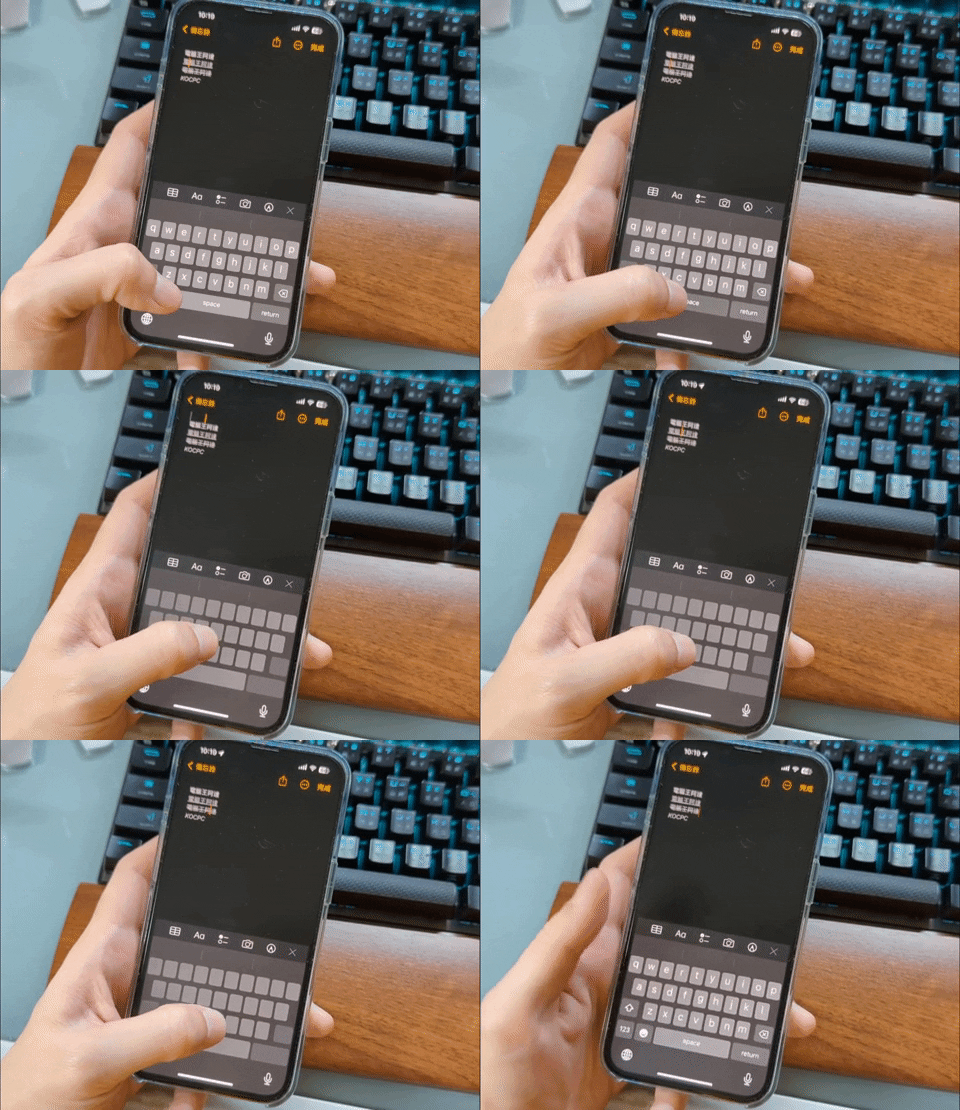
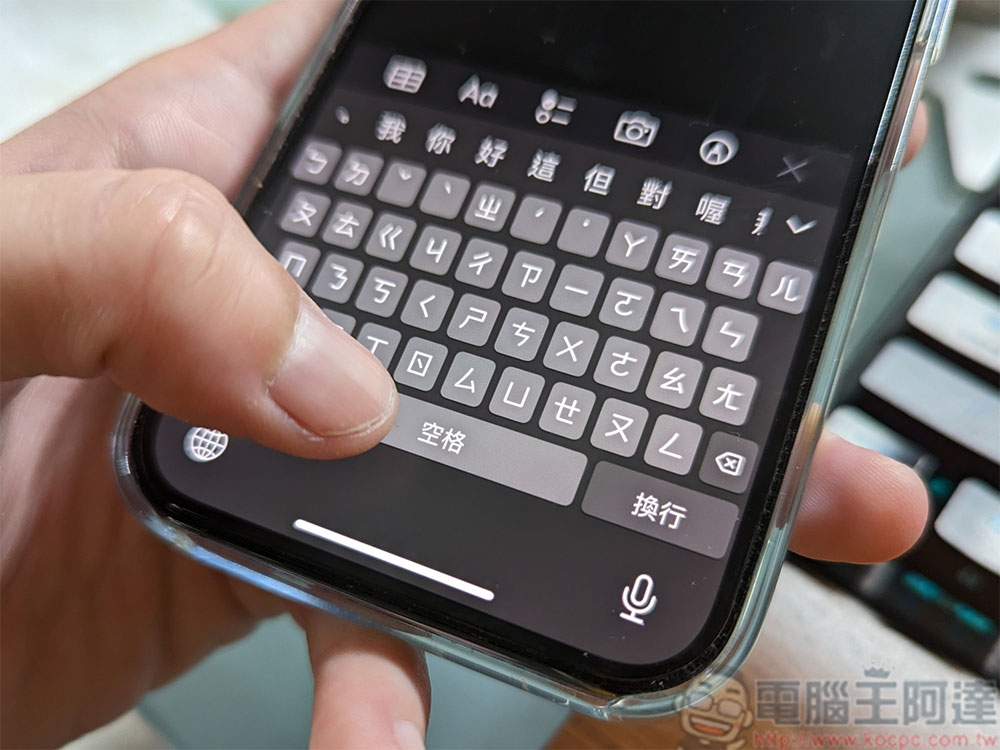
You just need to press and hold the space bar on the iPhone virtual keyboard to quickly grab the cursor, then press and hold and gently slide your finger up, down, left, and right, and you can see the cursor move freely in the text field, just like using a mouse. Then move the cursor to the exact location you want and release your finger.
Source: KOCPC Chinese