


The mobile connection application in Windows 11 was originally a unique privilege for Android phones. It can view, reply to text messages, answer calls, read notifications, etc. directly on the computer. However, not long ago, Microsoft finally let go and allowed mobile phone connection to also support iMessage on the iPhone, allowing you to operate it directly from your Windows 11 computer without picking up your phone.
How to use iMessage on iPhone with Windows 11 Mobile Connect?
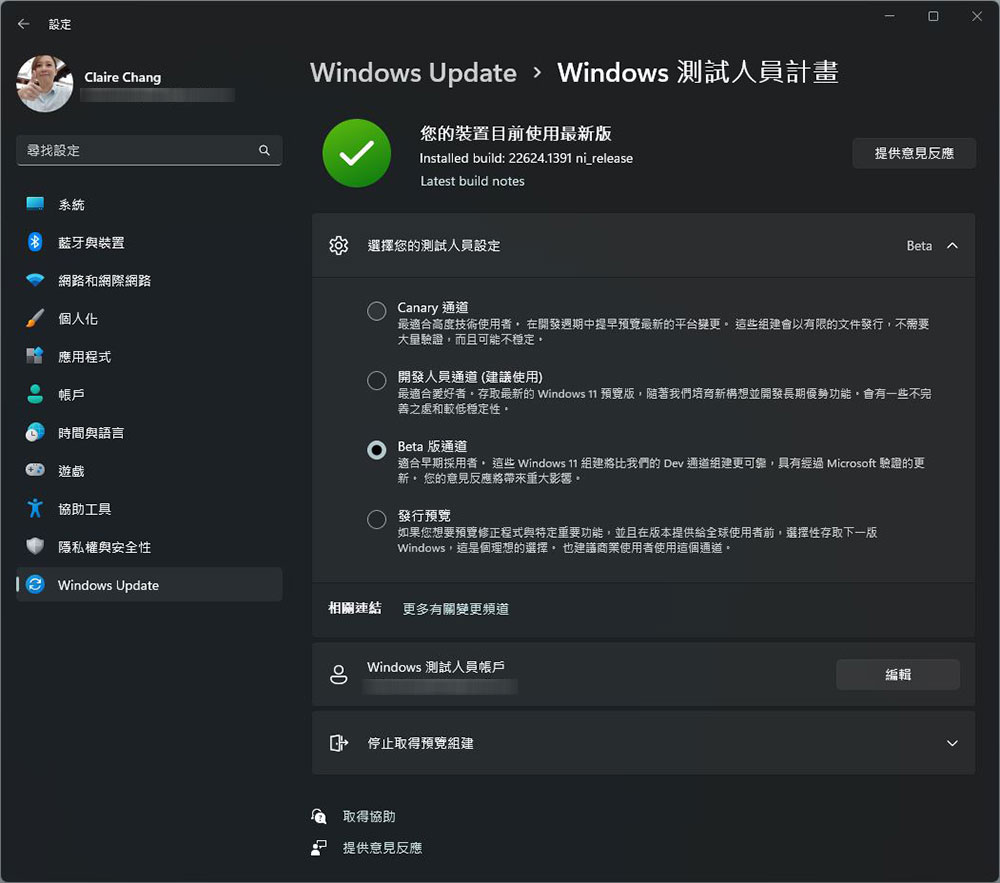
Microsoft in itsBlog articleZhong said that they have started an early preview of mobile connection on iOS. This feature is currently only available to a limited number of Windows Insider users, and is limited to Windows 11 computer systems and iPhones above iOS 14. If you want to give it a try, you must first join the Windows Tester Program before you can use it. You can choose the version to join in the “Windows Tester Program” in Settings >> Windows Update (it is recommended that ordinary users choose Beta, which is safer and more stable). After you join successfully, you can start following the steps to set up; if you don’t want to join, you can wait until the official version comes out.
Set up Windows 11 Mobile Connect with iMessage on iPhone
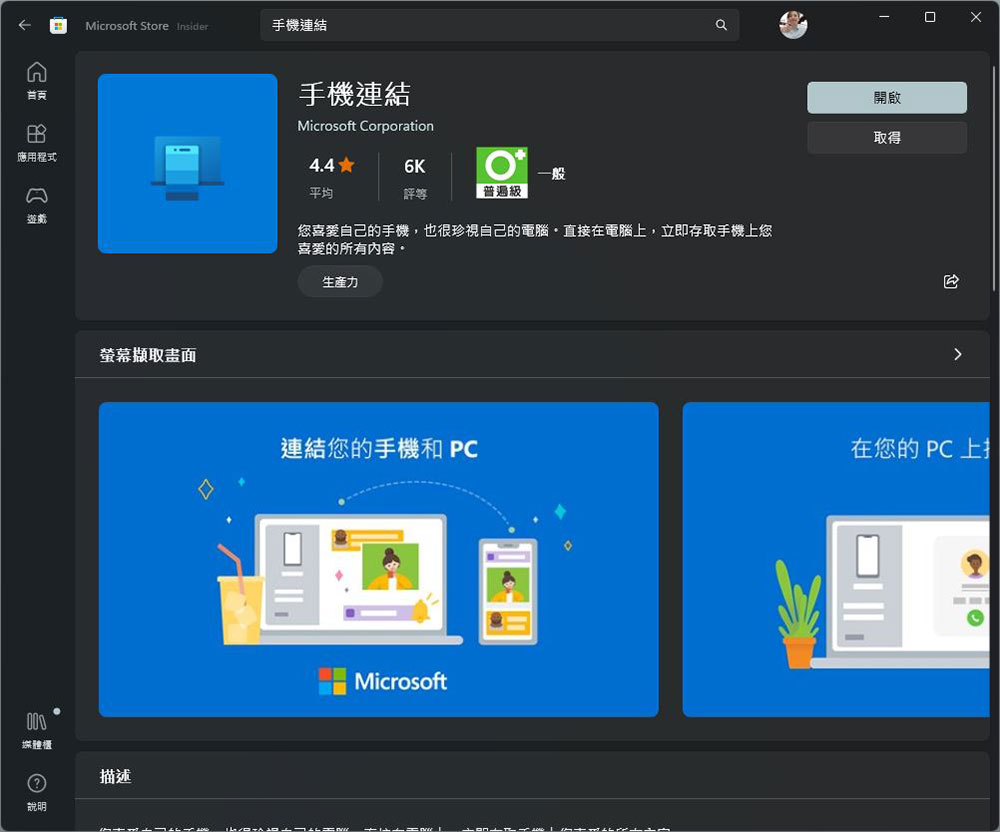
- From the Microsoft Store on a PC running Windows 11Download the Mobile Link App。
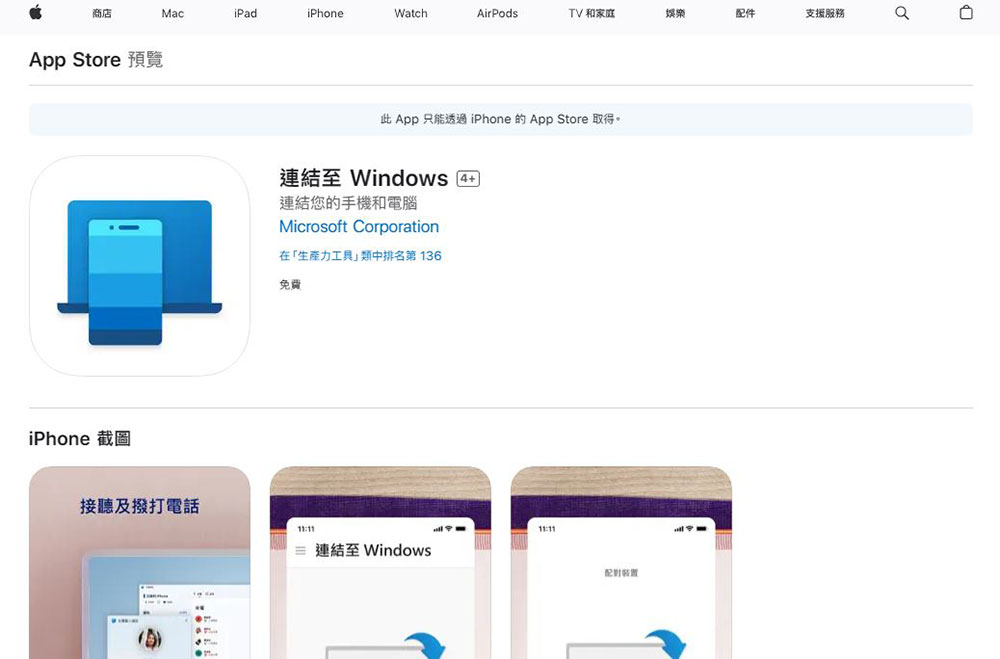
- Download it from the APP Store on iPhoneLink to Windows“app.
- Open the Mobile Connect app on your Windows computer and select your iPhone.
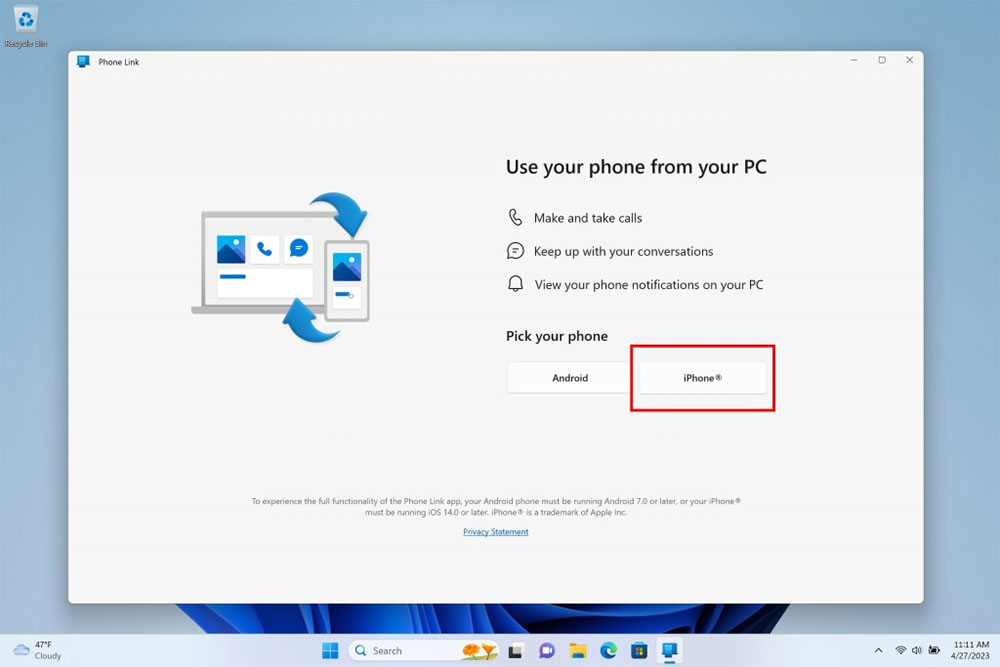
-
Now sign in to your Microsoft account in the Mobile Connect and Connect to Windows apps on your Windows computer and iPhone.
-
Your iPhone will display a prompt to enable Bluetooth and pair it with your Windows computer.
-
Once paired, you must scan the QR Code displayed on your Windows device’s screen using the Link to Windows app on your iPhone.
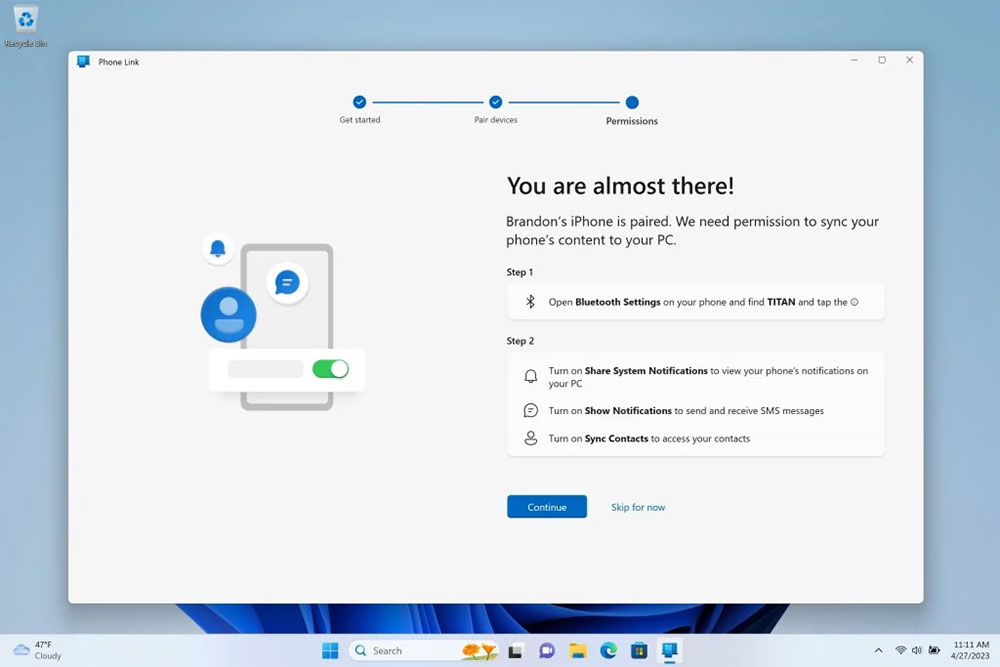
- The iPhone will ask for some permissions, which you can review based on your preferences.
- Your iPhone is now connected to your Windows computer through Microsoft Mobile Connect, and you can start using iMessage on Windows.
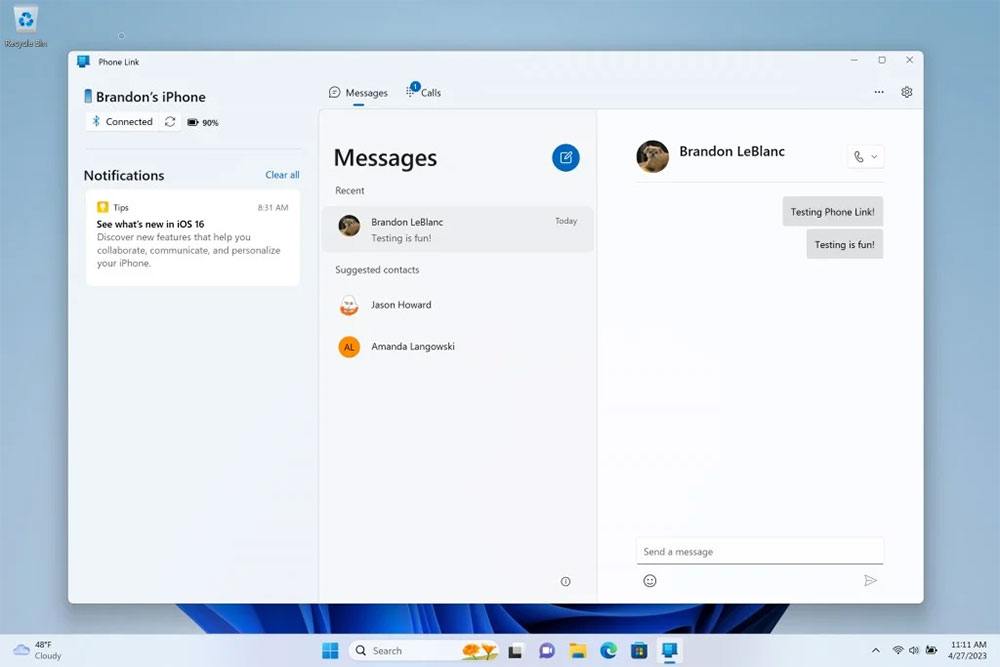
There are still some limitations! Although you can view and reply to messages directly from your Windows computer, there is no support for replying to group messages or adding multimedia to messages. In addition, old messages on iMessage will not be synchronized in the mobile link, and only the message conversation content that started when the mobile phone was connected to the computer via Bluetooth will be displayed. Finally, as of now, it is still not possible to receive calls using this service. Although the functionality is still very limited, this is a move that Microsoft has made right!
Source: KOCPC Chinese