


Decorate your phone screen with some beautiful wallpapers to make your phone more beautiful. Many people like to use categories such as art, landscapes and cityscapes, and they also choose to use some personal photos. Regardless, when it’s time to wind down in the evening and you might want to dim the screen of your phone next to your bed, or you want to get ready for a good night’s sleep, Bedtime Mode on Android is a great helper.

How to use “Bedtime Mode” to dim the wallpaper on Android?
Enable “Bedtime Mode” on Android
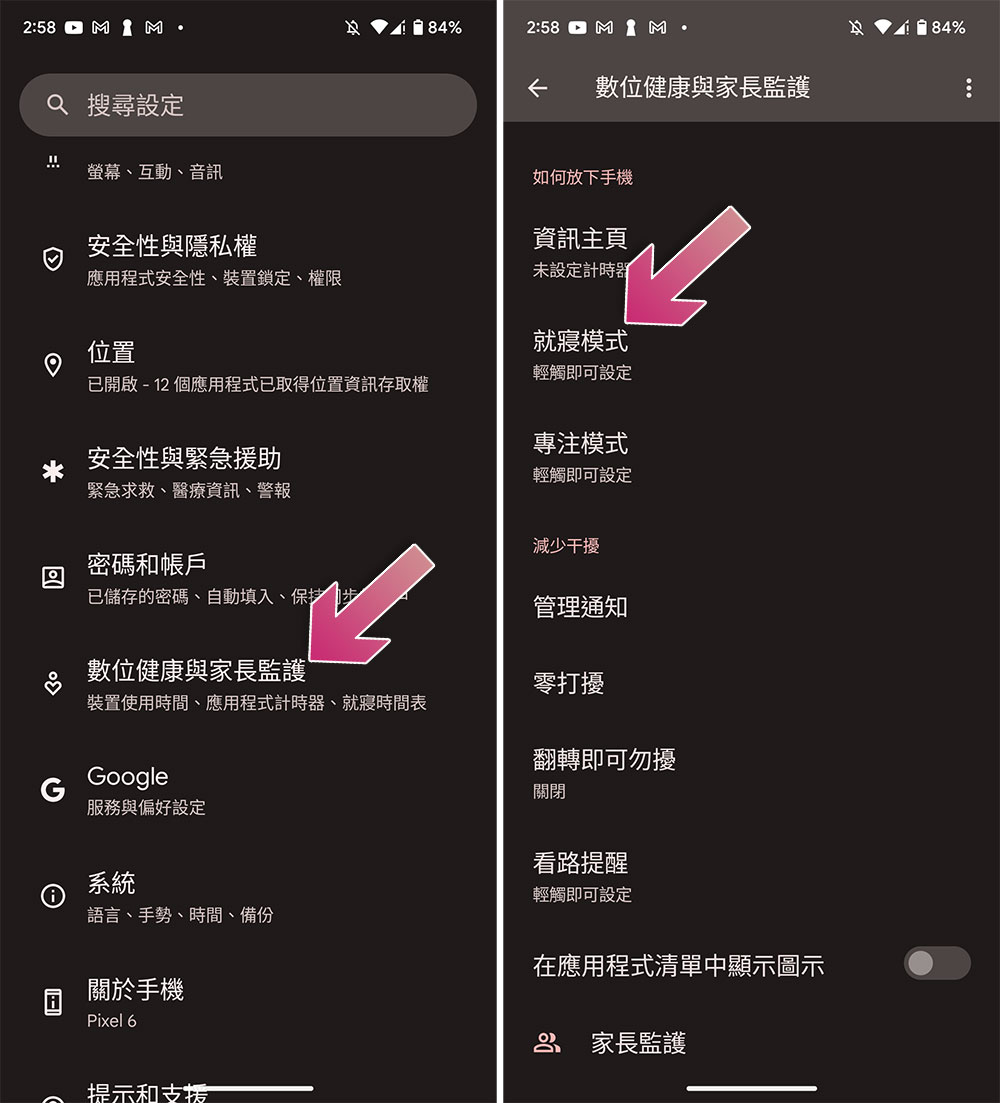
- Open the Settings app and scroll down to find Digital Health & Parental Controls.
- Click on “Bedtime Mode”.
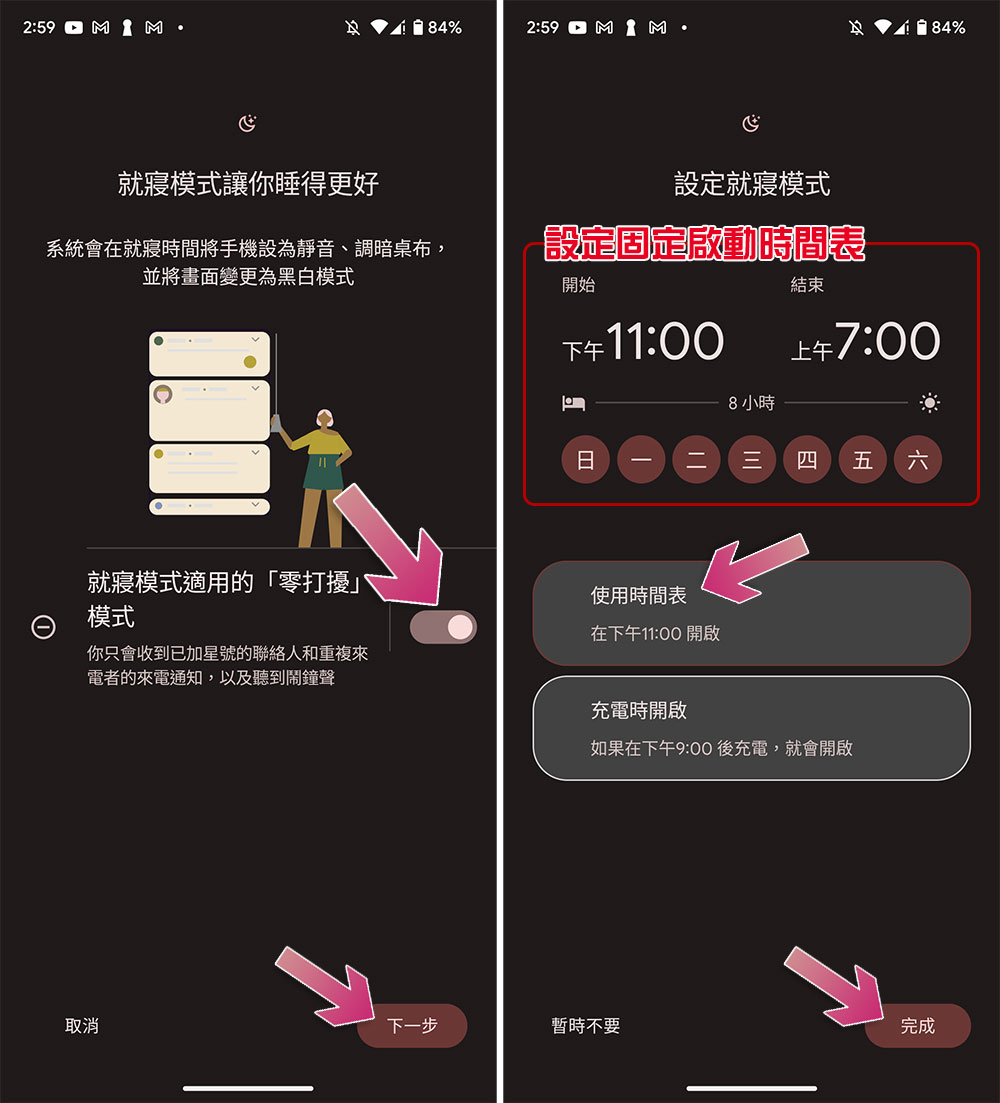
- On the inner page, turn on the switch next to “Apply zero-disturb mode for bedtime mode” and click Next.
- Next, you can set your own bedtime schedule, such as which time period you want to be your bedtime, which days of the week you want to activate, etc., then click “Use Schedule”, and then click “Finish”.
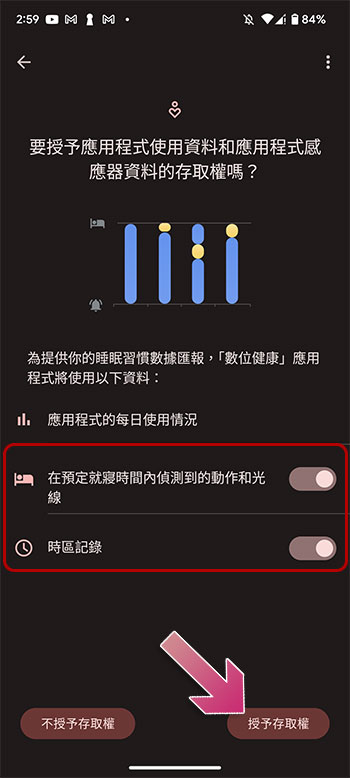
- Next, you can choose whether to enable motion and light sensing at bedtime. In addition, if you often travel across time zones, you can turn on “Time Zone Recording” to let your bedtime change according to your time zone. After setting, click “Grant Access” in the lower right corner.
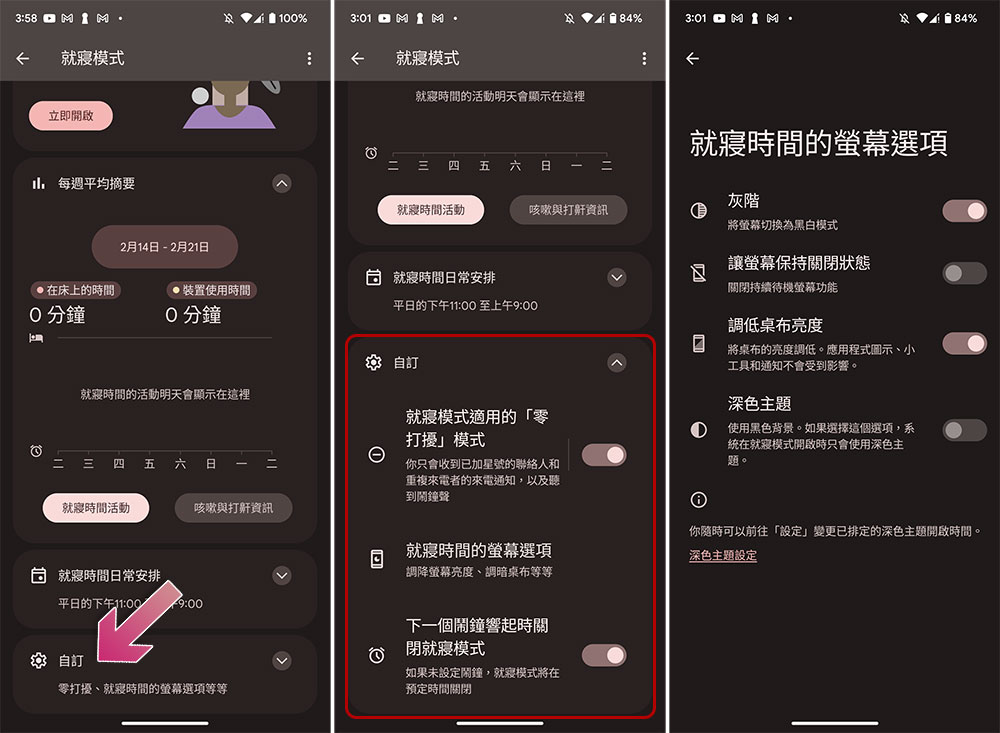
After you have set the bedtime mode, go back to “Digital Health and Parental Control” and click to enter “Bedtime Mode” to make some further customized adjustments. Although not many, it can make the bedtime mode more personalized.
- Scroll to “Customize” at the bottom of the page in bedtime mode.
- Here you can set the following:
- “Zero-disturbance” mode for bedtime mode: Enable this to simultaneously turn on zero-disturbance during the daily scheduled bedtime mode activation time, so that you can rest at night without being disturbed by irrelevant notifications.
- Screen options for bedtime: In this item, you can click how to dim the screen, including grayscale, screen off, lower desktop brightness, dark theme, etc.
- Turn off bedtime mode when the next alarm sounds: This option is suitable for people who have set an alarm clock. If there is no alarm clock set, it will be enabled and disabled according to the scheduled schedule.
The author took two photos below. The left side is the brightness and color of the daily tablecloth, and the right side is what it looks like after turning on bedtime mode. Use bedtime mode on an Android phone to dim the tablecloth. Once the bedtime start time is entered, it will remain on until the specified end time, or it can be turned off manually. Although the wallpaper will be dimmed, app icons, widgets, and notifications will not be affected.
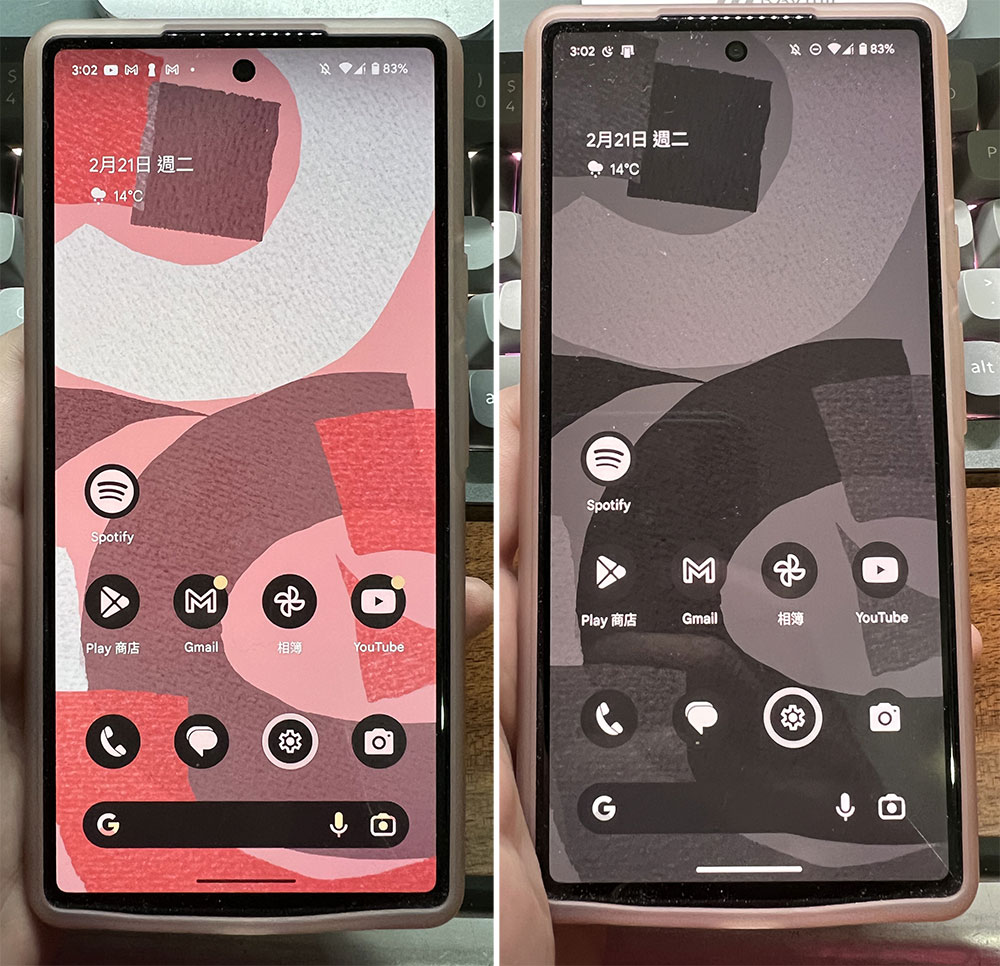
This setting is available on almost all Android devices, so that your eyes will not be so dazzled when you look at your phone at night after a busy day, or after turning off the lights at night, so that you will not wake yourself up just to check the time.
Source: KOCPC Chinese