


Immersive Translation can be said to be one of the translation tools used by most people nowadays. Although it is very useful, as the functions become more and more powerful, not only the size becomes larger, but also for some people, the interface may become complicated in operation, and many functions will not be used at all. If you feel this way and want to find out if there is a useful alternative, the “Reading Frog” I will introduce in this article is quite good. It supports popular translation engines and has the bilingual comparison that most people need. It can also translate video subtitles, and even provides text-to-speech, multi-engine simultaneous translation and other functions. Chrome, Edge and Firefox can all be installed.
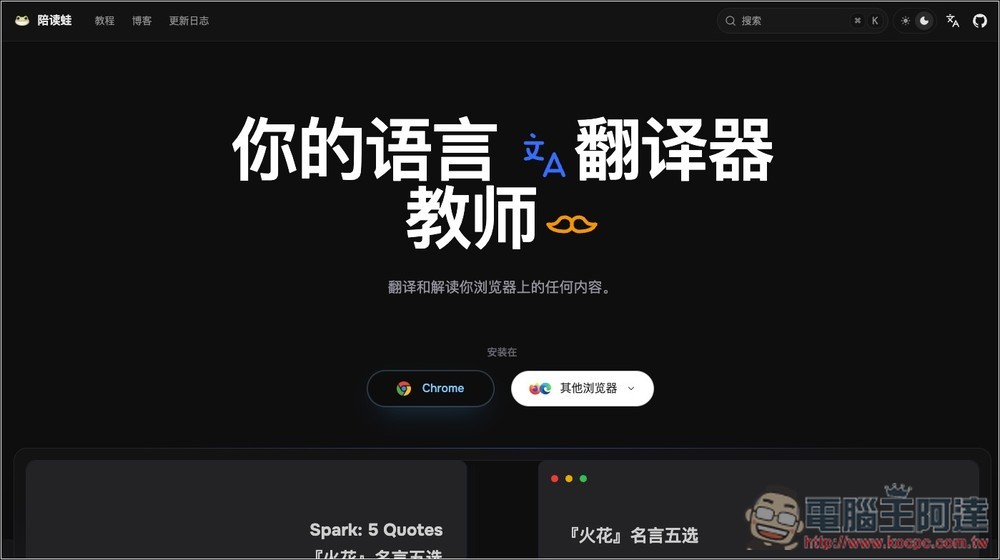
Introduction to alternative tools for the best immersive translation of “Reading Frog”
ReadFrog is an open source tool that focuses on the browser extension function of “reading and learning languages while reading” to help users improve their foreign language skills through web content.
The biggest feature is that, like immersive translation, it supports bilingual comparison and translation-only modes, and you can switch reading methods according to needs. If you want to retain the original text and practice understanding, you can use bilingual mode; if you just want to quickly master the content, you can also switch to translation-only mode. If paired with AI translation engines such as OpenAI and Gemini (API Key required), Duowa also has context-aware translation capabilities. It can refer to the content of the entire article to produce translation results that are more in line with the context, instead of hard translation word for word.
If you encounter a word or sentence that you don’t understand, you can directly highlight the text and get an immediate translation, detailed explanation, and even practice pronunciation through TTS voice reading. It is very convenient for those who prepare for TOEIC, TOEFL, JLPT or want to improve their daily foreign language reading skills.
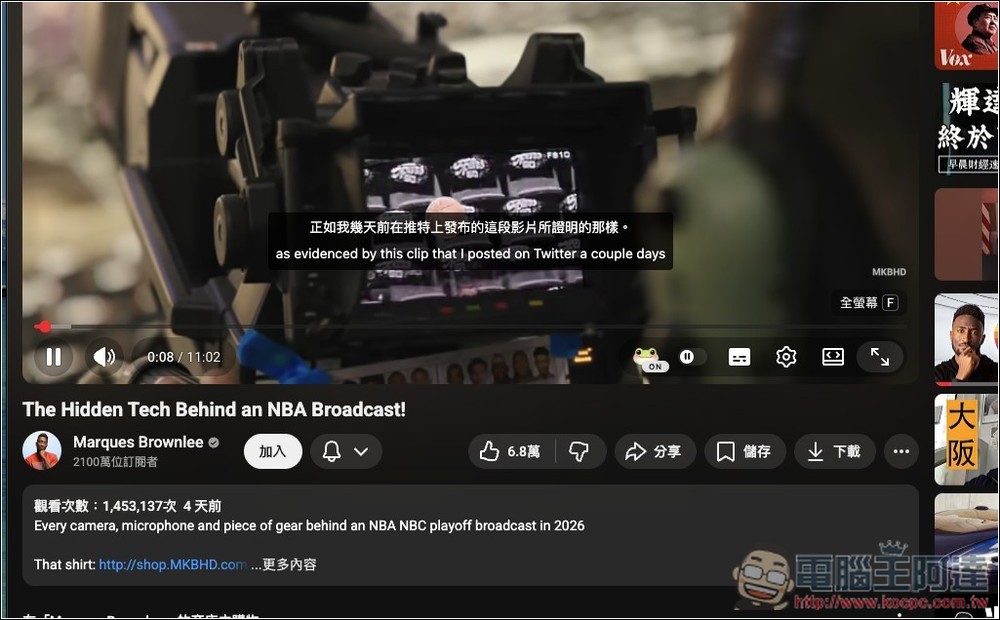
Another feature is the YouTube subtitle translation function, which currently supports direct translation of subtitles in the video player, so users do not need to install additional subtitle translation tools when watching foreign videos. Equipped with an AI voice reading function with a maximum speed of 4x and a minimum speed of 0.25x, it can also be used as a follow-up reading practice tool.
Feature highlights:
- Supports bilingual comparison and translation-only modes
- Provides more natural AI translation based on article context
- Supports word translation, word explanation and sentence analysis
- Built-in TTS reading function, adjustable speaking speed
- Can translate YouTube subtitles, suitable for video learning
- Supports multiple AI services such as OpenAI, DeepSeek, Gemini, Ollama, etc.
- Offers free options like Google Translate, Microsoft Translate, and more
- You can customize prompt words and adjust the translation style according to your needs.
- Open source tools for users who value transparency
- Suitable for foreign language reading, article learning, video subtitle understanding and daily language practice
Go to the official website of Duduwa
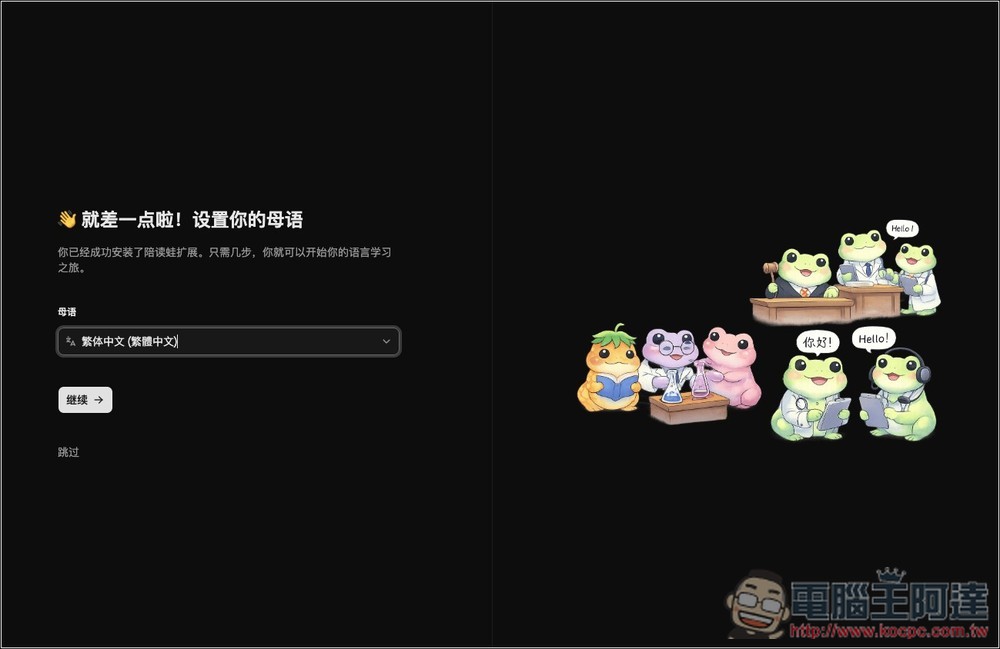
After installation, some basic settings will be made, such as native language:
Next, let you experience how to use this tool. In addition to enabling translation through the extended function icon in the upper right corner, it also provides a floating button:
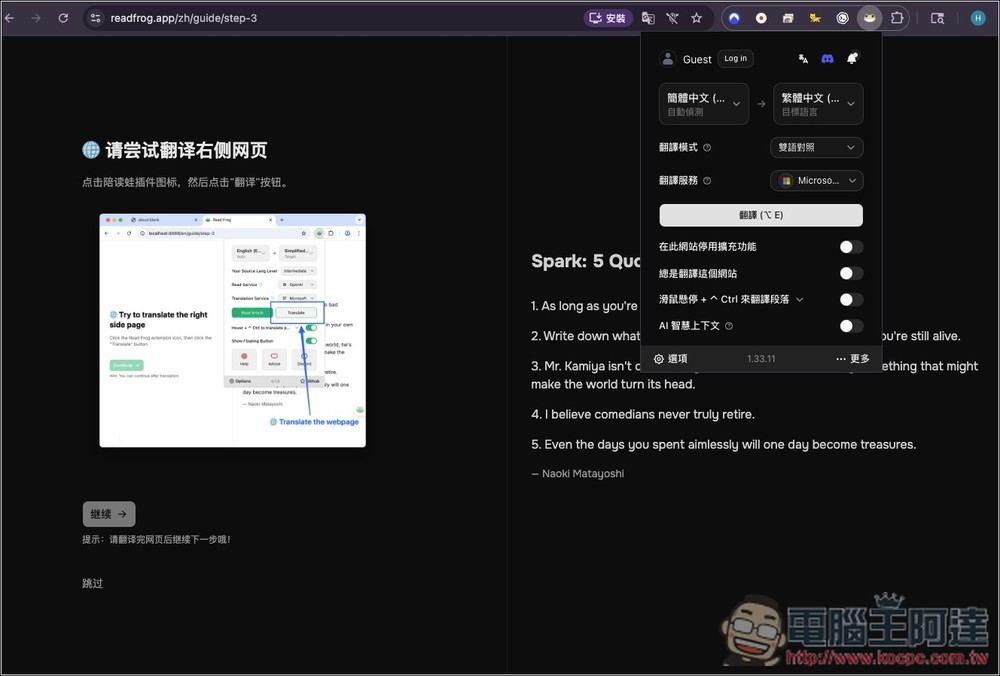
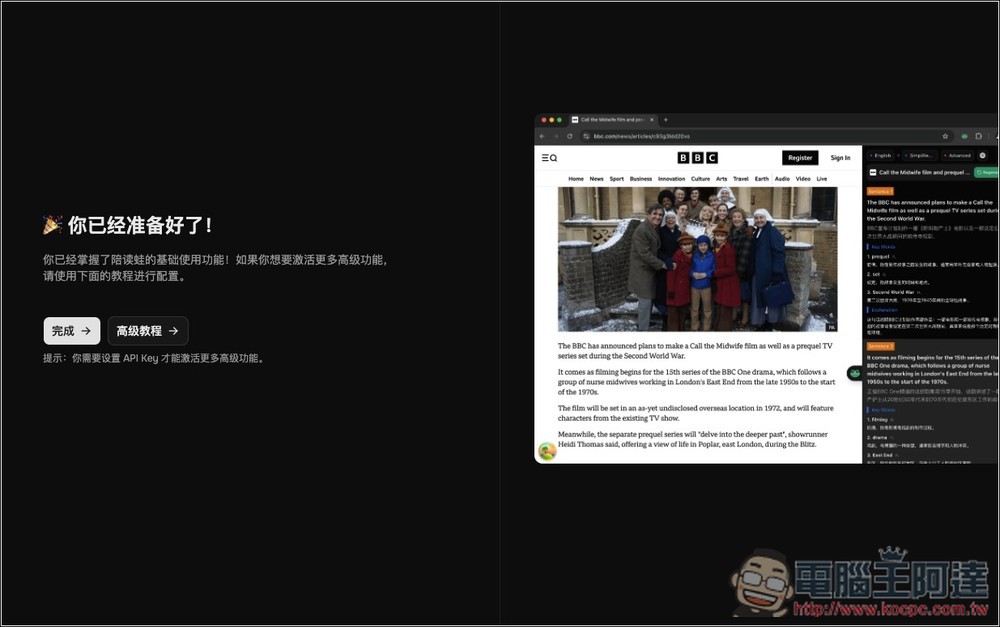
Then you can start using it. If you want to learn more techniques, you can watch the advanced tutorial:
The floating button is also on the right:
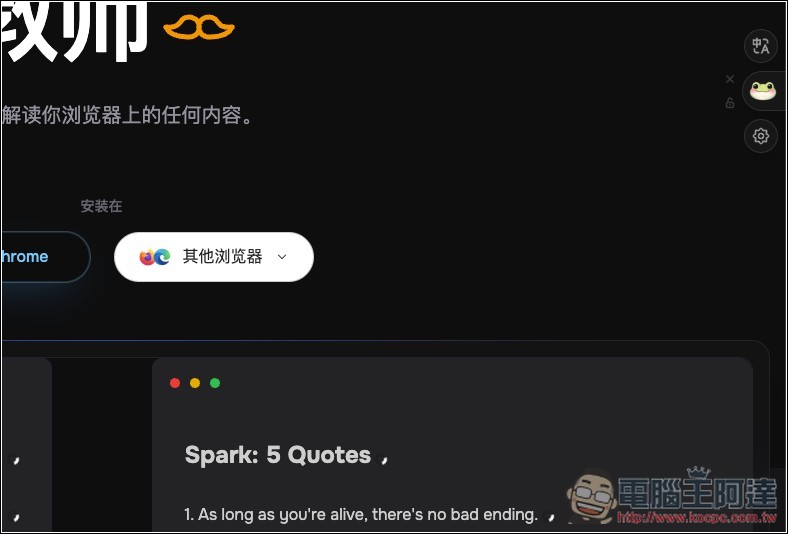
One click will translate. The default is Microsoft translation engine, which can be changed to Google or other AI services:
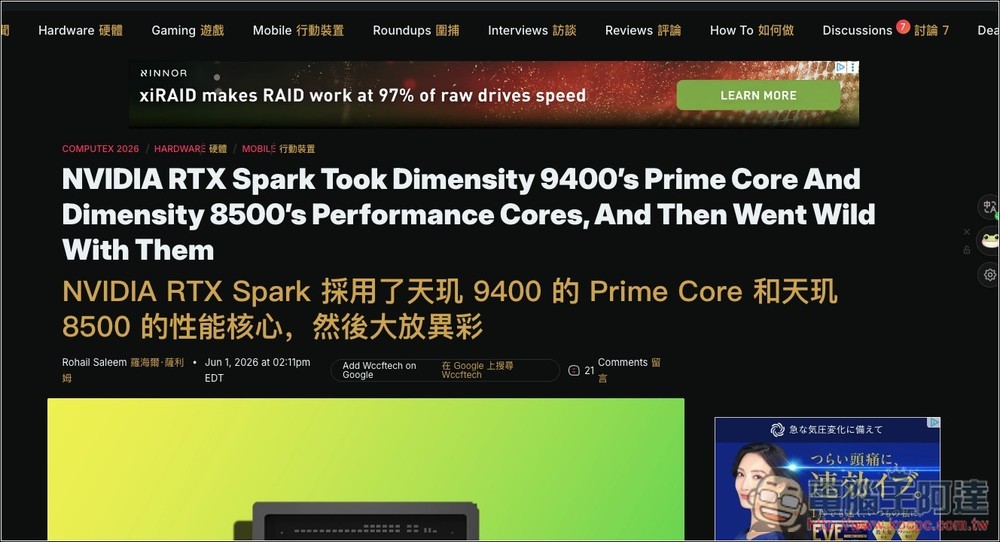
Open the general menu of option settings and you will see the translation engine. You can specify different translation engines for different purposes, such as web page translation, video subtitles, word-marking translation, etc.:
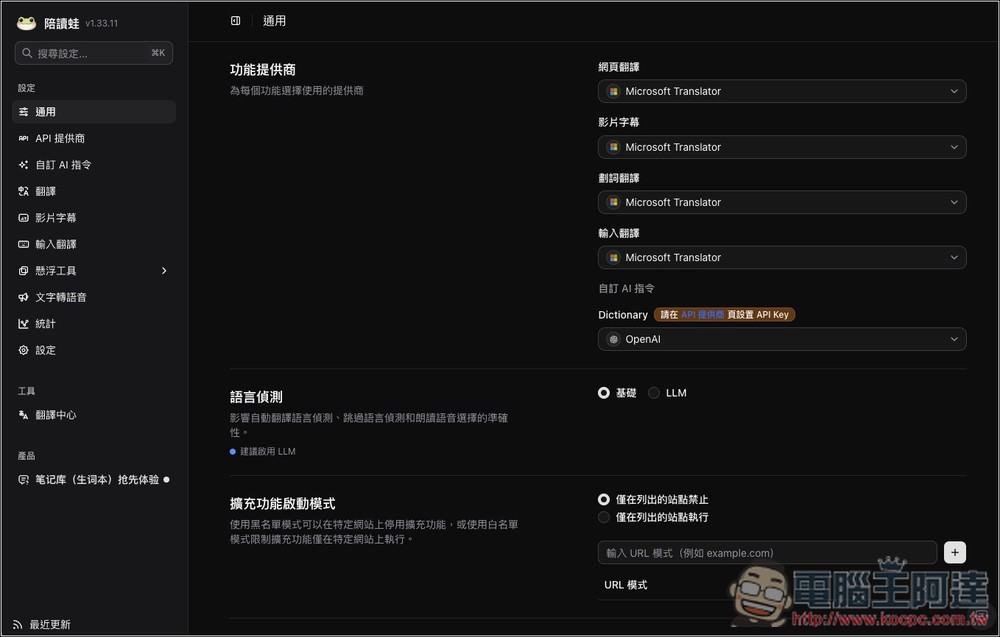
Microsoft, Google and DeepLX can be used directly. For the AI translation above, you need to fill in the API Key yourself:
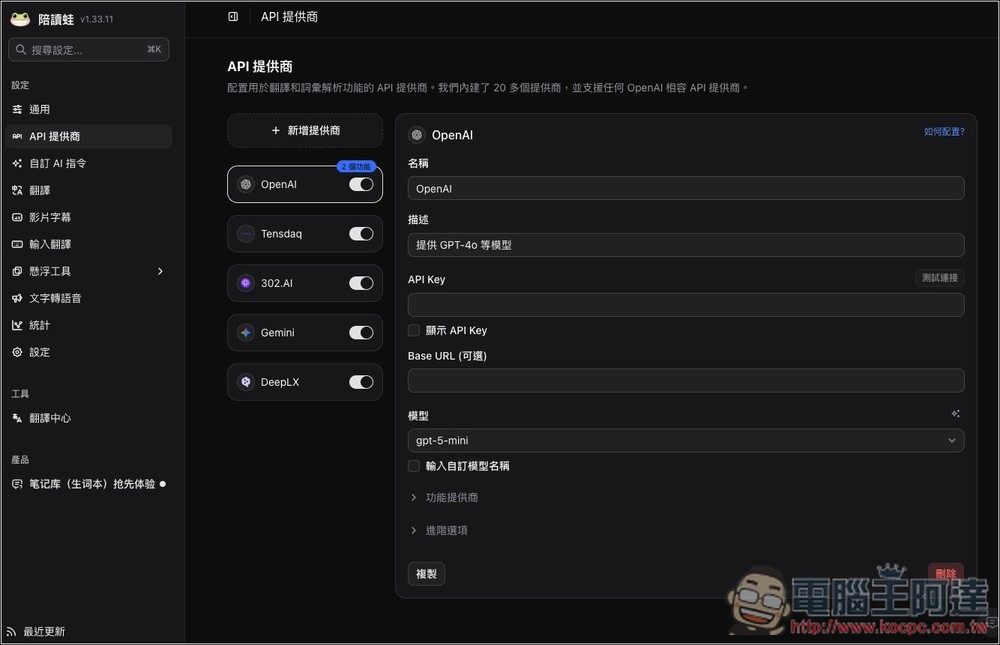
Fill in the API Key in the API provider menu, and you can also add more providers, not just the default ones:
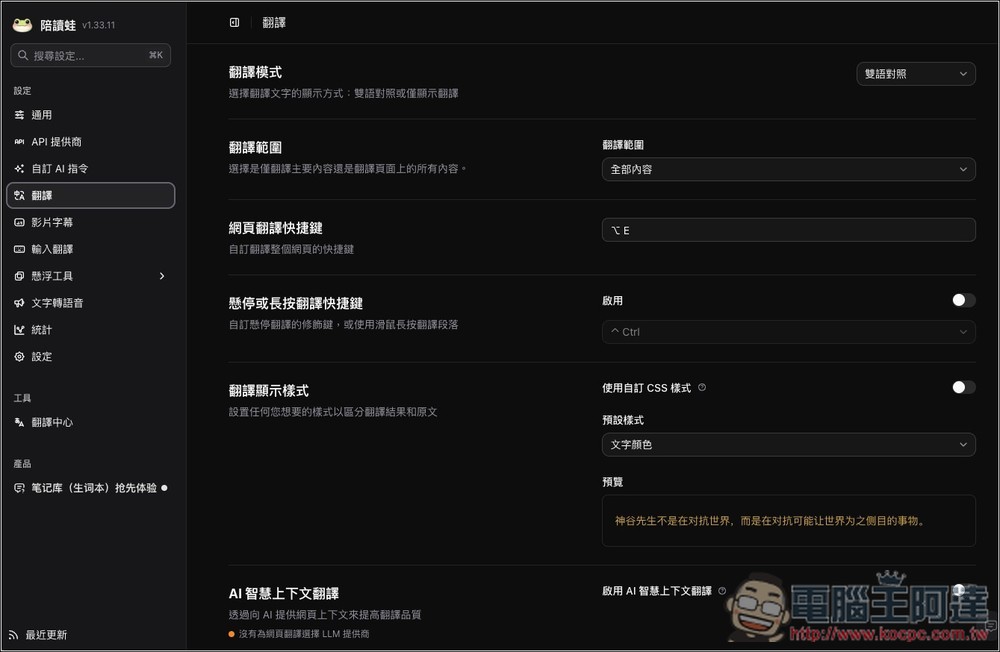
There are also many options in the translation menu that can be adjusted, such as translation range, shortcut keys, and display style:
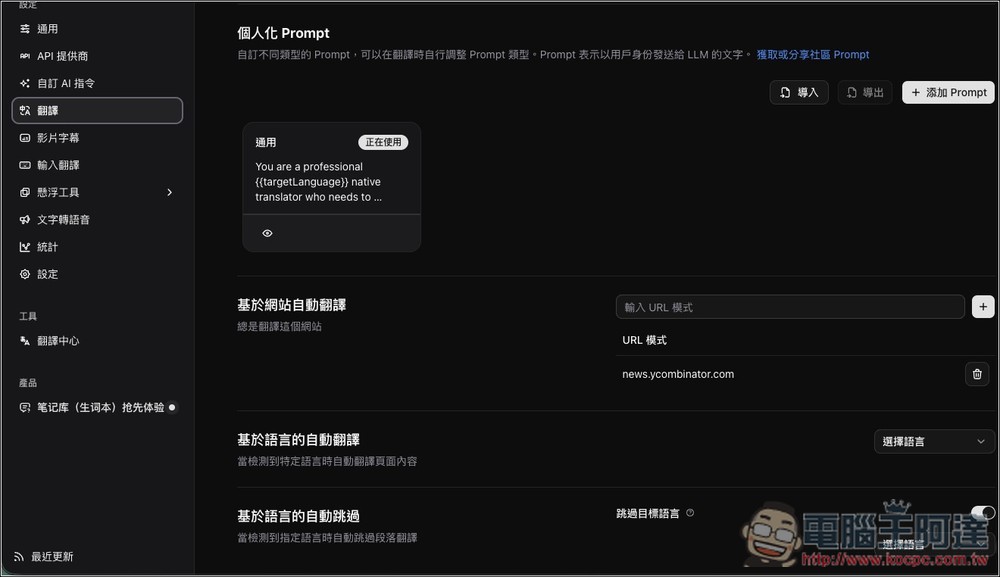
Even custom prompt words:
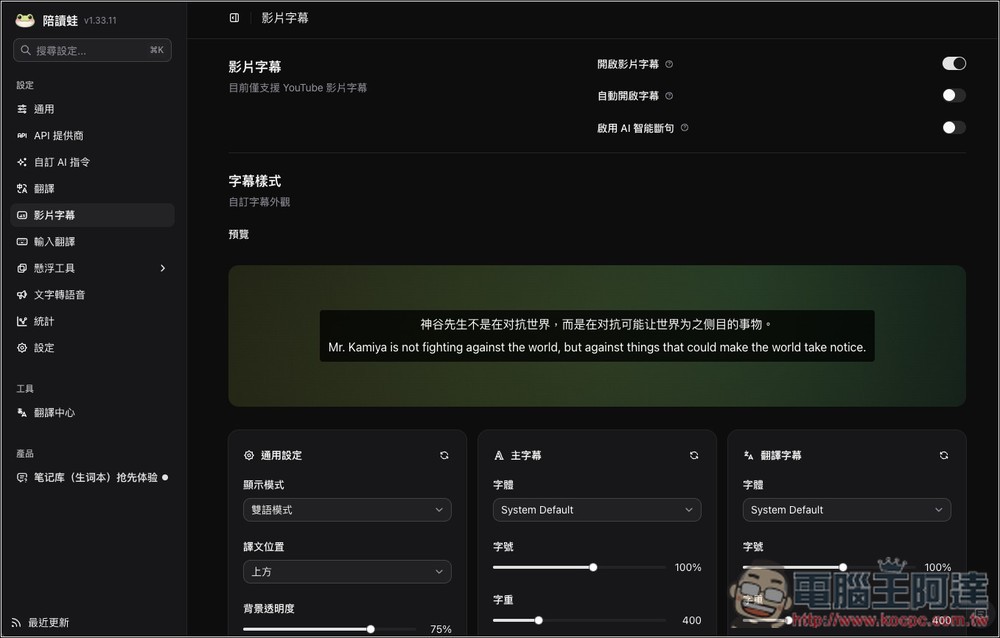
There are also many setting options for video subtitles, including the font or size used for bilingual subtitles, main subtitles, and translated subtitles:
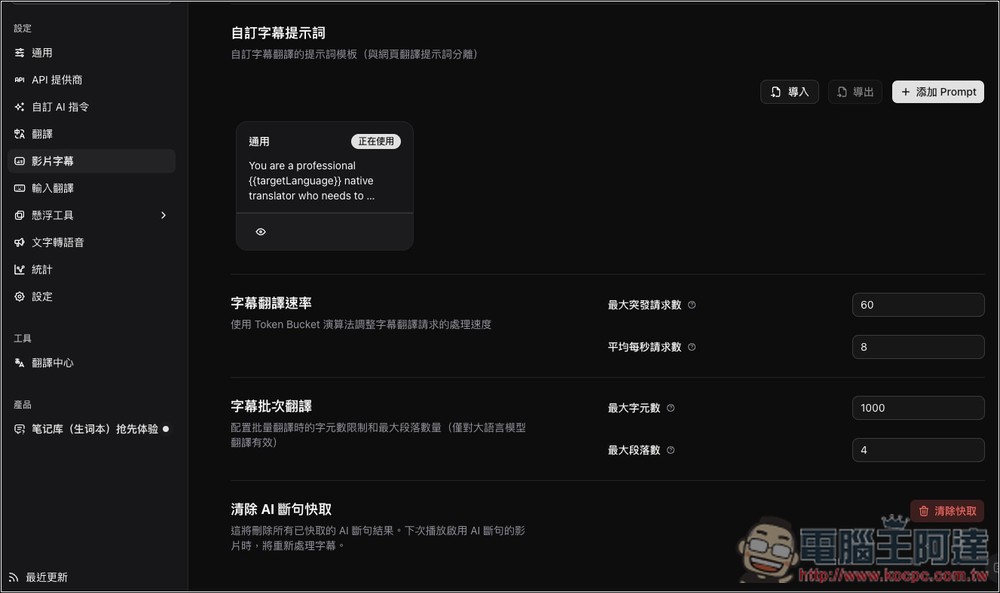
Of course, you can also customize the prompt words:
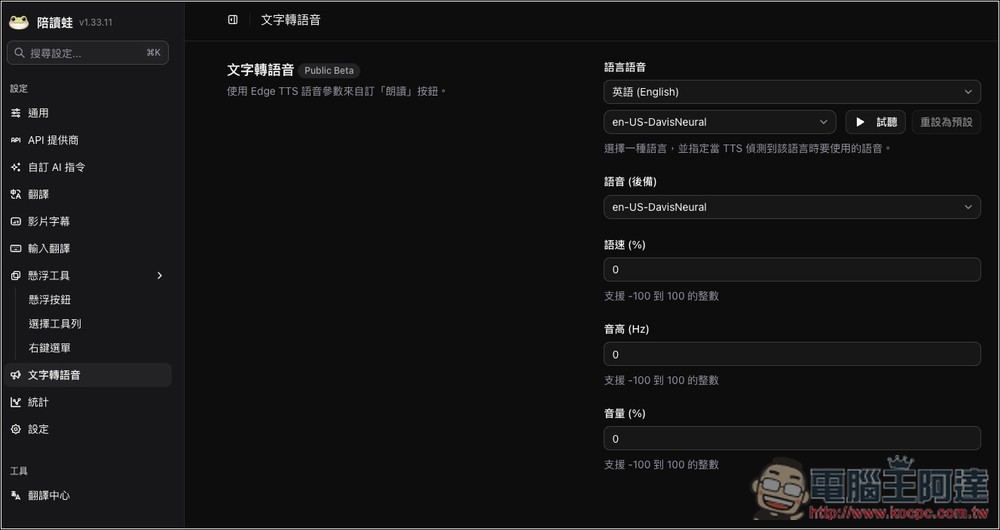
In the text-to-speech part, you can set the language pronunciation, speaking speed, and pitch:
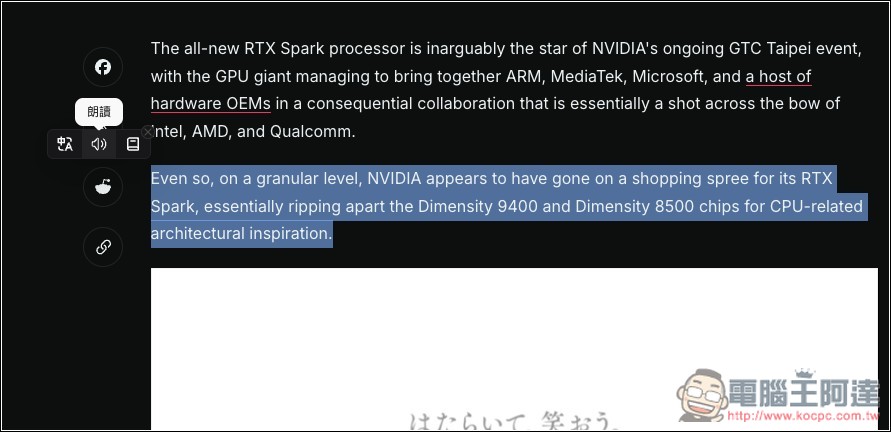
After setting it up, when you see the sentence you want to listen to on the web page in the future, just highlight it and click the read aloud icon, and it will be played back with your voice:
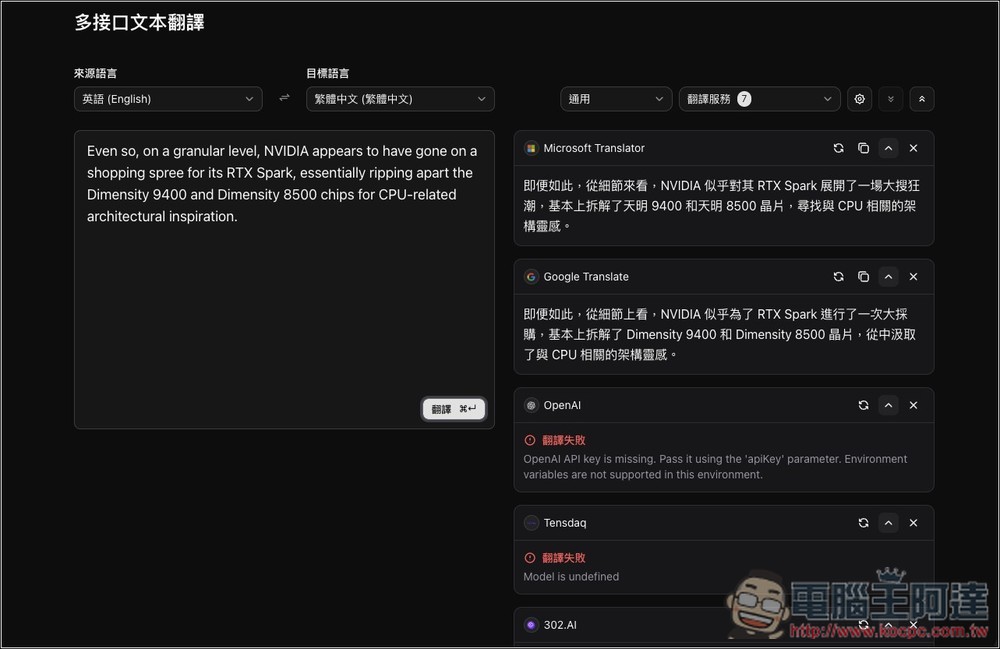
Multi-interface text translation is also useful. After pressing Translate, you can get the translation results of all translation engines at once:
There will also be a frog icon below the YouTube video. Open it to enable subtitles, or download the original subtitles:
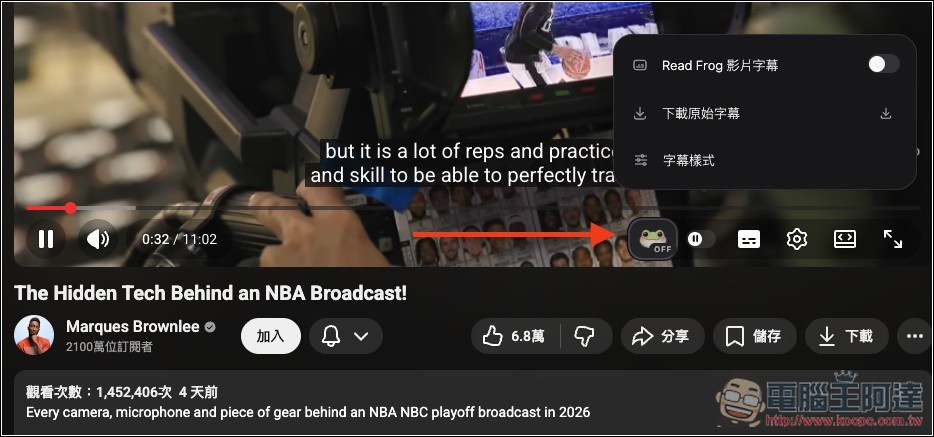
Like this:
Source: KOCPC Chinese