


The development of music communication has a long history from the earliest broadcasts, vinyl records, audio tapes, CDs to now music streaming. In today’s world of music streaming, Spotify is one of the standouts. If you’re a Spotify user, you’ve probably fallen asleep listening to music at least once, but if you don’t want music playing all night long, it’s important to check out the built-in sleep timer feature.

How to use Spotify’s sleep timer feature?
In 2018,PLoS One A study titled “Music that helps you fall asleep and why you think it works: A mixed-methods analysis of online survey reports” noted that 62% of respondents said they had listened to music to fall asleep at least once. The researchers noted that music may help people who are more stressed get better sleep, but they also found that respondents who listened to music to fall asleep generally had poorer sleep quality and less efficient sleep.
Whether music helps you sleep is a personal matter, but if you have the habit of falling asleep to music but always feel tired, or don’t want music to continue all night long after you fall asleep, you may be interested in the obscure Spotify built-in sleep timer. As long as you are using the mobile version of Spotify, you can set a sleep timer. Once the time is up, it will automatically pause. When you wake up, you can continue playing half of the music you listened to last night. To set a sleep schedule on Spotify, open Spotify full screen and follow the steps below.
【Playlist】
On Spotify, there are many lists compiled by other users or officially compiled for a certain scene, style, and situation, such as sleep, white noise, etc., which can help you relax at night. If you want to fall asleep with this kind of exclusive playlist, the setting method is as follows:
- Select the playlist you want to listen to and click Start Playing.
- Click on the Now Playing page that appears as a small banner below.
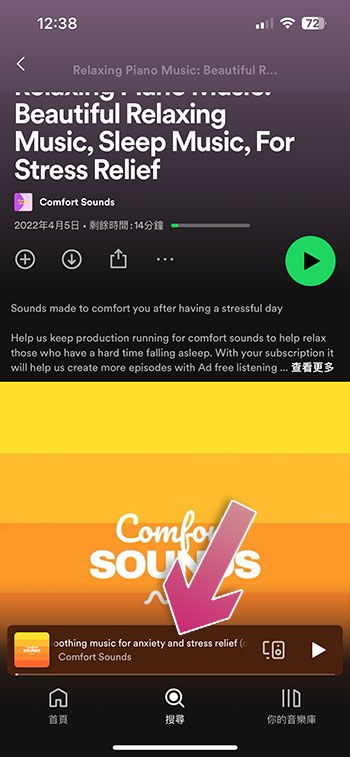
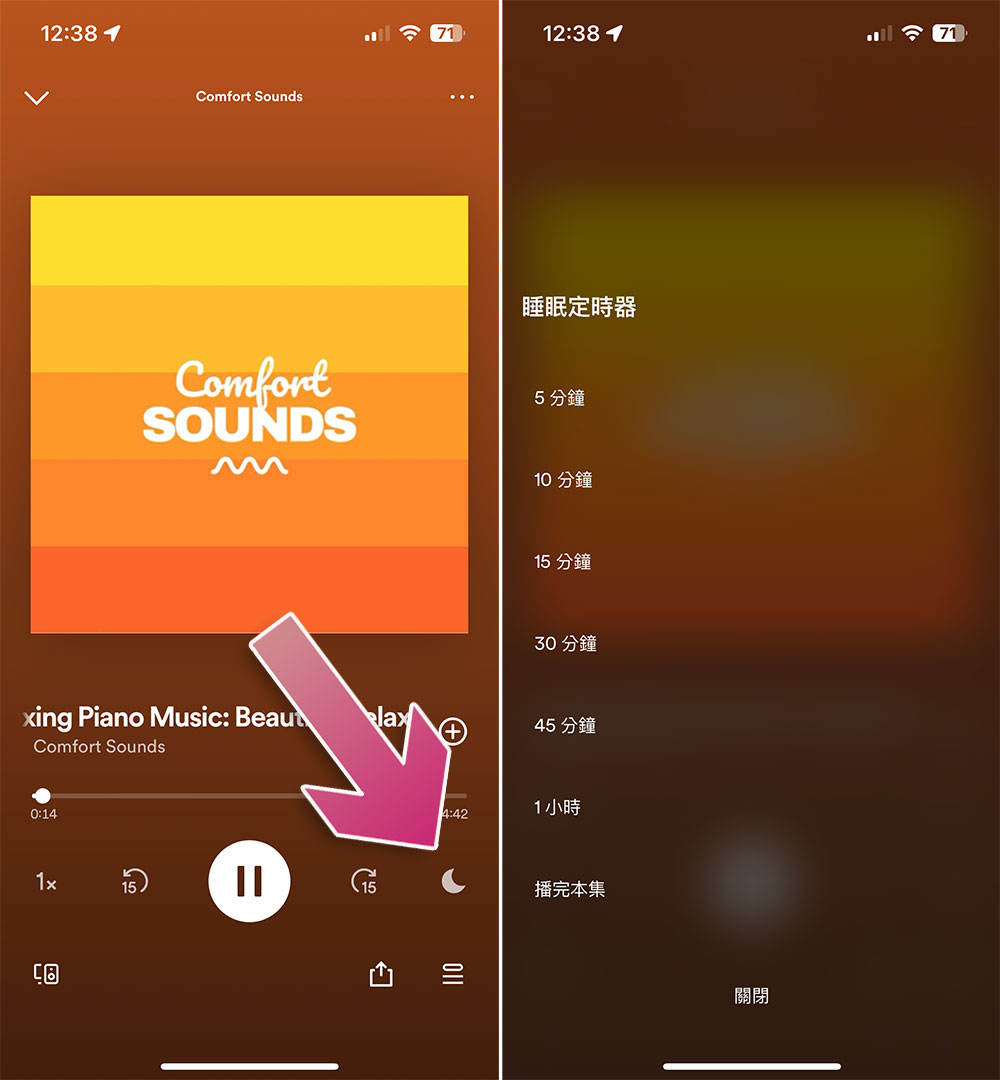
- Click the “moon” icon on the far right of the playback control to set the sleep timer. You can set a timer from 15 minutes to an hour, or until the entire list is played.
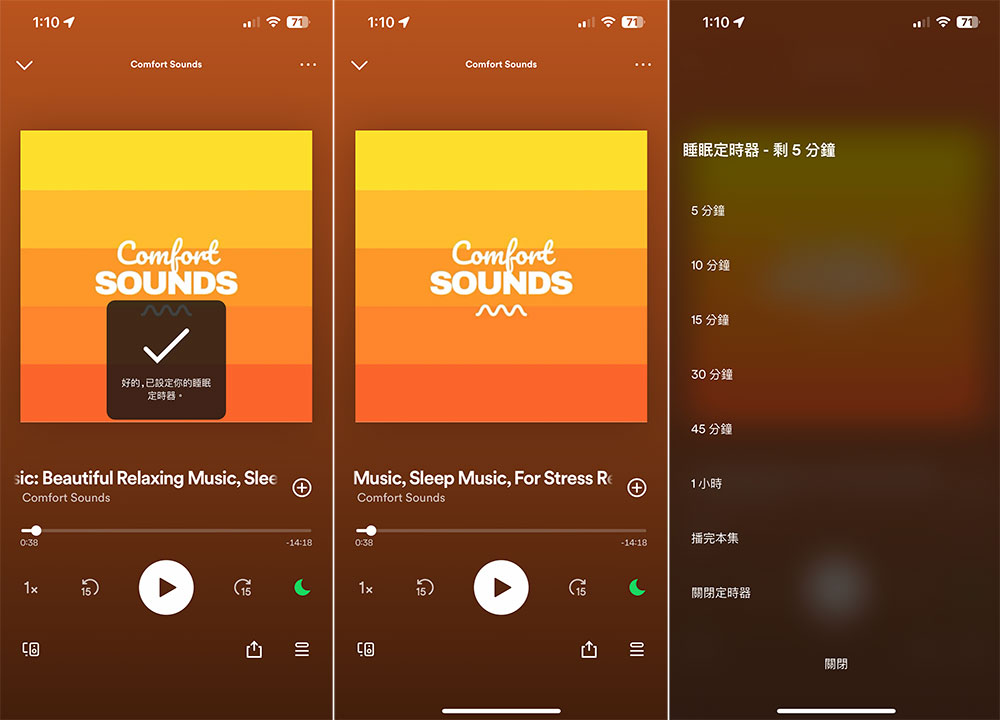
- After the setting is completed, in addition to the system notification window, the moon on the homepage of the list will turn green, and the remaining time will be displayed at the top of the inner page after clicking. You can also use this method to turn off the sleep timer if you change your mind.
【Single track】
You may want to fall asleep listening to a single piece of music, or sometimes a piece of music lasts a long time. This is often the case with symphonies or pure music. The location of the sleep timer for a single track is different. Here is how to set it:
- Click to open the track’s cover page and click the three-dot menu in the upper right corner.
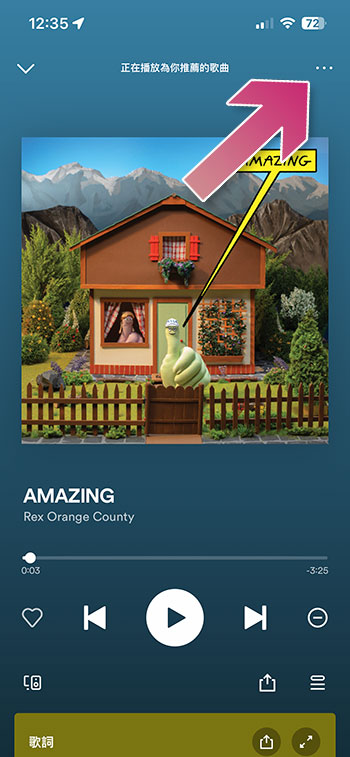
- Scroll to the bottom of the directory to see “Sleep Timer”, and then you can set the playback time from 15 minutes to 1 hour, or automatically stop playing after the track is played (otherwise Spotify will smartly keep playing on its own).
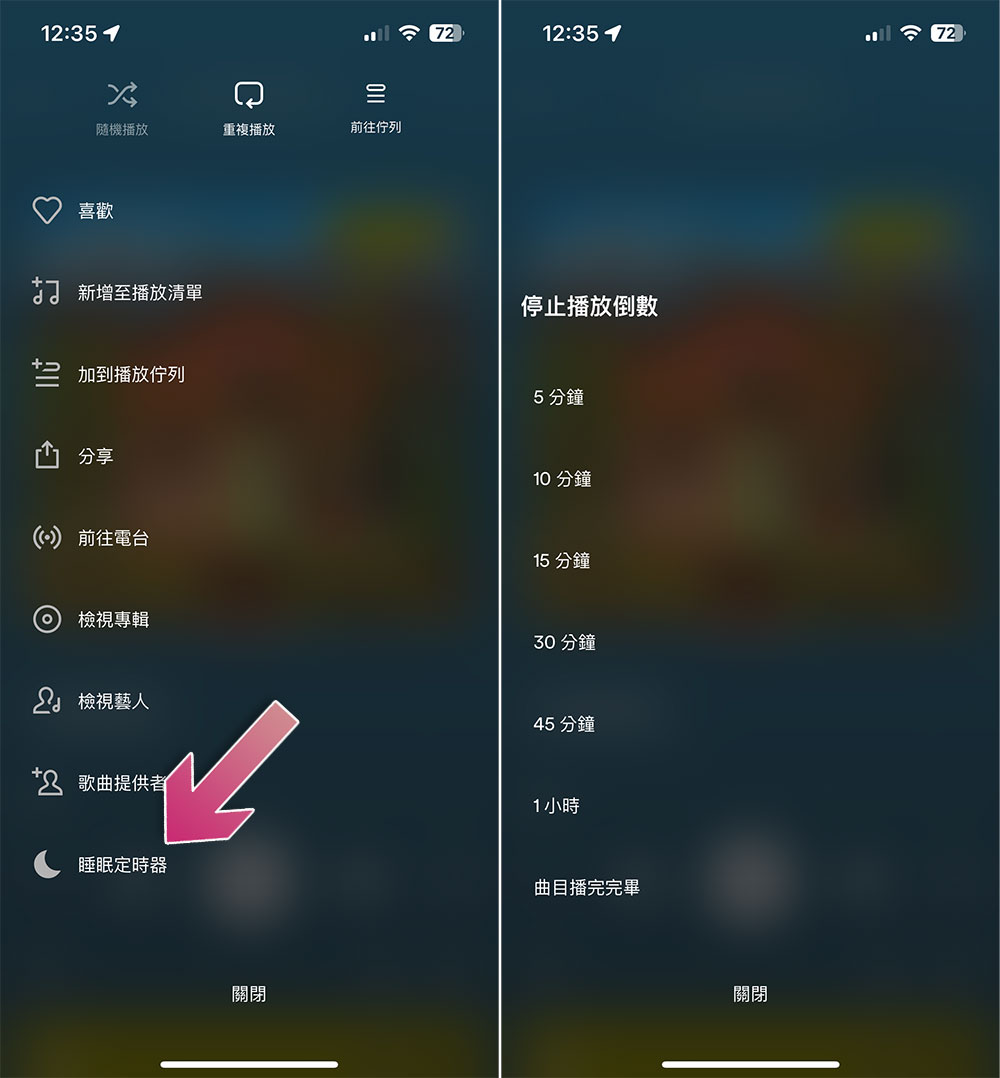
- When the sleep timer is set, you can see that its icon turns green, and the remaining time is displayed at the back, which is very easy to identify. If you want to turn off the timer, you can click to close it.

Source: KOCPC Chinese