


Nowadays, browsers have a full-page translation function, and the translation quality is very good. Therefore, even if your English and foreign language skills are not good, you can roughly understand the meaning of this article by using the full-page translation function. However, sometimes you still encounter strange translations, or you want to confirm whether there is a correct translation. The “immersive translation” extension introduced in this article can help you. It can display the original text and translated content on the web page at the same time, and supports several translation engines, including Google. Microsoft Edge, Chrome and Firefox can all be installed.
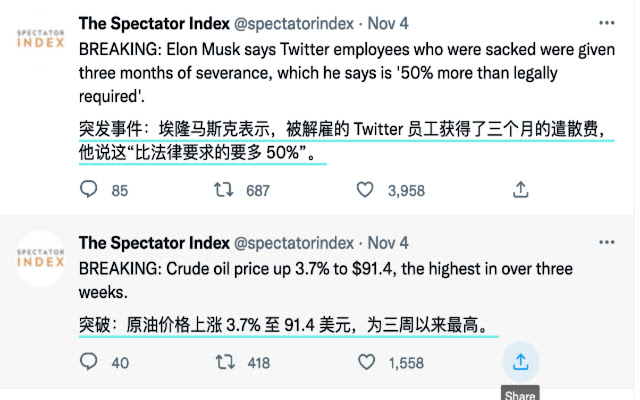
“Immersive Translation” can display the original text of the web page and the extended function of Chinese at the same time, which is easier to use than the built-in full-page translation of the browser.
- Click me to go to the Edge store to install
- Click me to go to Chrome Store to install
- Click me to go to Firefox Addon store to install
If you use the browser’s full-page translation, all content will be converted into Chinese. If you want to query the original text, you must turn off the full-page translation function, or open the same new page, which is very inconvenient:

The “Immersive Translation” extension supports Microsoft Edge, Chrome and Firefox browsers. Here I use Edge as an example, and the operations are the same.
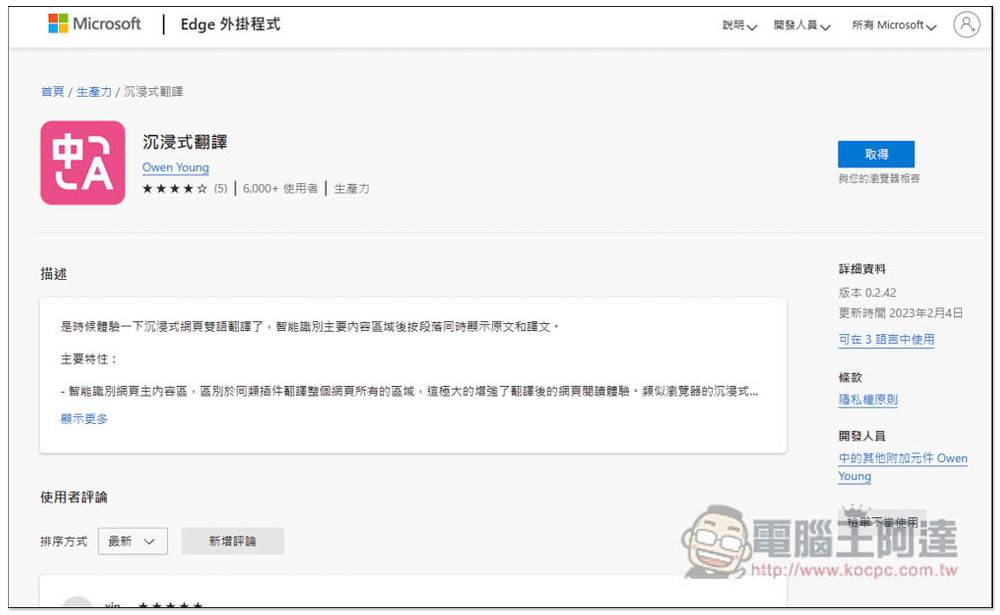
After entering the Edge plug-in store, click Get on the right:
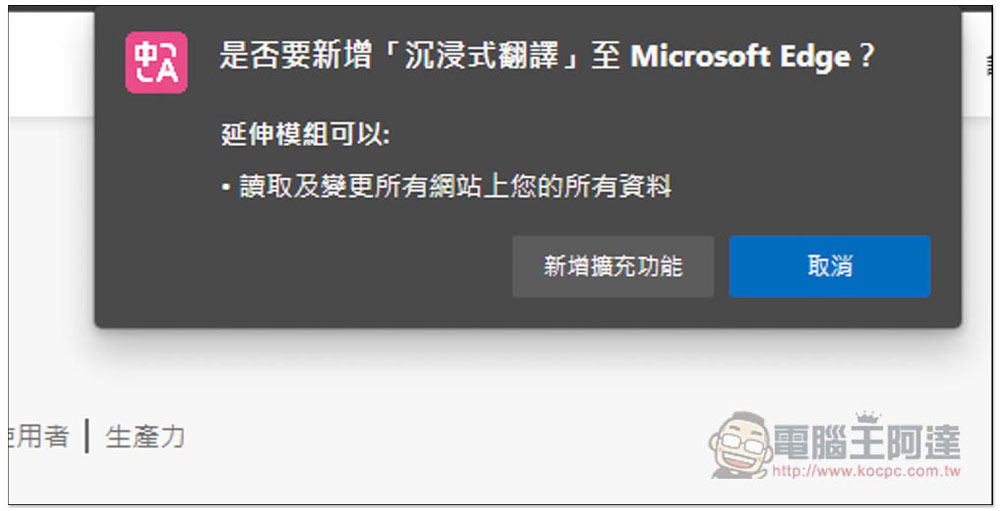
A message will pop up above, click “Add extension”:
When this message appears, the installation is complete:
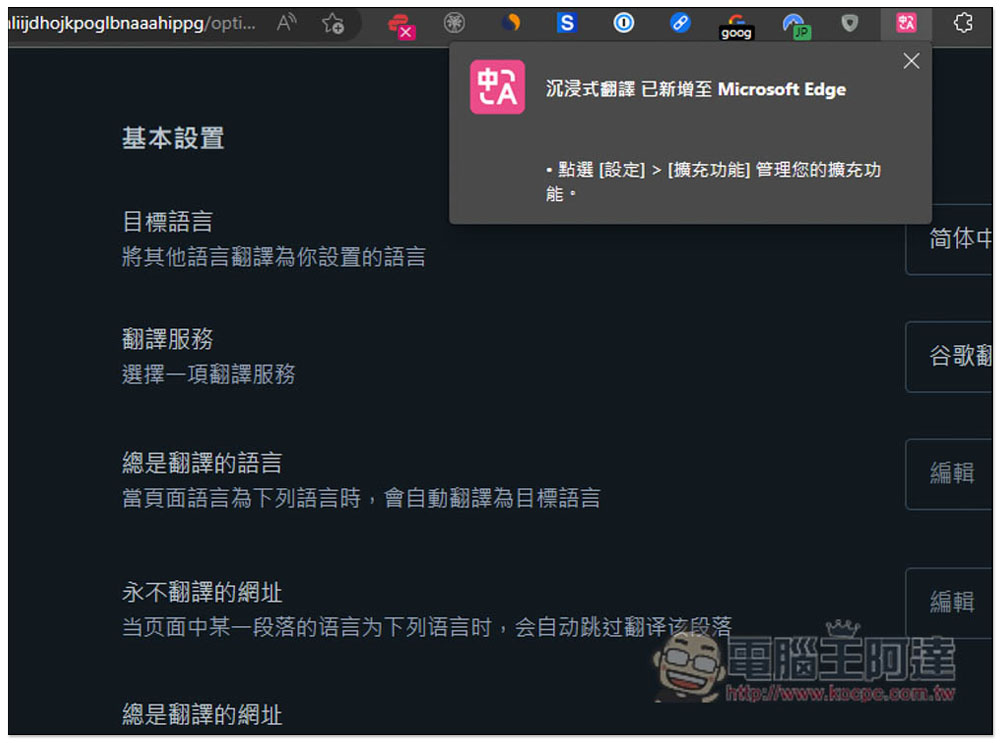
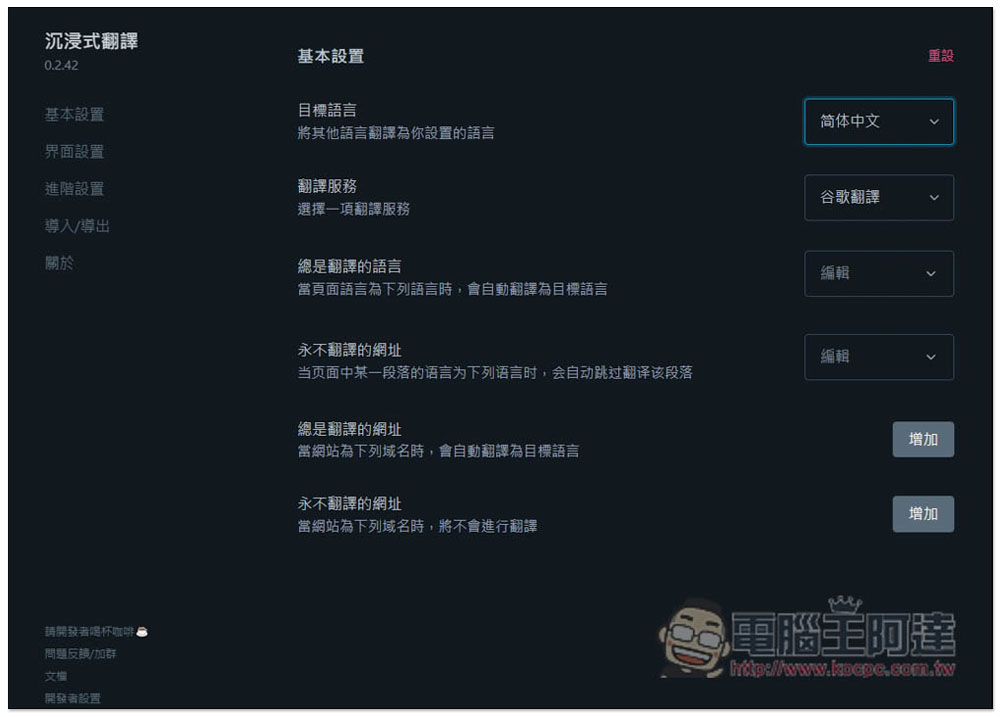
This one provides a lot of setting adjustments. The target language for translation is defaulted to “Simplified Chinese”, which can be changed to Traditional Chinese. The translation service is Google Translate. If you want to open websites in certain languages and directly enable automatic translation, you can set it in “Always translated languages”, and you can also add “Always translated URLs” and “Never translated URLs”:
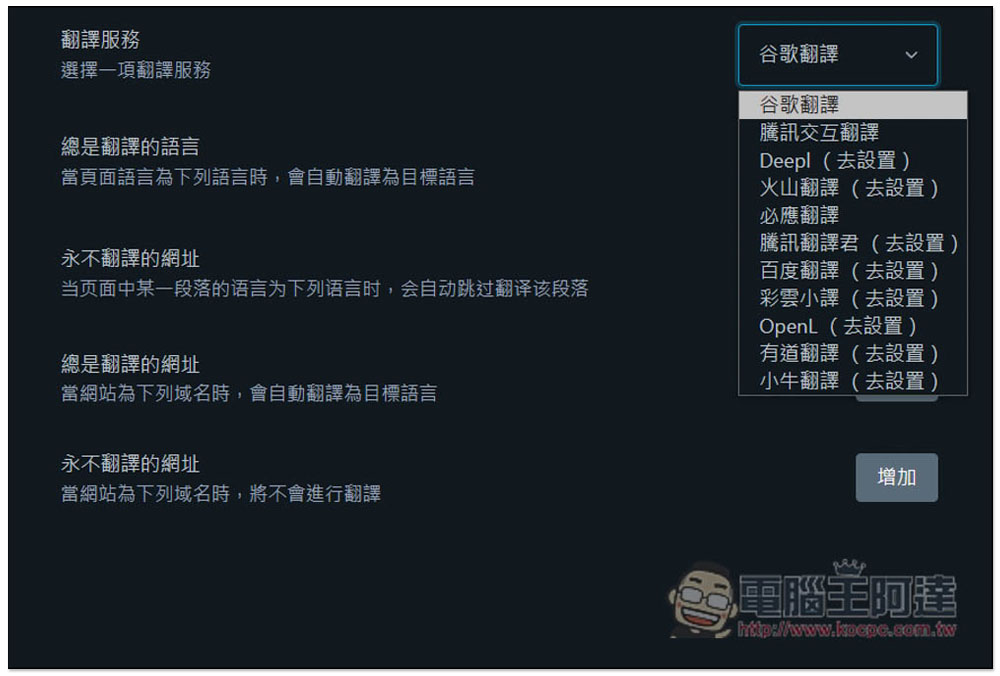
Translation engine supports:
- Google Translate
- ChatGPT (requires API Key)
- Tencent Interactive Translation
- Deepl
- volcano translation
- Bing Translate
- Tencent Translator
- Baidu Translate
- Caiyun Xiaoyi
- OpenL
- Youdao translation
- Mavericks translation
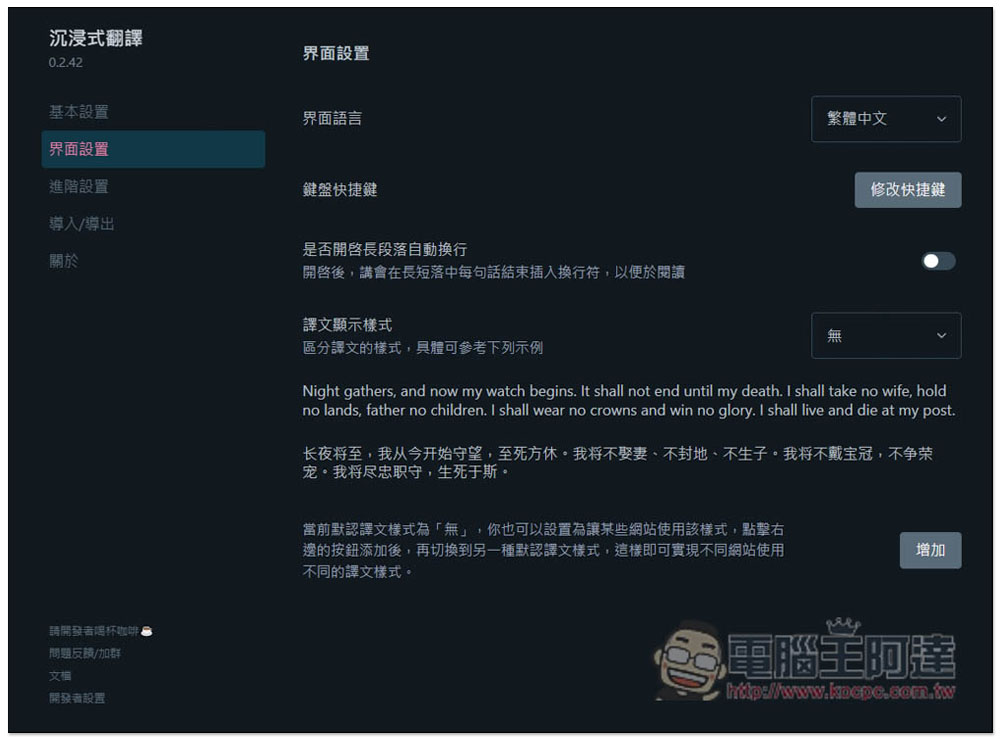
In the interface settings section, you can adjust the language, keyboard shortcuts, translation display style, etc. What is more noteworthy is the translation display style. Here you can set the original text and translation display style you want:
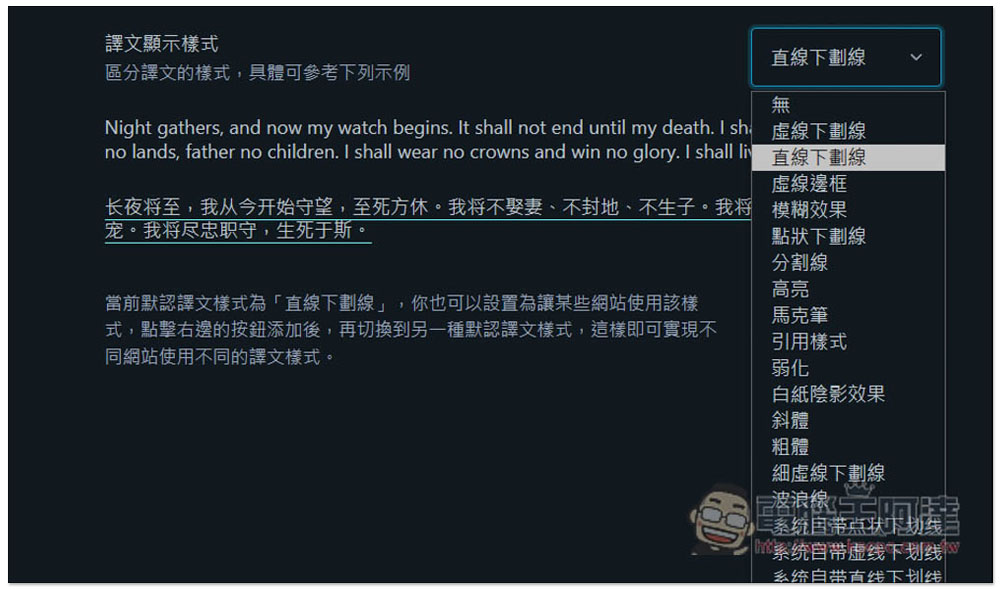
There are many styles to choose from, including “dotted underline, required border, blur effect, dotted underline, dividing line, highlight, marker, quote style, weakening, white paper shadow effect, font, bold, thin dotted underline, wavy line, etc.” Use whichever one you think will least affect reading. For example, I prefer a bottom line in the translation, so I choose a straight underline:
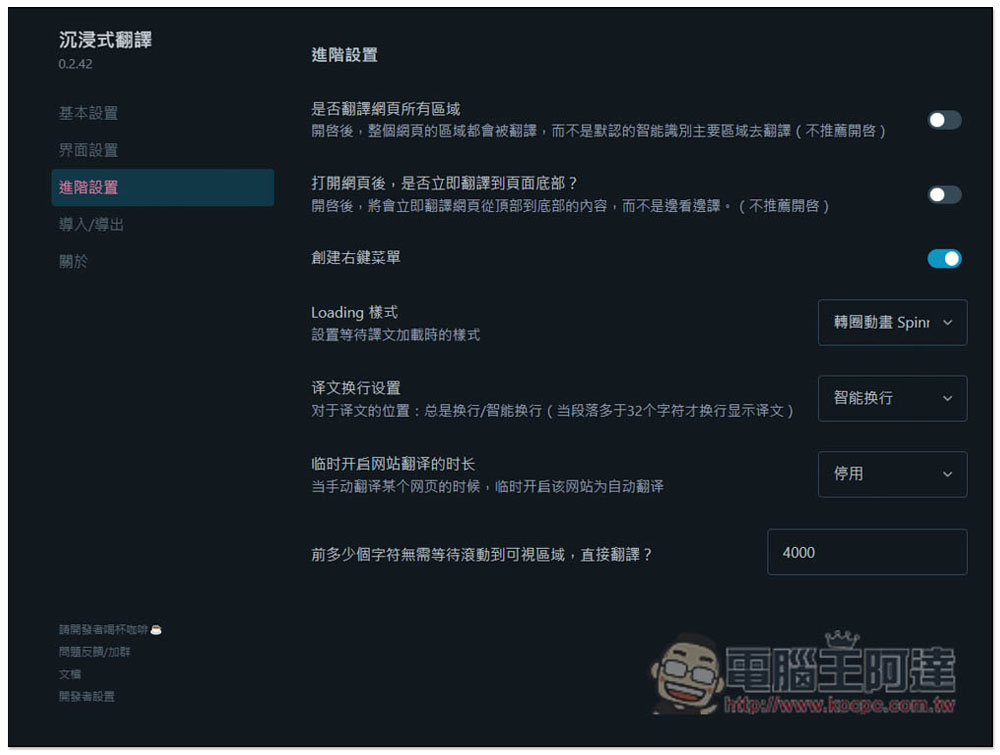
In the advanced settings, you can decide whether to translate all areas of the web page, loading style, translation line wrapping settings, etc.:
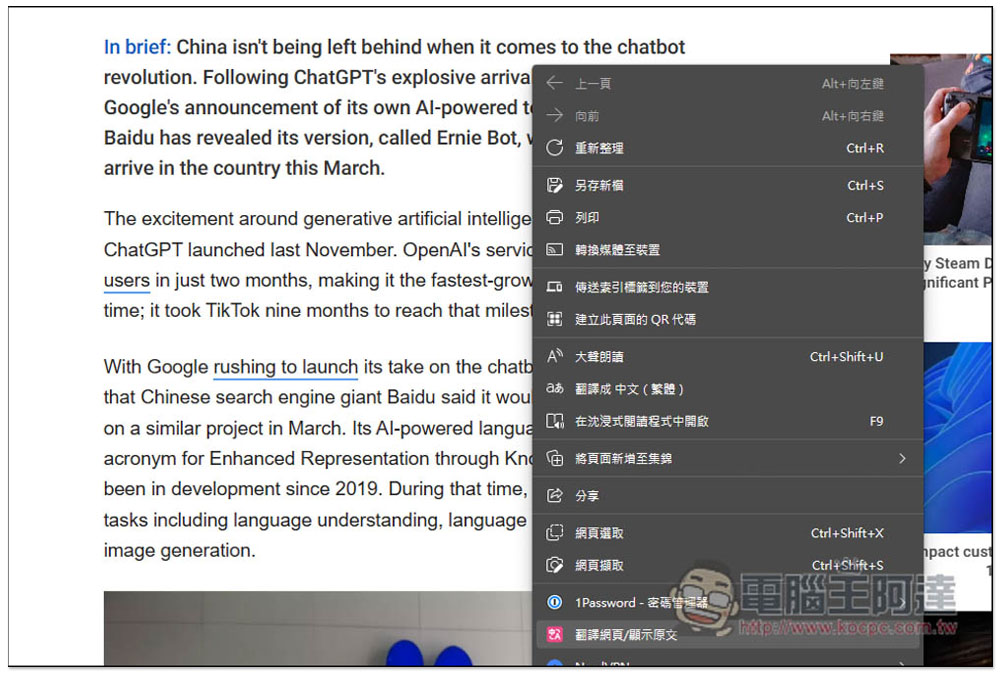
The translation operation is also very simple. After entering the website you want to translate, open the right-click menu and you will see the option “Translate web page/Show original text”. Please click it:
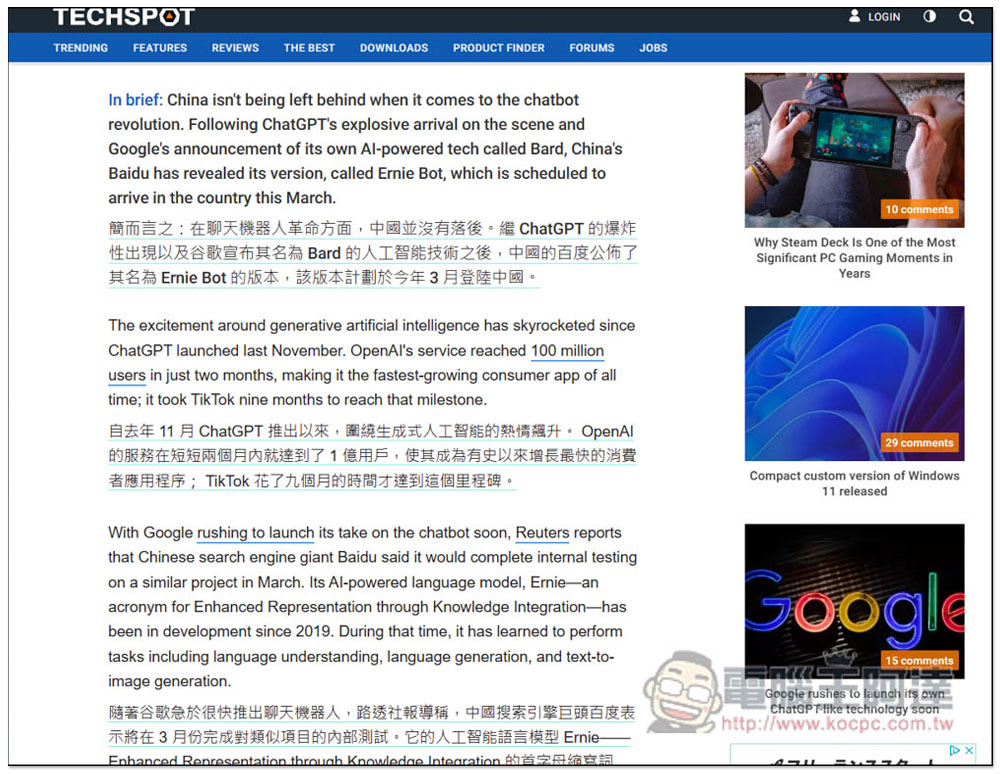
The translation will be displayed:
In addition to translating web pages, this extension can also translate PDF and EPUB files. The import and export functions found in the settings are quite useful. I highly recommend you give it a try.
Source: KOCPC Chinese