


After the Spring Festival holiday, there are two Saturdays in February that need to make up for work due to consecutive holidays. After returning to work after a long holiday, if you want to calm down and get back to your best working condition as soon as possible, you just need to make good use of it. LINE The useful features are quite helpful. Today I would like to share with you a few essential functions of LINE to start working. I believe it will be of great help to get the work on track quickly.

LINE has a selection of essential functions to help you quickly get on track with work.
In order to help the general public quickly get back to work after starting work, LINE officials have recently personally taught many special features that are quite helpful in work. In addition to several functions officially recommended by LINE, we have also selected more LINE functions for you that can help improve work efficiency. If you didn’t know these functions in the past, learn them as soon as you start working this year! For readers who are already quite familiar with LINE functions, you might as well seize the opportunity to review it.
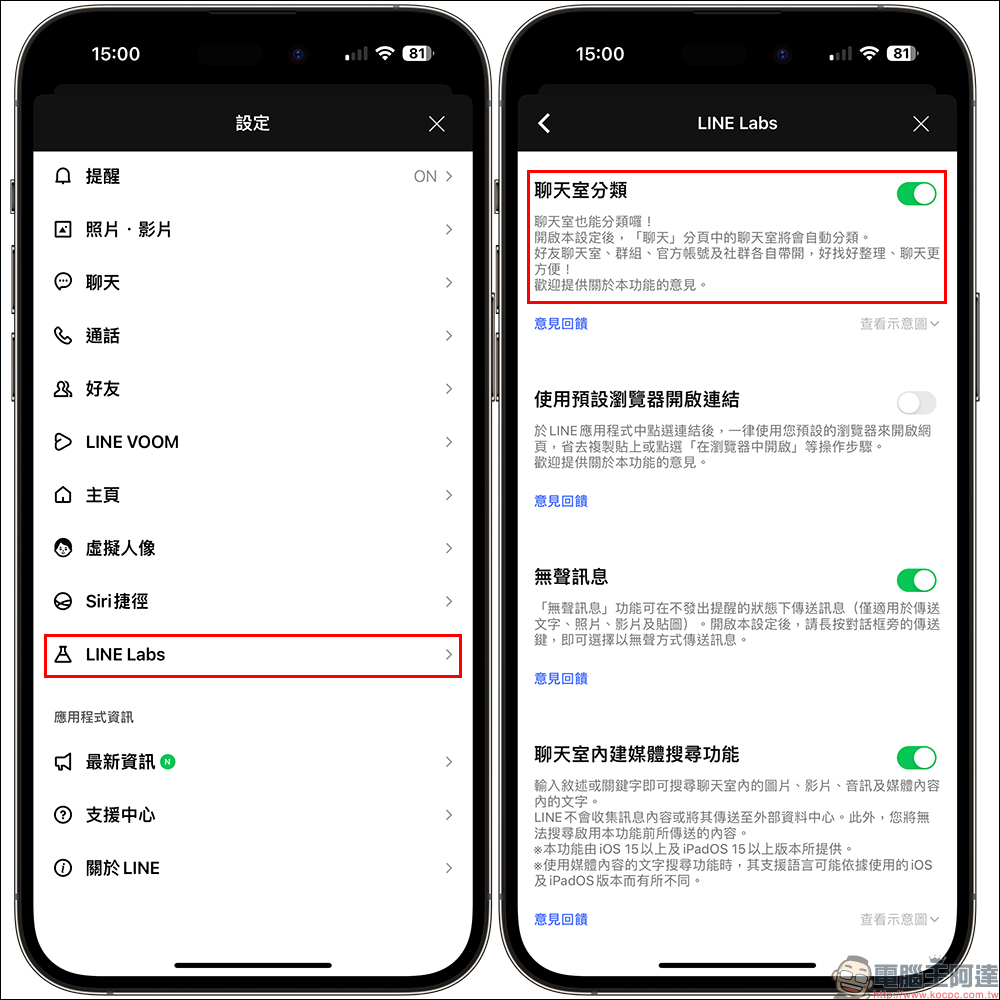
LINE chat room classification
LINE chat rooms have friends, groups, communities, and a variety of official accounts. When a large number of messages pour in at the same time, it is often easy to drown important messages. At this time, as long as the “Chat Room Classification” function is enabled, the chat room messages can be automatically classified into all, friends (one-to-one), groups, official accounts, and community chat rooms.
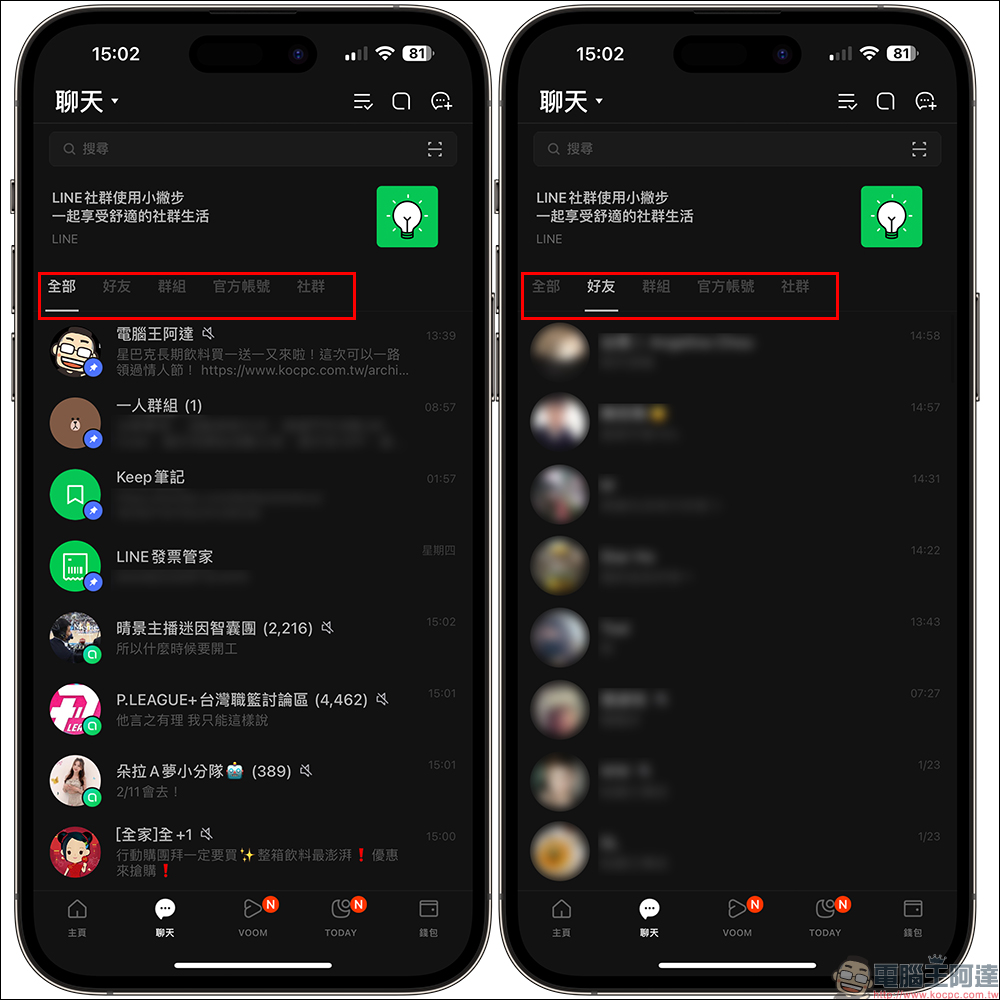
After turning on “Chat Room Classification”, you can see that various chat room messages have been automatically classified at the top of the “Chat” tab in LINE. If you want to view the friend messages in the one-on-one chat room, just click “Friends”.
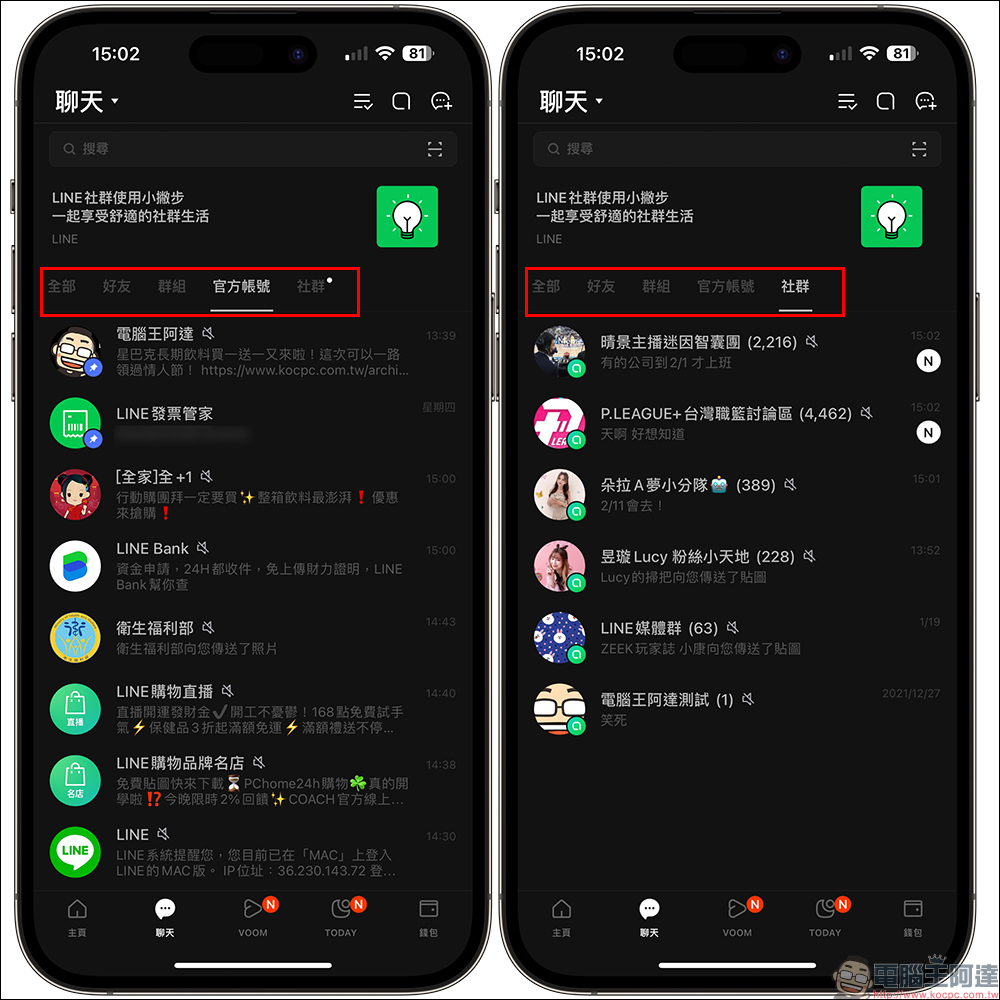
In addition, “official account”, “set up a group” or “group” are also automatically classified, making it easier to find information.
pinned chat room
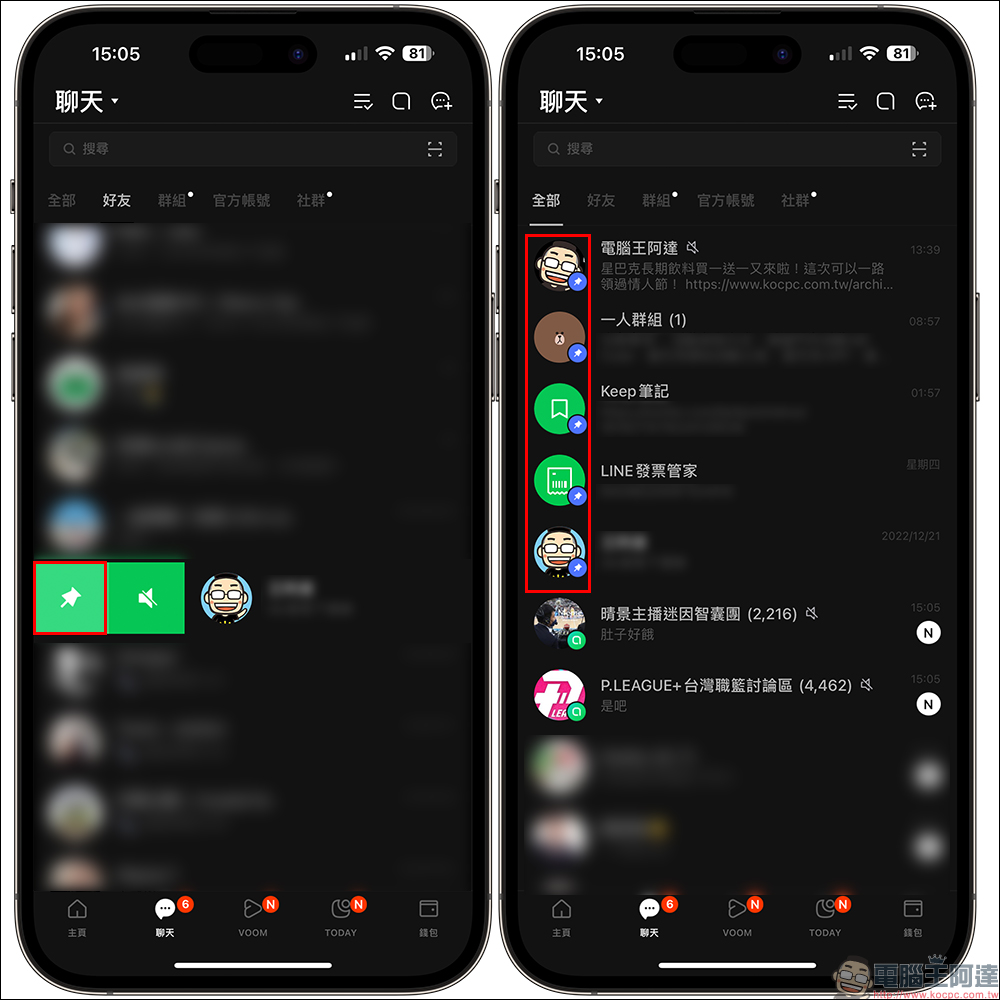
After classifying the chat rooms, if there are still too many messages, you can further pin the chat rooms in each category. The pinned chat room will be displayed at the top of the “Chat” tab. It is recommended that you set LINE friends, groups, and official accounts that you frequently interact with as pins, which will save you a lot of time looking for chat rooms.
LINE Announcement
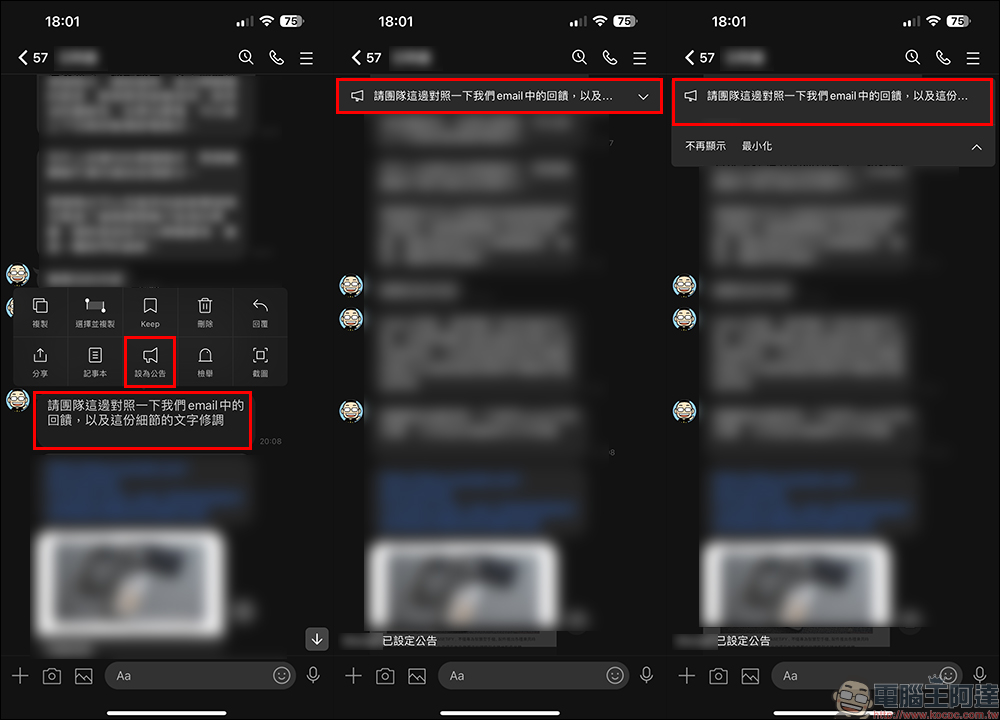
Whether it’s a party schedule chatting between friends or an important message about work, you can make good use of the “announcement” function of the LINE chat room. Set the specified message as “announcement” and pin it to the top of the chat room page. You don’t have to worry about important information being drowned by other messages and forgotten! In addition to general text messages, photo albums, notepads and events can also be set as announcements. If you are busy at work, with many different projects being executed at the same time, and facing various important messages from different contact windows, it is highly recommended to make good use of the “Announcement” function to pin important messages.
LINE Keep
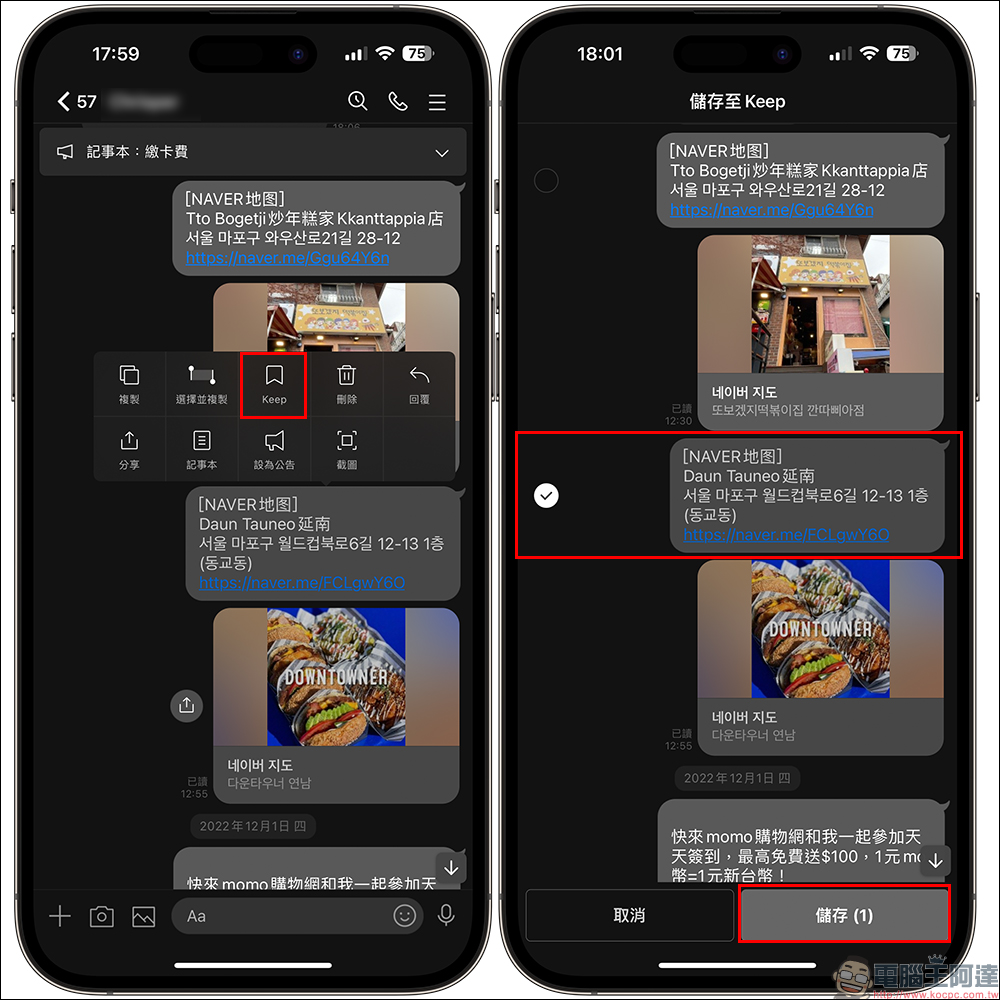
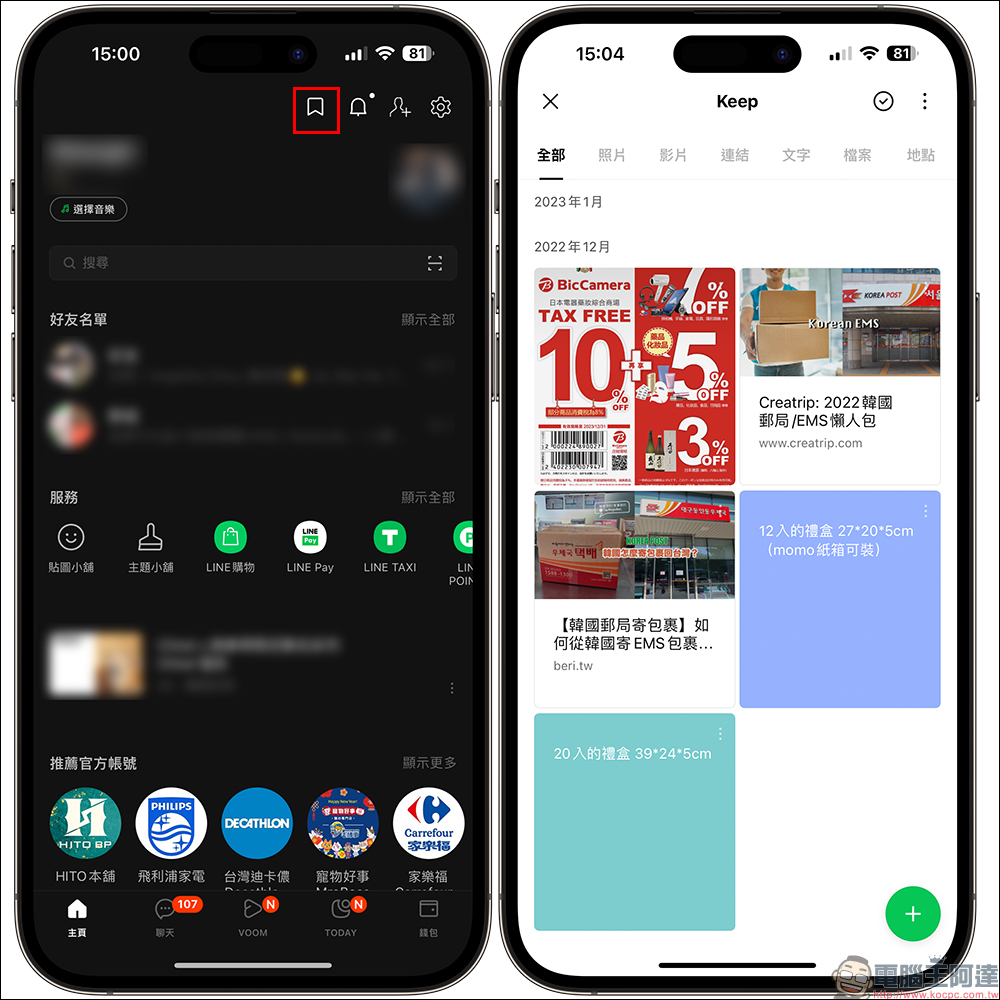
We have introduced LINE’s built-in Keep function many times in the past. This LINE’s built-in cloud storage space provides free 1GB capacity and can support cross-platform and cross-device use. Even if you change your phone in the future, it can be transferred with your LINE account. And Keep provides permanent storage. You can save important work communication details, files, links, text, photos, videos, locations, and messages to Keep. However, please note that if a single file exceeds 50MB, LINE Keep will temporarily store it for 30 days.
If you want to save the specified message to Keep in the chat room, just long press the message to open the function menu, then click the “Keep” button and save it.
Content saved to Keep can be viewed on mobile phones, computers, and tablets.
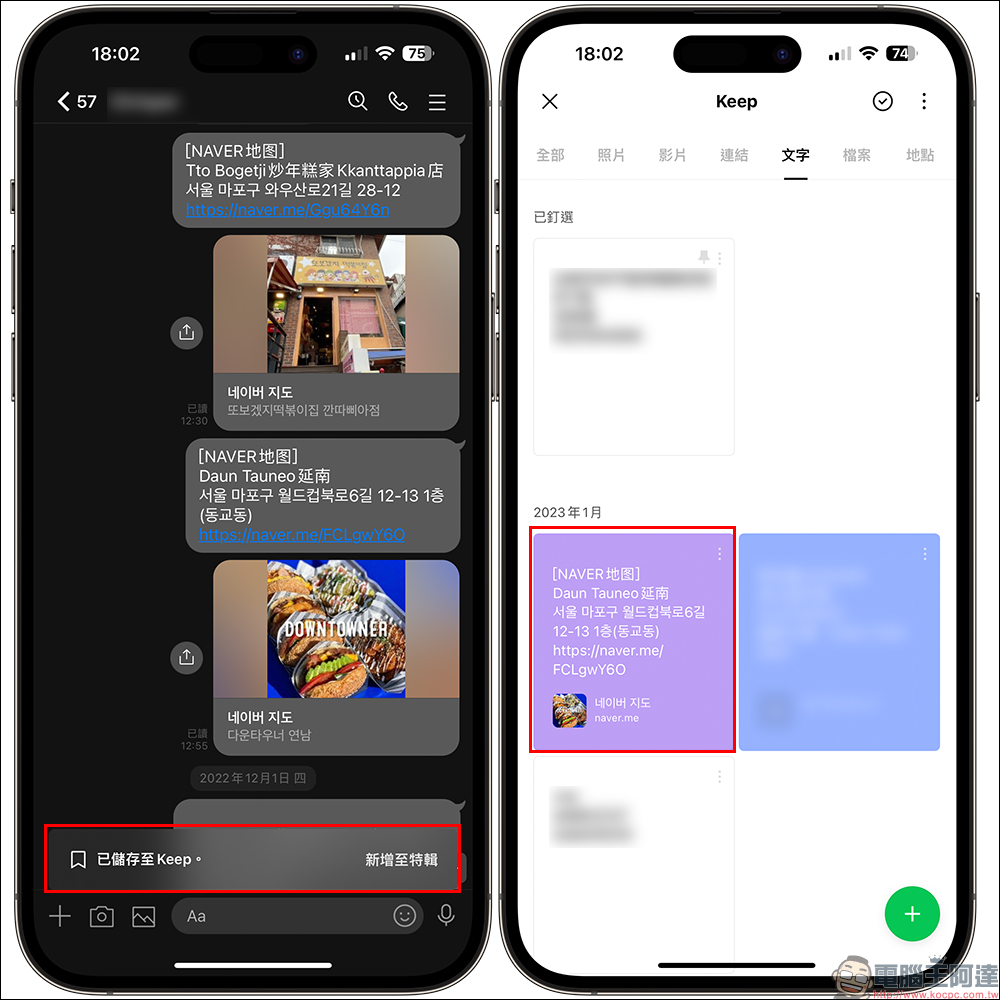
If you usually want to go to the Keep page, in the mobile version, just click the Keep button above the LINE “Home Page” to go there.
LINE one-person group
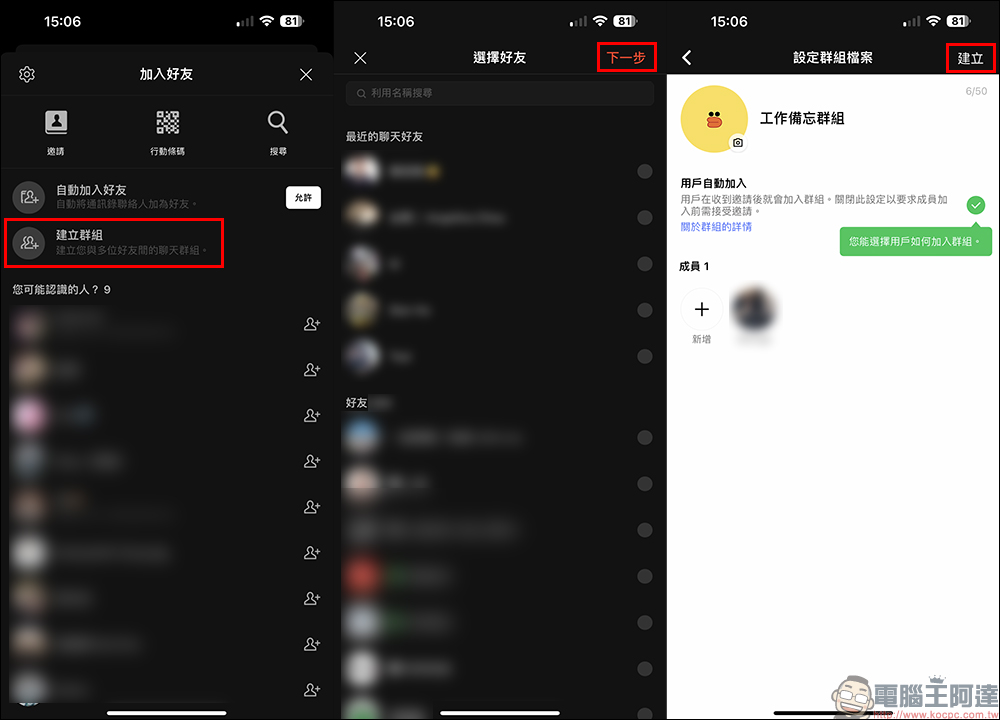
When you want to temporarily store some data in a designated location for easy viewing during work, in addition to using the Keep function or Keep notes, it is also recommended to create a one-person LINE group by yourself. You don’t have to worry about leaving messages here and disturbing other friends. You can also store text, videos, photos, audio, links, and files. The way to create a LINE one-person group is the same as a general group. Open the “Add Friends” page and click “Create Group”. On the friend selection screen, click “Next” without selecting any friend. Finally, name the group and click “Create” and you’re done!
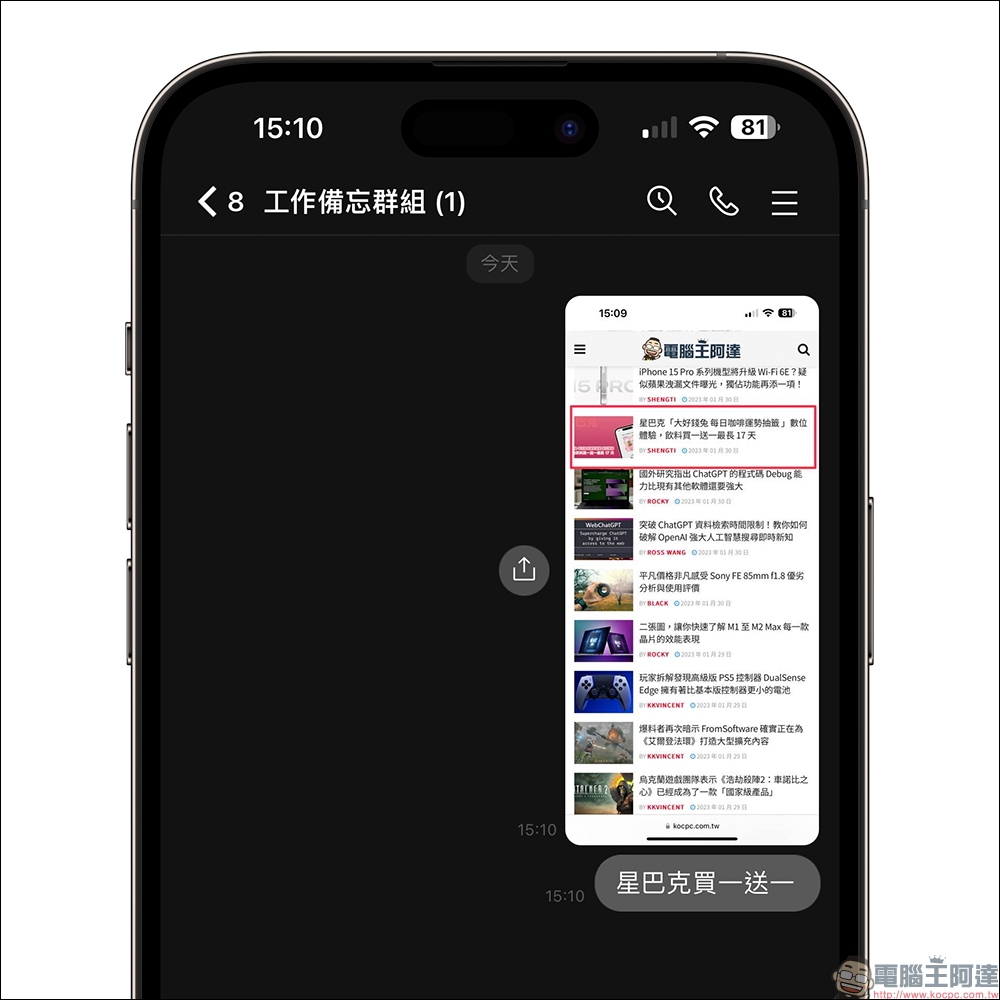
The usage and interface of LINE one-person group are just like ordinary LINE chats. The difference is that you are the only one here. You can temporarily store messages you don’t want others to see here and use them as memos.
LINE quickly add friends
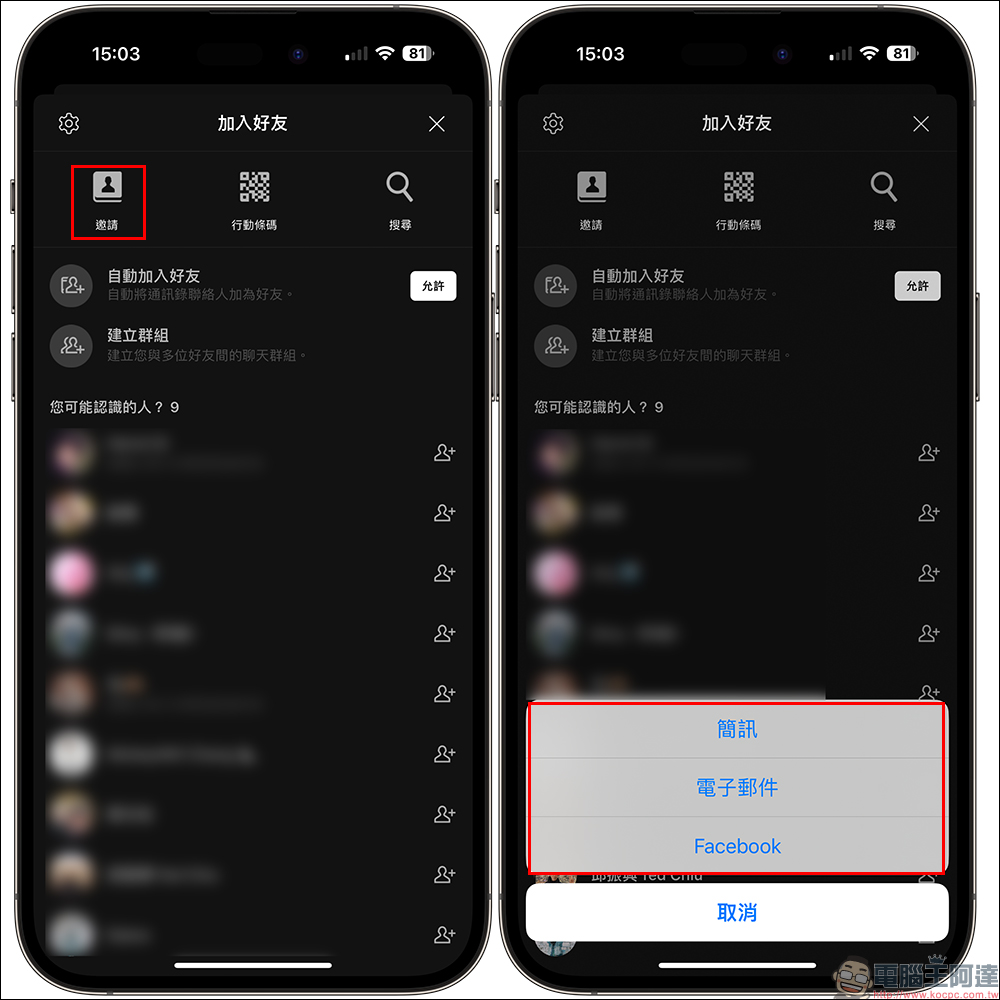
In the new year, whether you are moving to a new work environment or meeting new clients and partners at work, you must also have the need to add LINE friends. If you want to save yourself the hassle when you need to add friends, here are some ways to quickly add friends. First, open the “Add Friends” page on LINE’s “Home Page”, and then the first way is to add friends through “Invitation”. To invite friends, you can quickly send the friend invitation link to the other party via text message, email or Facebook.
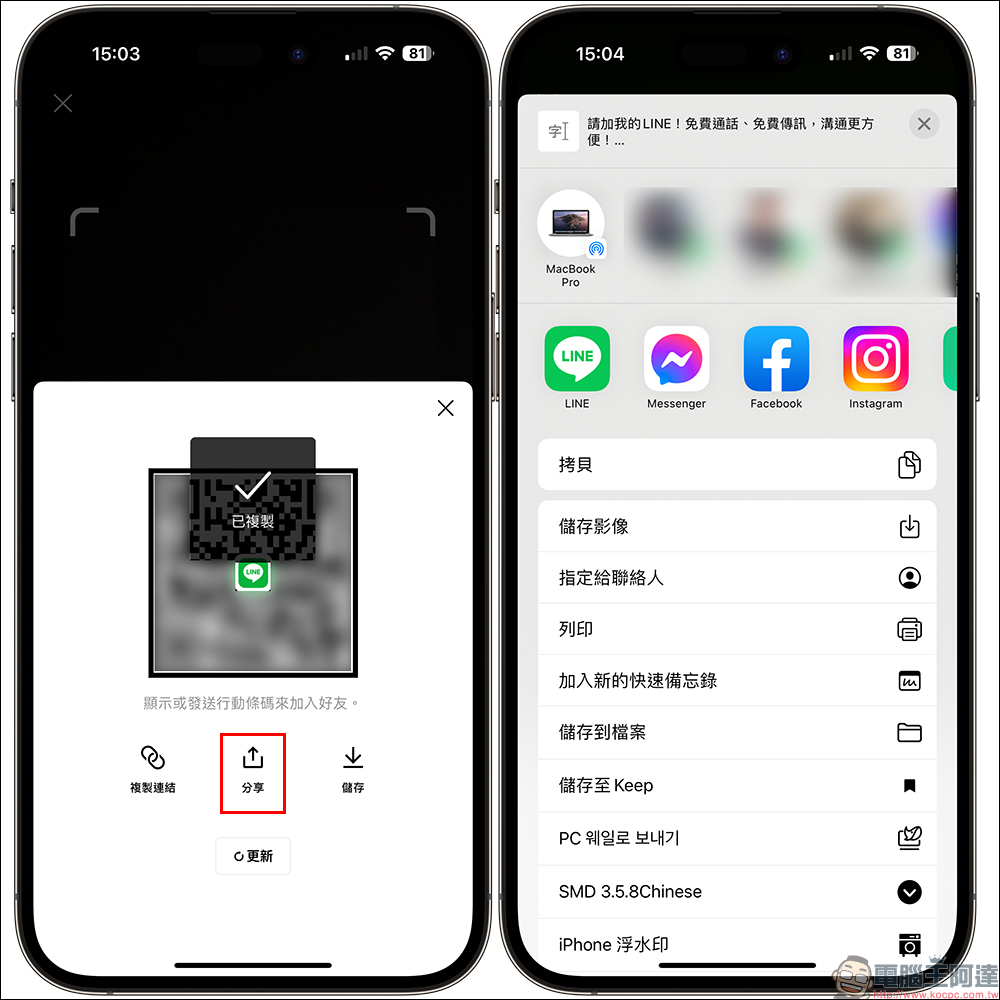
Another way is to add friends through “mobile barcode”. This method will open the camera by default and complete the step of adding friends by scanning other people’s LINE mobile barcode. If you want the other party to scan your friend’s mobile barcode, you can click “Show Mobile Barcode” to turn on the QR Code. At the bottom of the “Show Mobile Barcode” screen, you can also choose three extended methods of adding friends: “Copy Link”, “Share” or “Save” Mobile Barcode.
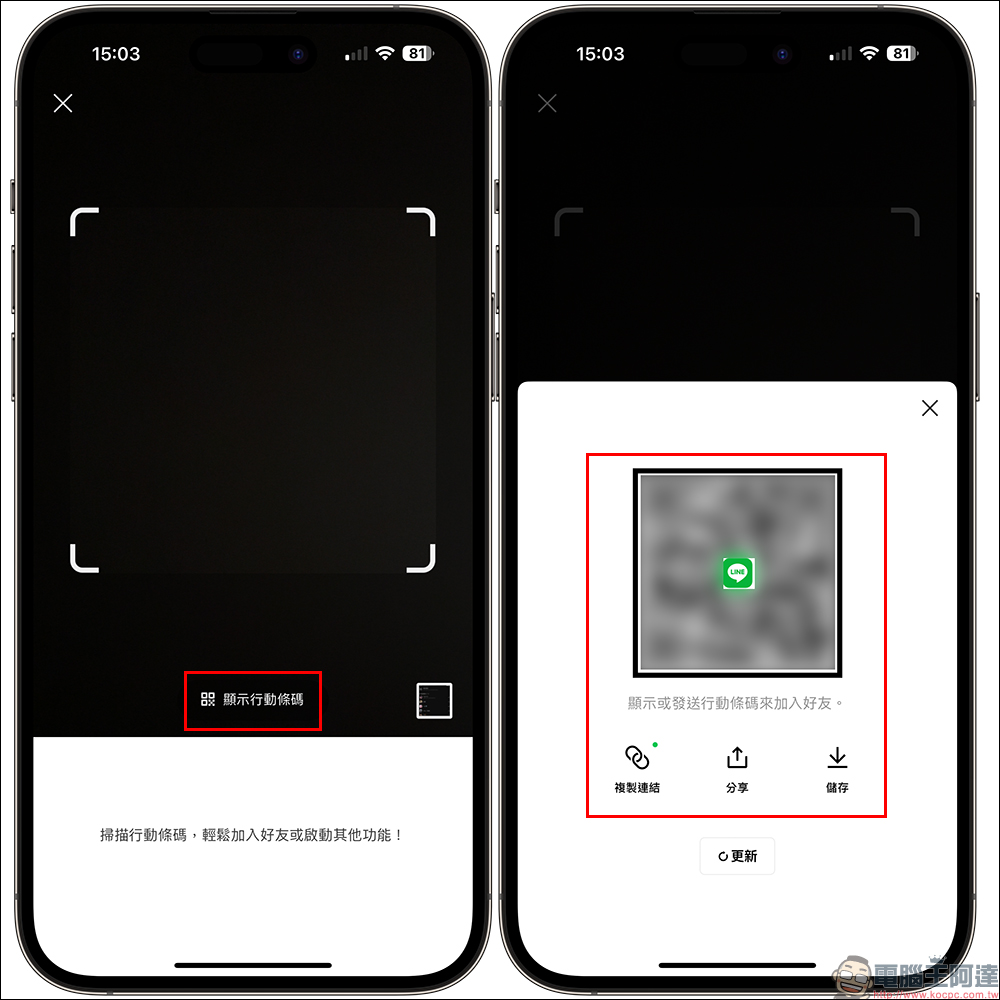
Selecting “Copy Link” will automatically copy the friend link. You can go to your email or other social apps to post the friend link to the other party. The other party can add you as a friend remotely just by clicking on the link. If you select “Share”, you can quickly send the friend link invitation to the other party through the recommended application in the mobile phone system.
After reading the selection of LINE essential functions shared today, in addition to learning and using them well, I also recommend sharing them with colleagues and friends to help everyone communicate more efficiently at work. At the same time, you can quickly say goodbye to the holiday syndrome and get back to your best working condition. You may have also discovered that in fact, the LINE functions recommended for work that I shared today are not only useful in the workplace, but are also very convenient for daily communication with friends.
Further reading:
Your mobile phone number is your bank account! Tutorial on setting up inter-bank transfer service with mobile phone number
Source: KOCPC Chinese