


The iPad is one of the most popular tablets on the market and is a versatile mobile device that can be used to perform many tasks. Many people use it for gaming, watching TV shows, or pairing it with the Smart Keyboard and Apple Pencil for image creation, note-taking, reading, or productivity work. All these activities take up a lot of storage space. Everyone knows that iPhones need to be cleaned, but they often overlook that iPads also need to be cleaned. Let’s do some cleaning together during the New Year!
How to free up limited storage space on iPad?
The iPad has a limited built-in storage capacity just like the iPhone, and there are no additional slots or possibilities for you to expand it, which means you have to pay close attention to what is stored on it so you can avoid seeing a “storage full” pop-up message when you need it. In general, I believe that most content that remains on your iPad can be deleted, so before you subscribe to add more iCloud storage or invest in external storage, consider freeing up space on your iPad.
Clearing out unnecessary files, applications, messages, games, etc. will not only provide you with more space for other content you want, but will also allow your device to run faster. It would be tedious and time-consuming to do it purely manually, but you can have an easier way to do it quickly. Before entering the cleaning process, please remember to back up your iPad with Finder or iTunes to avoid accidentally deleting important content. If you are ready, follow the steps below!
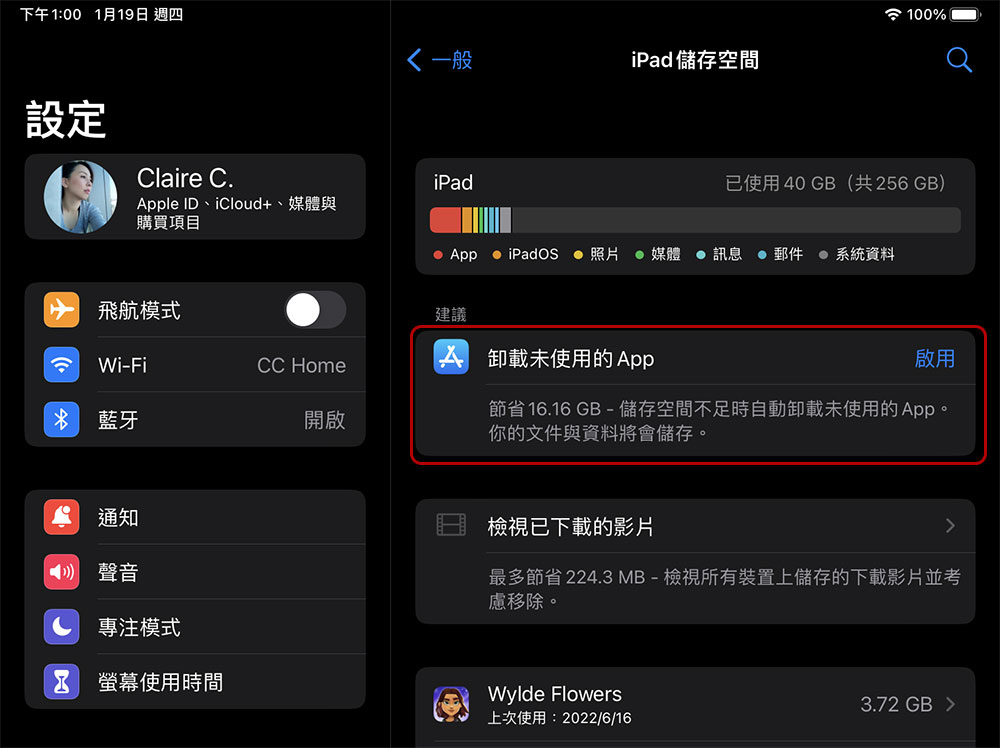
- Open “Settings”, select “General”, and click to enter “iPad Storage”.
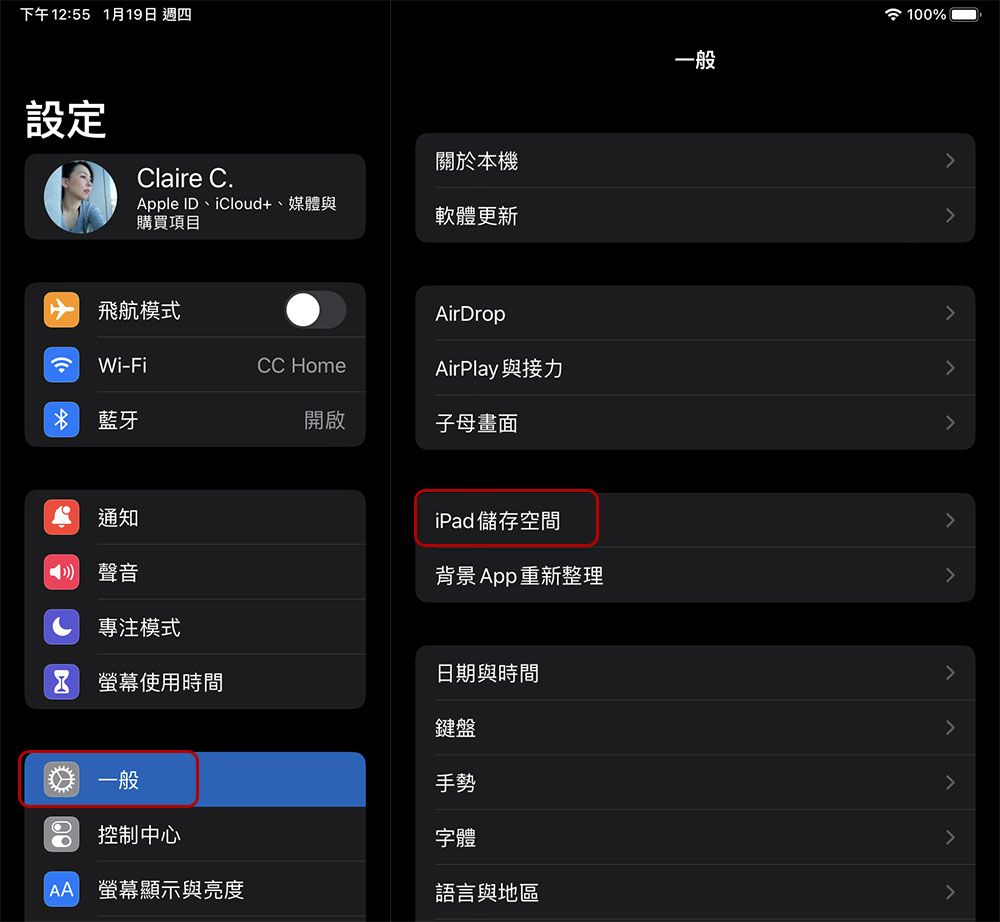
- Wait a moment for the system to parse your iPad, depending on how full your tablet is. Once it’s loaded, a bar graph will appear at the top, breaking down how much storage each type of content takes up.
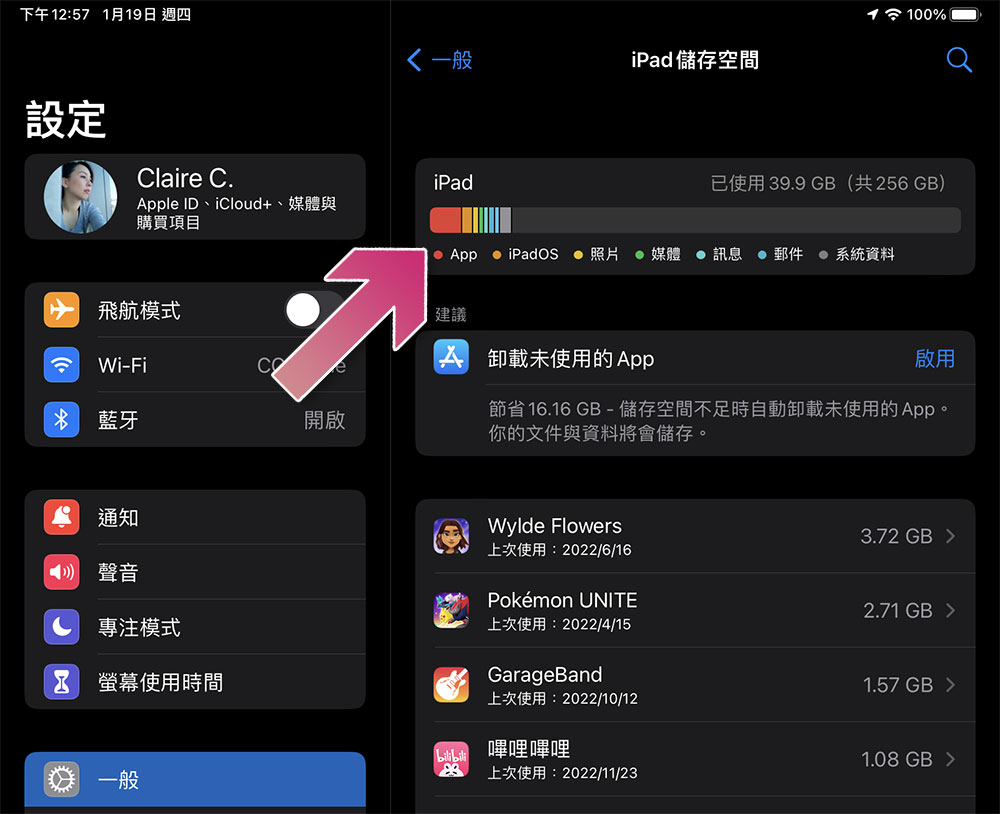
- Click “Enable” next to “Uninstall unused apps.”
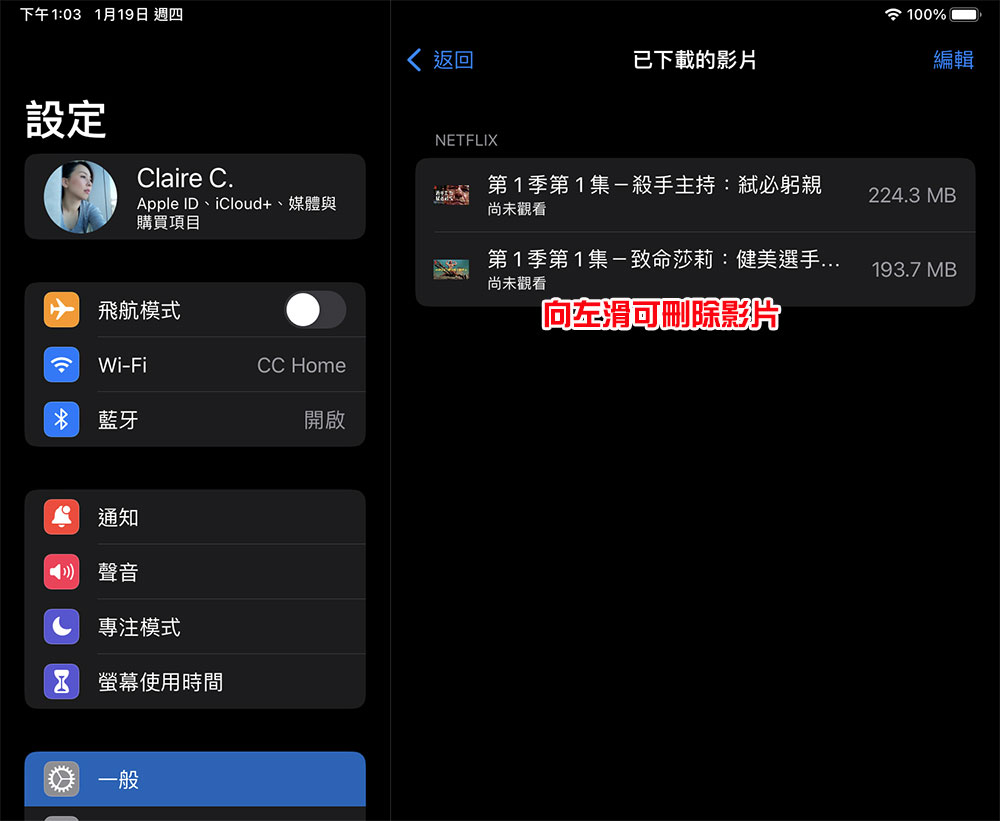
- Then check “View downloaded videos” and remove the videos you don’t need to keep one by one. This video source includes videos you downloaded on your local machine, videos that provide offline download audio and video streaming services, etc.
- If you have old conversations on your iPad, you will also see “Automatically delete old conversations” on the homepage, enable it. (I don’t have it on my iPad, so I don’t have a picture to demonstrate)
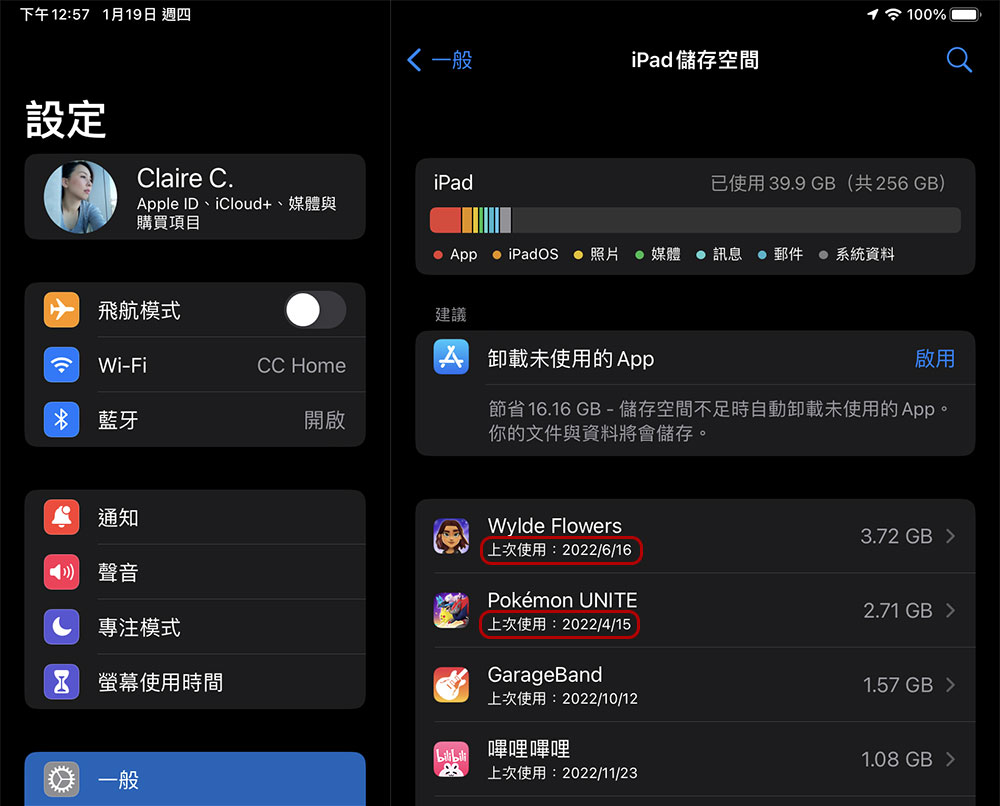
- By scrolling the page, you can see how much space other applications take up. You can refer to the “last used” time under the application to decide whether to uninstall the application. For example, if it was used more than a year ago, it can be deleted.
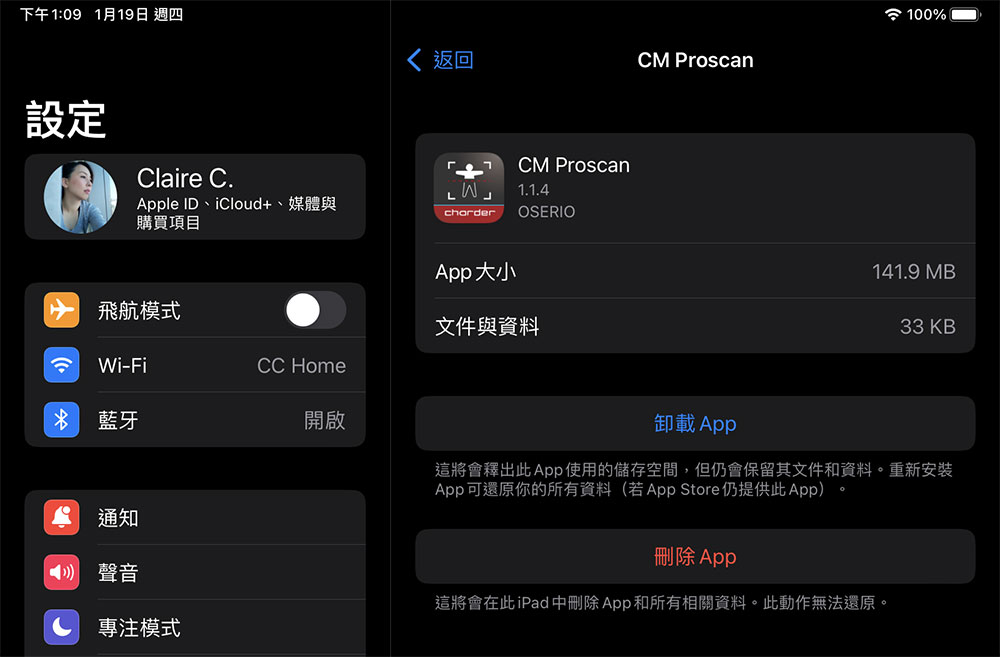
- If you decide you want to delete an app, you can click on the app and there are two options available:
- Uninstall the app:
Frees up the storage space used by the app, but its files and data will continue to be saved. When the app is reinstalled, the content will be automatically restored as long as the app is still available in the App Store. - Delete an app:
This option will completely remove the app and its associated content from the iPad and cannot be restored.
- Uninstall the app:
Be sure to try to clean out your iPad every few months or every year to free up space. This way, not only will you have more capacity to use, but when you get a new one, you only need to transfer the most important and needed content to it, rather than transferring the garbage from the original iPad to another iPad.
Source: KOCPC Chinese