


The days of having to manually change the time have long passed. Almost every gadget connected to the Internet will automatically detect the local time zone and adjust to the correct time. Except for small things that are not connected to the Internet, such as microwave ovens and car clocks, you need to adjust them yourself. The same is true for Android phones, but sometimes the time displayed on your smartphone may be incorrect due to software errors or other mysterious issues.
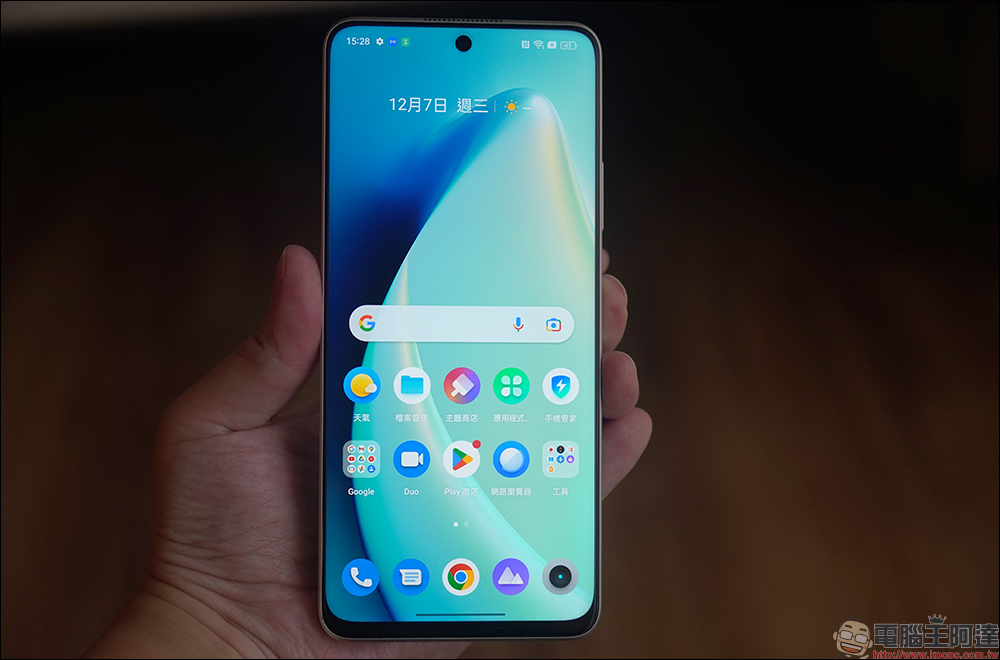
How to Fix Wrong Time Showing on Android Phone
Like other settings available on Android, users are free to manually change the time displayed on their device, which comes in handy when traveling to a different time zone. In fact, according to Google, you have to change the time zone and not just the clock display, and it should be consistent. So you’d better turn on the automatic time zone function on your Android phone so that you don’t have to repeat the operation of changing the time zone next time you go abroad.
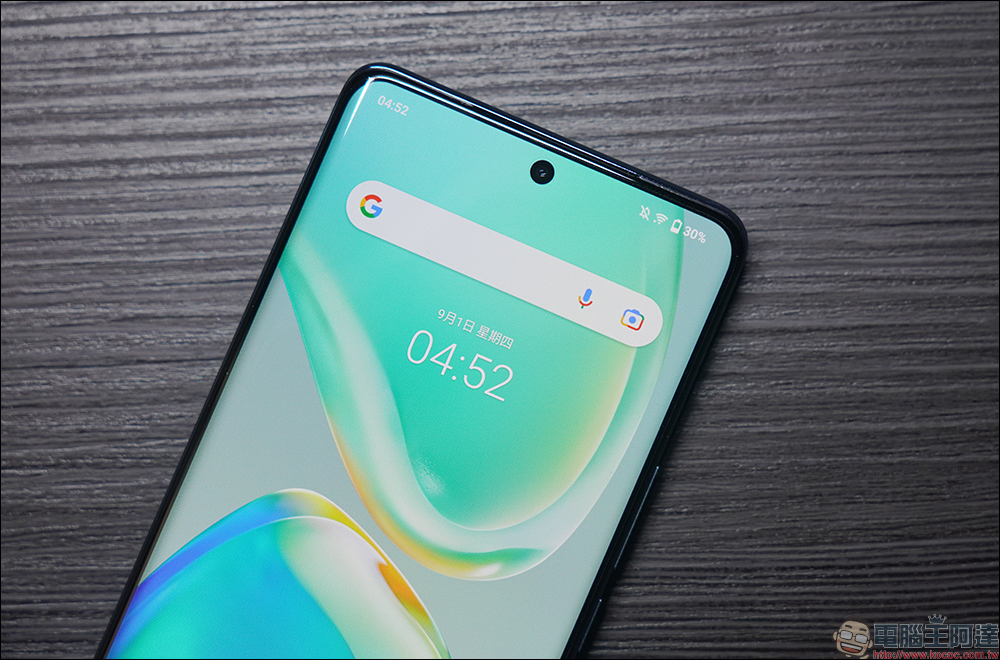
How to fix time display on Android phone?
Android is a highly customizable operating system, which means brands are free to add their own custom user interface on top of the operating system on their devices, so the exact names of Android features and how they appear in menus will vary slightly depending on the device being used. Below we use Pixel mobile phones as an example:
- Open the Settings app and scroll down to find System.
- Then click “Date and Time”.
- Then turn on the switch for “Automatically set time zone”. If you want to ensure that the updated time of your Android phone matches any time zone, you must turn on the “Use location information to set time zone” by the way. You will find that the time will change depending on the location, most notably when the vehicle is moving (airplanes, etc.).

Why does my Android phone show the wrong time?
If your smartphone repeatedly displays the wrong time despite having the automatic time zone feature turned on, there may be an issue that requires repeated testing to resolve. For example, if a rogue app changes your time for some reason, you will have to find and uninstall the app. This is more likely to happen if your phone is rooted, because generally speaking, apps shouldn’t have permission to change the system clock.
If your situation is not described above, it is very likely that a recent update to your phone has caused the Android error, and you can only wait for the fix update to be released. The root cause of some problems is that your telecommunications service provider causes your phone’s time to be modified. For example, your phone may think it is in a different time zone based on the mobile network it is connected to, so it automatically sets the time to the past. This problem has been reported a few years ago. If the problem lies with your telecom provider, you can try contacting the provider to find out if this is a known issue and if there are any troubleshooting methods available to bypass the error until a more permanent fix can be introduced. Most of the time, you can try restarting your computer to see if that resolves the problem.
Source: KOCPC Chinese