


Although the iPhone has not followed the lead of various Android manufacturers in terms of camera hardware, its camera system configuration is the most practical. In addition to the hardware, the Apple camera application is also known for being simple and easy to use. But just like other apps, you will get a little angry every once in a while. What should you do if you suddenly find that there is a problem with the camera app?
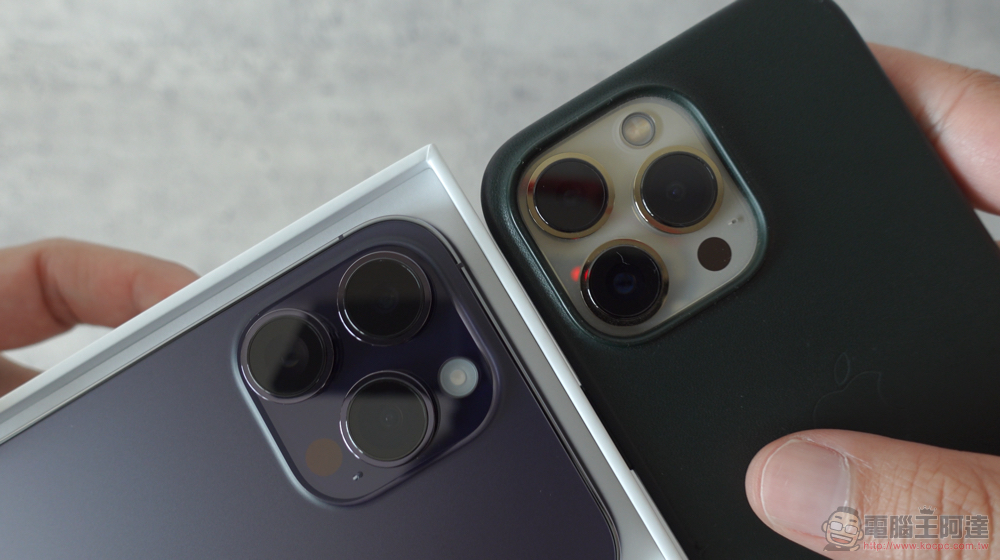
iPhone camera app suddenly malfunctions? You can handle it like this
There are many reasons for camera application failure, including software crash, insufficient memory or dirty lens. No matter what the reason is, you spent so much money to buy an iPhone, and it can suddenly make you feel irritated that the camera suddenly doesn’t work. Although it is difficult to determine the root cause, there are a few simple ways you can try to fix it.
When should I check for problems with the Camera app?
Apple has optimized the camera app on the iPhone so that users can click and shoot immediately. Generally speaking, the viewfinder will appear immediately after you open the app, and the image will be captured immediately when you click the shutter button on the screen. However, if you notice that an app takes longer to load, goes black when it opens, has no way to switch shooting modes, or doesn’t let you click photos, it’s time to troubleshoot.
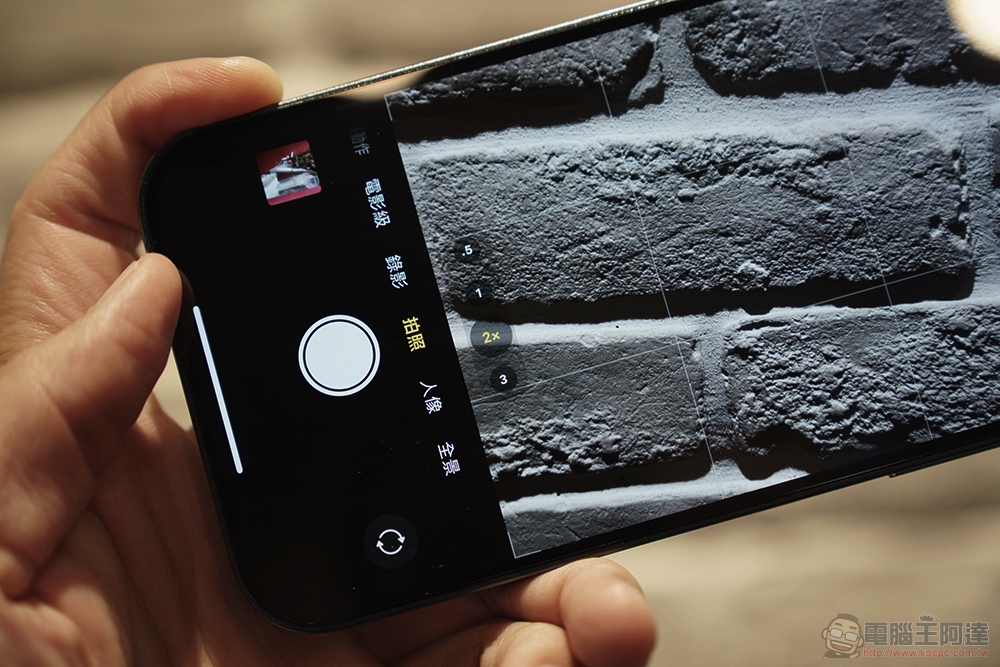
First, you need to figure out what’s wrong with your iPhone camera app. As mentioned before, software or hardware related reasons may cause the camera app to stop working. If you open FaceTime, video chat applications, and other applications that require the use of camera lenses, and the front and rear lenses can capture normally, then the problem should be with the camera application software. In this case, simply closing the camera app completely and reopening it can fix the basic problem.
Try restarting or updating iOS
If you’ve restarted the app and still can’t get the Camera app to come back to life, try the classic method that fixes most problems on your iPhone: reboot. Restarting will clear all system resources on the phone and return it to default settings, thus repairing problems caused by minor software glitches.
- Press and hold your iPhone’s power key and either volume key.
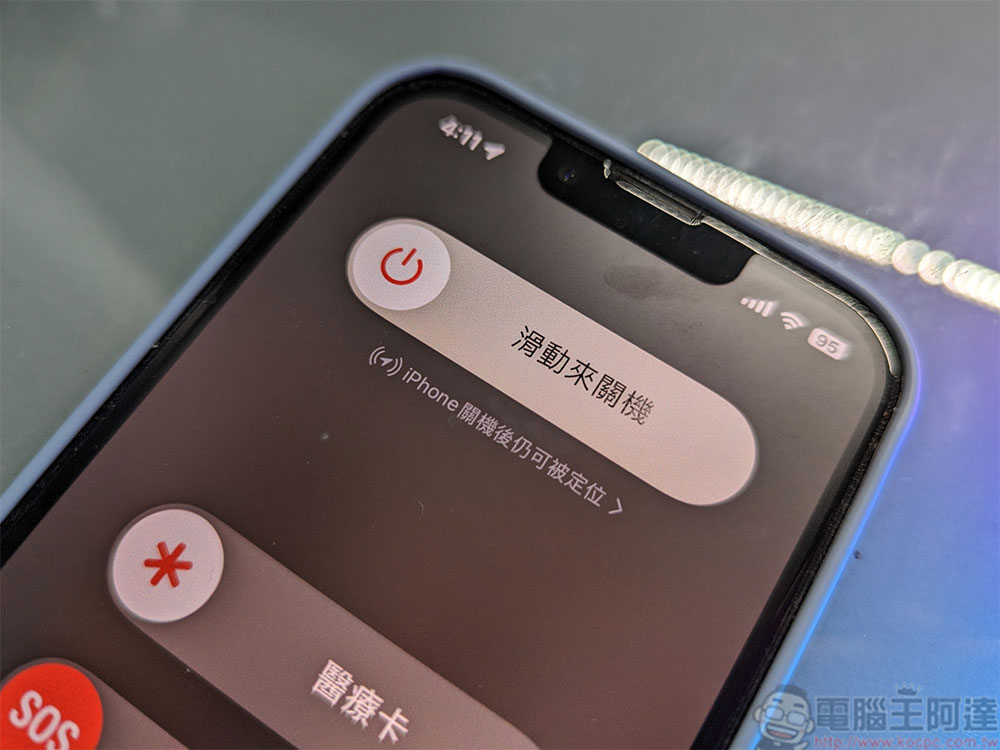
- Slide the power off slider on the screen to turn off the phone and wait for at least 30 seconds.
- Next press and hold the power button to turn on your iPhone.
- Open the camera app and check whether you can perform a series of normal operations, such as switching modes, etc. If everything works normally, the problem has been eliminated. If it’s still weird, try another method.
The second thing to do when your iPhone camera stops responding is to check if there is an iOS update that you didn’t download and install. Apple is very active in updating iOS because it includes new features and fixes general or security-related issues that may affect iPhone performance.
reset your phone
If the update doesn’t work, another thing you can do to fix your iPhone’s camera app is to restore it to factory settings. Now there are two ways to reset your iPhone, but you can skip this part if you don’t want to do it.
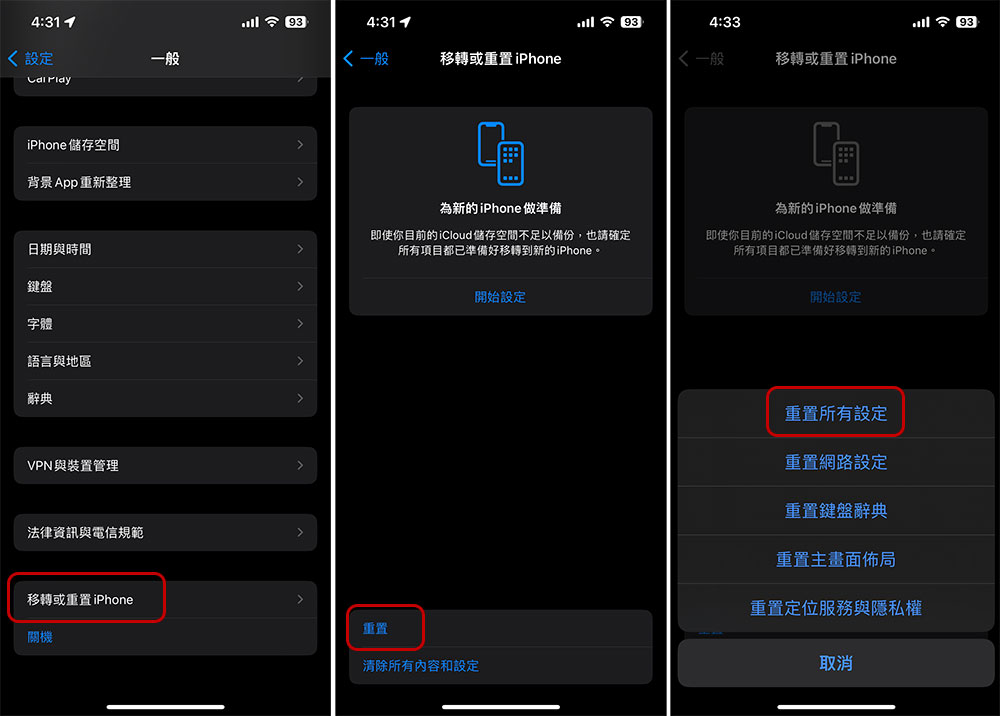
- Open the Settings app, tap into “General” and then select “Move or Reset iPhone”.
- Next select “Reset” at the bottom. This option only resets settings and does not clear data.
- On the next page, select which part you want to reset. Here we select “Reset All Settings”, and then follow the step-by-step instructions to complete the operation.
- After the reset is complete, open the camera app and see if it returns to normal.
If resetting doesn’t work, you may have to go to the final step of restoring to factory settings. This method will erase all data on the iPhone, so be sure to make a backup on iCloud to facilitate restoration after recovery.
Check and fix hardware problems
If you’ve tried all the software-related iPhone camera app fixes and it still doesn’t work, then you need to consider whether the problem lies in the hardware. First, check the camera on your iPhone for any signs of physical damage. If you have ever dropped your bare iPhone directly on a hard ground, and the part close to the camera was hit directly, it is likely to cause internal damage that is not visible from the outside. But damage can occur not only on the rear lens, but also on the front lens, including the lens module itself, the outer glass, or scratches on the glass.
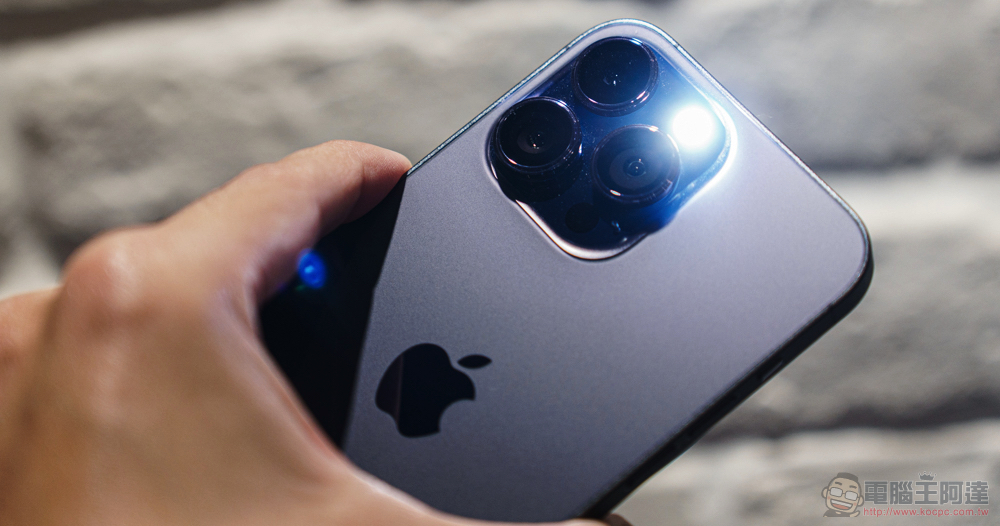
Also, if you have a protective case installed, make sure it does not cover the camera lens; if the camera cannot focus on the subject or the image is blurry, please clean the lens glass cover by gently wiping it with a clean microfiber cloth. If it is overheated due to use in direct sunlight or while charging, please avoid opening the camera, stop using the phone, move it to a cool place, remove the phone case, and let it cool down. If you have tried the above methods but still to no avail, please consult Apple Store customer service support for more professional instructions.
Source: KOCPC Chinese