


While there are many tools available today that can quickly diagnose the health of a Windows 11 computer, they require installing software, which many people may not like. Sometimes the reports they generate may also not be detailed enough, leaving you still unsure whether your computer actually has any issues after reading them. In fact, you can also use AI tools like ChatGPT, Gemini, and Claude to help diagnose whether your computer’s current environment is configured correctly and whether there’s anything you should pay attention to. Below, we’ll walk you through the steps.
Windows has a built-in MSINFO32 tool that can generate a system report, which AI can then turn into a plain-language health check summary.
This guide describes a method that uses Windows’ built-in “System Information” tool, also known as MSINFO32, to generate a computer status report. Then, simply hand that report to ChatGPT, Claude, or Gemini for analysis, and you’ll get a preliminary PC health check. The entire process doesn’t require letting AI agent tools directly access your computer, nor does it require granting file system permissions, making it a very practical approach for anyone who just wants to quickly check whether their computer is experiencing any abnormalities.
For those who don’t know what MSINFO32 is, here’s a quick explanation.
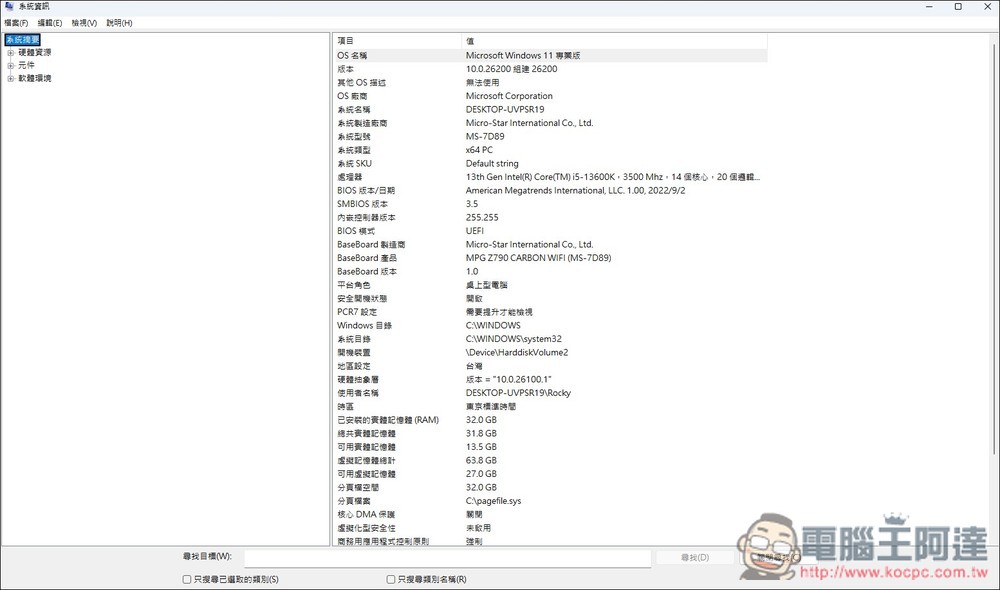
After opening MSINFO32, you’ll get details about your computer’s hardware, components, software environment, and more. However, because the content is so detailed and technical, average users may not know what to focus on—but for AI chatbots, this report provides extremely rich information.
Of course, you need to pair it with the right prompts to get the most comprehensive analysis from ChatGPT, Claude, or Gemini. Here are the complete steps.
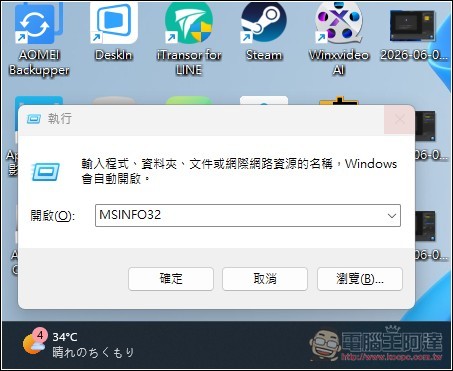
First, you need to obtain a computer status report. Press Windows + R to open the Run dialog, then type “msinfo32”:
This will open “System Information,” with very detailed computer information on the right—don’t worry if you don’t understand it:
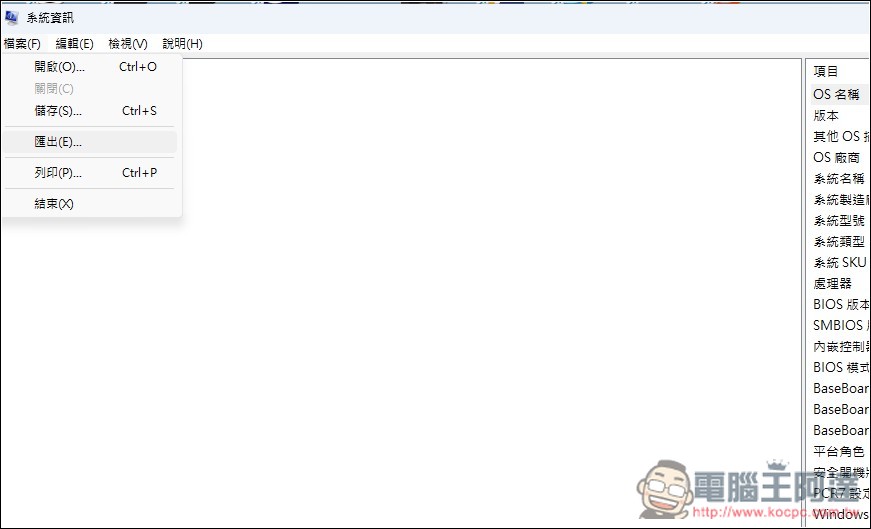
Open the File menu in the top-left corner and export this report:
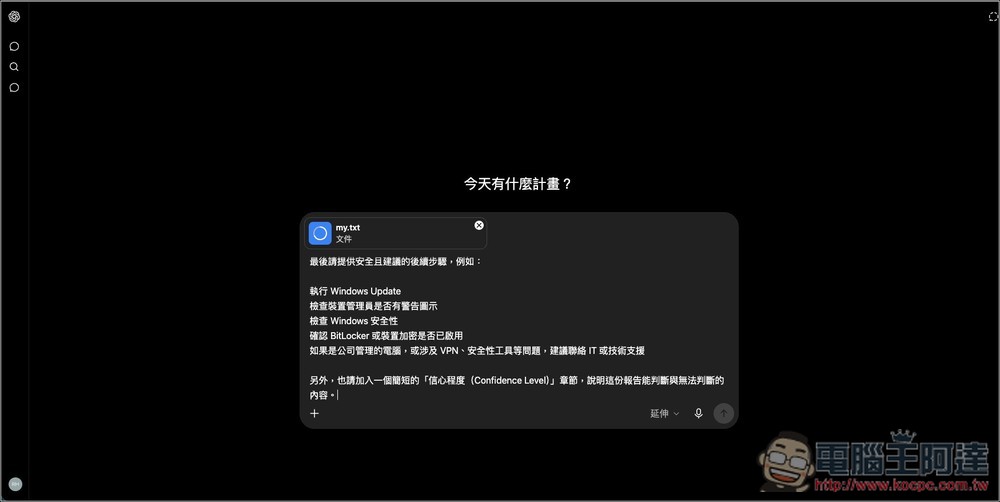
Next, open the AI tool you usually use—I use ChatGPT—and import the report you just obtained, then enter the prompt below (Source:PCWorld). The model recommends using a version with thinking mode or Pro, so the responses you receive will be more accurate and richer:
你是一位協助一般使用者進行 Windows 11 電腦健康檢查的診斷助手。
我會貼上或附上由 MSINFO32 匯出的 Windows 系統資訊報告。首先,請一次只詢問我一個簡單問題,最多五個,例如我目前遇到什麼問題、這台電腦是私人使用還是公司/學校使用,以及最近系統是否有任何變動。當你取得足夠資訊後就停止提問。如果我回答「跳過」、「不確定」或「直接分析」,請直接開始分析。
請以一般人容易理解的方式分析這份報告。不要把每一個看起來很技術性的項目都視為問題,請清楚區分真正需要注意的問題與 Windows 正常會出現的資訊。同時,除非有充分理由,否則不要提供高風險建議,例如修改登錄檔、調整 BIOS、移除驅動程式或重新安裝 Windows。
分析請先從「電腦快速摘要(Quick PC Summary)」開始,內容包含:
電腦型號
Windows 版本
處理器
記憶體(RAM)
儲存裝置
顯示卡
網路介面卡另外也請說明安全性與開機狀態,包括:
Secure Boot(安全開機)
UEFI
TPM/裝置加密相關資訊
虛擬化安全機制(Virtualization-based Security)
Credential Guard(若有顯示)接著提供「建議處理事項(Action Items)」,並依照重要程度分類為:
嚴重問題(Critical)
需要注意(Needs Attention)
可選擇最佳化(Optional Tweaks)
系統健康/無需處理(Looks Healthy / No Action Needed)之後請簡要說明:
有問題的裝置,或狀態為 Error、Disabled、Unknown、Not Available 的裝置
儲存空間是否不足
記憶體與效能相關線索
網路、VPN、藍牙與虛擬網路介面
值得注意的驅動程式或韌體問題另外,也請說明有哪些資訊是使用者不需要擔心的,例如:
已停止但屬於手動啟動的驅動程式
WAN Miniport
共用 IRQ
虛擬網路介面
Hyper-V/Hypervisor 訊息
在正常情況下顯示為「Not Available」的欄位最後請提供安全且建議的後續步驟,例如:
執行 Windows Update
檢查裝置管理員是否有警告圖示
檢查 Windows 安全性
確認 BitLocker 或裝置加密是否已啟用
如果是公司管理的電腦,或涉及 VPN、安全性工具等問題,建議聯絡 IT 或技術支援另外,也請加入一個簡短的「信心程度(Confidence Level)」章節,說明這份報告能判斷與無法判斷的內容。
Next, the AI will ask you a few questions, up to a maximum of 5:
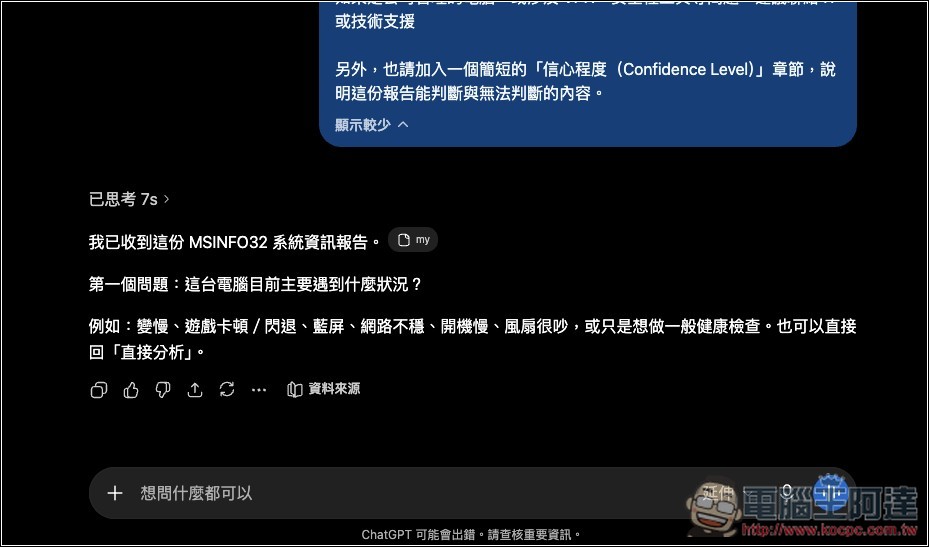
In most cases, it will only ask two questions. Once the AI determines it has enough information, it will begin analyzing and provide an answer:
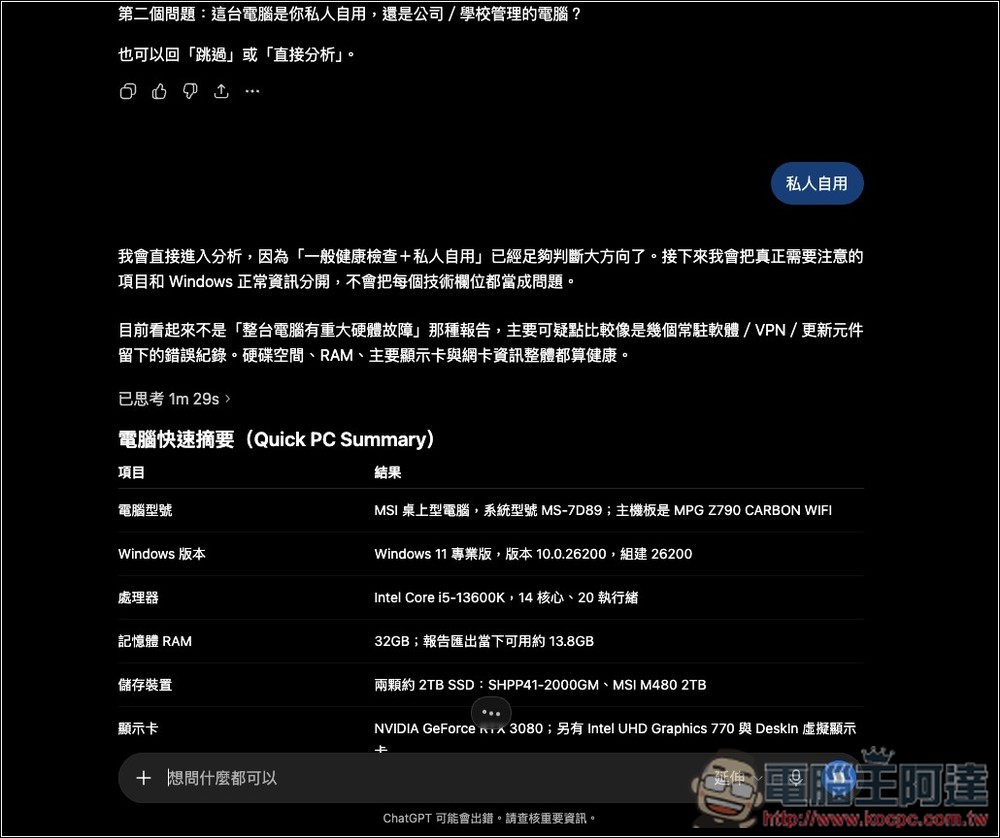
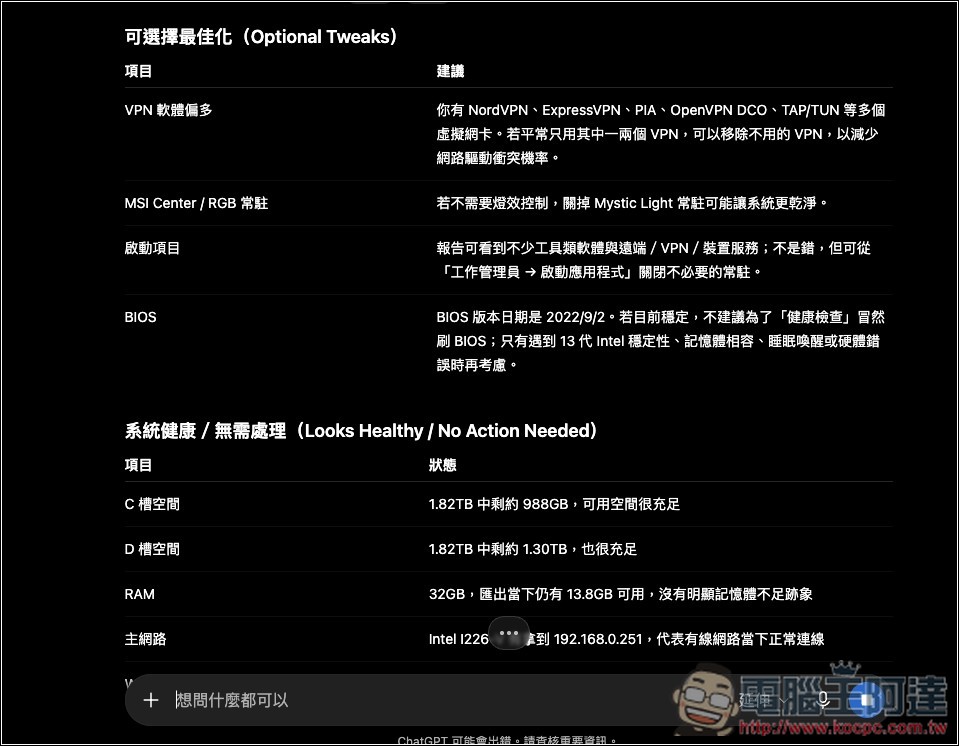
For each item, AI provides an interpretation, so you can easily tell if your current computer settings have any issues:
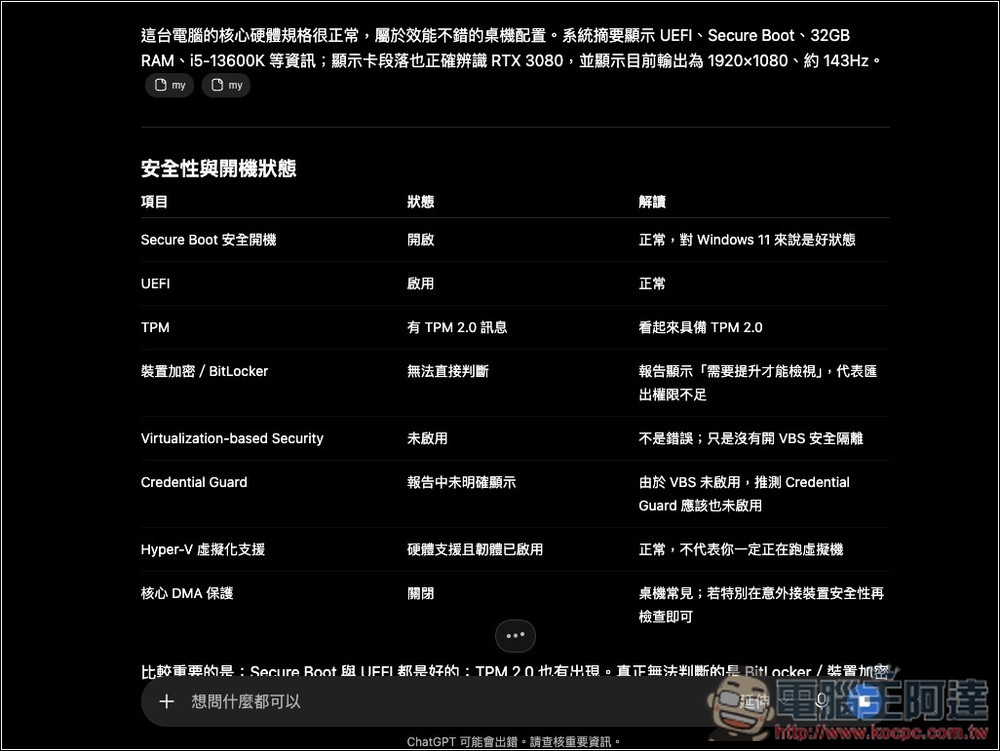
There are even optimization suggestions:
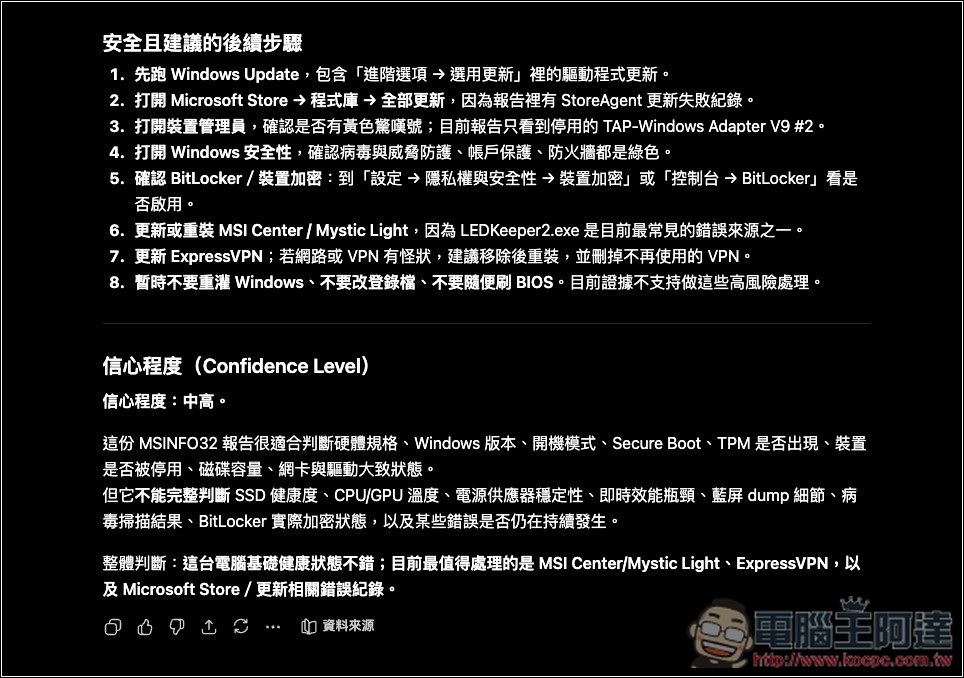
Finally, there’s also the AI’s confidence level:
Source: KOCPC Chinese