


Although most people will replace old computer equipment with new ones when they become obsolete to obtain the best performance and user experience, there are still some situations where they cannot help themselves. For example, the business computers allocated by the company fall into the category of “save what you can”. If you are also faced with the problem that your computer is gradually slowing down or lags from time to time, be sure to remember the 10 tips I will tell you today.

10 Tips to Speed Up Old Windows 7, 8, 10, and 11 Computers
When you have to share the joys and sorrows with a slow old computer and cannot change the reality, then change your thinking, from the personal use method, and there are some corresponding measures that can be taken. This time we will start with the latter. Before I get into the topic, I would like to remind everyone that if the problem with your computer is that something is not working properly, please do not hesitate to restart it, this can solve a lot of problems, and it is much faster than trying to manually troubleshoot and solve the problem yourself.
View processes occupying resources
The main reason your computer is running slowly is that certain processes are consuming a lot of resources. For example, if it is suddenly slower than usual, you may find that a certain process is taking up a large proportion of the CPU, or an application is using a large amount of memory. There are various situations that may cause an application or process to become a big eater and drag down your overall device speed. To find out, open the “Job Manager” and right-click on the taskbar to select it, or press “Ctrl + Shift + ESC” to call up the window. On Windows 8, 8.1, 10, and 11, the new Job Manager has an updated interface that color-codes resource-intensive applications.
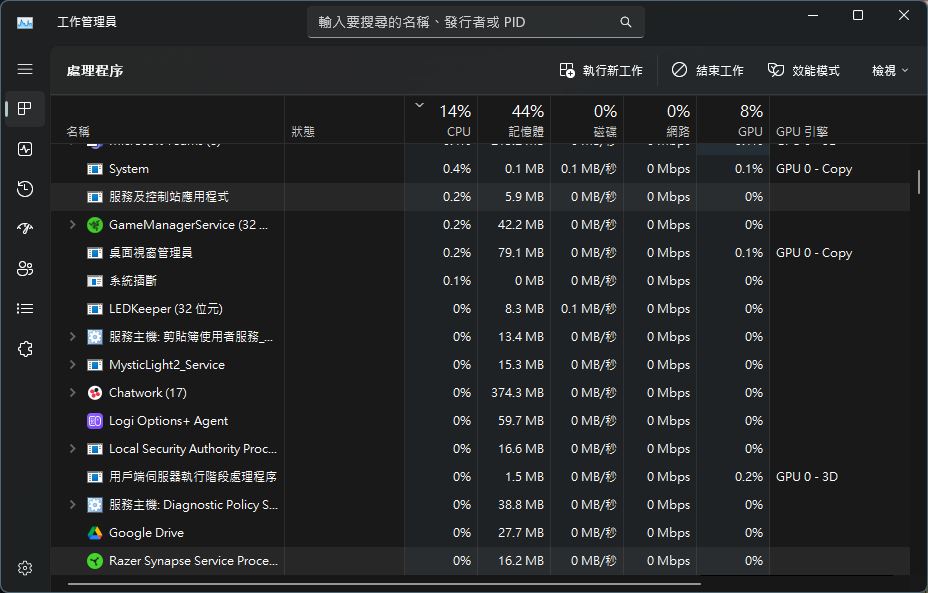
Double-click the CPU, Memory, and Disk column headers to sort the resources used by applications. If any application is using too many resources, you can close it gracefully, if it cannot be closed gracefully, select the item here and right-click and select “End Work” to force close it.
View hidden icons and close unnecessary apps running in the background
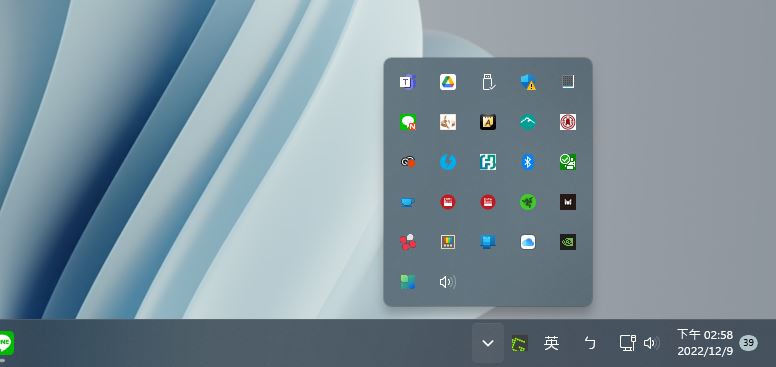
Some applications run in the background, so you can’t directly see its large icon clearly displayed here on the taskbar, but such applications usually appear in the hidden icon tray in the lower right corner of the computer after startup. Click the upward arrow that hides the icon tray, and you can see the apps currently running in the background. If you don’t need it, close them from here to release the occupied resources.
Close the application and start it
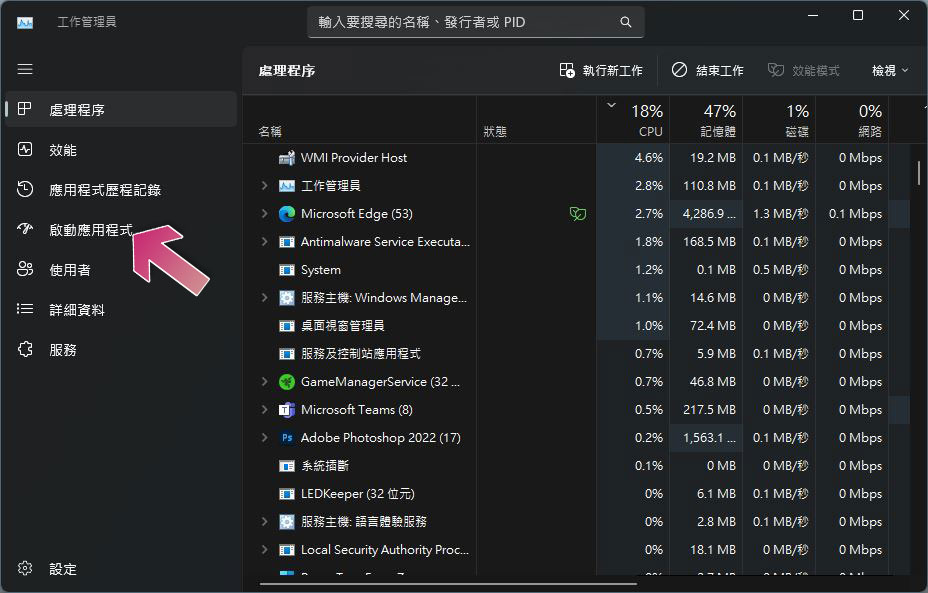
In the previous item, we mentioned turning off background running applications. What’s even better is that you can simply turn off these applications to automatically start when the computer is turned on to save memory and CPU operation time, and speed up the boot time. In the Task Manager on Windows 8, 8.1, 10, and 11, there is now a “Startup Apps” tab, where you can see which apps start on boot, which ones slow down the startup the most, and disable them from here.
Reduce Windows system animations
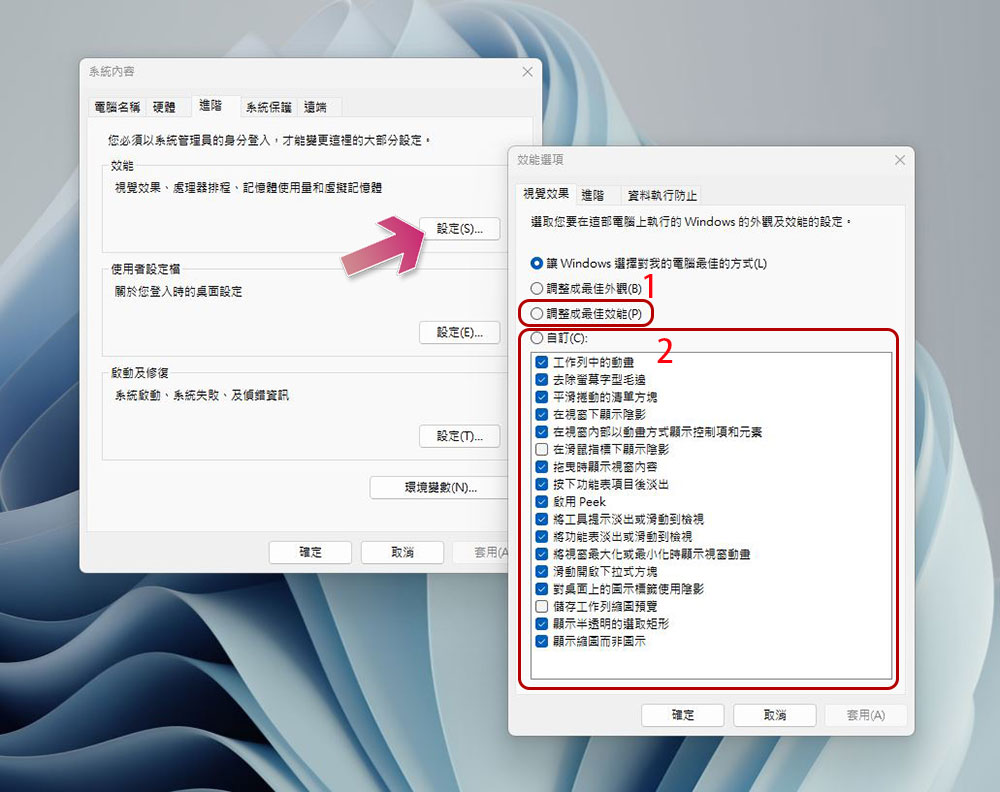
Windows uses a lot of animations to optimize visual effects. The animations mentioned here are not the gorgeous ones, but the tiny animations that appear when the window is reduced. Although a single animation is insignificant, if it is too large, it will become a burden on the system. In this situation, the computer will seem a bit slow, especially the grandpa-level computer, which will make people want to ask “Are you okay?” To disable animations, press “Windows + X” to bring up the menu, then click “System”.
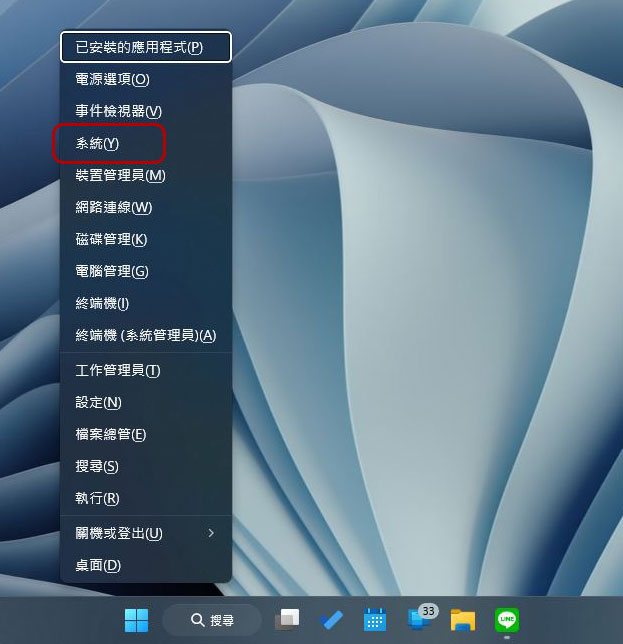
Then click on the settings under “Performance” in “Advanced System Settings”. Next you have two options:
- Change the Windows appearance and performance settings to “Adjust for optimal performance.”
- Manually check the animations and visual effects you do not want to display from the list below.
Help the browser lose weight
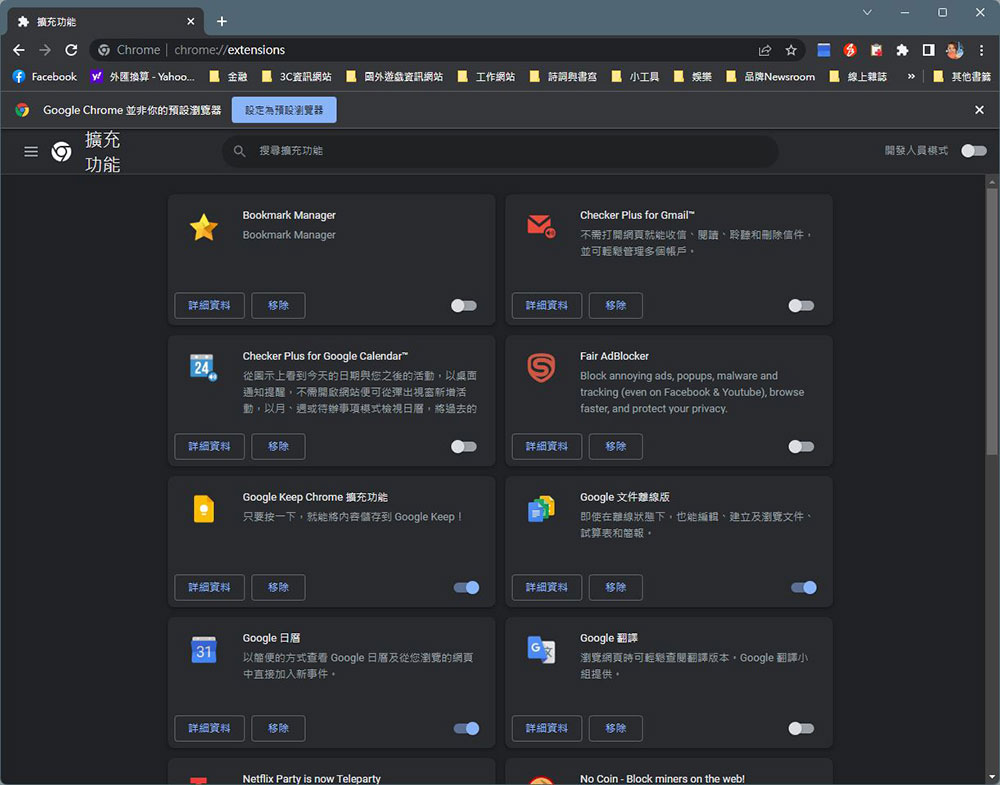
You may use your browser frequently, and then feel that it is a bit slow. It is recommended that you minimize the use of browser extensions or add-ons as these can slow down your web browser and cause them to take up more memory. Enter the browser’s extension or add-on management interface and disable or delete unnecessary add-ons.
Scan for malware and adware
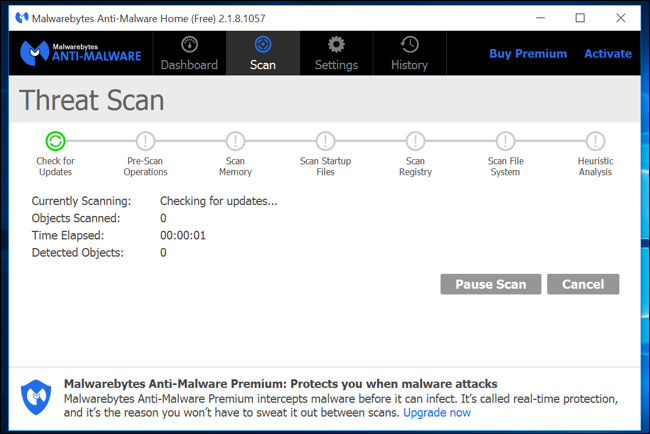
There could also be malware running in the background that is causing your computer to run slow, or other software that interferes with and tracks web browsing to add ads. For added security, scan your computer with a reliable antivirus program, or use something like Malwarebytes (The free version will suffice) This type of software scans to catch Potentially Unwanted Programs (PUPs) that most antivirus programs tend to ignore. These programs try to sneak onto your computer when you install software, and you almost never need them.
Free up disk space
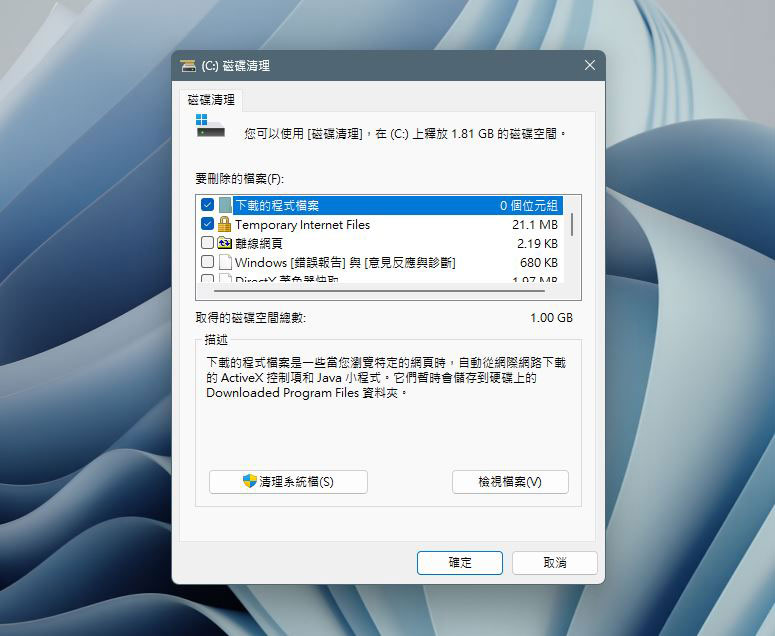
If your hard drive is almost full, the impact on the computer’s running speed will also be obvious. If you want to leave some spare disk space for your computer, you can open the built-in disk cleaning tool to scan and clean the selected content without downloading other third-party software.
Reorganize and organize hard drives
On newer versions of Windows, there is actually less need to defragment the hard drive, because it will automatically defragment the mechanical hard disk (HDD) in the background; the solid-state drive (SSD) actually does not require traditional defragmentation, although the newer Windows will still automatically optimize it. Although most computers now use SSD, older computers that cannot support it will use hybrid hard drives (SSD+HDD) or mechanical hard drives, so you can still use Windows’ built-in disk defragmentation tool to organize the hard drive that holds a large number of files.
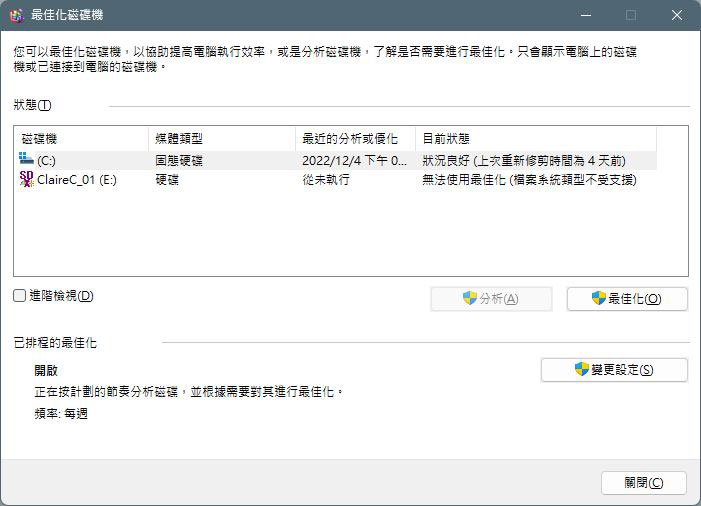
When does it become prone to fragmentation? For example, when you copy a large number of files from disk A to disk B, or when there are huge game files in your computer, you can open the “Reorganize and Optimize Disk” tool to scan to see if reorganization is necessary.
Uninstall unused and unnecessary apps
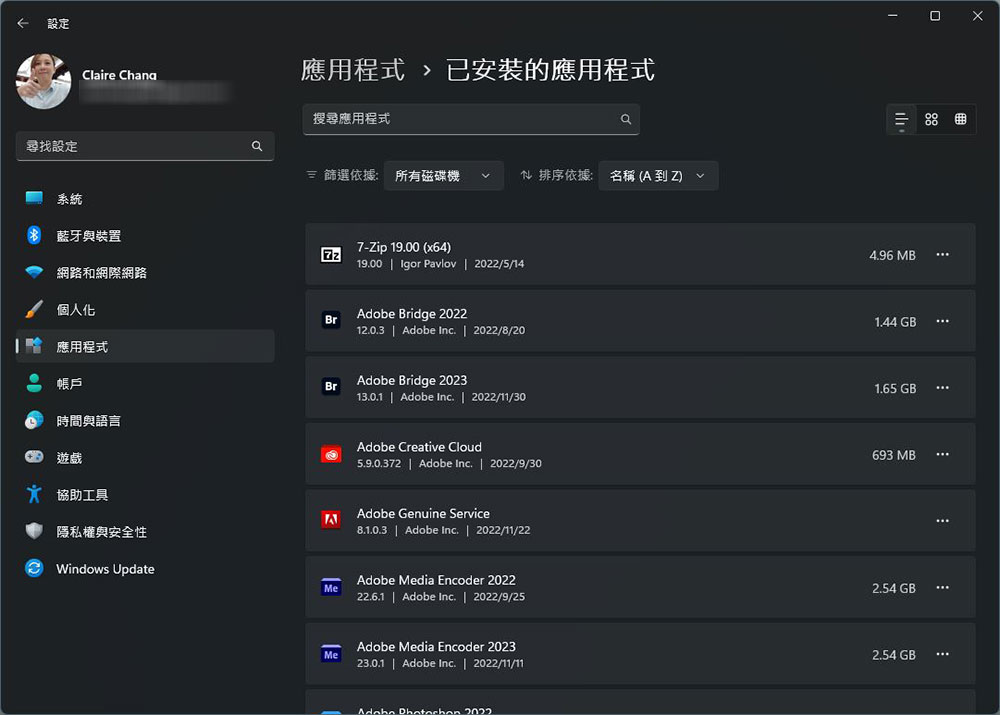
Open the Control Panel, find the list of installed applications, and then remove unused and unnecessary applications from your computer to help speed up your computer. Because these applications that have long spider webs for a long time are likely to include background processes, auto-start directories, system services, menu items, and other content that may slow down the computer. In addition, it can save hard drive space and improve system security.
The final struggle: restore factory settings/reinstall the system
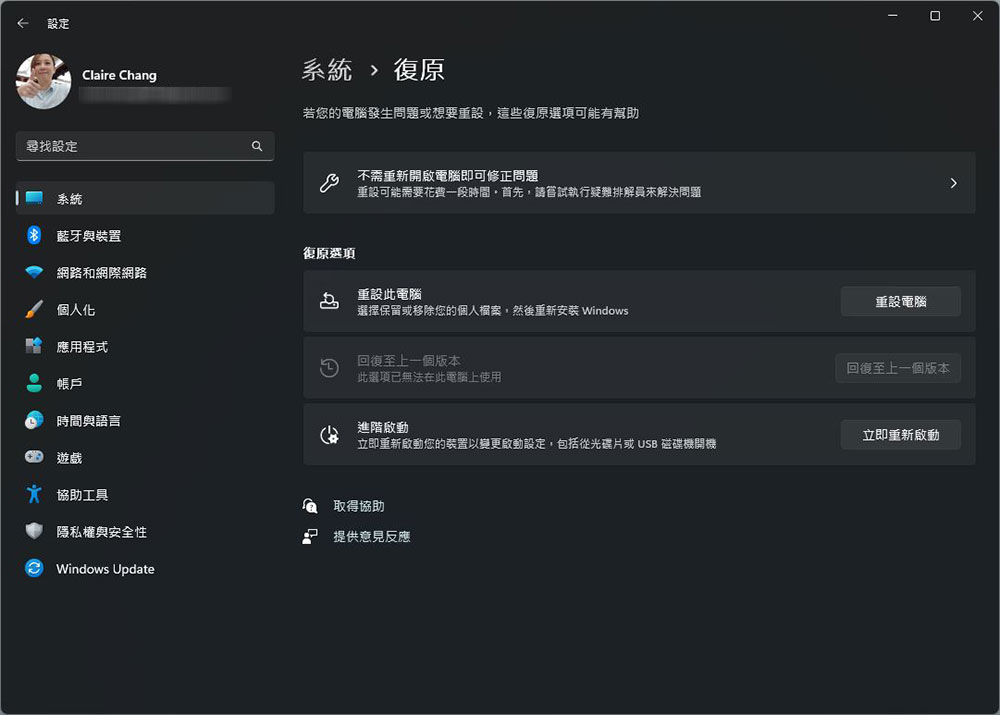
If the other methods above do not solve the problem for you, then you can only resort to the last resort besides restarting: reinstall the system. Reinstalling the system on modern versions of Windows (referring to Windows 8, 8.1, 10, and 11) is easier than in the past. Just open the “Restore” item in the “System” tab of “Settings” and execute it. You can reinstall without having to get an installation disk, and it is also easier to restore the computer to factory settings. Such functions will delete installed programs and return system settings to default while preserving document files.
Source: KOCPC Chinese