


Many times in life, we encounter situations where we don’t know how to input the pinyin of a word, or we see foreign words in magazine advertisements and want to know its meaning, or we go to Google for more information. Although there are some functions on mobile phones and the Internet that can convert images into text, the operation is quite troublesome. This article will recommend a very convenient “Google Input Tool”. It has built-in handwriting function and supports multiple languages, which means you can write directly.
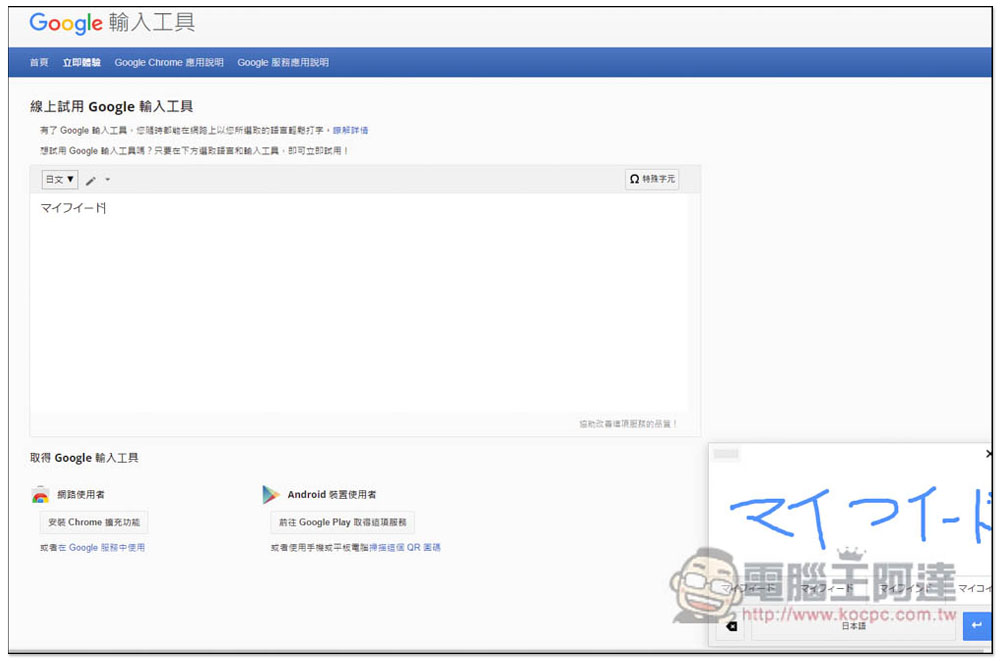
Don’t know how to input this character or foreign font? Google Input Tools helps you solve this problem
“Google Input Tool” is strictly for input. That is, if the computer, mobile phone and other devices you are currently using do not have the language input method you want to use installed, you can use this input tool instead, so you don’t need to install it separately.
Also because of the built-in handwriting function, it can solve the problem of not knowing the characters and how to input foreign fonts.
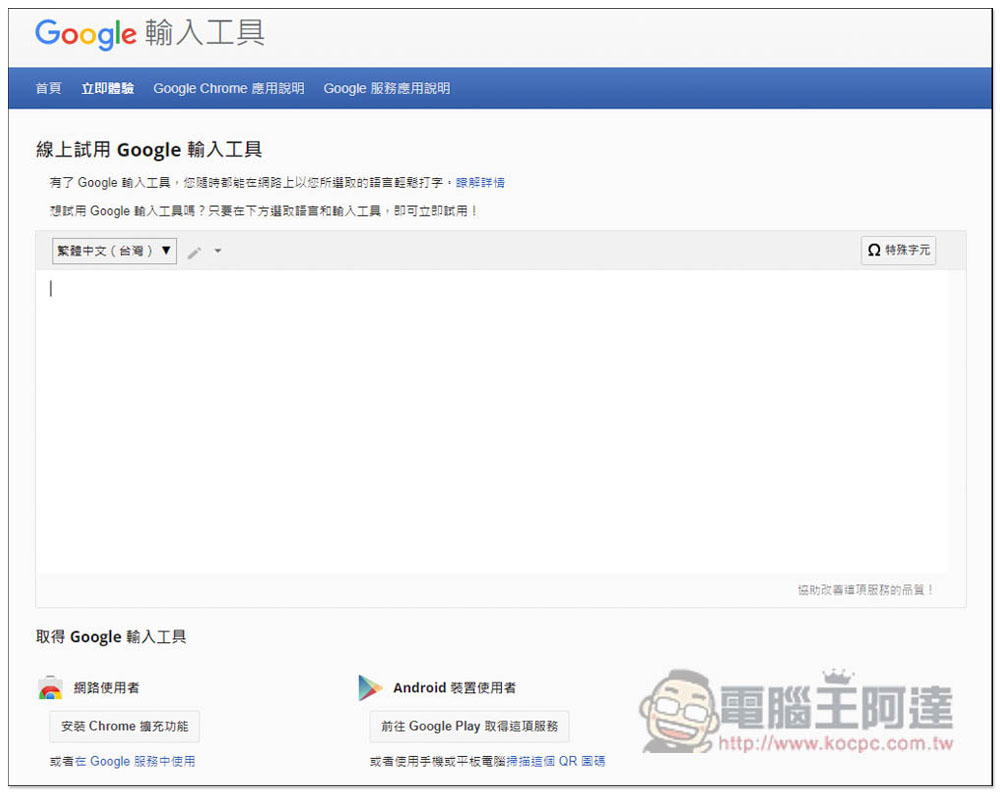
In addition to the web version, “Google Input Tools” also provides Chrome extensions and Android Apps. For the web version, the default setting after entering is Traditional Chinese. If you are using it because the device does not have an input method, you can directly enter the words you want in the box:
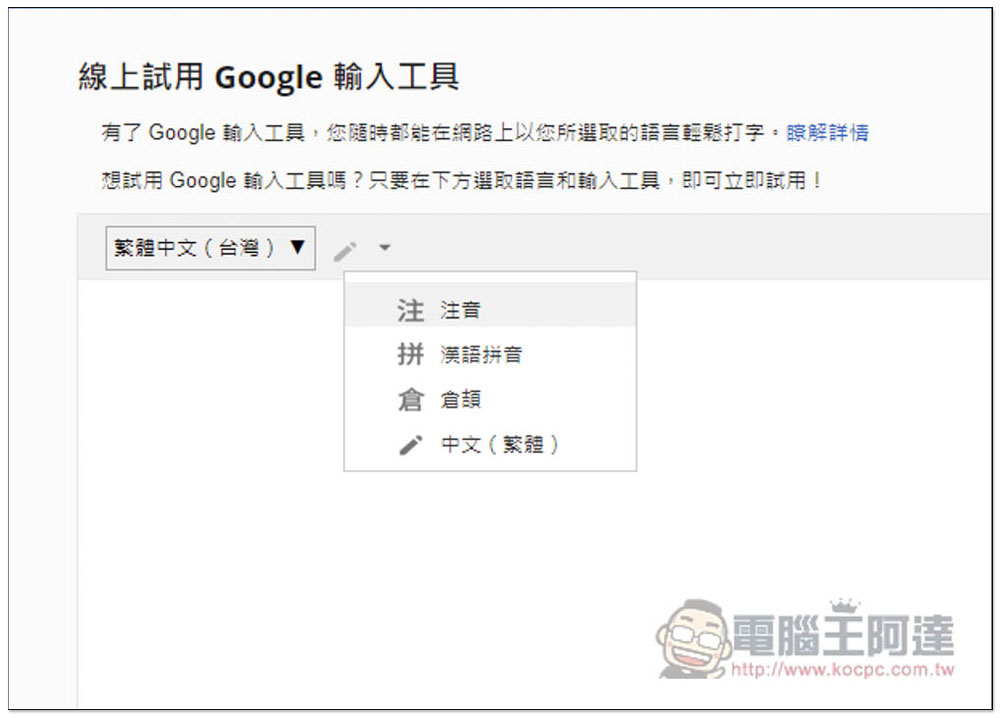
Open the icon arrow on the right side of the language to switch to other input methods. There are quite a few Chinese input methods, including Zhuyin, Hanyu Pinyin, Cangjie and handwriting:
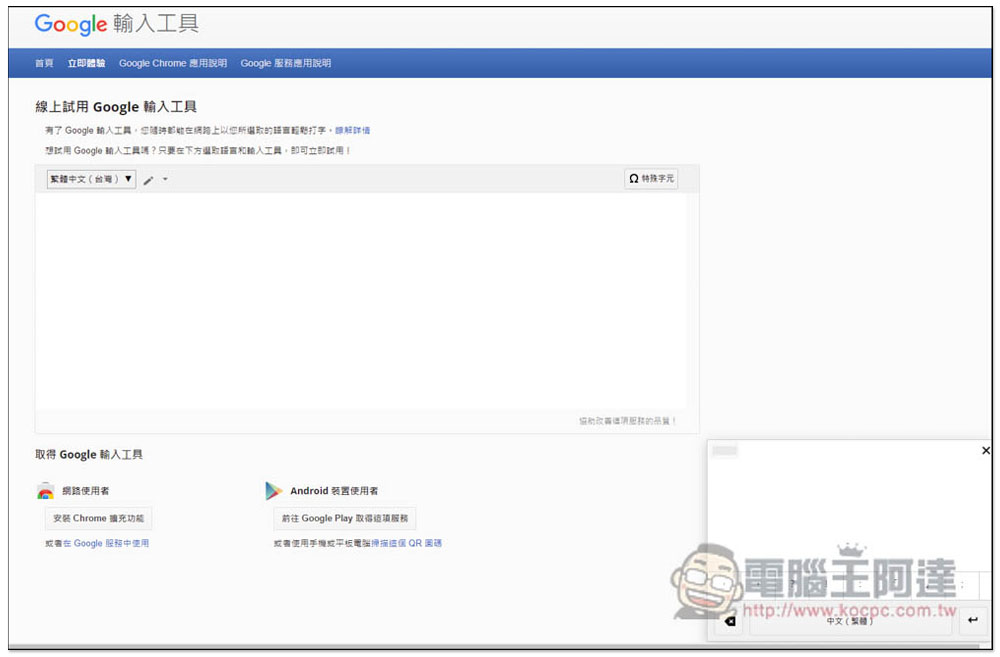
After switching to handwriting, a handwriting pad will pop up in the lower right corner. Then use your mouse to write the Chinese characters you want to input:
While writing, the possible words at the bottom will change at any time. After writing, remember to click on the input box in the middle first, and then click on the correct word:
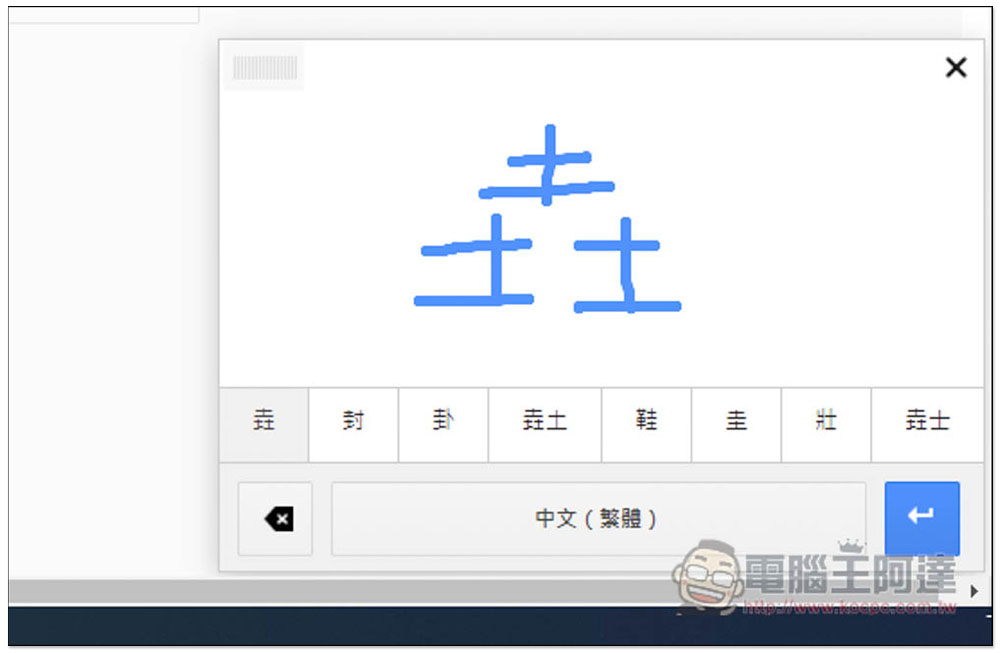
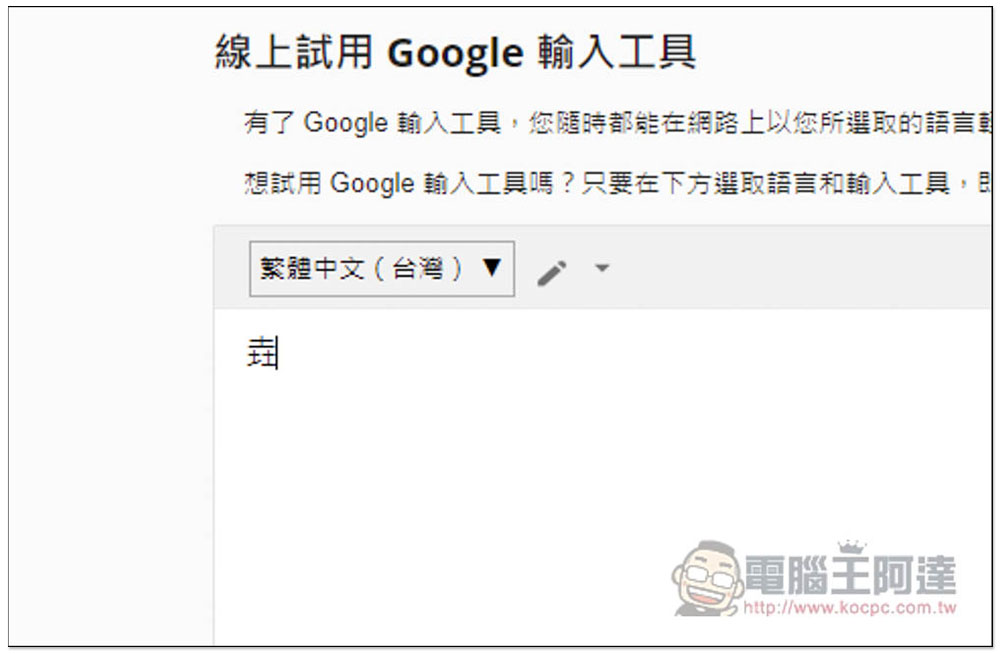
Like this, even if you don’t know how to spell the word, you can easily type it, or even go online and Google the phonetic notation:
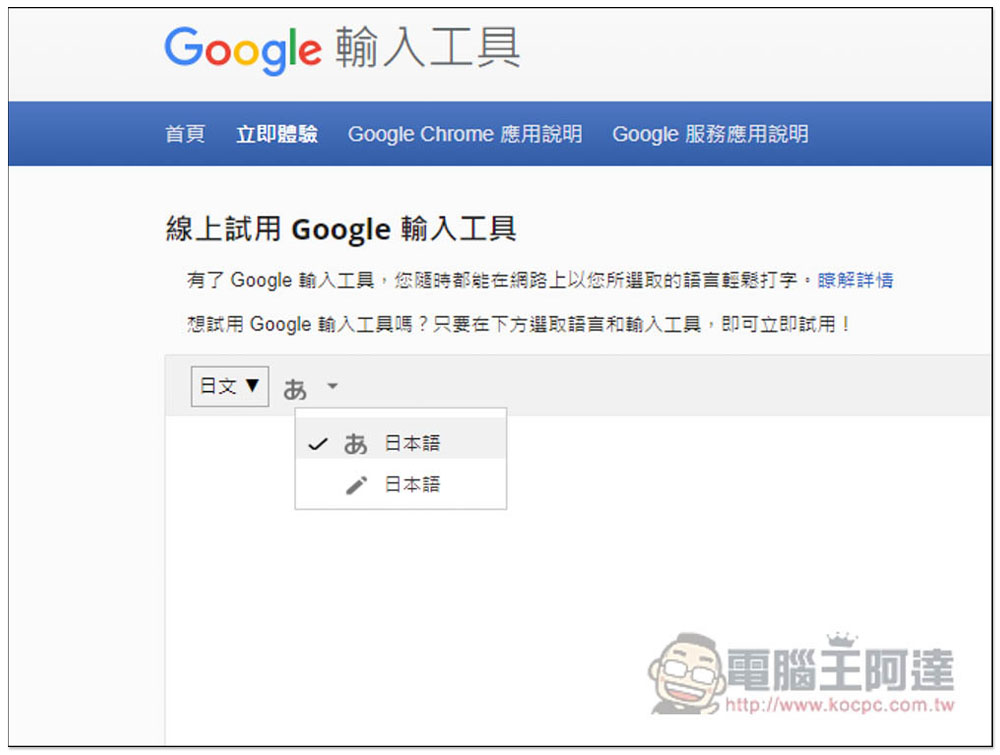
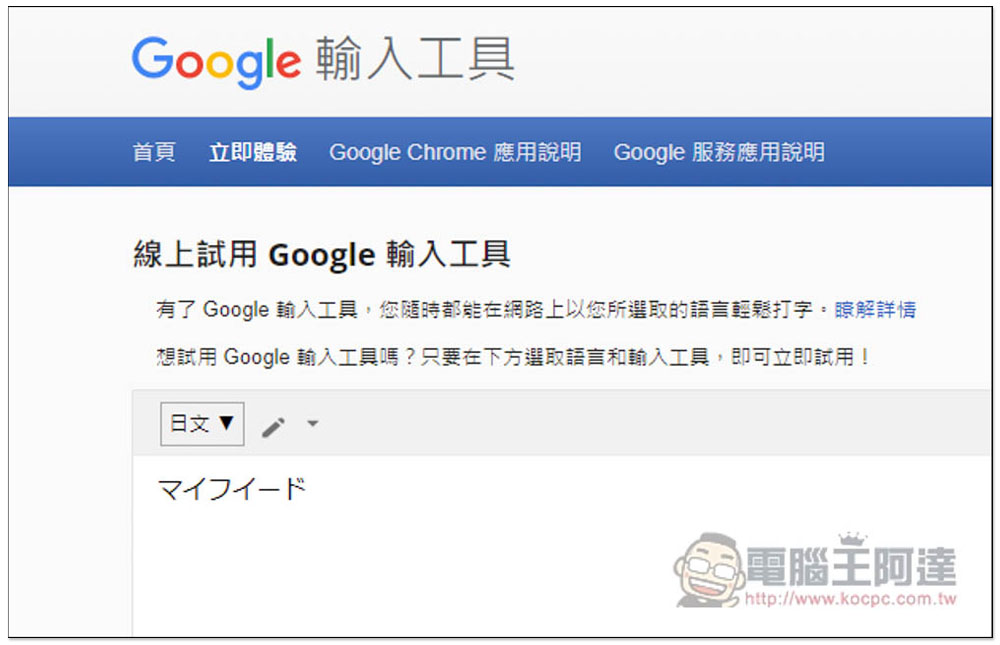
Foreign languages are also supported. Taking Japanese as an example, there are two types of Japanese input and handwriting:
If you see Japanese characters on advertisements or flyers, it doesn’t matter if you don’t know how to input them. Just open the handwriting input method and write directly with your mouse, and the matching results will appear below:
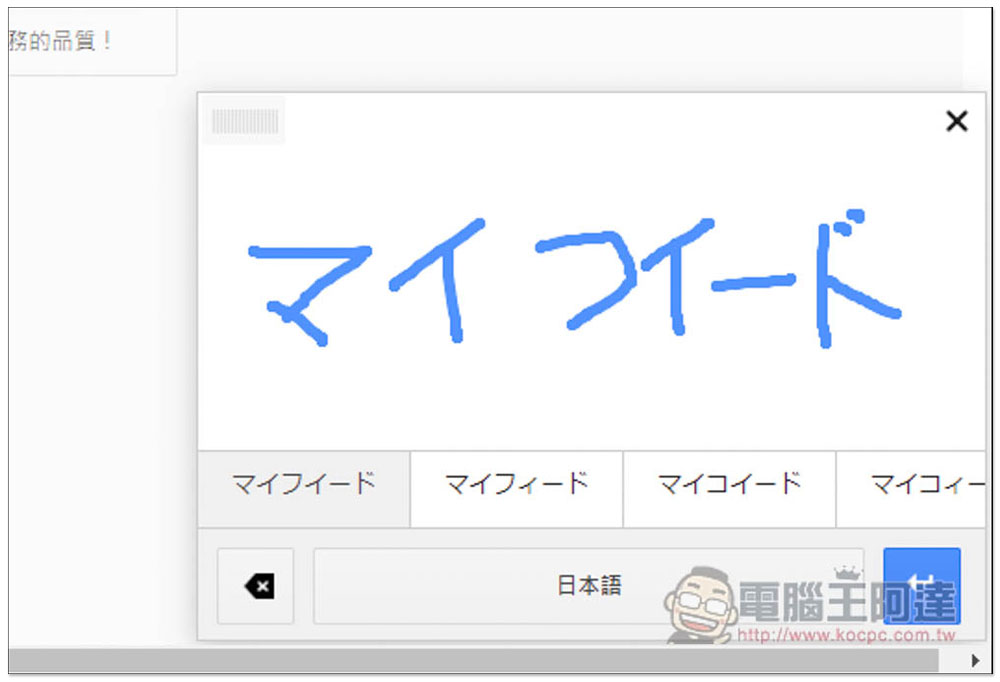
Like this, after writing it out, you can copy it to see what the Chinese meaning is:
I have to say that the Google Input Tool is really easy to use. In the future, if you use a public, external, or even foreign computer or mobile phone, it will not be a problem if you do not have a Chinese input method installed. You can just enter the Google Input Tool and type. This should be very useful for maintenance personnel and can save a lot of time.
In addition to the input method, you can also notice that there is a “Special Characters” function in the upper right corner. You can find many special symbols here, such as commonly used arrows (all types are available), and even fast forward and rewind. When you need to use it when chatting with others or writing articles, you can find it directly from the Google Input Tool without having to go online to Google. This is very convenient.
In addition, Google search, Gmail, Google Drive, Google Translate and YouTube also have built-in Google input tools. If you want to know how to use them,You can click me to jump to the description page。
Source: KOCPC Chinese