


The AirPods series is currently the best-selling true wireless Bluetooth headset in the world. Since it is an electronic product, it is inevitable that sometimes it will malfunction. No sound from a single earphone should be one of the most common problems that everyone encounters. This time I will tell you how to use your hands and use a few steps to make your earphones operate normally. Of course, this must rule out that the earphones themselves have no physical faults and have enough power.
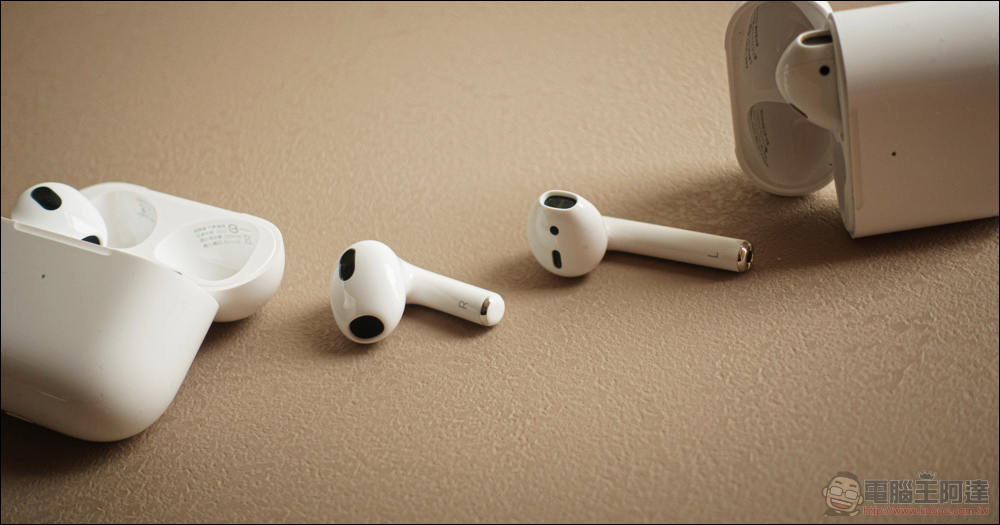
One-sided AirPods malfunctioning? This trick should fix it
The troubleshooting method I’m going to tell you this time applies to AirPods, AirPods 2, AirPods 3, the first-generation AirPods Pro and the new AirPods Pro 2. If you encounter problems when using it, we need to make some confirmations to rule out basic conditions:
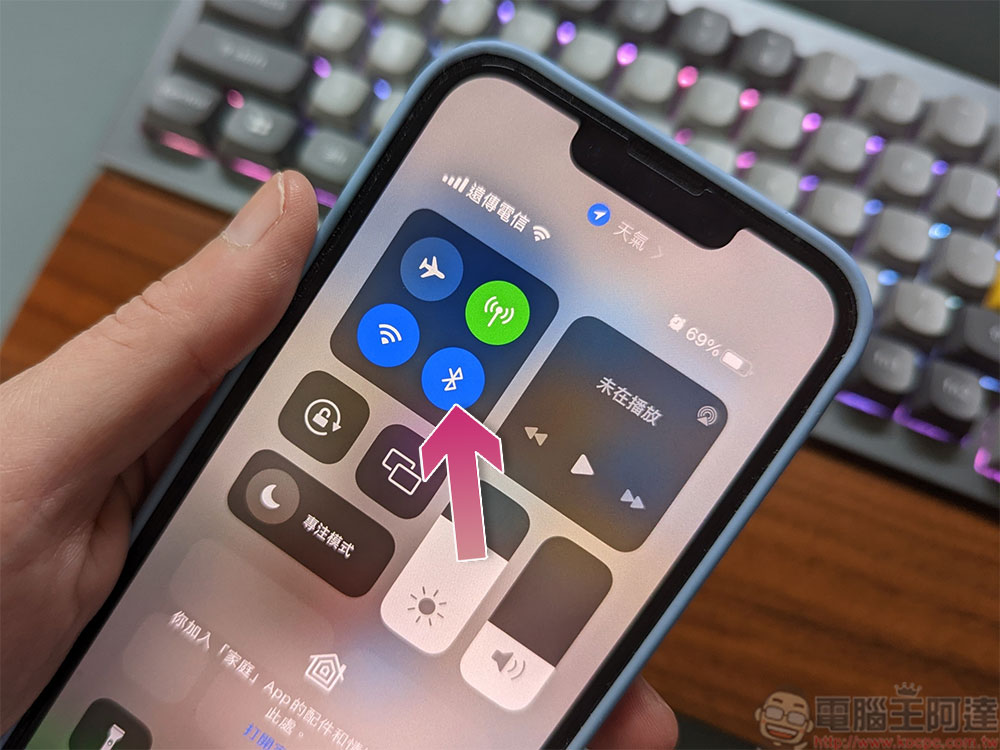
- Swipe down from the upper right corner of the screen to pull out the Control Center and confirm that the iPhone’s Bluetooth function is turned on (blue means on, gray means off).
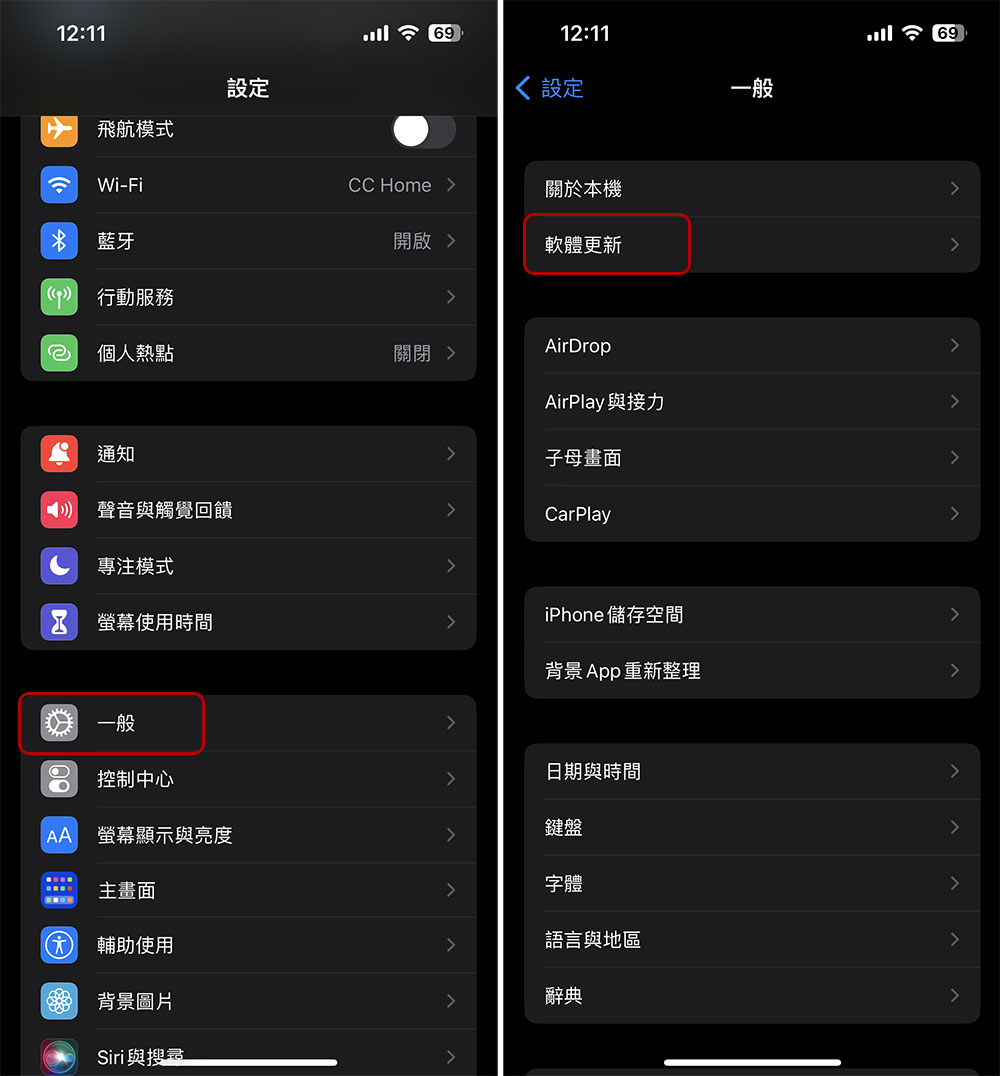
- Make sure the iPhone operating system is the latest version. Software updates often include security fixes and add new features, so be sure to check and install them in “Settings >> General >> Software Updates”.
How to fix AirPods that are not working properly on one side?
- Place both AirPods back into the charging case and make sure they are charging, allowing them to charge for at least 30 seconds.
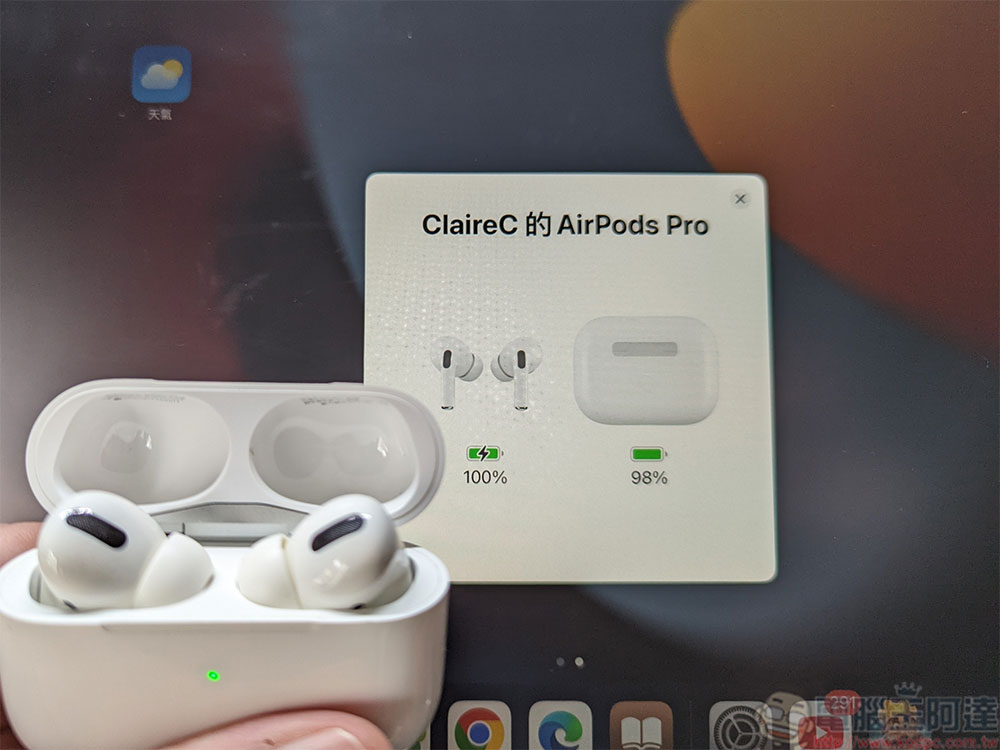
- Open the lid of the charging case near your iPhone or iPad and wait for a window about AirPods to pop up on the device screen.
- Take out both AirPods and put them in your ears, then try playing music or a video to confirm that the audio is working properly.
How to reset AirPods?
When you still can’t find the cause of the problem, resetting should be a good idea, and after troubleshooting physical problems, resetting can solve almost 80% of the problems. So how do you reset AirPods?
- Before starting the reset steps, make sure you place your AirPods in the charging case and close the lid.
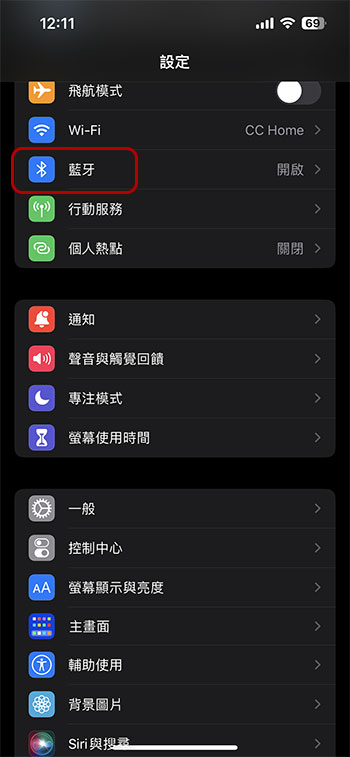
- After 30 seconds, open the lid of the charging box and connect AirPods to your iPhone or iPad. Open the “Settings” app on your mobile device and click to enter the “Bluetooth” item.
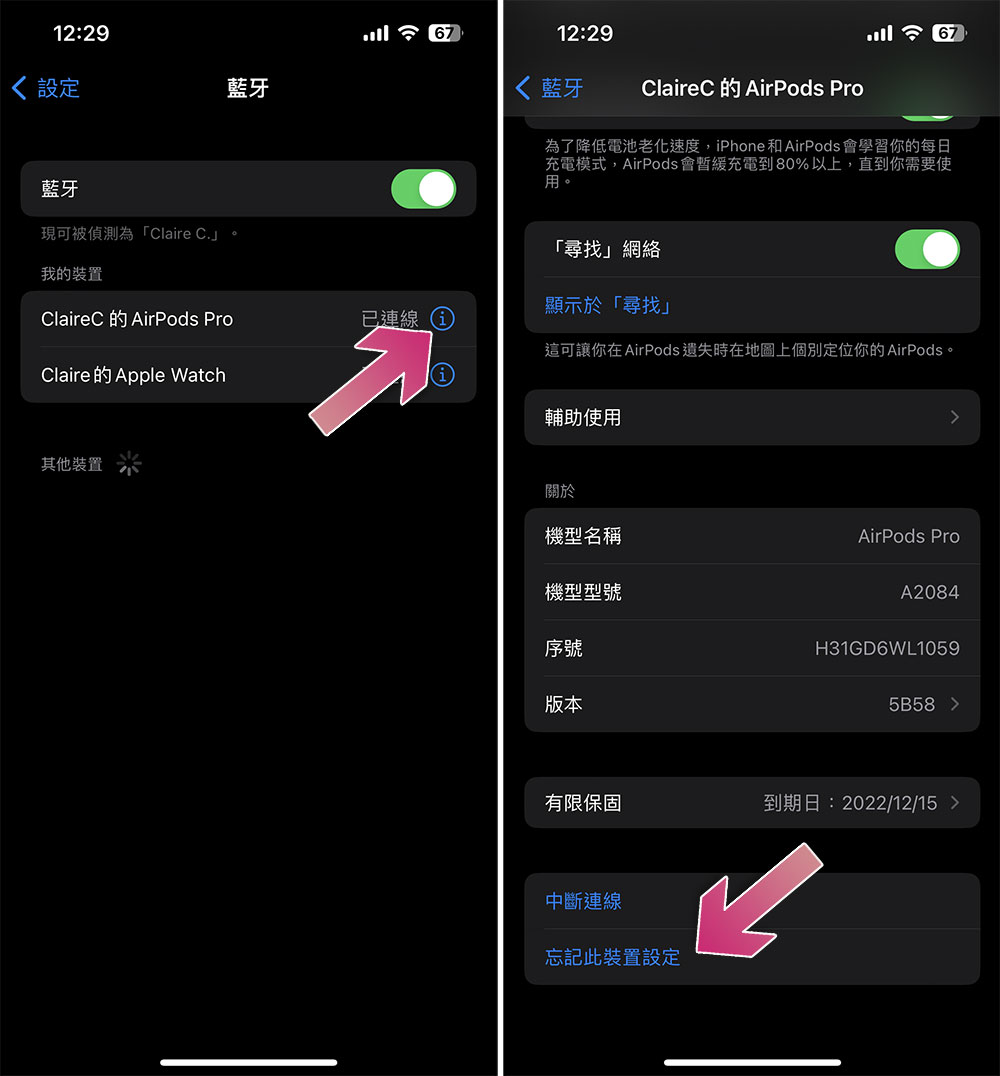
- Find your AirPods among Bluetooth devices, then click the “i” symbol next to it, then scroll to the bottom and select “Forget this device settings.”
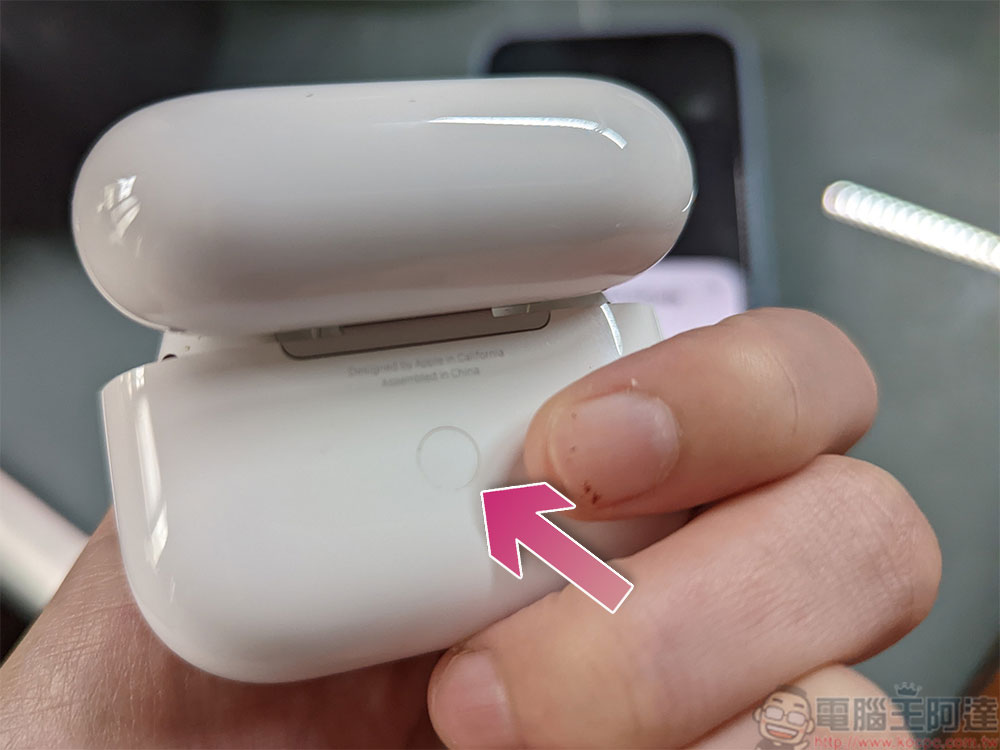
- Open the lid of the charging box and press and hold the white button behind the lid for about 15 seconds. You can see the indicator light on the front start to flash white.
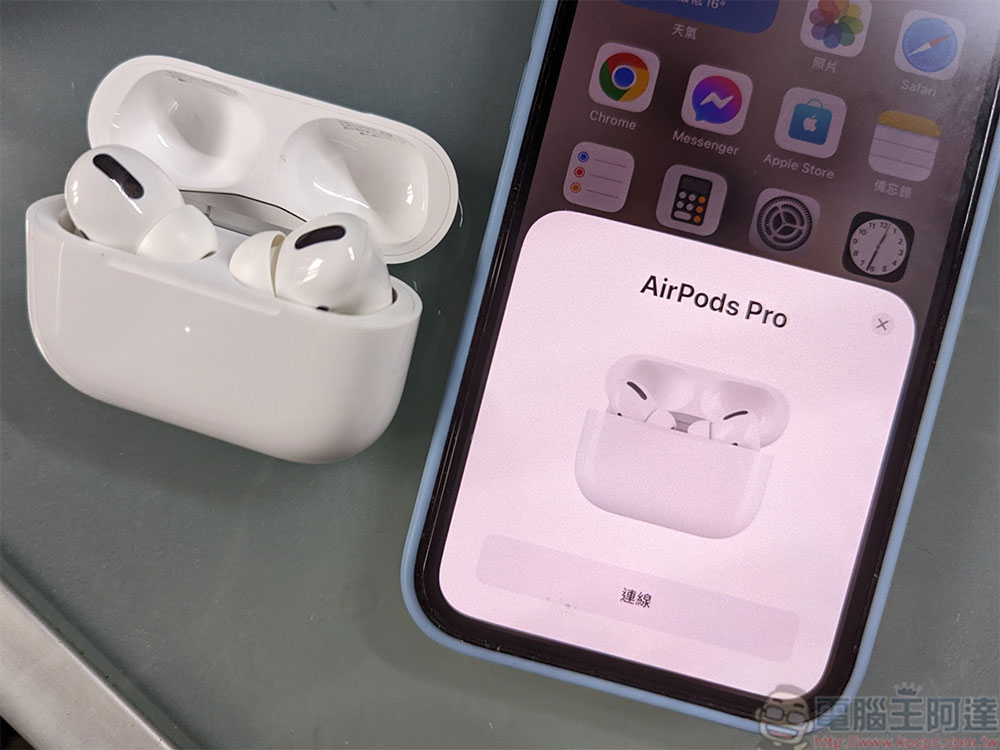
- Now, open the charging case near your iPhone or iPad, and you should see the pairing again dialog window on your screen just like you saw when you first set it up.
Resetting your AirPods usually fixes this issue, but if you’re still having issues with one or both AirPods, check to make sure there isn’t any debris or dirt blocking the speaker’s mesh.
Source: KOCPC Chinese