


Although a VPN can provide additional protection, the reality is that using a VPN will slow down the Internet speed, often by 50% or more. Although it is annoying, it is a side effect of the VPN operation and you are not immune to it. However, although you can’t escape it, you can use some tricks to alleviate the slowdown and greatly improve the speed of your VPN connection.
7 Must-Know Tips to Speed Up Your VPN Connection
VPNs add a layer of encryption to Internet connections while routing them around the Internet through remote servers, a process that is a major cause of slowdowns. Encryption, decryption, and data traveling to and from VPN servers take time, and other factors like the VPN protocol you’re using or the load on the VPN server you’re connecting to can also have a negative impact on your internet speed.
When you use a high-speed VPN, the slowdown will be almost unnoticeable during normal Internet use, but will be noticeable when you engage in intensive activities such as gaming, streaming, or video conferencing. Even a few milliseconds of latency can make the difference between winning or losing an online game, while sluggish VPN speeds can ruin your video streaming experience, disrupted by constant buffering and heavy pixelation. If you’re using a VPN on a Zoom call, you’ll also want to make every effort to maximize your VPN speed to ensure the call runs smoothly and doesn’t get interrupted. If your VPN speeds aren’t ideal, here are some tips to help you speed up your connection.
7 Tips to Improve VPN Speed
Tip 1: Connect to the server closest to you
Generally speaking, the closer a VPN server is to your physical location, the faster your connection should be. When web traffic is routed through a nearby VPN server, your traffic will have a shorter physical distance and won’t need to travel halfway around the world to connect. For example, if you’re in Taipei, connecting to a VPN server in Tokyo, Japan, should be faster than connecting to a VPN server in New York, USA.
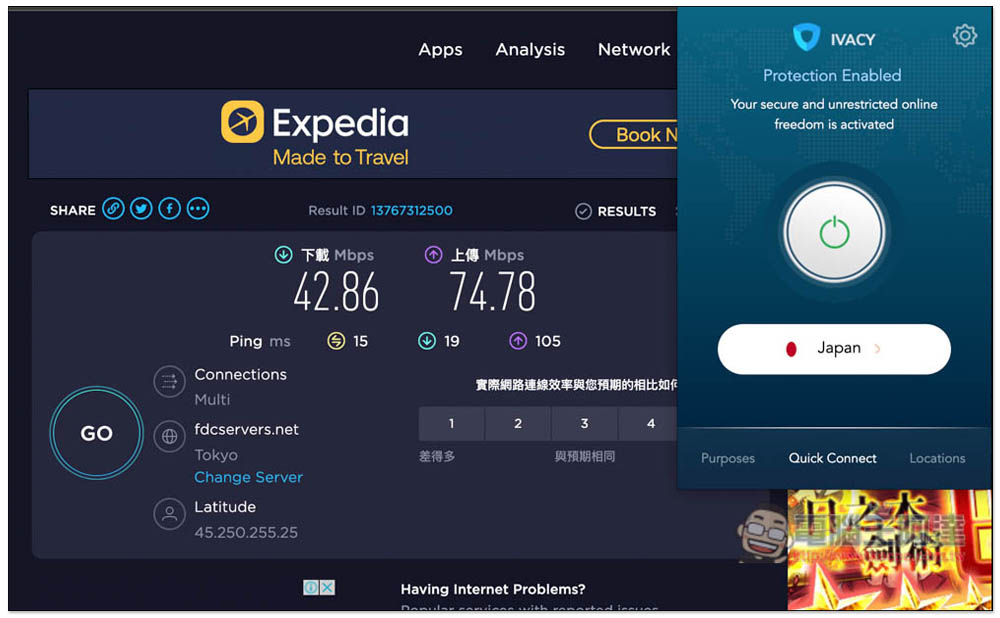
If you’re not streaming from a specific country, but need faster speeds, try connecting to several VPN servers that are physically closest to you to see which ones offer the best speeds. Some VPN apps have built-in speed test functions, but you can still use Speedtest to test your network speed.
Tip 2: Choose a server that is not overloaded
When too many people connect to a single server, it may cause the server to be overloaded and the connection speed will be affected. Some VPN services will note the current load on each server on your app or website, and you can usually get faster speeds if you choose one with a lighter load. If the VPN you choose is not marked, you can try to connect to several servers to see which one is faster.
Tip 3: Try connecting via a different VPN protocol
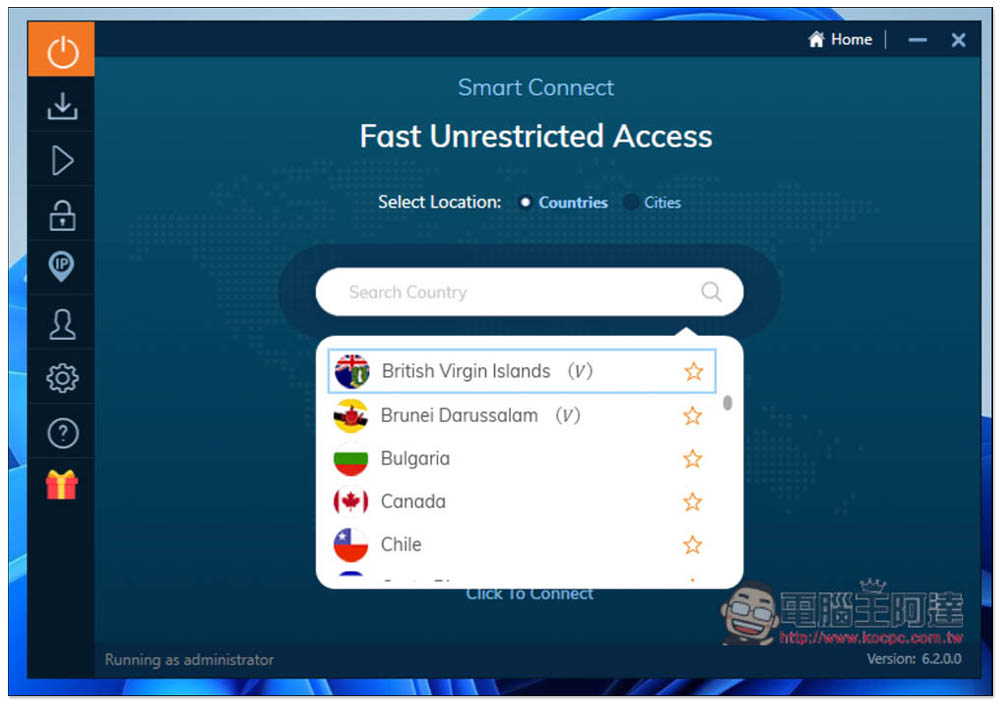
A set of instructions between a VPN application on a VPN protocol-based device and the VPN server that determines how to establish a secure connection. Most VPN providers allow users to choose between several different VPN protocols. Different protocols have different advantages and disadvantages in terms of speed and security. OpenVPN is the most popular protocol. It is ideal in terms of speed, stability and security. It is also listed as the default protocol by many VPN operators. More and more VPN providers are now offering more new protocols to choose from, such as IKEv2, WireGuard, etc. These protocols promise faster speeds and better security, and there are even some dedicated VPN protocols that claim to provide the best of both worlds.
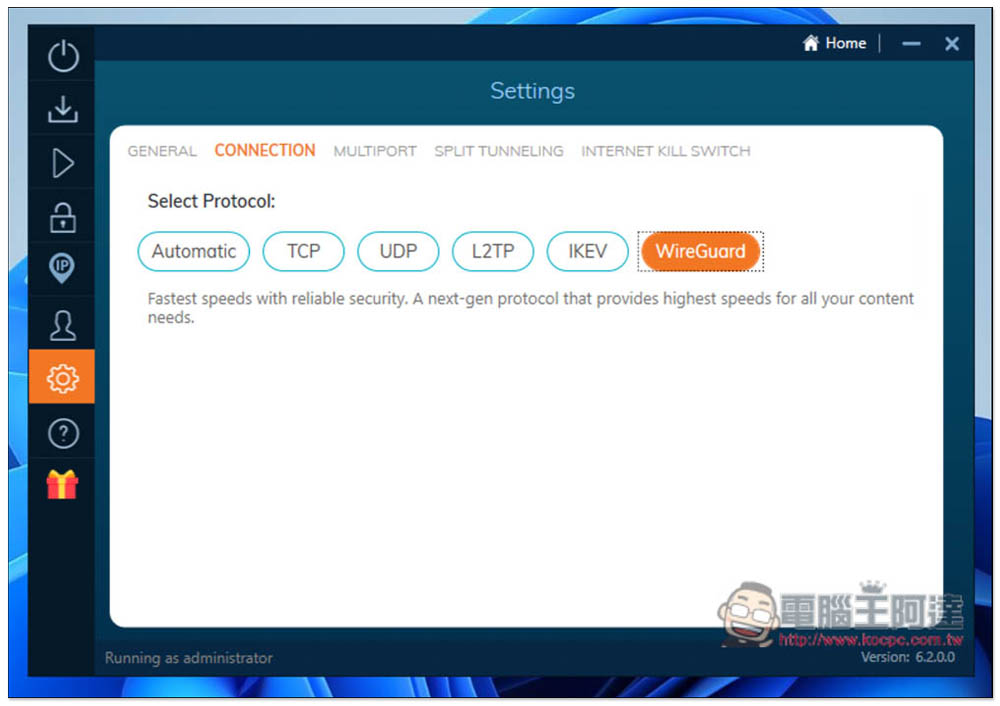
Switching to one of the other protocols may give you a faster connection, but please note that although their security seems to be good, these protocols have not been tested as thoroughly as OpenVPN, so these should only be listed as alternatives rather than first choices. If you prefer to just use OpenVPN, use UDP instead of TCP for the best speeds. While TCP is generally the more stable option, it tends to be slower than UDP because it needs to send packets in the correct order and wait for the receiver to acknowledge receipt before sending the next packet; UDP does not care about the order in which it sends packets or gets any acknowledgment of receiving them, so it tends to be faster and more efficient, but slightly less stable.
Tip 4: Turn on split tunneling (if your VPN has one)
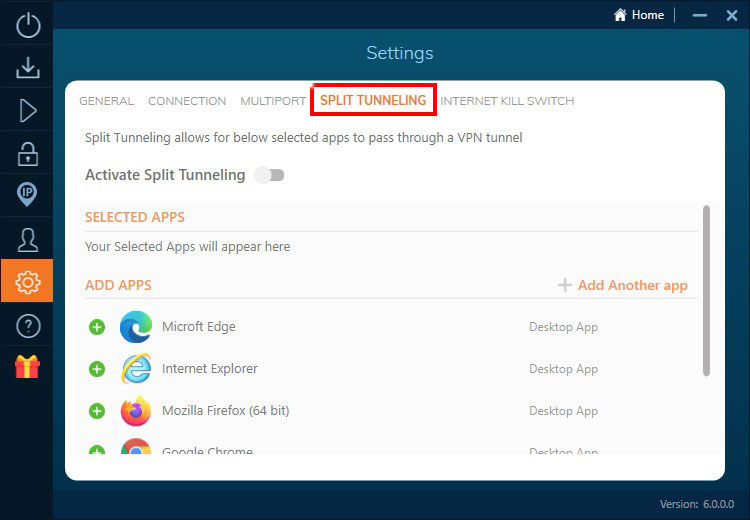
If your VPN provider offers split tunneling, try enabling it to see if it improves VPN speeds. Split tunneling allows you to send only the required traffic over the VPN connection and the remaining unencrypted traffic over the standard network connection. For example, if you use a VPN for streaming, you can distribute its traffic over the VPN, which won’t slow down your online gaming and can help optimize VPN speeds for certain activities.
Tip 5: Use a wired network
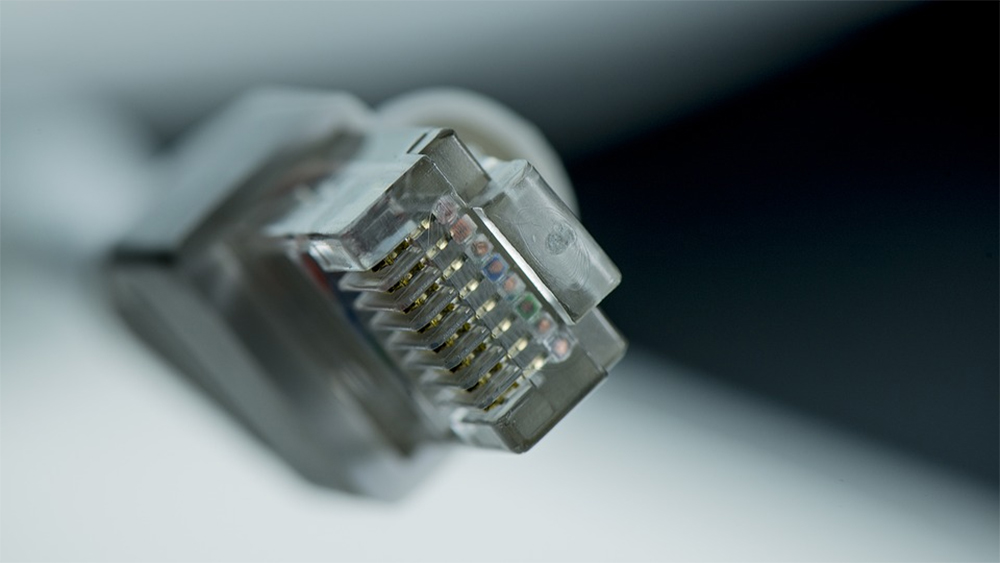
Wired networks are generally faster and more stable than WiFi. You may have multiple devices connected to your home WiFi at the same time. These devices are all competing with each other for limited network resources on the same wireless channel. This may cause your network connection to be unstable and slow down the network speed. If you have the appropriate equipment, try establishing a wired connection by connecting your computer to your router via a network cable and then to your VPN service.
Tip 6: Close unnecessary background apps
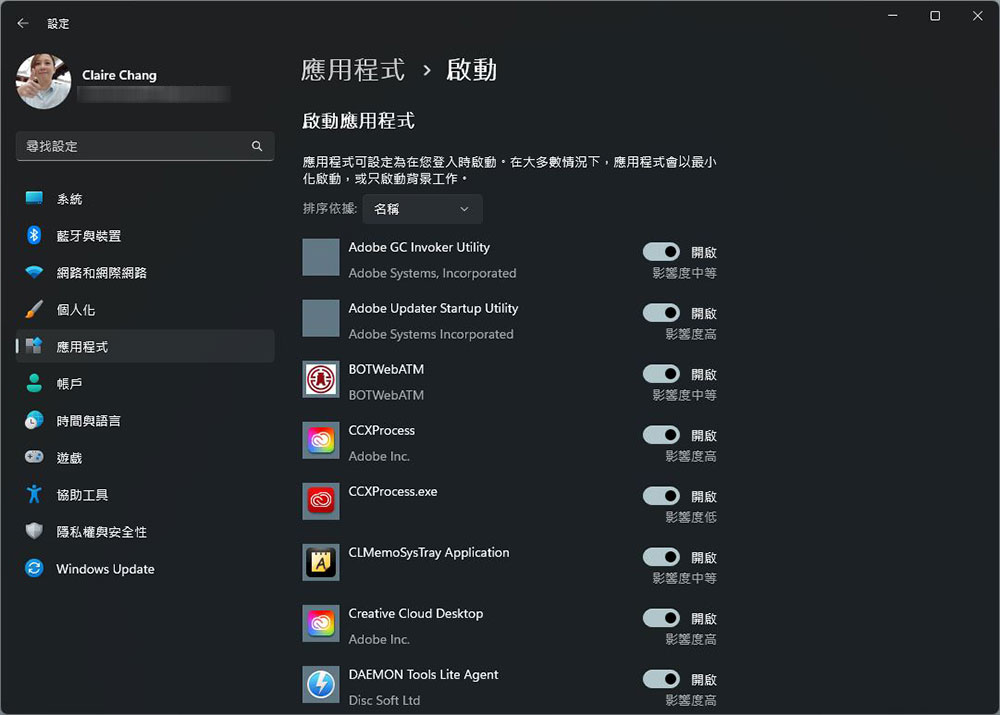
If your app is running in the background but you’re not currently using it, it may be using up resources on your computer and slowing down your internet connection. Take a moment to check if you have any unused background apps and close them. By clearing out this potential waste, you may find that your internet speeds get faster.
Tip 7: Restart your router and other devices
Do you remember the last time you rebooted your device? Don’t forget that things like your phone, computer, and router occasionally need to be rebooted to clear their load. When you restart your computer, you can free up some memory and get it running at its best, and although it sounds cliche, give it a try and watch for an improvement in your VPN speeds.
Source: KOCPC Chinese