


Recently, we introduced a free tool that uses Gemini 2.0’s native image generation feature. Gemini Co-DrawingIt can generate simple line doodles based on the user’s drawings and text. Recently, the author of Gemini Co-Drawing has released another free image generation tool that turns drawings into 3D: “GEMINI 3D DRAWING.” GEMINI 3D DRAWING allows users to generate 3D images using simple drawing lines and text descriptions. You can experience the services offered by GEMINI 3D DRAWING through the Gemini API. If you want to learn how to use GEMINI 3D DRAWING, keep reading!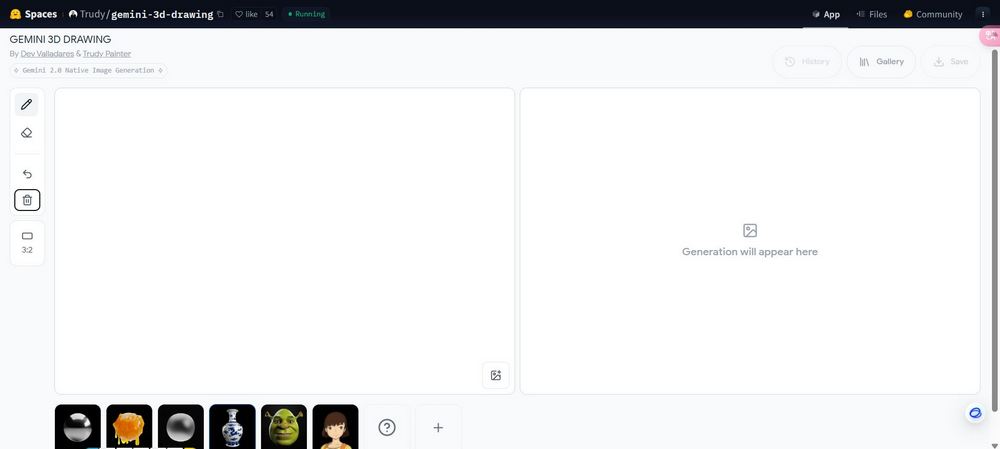
GEMINI 3D DRAWING: Turn simple doodles into 3D images in an instant, with support for text and image uploads
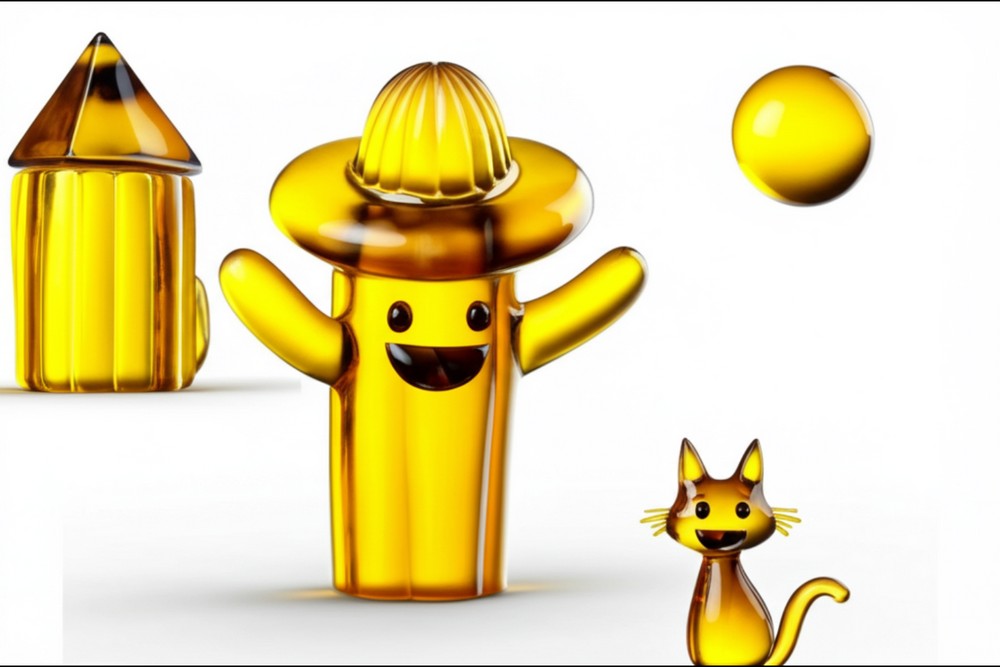
Recently, the author of Gemini Co-Drawing has launched another open-source free tool, “GEMINI 3D DRAWING,” which uses Gemini 2.0’s native image generation capabilities. GEMINI 3D DRAWING allows users to generate 3D rendered images through text, image uploads, and drawing. GEMINI 3D DRAWING offers 23 materials to choose from, letting you turn your drawn patterns into various materials, as shown in the image below: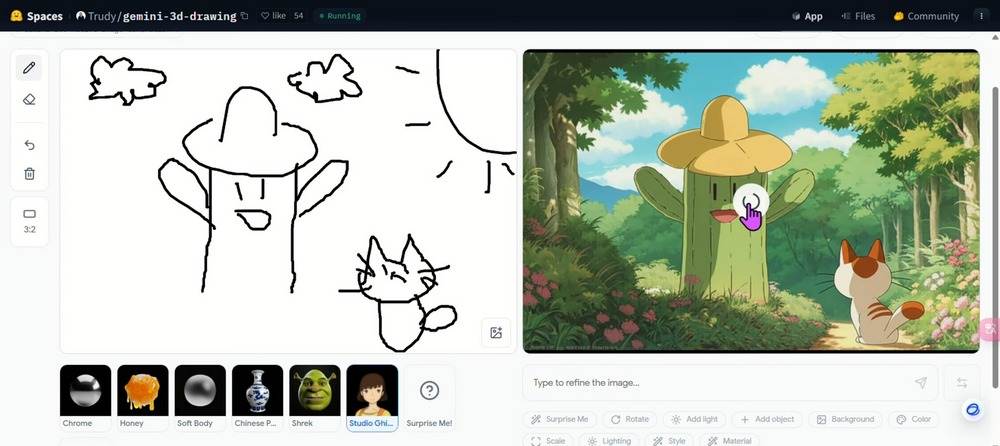
Go to GEMINI 3D DRAWING to experience generating 3D rendered images.
To use GEMINI 3D DRAWING, you need the Gemini API. Previously, we showed you how to generate your own Gemini API. If you’re interested, you can click…Here.Go learn how to obtain your own Gemini API key.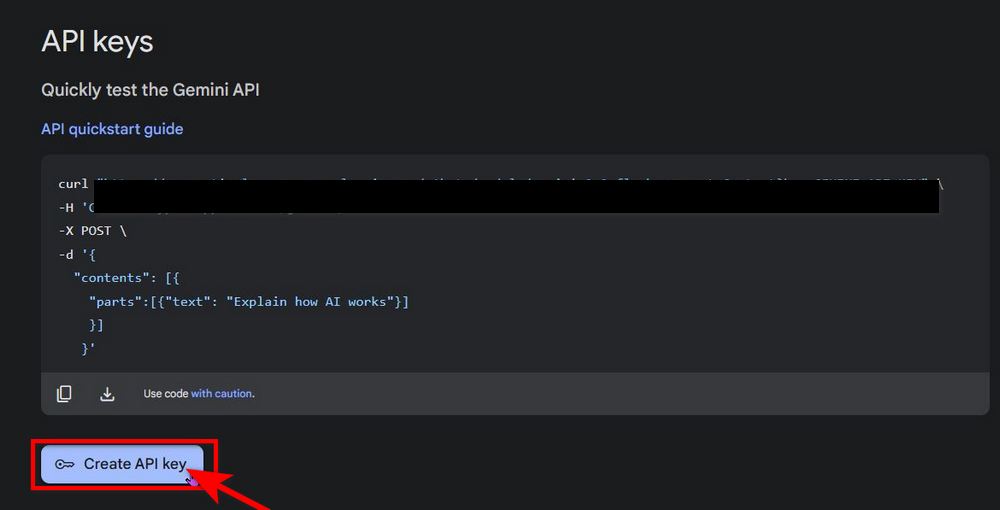
Once you obtain your own Gemini API key, you can start experiencing the GEMINI 3D DRAWING service. When you begin drawing, a prompt will appear asking you to enter your own Gemini API. Simply copy your Gemini API key and paste it into the box to continue the experience.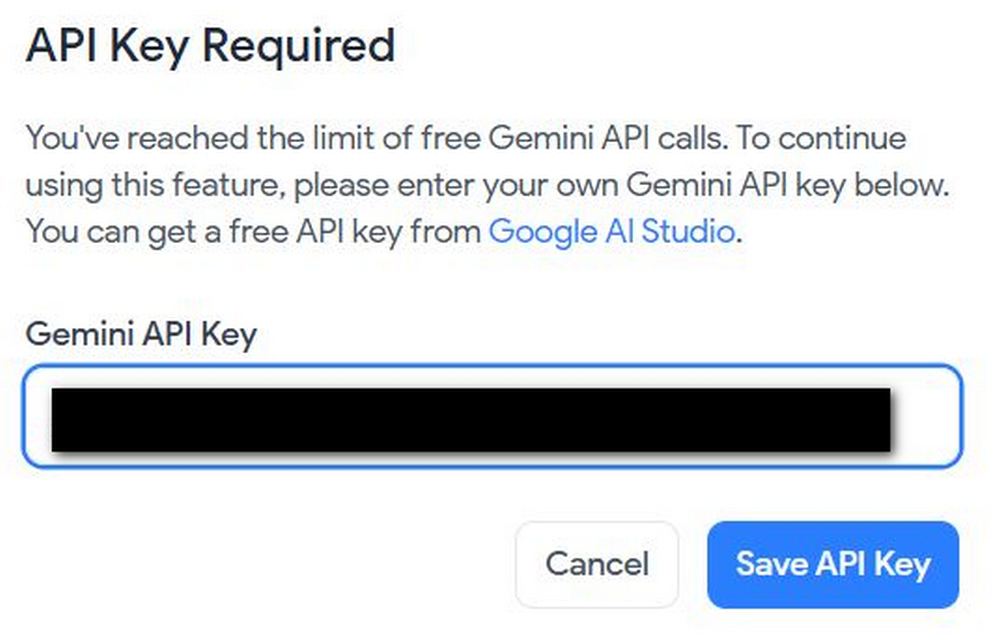
Next, you can start using drawing, text input, or image upload to have GEMINI 3D DRAWING generate 3D rendered images. Uploading images takes more time, so I’d recommend using drawing or text input to generate results faster!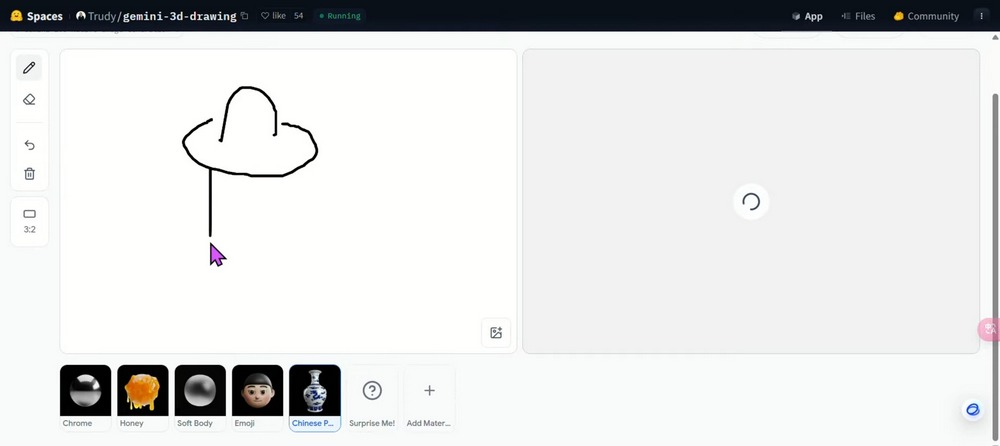
After you finish drawing, the panel on the right will show what you’ve drawn. You can click on materials like Chrome, Honey, and more at the bottom to switch the displayed material! GEMINI 3D DRAWING offers many materials, including Studio Ghibli, Gold, plants, and more—23 materials in total.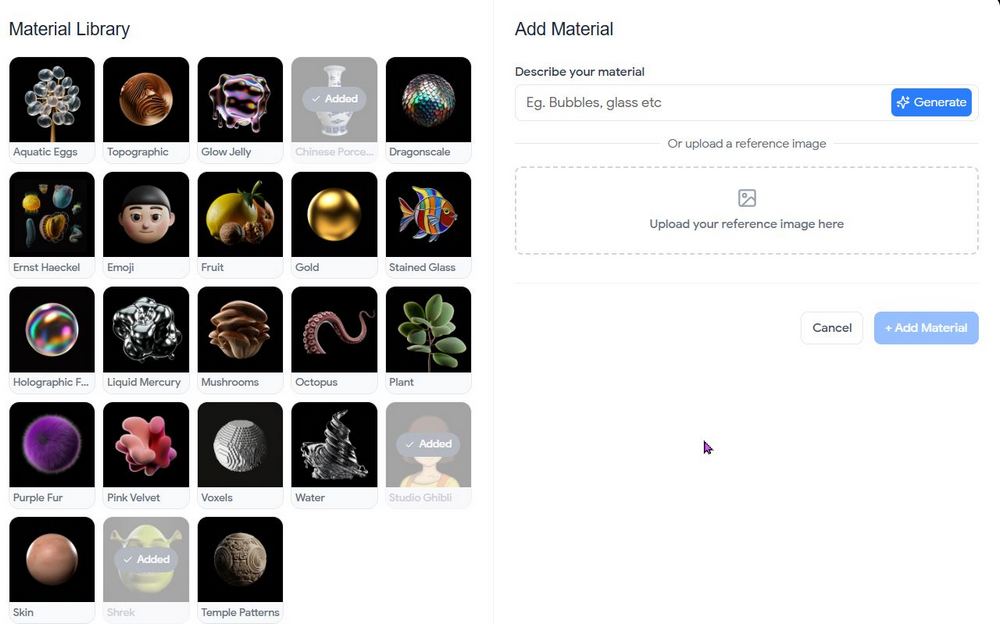
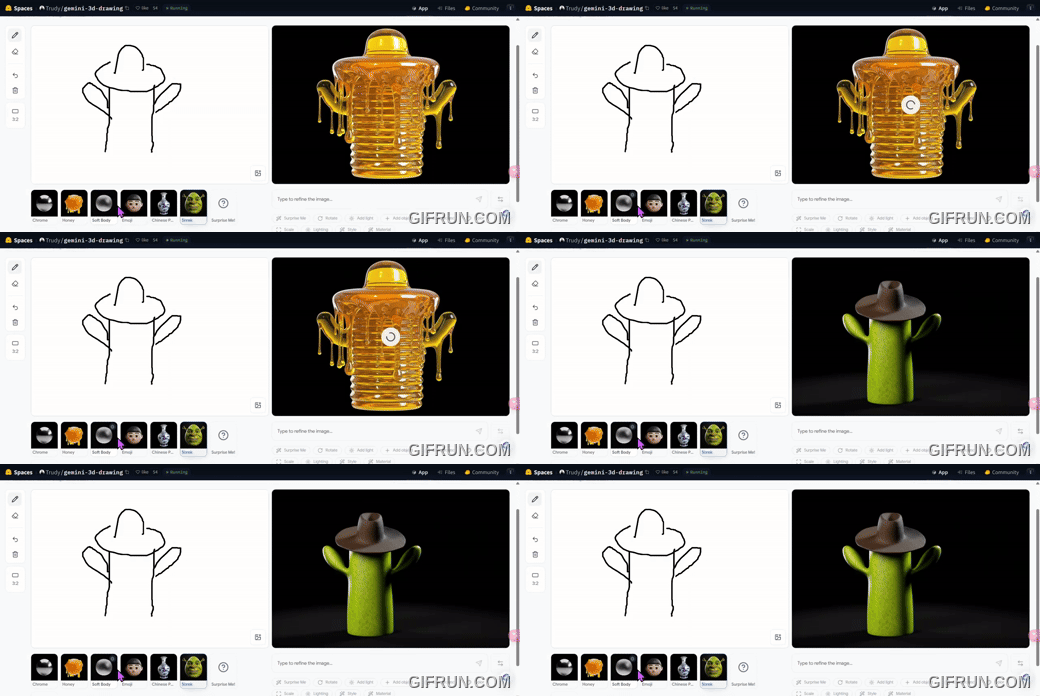
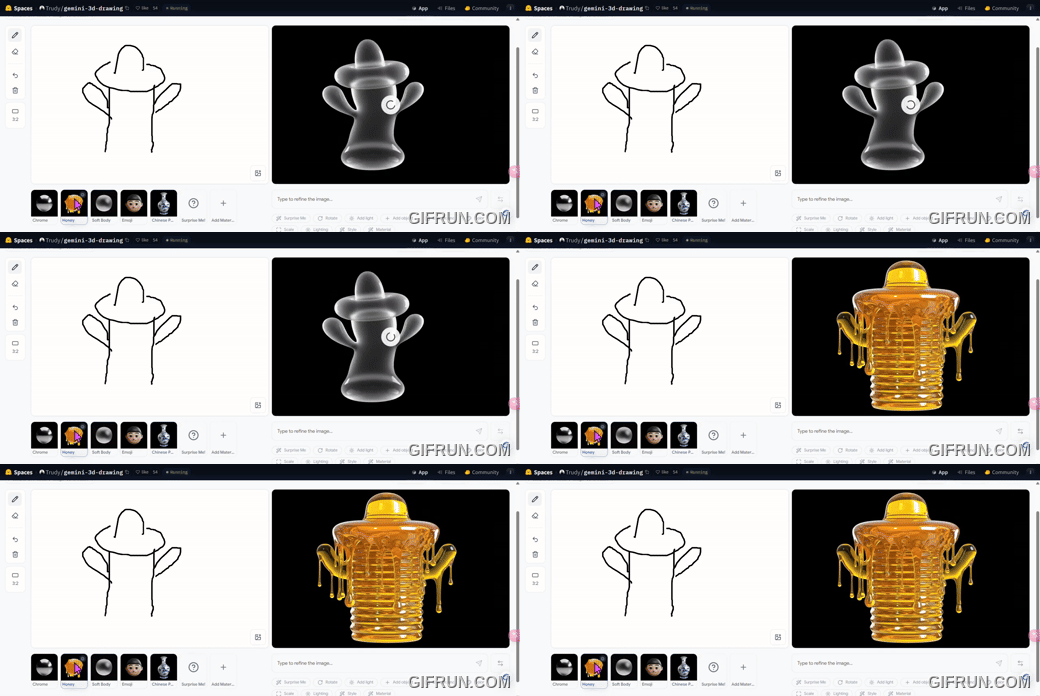
GEMINI 3D DRAWING is set up so that each additional line you draw triggers a new 3D render. So if you’re happy with what’s been generated while you’re still drawing, you can click “send back to doodle” to save your current work before continuing.
[4/8] If you like a rendered output, you can “send back to doodle” to keep drawing on top of it pic.twitter.com/r0PhxVDH0G
— Trudy Painter (@trudypainter) April 4, 2025
If you are satisfied with the generated content, you can click Save at the top of the screen to save the 3D render. If not, you can also click the trash can to delete everything.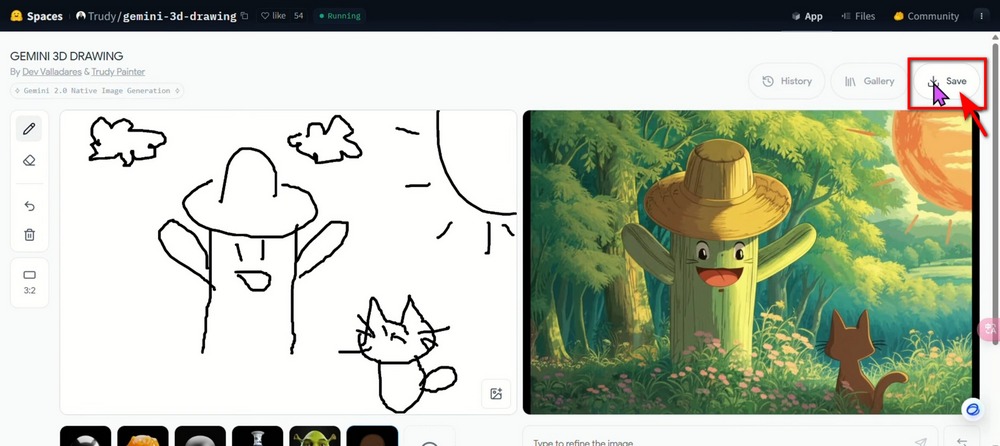
Here are some works created by our editor using GEMINI 3D DRAWING. If you’re interested, feel free to check out GEMINI 3D DRAWING and try it yourself!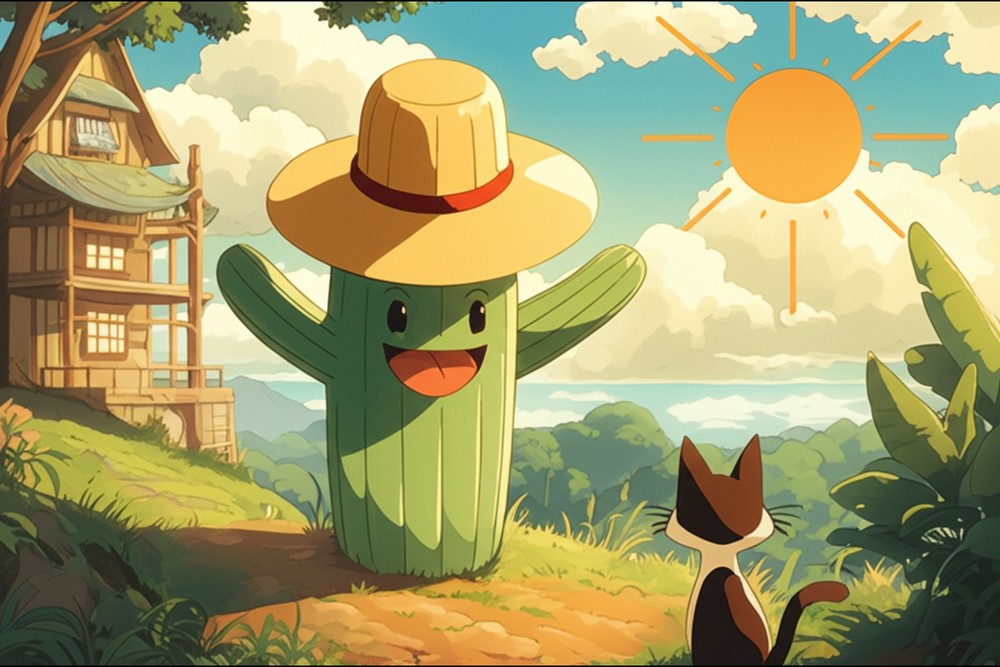

Source: KOCPC Chinese