


Bluetooth has been a major benefit in consumer electronics for years, allowing people to use it for everything from connecting a wireless mouse to a laptop, streaming music from a phone to a car stereo, and even controlling wireless smart home devices. Although Bluetooth has benefited us, it is inevitable that there will be malfunctions or slowdowns. This time we will list common solutions for Bluetooth malfunctions. We hope it will be helpful to you.
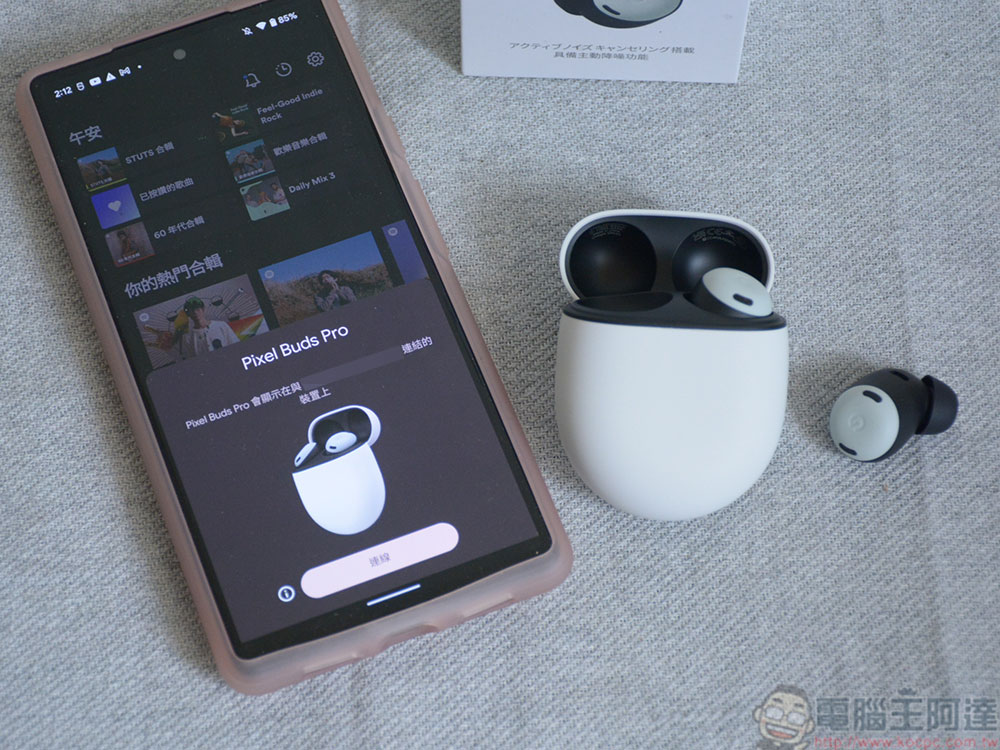
How to solve common Bluetooth connection issues on Android?
As an Android user, when you need to send important files to another device via Bluetooth, or want to listen to music with wireless headphones during your commute from get off work, it is very annoying to encounter a Bluetooth connection that fails to connect when you need it. There are many reasons why Bluetooth cannot connect. Fortunately, Bluetooth connection problems are relatively easy to eliminate. If this happens to you, you can try the following methods.
Check if the device is scannable and within Bluetooth range
There are two things you should always check before pairing your Android device. The first is to make sure the device you want to connect to has been switched to scannable, and that the device is within Bluetooth range. If the above two conditions are met, the device should appear in the list of Bluetooth devices scanned by the Android phone. To scan for Bluetooth devices, please follow the steps below:
- Swipe down from the top of the screen to open the quick settings panel.
- Long press the “Bluetooth” tab to open the Bluetooth settings page.
- Click “Pair New Device” and wait a moment to see the device you want to pair and connect in the list.
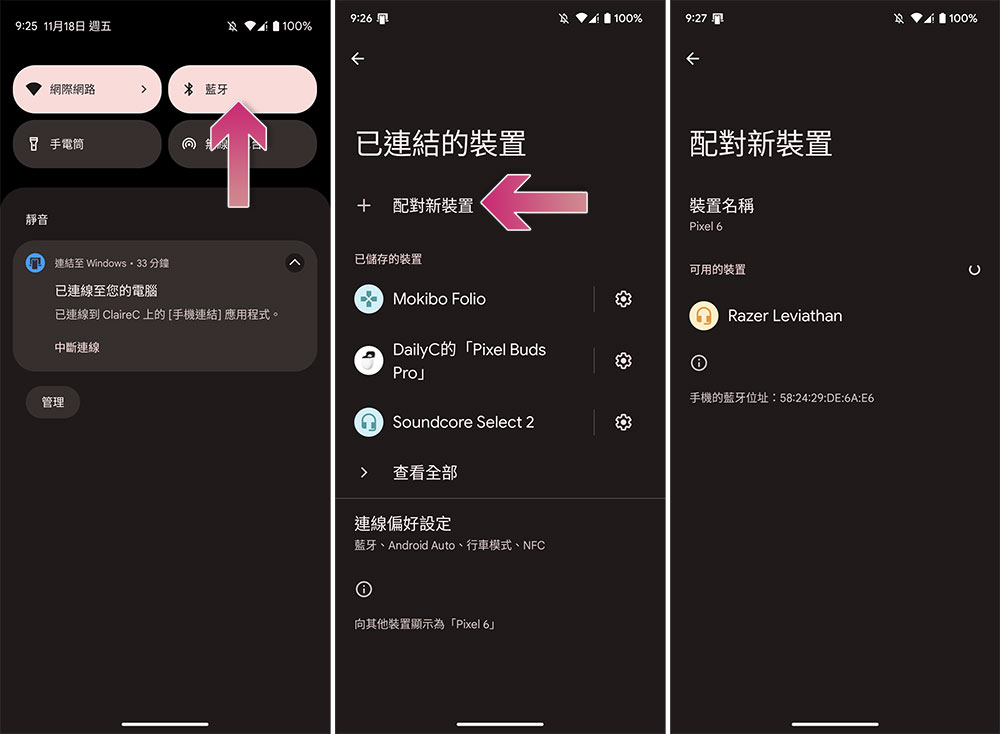
If you cannot find the item you want to pair with in the list of available devices, it may be because it has not been switched to a scannable state. Please refer to the manual of each product or the official website support information to switch it to scannable mode (or some synonyms such as Bluetooth pairing mode). Generally speaking, the maximum Bluetooth connection range between smartphones and most consumer electronics is 10 meters. This is an ideal value without any obstacles or furniture, so when you are pairing, please keep the phone and the device as close as possible.
Turn off and then turn on Bluetooth
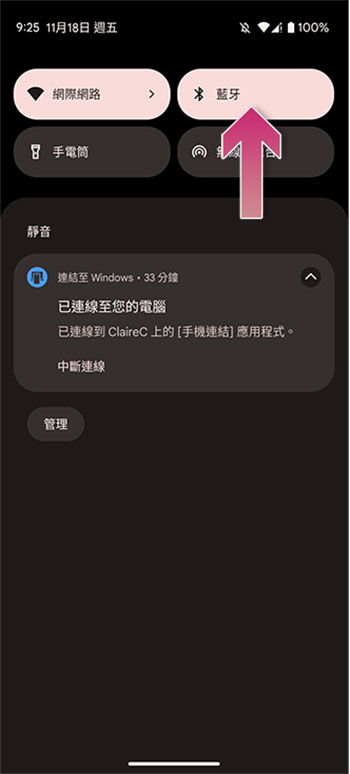
When connecting an Android phone or tablet to other Bluetooth devices, the failure rate of the first connection attempt is relatively high. At this time, the most representative and classic troubleshooting method comes in handy. All you have to do is to turn off Bluetooth and then turn it on again. The process of turning off and restarting Bluetooth on an Android phone is very simple. You only need to slide down the quick control panel from the top of the screen, click off “Bluetooth”, then wait for 1-2 minutes and then click on it again.
Remove a paired device and pair it again
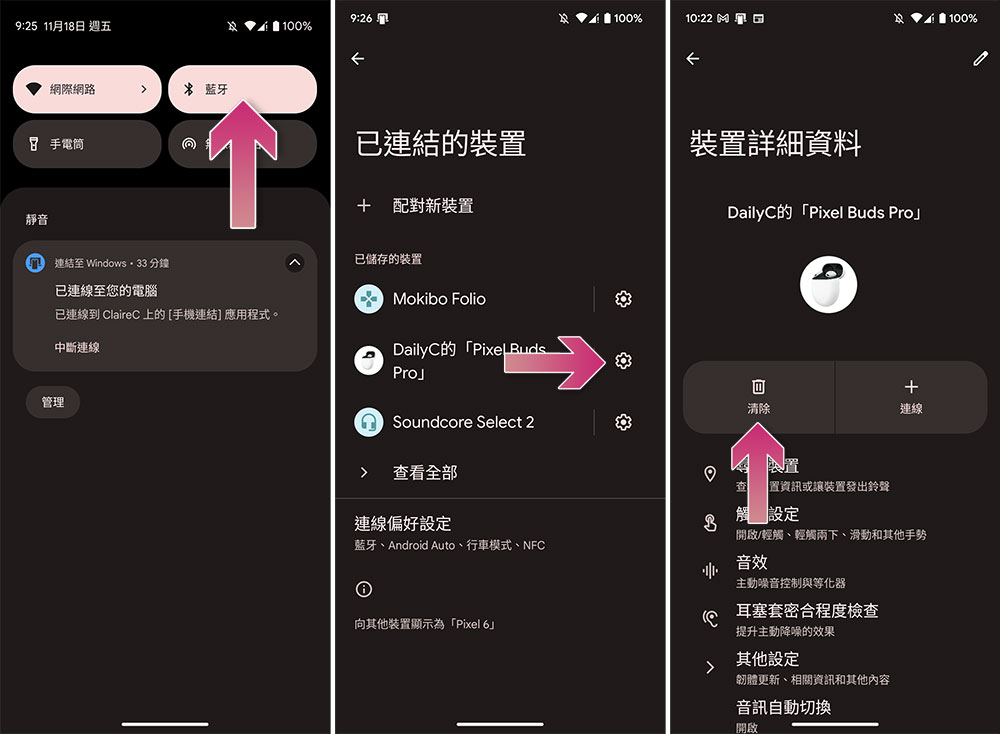
If the paired device cannot connect, the problem may occur during the pairing process. First you need to make sure the device has power, then remove the device from the list and then pair it again. To remove a paired device, follow these steps:
- Swipe down from the top of the screen to open the quick settings panel.
- Long press the “Bluetooth” tab to open the Bluetooth settings page.
- Click the gear icon behind the device you want to remove.
- Click “Clear” to make your phone forget about pairing this device.
Re-pairing is also very simple, you can follow the steps below:
- Swipe down from the top of the screen to open the quick settings panel.
- Long press the “Bluetooth” tab to open the Bluetooth settings page.
- Click “Pair New Device” and wait a moment to see the device you want to pair and connect in the list.
- Try playing music or resending files to see if things are back to normal.
Clear Bluetooth cache
Just like you would troubleshoot other unstable Android apps, you can also try clearing Bluetooth’s cache. Doing this will delete the temporary Bluetooth data stored on your phone and may resolve the connection issue. You just need to follow the steps below:
- Open the “Settings” app, enter the “Applications” item and click “View all XX apps”.
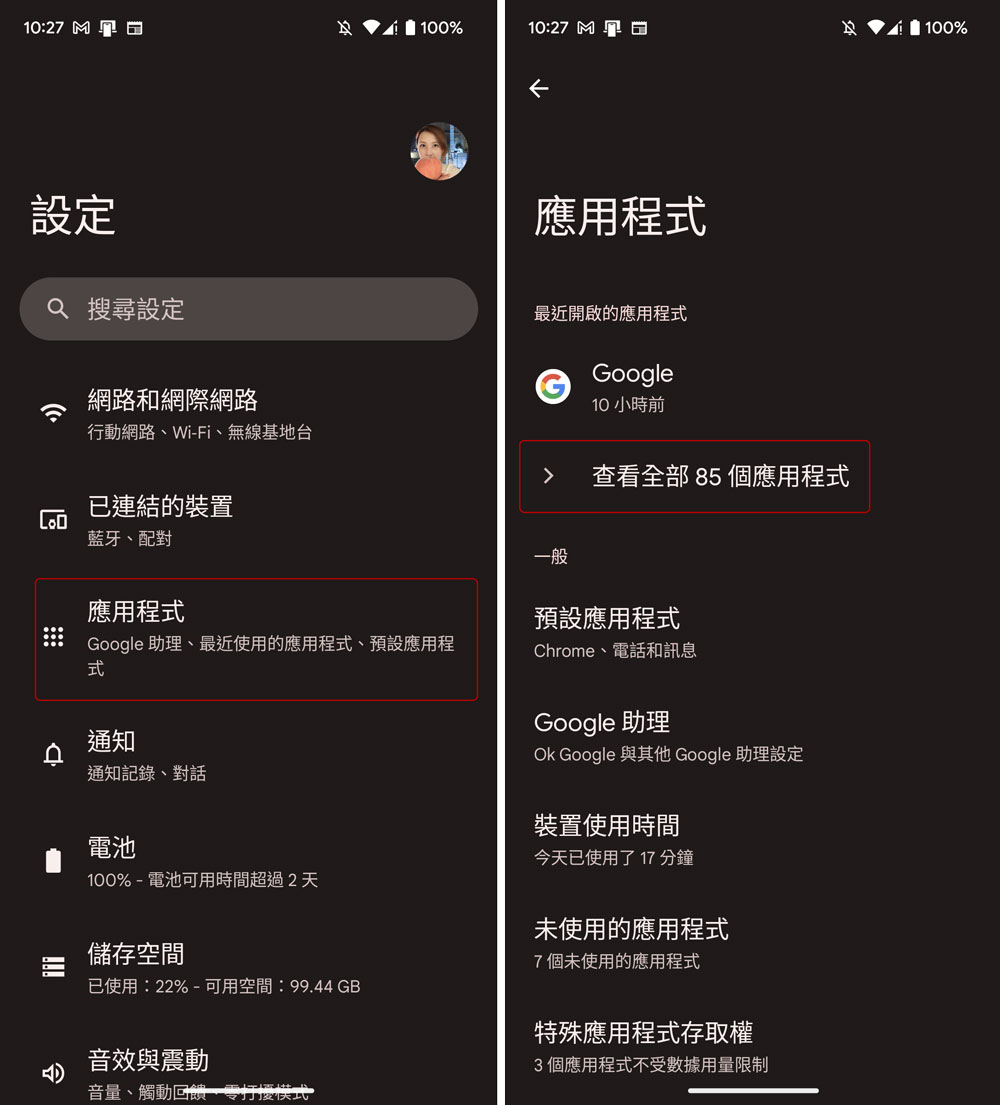
- Click the three-dot menu in the upper right corner of the screen and select “Show system programs.”
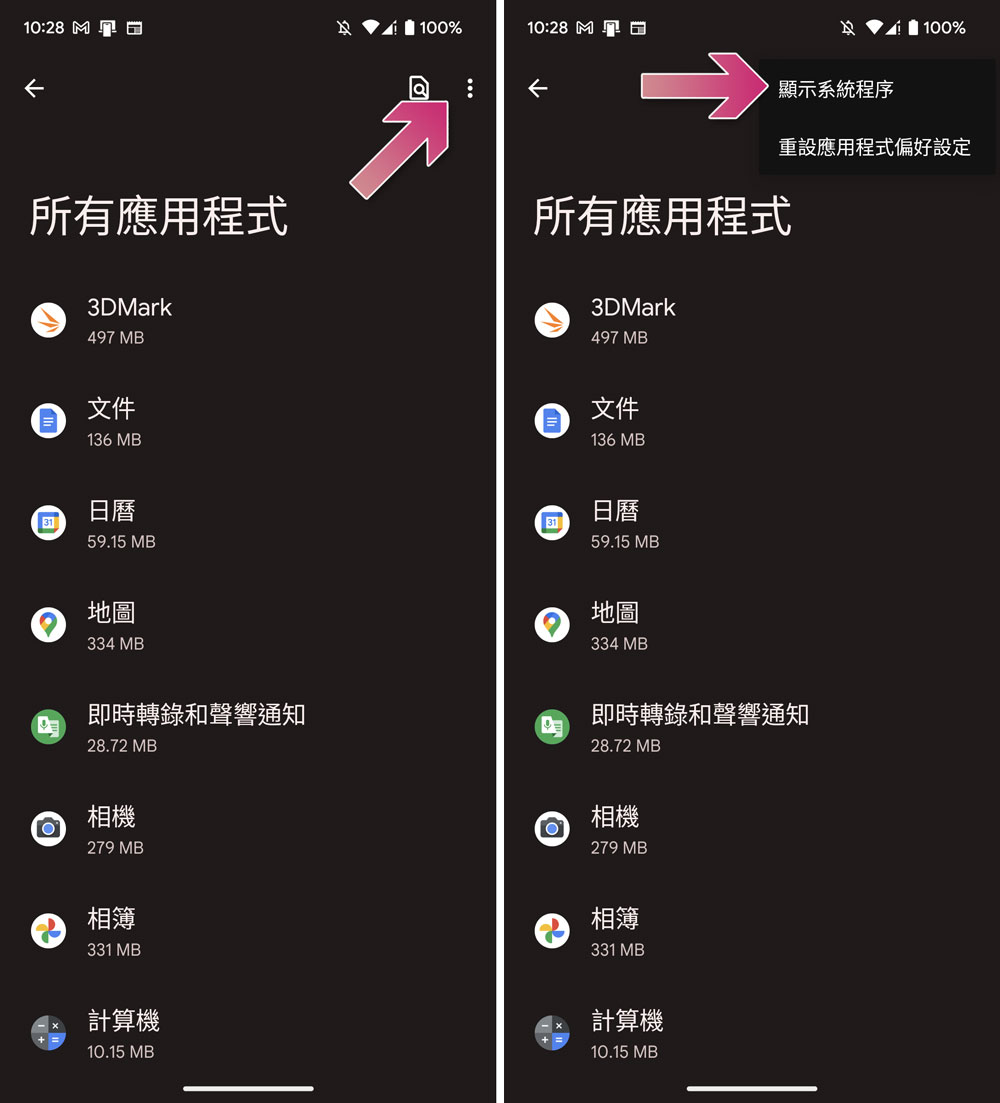
- Find the “Bluetooth” item in the list, click it, then click “Storage and Cache”, and then select “Clear Cache”.
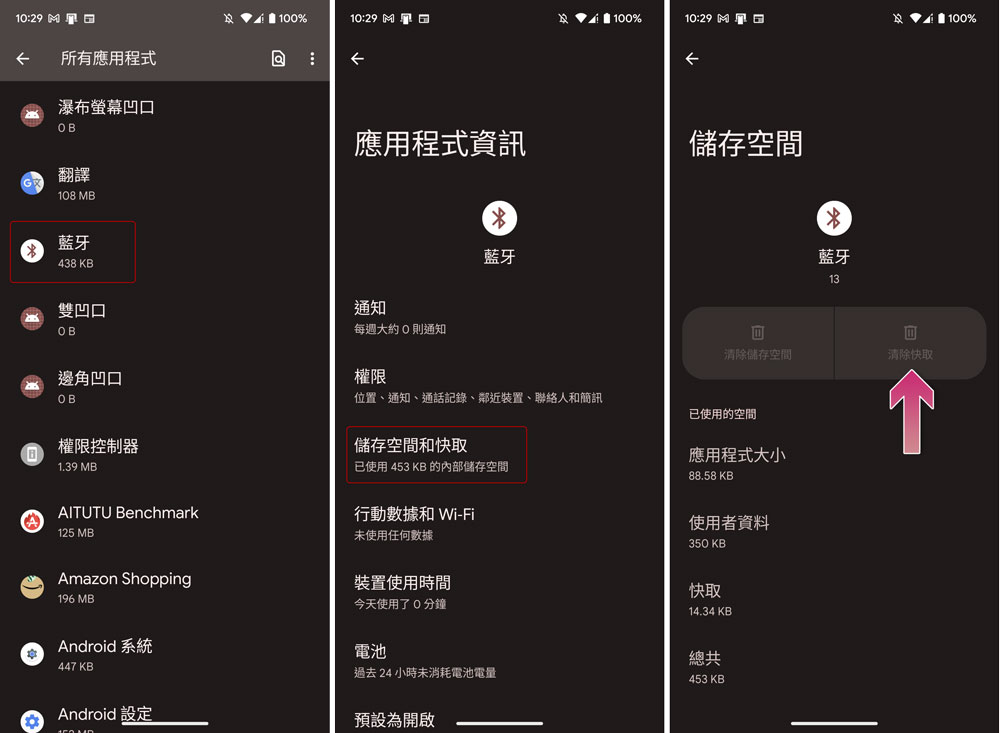
You can then try turning on Bluetooth and connecting to other Bluetooth devices to see if it resolves the issue. This process does not require re-pairing again, and deleting the cache will not delete the paired device from the phone.
Reset Bluetooth settings
If you have recently made changes to your Bluetooth settings, there is a good chance that the problem lies here. If you can’t figure out what went wrong and can’t cancel the changes, you can try to reset the Bluetooth settings to the default values. Follow the steps:
- Open the Settings app, scroll down and enter System.
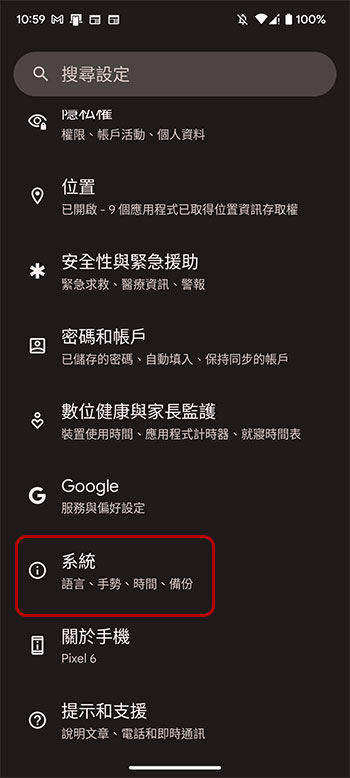
- Scroll to the bottom and find “Reset Options”. After entering, click the “Reset Wi-Fi, Mobile Network and Bluetooth” item.
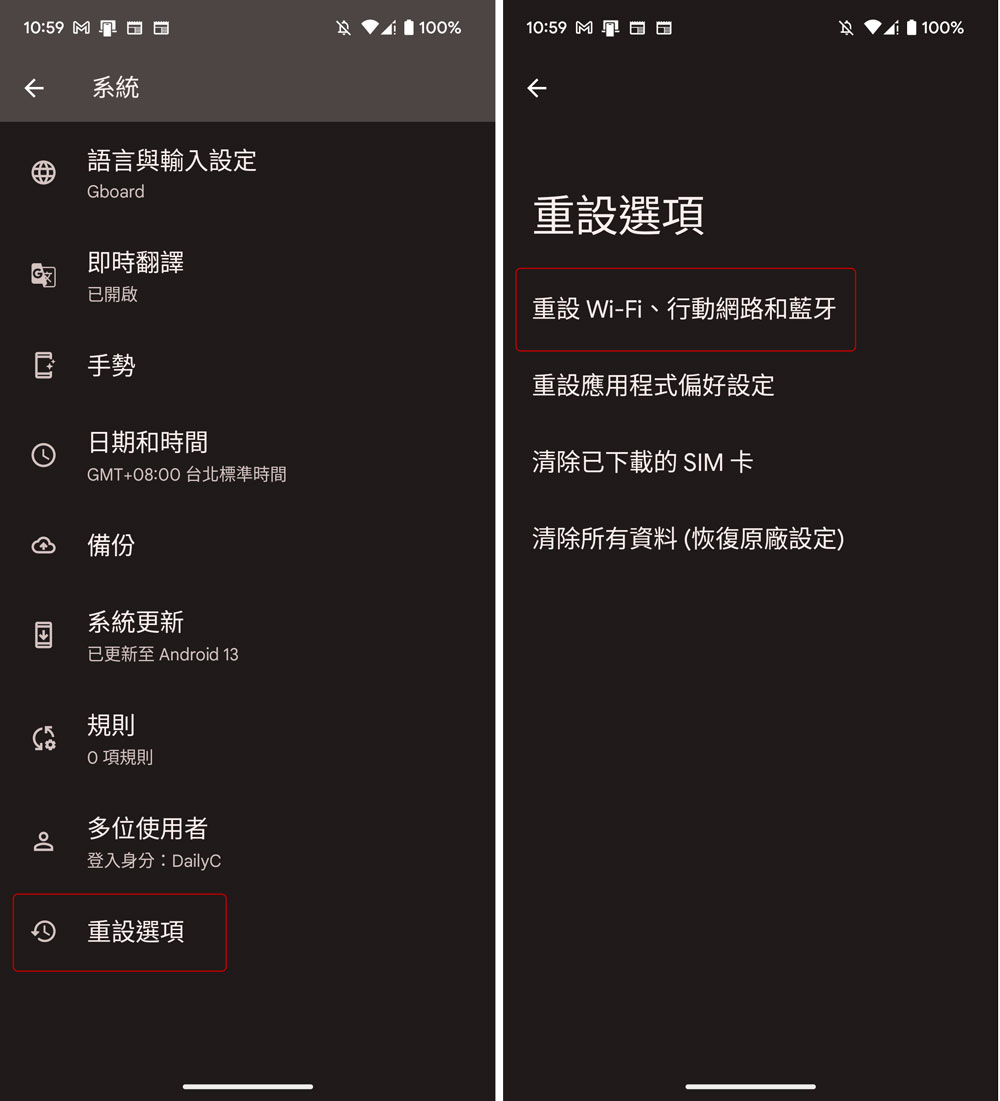
- Click the “Reset Settings” button in the lower right corner. You will then be asked to enter a password or unlock pattern, and then click OK to reset.
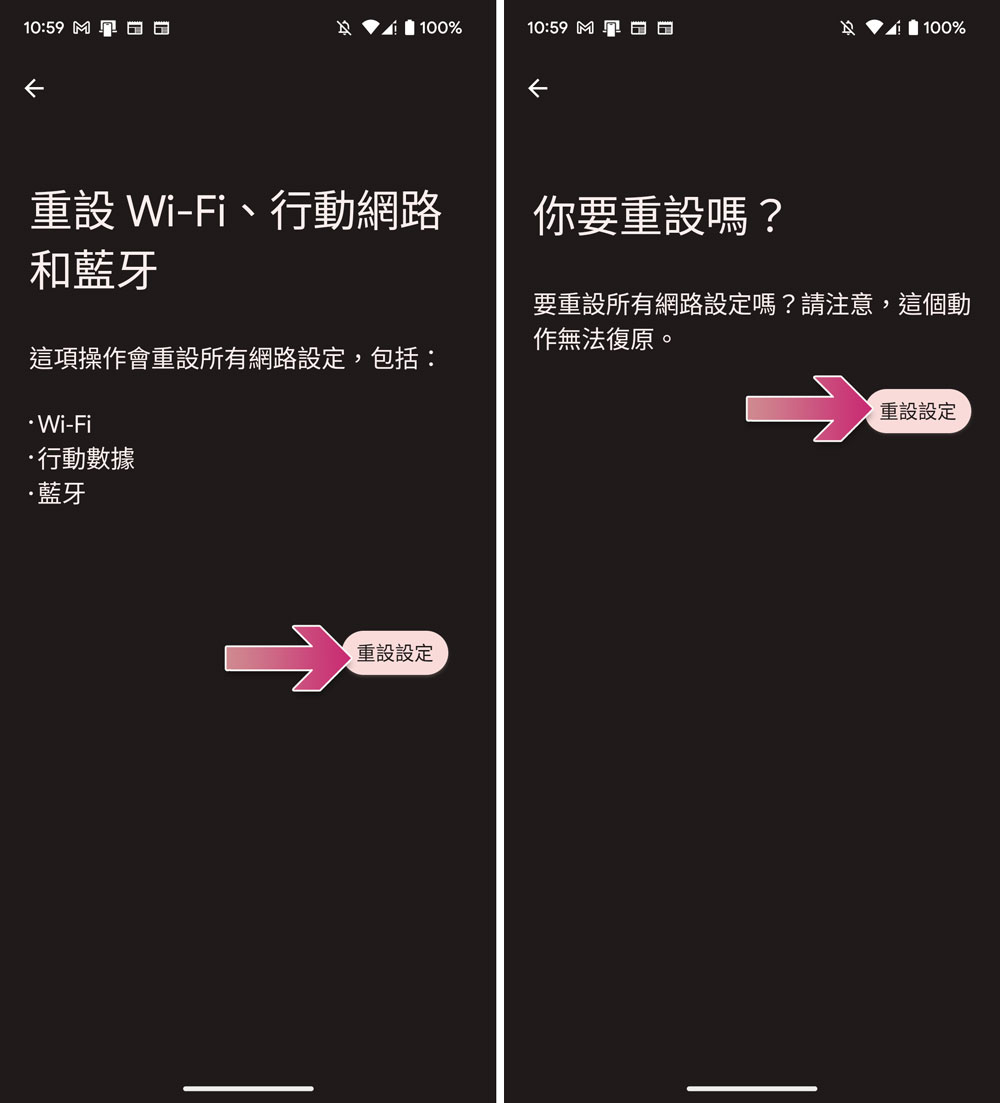
After a few seconds, your Bluetooth settings should have been restored to their default values, which means all paired devices will be deleted. This troubleshooting method will also reset Wi-Fi and mobile data networks to their default values, so use caution. Now that your Bluetooth settings are restored to default, you can try pairing and connecting to other devices again.
Uninstall newly installed applications
If the Bluetooth connection was originally good and the failure is a sudden temporary situation, the problem is also likely to be in the applications you have recently installed. You can try to remove these newly installed applications from the phone to see if this solves the connection problem. To uninstall recently installed apps, perform the following steps:
- Open the Google Play Store app on your phone, click your profile picture in the upper right corner and select “Manage apps and devices.”
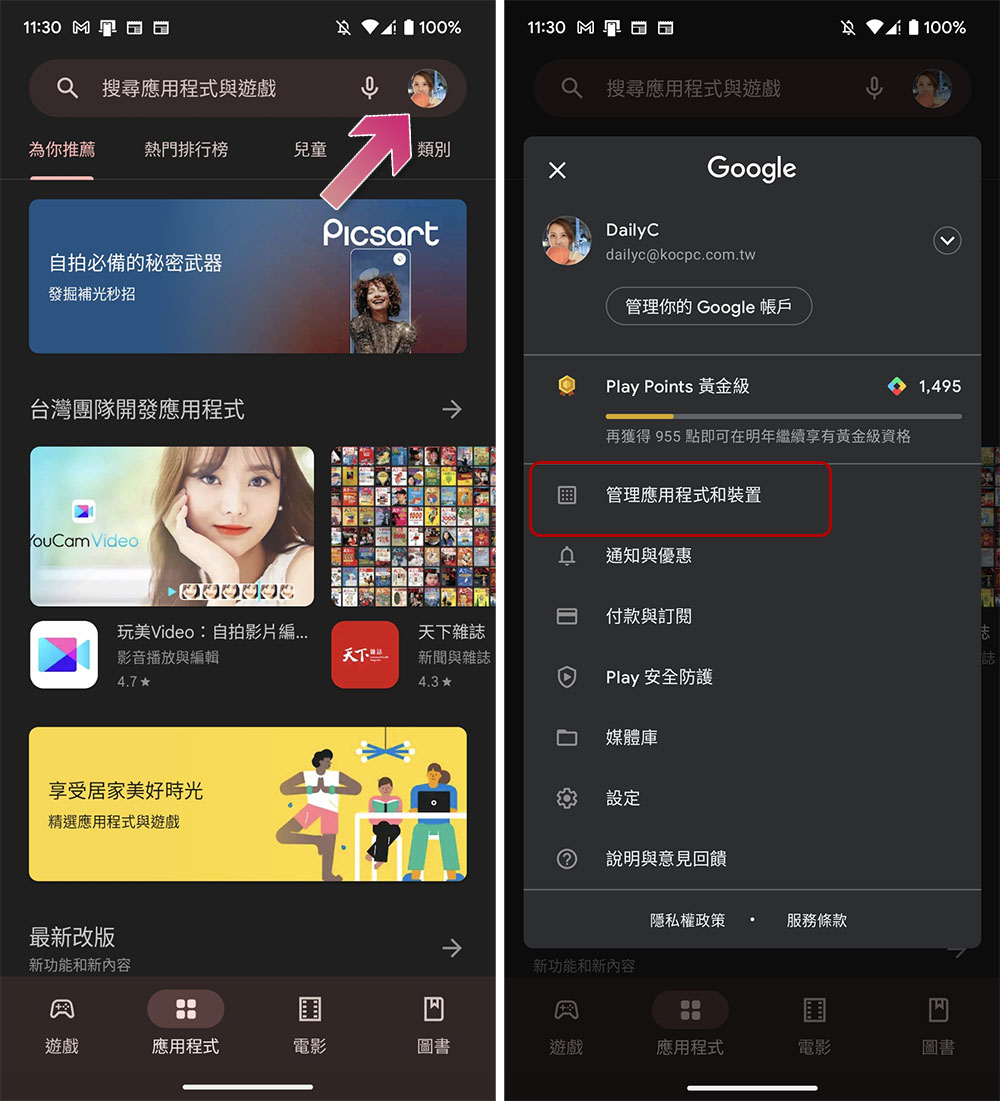
- Switch to the “Manage” tab, find the application you recently installed, click on the name of the application, and then click “Uninstall” to complete.
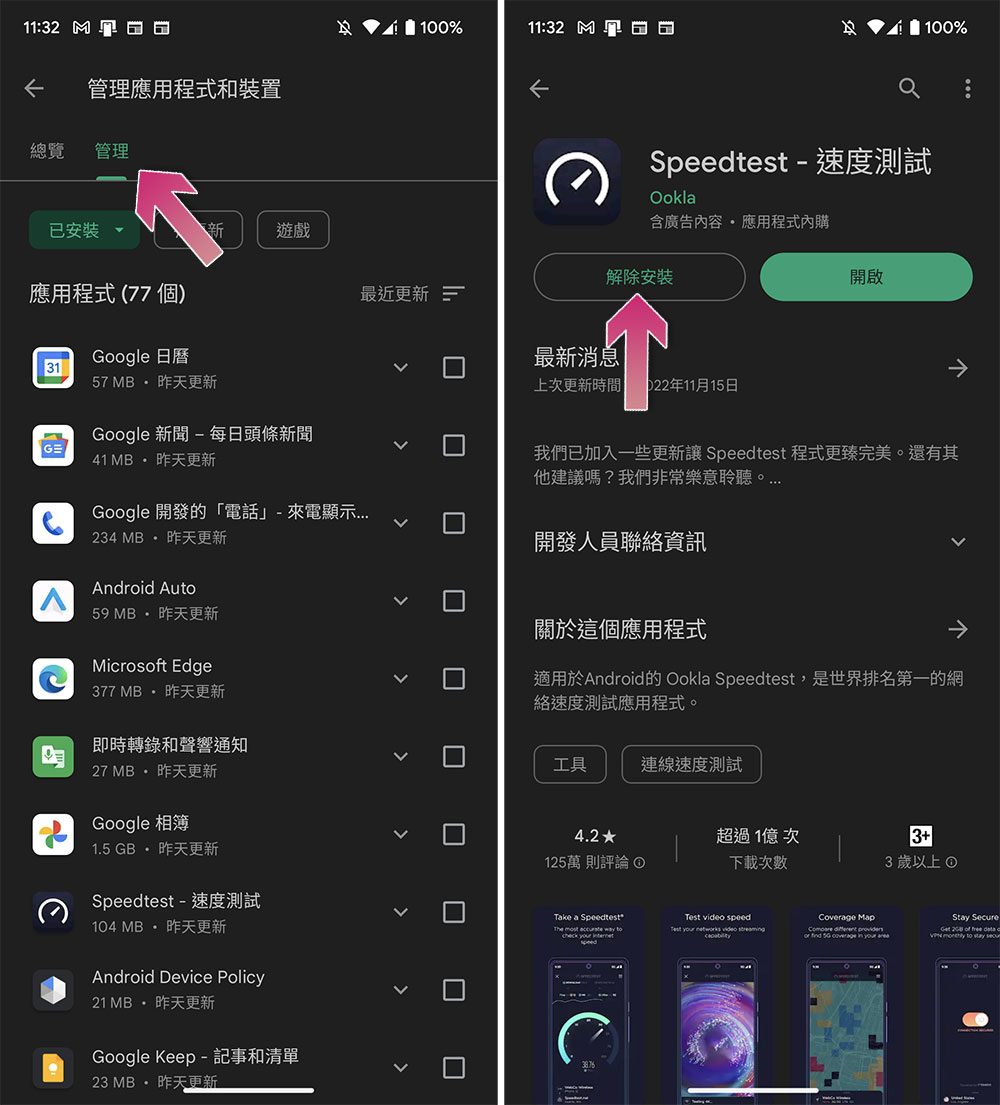
You can then try to reconnect Bluetooth to other devices. If it works, the app you deleted is most likely having issues and interfering with your connection. You can report the bug to the app developer by going to the app details in the Google Play Store and viewing the developer contact details.
Update operating system
If you have tried all the above methods and still cannot solve the Bluetooth problem, then there may be an issue with your Android system as a whole. Please try to check if there are any unprocessed update requests. Just open the “Settings” application, click “System”, then enter “System Update”, then check for updates and install them.
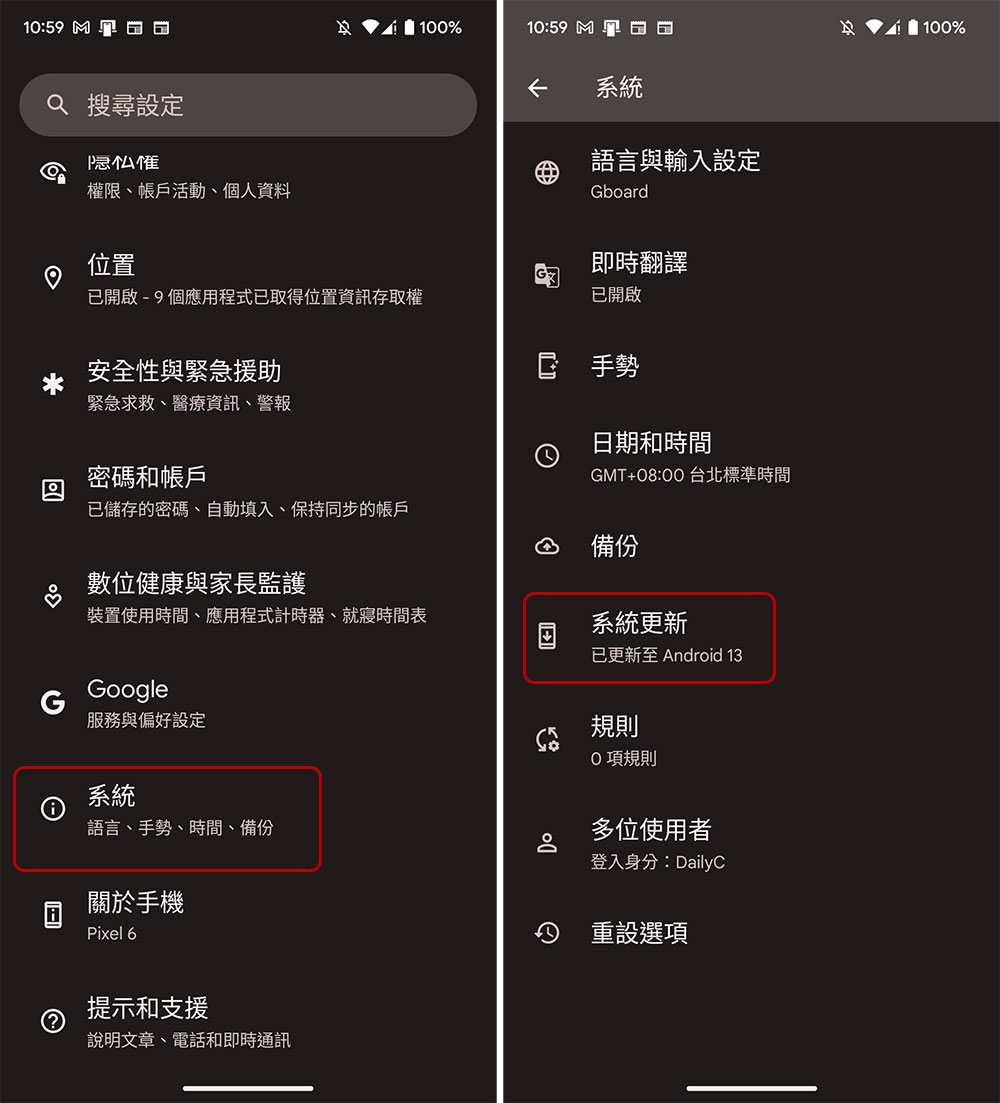
If you have done this step and still cannot solve your problem, the final resort is to restart both the Android phone and the Bluetooth device, and then try to connect again.
Source: KOCPC Chinese