


Although there are many music download tools on the Internet, not every website supports them, or even suddenly fails. At this time, you can consider using Sample, a free recording extension. It can be installed on Chrome and Edge. It can record for up to 15 minutes. Even if it exceeds, it can be divided into two recordings. More importantly, after recording, you can also edit the clips you want to keep. It is very convenient. I will introduce it to you below.
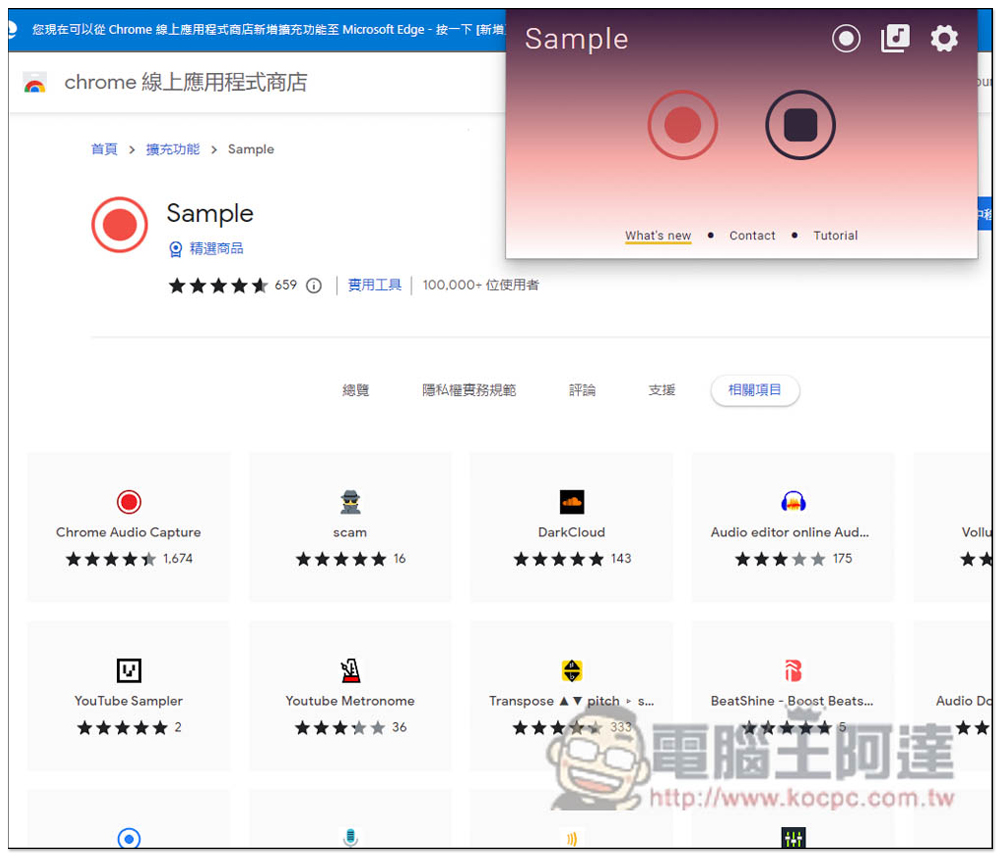
Sample is a free recording extension plug-in with built-in editing tools that can record all web pages with sound.
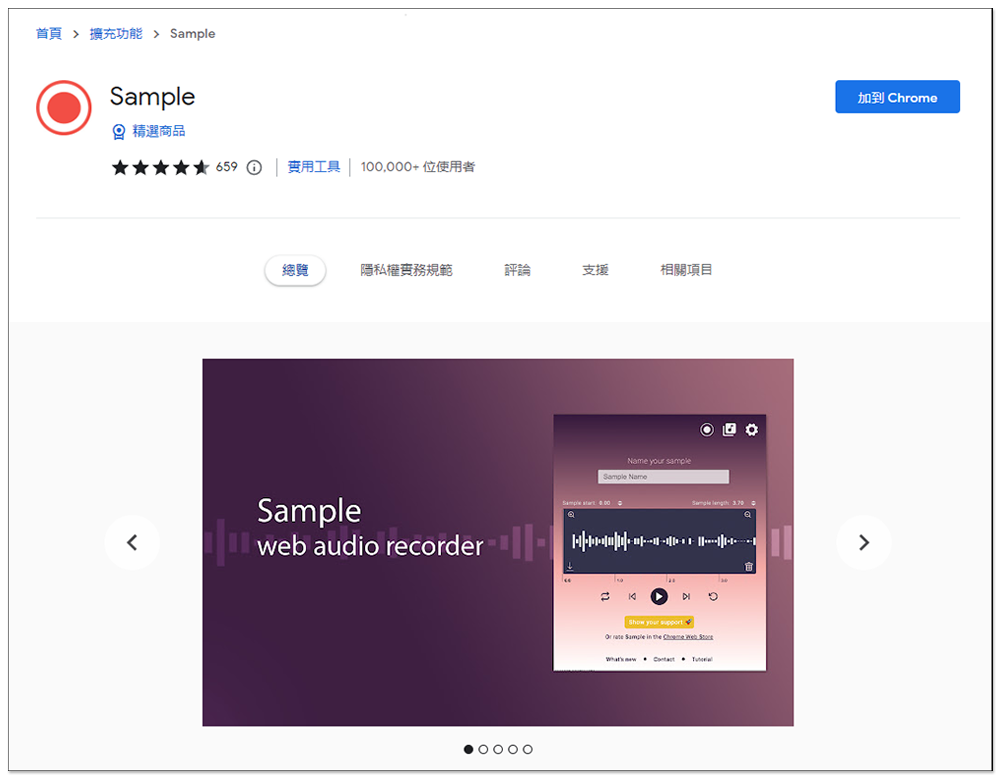
After entering the Chrome store page, click Add to Chrome in the upper right corner to install it. This product has been installed by more than 100,000 users and has almost five stars, which is quite high. I use the Microsoft Edge browser, and the Chrome operation is the same:
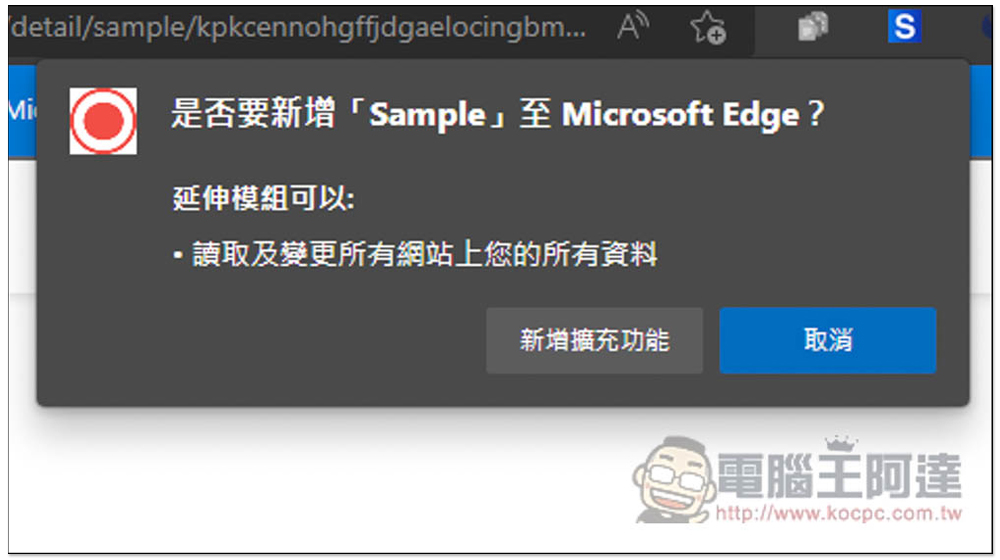
This window will pop up above, click “Add extension”:
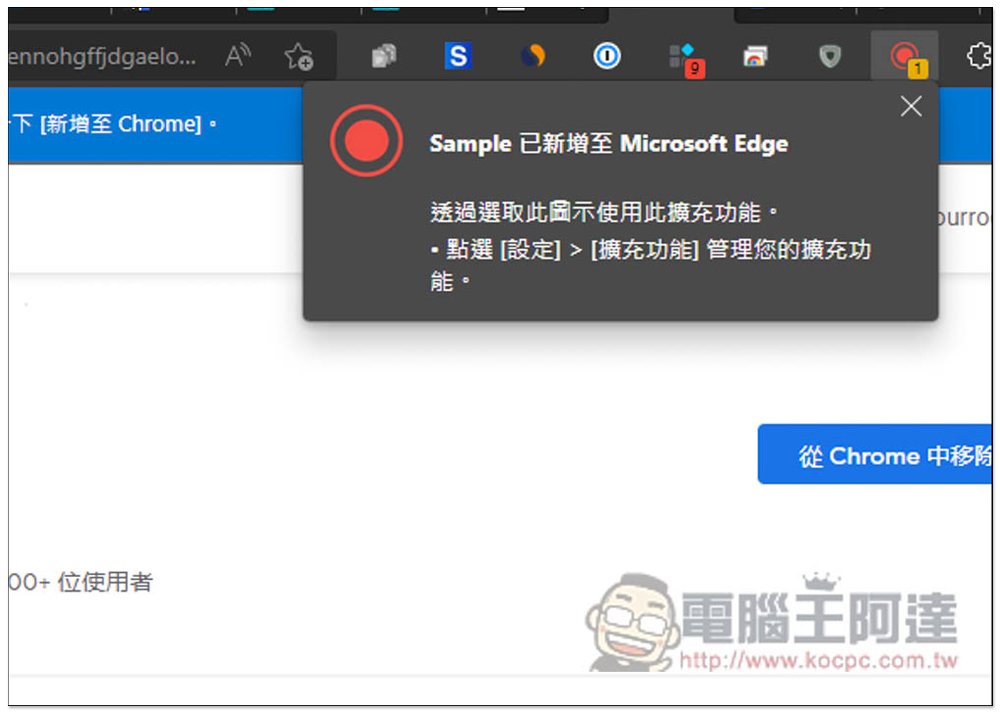
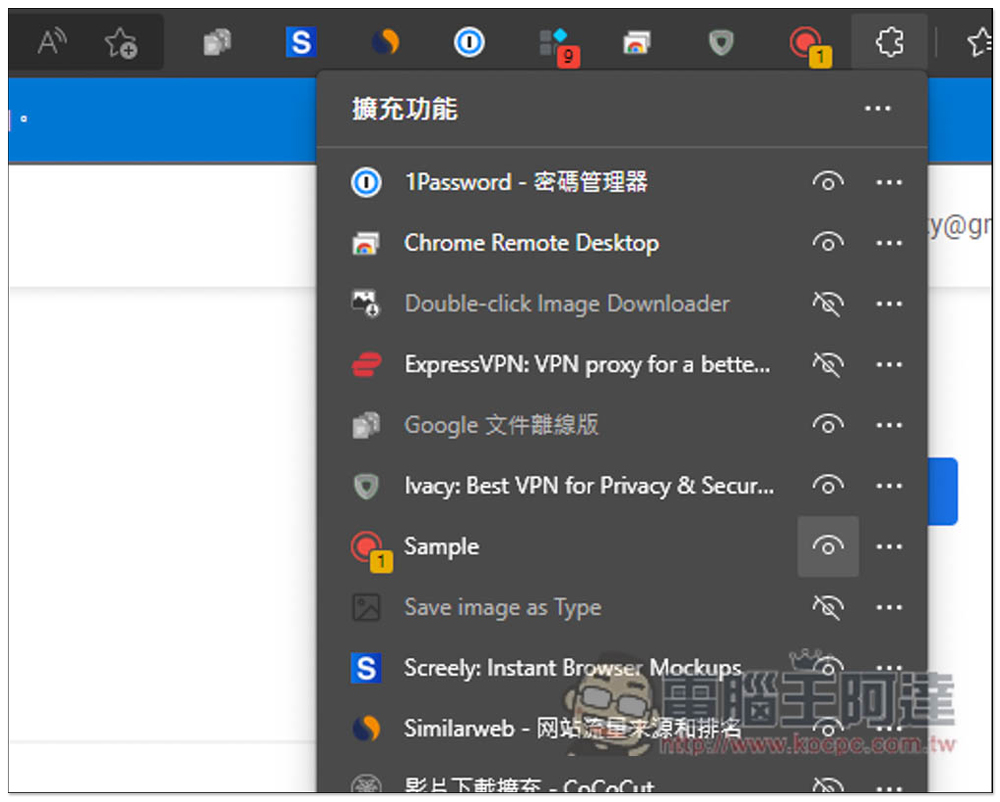
After the installation is complete, this icon will appear in the upper right corner, but now the browser will be hidden by default, so you need to manually enable the display:
Open the puzzle icon on the right to find Sample. Open the eye on the right:
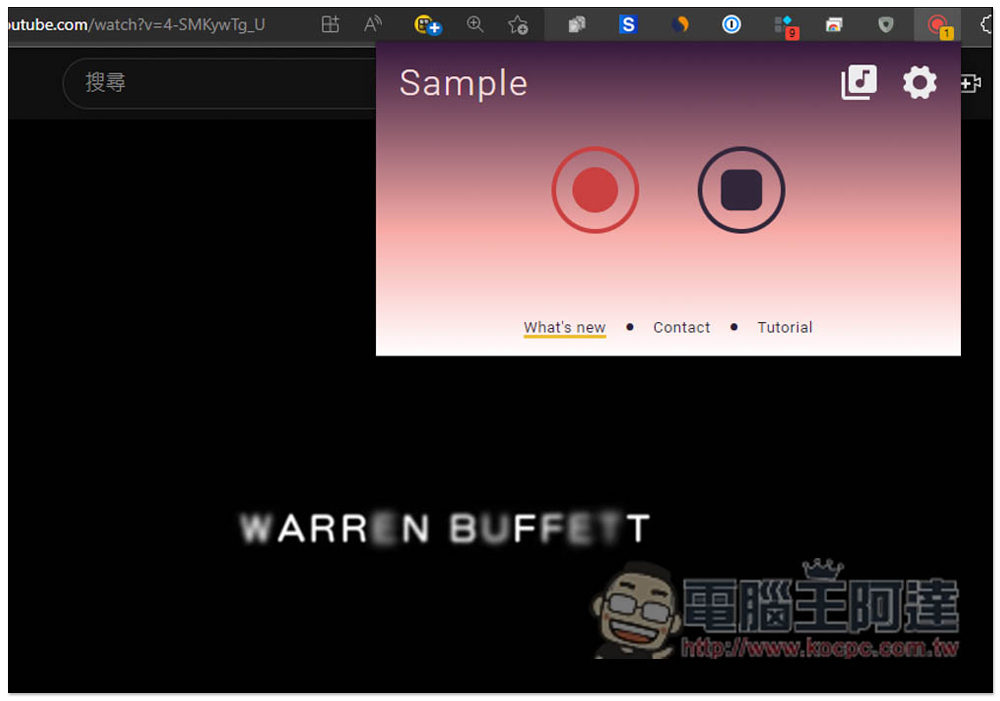
At this time, open any webpage with sound, including YouTube, and then click on the Sample tool icon to see the recording function (on the left) and stop on the right. When recording, the icon on the left will flash slowly. When not recording, press the stop button:
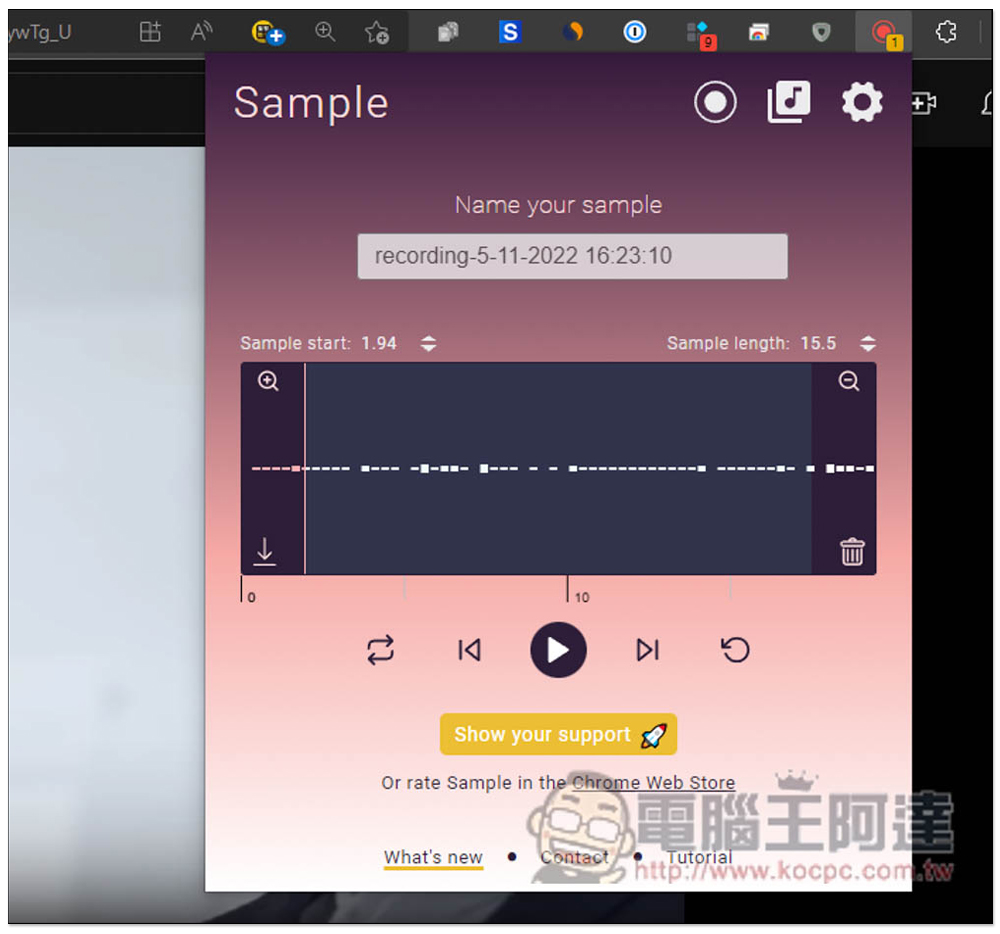
Then you will enter the editing screen. Press the play button below to listen. If you don’t need the entire paragraph, you can drag the left or right line above to shorten it:
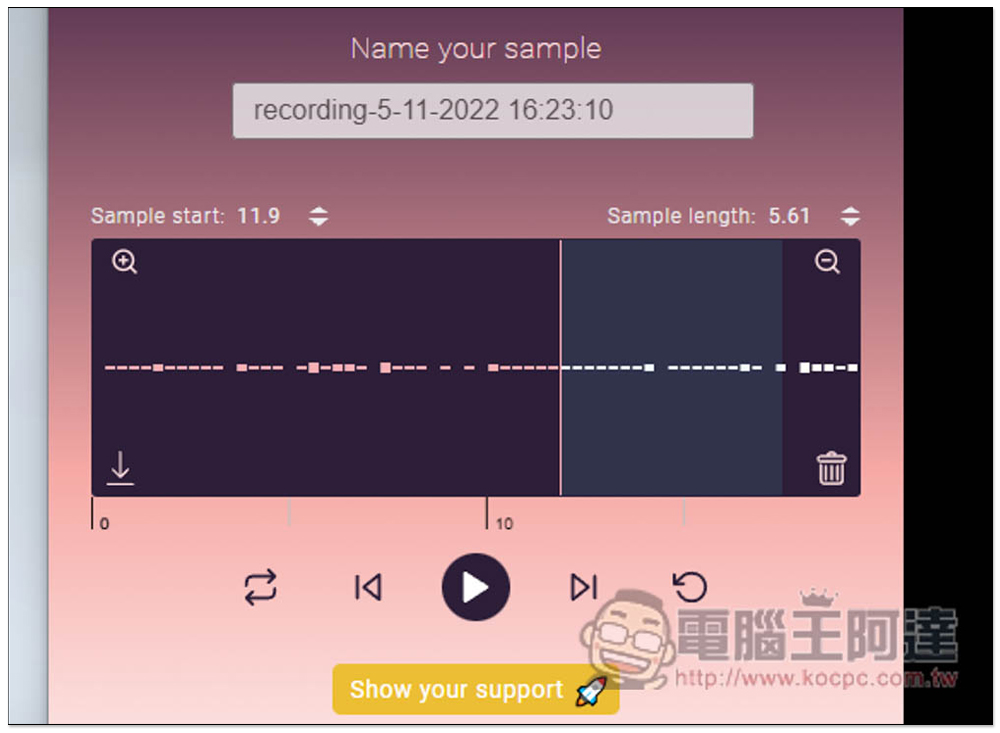
As shown in the figure below, the middle gray range is the retained fragment. In the Name your sample above, you can enter the name you want, so you don’t have to change it manually after downloading:
After completion, click the music icon on the upper right to see the music you have recorded in the past. The default format is .wav:
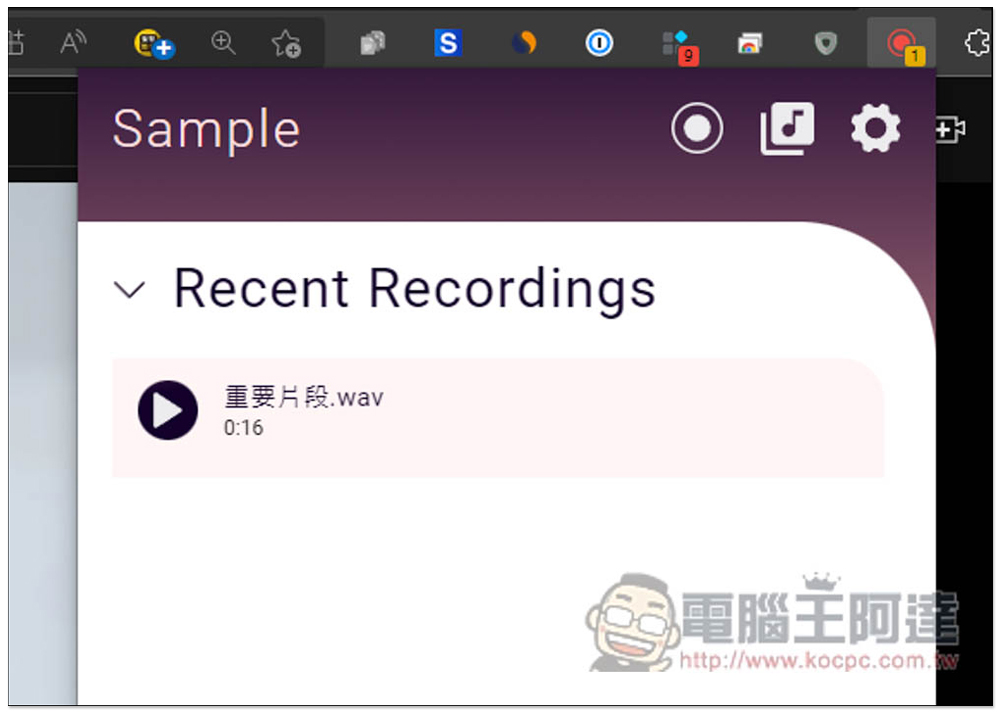
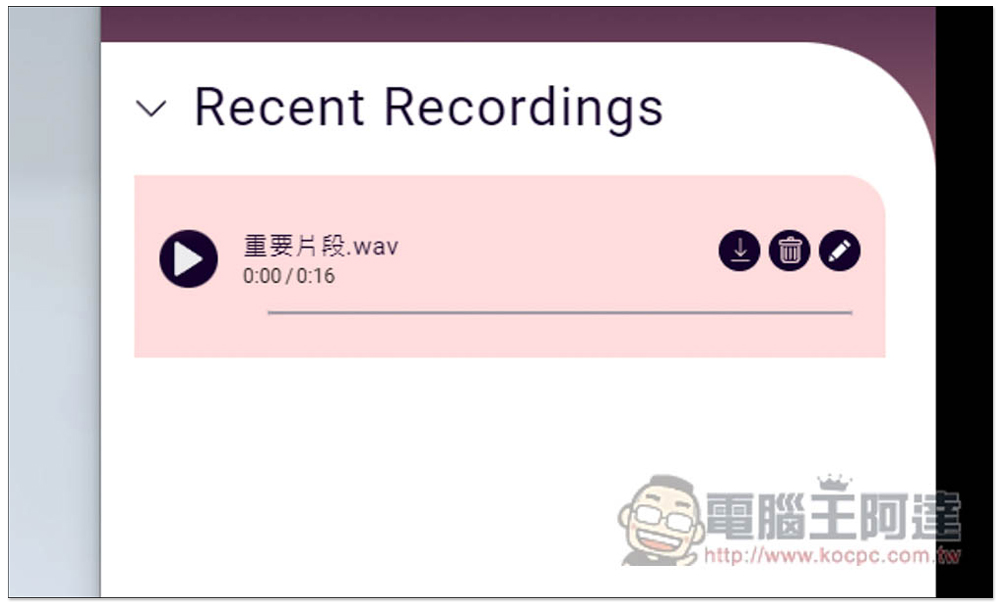
Move the mouse to the top and there will be three icons on the right side. The left is for download, the middle is for deletion, and the right is for editing. This means that as long as the recording file is not deleted, it can be edited again later, which is quite good:
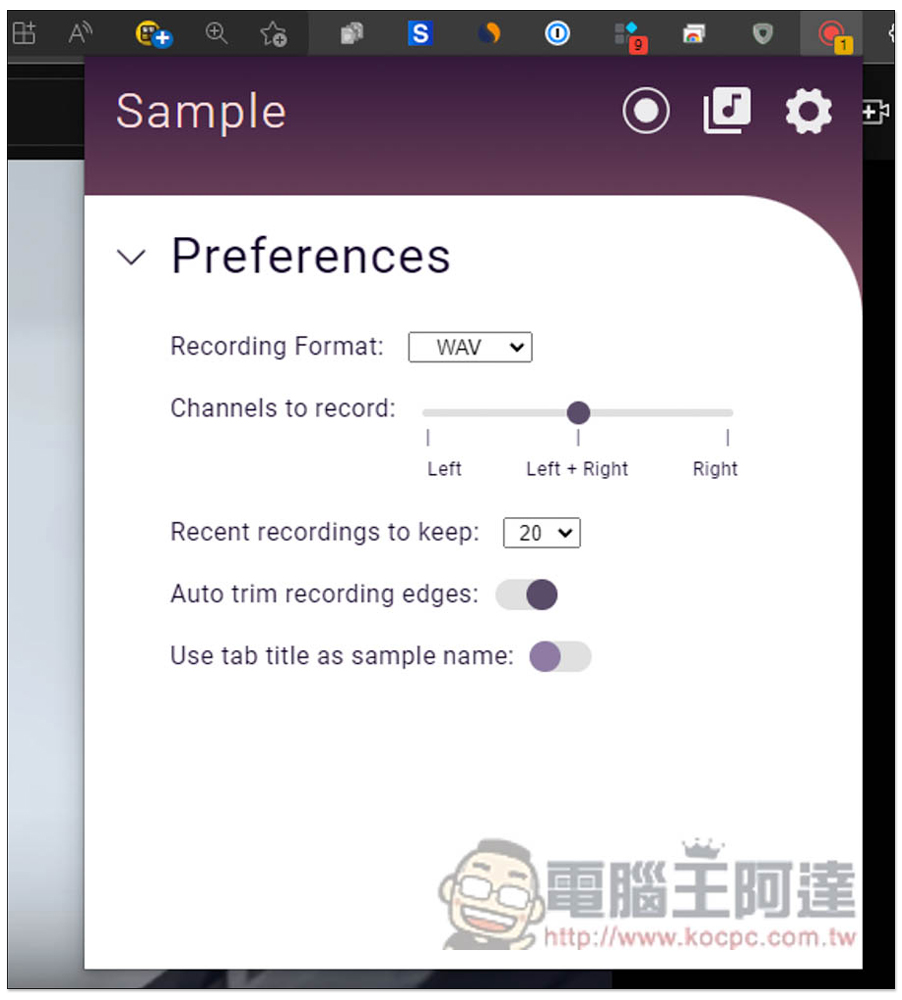
Click the settings icon in the upper right corner to adjust some settings, such as the recording format. There are two types: WAV and MP3, depending on which one you need. Supports dual-channel or single-channel recording (left and right can be selected), retains 20 recording defaults, can be up to 30, and can also be set to 0. There are two options below: Auto trim recording edges and Use tab title as sample name:
In addition, it is an online tool after all. If you want to record important content, I still recommend using an offline tool.
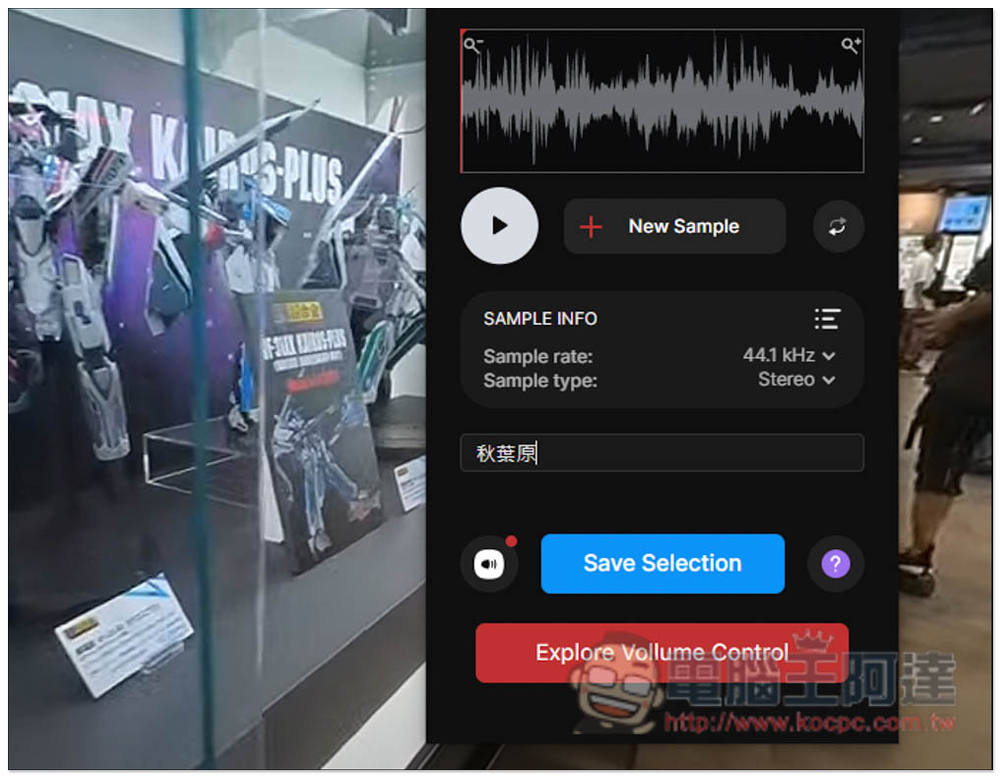
In addition to this one, we also introduced another one before Volume Sampler extended functionsIt is also very useful. Those who need it can refer to it. Volume Sampler can also set the Sample rate (44.1kHz, 48kHz and 96kHz). After recording, the download function will appear below. The operation is more intuitive, but it does not provide editing functions:
Source: KOCPC Chinese