


Various tech companies have started upgrading their image generation features, and Grok is now able to perform EditUsers can ask Grok to add text or objects to images through chat. Now, besides Grok, Google Gemini is also about to launch an “Image Editing” feature. Image Editing is basically the same as Grok’s Edit feature, and both support Chinese and English. If you’re interested in learning how to use Image Editing, keep reading~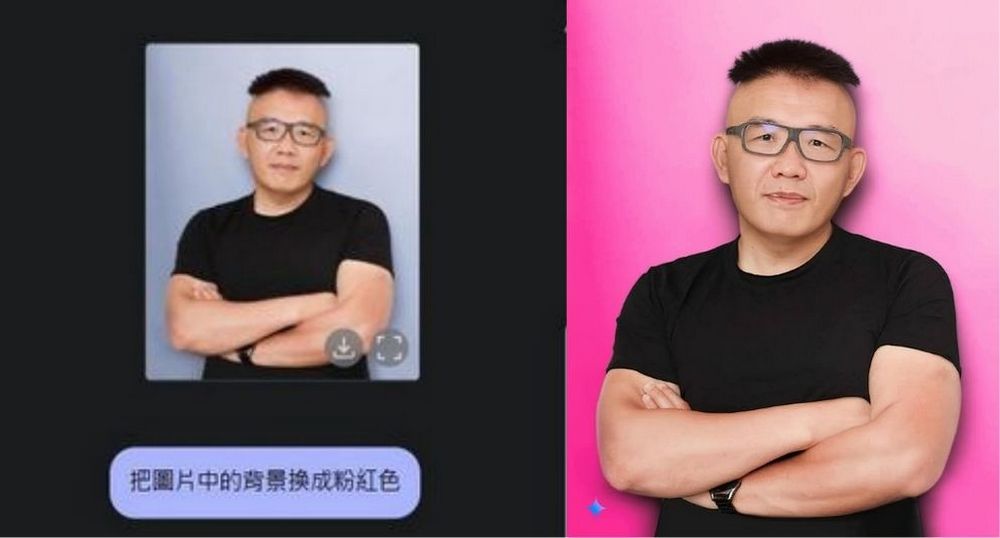
Google Gemini Image Editing is now available! Try AI image editing for free.
Recently, there have been more and more image generation tools, and for tech companies’ AI chatbots, upgrading their image generation capabilities is one of the key factors in attracting more users. Recently, Google also launched a new Image Editing feature that lets you edit images by entering text. Google had already shared its image editing capabilities last year, but it’s only now that they’re finally available. Unfortunately, Image Editing is currently only available to try on Google AI Studio and hasn’t been officially rolled out to Gemini’s web version or app yet. But for those who want to try it, you can still use the latest Image Editing feature for free on Google AI Studio!
Gemini dropped their truly multimodal in/out image generator.
Been on the EAP, here are my thoughts + some tips & tricks for “conversational image editing”
Bookmark this, and try it later for free in google AI studio.
Let’s get into it: pic.twitter.com/7nd59PdE8b
— Bilawal Sidhu (@bilawalsidhu) March 12, 2025
Go experience Google AI Studio
Click the link provided above to go to the Google AI Studio webpage, then select the Google model you want to use. Currently, only the Gemini 2.0 Flash Experimental model supports the Image Editing feature. If you set the model to Gemini 2.0 Flash Experimental, you will see the Image Editing option on the initial screen. Clicking it will have Gemini first generate an image of chocolate sauce drizzled over a croissant.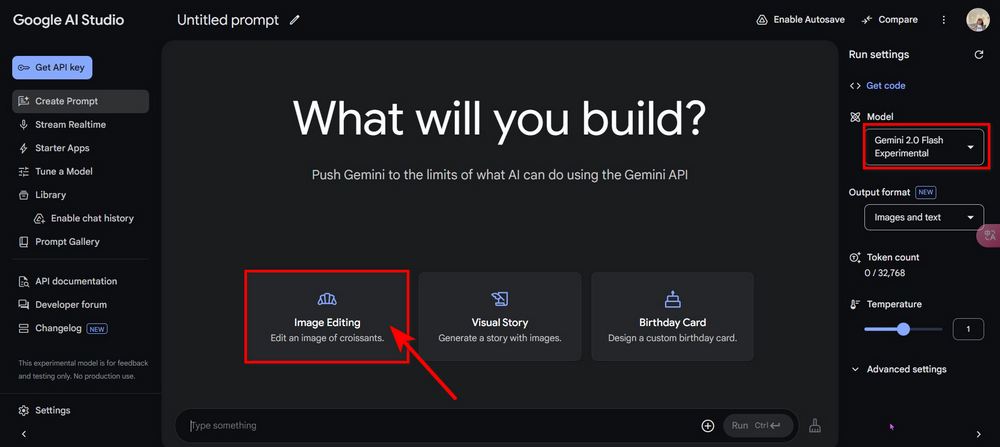
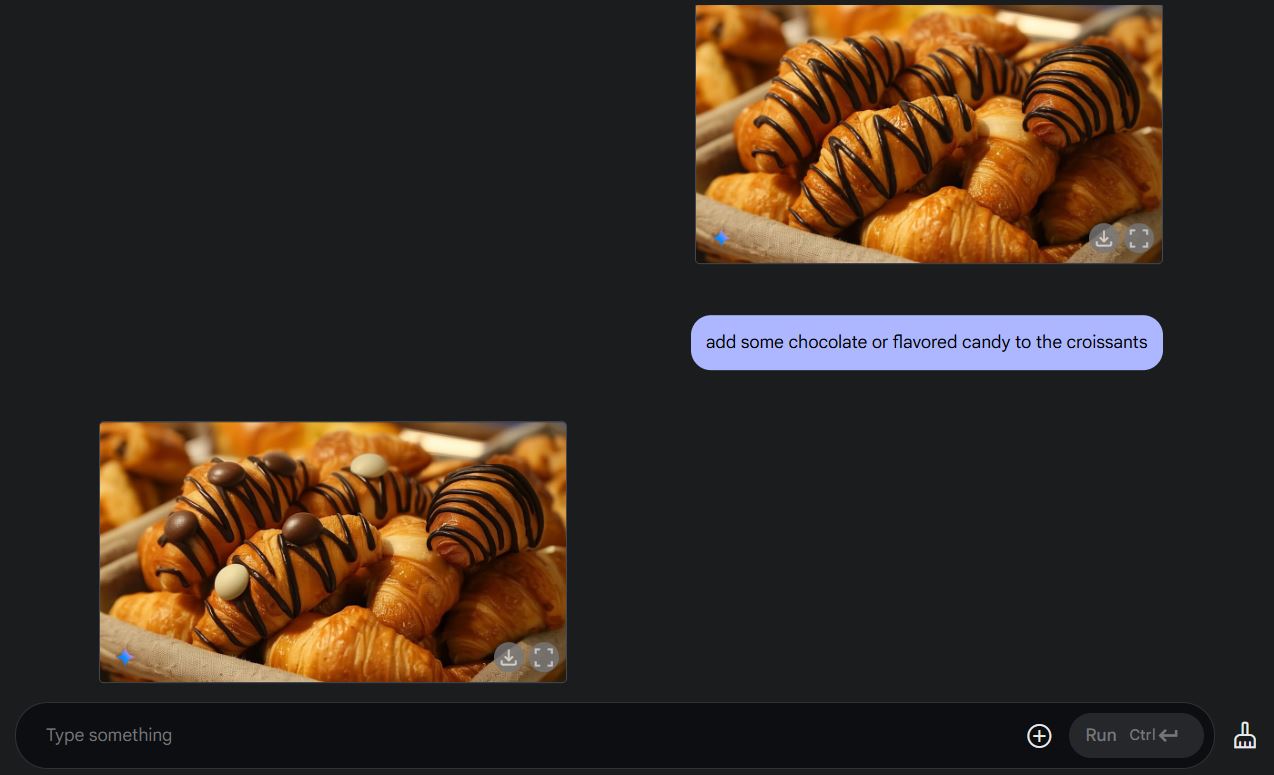
After generation, you can use the Image Editing feature to edit images by uploading an image and entering the text or items you want to add. Testing has shown that changing the clothing color of people in the image and adding text both work fine, and both Chinese and English input are supported! 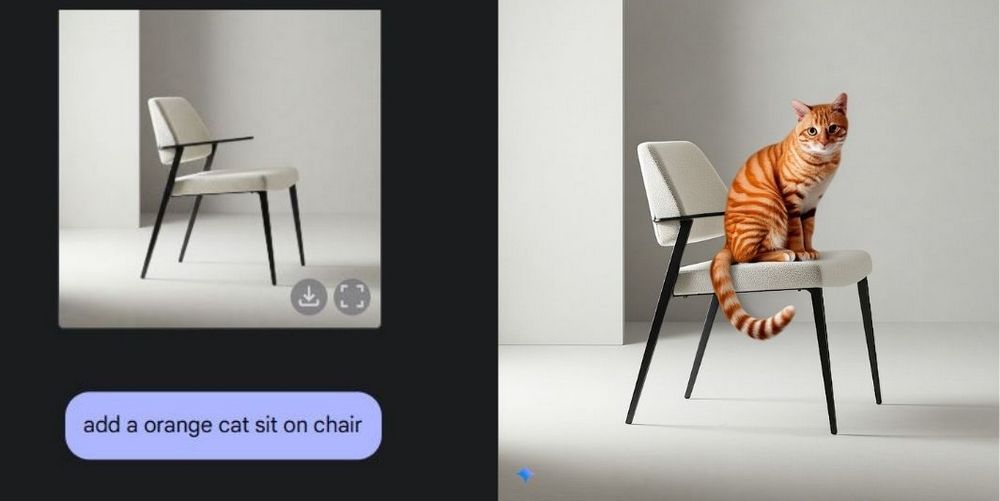
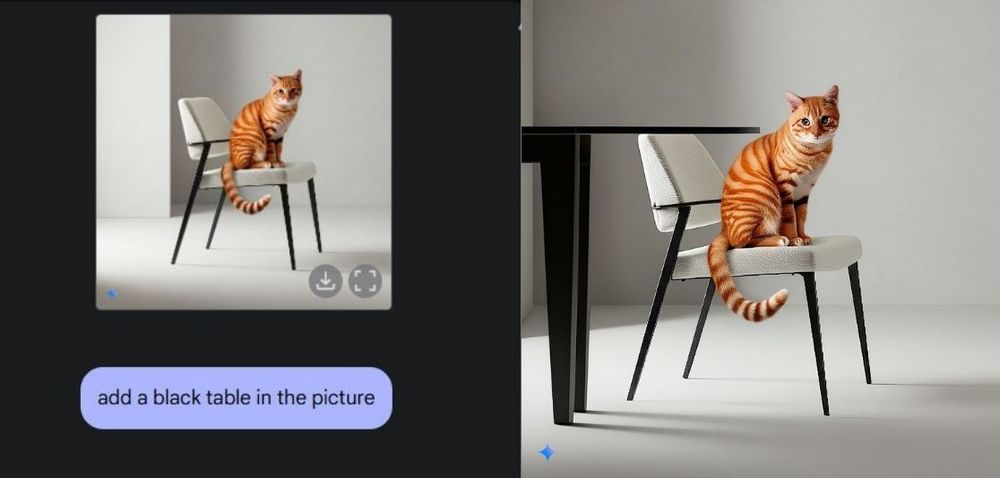
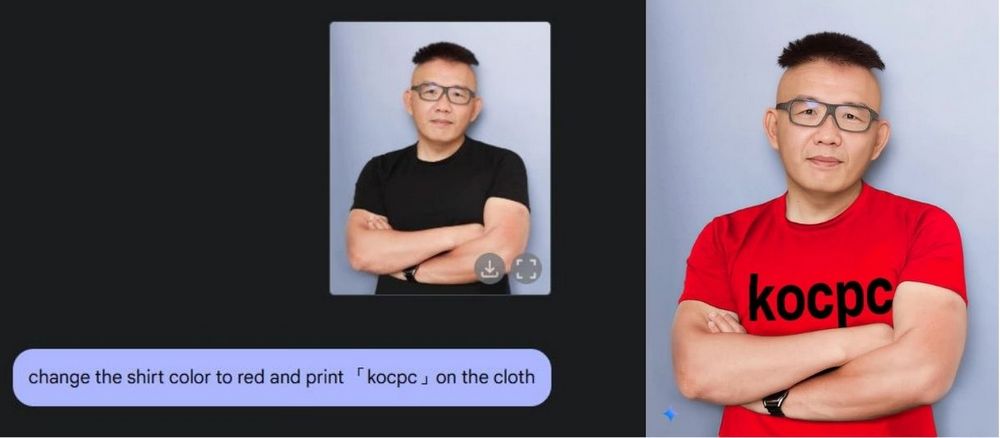
Beyond the features mentioned above, netizens overseas have also discovered other uses for Image Editing, such as colorizing images and changing the actions of people in photos.
Geminiの新機能、画像加工できるがすご過ぎるので表に出てきました。
白黒線画入れてテキストで指定するだけで色を塗ってくれたり背景描いたりしてくれる。
無料でこれできるのヤバ過ぎんか… pic.twitter.com/qJllZQ1S8x— 野火 城@AI漫画 (@nobisiro_2023) March 13, 2025
Wallahi we’re finished
Gemini best anime model pic.twitter.com/2wMmBlbwjA— Linaqruf (@linaqruf_) March 13, 2025
THIS is what we’ve been promised for so long! Multimodal image Editing! And Gemini 2.0 did it! Generate and image, and then ASK for a change without completely regenerating! pic.twitter.com/4evncYy1jx
— Theoretically Media (@TheoMediaAI) March 12, 2025
It’s a bit unfortunate that Google’s Image Editing feature currently only generates one image at a time. I wonder whether it will also generate four images at once once it officially launches on the Gemini web version and app. Everyone should note that although Google AI Studio is free to use, there are still limits on token count, so be careful not to exceed them.
Actually, Google AI Studio also lets you get early access to new Google Gemini models. We’ve previously covered how to use it—if you’re interested, feel free to check out the page below for more details:
Source: KOCPC Chinese