


The AI search engine “Perplexity” we introduced before has launched its Windows app today. Now you can use features like voice dictation and keyboard shortcuts directly on your computer without constantly switching windows. In addition, Perplexity has also released a Chrome extension, so you can now set Perplexity as your default search engine! If you want to know how to use it, keep reading~
Perplexity AI search engine launches Windows version and Chrome extension, effortlessly enhancing the search experience!
AI search engine Perplexity today launched the Perplexity Windows app, allowing you to download the Perplexity app on your computer. According to Perplexity, the Windows version supports voice dictation and keyboard shortcuts, giving users a better experience. In addition to the Windows version, Perplexity also introduced a Chrome extension—once you add Perplexity to Chrome, it becomes your default search engine. If you want to download the Windows version or add the Chrome extension, you can click the link below to set it up.
Introducing the Perplexity Windows app.
Access voice dictation, keyboard shortcuts, and the latest models with the official Perplexity desktop app for PC. pic.twitter.com/oPe1dNijkt
— Perplexity (@perplexity_ai) March 11, 2025
Go to download the Perplexity Windows version
Click the link above to go to Perplexity and you’ll see three options: the Windows app, the iOS and Android apps, and the Chrome extension. Click Windows app, and your computer will start downloading the Perplexity file. Once downloaded, open it and log in to use it.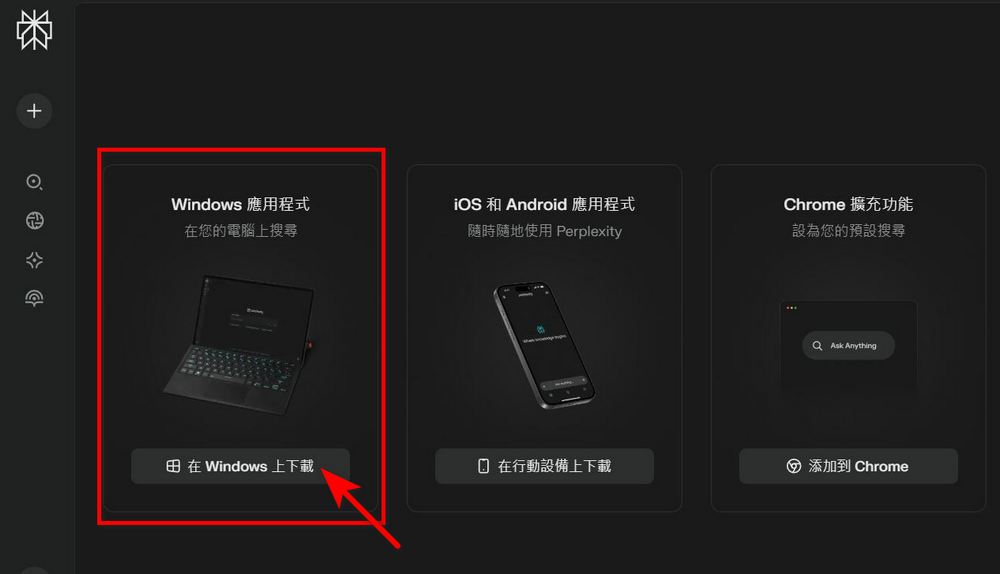
Everyone can make appropriate use of the group feature, so you can use Perplexity and browse the web at the same time without switching windows. For example, when the editor was scrolling X and saw that X was being DDoSed, they could directly use the Perplexity Windows version to check the details of the X DDoS situation.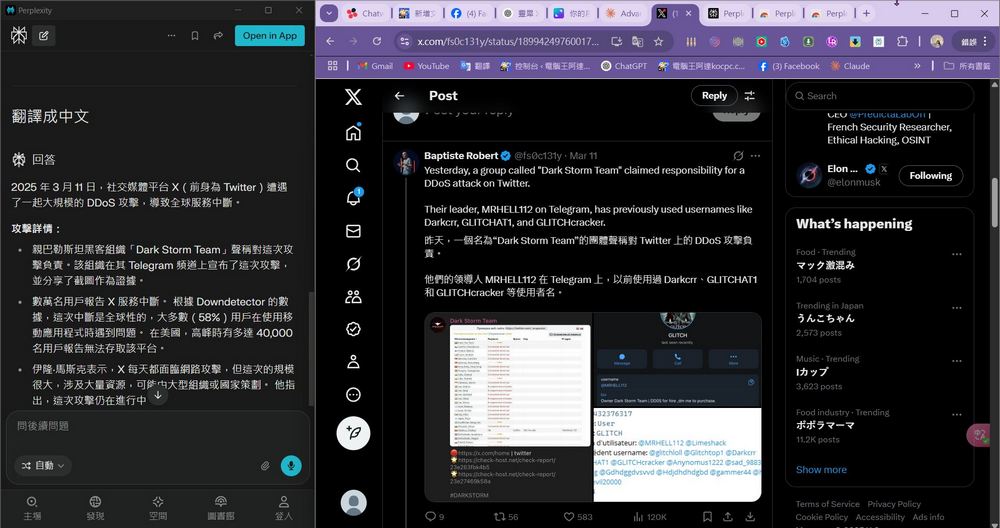
As mentioned earlier, downloading the Perplexity Windows version also lets you use keyboard shortcuts—just press “Ctrl+I” to summon the Perplexity search screen!
Perplexity Chrome extension
Perplexity now also offers a Chrome extension. Add Perplexity to your Chrome extensions, and it will become your default search engine. We previously showed you how to do this through the settings method.Set Perplexity as Chrome search engineSome friends may find that method troublesome and haven’t tried it, but now Perplexity itself offers a Chrome extension, so everyone can easily set Perplexity as the default search engine!
Go to the Chrome Web Store to add Perplexity.
If you’re worried that AI search engines like Perplexity might hallucinate or produce gibberish, resulting in poor search accuracy, you can right-click the Perplexity extension, select Manage extensions, and turn off Perplexity to revert to the original Google search engine. 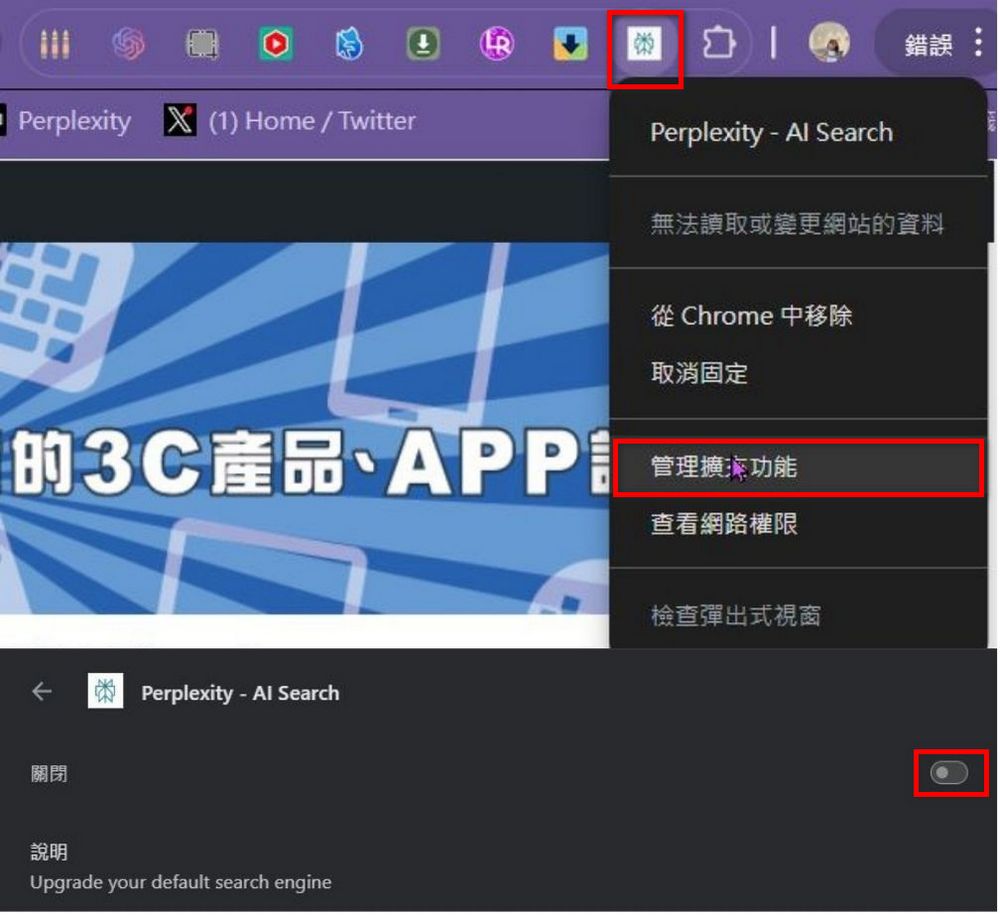
Source: KOCPC Chinese