


March has just started, and Grok has already launched new features like Grok Voice Mode and Ask Grok. Recently, Grok also introduced new capabilities to its image generation. Now, Grok’s image generation offers an Edit feature, letting users edit individual images, add text, and add elements. Grok’s image generation supports Chinese and English. If you’re interested in learning how to use it, continue reading~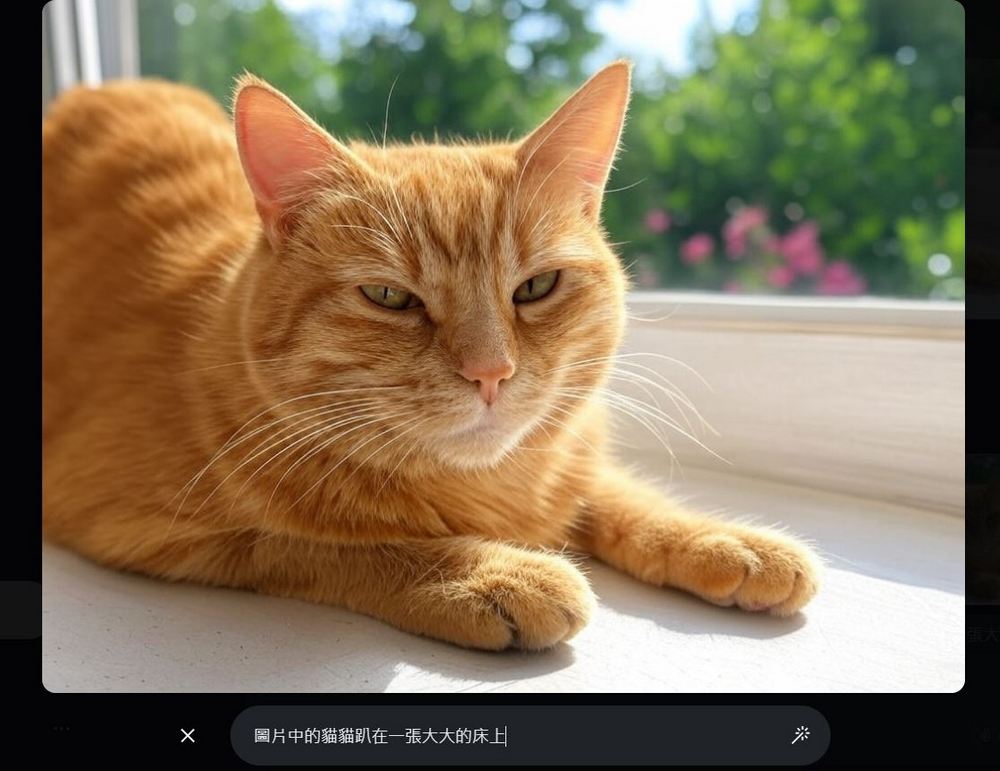
Grok image generation gets a major upgrade! New image editing features now support prompts in both Chinese and English.
Recently, Grok added an Edit feature to its image generation function. After generating an image with Grok, you can use Grok to modify details of the generated image. The image Edit feature is available on both X and the standalone Grok app. Based on current testing, even without purchasing X Premium, you can generate and edit images unlimited times. If you want to try it, just open Grok on X or open the Grok app to experience Grok’s image generation and editing features.
wow.. Grok is magic
you can edit image by chatting with it, change lighting, add object and.. even add text
AI is making us so much more productive pic.twitter.com/BQTzLWyqlX
— el.cine (@EHuanglu) March 8, 2025
Use Grok in X
Using Grok in X to generate images is very simple—just type in what you want to generate. For example, the editor entered “generate a picture of an orange cat,” and Grok started generating the image. Last December, it could only generate one image at a time, but now it can generate four images at once.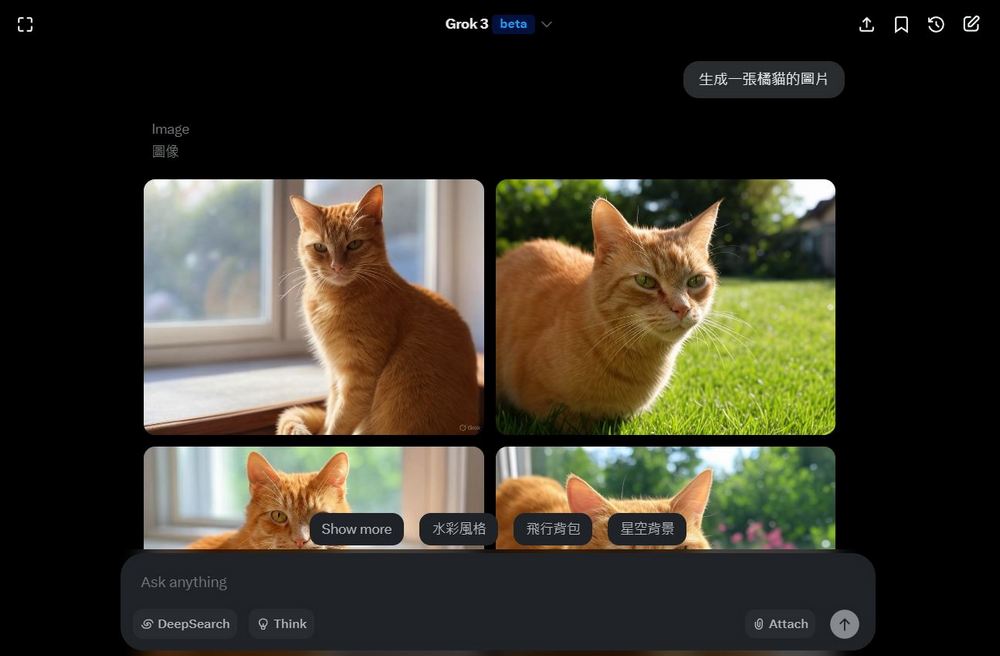
Use Grok App
For the mobile app, you need to tap the + in the bottom-left corner, then tap “Create Image”. Next, you’ll see the text “Create image” appear above the dialog box. Once this text appears, you can enter the content you want to generate in the box.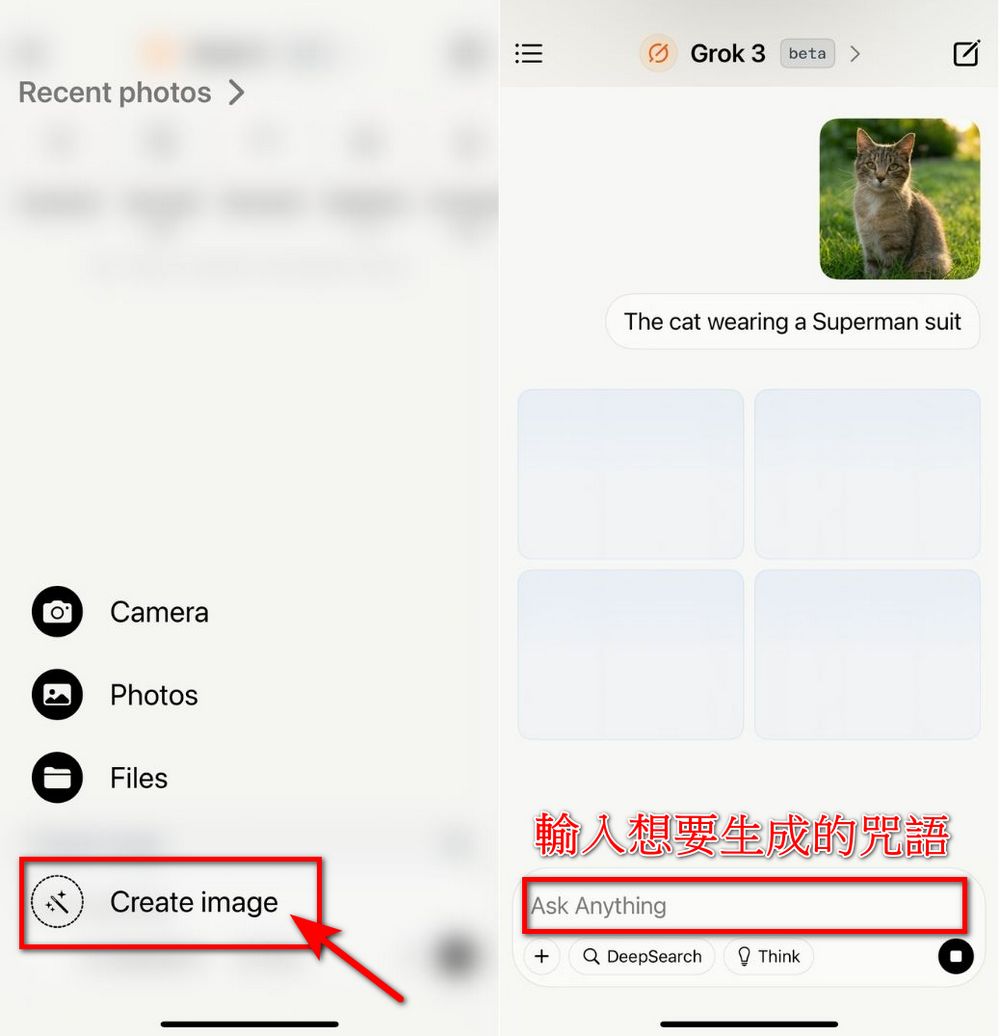
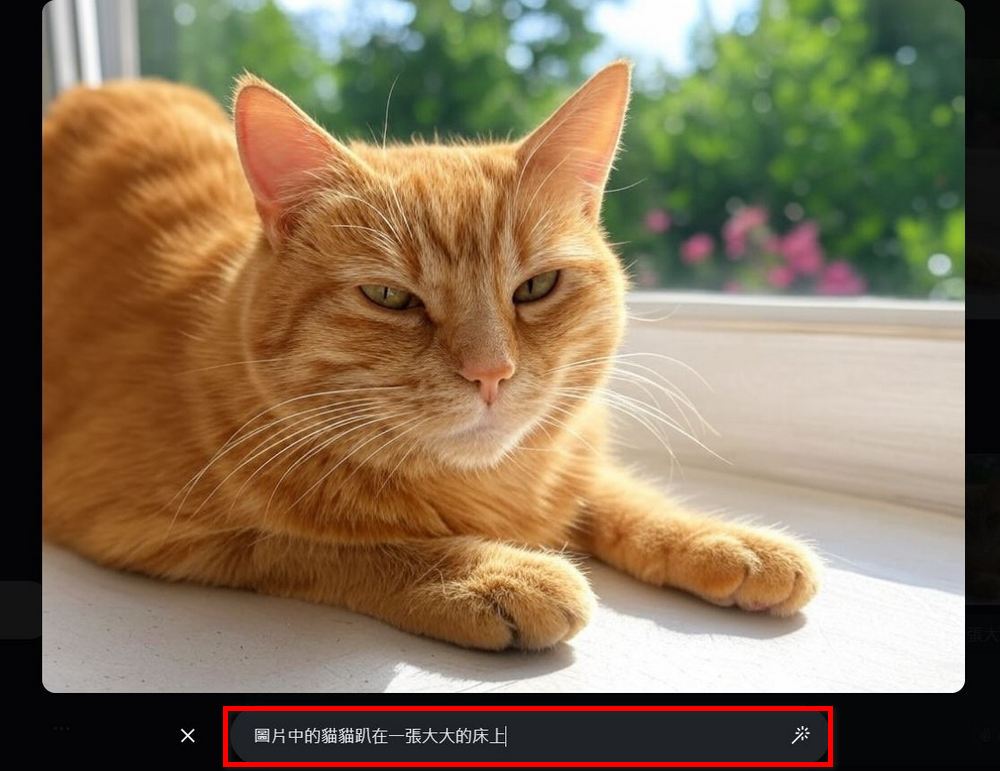
Everyone can choose one of the four photos to edit. Click the image you want to edit, and an Edit option will appear at the bottom of the screen. Tap Edit, then enter the content you want to add or modify in the box. For example, the editor asked Grok to edit the image so that “the cat in the picture is lying on a big bed.” Grok will then generate four images based on your request. The results are as follows: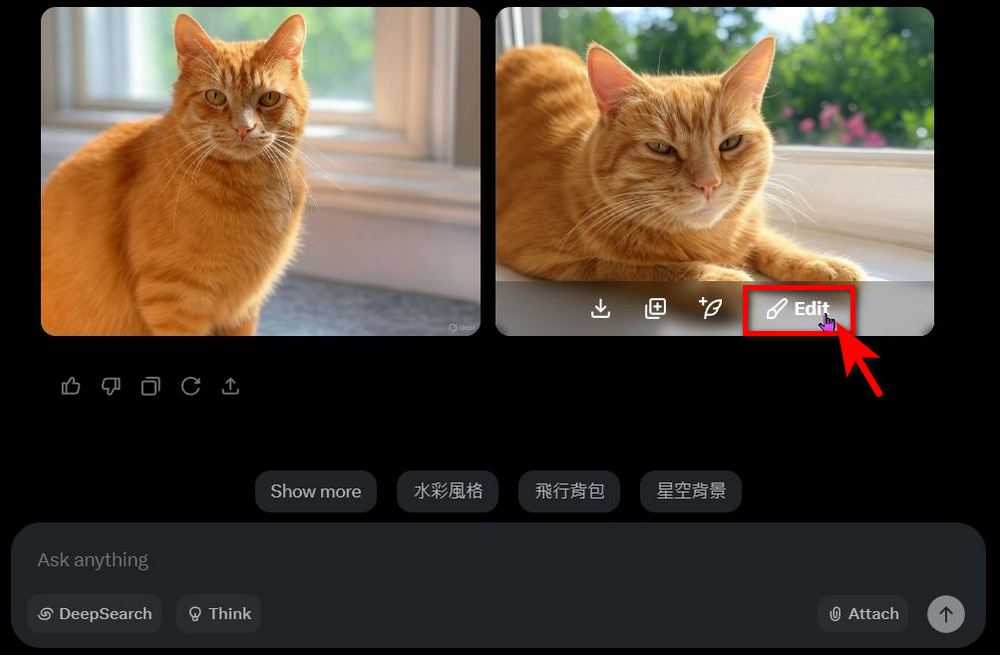
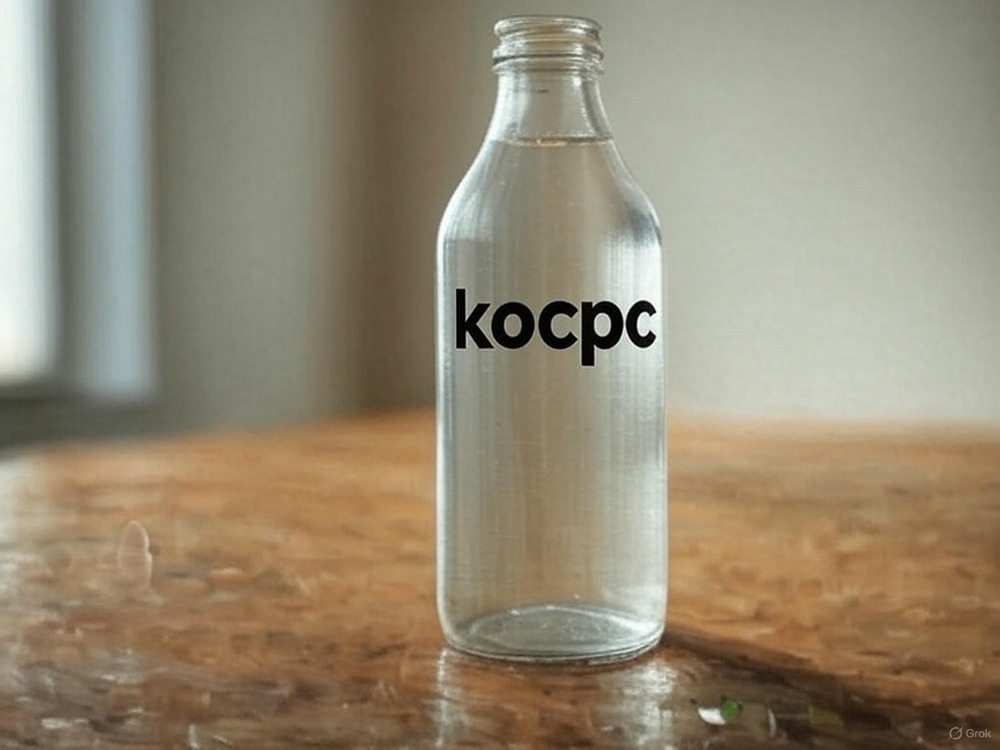
In addition to adding objects, you can also add text. For example, generate a water bottle and ask Grok to add the text “kocpc” on the bottle. Grok will edit based on the image of the water bottle you selected, placing the word kocpc on the bottle. If you are satisfied with the image Grok generates, you can click on the image and download it, and the image will be saved to your album.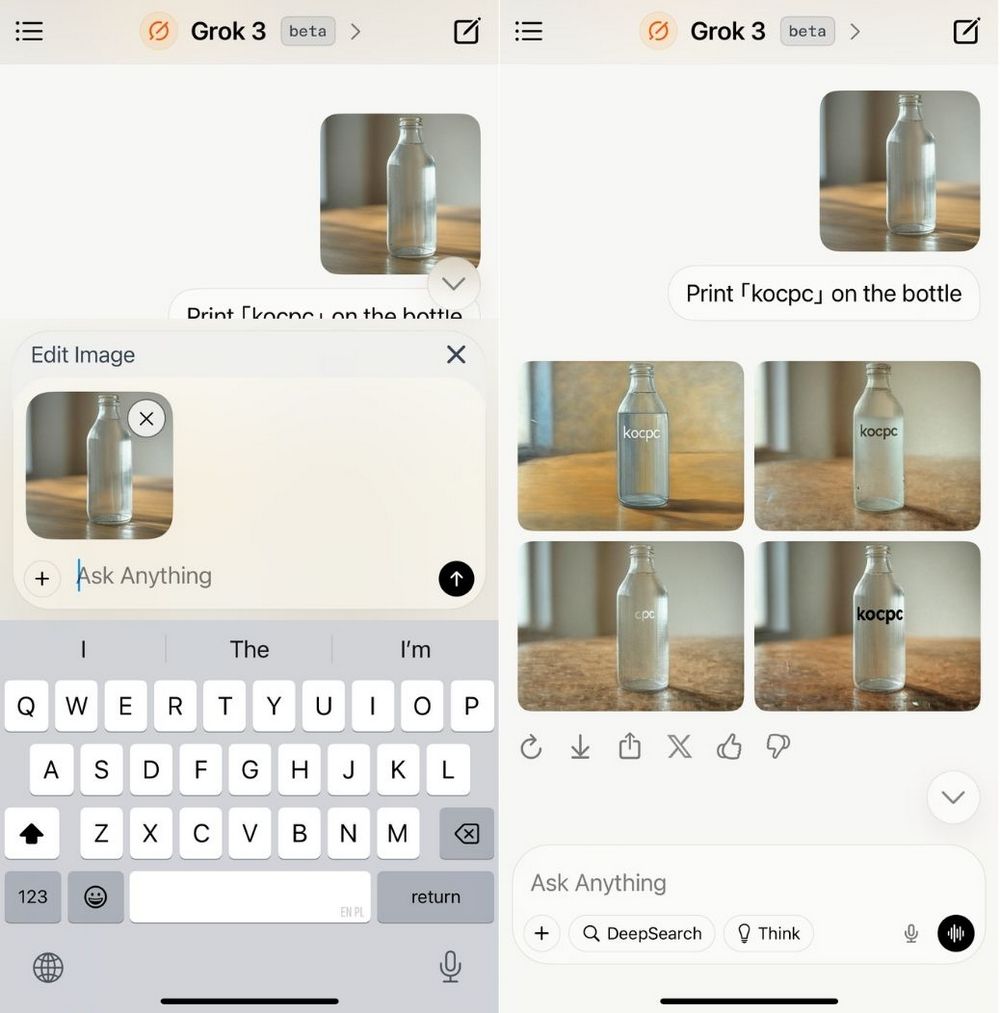
We tested and found that Grok can currently only generate images from text, and cannot yet use image-to-image generation. Interested friends can head over to X or the Grok App to try it out! Now regular Grok users can also generate images an unlimited number of times.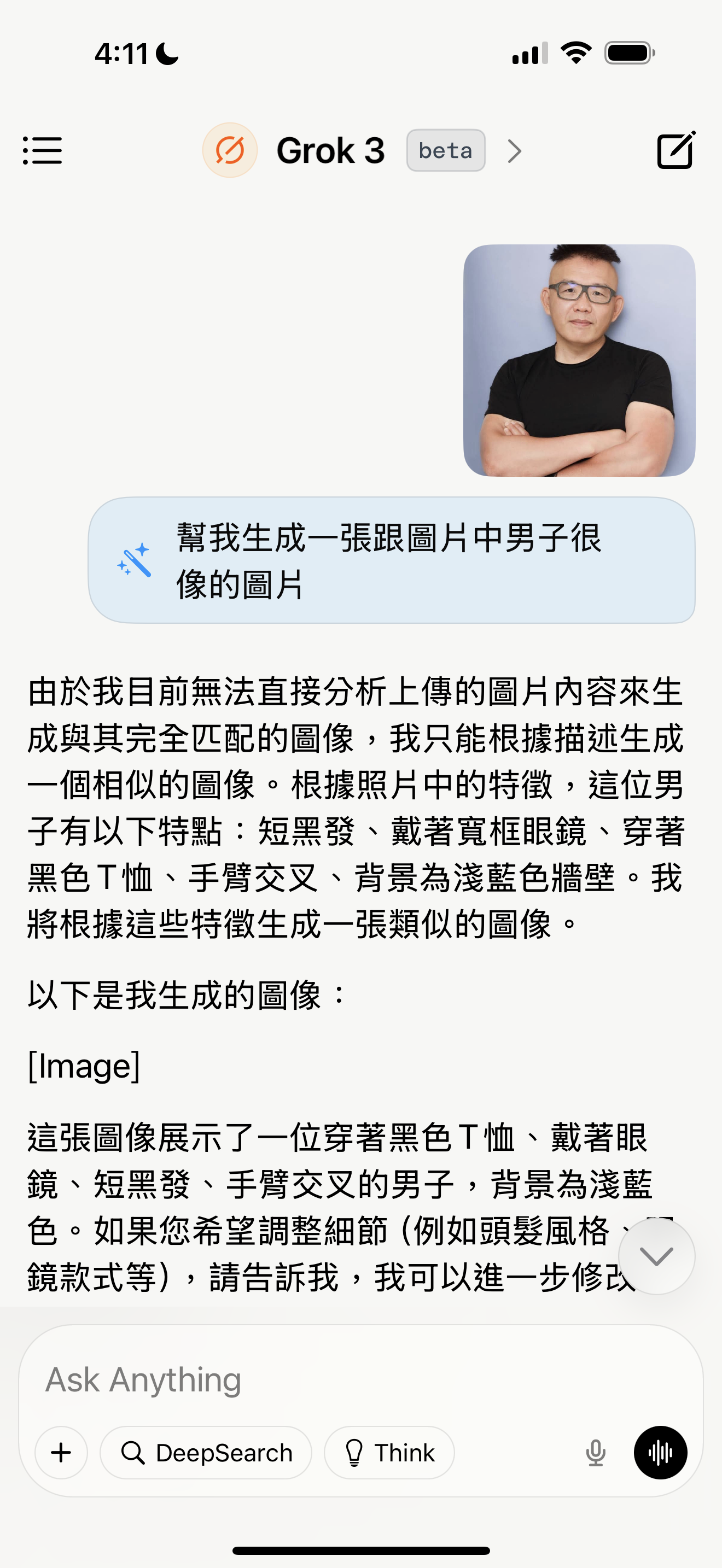
Source: KOCPC Chinese