


Starting last week, Microsoft officially promoted the Windows 11 22H2 update, introducing a series of new features in the new version. Compared with other obvious changes that are visible to the naked eye, there is a less noticed but very important feature that is also built into Windows 11. It is called Enhanced Phishing Protection.
Microsoft explains in detail how the phishing protection mechanism works in Windows 11 22H2
According to statistics, cybercrime is expected to cost the world $10.5 trillion per year by 2025, up from $6 trillion in 2021. Across Windows, Azure, Microsoft 365, and Microsoft Defender for Office, Microsoft statistics have seen more than 35.7 billion phishing attempts and more than 25.6 billion attempts to attack users through brute force cracking to steal passwords. Attackers are not only motivated and creative, but their attacks are also becoming increasingly sophisticated. Since attackers use login methods to infringe, Microsoft has added a phishing protection mechanism to Microsoft Defender SmartScreen in Windows 11 22H2 to ensure user password security.
Phishing protection is built into the Windows 11 operating system and automatically detects when a user enters a password into any application or website. Windows instantly analyzes whether the app or website has a secure connection to a trusted site, and if not, Windows lets the user know if they are at risk. This means administrators know exactly when a password has been compromised and can take appropriate steps to better protect their organization. When Windows 11 defends against a phishing attack, that threat intelligence is cascaded to protect other Windows users who interact with other apps and websites that are vulnerable to the same attack.
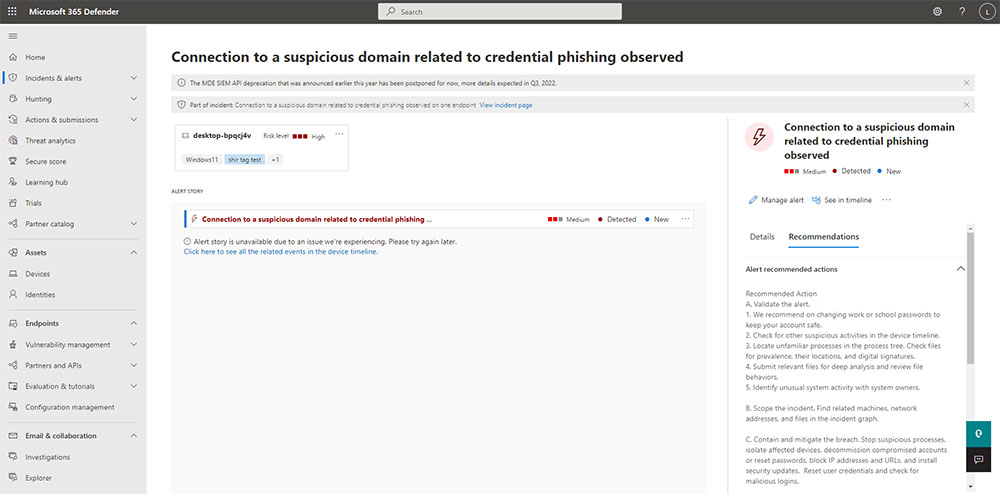
When you enable notifications, SmartScreen displays a blocking dialog that warns users to change their password when they enter a password on a phishing site or in an application connected to a phishing site in any Chromium browser.
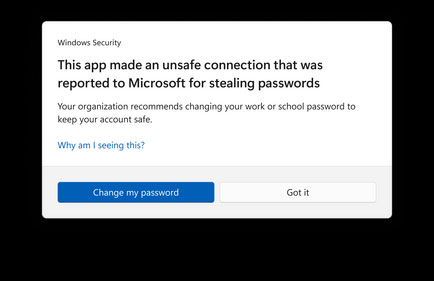
When you choose to change the password, Windows 11 will directly open the Settings application and directly display the item to change the device password, allowing you to make changes as quickly as possible. Microsoft designed SmartScreen as a final hurdle to help users identify unsafe content, no matter how attractive the target website is.
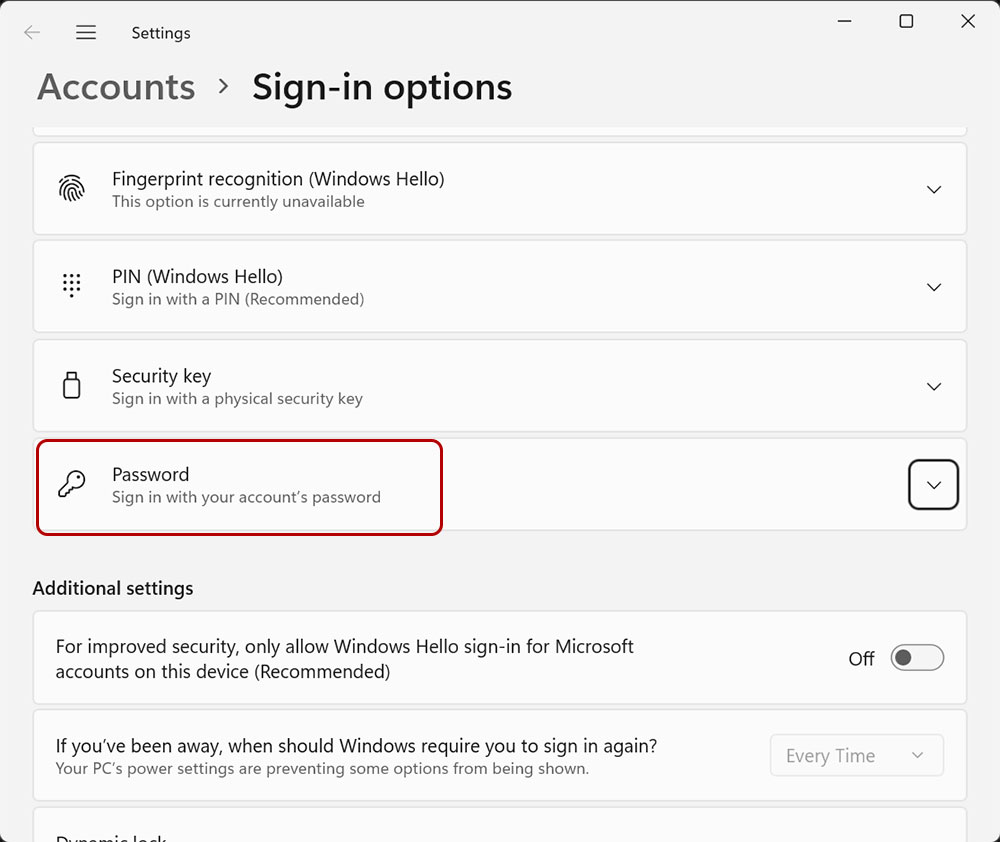
Additionally, SmartScreen promotes better user password behavior. Users who attempt to reuse their Microsoft account, Azure AD, Active Directory, or local password used to sign in to a Windows device on any website or application (such as on social media) will see a prompt asking them to use a strong, unique password to keep their information secure. This dialog box prompts the user to change the company password to prevent reuse on non-company websites. If a user attempts to store their password locally (such as in Notepad or any Microsoft 365 app), Windows 11 will warn the user that this is an unsafe practice and encourage them to delete it from the file.
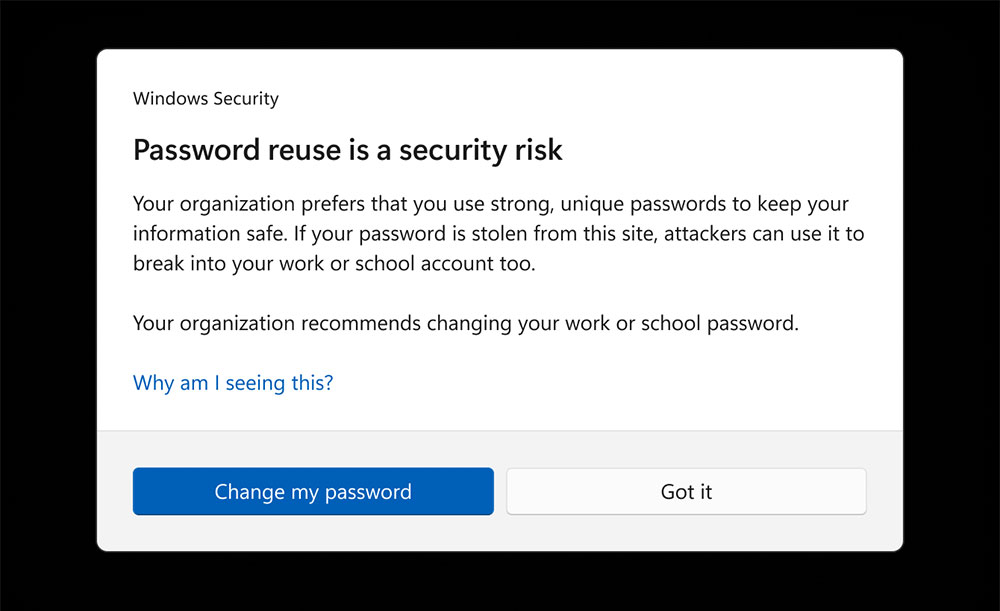
This feature can be used after installing Windows 11 22H2 and enabling the feature. By default, it is enabled for general users. Enterprise users can conduct more in-depth deployment through the endpoint administrator. SmartScreen helps protect Windows 11 computers and can change passwords with the most immediate efficiency to reduce the chance of cracking attacks. For more detailed content and instructions, please go toMicrosoft technical articlesView in .
Source: KOCPC Chinese