


Although many web tools downloaded from YouTube now also support iPhone and iPad use, as we introduced before CutterTube、YTDown、YTMP3.GG, but the operating experience is still not as good as a computer. If you think so, you can try the “SW-DLT” introduced in this article. It is an iOS shortcut tool that uses yt-dlp and gallery-dl to download YouTube videos, music, playlists, and covers. Therefore, the stability must be better than the web tool, and the video part supports up to 4K resolution.
remind: Please confirm whether the content on YouTube or other websites is legally authorized before use, such as: uploading works by yourself, creating and using CC authorized content or public domain materials. If it is a music or audio-visual work protected by copyright, downloading or converting it without the consent of the rights holder may involve copyright risks and may also violate the terms of service of the original platform.
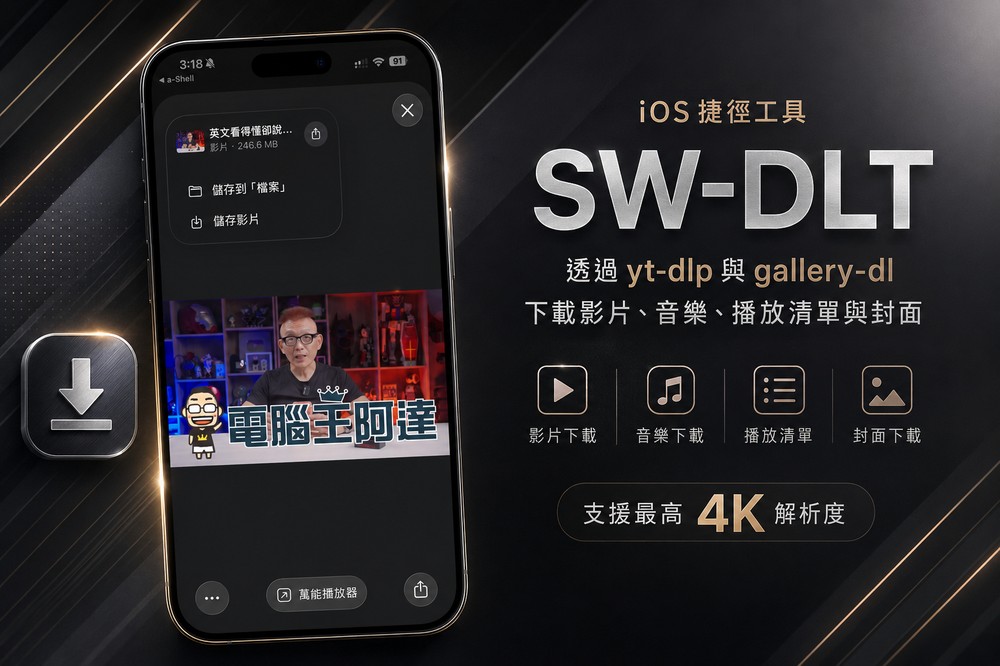
“SW-DLT” introduction and operation instruction
SW-DLT is an iOS shortcut tool designed for iPhone and iPad users. Its full name is “Shortcuts Wrapper for -DL Tools”. Its main purpose is to make it easier for users to download or archive online content that they have permission to save through yt-dlp and gallery-dl. It needs to be used with a-Shell or a-Shell Mini (installed through the App Store), and I will tell you the steps in detail below.
First click on the link above to install a-Shell and SW-DLT respectively. SW-DLT Click the Download Link for the latest version:
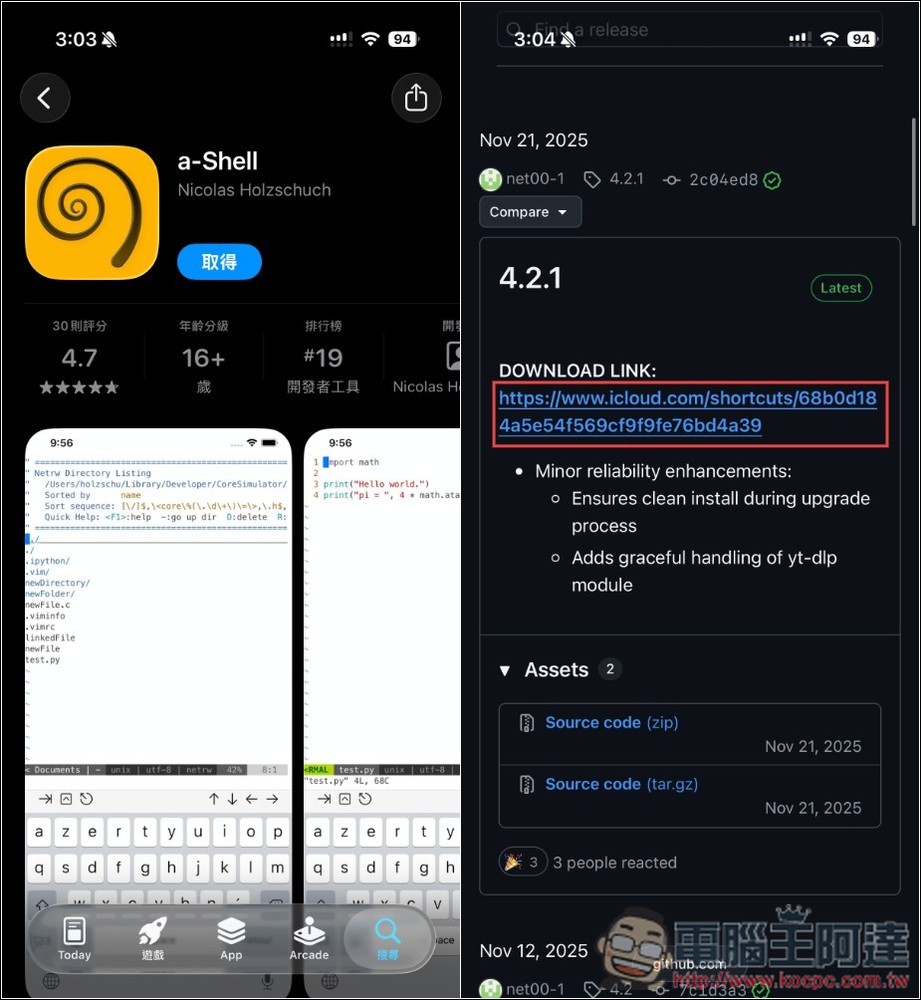
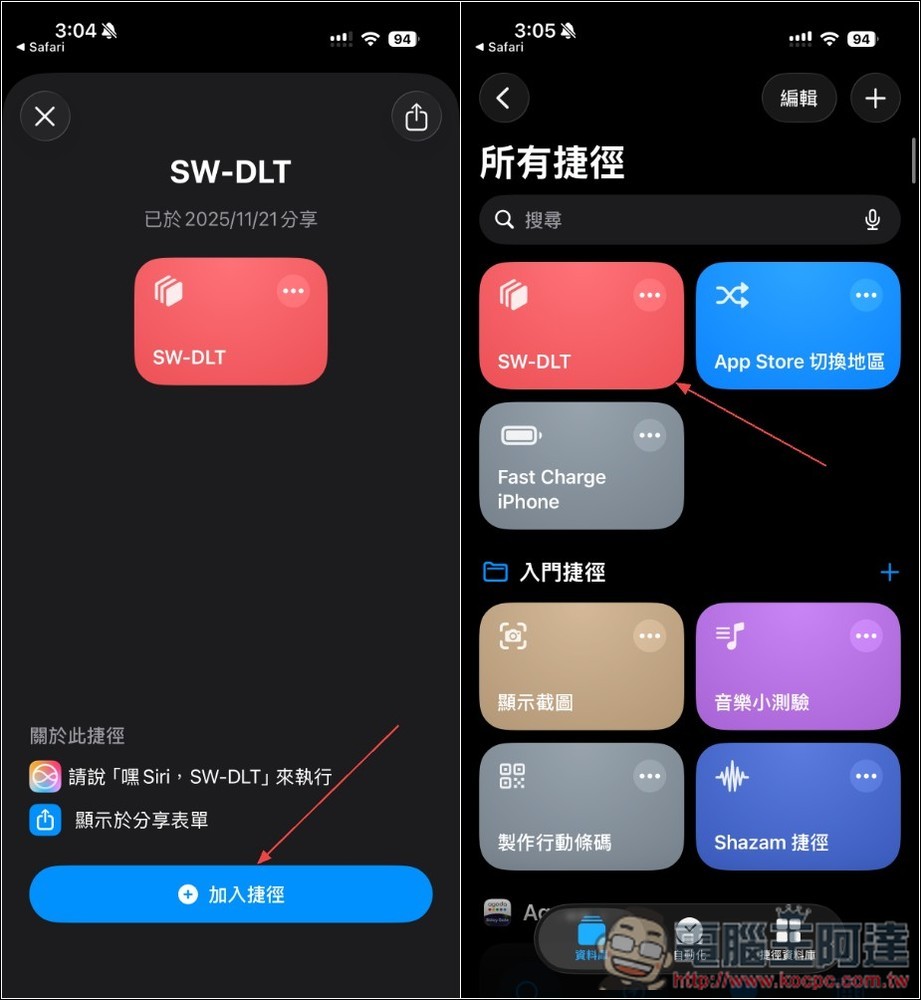
SW-DLT is a shortcut script. Once obtained, it will appear in all shortcut menus:
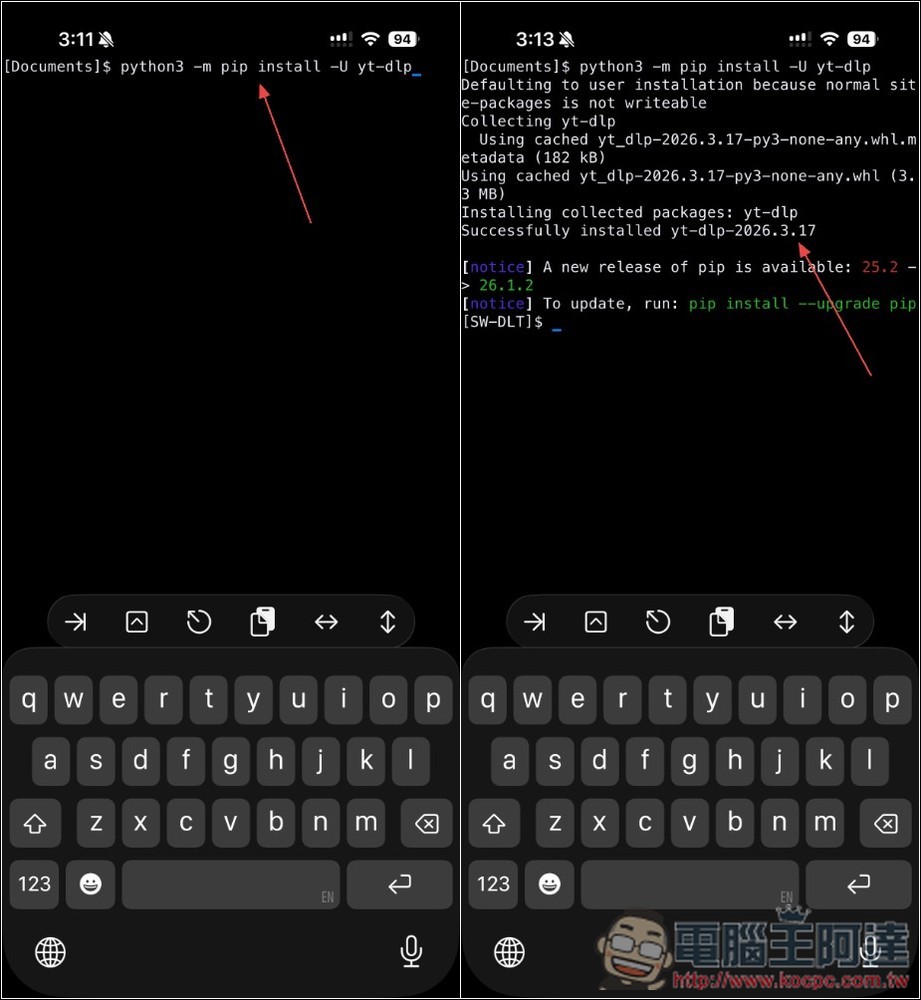
You also need to install yt-dlp, which is used to download YouTube videos and music. Enter this command:python3 -m pip install -U yt-dlpIf Successfully installed appears, the installation is complete. If you also want to download the cover, you also need to install gallery-dl, command:python3 -m pip install -U gallery-dl:
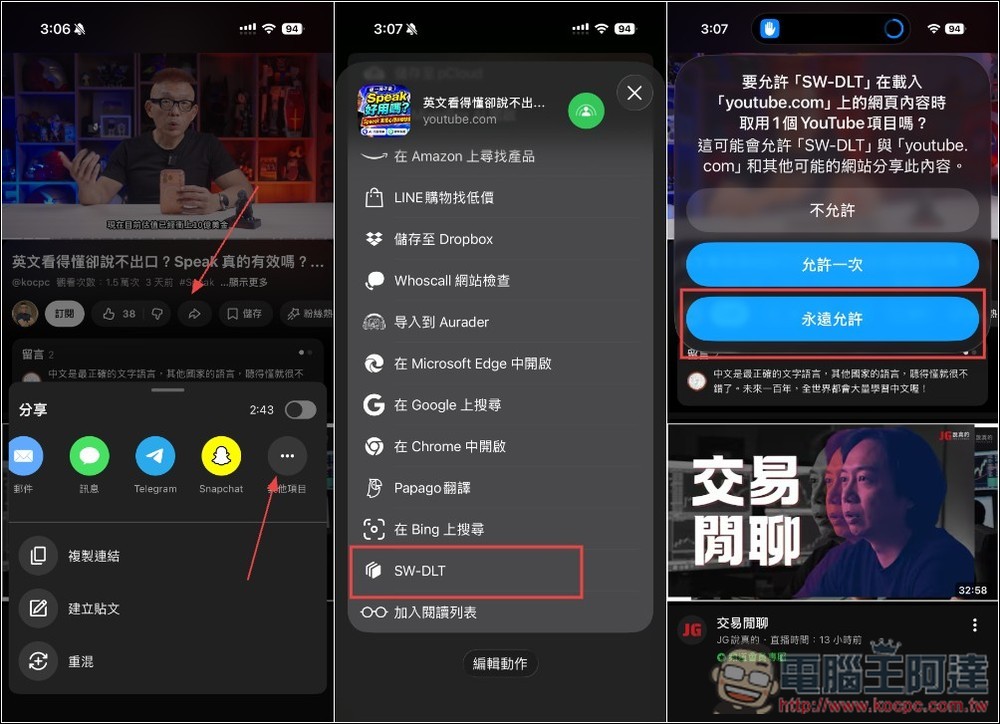
Then open the YouTube video you want to download, press the share function, slide the top to the right, click “Other Items”, and scroll down in the pop-up menu to find the SW-DLT shortcut script you just obtained. After clicking, some notifications will pop up. If you don’t want to click every time in the future, you can select “Always Allow”:
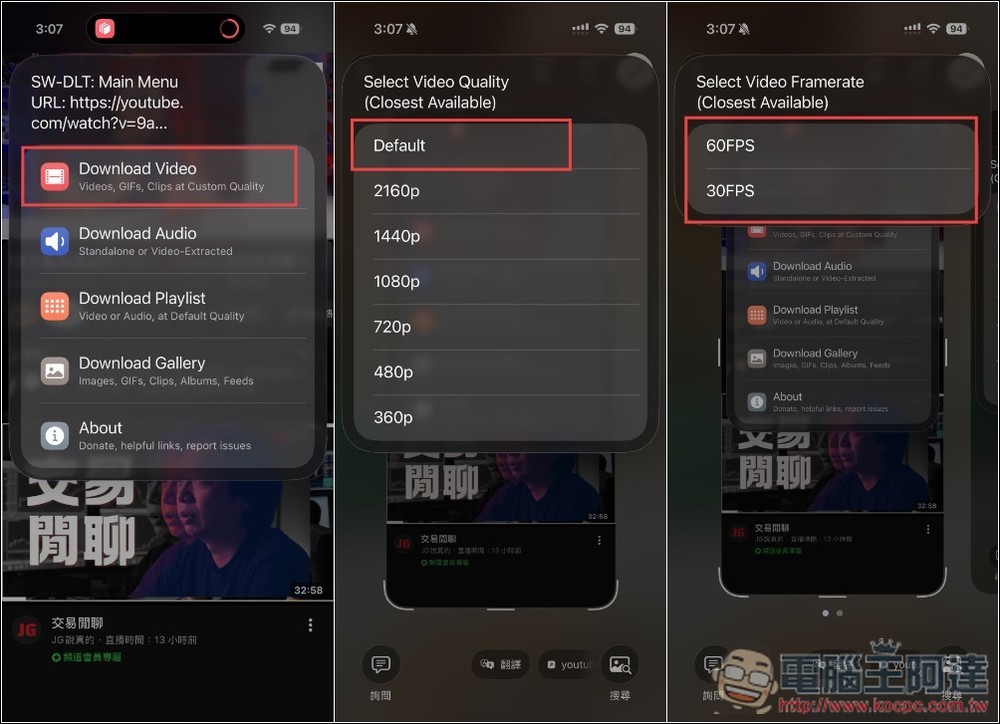
It will let you choose which format you want to download. I chose video. It is recommended to choose Default for image quality. FPS depends on which one you choose:
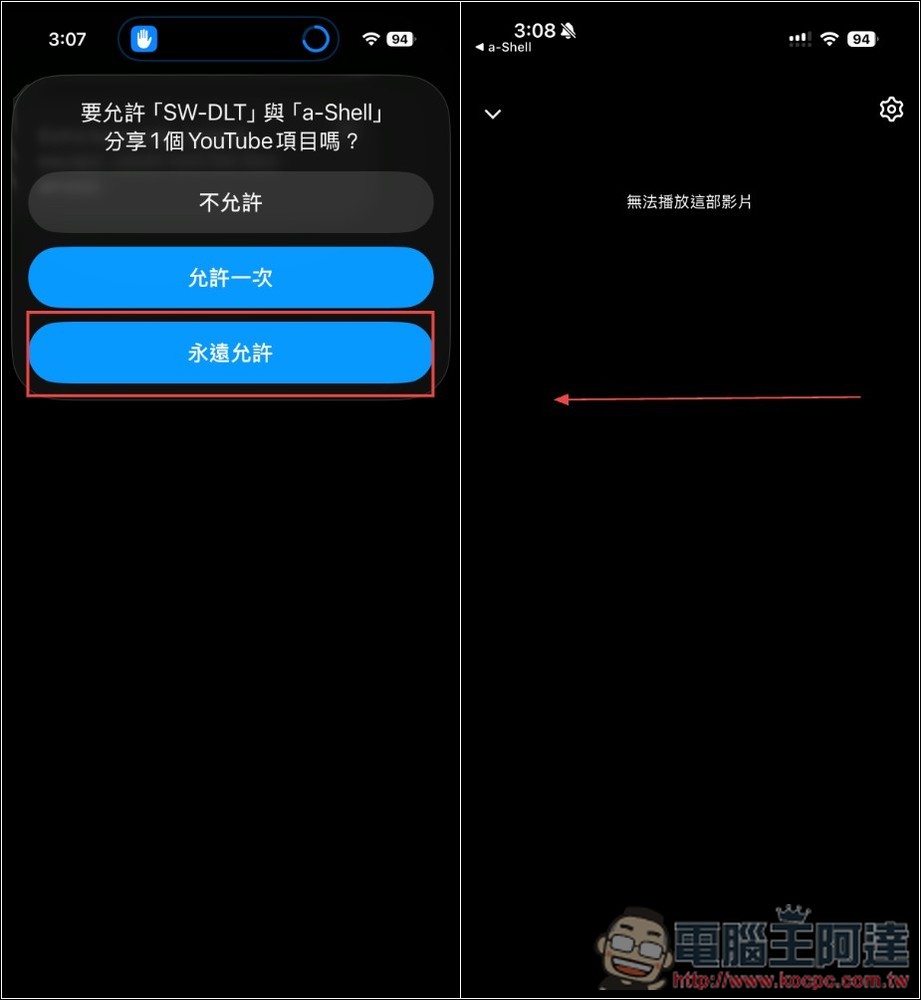
Exit “Do you want to allow “SW-DLT” and “a-Shell” to share 1 YouTube item? ”, remember to select Always Allow. Then a black screen will pop up saying “This video cannot be played”. Ignore this. Please switch back to a-Shell App:
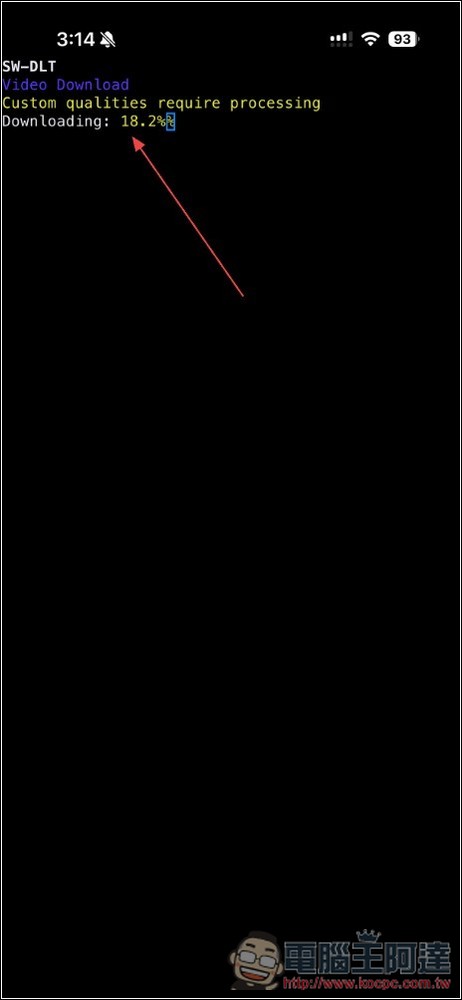
You will see that the video is downloading:
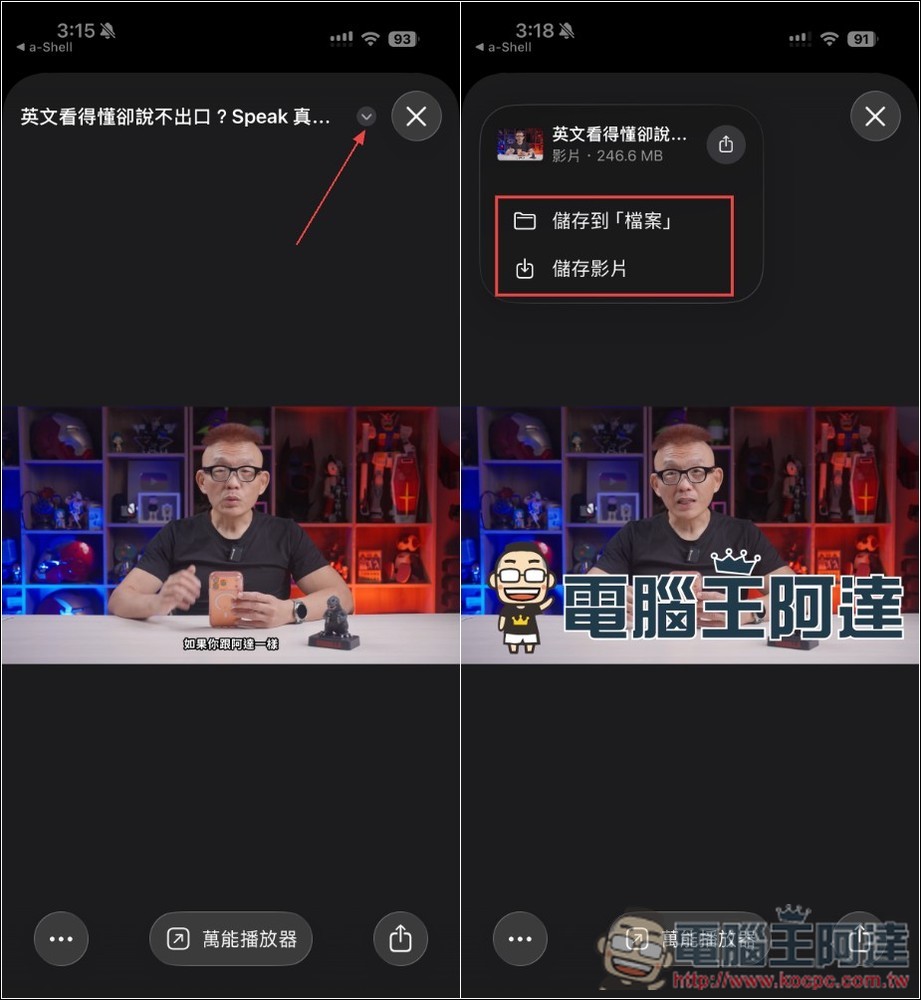
After downloading, a preview video will pop up. Open the menu above and you will find the option of “Save to File” or “Save Video (Album)”:
Source: KOCPC Chinese