


When using a computer, in order to conveniently control the phone, many people will definitely want to open a screen to control the phone in the computer, so that they do not have to pick up the phone all the time, and can see notifications as soon as they come in. The free extension function of Phone On Web introduced in this article can do this. After installation, connect the Android phone to the computer, turn on the USB debugging mode, and then you can control it from the computer. It also supports file transfer functions, uploading and downloading.
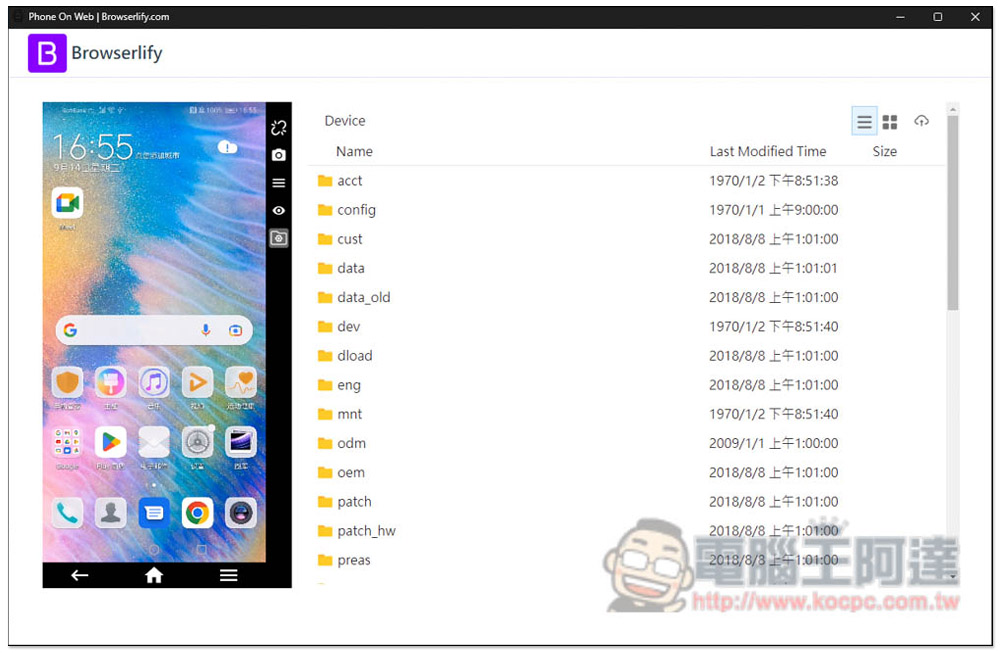
Phone On Web extension – use your browser to control your Android phone and even transfer files
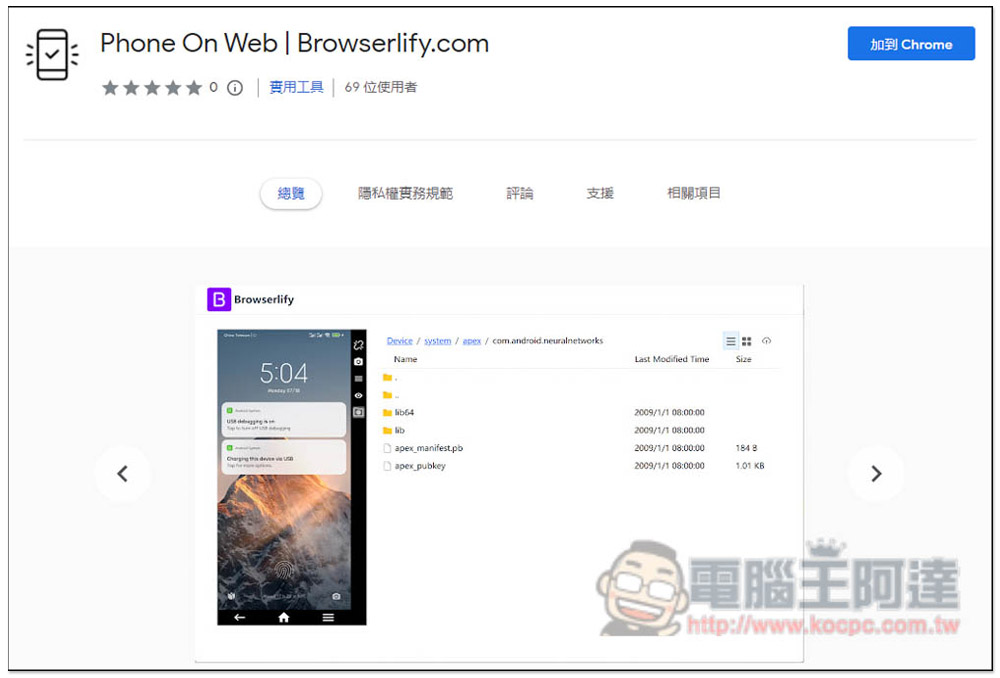
The Phone On Web extension is available in Chrome and Edge browser versions, and the operation methods are the same.
After entering the store page, click “Add to Chrome (or Edge) function:
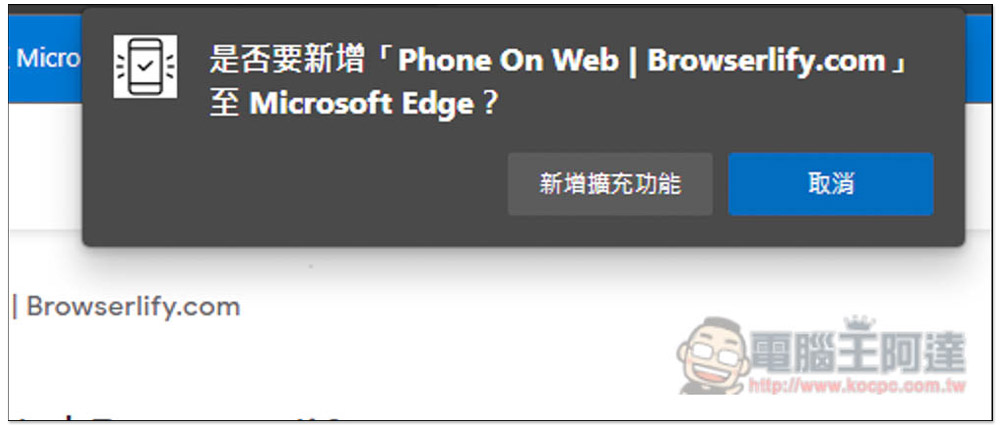
This prompt will pop up above, click “Add extension” to install:
The installation is now complete, but after the default installation, the function icons will be automatically hidden:
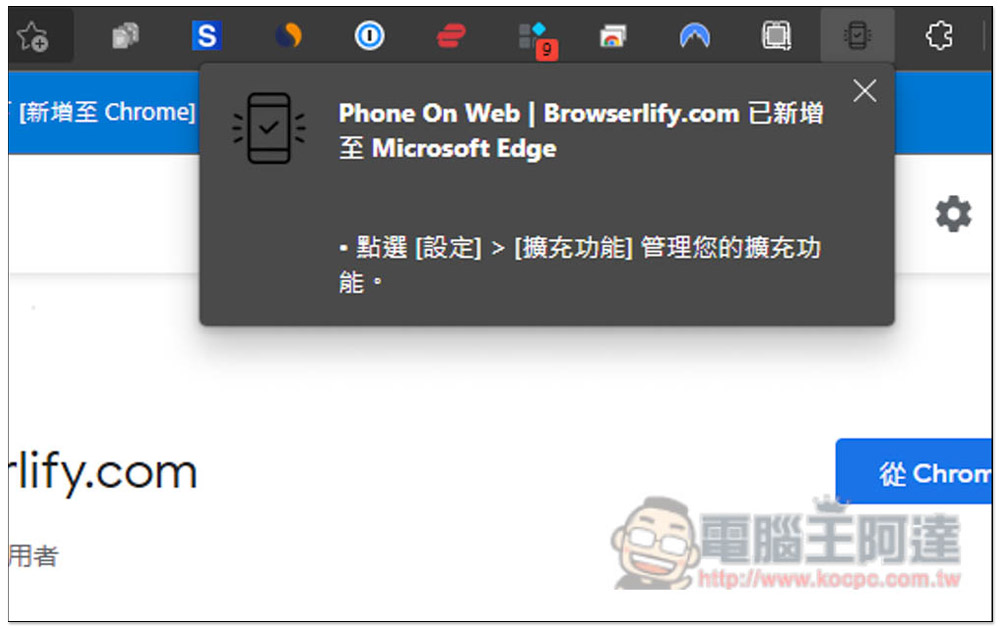
Open the puzzle icon on the right to find this extension. Open the eye icon:
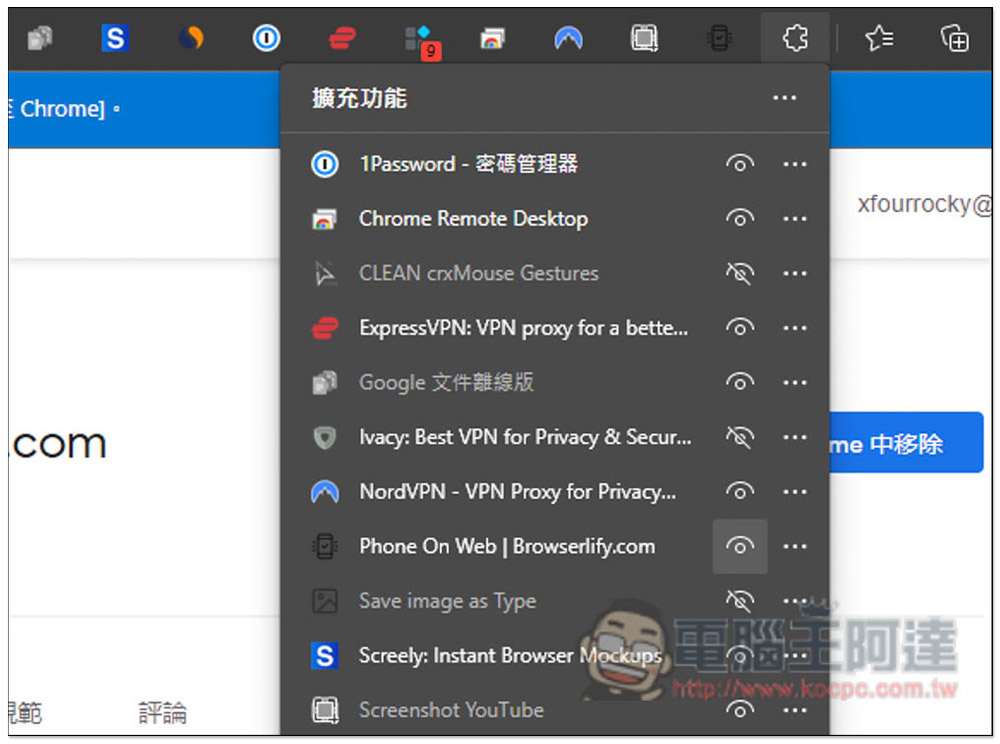
Then you can start using it. The method of use is very simple. Please open the developer mode of your Android phone first. Generally speaking, you go to the about phone page, and then click multiple times on a name such as “version number” (the system version currently installed on your phone). Each brand has a different name, and the developer mode will pop out. After finding and entering it in the system menu, you will see the “USB Detection” function. Please turn it on first:
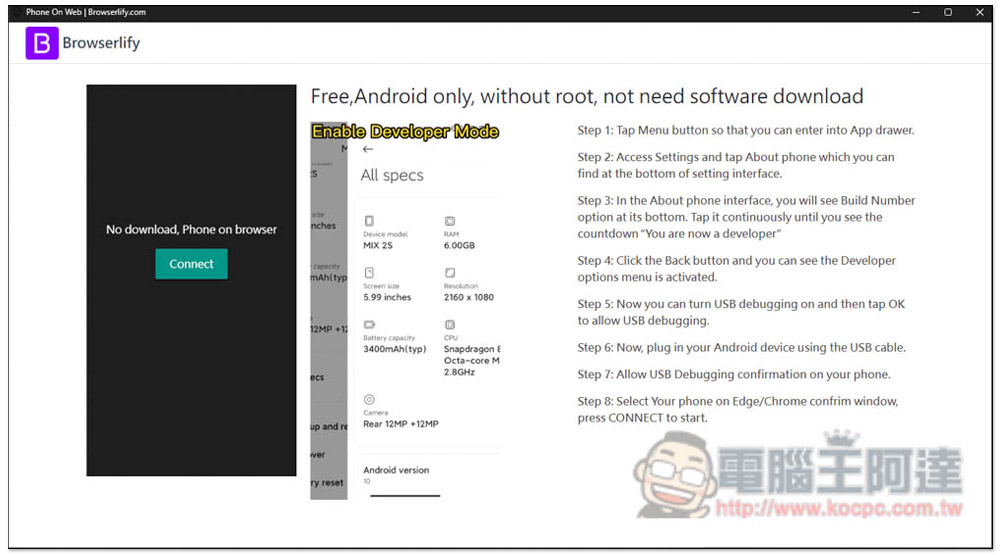
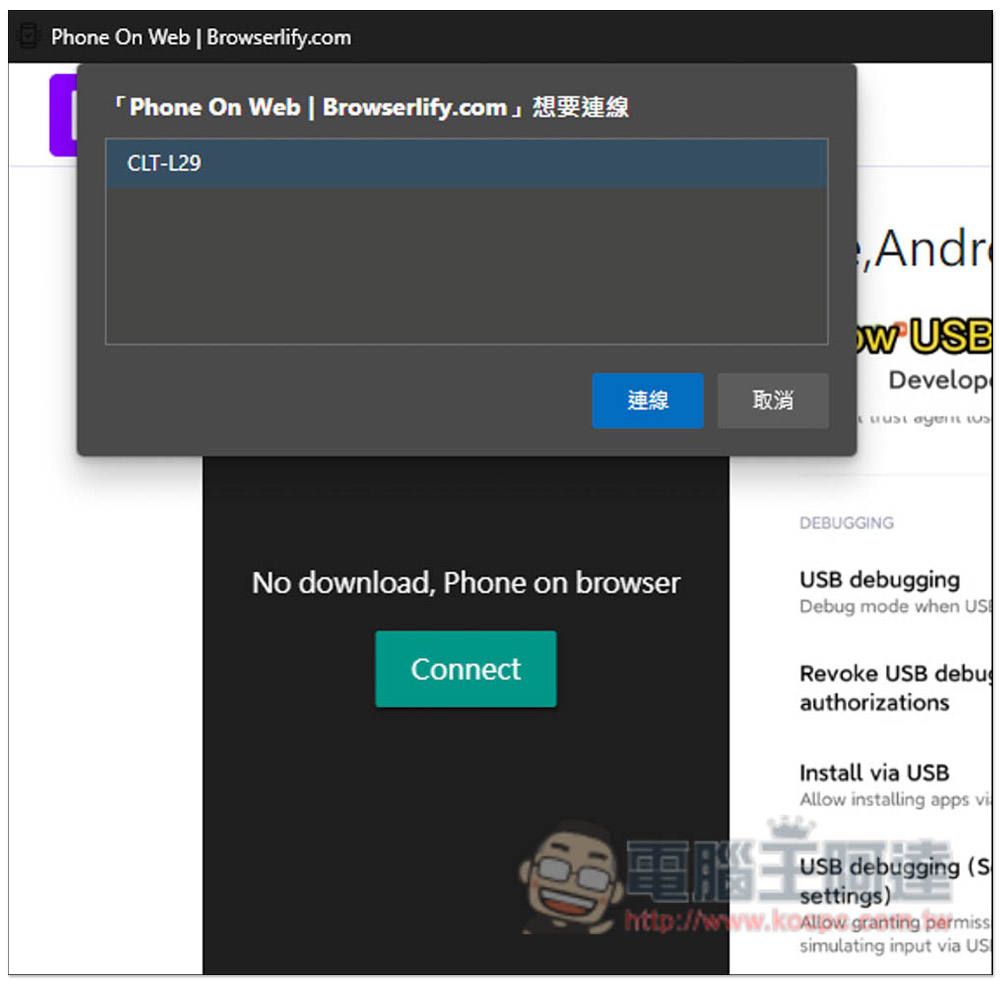
After the mobile phone is connected to the computer using a transmission cable, press the Connect function on the left to find your mobile phone model, select and click “Connect”:
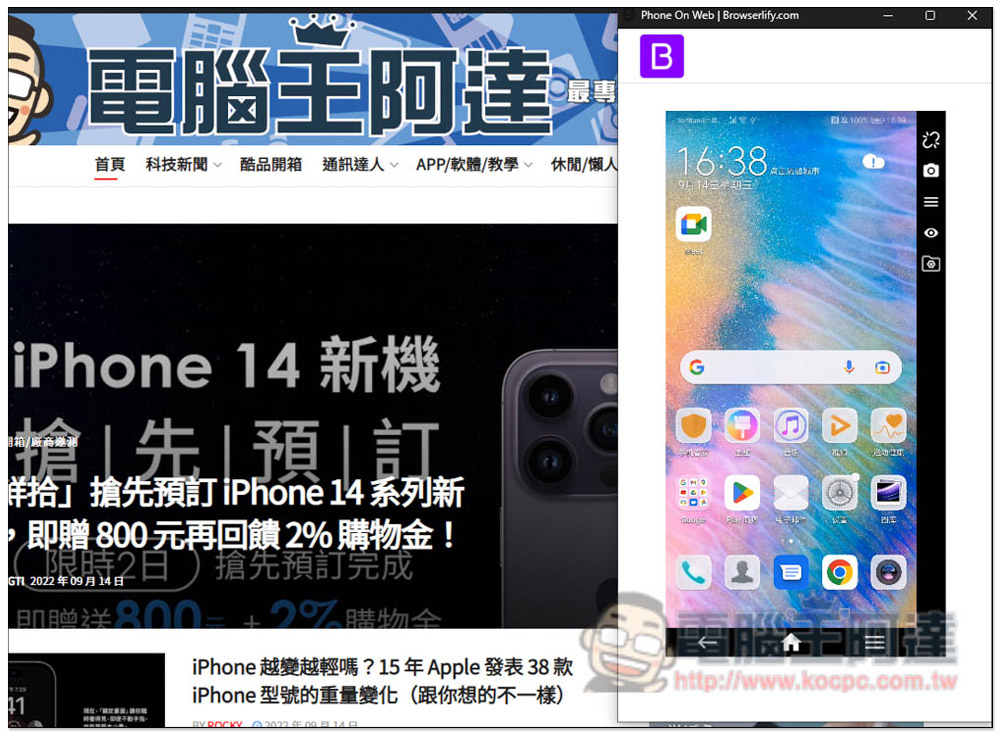
The mobile phone screen will appear. Use the mouse to control it. Drag left and right to slide the screen. Press the left button to select the function and app. The speed is very smooth and it is almost instantaneous synchronization:
There is no problem with keyboard input, but it seems that the Enter key is not supported. You can only use the mouse to select the word you want to use, which is a bit more troublesome:
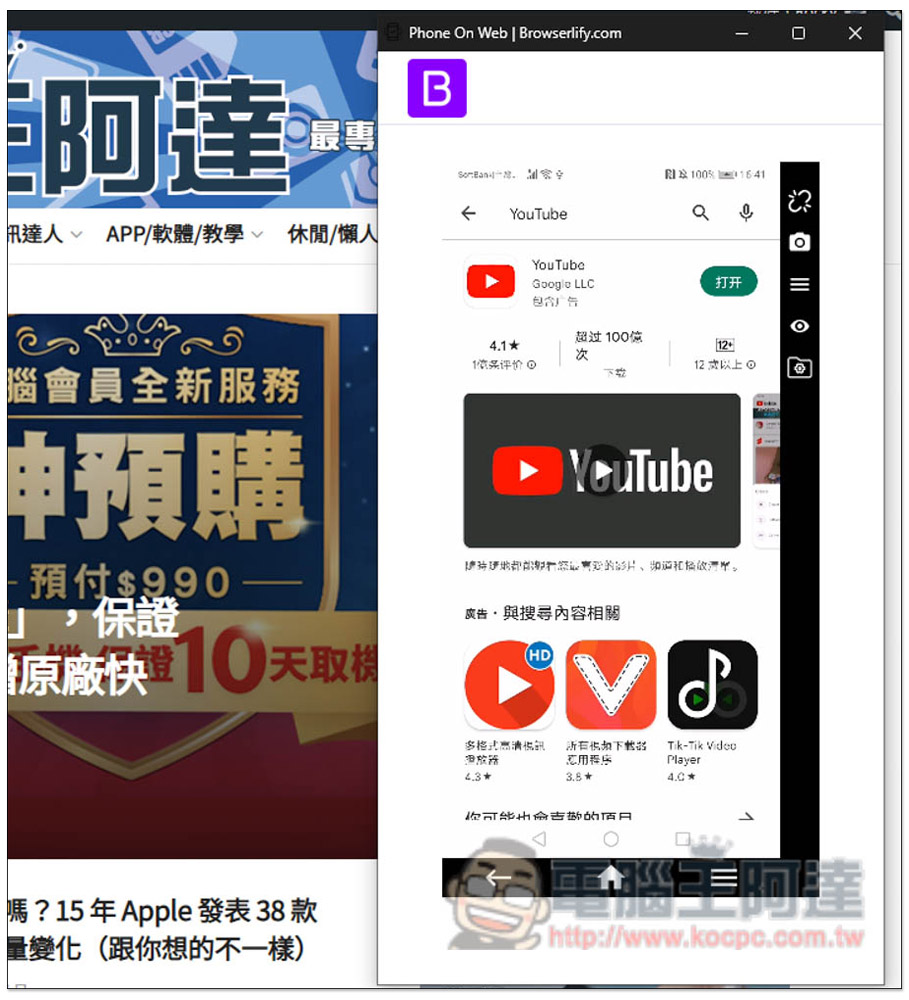
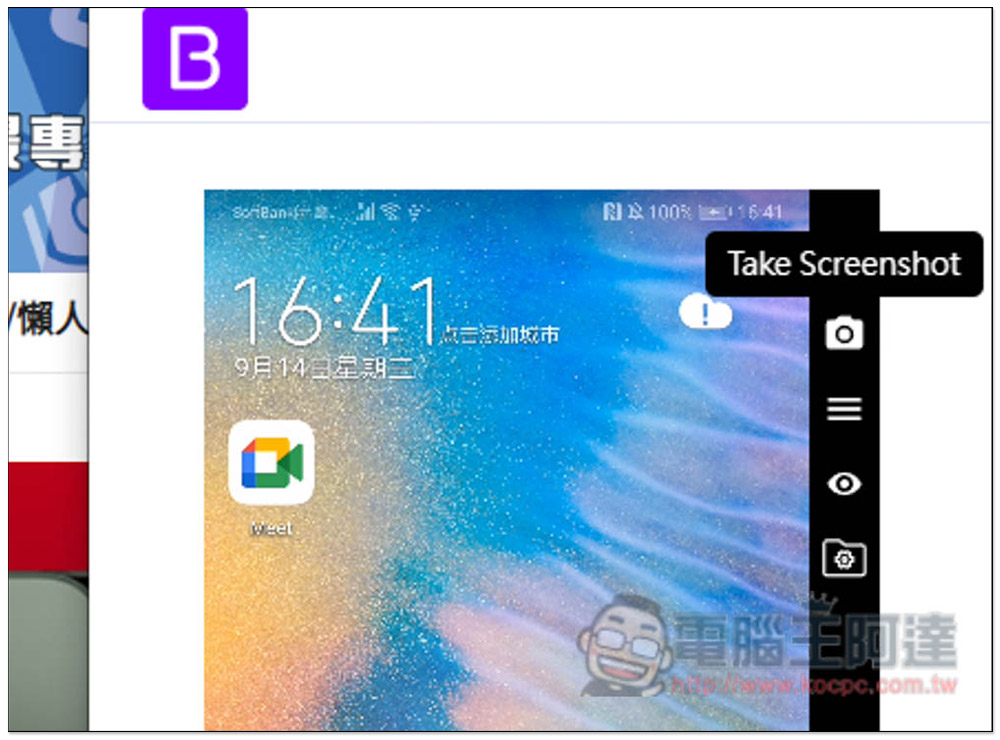
There are also some practical functions on the right side, such as Take Screenshot:
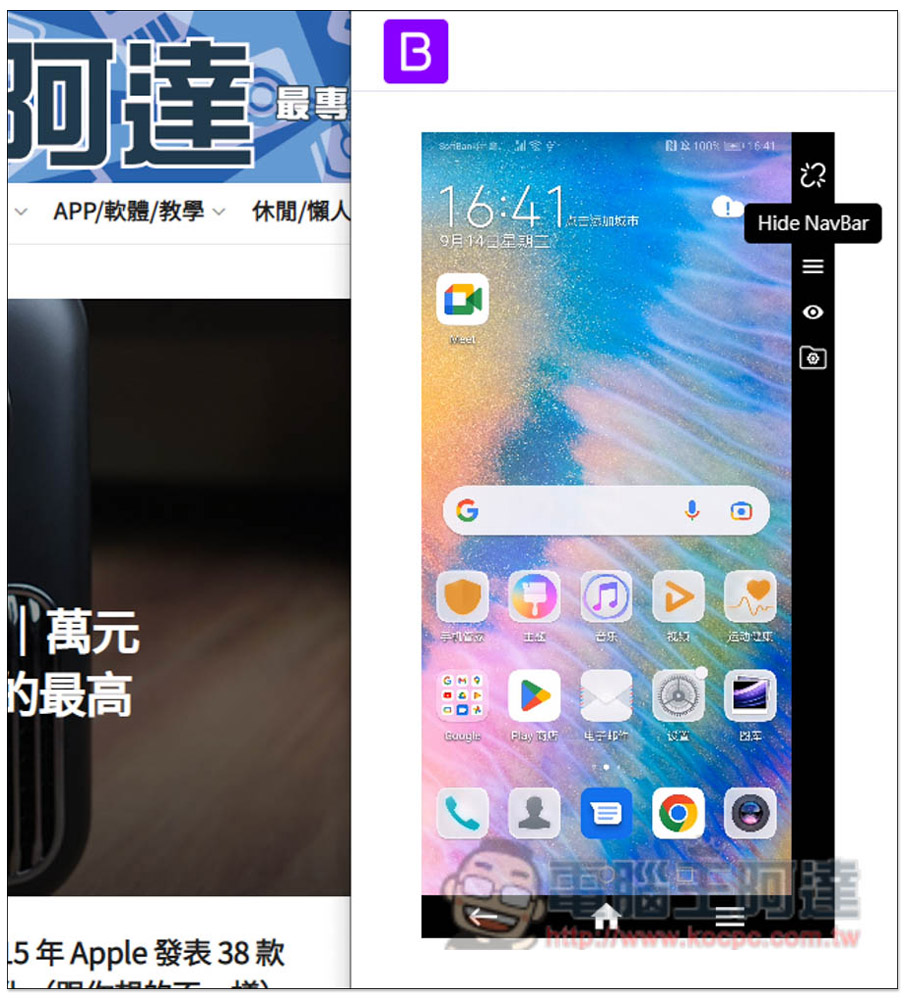
Hide NavBar will hide the three function icons at the bottom of the mobile phone screen:
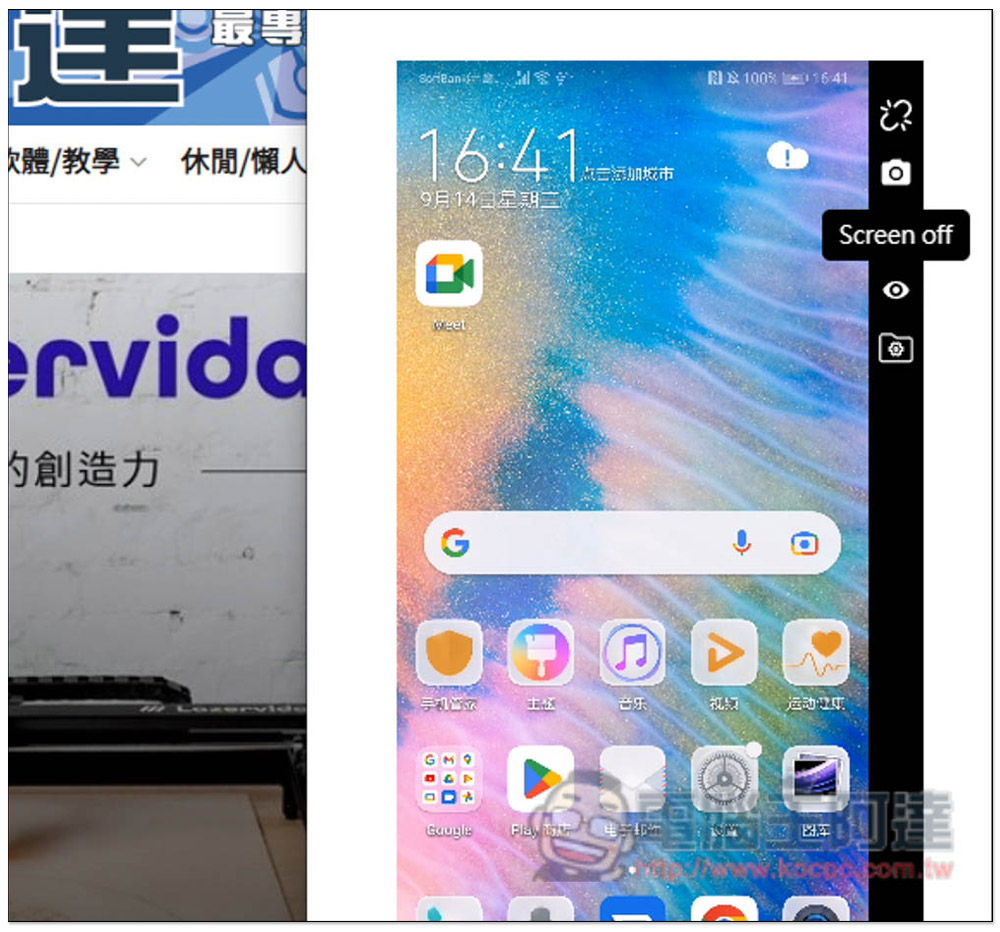
The third Screen off is quite practical. It can set your mobile phone screen to darken, but the mobile screen of your computer will not be affected and you can continue to use it normally:
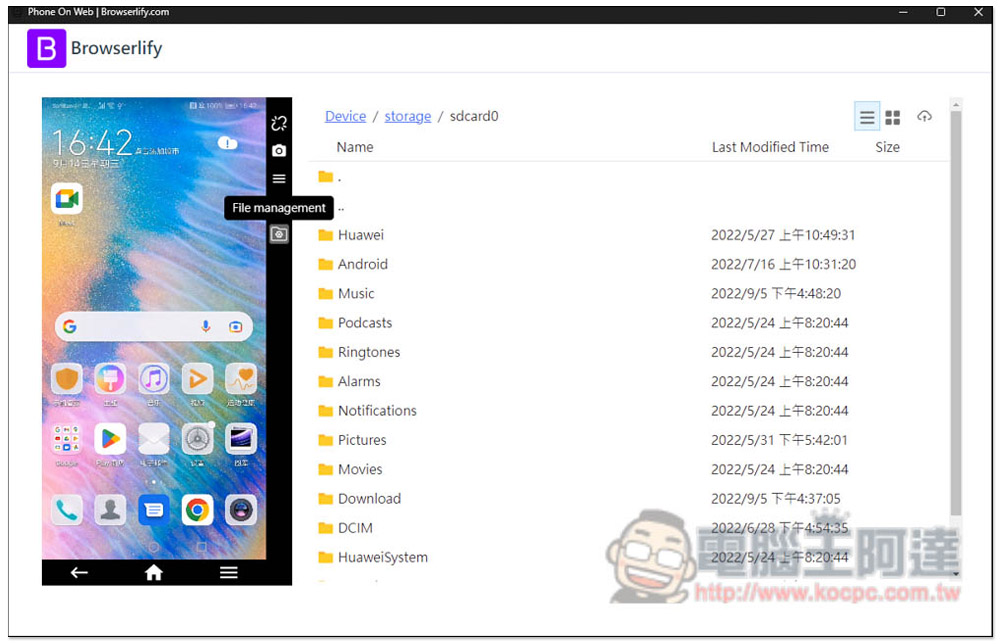
File management is to open the file manager and you will see all the folders in your phone:
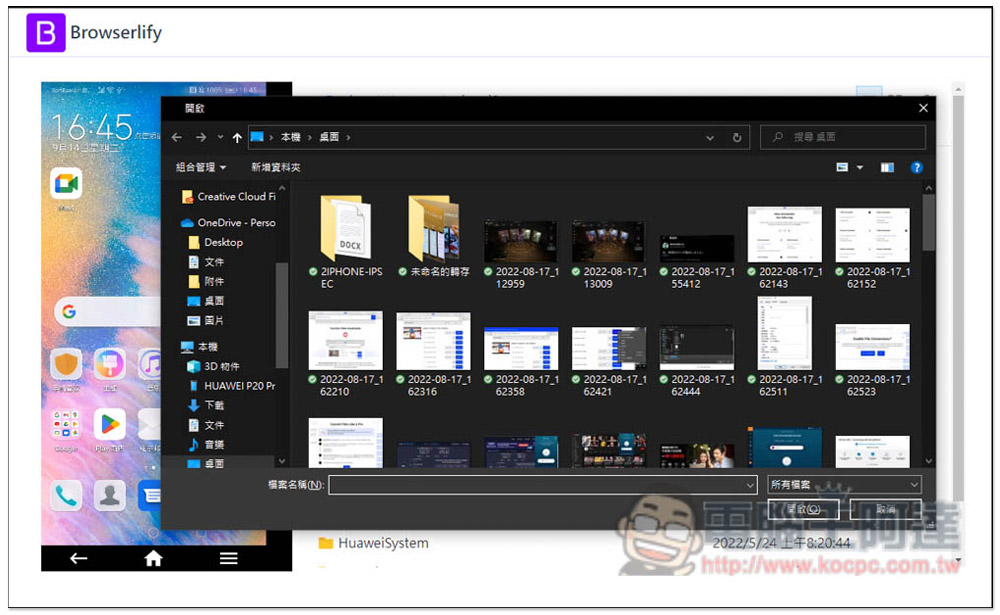
The upload function is located on the upper right. After selecting the file you want to save to your phone, the transfer will begin:
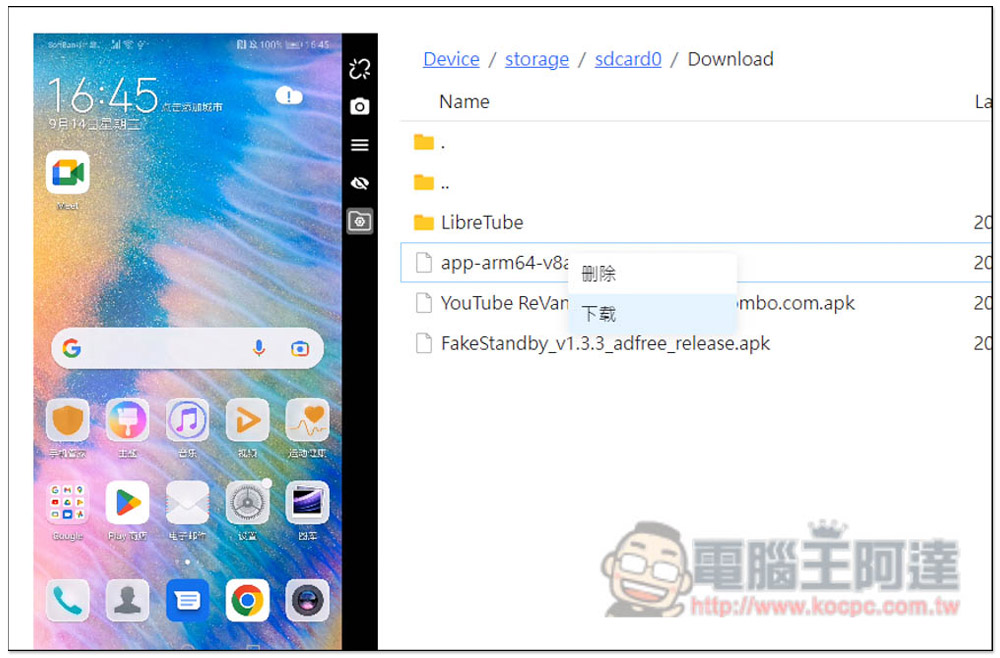
Of course, you can also download files from your phone to your computer, or even delete them:
The Phone On Web extension is a simple and easy-to-use tool for remote control of Android phones. Unfortunately, it does not support the recording function, so you must use other screen recording software to achieve it.
In addition to this one, we have also introduced other tools that can output Android phone screen to computer, such as:Scrcpy、ApowerMirror Wait, you can try it too.
Source: KOCPC Chinese