


Because WatchOS provides users with an excellent user experience and high accuracy in health monitoring, Apple Watch has become one of the most popular smart wearable devices in the world. When each new generation of watch is launched, Apple improves it with new features and functions. However, just like the iPhone, the more often it is used, the easier it is to cause battery wear. If you find that your watch seems to have less battery life than before, it doesn’t matter! Let’s check it out.
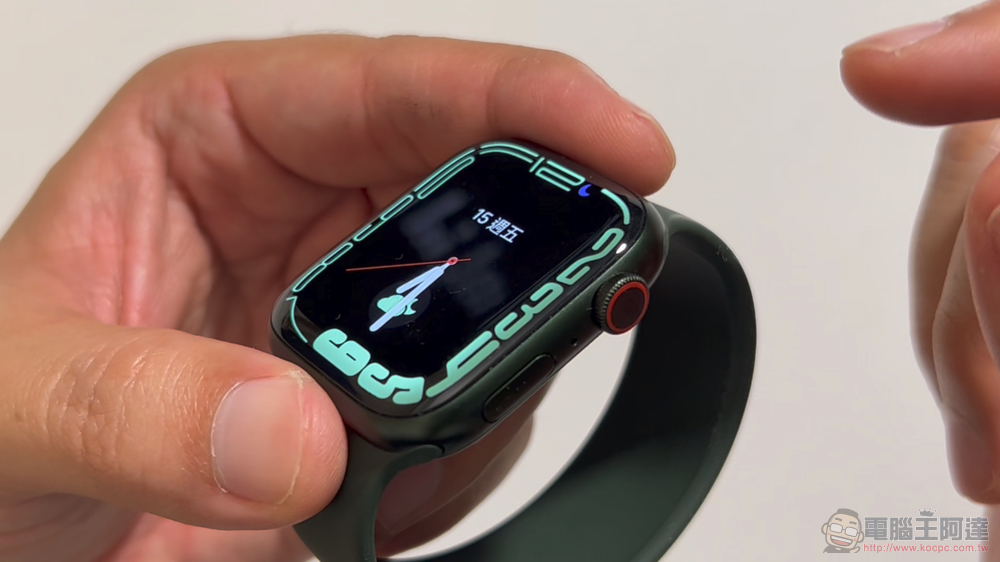
How do I check the battery health of my Apple Watch?
Items such as mobile phones and watches with built-in batteries will experience varying amounts of battery wear and tear after being repeatedly charged for a long time. This is a normal phenomenon, but how do you confirm that your recent Apple Watch running out of power quickly is due to battery wear and tear?
How long does the Apple Watch last?
Before you check your battery health, you’ll want to know the maximum time your Apple Watch can last. The latest Apple Watch Series 7 can be used for 18 hours on a single charge. These 18 hours include up to 90 viewing times, 90 notifications, 45 minutes of APP use time on the watch, and 60 minutes of physical training and music playback time. The GPS model offers 18 hours of iPhone Bluetooth connectivity, while the GPS + LTE model offers 4 hours of LTE connectivity and 14 hours of iPhone Bluetooth connectivity.
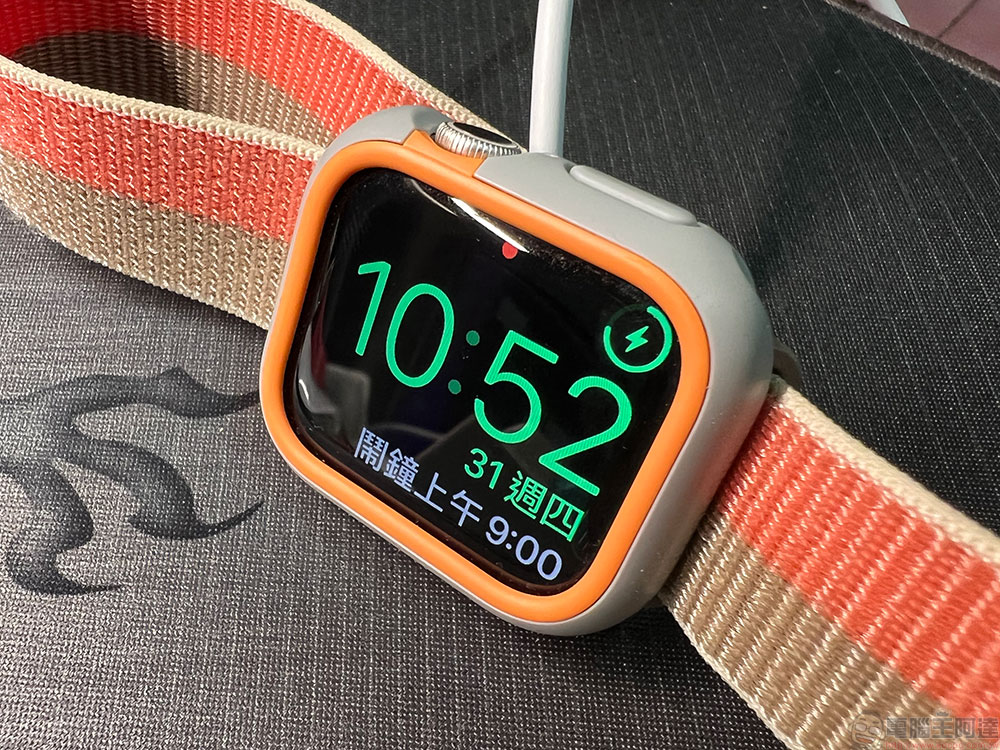
Apple mentions that the Series 7 can last up to an hour and a half on LTE calls, 11 hours of playback from its storage capacity, and up to 8 hours of streaming over LTE. Finally, if you use the Apple Watch Series 7 for outdoor fitness with GPS and LTE turned on, it can last up to 6 hours. For those who own an Apple Watch SE, the company’s promised total battery life is still 18 hours; however, playing music from storage, streaming over LTE, and exercising indoors and outdoors is less time than with the Apple Watch Series 7.
How do I check the battery health of my Apple Watch?
While you don’t need to check the health of your Apple Watch regularly, you can track it over time, especially if you’re experiencing issues like random shutdowns, or charging times are shorter than before. In these cases, it’s time to check the maximum battery capacity, which is also the primary indicator of battery health on your Apple Watch.
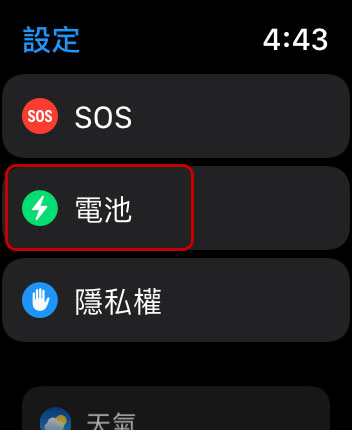
- Press the digital crown to enter the APP selection interface, then click “Settings”.

- Click “Battery”, enter the inner page and scroll down to see “Battery Health”.
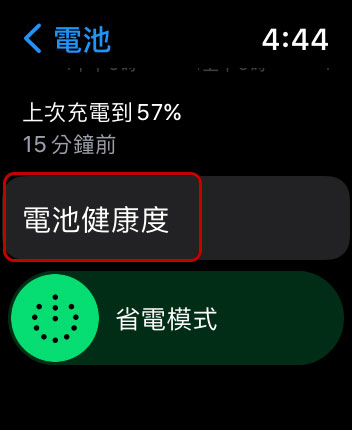
- Check the percentage of “maximum capacity” to see the current battery health.

When should I replace the battery? How do I minimize battery capacity degradation?
If you want to minimize battery degradation, Apple recommends that everyone keep their Apple Watch running the latest system version. In addition, you can also switch the watch to power saving mode. Alternatively, even better, you can do more settings from the Apple Watch app on your iPhone:
- In “Apple Watch >> General >> Background App Refresh”, close unnecessary and infrequently used apps to extend battery life.
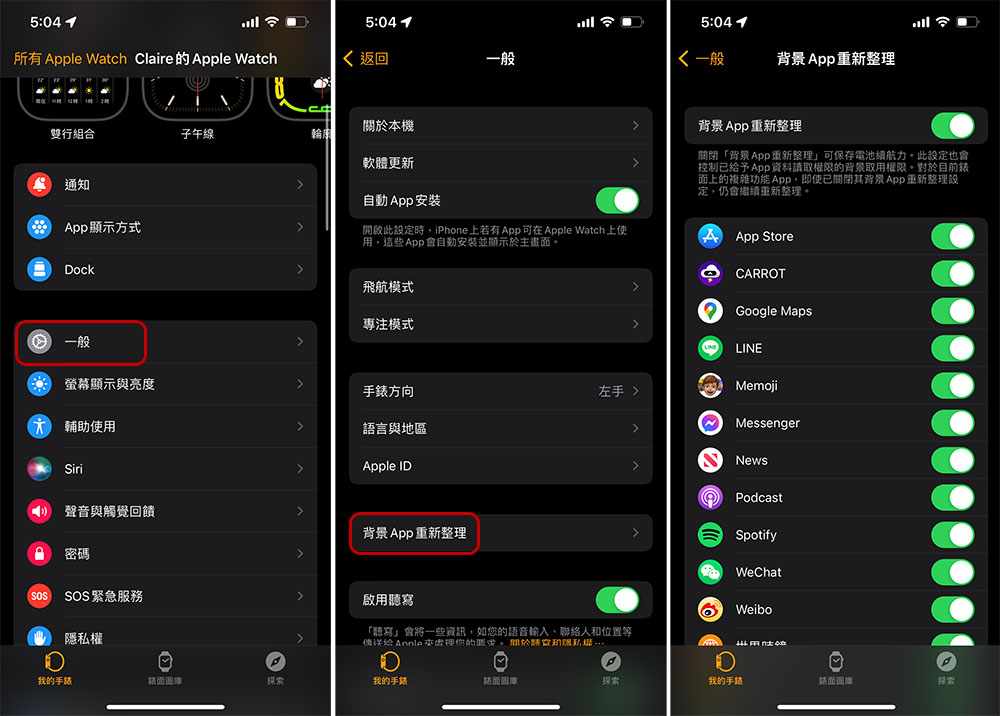
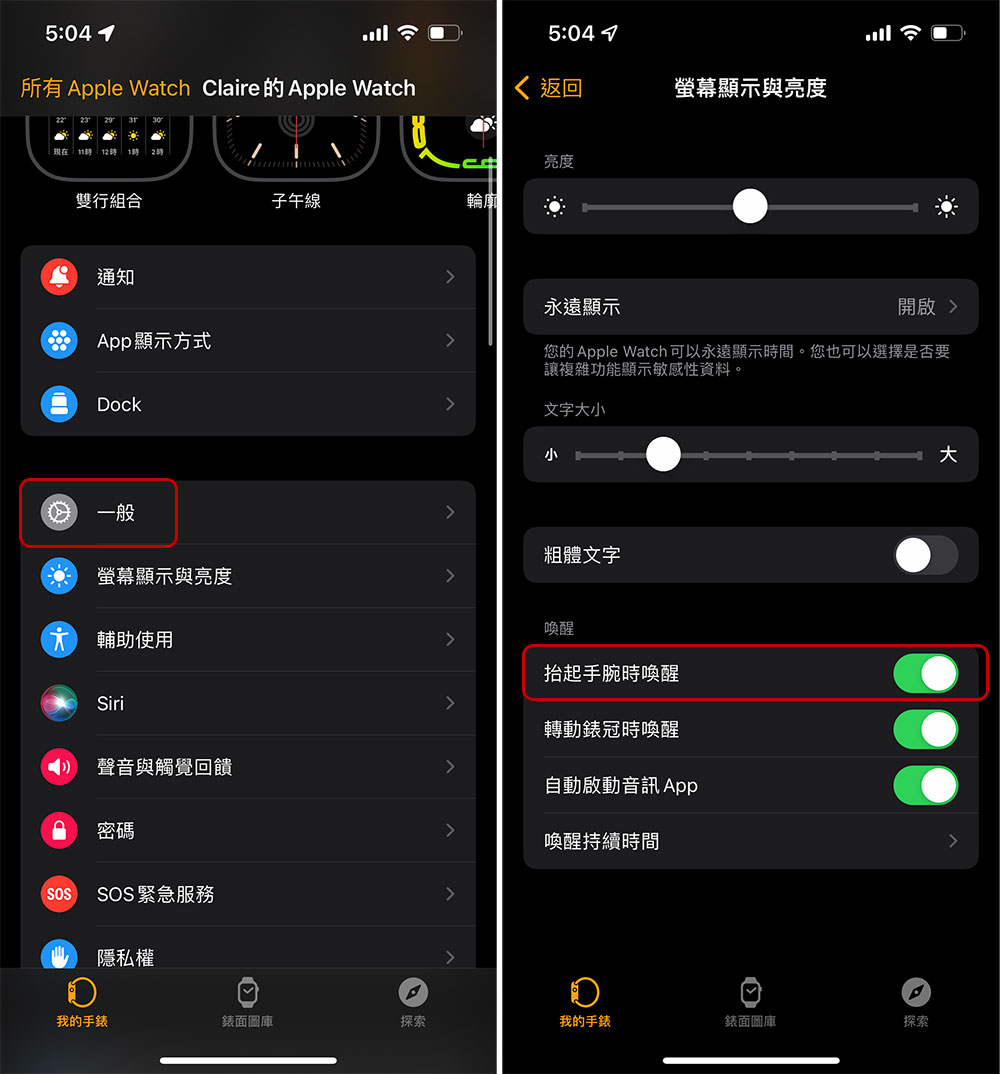
- If you often wear your Apple Watch for work and don’t want the screen to automatically turn on when you raise your hand, you can turn off the wake-up-on-wrist function in “Apple Watch >> Settings >> Screen Display & Brightness”.
Under the most ideal conditions, the battery capacity of a newly purchased Apple Watch should be 100%, but due to the time difference between the production of the product and the purchase of the product, it may differ from the maximum capacity. After purchase and use, the battery capacity will basically decrease at a rate of 1 – 3% per month. When your battery health drops below 80%, it’s time to head to an Apple Store for repair or a new watch, no matter how old you’ve had it.
Source: KOCPC Chinese