


Gmail should be the email platform used by the most people. You may use it to send and receive letters every day. As a busy person with hundreds of thousands of emails per second, it takes a lot of time to process a bunch of letters. As a modern person, you should use Gmail smarter. This time, the author has helped you organize some practical and easy-to-use Gmail keyboard shortcuts to make you process letters more efficiently.
You must learn the exclusive shortcut keys for the PC web version of Gmail to double your efficiency in processing letters
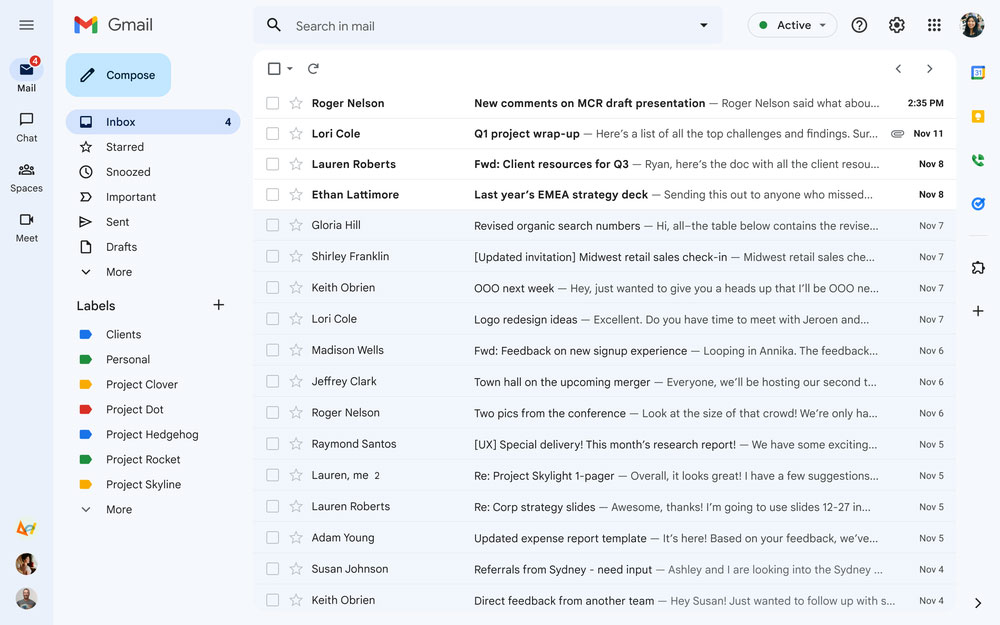
There are many special keyboard shortcuts built directly into Gmail, even more than you think, but you may never know it when using the computer web version of Gmail. However, as long as you learn them all, you can often use them in your daily life and manage your daily emails more quickly and efficiently! ?
First, let’s enable Gmail keyboard shortcuts!
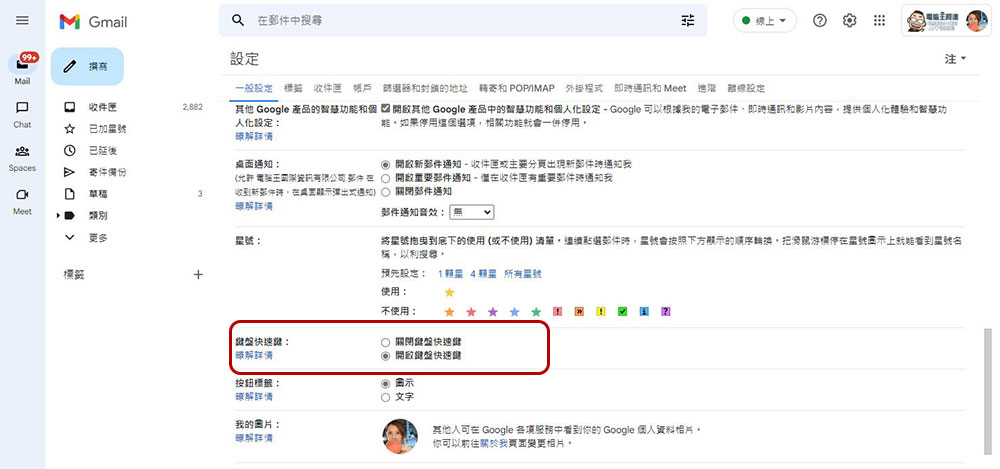
By default, the shortcut key function of the computer web version of Gmail is turned off. If you want to enable this function, please follow the steps below:
- Open the web version of Gmail in your browser, log in and click “Settings” (gear icon) in the upper right corner of your inbox.
- Click “View All Settings” to enter the more setting items panel.
- Scroll down to find “Keyboard Shortcuts” and select “Turn on Keyboard Shortcuts”.
- Scroll to the end and click “Save Changes”.
Practical computer web version Gmail keyboard shortcut key organization
The computer web version of Gmail has too many shortcut key functions, but you only need to learn a few of them that are the most practical and you will have endless benefits. After enabling the function in the above unit, the author below has selected a few shortcut keys that are most worth learning. You don’t need to move your hands to hold the mouse, you can directly use the keyboard to operate quickly.
- Compose a new message: C
Although you only need to press the big “Compose” button on the web page to write a new email, if you don’t want to take your hands off the keyboard or don’t have a mouse, you can directly press the “C” key on the keyboard to open a new email immediately. This is especially useful for people who work all day long to write new emails. - search:/
You don’t need to use your mouse to click on the search field on the web page. You can directly press “/” and enter keywords to search. This function is very convenient if you often look for emails in a haystack. - Select:X
Instead of using your mouse to check the check box in front of the email title, just use the arrow keys to move up and down to the email title you want to select (it will be highlighted), and then press “X” to select the email. Of course, you can also use the arrow keys to select multiple emails. - Turn on: O or Enter
You can open any highlighted email by pressing the “O” key, or just press the Enter key on your keyboard to open the email. By using the up and down arrows to move around in your inbox, you can open all emails without even touching your mouse. When you are viewing an email, use the up and down arrow keys to scroll up or down the page. - Return to previous page:U
When you finish reading the email and want to return to the inbox page, you can press the “U” key to return. You can think of this as a universal back button for opening emails. - Add an asterisk: S
When you want to mark an important letter, you can directly press “S” to add an asterisk whether on the title page or inside the letter. - Seal the letter: E
For emails that need to be archived, such as collaboration memos and password letters, you can use archives to save them for later review and hide them in the default inbox. Just press “E” on the highlighted item in the email body or inbox header to archive the email directly. - tagged: L
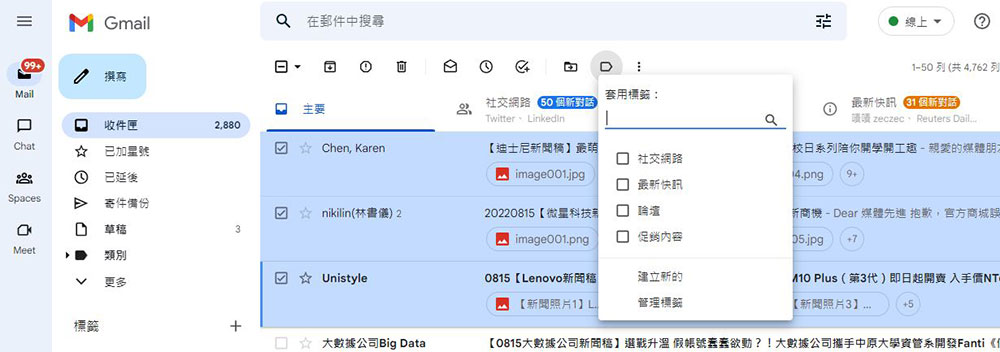
After opening an email or selecting multiple emails in the inbox, press “L” to add labels to the selected emails. You can add new labels or use default labels to keep your inbox organized.
- delete:#
Select any message in your inbox and press “#” to delete it from your inbox and move it to the trash. - Reply: R
When you want to quickly reply to the currently open email, you can press “R” to jump to the bottom immediately to write a reply. - Reply to everyone: A
This is an extended application of the previous shortcut key. You only need to press A to directly reply to all participants in the letter, including recipients, copy recipients, blind copies and other objects, making batch emails easier to manage. - Mark as spam:!
Some spam messages can bypass the blocking classification and go straight to the main inbox. If you want to mark a specific message as spam, just click “!” on the selected message to delete the message from the inbox and move it to the “Spam” folder. - Forward: F
If you want to forward the letter to someone else, you can press “F” directly in the text of the letter to perform this operation. If you often need to forward letters to colleagues or family members, this shortcut key must be learned! - View all correspondence under a single title: N and P
Sometimes you and the other party reply to each other’s letters, and they will be listed in the same title and displayed in Gmail. If you want to view the content of the previous or next correspondence in the letter, press “N” to move to the next reply, and press “P” to return to the previous letter. This shortcut is great for reading close correspondence. - Mark as read/unread: Shift + U and Shift + I
To display the selected read email as unread, please press “Shift + U” to mark it; if there is an email that you don’t want to open but want it to appear read, please use “Shift + I” to mark it as read. - Open primary inbox: G + I
If you have multiple inboxes set up on your account, “G + I” allows you to quickly open the main inbox. - Open the keyboard shortcut list:?
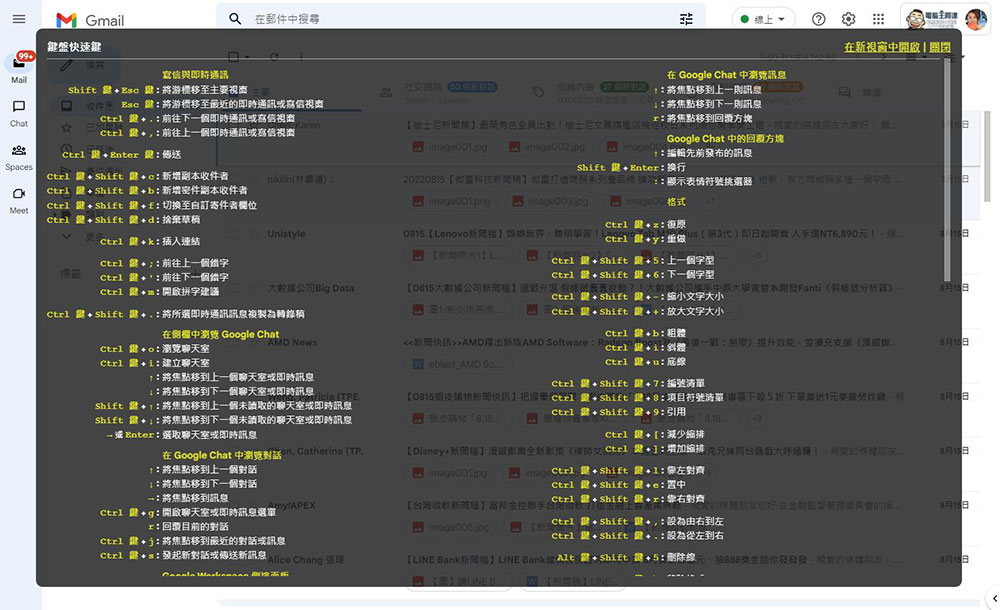
Although the author talked about many shortcut keys earlier, I only focused on the most practical ones for daily use. In fact, there are many more shortcut keys for you to use in Gmail. If you want to see the complete list of shortcut keys, you can press “?” when browsing the inbox to call up the shortcut key list.
Gmail provides many powerful features to make your inbox easier to manage. More features means more options to click and find, and it inadvertently complicates simple things. With keyboard shortcuts, you don’t need to search for goals in increasingly long menus, which helps you improve your email processing efficiency. The less time you spend processing emails, the more you can do throughout the day (even if you have nothing to do, you can still have afternoon tea).
Source: KOCPC Chinese