


Apple first released AirPods in 2016, and they quickly became one of the most popular accessories. Although Apple discontinued the original model in 2019, many people are still using the first-generation AirPods because of its sturdy construction. However, the only way to charge AirPods is to rely on the charging case, and the charging case itself can be really annoying if it encounters power-related issues.
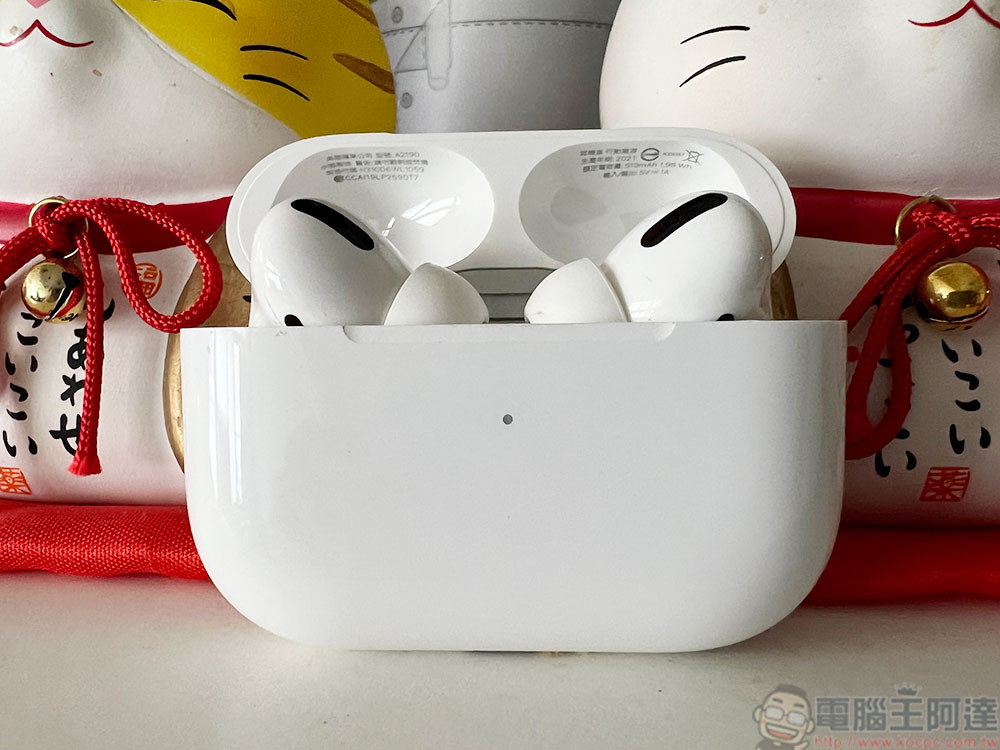
What should you do when your AirPods charging case suddenly fails to charge? Troubleshoot problems before sending them in for repair
Although AirPods have excellent connectivity with Apple’s own devices such as iPhone, iPad and Mac, sometimes the AirPods charging case fails to charge properly. There are many reasons for the problem. It may be a broken wire, a faulty wireless charging version or a software problem. Fortunately, when you find yourself in this situation, you can check it yourself at home before sending it for repair.
Check if AirPods are fully discharged
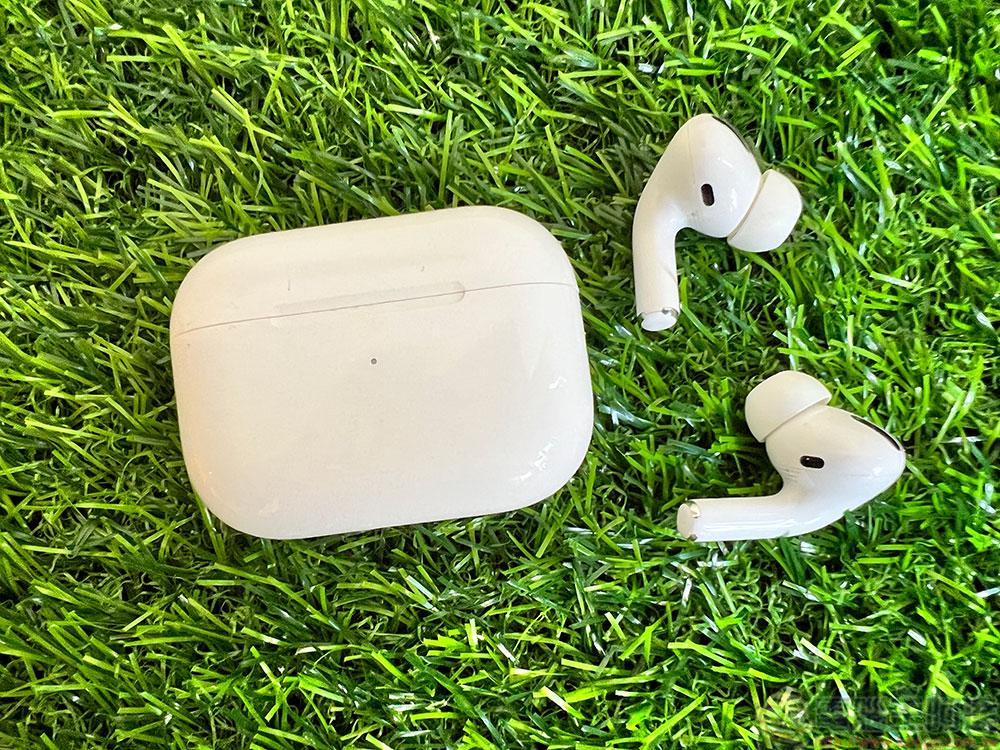
If you haven’t used your AirPods in a long time, there’s a good chance they’re completely discharged. In this case, the AirPods will not automatically connect to your iPhone or iPad even if you open the lid of the charging case, and the setting button will not respond, but you can use some simple methods to solve this problem. The first thing you have to do is connect the charging cable to the AirPods charging case and let it sit for a few minutes. The charging case may take a while to fully charge the battery, but once charging starts, the indicator light on the box will light up. The wisest thing to do is to wait until the AirPods charging case is fully charged before using it.
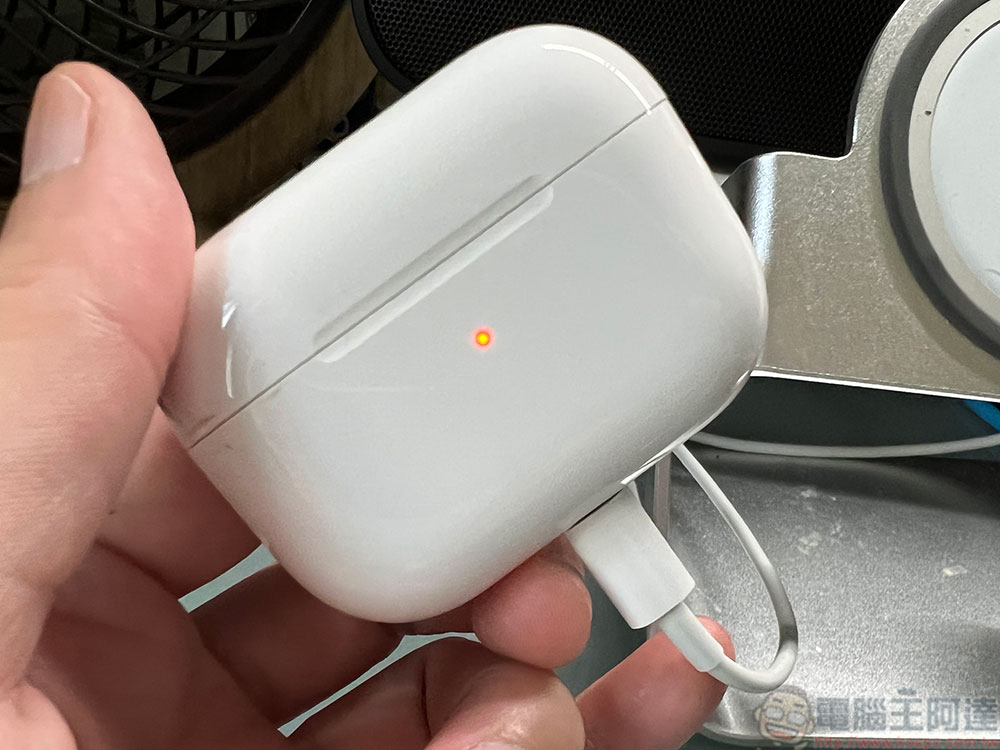
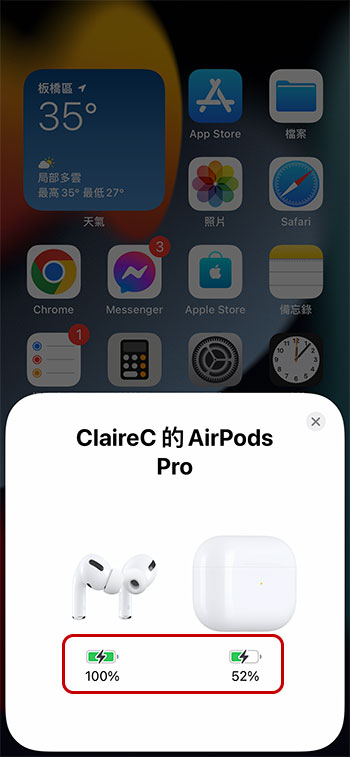
Sometimes, due to malfunction, the indicator light on the charging box does not light up. This might make you think it’s not charging. When the AirPods charging box is charging, open the lid and bring it close to the iPhone or iPad. This will usually trigger the device status screen. If you see a small lightning flash on the power display of the earbud box charging box, it means that it is charging. If you do not see the lightning icon, it means that there is still a fault that needs to be eliminated.
Try another socket or charging cable
The first item you want to check is the source of electricity. Under normal circumstances, your AirPods can be used with a variety of power sources, such as a wall outlet, a USB port on your computer, etc., but if the charging box is throwing a tantrum, try changing the power source. The easiest way to determine whether the socket can operate normally is to connect it to other devices and see if the other devices can charge normally. If there is no problem with the socket, you can try another Lightning cable to see if the charging box responds. If you often put the AirPods charging box in your bag or pocket, dust or lint will inevitably accumulate in the charging port. Please be sure to use soft tools (tweezers, soft brushes, microfiber cloth, etc.) to clean it regularly. Never use metal tools to avoid damaging the charging contacts. If the charging problem is caused by foreign matter, it should be able to be eliminated after cleaning.
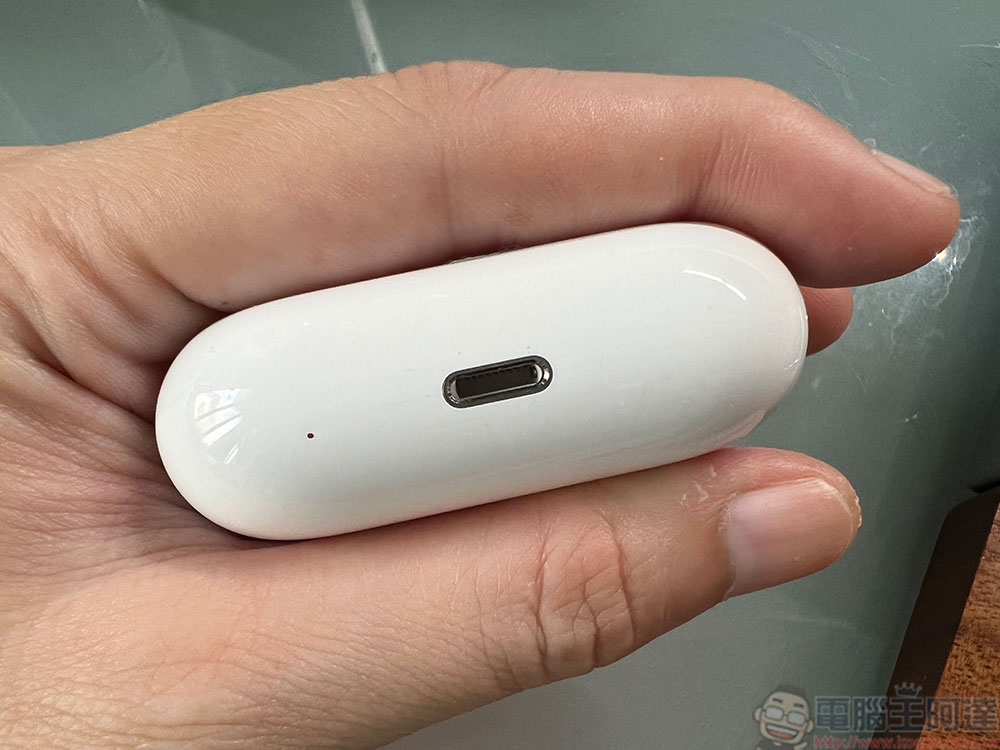
If you have second-generation AirPods or AirPods Pro that support wireless charging, but nothing happens when you put the charging box on the wireless charging pad, you should change the charging pad to troubleshoot the charging pad, or switch to wired charging to determine if the problem occurs with the wireless charging component of the charging box. In some cases, users will wrap a protective case around the AirPods charging box, which may also be the reason for affecting the wireless charging capabilities of AirPods.
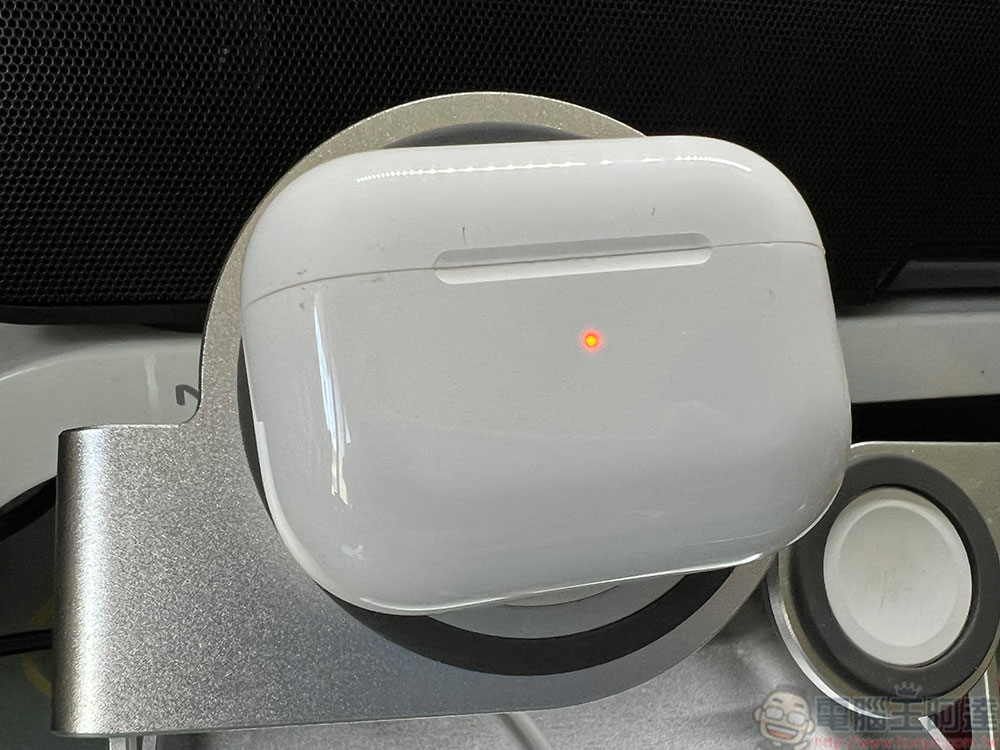
Reset your AirPods
Along the way, we have discussed all the hardware-related issues that may cause the AirPods charging case to malfunction, but if all the troubleshooting methods still do not work after trying a round, it is most likely that a software failure is causing the AirPods charging failure. For this, you can reset your AirPods.
- First put the AirPods back into the charging box, close the lid, and wait for about 30 seconds.
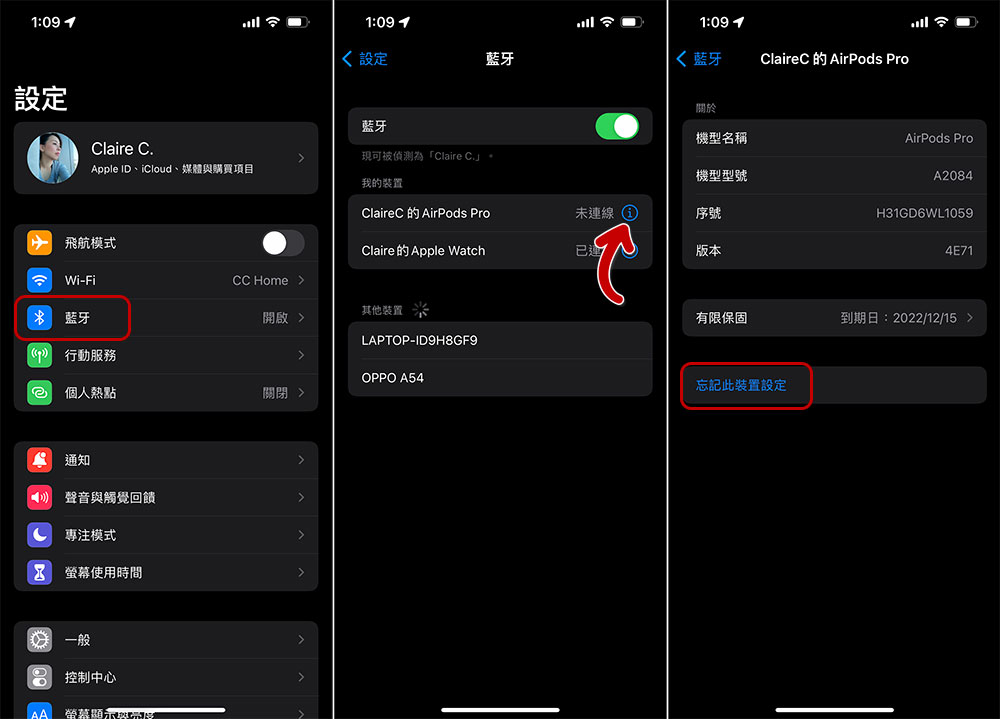
- Open the charging case cover, open “Settings” on your iPhone or iPad, enter “Bluetooth” and click on the information icon next to AirPods, then select “Forget this device settings”.
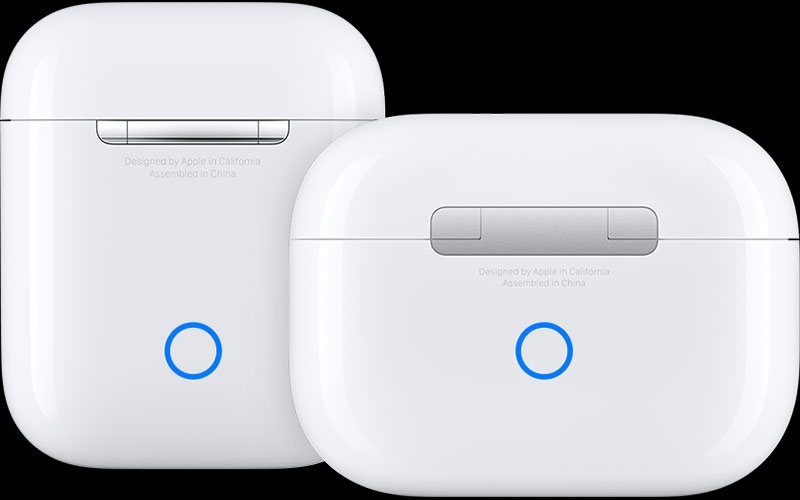
- Then, press and hold the reset button on the back of the AirPods charging case for about 15 seconds. You will see the indicator light on the front start to flash orange. Press and hold the reset button until the indicator light turns white.
- Place the AirPods charging case close to your Apple device and follow the steps displayed on the screen.
Basically, resetting the AirPods can solve the charging problem caused by the software, but if it still doesn’t work, it’s time to contact Apple support or inquire about possible solutions. Typically, Apple will ask you to take the faulty device to the nearest physical Apple Store, where technical support staff will inspect it on-site and provide solutions.
Source: KOCPC Chinese