


I personally like to use web applications because of their lightweight nature, but there is a small disadvantage that most people don’t know how to install it on their computer, and sometimes it can be difficult to install. This time, the author uses Chrome and Microsoft Edge, the two most popular browsers, to teach you how to install all websites as web applications on your computer.

※Image source
How to install any website as a web application using Chrome and Microsoft Edge browsers?
First of all, the author will briefly introduce what is a Web Application (Web Application, referred to as WebApp). There are two main types of applications. One is Native Applications that can run on the machine. The software must be installed directly on the computer. Word, PowerPoint, Photoshop, etc. that everyone is familiar with fall into this category. The advantage is that they are easy to use offline, but the disadvantage is that they are often limited by hardware specifications and occupy more computer resources. WebApp can be executed directly on the network without being restricted by hardware and operating systems. And because WebApp relies on the Internet to operate, all your operations will interact with the cloud database at any time. The biggest advantage of using a website as a WebApp is that it can be accessed “fast” without taking up too many computer hardware resources.
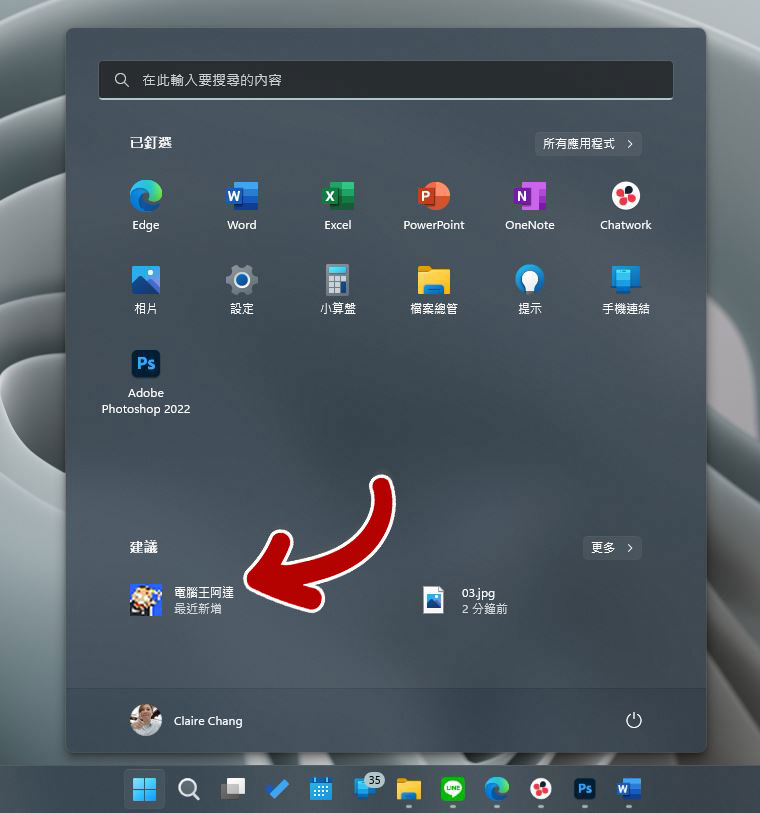
Before getting to the point of today’s tutorial, you must have Chrome or Microsoft Edge browser installed on your computer.
Install in Microsoft Edge browser
Installation through Microsoft Edge is the simplest and most convenient way, so I will explain this method first.
- Open the website you think you’d like to use as an app. For me, it’s Spotify, YouTube, etc., and you can also install your most commonly used applications such as Gmail and Google Maps.
- Click the three-dot menu in the upper right corner of the Microsoft Edge browser and select “Install this website as an app” from the “Apps” item.
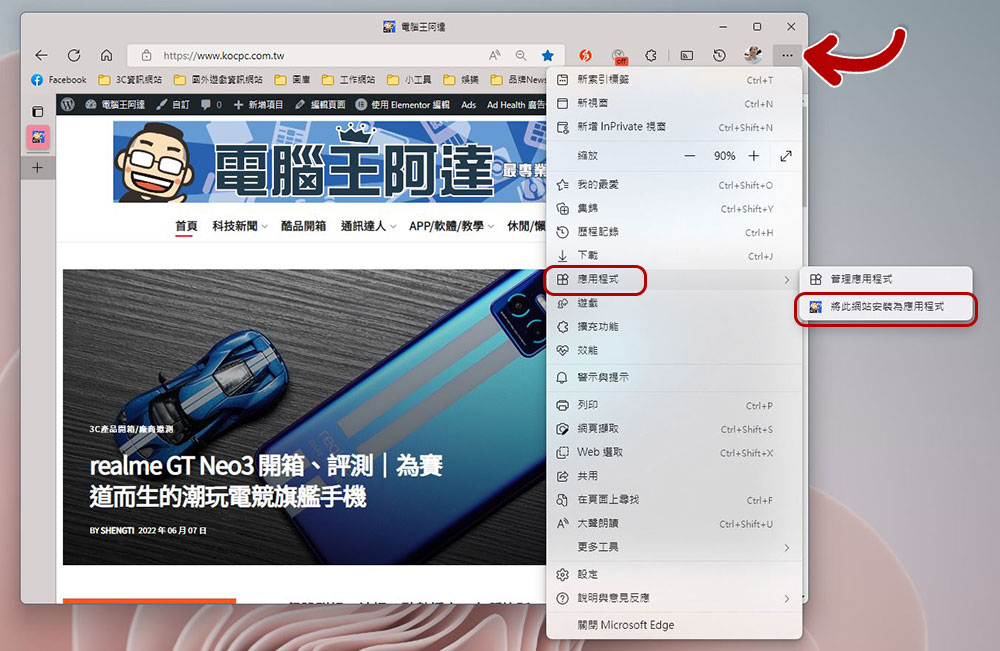
- You can also change the name of the WebApp.

- After installation, you can further configure whether to pin the WebApp to the taskbar, start, create a desktop shortcut, or automatically launch it when logging in.
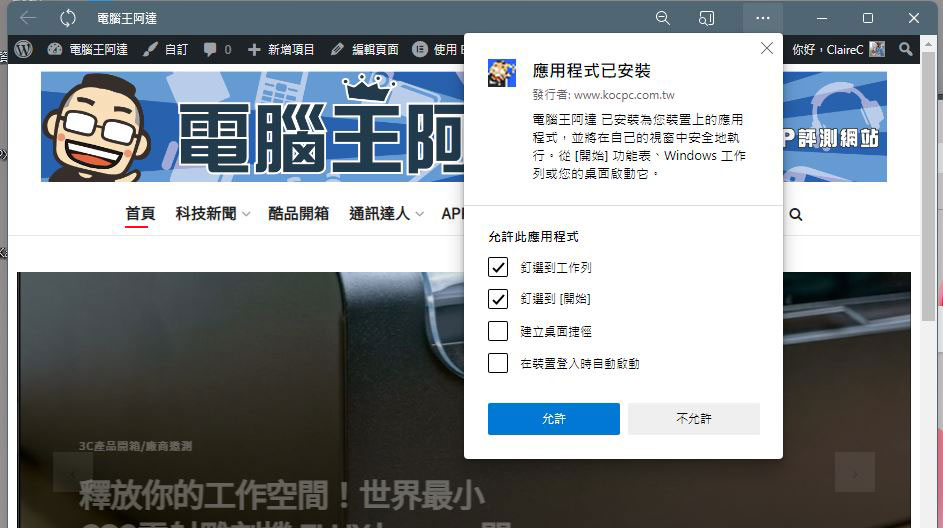
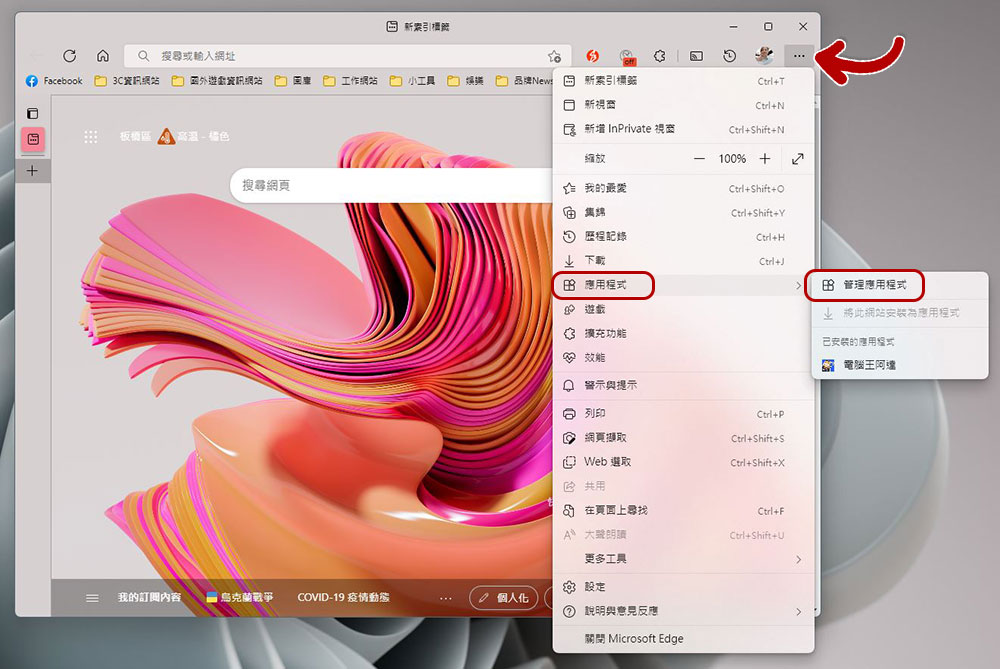
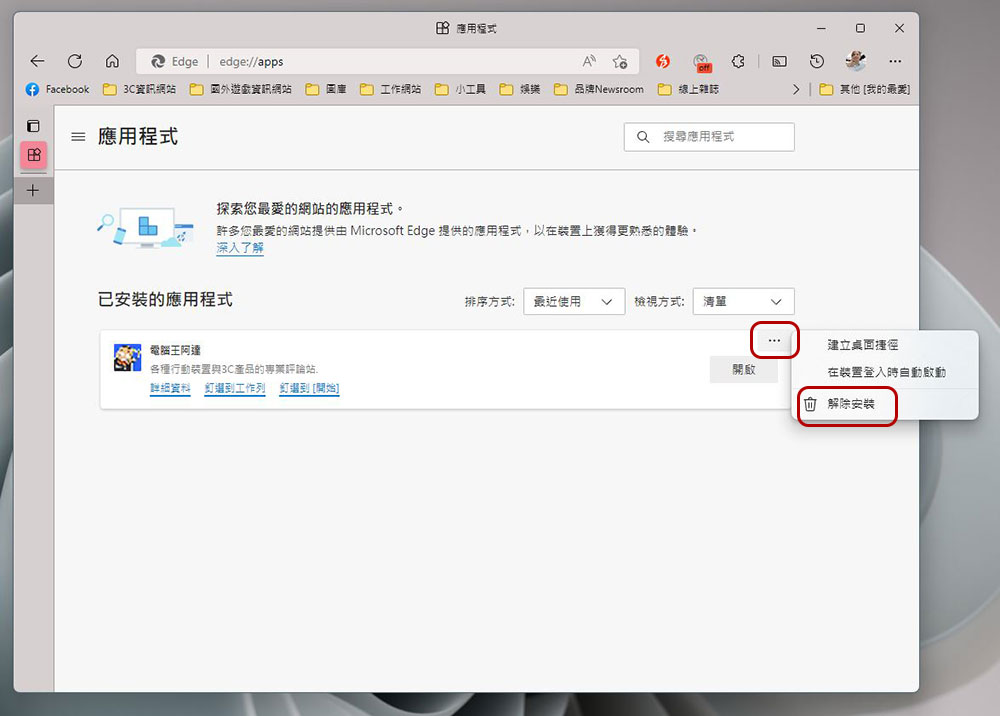
- The next time you access it, just click on the icon on your computer and the site will open in a separate window. If you want to uninstall and remove, just go to the Edge browser and click the three-dot menu, and click “Manage Applications” in “Applications”. In the webpage that opens next, click the three-dot menu in the upper right corner of the WebApp you want to remove, and select “Uninstall” from it.
Install from Chrome browser
Although there will be a small icon next to the address bar of some websites you open for you to click and install as a WebApp, this icon is not permanent, which means that it will only appear if the browser determines that it can be installed. This is not very practical and convenient. After all, everyone has different needs. The installation process in the Chrome browser is a little more tedious, but fairly simple.
- Open the website you think you’d like to use as an app.
- There is no straightforward installation option in the Chrome browser. You have to click on the three-dot menu in the upper right corner, then select “More Tools” and click “Create Shortcut…”.

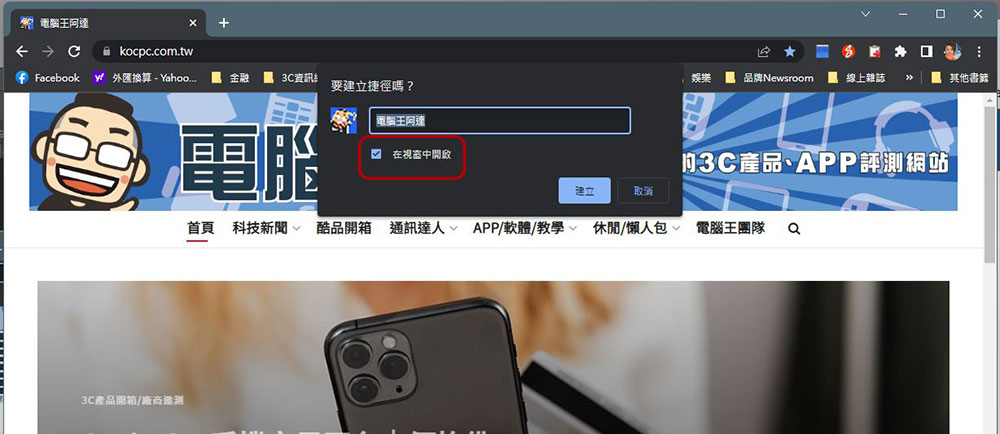
- Next, you can rename it. One important thing is to check the “Open in window” checkbox, so that when you click the shortcut in the future, it will open in a separate window. Otherwise, it will still open in a new tab in the current browser.
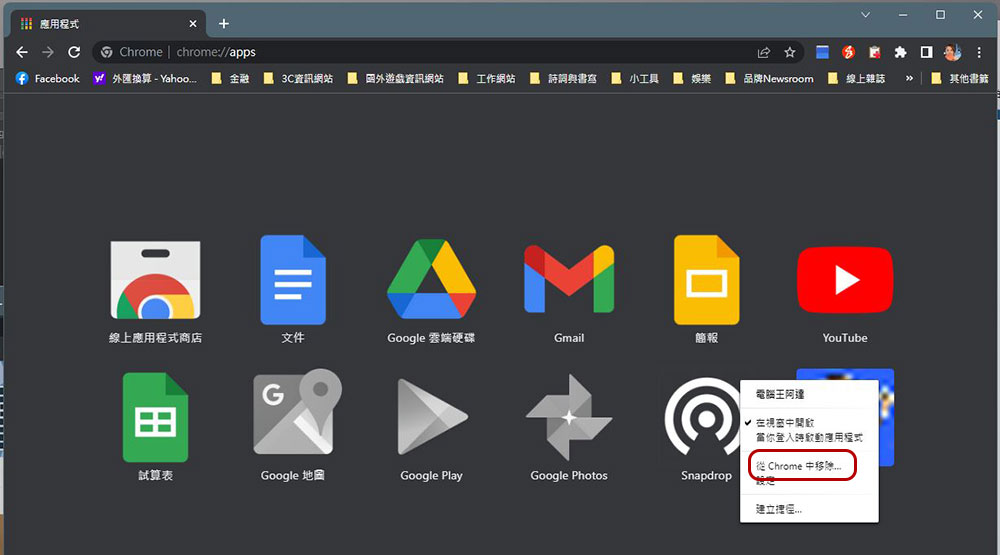
- If you want to remove a WebApp made with Chrome, please go to “chrome://apps” (please copy the URL in quotes and paste it into the address bar), then right-click the item you want to remove and select “Remove from Chrome”.
Finally, if you are using the Brave browser, the methods and steps are the same as Chrome. There are many advantages to directly making commonly used websites into WebApps. You don’t need to open a browser first and then call it out, nor do you need to find the target among many browser paginations, because it will be displayed as an independent icon on the taskbar and can be seen at a glance. Share it with everyone, and hope it can improve your productivity.
Source: KOCPC Chinese