


When you play music or videos on a Windows 11 computer, the system will automatically divide the sound into different channels for output. This is something that everyone understands for granted, so unless there is a special need, they are unlikely to adjust the sound output channels themselves. But what if you only have one speaker? Or only one-sided headphones? At this time, the need for mono settings becomes apparent!

How to set sound effects to mono in Windows 11? Three ways to learn
Let’s first talk about when mono will be used, and some of the characteristics of mono. When you are wearing a single-ear headset or an integrated speaker, if you still use the system’s default two-channel playback, you may not be able to hear some sounds in the sound effect combination. Although everyone is very accustomed to two-channel, 5.1-channel, etc., mono is not without its advantages! There is no need to consider the sweet spot when listening in mono, so the listening experience will not change due to your body movement, and you can hear the details in the mix no matter where your body is.
How to set the sound effect to mono or turn off mono? There are 3 ways to set it up:
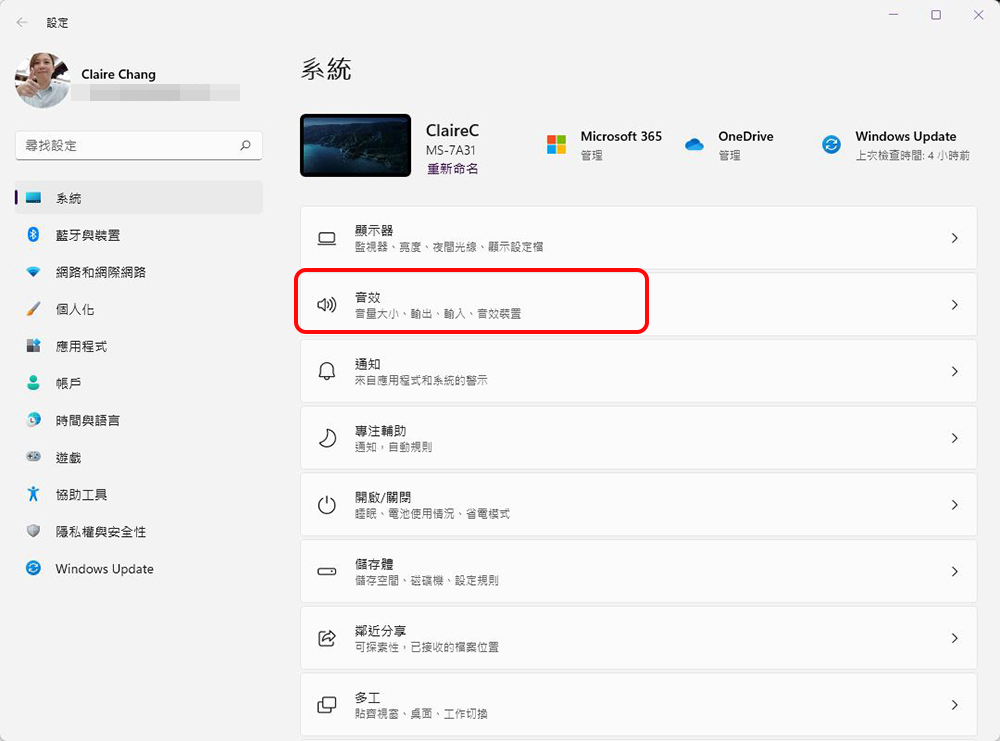
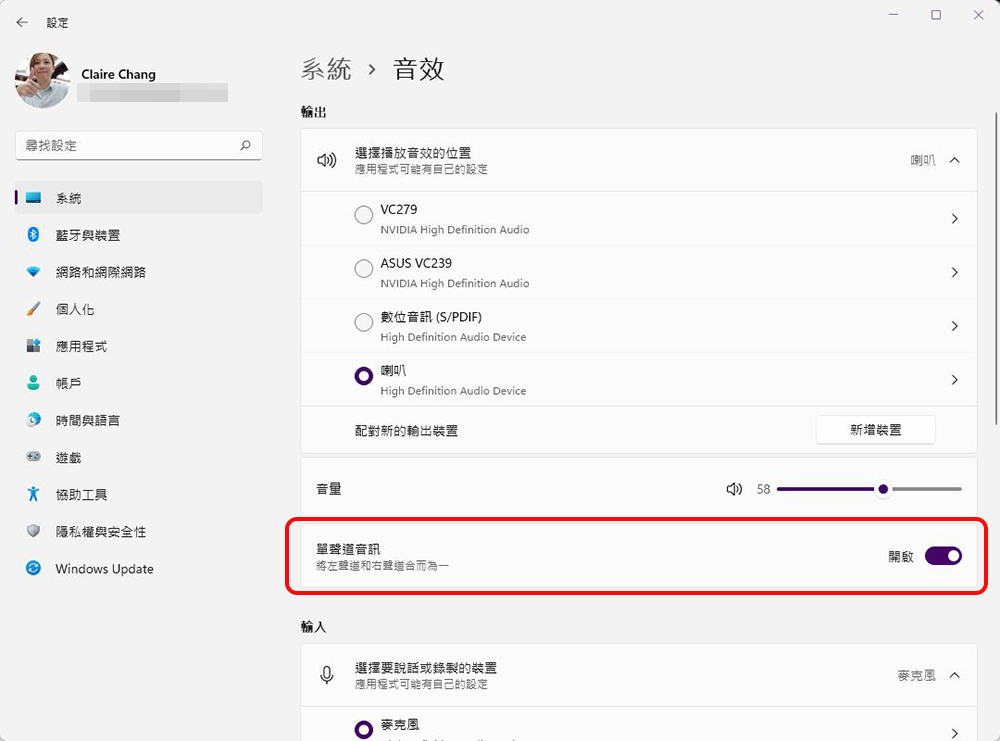
Method 1: Set from “System”
- Open “Settings” and click “System” in the left column.

- Click on the “Sound Effects” item on the right.
- Turn on the “Mono” switch.
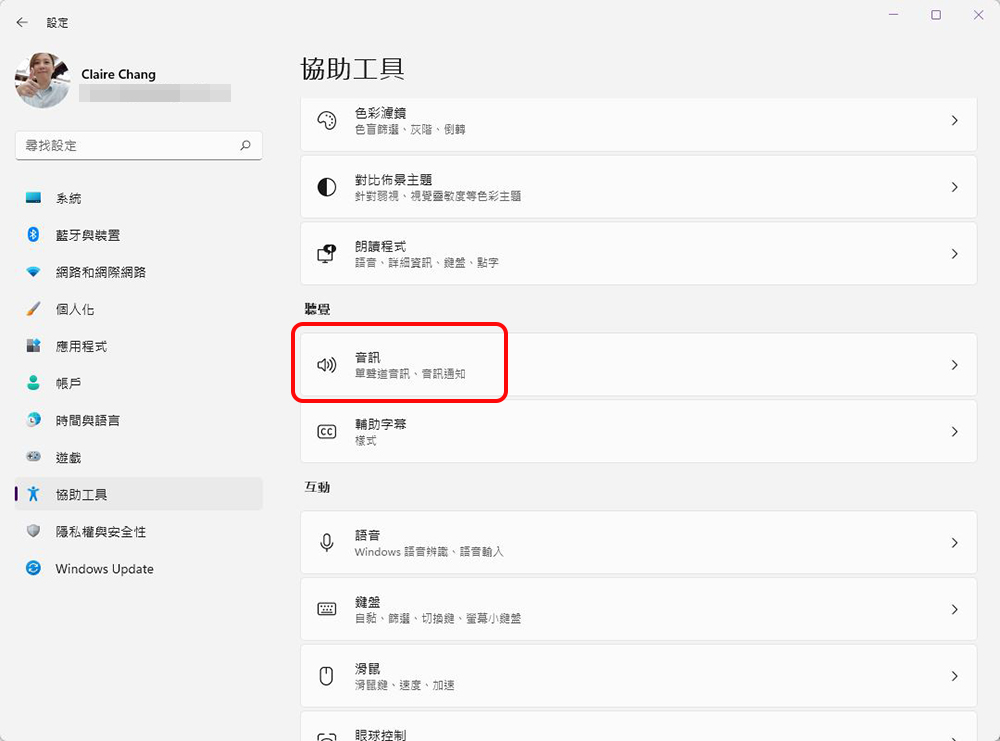
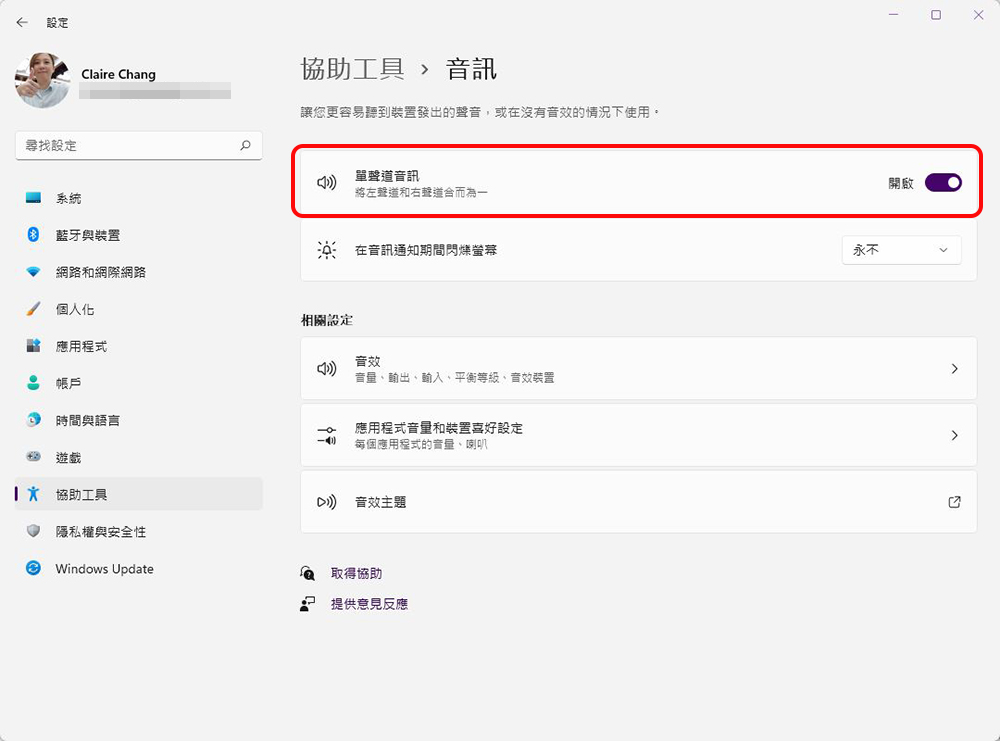
Method 2: Set from Help Tools
- Open “Settings” and click “Accessibility Tools” in the left column.

- Click on the “Sound Effects” item on the right.
- Turn on the “Mono Audio” switch.
Method 3: Enter “Settings” from the taskbar
Right-click the speaker symbol representing sound effects on the taskbar and click “Sound Effect Settings” to quickly enter the settings page.

These three methods allow you to turn on and off mono. If you have needs in this regard, I hope today’s teaching will be helpful to you.
Source: KOCPC Chinese