


In the past few years, voice assistants have become very common in life, and Apple’s Siri is also loved by many people. Especially when your hands are busy or you are simply lazy, you can ask Siri to help you query, enable functions, play music, etc. Your voice assistant gets smarter as you use it, thanks to machine learning, making it more personal and more accurate.

How to delete Siri voice history on mac and iPhone
While voice assistants are convenient, the always-on microphone also raises privacy concerns for many. The voice listens to you and stores your queries to improve accuracy. While this sounds beneficial, there are certain sensitive data you may not want to save, which is why it’s a good idea to delete your assistant’s voice history from time to time. This time I will tell you how to delete Siri voice records from Mac and iPhone.
Mac
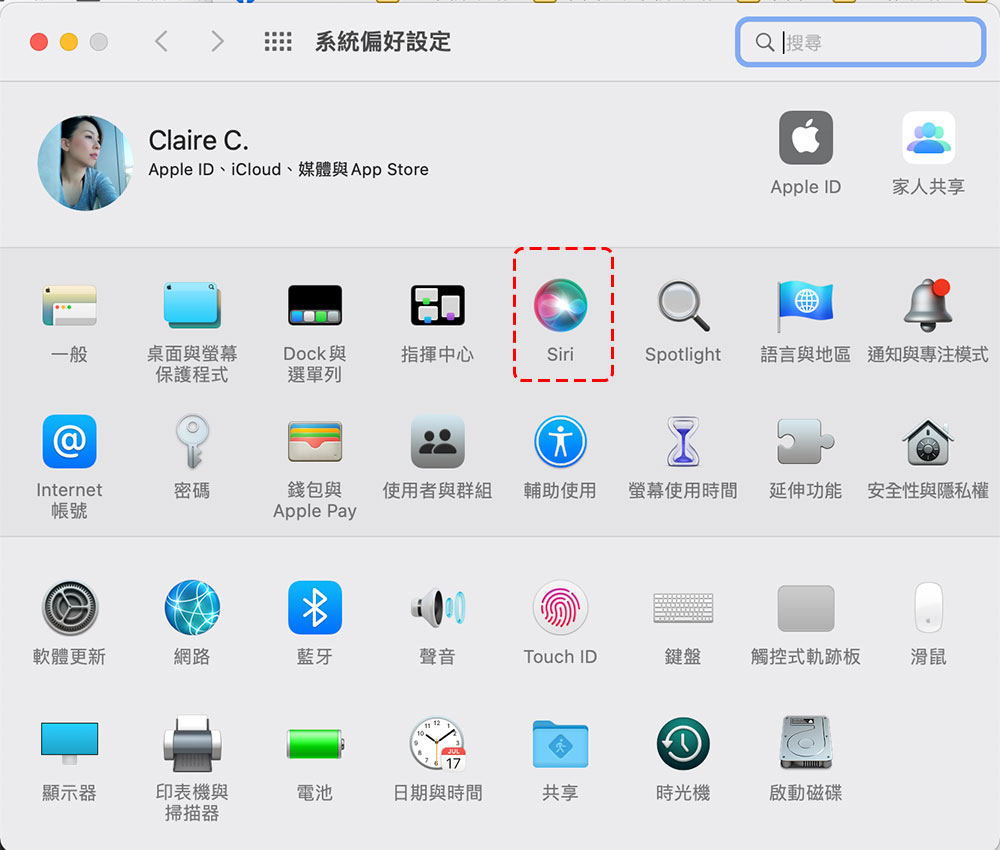
- Open “System Preferences” and select the “Siri” item.
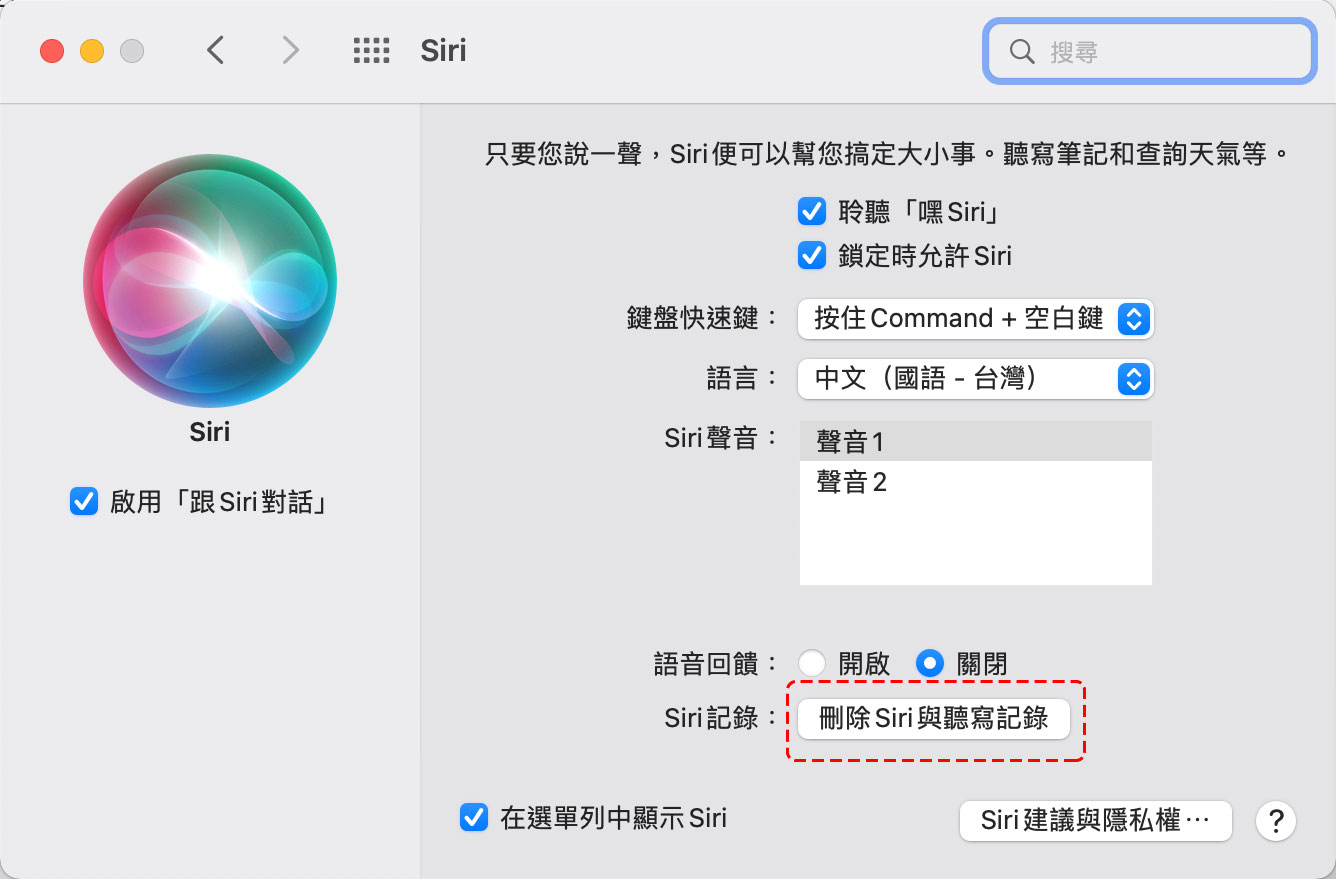
- Click “Delete Siri and Dictation History” at the bottom of the window.
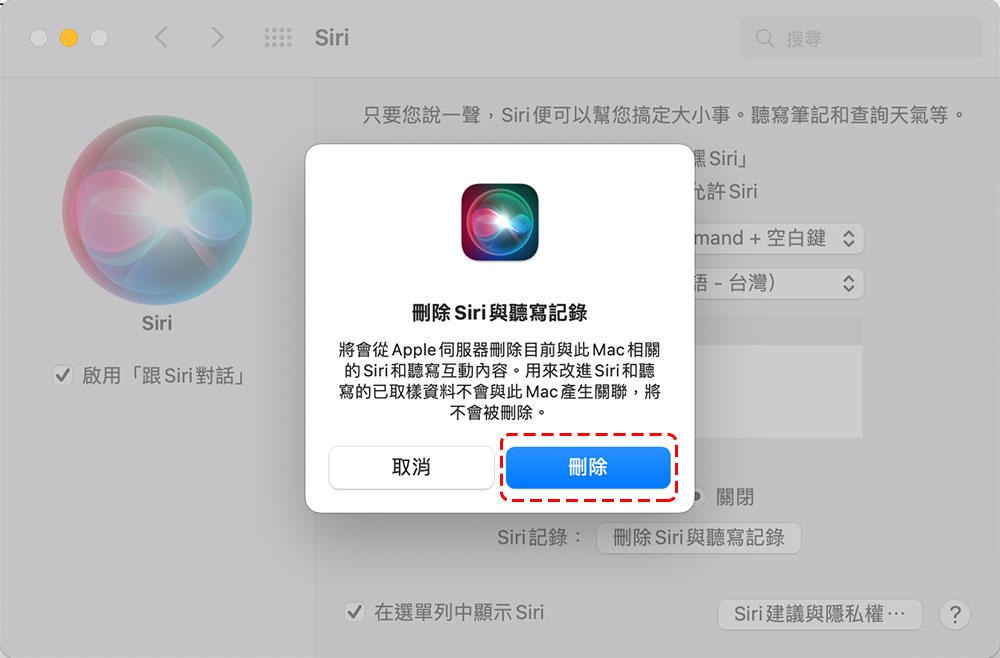
- Then click “Delete” in the confirmation window.
iPhone
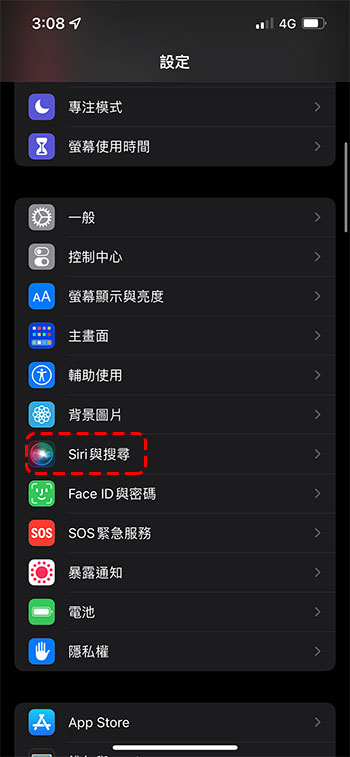
- After opening the Settings app, find the item “Siri & Search.”
- Click “Siri and Dictation Recording” on the next page.
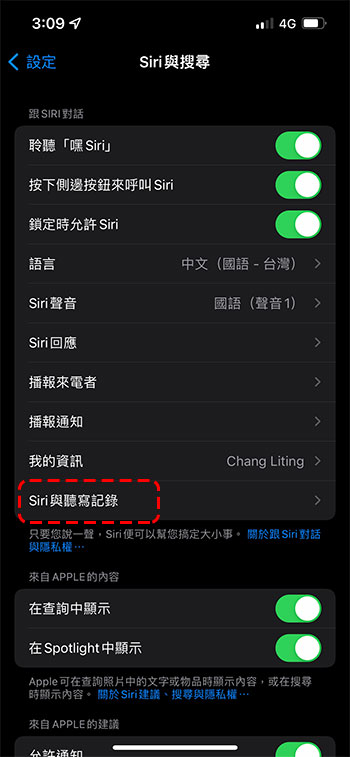
- Then press “Delete Siri and Dictation Records” at the end.
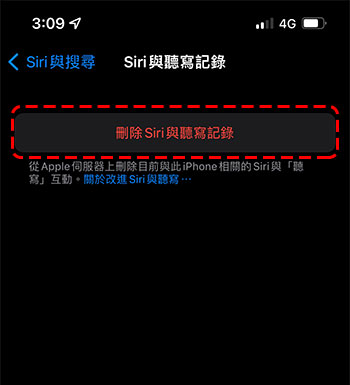
After deleting Siri’s records, the voice commands and dictation input you have made will be removed. However, the great thing is that the improvements made to the voice assistant after being sampled will not be affected. That is to say, Siri will not be reset to zero and need to be re-trained. It can still choose appropriate words and text for you based on your speaking style and input habits.
Source: KOCPC Chinese