


The latest Windows 11 There should still be many people getting used to and learning about the operating system, but what most people are asking now is how to switch Windows 11 to their own custom input method in different applications. Because everyone’s habits are different, the input method always needs to be switched back and forth. Most people We are all accustomed to using English and Traditional Chinese, but if all applications are preset to use Traditional Chinese, it will become very difficult to use when writing programs or opening command window applications. Therefore, we only need to turn on “Switch Input Method” to switch to the input method we are accustomed to according to different applications.
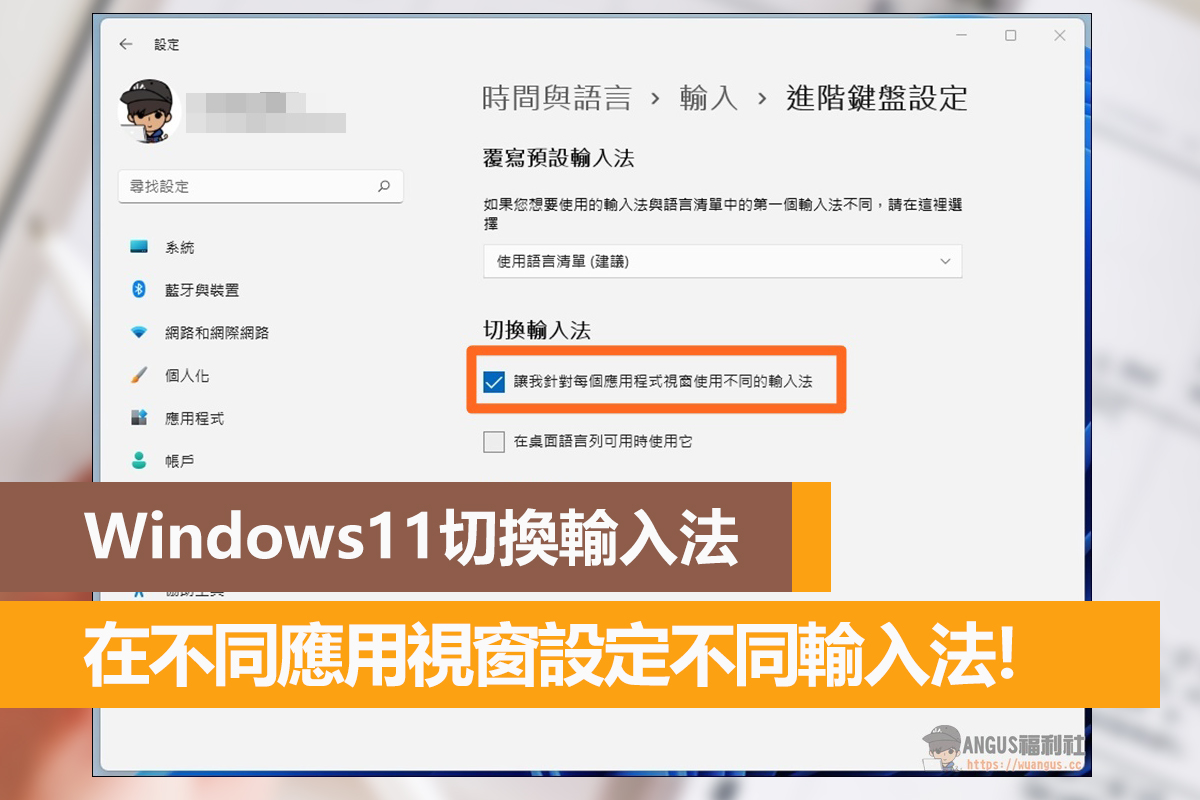
Windows 11 switching input method tutorial
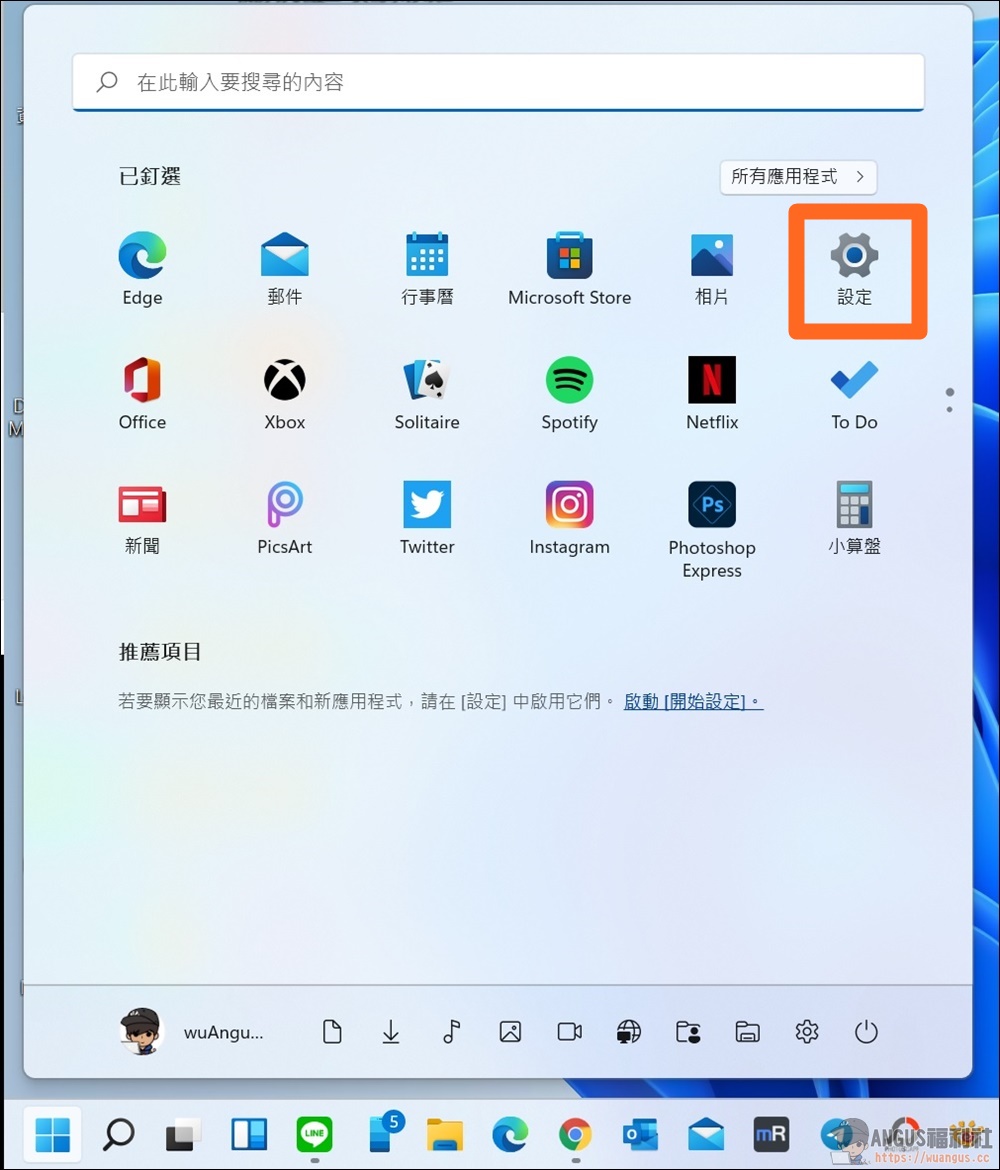
First, press “Start” in the lower left corner > enter the “Settings” tool.
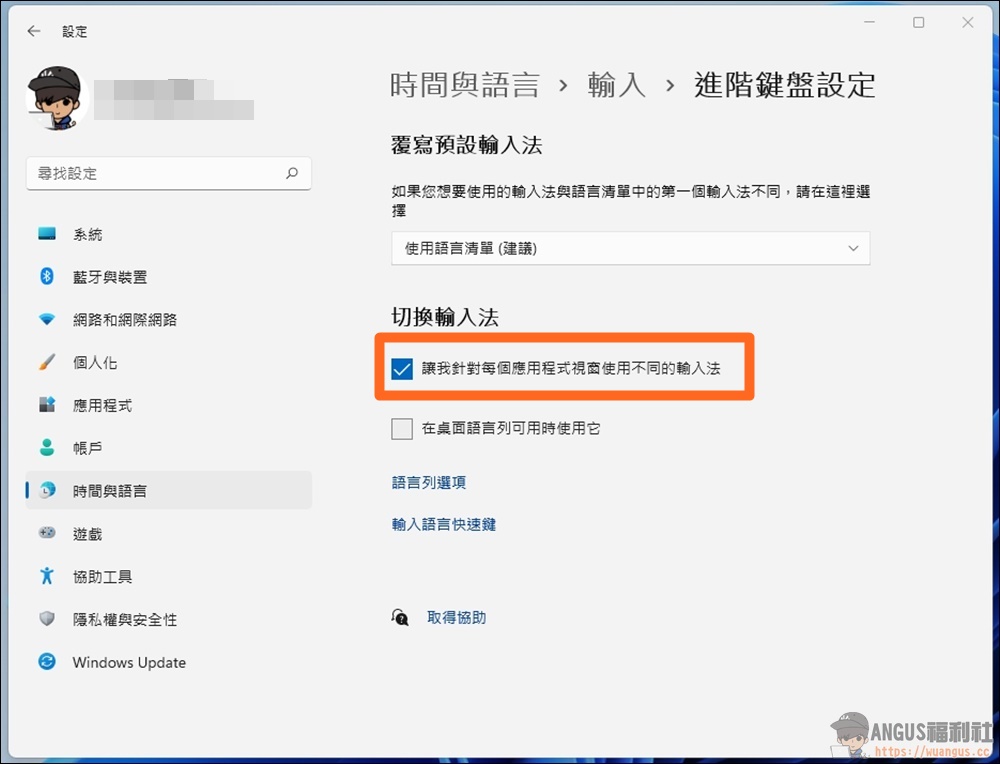
Next, go to “Time and Language” > “Input” > “Advanced Keyboard Settings” and directly check the option “Let me use a different input method for each application window” to switch input methods. This way the operating system will memorize the input method you usually use in the window, so that it will not jump back to the default input method every time you open an application, LINE, or chat room window.
More Windows application tutorials
- Solve Fortinet SSL VPN cannot connect Windows RDP connection dropped!
- Advanced SystemCare 15 PRO, a deep optimization tool for Win system!
- Free and painless upgrade to Windows 11, officially launched to join the tester program!
- Official recommendation: Open a DWG file browser and view AutoDesk images without spending any money!
- Reinstall Windows 10, restore internal key functions with one click, save 800 yuan!
- A super practical file management tool, let Q-Dir help you plan your files!
Source: KOCPC Chinese