


In the past, we have introduced the free PDF online service officially launched by Adobe.Adobe Acrobat Online Services”, and every time you want to use it, you need to manually open this website, and then select the PDF function you want to use. For people who use it frequently, it may be very cumbersome. At this time, I highly recommend installing the Adobe Acrobat extension function, which is supported by Chrome and Edge. After installation, when you want to use it in the future, just select it directly from the upper right, which is convenient and fast.

Official Adobe Acrobat extended function introduction, an easier way to convert and edit online PDFs
Here I use the Edge browser as a demonstration, and the Chrome operation is similar. After entering the extension store page, click “Add to Chrome” on the upper right:

This prompt will pop up above, click on Add Extension Function:
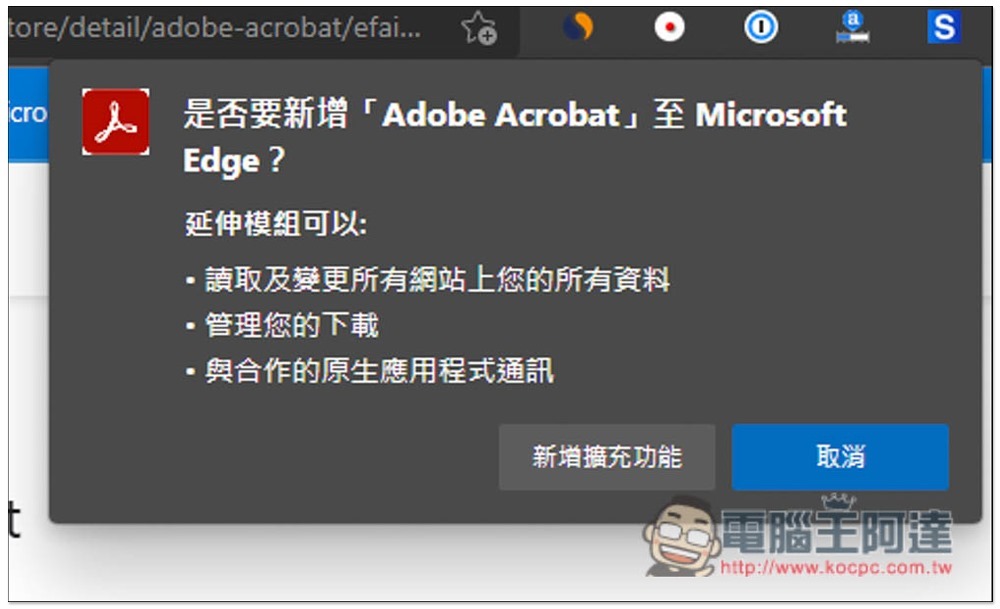
Then the Adobe Acrobat extension icon will appear on the upper right. If it is not there, please open it in the management extension function. You may need to wait for a while after installation. You can start using it after the icon lights up. Open it and you will find “Convert”, “Edit”, and “Sign”:

The editing section allows you to reorder PDF pages, rotate them, or delete them. If you want to sign, you can sign or ask the other party to sign. Detailed instructions can be given.Refer to this article:

After opening the function you want to use, you will automatically enter the Adobe official website. I will convert to PDF as an example. Word, Excel, PowerPoint, JPG, PNG and other image files are supported:
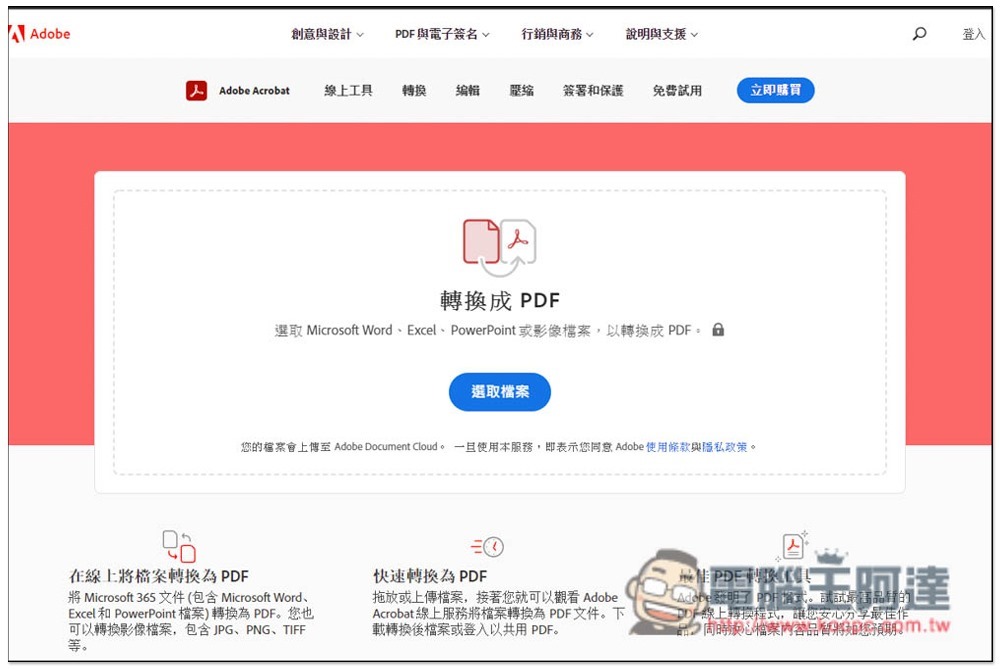
After dragging the file in, the upload and conversion will begin:

When completed, you will also be able to preview the file. If there is no problem, click Download on the right. You can use the converted file without logging in:

It’s done like this:

Source: KOCPC Chinese