


Whether we are discussing work, family, or connecting with friends, we often create temporary multi-person chat rooms or groups on LINE. However, every time we create a new group, we have to wait for the other party to accept the invitation before we can start the discussion. Now LINE has finally integrated “multiplayer chat rooms” and “groups”! From now on, users can freely check whether they need to set up automatic joining when creating a LINE group, making multi-person chat more convenient!
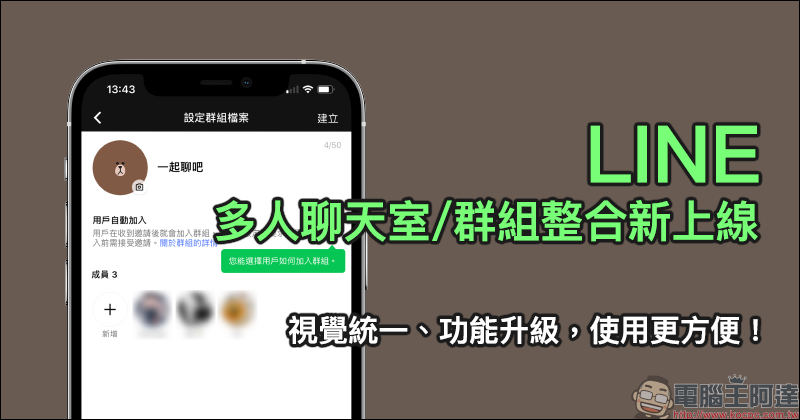
LINE multi-person chat room/group integration is newly launched! Unified vision, upgraded functions, more convenient to use!
Recently, LINE officially integrated multi-person chat rooms and groups and launched it first on iOS. As long as iOS users update LINE to version 11.5.0 (inclusive) or above, or directly update to the latest version, they can use it. The Android system and computer versions will be released later.
Simply by looking at the table below, you can understand the difference before and after integration in one second!
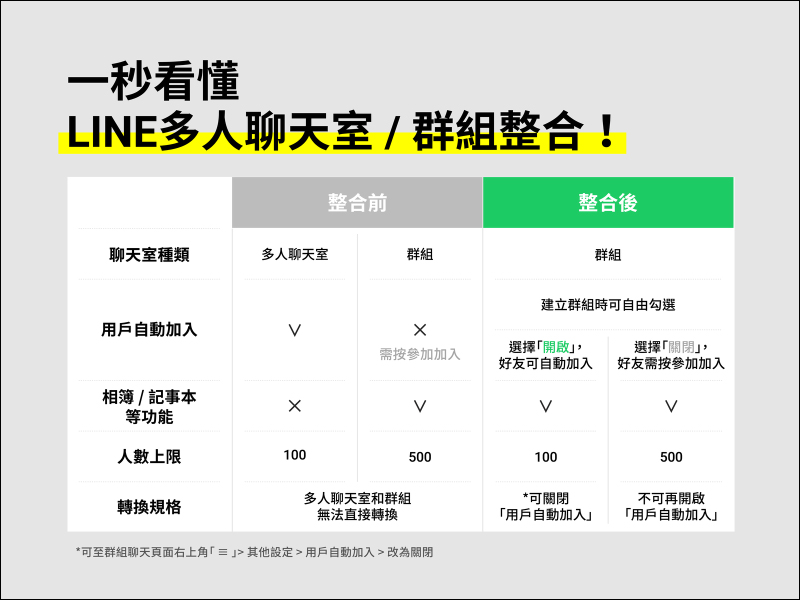
▲Picture source:LINE Taiwan official BLOG
After the update, although the process of creating a group is still the same, there are some more small details to choose from.
First, click on the image in the upper right corner of the LINE chat page to create a “Chat Room” or “Group”. Whichever you choose in this part can create a LINE group in the subsequent process. For example, after choosing to create a “Chat Room”, select multiple members and click “Next”:
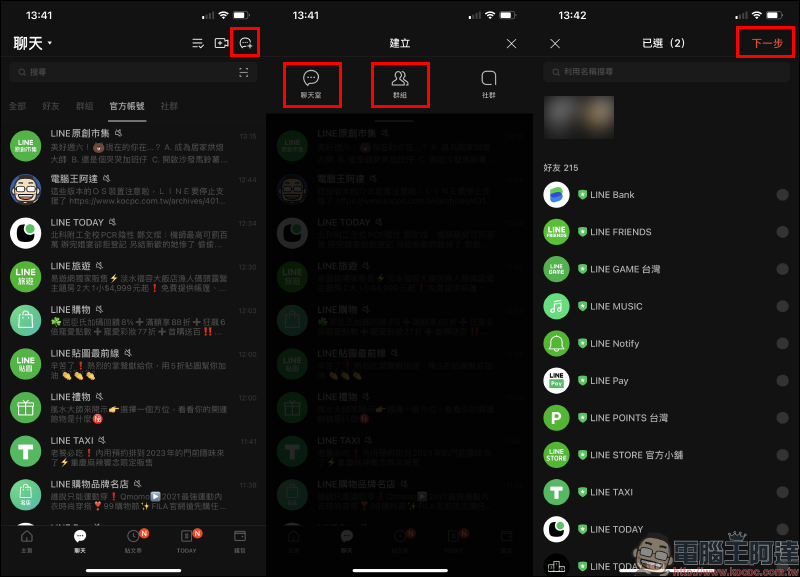
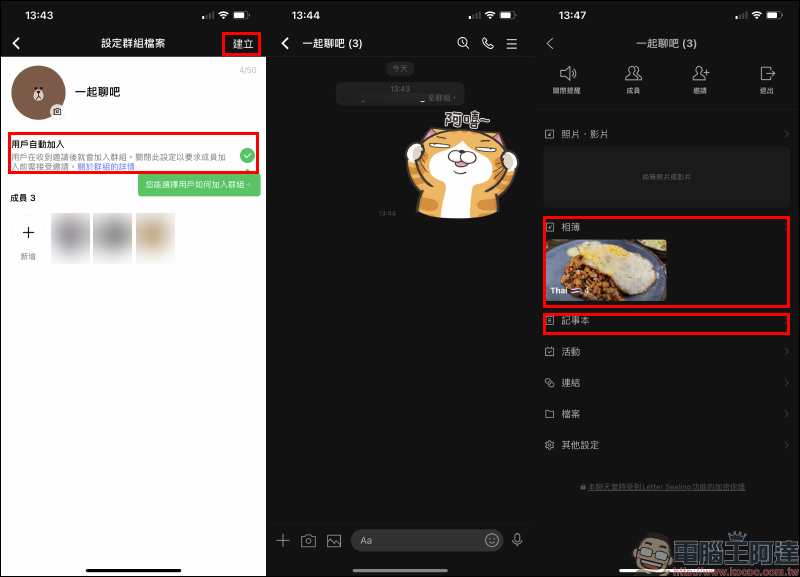
Even if you choose to create a chat room, you can still create a group on the “Set up group profile” page if you select multiple members. Users can choose whether to turn on the “User Auto-Join” function. If it is turned on, they can join the group directly without the other party pressing to join. (*Tips: Once closed, it cannot be opened in this group).
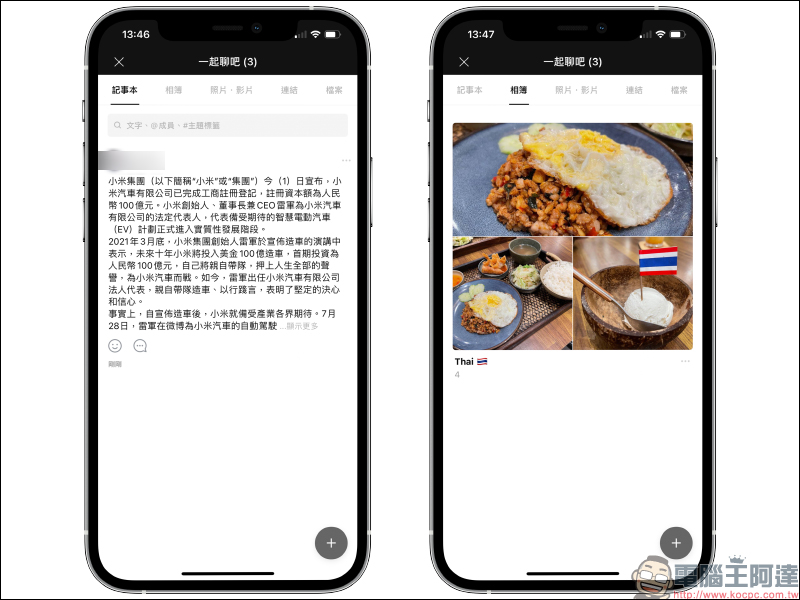
Compared with the past, when you set up a “multiple chat room” on LINE and could not use photo albums and notepads, after integrating with “groups”, you can finally use group functions such as “photo albums” and “notepads”.
If the selected member list has the same group when creating a group, the system will also remind you of the existing group. At this time, you can choose to inherit the existing group or create a new group.
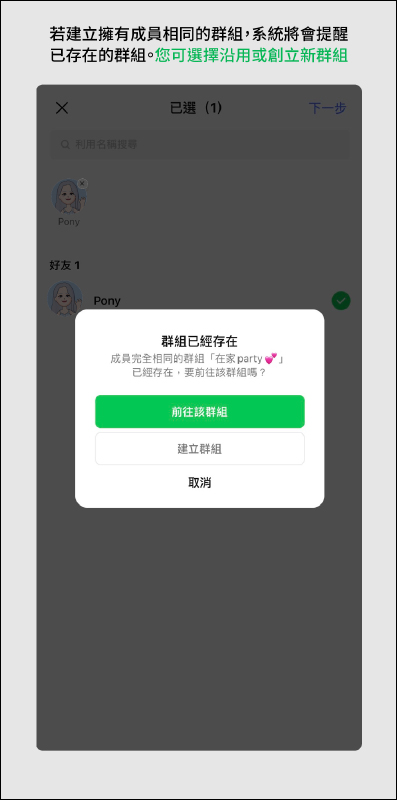
▲Picture source:LINE Taiwan official BLOG
Source:LINE Taiwan official BLOG
Further reading:
LINE application tips: What should I do if I accidentally press “Delete” when I want to “take back” a message? Learn this trick to solve it easily!

Source: KOCPC Chinese