


Although Windows 10 search has indeed become more and more user-friendly in recent years, as the functions increase, there will be some functions that are completely impractical. Web results are one of them. I believe that few people will use this to search for information online, not to mention that it still uses Bing to search. Ignoring it is one way, but with one more search result, the speed will definitely slow down a bit, and sometimes you may even accidentally click on it, so I will tell you how to turn off this “web result” below.
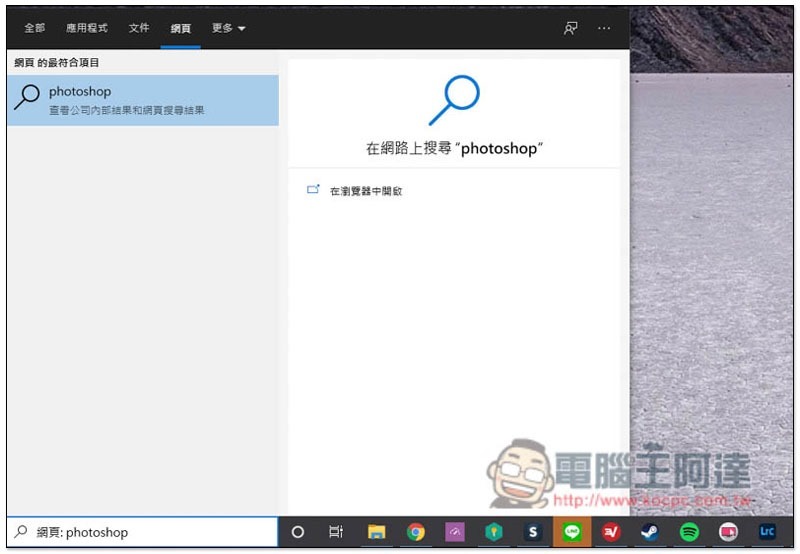
Steps to turn off web results in Windows 10 Search
In the past, this feature could not be turned off, but with the launch of Windows 10 20H1 and 20H2, Microsoft has finally delegated this permission, which means you must upgrade to these two versions to do it.
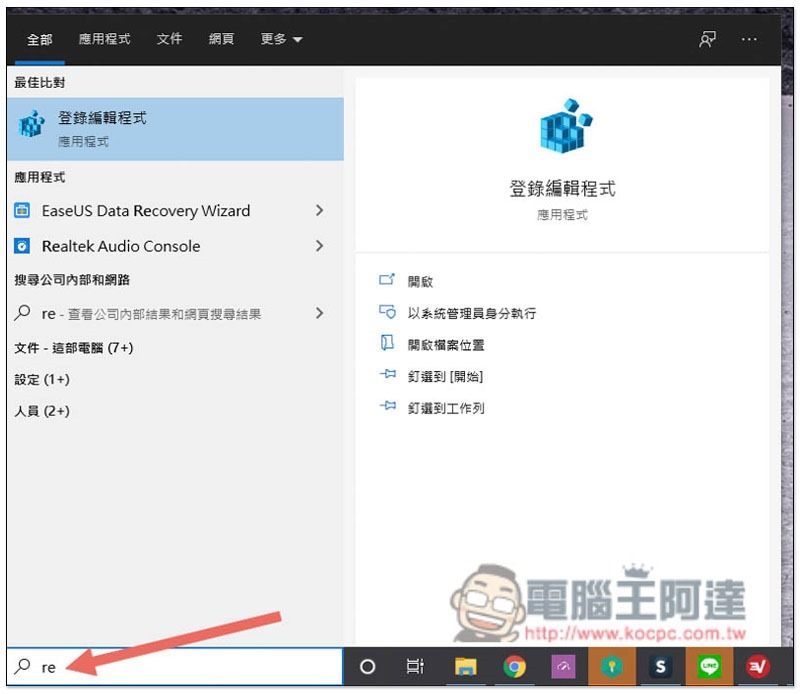
First, please open the “Login Editor”. You can enter re in the search, and the best matching results should appear:
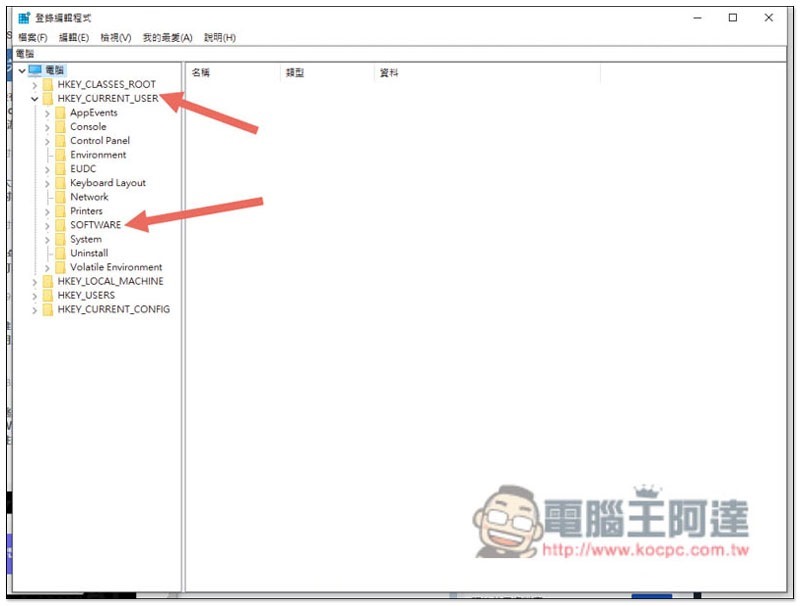
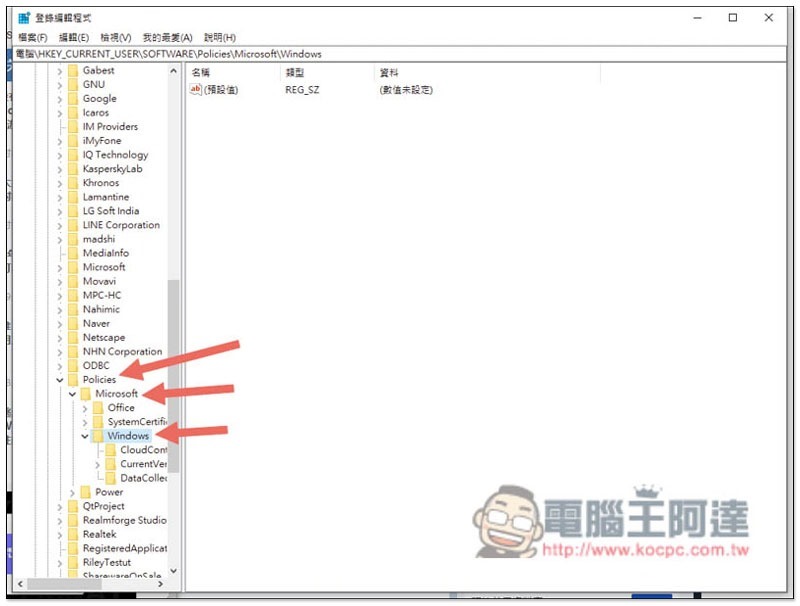
Then please enter the following path: HKEY_CURRENT_USER/SOFTWARE/Policies/Microsoft/Windows/
As shown in the figure below, first click HKEY_CURRENT_USER, then click SOFTWARE:
Scroll down to find Policies, then Microsoft & Windows:
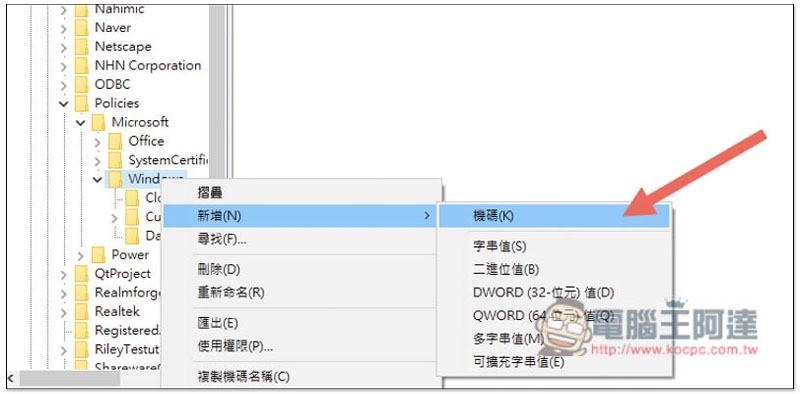
Open the right-click menu of the Windows folder and click New –> Computer Code:
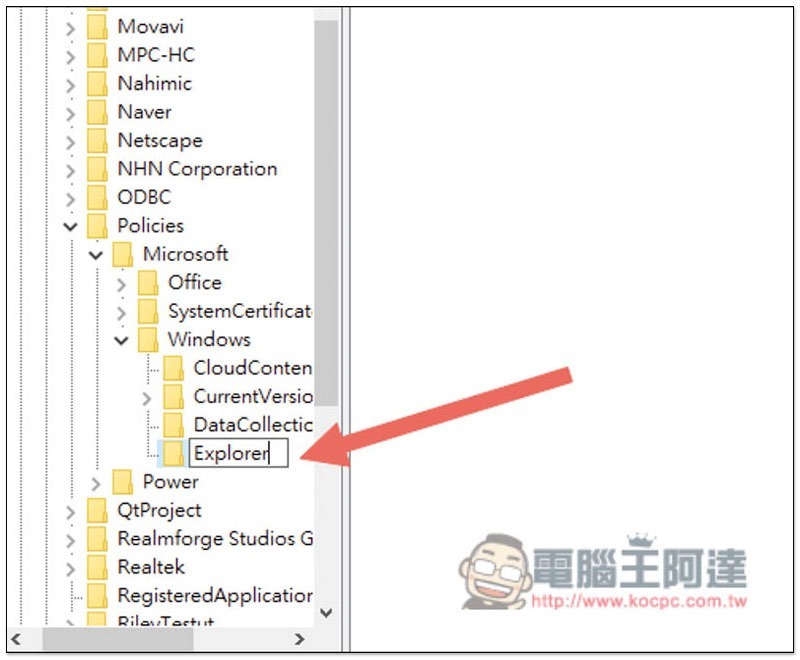
A new folder will appear on the left, please name it Explorer:
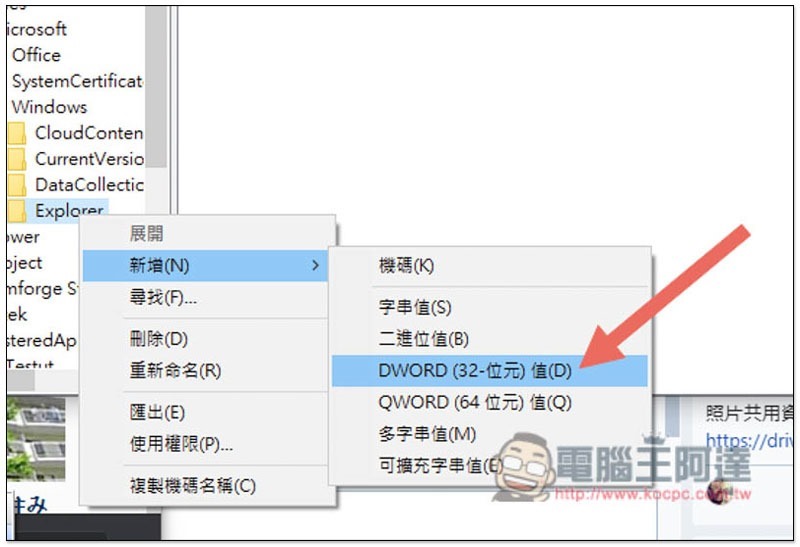
After naming is completed, open the Explorer right-click menu and click New –> DWORD (32-bit) value:
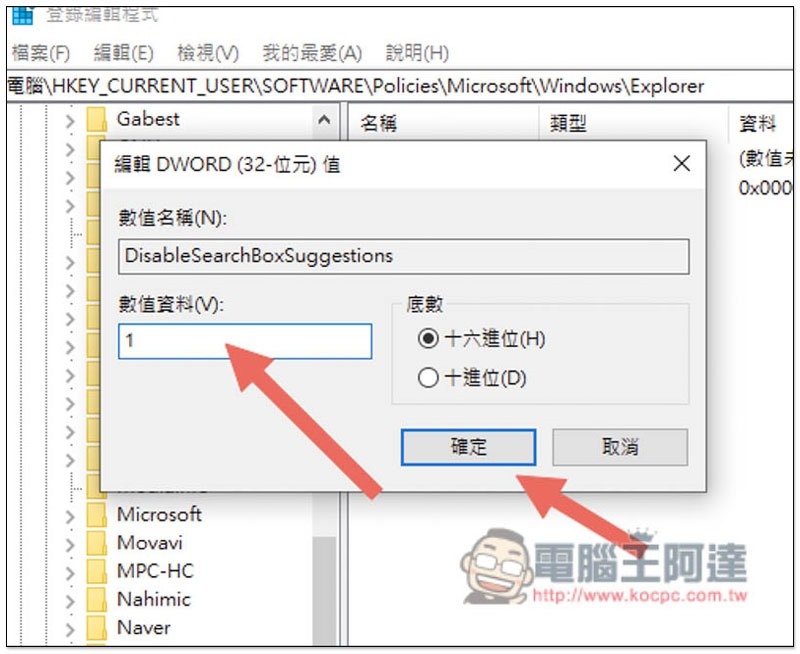
Please name the new DWORD 32-bit value that appears on the right screen “DisableSearchBoxSuggestions”:
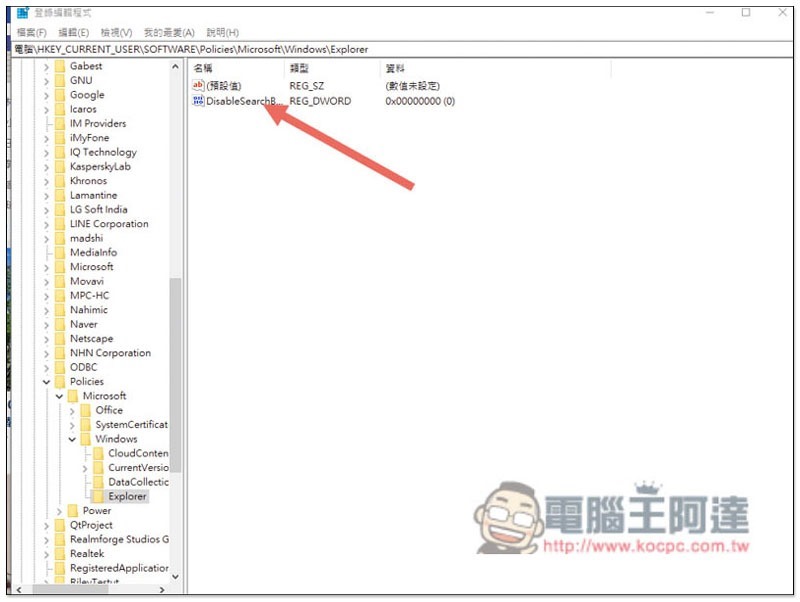
Finally, click the left mouse button twice, change the numerical data to 1, and click OK, and you are done:
After the above steps are completed, you need to restart your computer for it to take effect. In the future, web results will no longer appear when searching for anything through the Windows 10 search function. For personal use, I also feel that the speed does improve after turning it off. It should be more obvious for computers with poor hardware:

Source: KOCPC Chinese