


Google’s latest launch a few days ago Chrome version 88, in addition to officially canceling support for Adobe Flash Player, it also quietly added a very practical tab search function “Tab Search”, which allows you to quickly find open web page tabs by entering keywords, which is very convenient for users who often open many tabs. However, this function is turned off by default. Let’s teach you how to turn it on.

Chrome 88’s new and useful hidden feature: Tab Search introduction to paginated search
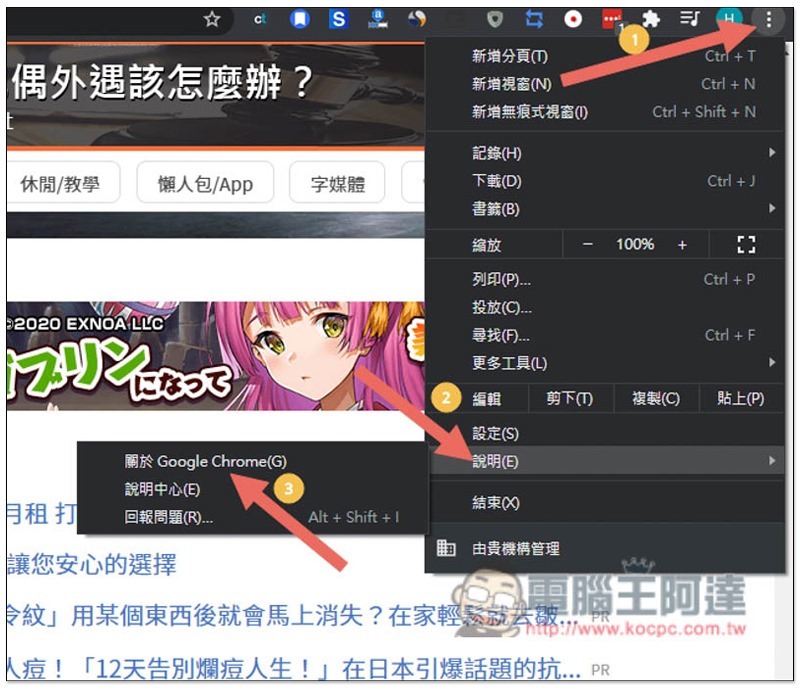
First, you must confirm that Chrome has been upgraded to the latest Chrome 88 version. Those who don’t know can open the menu in the upper right corner and click Help –> About Google Chrome:
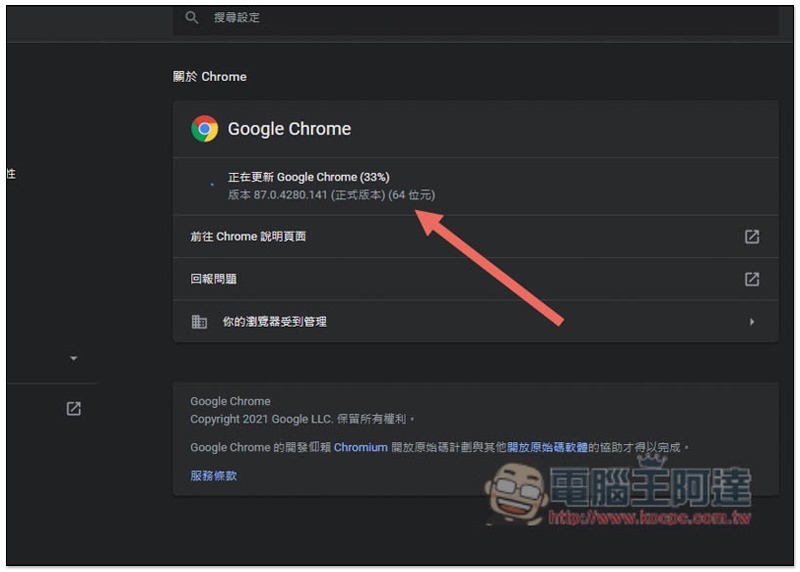
This page will open automatically. If you haven’t updated like me, Google Chrome will automatically enable updates below:
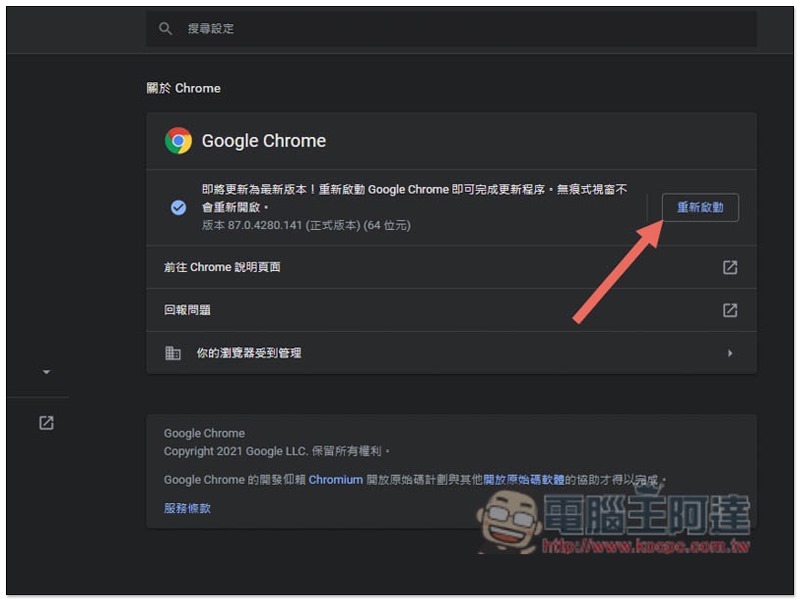
After the update is completed, you need to restart Google Chrome, click Restart on the right:
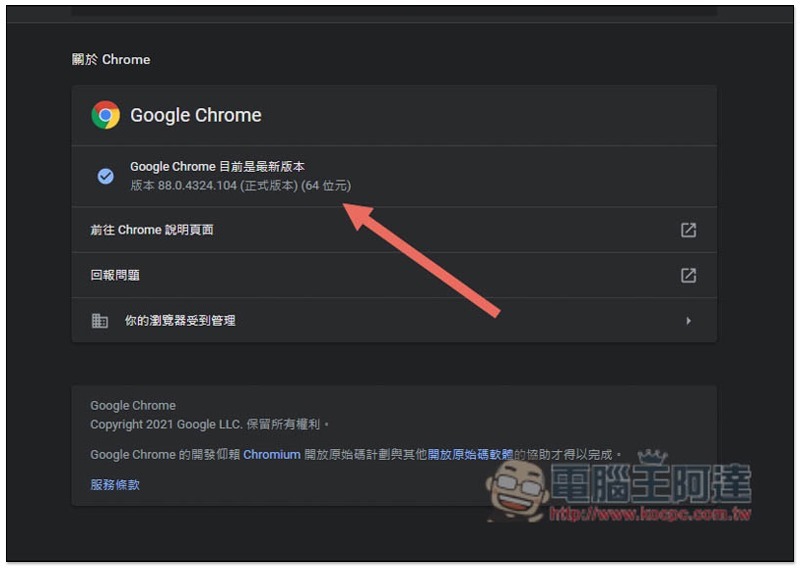
It will open until your Chrome version changes to 88:
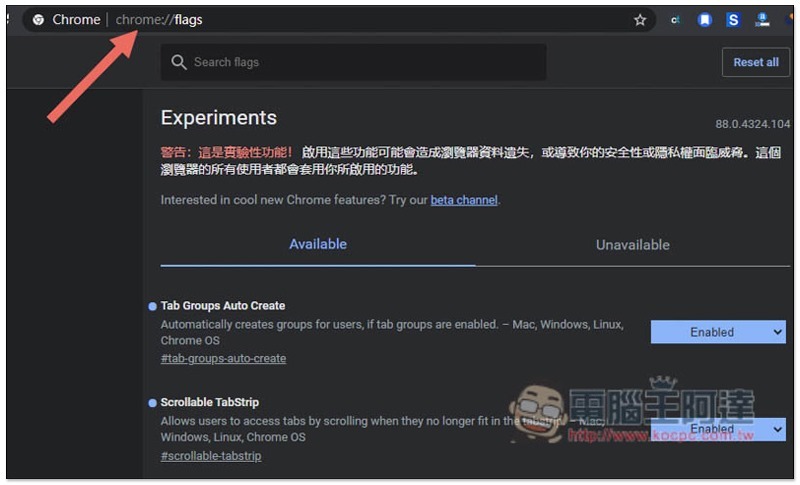
At this time, please enter “chrome://flags/” in Chrome’s address bar to enter the implementation page:
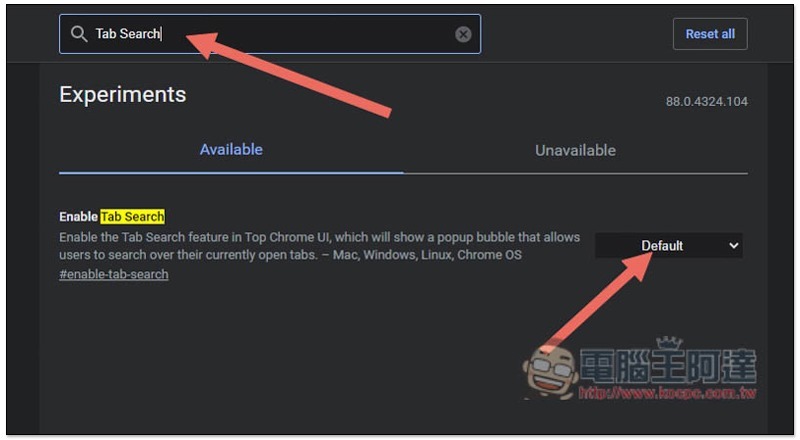
Enter the Tab Search keyword, and the Available menu below will display this function. Click the Default option on the right:
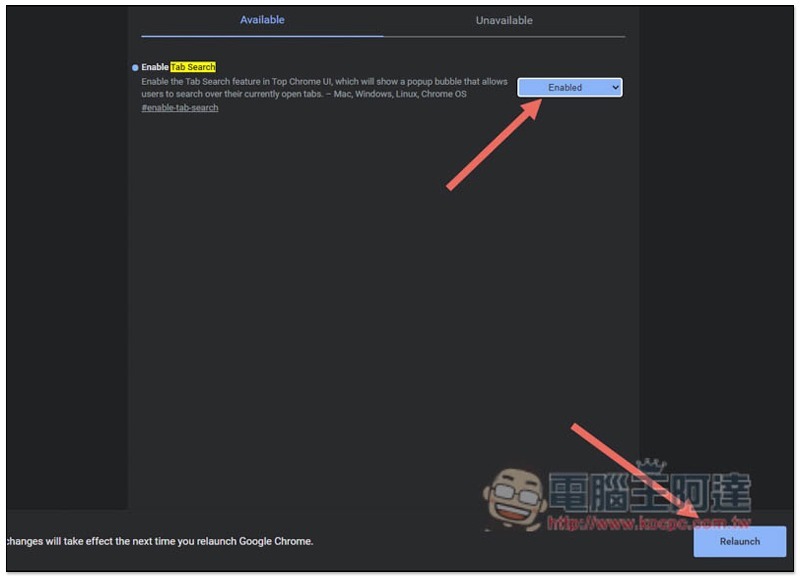
Change to Enabled to start, and then click the Relaunch function in the lower right corner:
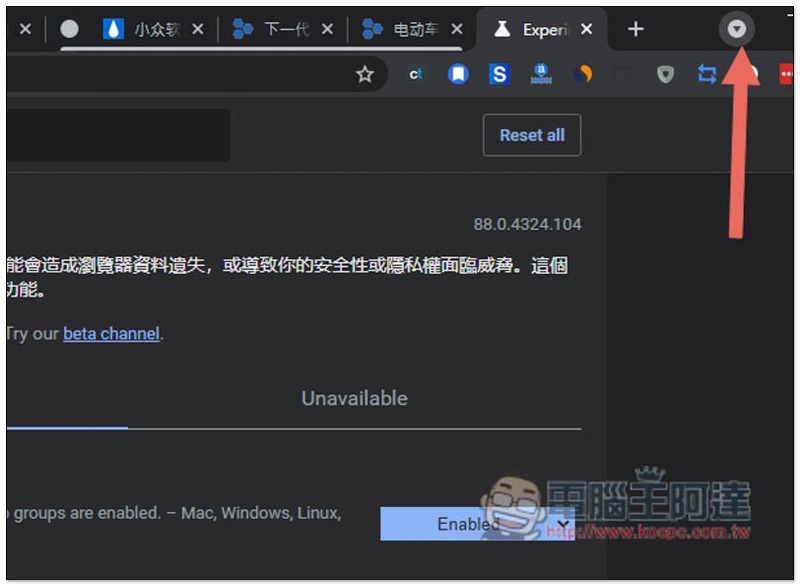
After Chrome restarts, there will be an inverted triangle on the far right side of the web page:
All web page tabs you currently have open will be displayed in list form:
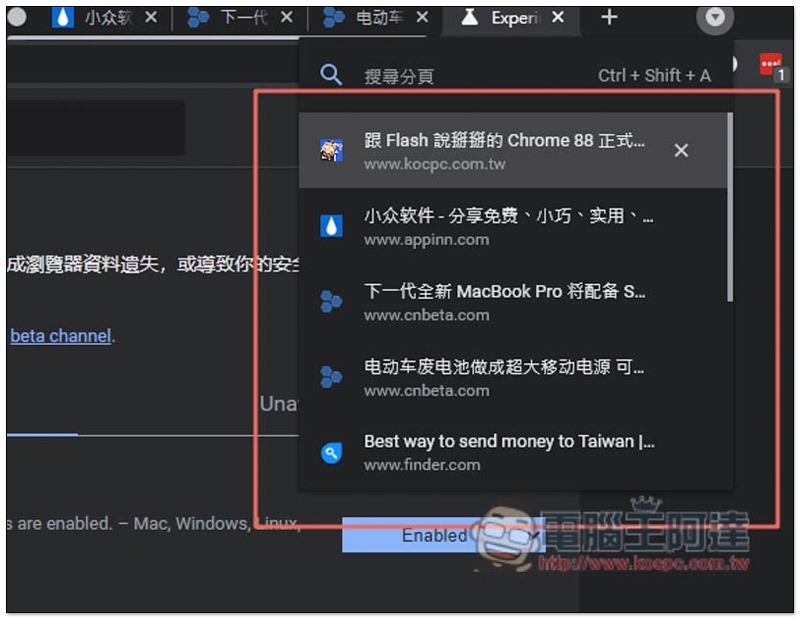
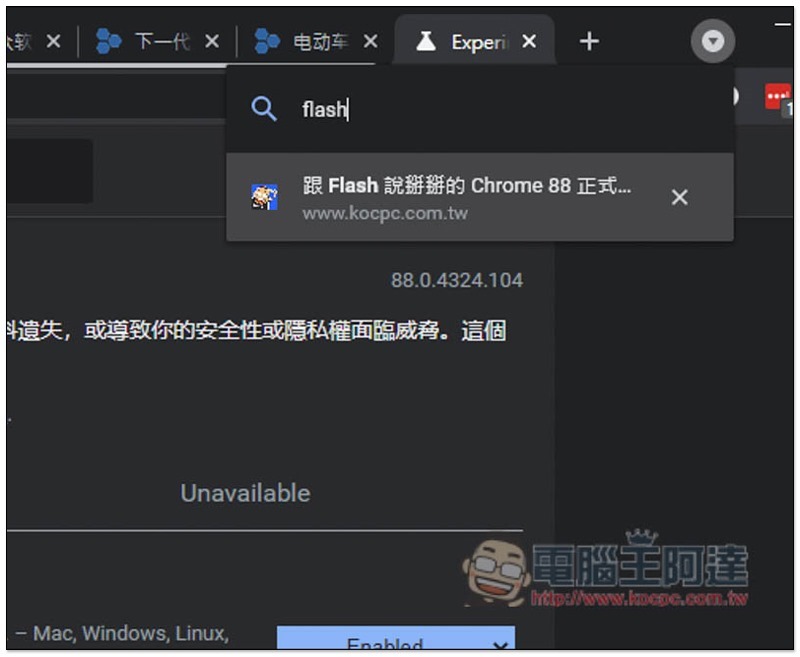
There is a search function at the top. Entering keywords will only display matching web pages. This means that even if you open 30 or 50 pages, as long as you remember the name of the page, you can quickly find and continue browsing:
In addition to the Tab Search tab search function, Chrome 87 also has a highly recommended “Automatically Create Tab Group” function, which will automatically help you group tabs on the same website. If you don’t know how to use it yet, you canRead this tutorial。
Source: KOCPC Chinese