


We have introduced previouslyUse shortcut scripts to customize iPhone App icons, although everyone can decide for themselves what pattern to use, but the operation is a little more troublesome. If you want to modify many Apps icons, you have to repeat it. Therefore, this article recommends a free app for lazy people: “moloko”, which collects a lot of iPhone icons theme icons. You can get and create them by installing them in just a few steps. And unlike scripts, this set of icon icons is like a normal app when opened, without any jump screen, which is more natural.
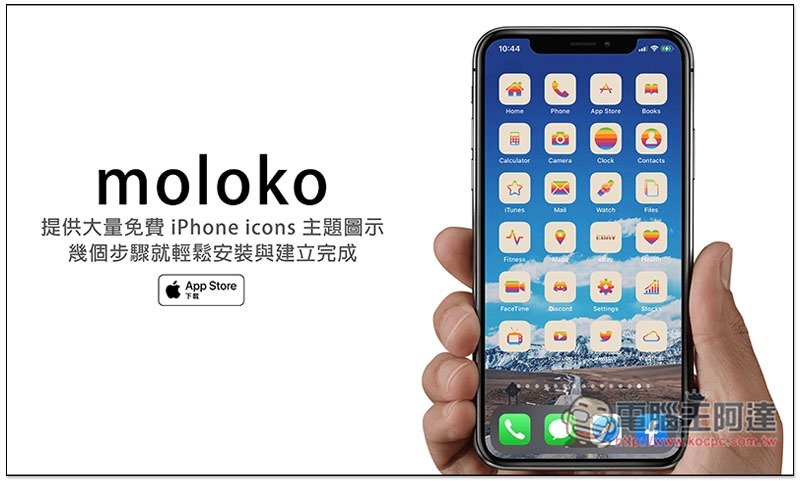
Moloko App Introduction
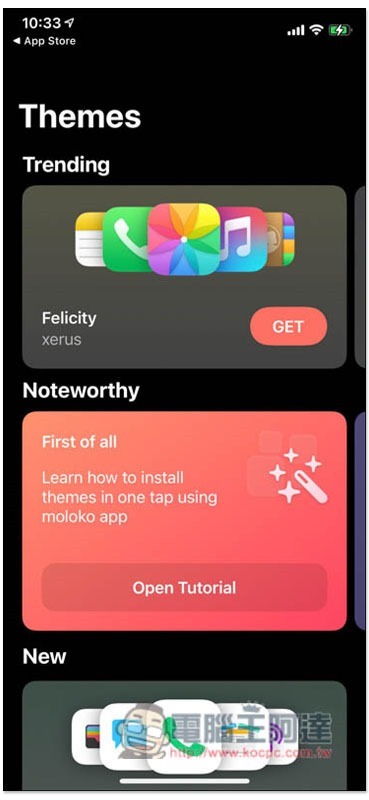
After opening Moloko App, the homepage will display the most popular and new icon themes. There are also tutorials below Noteworthy. If you don’t understand anything, you can take a look:
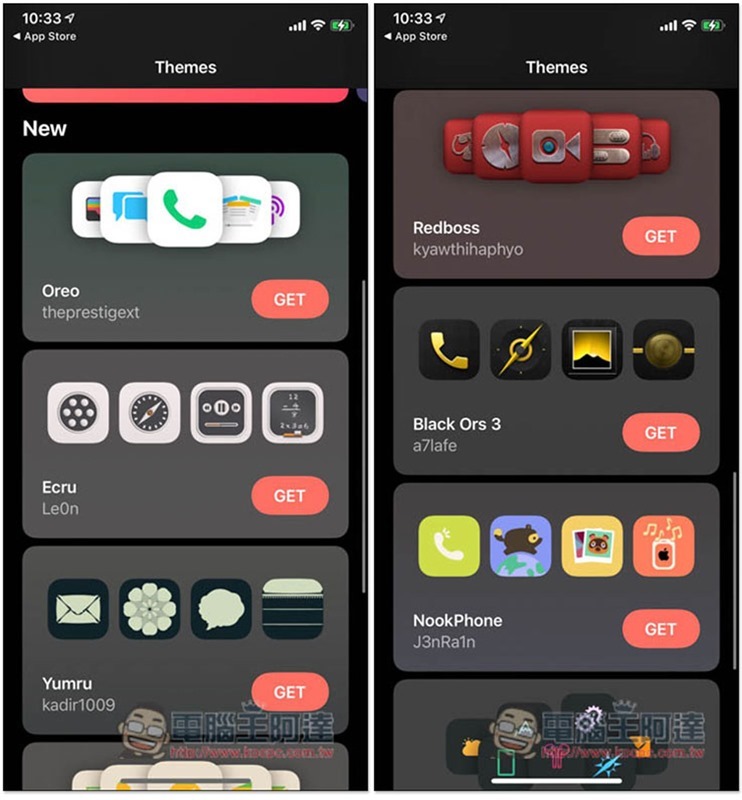
It will be updated at any time, so it is basically enough for you, and there are various styles, such as: cute, retro, popular, smooth, etc.:
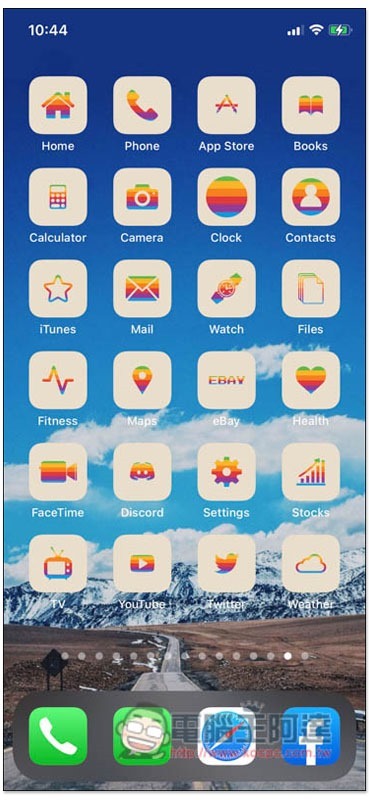
Take this 1984 Apple style as an example. After clicking on the inner page, you can view more App icon icon designs and schematic diagrams placed on the main screen:
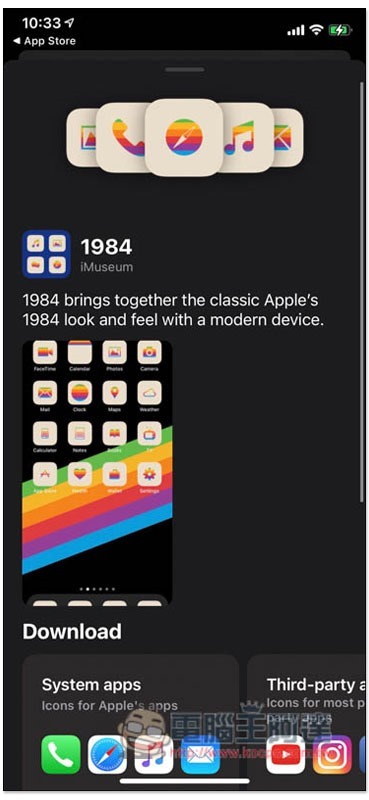
Each icon theme icon will be divided into two types: System apps (system apps) and Third-party apps (third-party apps). It depends on which one you need. You need to download both. Click below to Download:
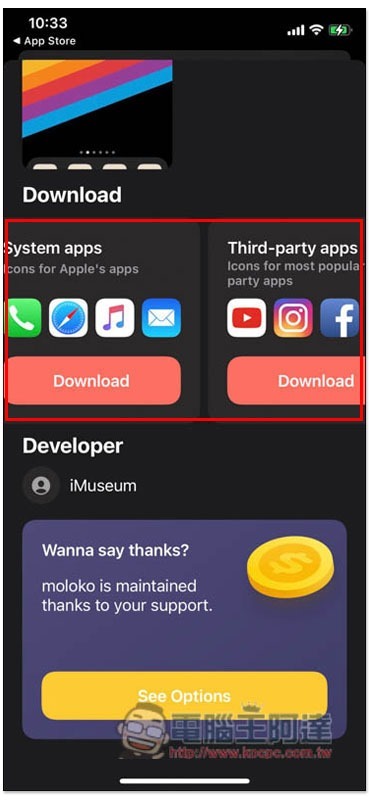
It will jump to the browser and ask to download the configuration description file. Click “Allow”:
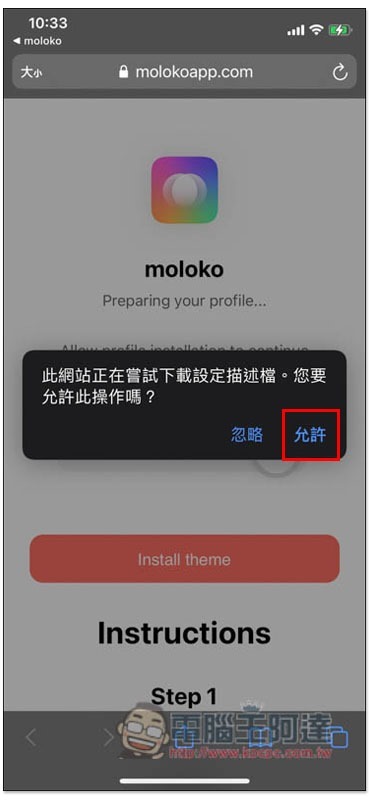
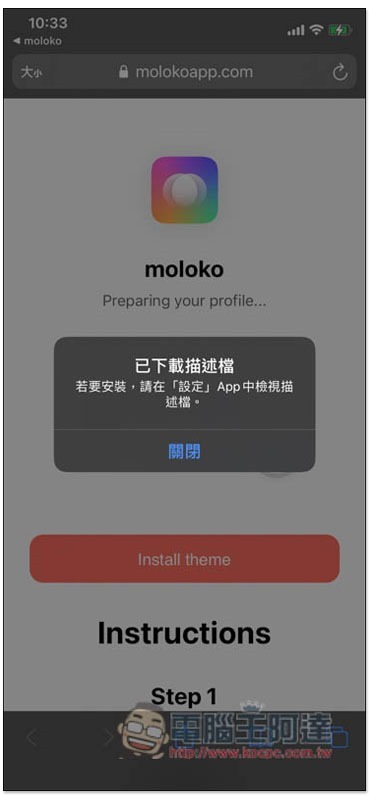
The download will be completed in about a second or two:
When you open the settings, a “Description file downloaded” prompt will pop up at the top. Click it to install it. Those who haven’t seen it can go to General –> Description File:
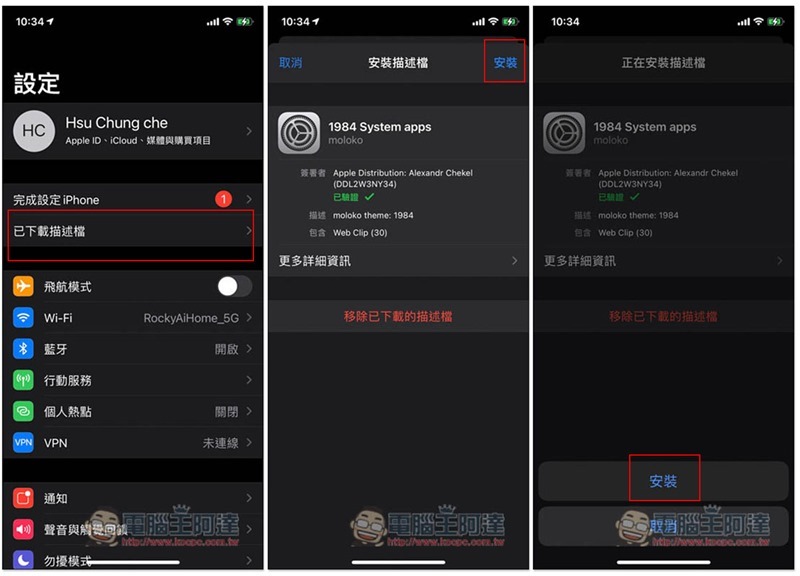
After the description file is installed, the icon theme icon will appear on the home screen. If your home screen has many pages, and each page is almost full of Apps, they may be scattered among different pages:
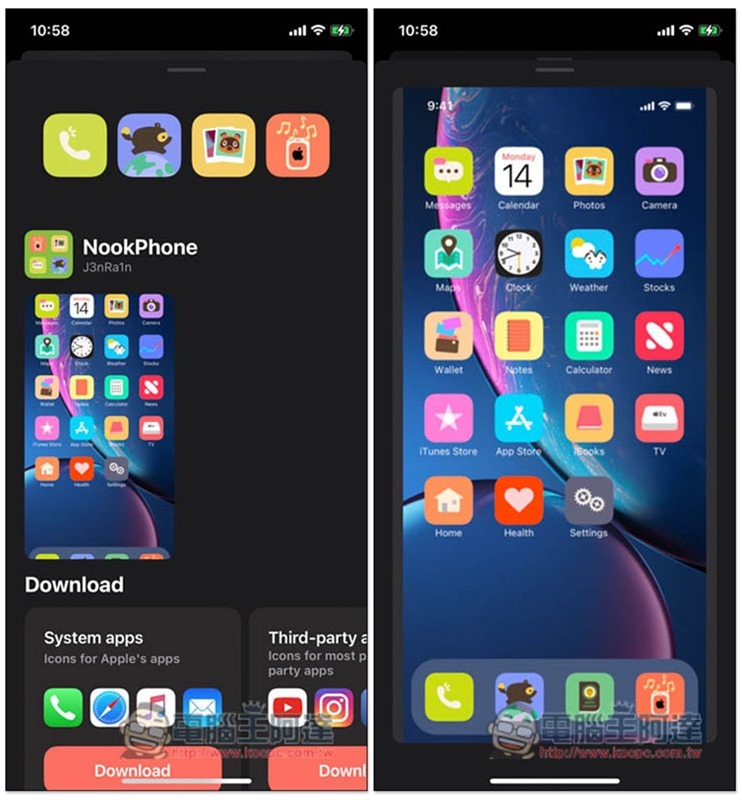
Animal Crossing-style icons are also available:
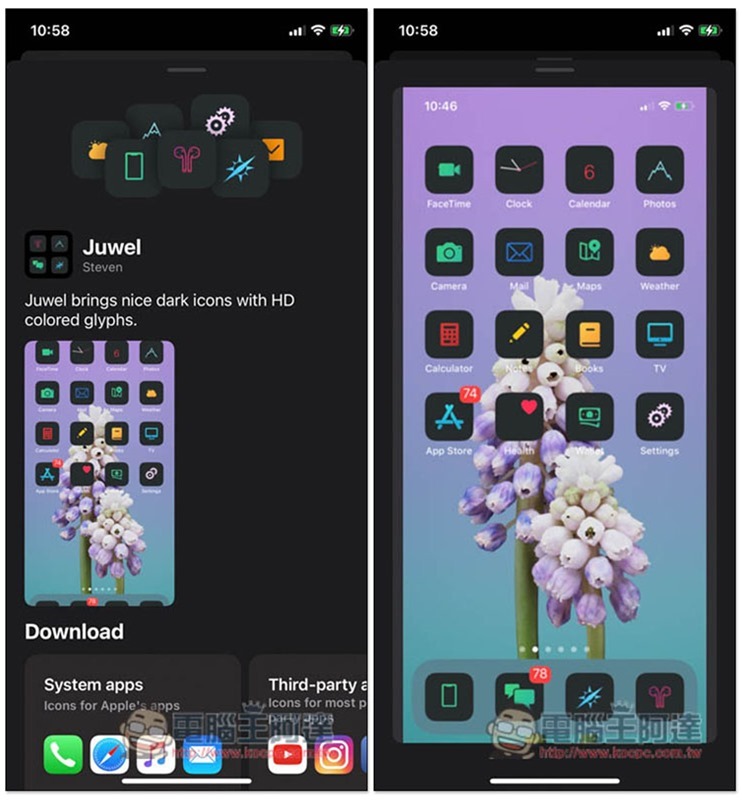
Dark style icons:
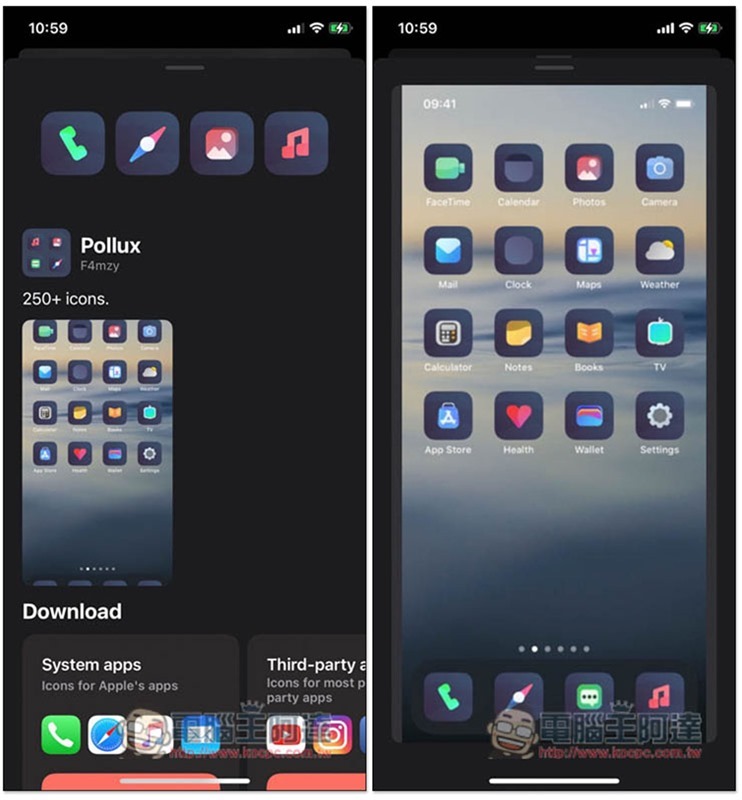
This set has over 250 icons, providing icons for many third-party apps:
Even iOS 6 classic style has:
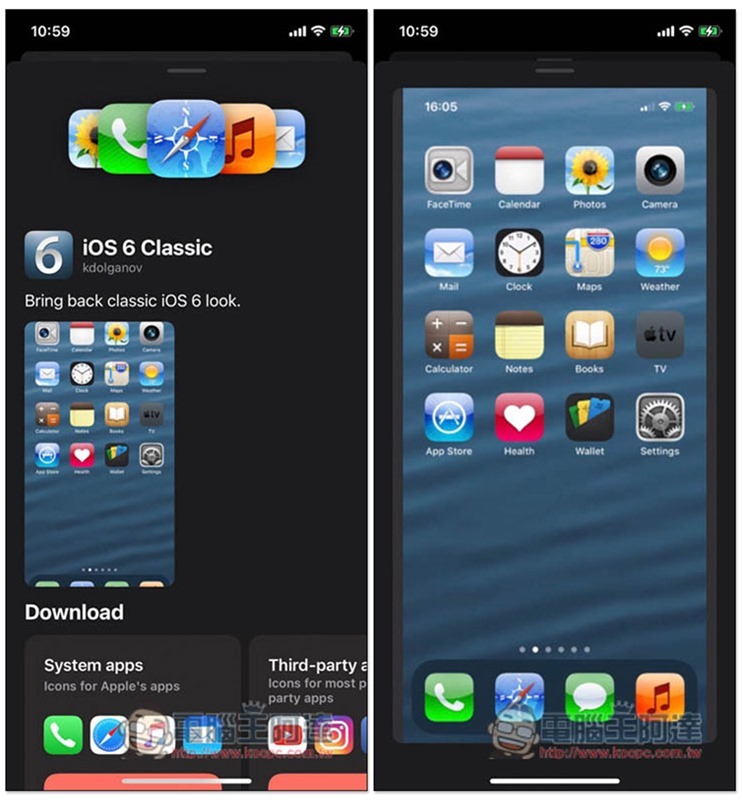
This set of created icon theme icons does not directly overwrite the original App, but uses browser bookmarks, so the original App will still be there. Note that there are two “phones” in the picture above (1984 style and original App).
Therefore, after creating new icons, you can organize the original Apps in a folder so that they will not occupy the main screen space.
In addition, this set also has a small disadvantage, that is, the icon name cannot be changed and can only be used in English.
How to delete the icons created by moloko?
There are two ways to delete. If you only want to delete a certain icon, just like in the past, you can see the “Delete Bookmark” function after long pressing:
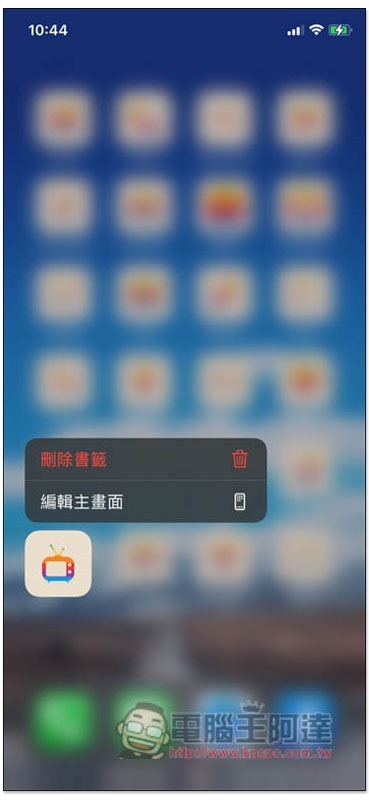
If you want to delete the entire set of icons, go directly to the description file and click “Remove Description File”. After removal, all icons will disappear:
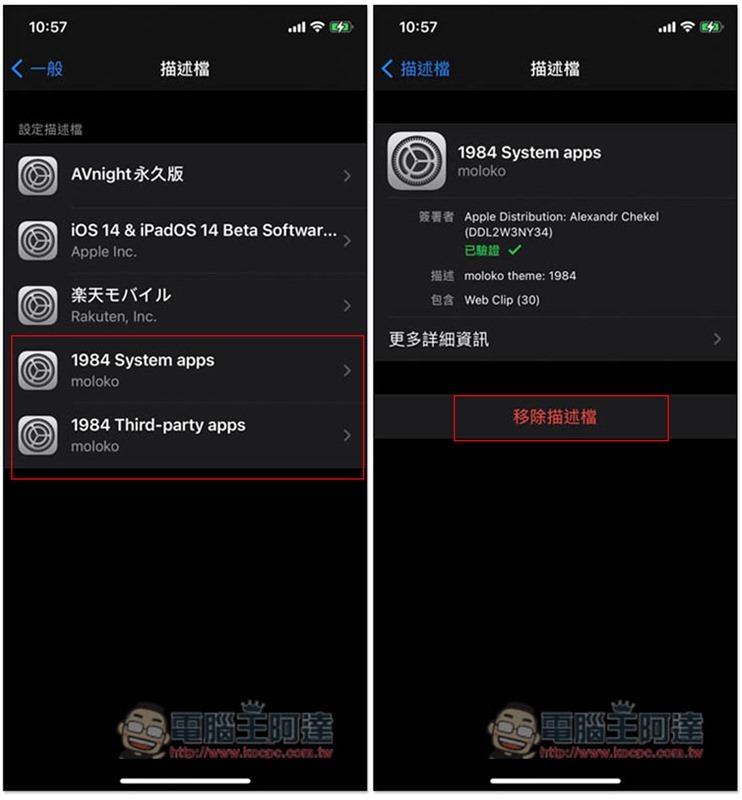
Please remember that this deletion only removes the icons and does not delete the original Apps.
Supplementary information
- moloko download page:Click here to go
Source: KOCPC Chinese